Page 346 of 665
346 3-2. Using the audio system
4RUNNER_U
Switching the displayPress .
Each time is pressed, the display changes in the following
order:
Track title Track title/Artist name Track title/Album name Track
title/Elapsed time
■ About iPod®
iPod® is a registered trademark of Apple computer, Inc.
■ iPod
® functions
● When an iPod
® is connected and the audio source is changed to iPod®
mode, the iPod® will resume play from the same point in which it was last
used.
● Depending on the iPod
® that is connected to the system, certain func-
tions may not be available. Disconnecting the device and reconnecting it
once again may resolve some malfunctions.
■ iPod
® problems
To resolve most problems encountered when using your iPod
®, disconnect
your iPod® from the vehicle iPod® connection and reset it.
For instructions on how to reset your iPod®, refer to your iPod® Owner's
Manual.
■ Error messages
“iPod ERROR”: This indicates a problem in the iPod
®, inside the
USB box or the connection between them.
“NO SONGS”: This indicates that there is no music data in the iPod
®.
“UPDATE YOUR iPod”: This indicates that the version of the iPod
® is not
compatible.
Page 347 of 665
347
3-2. Using the audio system
3
Interior features
4RUNNER_U
■
Compatible models
● iPod
® 5th generation Version 1.2 or later
● iPod
® nano 3rd generation Version 1.0 or later
● iPod
® nano 2nd generation Version 1.1.2 or later
● iPod
® nano Version 1.3 or later
● iPod
® touch Version 1.1 or later
● iPod
® classic Version 1.0 or later
iPhone
®, iPod® mini, iPod® shuffle, iPod® photo and 4th generation and ear-
lier models of iPod® are not compatible with this system.
Items related to standards and limitations are as follows:
● Maximum number of lists in a device: 9999
● Maximum number of songs in a device: 65025
● Maximum number of songs per list: 65025
CAUTION
■Caution while driving
Do not connect iPod
® or operate the controls.
NOTICE
■To prevent damage to iPod®
● Do not leave iPod® in the vehicle. The temperature inside may become
high, resulting in damage to the player.
● Do not push down on or apply unnecessary pressure to the iPod
® while it
is connected as this may damage the iPod® or its terminal.
● Do not insert foreign objects into the port as this may damage the iPod
® or
its terminal.
Page 353 of 665
353
3-2. Using the audio system
3
Interior features
4RUNNER_U
●
MP3 file compatibility
• Compatible standards
MP3 (MPEG1 AUDIO LAYERII, III, MPEG2 AUDIO LAYERII, III,
MPEG2.5)
• Compatible sampling frequencies MPEG1 AUDIO LAYERII, III: 32, 44.1, 48 (kHz)
MPEG2 AUDIO LAYERII, III: 16, 22.05, 24 (kHz)
MPEG2.5: 8, 11.025, 12 (kHz)
• Compatible bit rates (compatible with VBR) MPEG1 AUDIO LAYERII, III: 32-320 (kbps)
MPEG2 AUDIO LAYERII, III: 32-160 (kbps)
MPEG2.5: 32-160 (kbps)
• Compatible channel modes: stereo, joint stereo, dual channel and monaural
● WMA file compatibility
• Compatible standards
WMA Ver. 9
• Compatible sampling frequencies HIGH PROFILE 32, 44.1, 48 (kHz)
• Compatible bit rates HIGH PROFILE 32-320 (kbps, VBR)
● File names
The only files that can be recogniz ed as MP3/WMA and played are those
with the extension .mp3 or .wma.
● ID3 and WMA tags
ID3 tags can be added to MP3 files, making it possible to record the track
title, artist name, etc.
The system is compatible with ID3 Ver. 1.0, 1.1, and Ver. 2.2, 2.3, 2.4 ID3
tags. (The number of characters is based on ID3 Ver. 1.0 and 1.1.)
WMA tags can be added to WMA files, making it possible to record the
track title and artist name in the same way as with ID3 tags.
● MP3 and WMA playback
When a device containing MP3 or WMA files is plugged, all files in the
USB memory device are first checked. Once the file check is finished, the
first MP3 or WMA file is played. To make the file check finish more quickly,
we recommend you do not write in any files other than MP3 or WMA files
or create any unnecessary folders.
Page 365 of 665
365
3-3. Using the Bluetooth
® audio system
3
Interior features
4RUNNER_U
■
When transferring ownership of the vehicle
Be sure to initialize the system to prevent personal data from being improp-
erly accessed. ( P. 403)
■ About Bluetooth
®
■Compatible models
● Bluetooth
® specifications:
Ve r. 1 . 2
● Following Profiles:
• A2DP (Advanced Audio Distri bution Profile) Ver. 1.0
• AVRCP (Audio/Video Remote Control Pr ofile) Ver. 1.0 or higher (Ver.
1.3 or higher recommended)
Portable players must correspond to the above specifications in order to be
connected to the Bluetooth
® audio system. However, please note that some
functions may be limited depending on the type of portable player.
■ Certification for the Bluetooth
® audio system
FCC ID: AJDK025
IC ID: 775E-K025
MADE IN JAPAN
This device complies with Part 15 of the FCC Rules and RSS-Gen of IC
Rules. Operation is subject to the following two conditions: (1) this device
may not cause harmful interference, and (2) this device must accept an\
y
interference received, including interference that may cause undesired oper-
ation.
Bluetooth is a registered trademark of
Bluetooth SIG. Inc.
Page 376 of 665

376 3-3. Using the Bluetooth
® audio system
4RUNNER_UPress the talk switch and say “From car” or “From audio”, and
select “Confirm” using a voice command or .
Vehicles with smart key system: If “From car” is selected, the porta-
ble player will be automatically connected whenever the “ENGINE
START STOP” switch is in eit
her ACCESSORY or IGNITION ON
mode.
Vehicles without smart key system: If “From car” is selected, the por-
table player will be automatically connected whenever the engine
switch is in either the “ACC” or “ON” position.
Changing the registered name of a portable player
Select “Change Name” using a voice command or .
Select the name of the portable player to be changed by
either of the following methods, and select “Confirm” using a
voice command or :
a. Press the talk switch and say the name of desired portableplayer.
b. Press the talk switch and say “List audio players”. When the name of the desired portable player is read aloud, press the
talk switch.
Press the talk switch or select “Record Name” using ,
and say the new name.
Select “Confirm” using a voice command or .
STEP 3
STEP 1
STEP 2
STEP 3
STEP 4
Page 432 of 665
432 3-7. Other interior features
4RUNNER_U
■For quicker adjustment of the clock
To advance the minutes and hours quickly, press and hold the “M” or “H” but-
ton.
The time can be adjusted back or forth by following the procedure below:
■ The clock is displayed when
Vehicles without a smart key system
The engine switch is in the “ACC” or “ON” position.
Vehicles with a smart key system
The “ENGINE START STOP” switch is in ACCESSORY or IGNITION ON
mode.
■ When disconnecting and reco nnecting battery terminals
The clock data will be reset.
The hour or minute can be moved for-
ward or backward by pressing the
“MODE/ ” or “SET/ ” button while
pressing and holding the “H” or “M” but-
ton. If the “MODE/ ” or “SET/ ” but-
ton is also pressed and held in the above
operation, the hour or minute will move
faster.
Page 446 of 665
446
3-7. Other interior features
4RUNNER_U
Seat heaters
■The seat heaters can be used when
Vehicles without a smart key system
The engine switch is in the “ON” position.
Vehicles with a smart key system
The “ENGINE START STOP” switch is in IGNITION ON mode.
■ When not in use
Move the dial fully backward. The indicator light turns off.
: If equipped
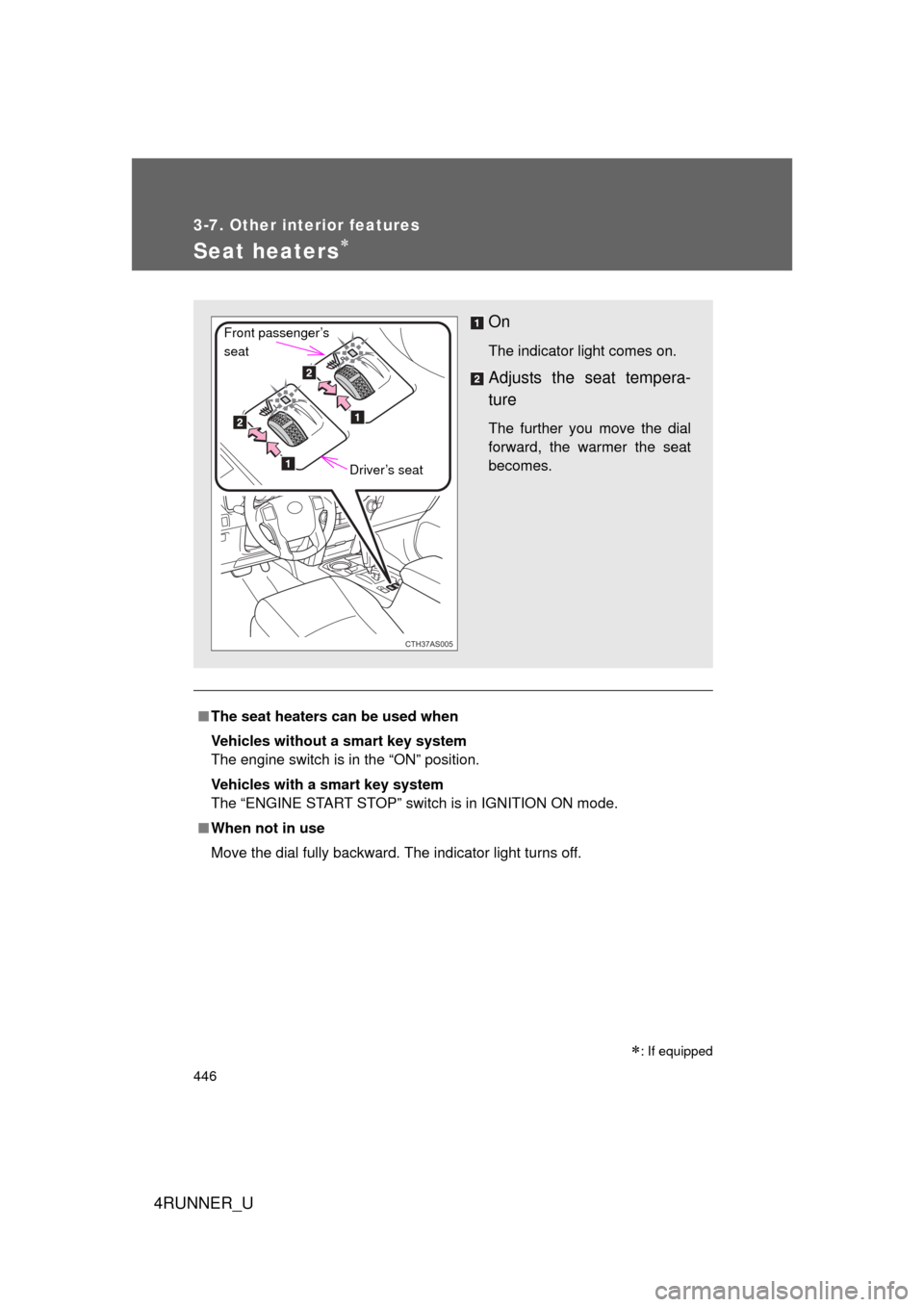
On
The indicator light comes on.
Adjusts the seat tempera-
ture
The further you move the dial
forward, the warmer the seat
becomes.
CTH37AS005
Front passenger’s
seat
Driver’s seat
Page 453 of 665
453
3-7. Other interior features
3
Interior features
4RUNNER_U
Referring to the map above, press the “MODE/ ” or “SET/
” button to select the number of the zone you are in.
Press and hold the “SET/ ” button to confirm the number
and to exit deviation calibration mode. (If no buttons are
pressed for more than 6 seco nds, the number will automati-
cally be confirmed and the display returned to normal.)
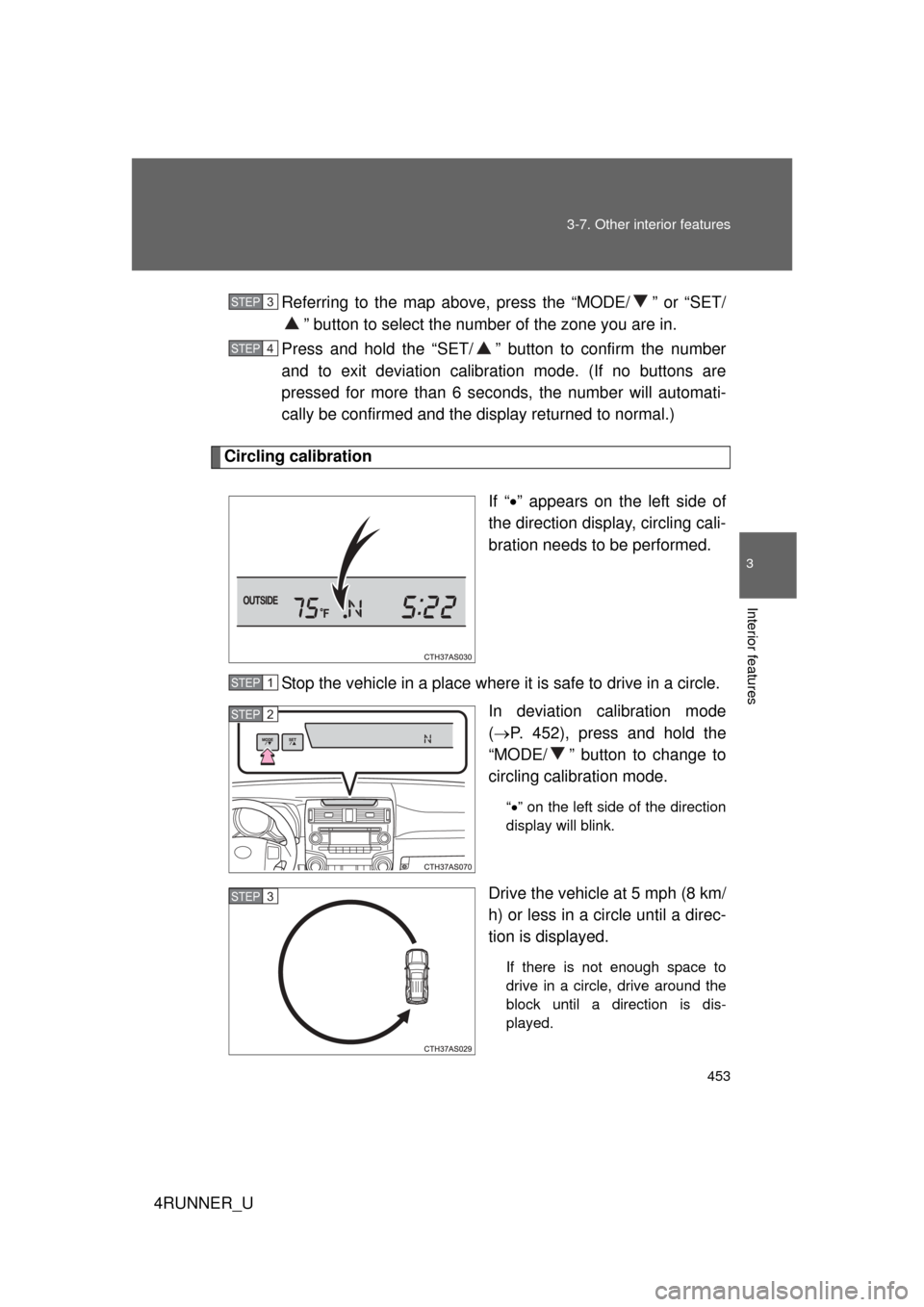
Circling calibration
If “” appears on the left side of
the direction display, circling cali-
bration needs to be performed.
Stop the vehicle in a place where it is safe to drive in a circle. In deviation calibration mode
( P. 452), press and hold the
“MODE/ ” button to change to
circling calibration mode.
“ ” on the left side of the direction
display will blink.
Drive the vehicle at 5 mph (8 km/
h) or less in a circle until a direc-
tion is displayed.
If there is not enough space to
drive in a circle, drive around the
block until a direction is dis-
played.
STEP 3
STEP 4
STEP 1
STEP 2
STEP 3