Page 333 of 665
333
3-2. Using the audio system
3
Interior features
4RUNNER_U
Playing MP3 and WMA discs
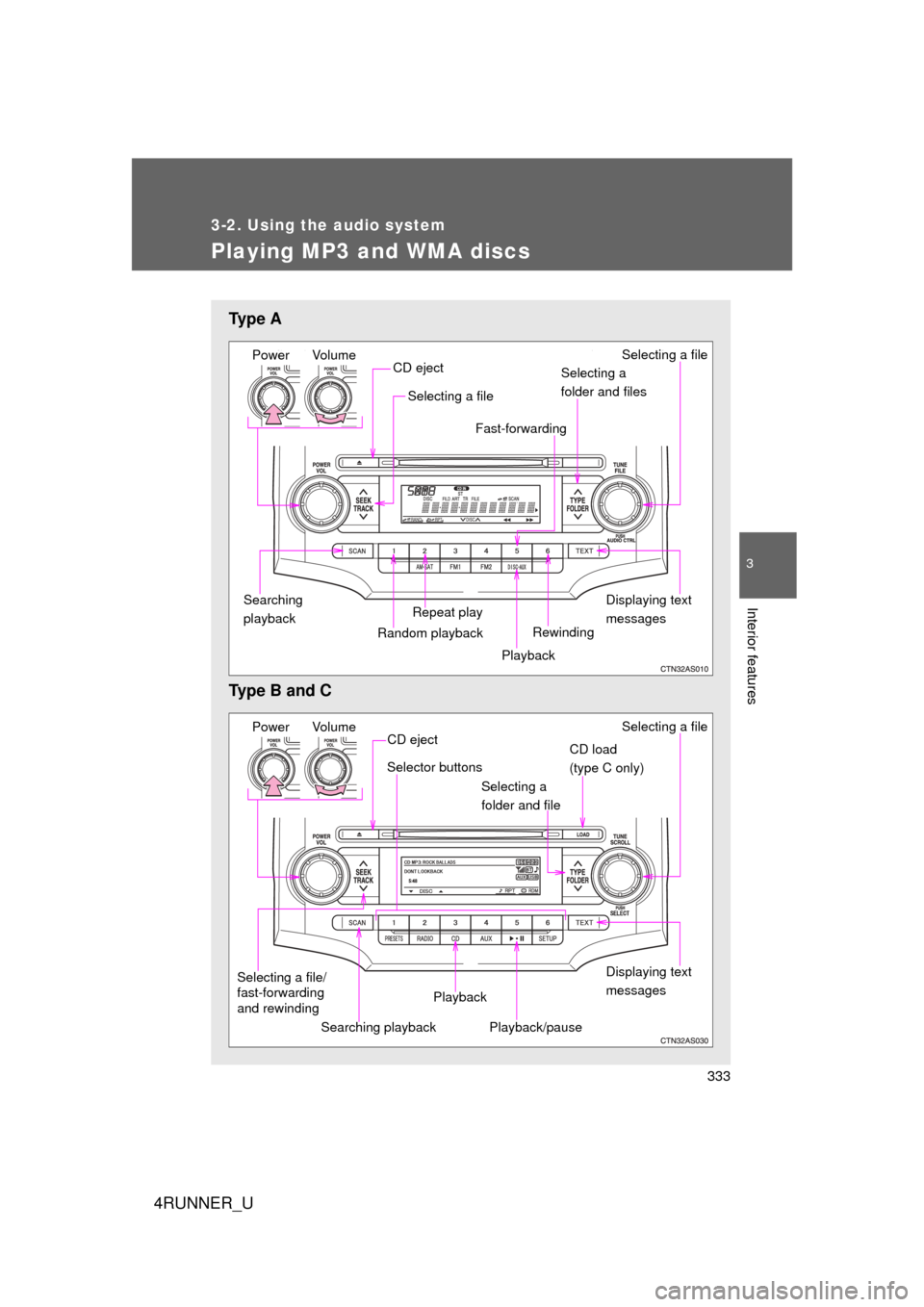
Ty p e A
Type B and C
Power VolumeDisplaying text
messages
CD eject
Repeat play
Selecting a file
Selecting a
folder and files
Random playbackSearching
playback
Playback
Selecting a file
Rewinding
Fast-forwarding
Power Volume
Displaying text
messages
CD eject
Playback
Playback/pause Selecting a file
CD load
(type C only)
Selector buttons
Selecting a
folder and file
Searching playback
Selecting a file/
fast-forwarding
and rewinding
Page 342 of 665
342 3-2. Using the audio system
4RUNNER_U
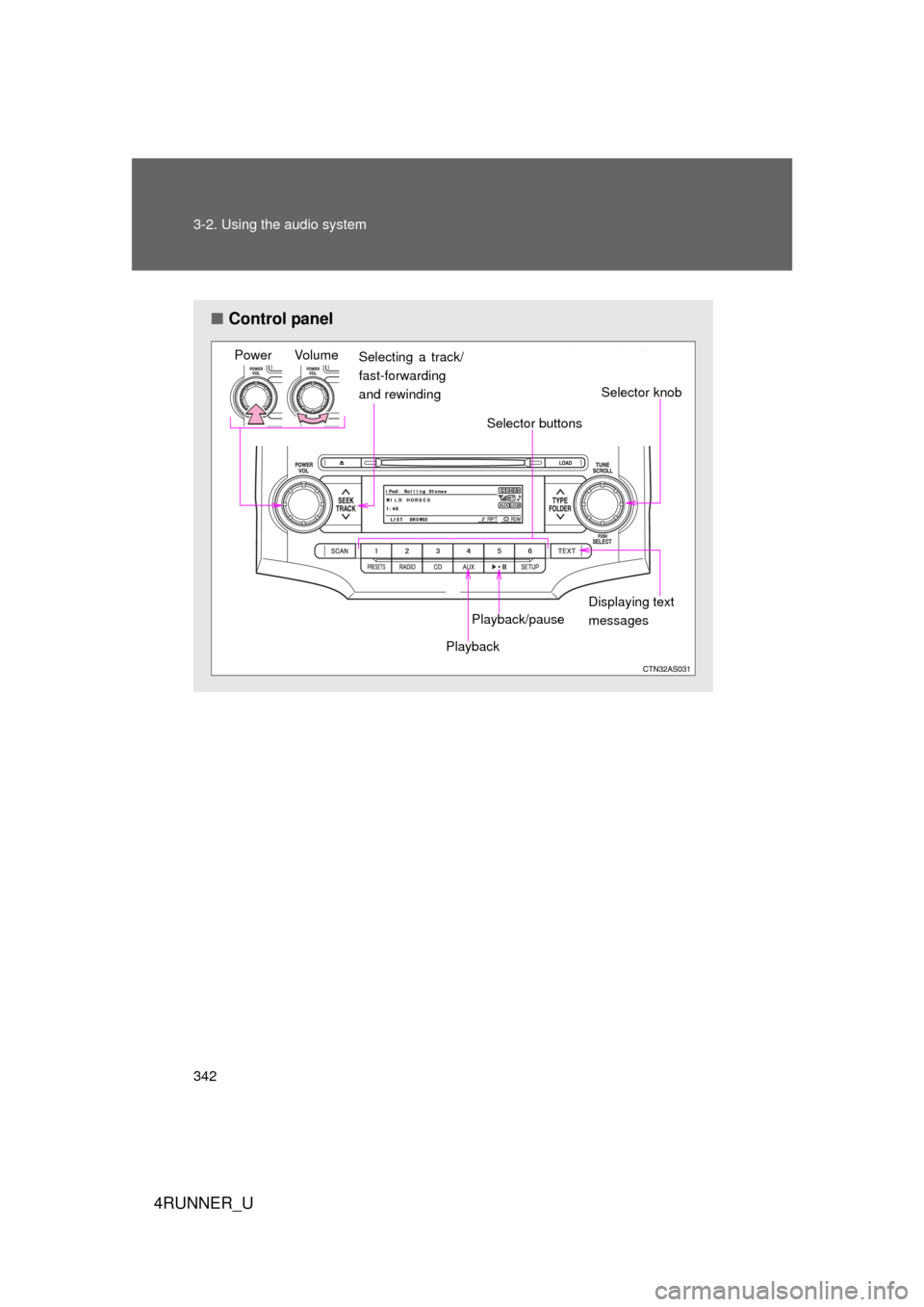
■Control panel
Power Volume
Selector knob
Displaying text
messages
Selector buttons
Playback
Playback/pause
Selecting a track/
fast-forwarding
and rewinding
Page 349 of 665
349
3-2. Using the audio system
3
Interior features
4RUNNER_U
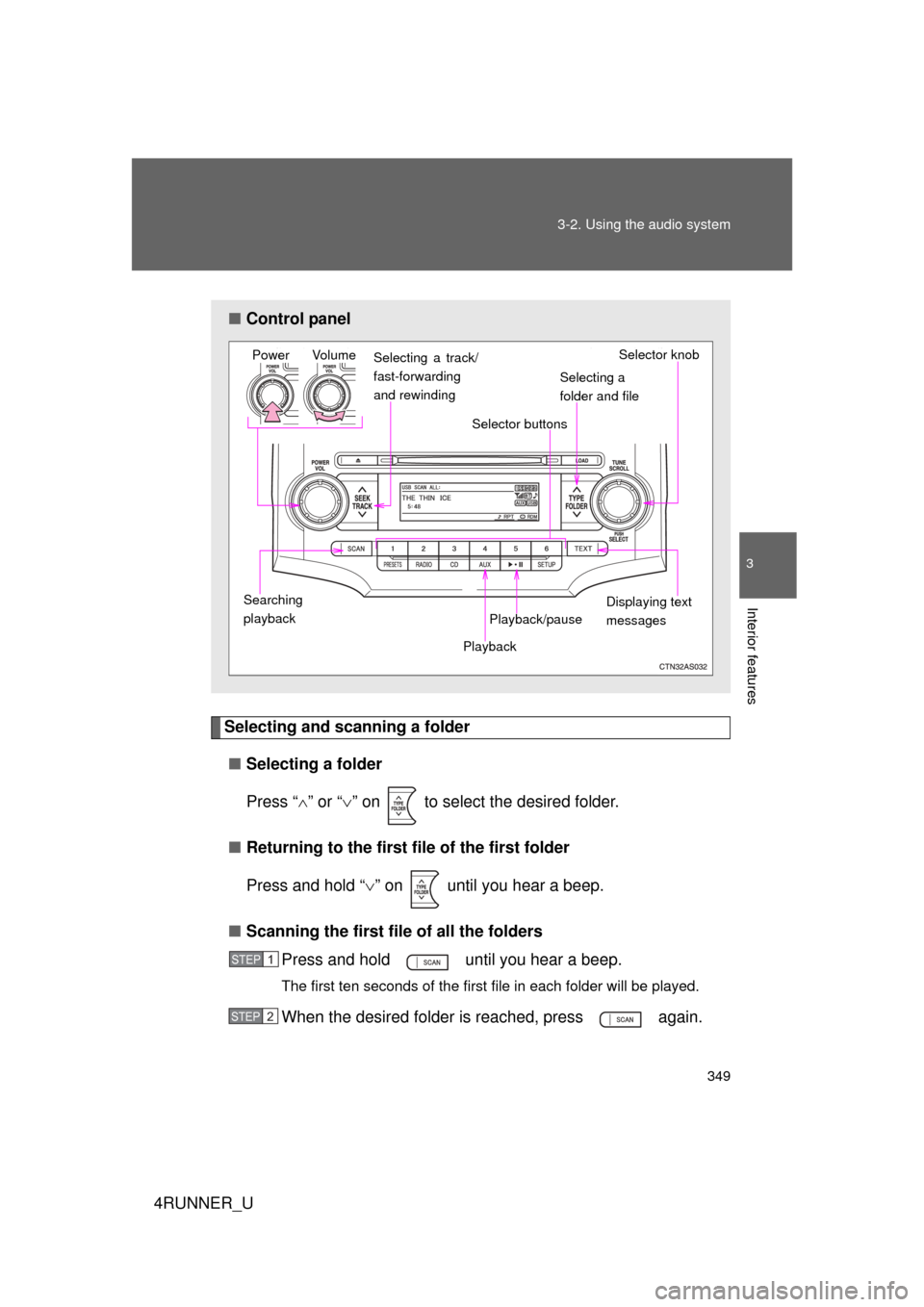
Selecting and scanning a folder
■ Selecting a folder
Press “ ” or “ ” on to select the desired folder.
■ Returning to the first file of the first folder
Press and hold “ ” on until you hear a beep.
■ Scanning the first file of all the folders
Press and hold until you hear a beep.
The first ten seconds of the first file in each folder will be played.
When the desired folder is reached, press again.
■Control panel
Power Volume Selector knob
Displaying text
messages
Playback
Playback/pause
Searching
playback
Selector buttons
Selecting a
folder and file
Selecting a track/
fast-forwarding
and rewinding
STEP 1
STEP 2
Page 355 of 665
355
3-2. Using the audio system
3
Interior features
4RUNNER_U
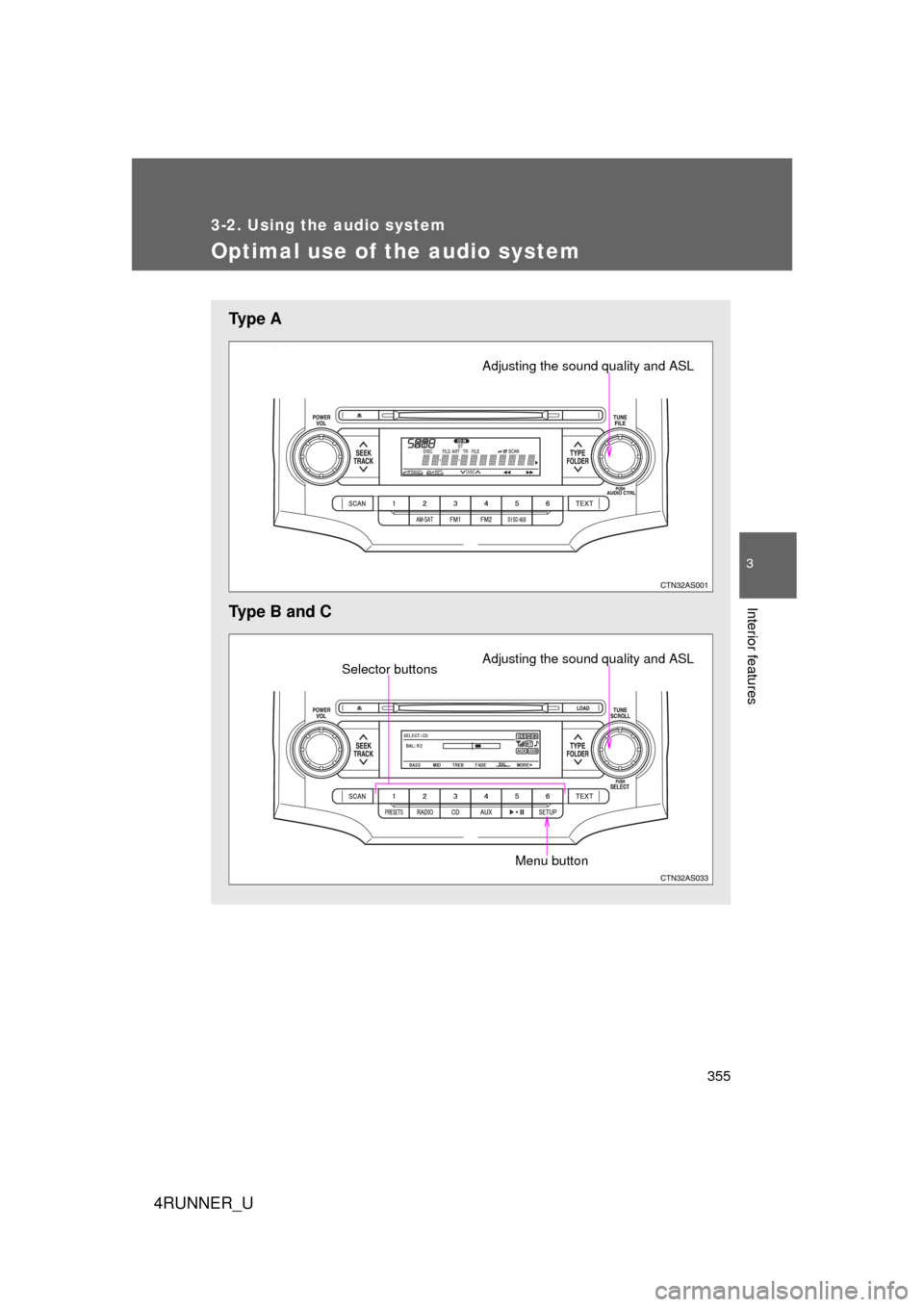
Optimal use of the audio system
Ty p e A
Type B and C
Adjusting the sound quality and ASL
Adjusting the sound quality and ASLSelector buttons
Menu button
Page 453 of 665
453
3-7. Other interior features
3
Interior features
4RUNNER_U
Referring to the map above, press the “MODE/ ” or “SET/
” button to select the number of the zone you are in.
Press and hold the “SET/ ” button to confirm the number
and to exit deviation calibration mode. (If no buttons are
pressed for more than 6 seco nds, the number will automati-
cally be confirmed and the display returned to normal.)
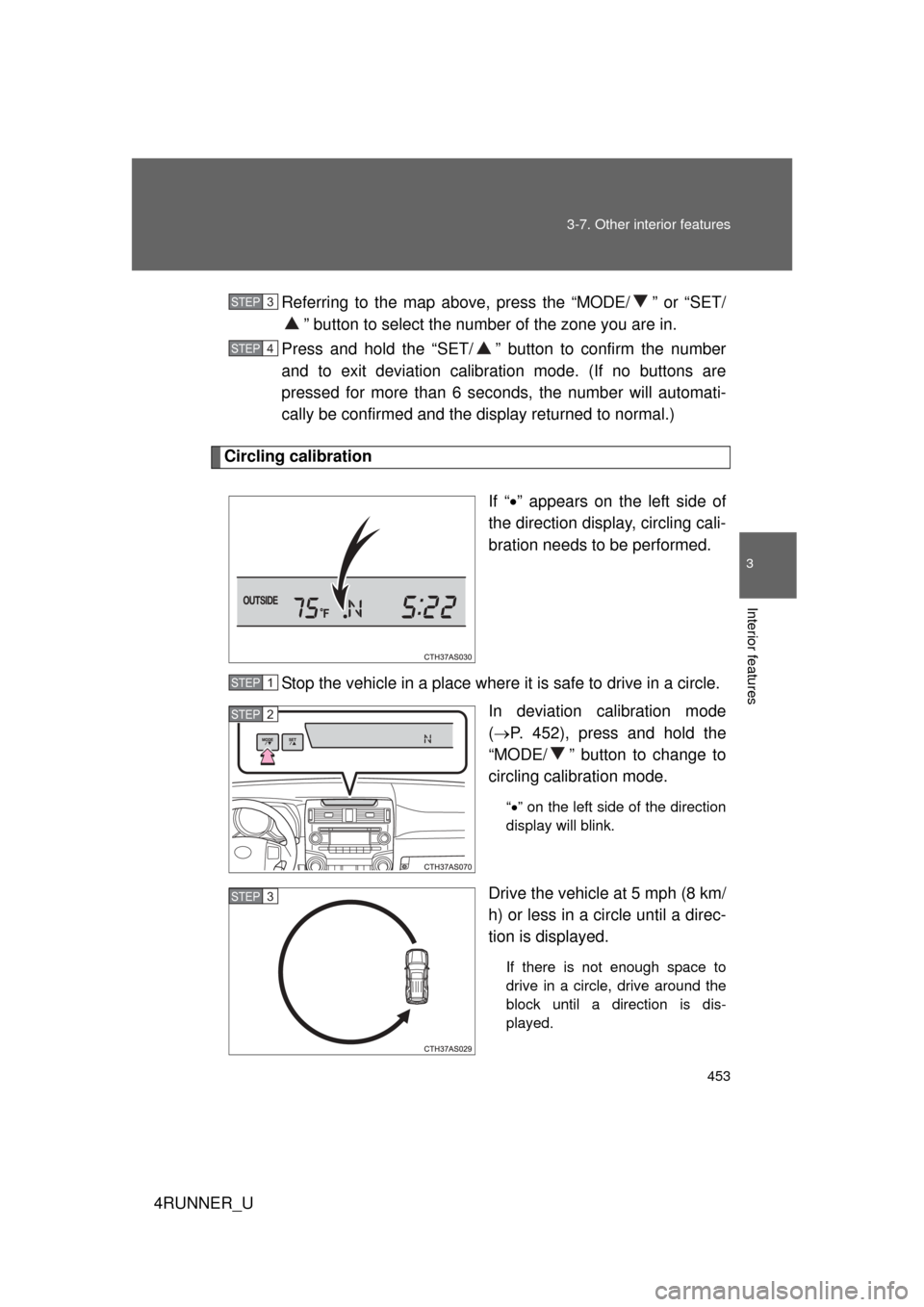
Circling calibration
If “” appears on the left side of
the direction display, circling cali-
bration needs to be performed.
Stop the vehicle in a place where it is safe to drive in a circle. In deviation calibration mode
( P. 452), press and hold the
“MODE/ ” button to change to
circling calibration mode.
“ ” on the left side of the direction
display will blink.
Drive the vehicle at 5 mph (8 km/
h) or less in a circle until a direc-
tion is displayed.
If there is not enough space to
drive in a circle, drive around the
block until a direction is dis-
played.
STEP 3
STEP 4
STEP 1
STEP 2
STEP 3
Page 454 of 665
454 3-7. Other interior features
4RUNNER_UPress and hold the “SET/ ” butt
on to confirm the direction
and to exit circling calibration mode. (If no buttons are
pressed for several minutes, t he direction will automatically be
confirmed and the display returned to normal.)
Make sure that “ ” on the left side of the direction display has
gone off. If “ ” is illuminated, perform the above procedure
again.
■ Conditions unfavorable to correct operation
The compass may not show the correct direction in the following conditions:
● The vehicle is stopped immediately after turning.
● The vehicle is on an inclined surface.
● The vehicle is in a place where the earth's magnetic field is subject to
interference by artificial magnetic fields (underground car park/parking
lot, under a steel tower, between buildings, roof car park/parking lot, near
an intersection, near a large vehicle, etc.).
● The vehicle has become magnetized.
(There is a magnet or metal object near the accessory meter display.)
● The battery has been disconnected.
● A door is open.
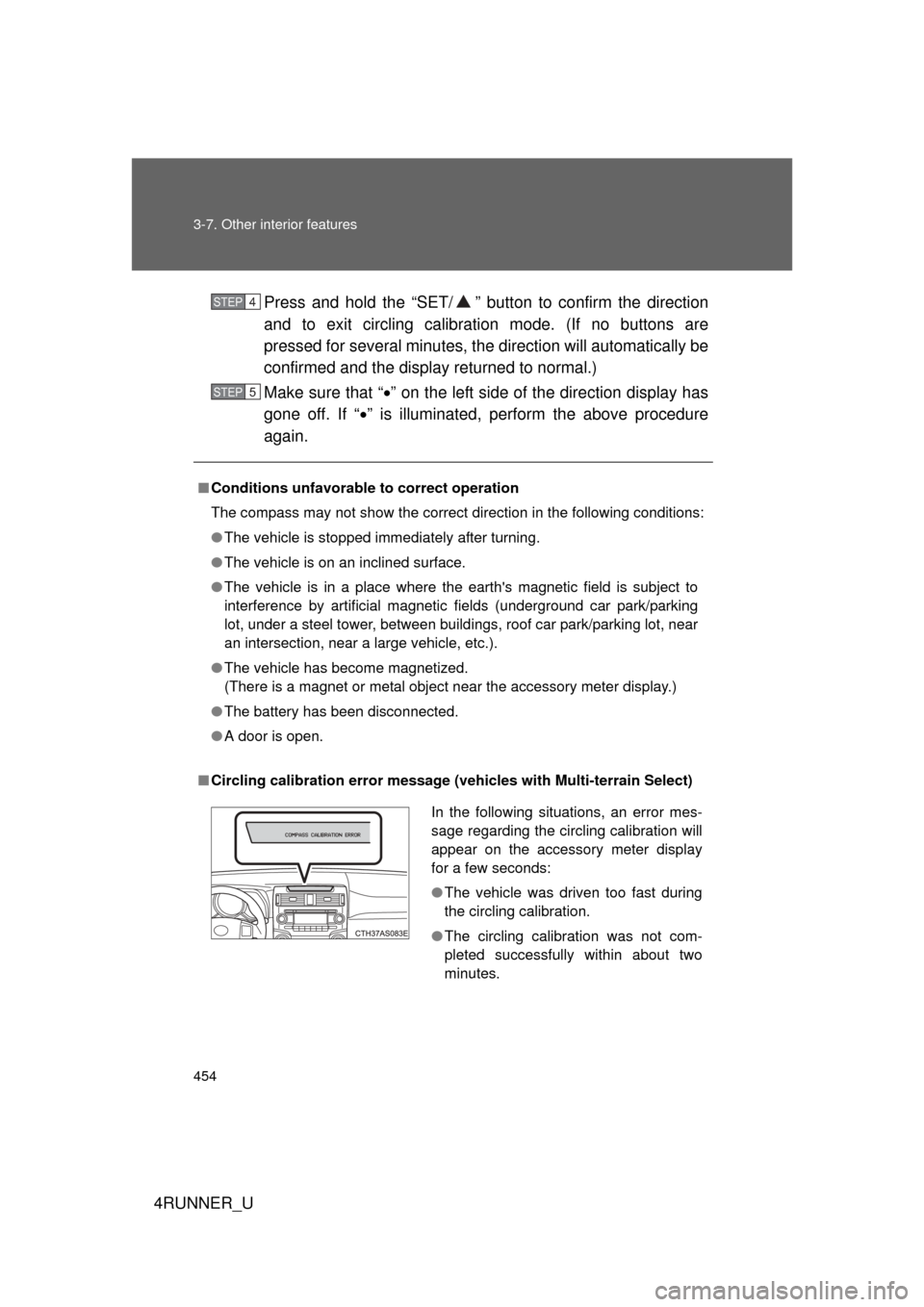
■ Circling calibration error message ( vehicles with Multi-terrain Select)
STEP 4
STEP 5
In the following situations, an error mes-
sage regarding the circling calibration will
appear on the accessory meter display
for a few seconds:
●The vehicle was driven too fast during
the circling calibration.
● The circling calibration was not com-
pleted successfully within about two
minutes.
Page 462 of 665
462
3-7. Other interior features
4RUNNER_U
Garage door opener
The garage door opener (HomeLink Universal Transceiver) is manufac-
tured under license from HomeLink.
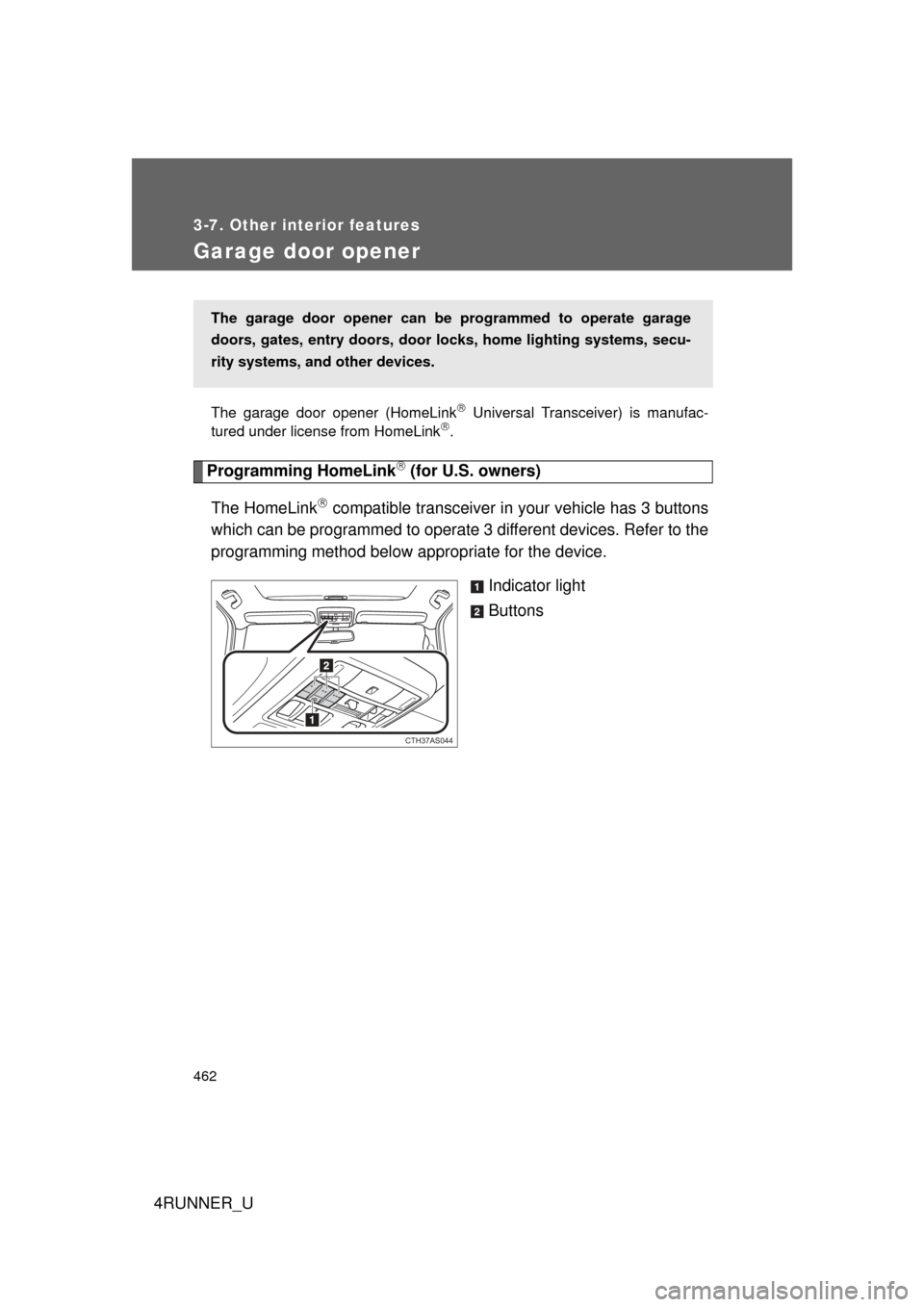
Programming HomeLink (for U.S. owners)
The HomeLink
compatible transceiver in your vehicle has 3 buttons
which can be programmed to operate 3 different devices. Refer to the
programming method below appropriate for the device.
Indicator light
Buttons
The garage door opener can be programmed to operate garage
doors, gates, entry doors, door locks, hom e lighting systems, secu-
rity systems, and other devices.
CTH37AS044
Page 463 of 665
463
3-7. Other interior features
3
Interior features
4RUNNER_U
■
Programming HomeLink
Point the remote control trans-
mitter for the device 1 to 3 in. (25
to 75 mm) from the HomeLink
buttons.
Keep the HomeLink indicator
light in view while programming.
Press and hold one of the
HomeLink buttons and the
transmitter button. When the
HomeLink
indicator light
changes from a slow to a rapid
flash after 20 seconds, release
both buttons.
STEP 1
STEP 2