Page 212 of 388

5-33OTHER CONTROLS AND EQUIPMENT
57L20-03E
Selecting a USB device mode
Press the USB button (1).
Selecting a folder
Turn the sound control knob (2) to select a
folder.
Selecting a track
Press the Up button (3) to listen to the
next track.
Press the Down button (4) twice to listen
to the previous track.
When the Down button (4) is pressed
once, the track currently being played
will start again at the beginning.
Fast forwarding/Rewinding a track
Hold in the Up button (3) to advance a
track rapidly.
Hold in the Down button (4) to rewind a
track.Random play
Press the RDM button (6).
Each time the button is pressed, the mode
changes in the following order.
NOTE:
To cancel random play, press the RDM
button (6) several times to change the ran-
dom play mode to OFF.
FOLDER RANDOM
The random indicator “RDM.F” lights.
The tracks in the current folder are
played at random.
ALL RANDOM
The random indicator “RDM” lights.
The tracks in the USB device that is
connected are played at random.Repeat play
Press the RPT button (5).
Each time the button is pressed, repeat
play mode changes as follows:
NOTE:
To cancel repeat play, press the RPT but-
ton (5) several times to change the repeat
play mode to OFF.
FILE REPEAT
The repeat indicator “RPT” lights.
The track currently being played is
played repeatedly.
FOLDER REPEAT
The repeat indicator “RPT.F” lights.
All the tracks in the folder currently
being played are played repeatedly. CAUTION
Do not connect any USB device
other than a USB memory or a
USB audio player. Do not con-
nect multiple USB devices to the
USB connector. Supplying power
to multiple USB devices from the
connector could cause overheat-
ing and smoking.
OFF FOLDER RANDOM ALL RANDOM
OFF FILE REPEAT FOLDER REPEAT
Page 213 of 388

5-34
OTHER CONTROLS AND EQUIPMENT
57L20-03E
Display change
Press the DISP button (7).
Each time it is pressed, display is changed
as follows:
NOTE:
“NO TITLE” is displayed when there is
no information on the disc.
If all the text data cannot be displayed,
the “>” mark appears at the right end.
Holding down the DISP button (7) for
1 sec. or more calls the next page.
Notes on USB deviceCompatible USB devices
USB Mass Storage Class
For details as to whether your USB
memory/USB Audio is compatible with
USB Mass Storage Class, please con-
tact the USB memory/USB Audio manu-
facturer.
USB Standard Compatibility 1.1/2.0 Full
Speed
File System FAT16/32
Maximum current less than 500 mA
Capacity less than 4 GB (1 partition)
USB device connection
When connecting a USB device, make
sure the connector is pushed all the way
into the socket.
Do not leave the USB device for long
periods of time in places inside the car
where the temperature rises too high.
Back up any important data beforehand.
We cannot accept responsibility for any
lost data.
The use of USB devices that contain
data files other than MP3/WMA format
is not recommended.
Recording MP3/WMA files on a USB device Playback or display may not be possible
depending on the type of USB device or
the condition of the recording. Depending on the connected USB
memory, the order in which the files are
played back may differ from the order in
which the files were stored.
Compression formats
MP3
Bit rate: MPEG1 Audio Layer III : 64 k - 320 kbps
MPEG2 Audio Layer III : 64 k - 160 kbps Sampling frequency: MPEG1 Audio Layer III : 32 k/44.1 k/48 kHz
MPEG2 Audio Layer III : 16 k/22.05 k/24 kHzWMA (Ver.7, Ver.8)
Bit rate: CBR 48 k - 192 kbps
Sampling frequency: 32 k/44.1 k/48 kHz
WMA (Ver. 9*)
Bit rate: CBR 48 k - 320 kbps
Sampling frequency: 32 k/44.1 k/48 kHz
* WMA 9 Professional/LossLess/Voice are
not supported.
Maximum number of files/folders
Maximum number of files: 2500 (files +
folders) Maximum number of files in one folder: 255 Maximum depth of trees: 8
Maximum number of folders: 255
(Root folder is included.) Play time display
Folder name display
File name display
Album name display (MP3 only)
Track title display
Artist name display
Page 214 of 388
5-35OTHER CONTROLS AND EQUIPMENT
57L20-03E
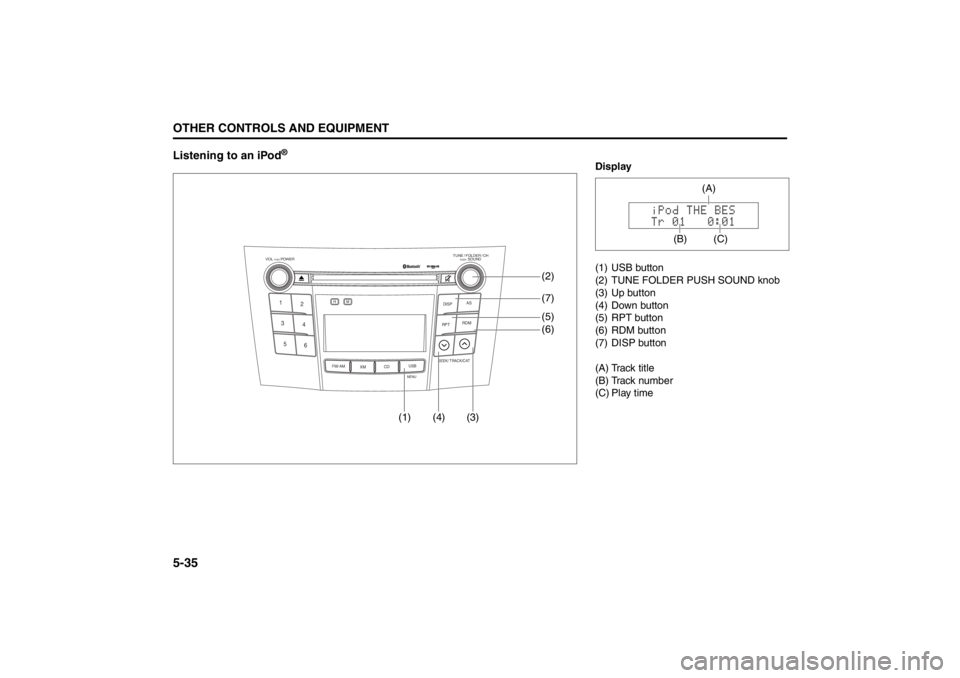
Listening to an iPod
®
TUNE / FOLDER / CHDISPAS
RPT
XM
USBMENU
RDM
SEEK/ TRACK/CAT
SOUNDPUSH
1
2
3
4
5
6
VOL PUSH POWER
CD
FM/ AMH
M
(4) (3)(7)
(5)
(6) (2)
(1)
Display
(1) USB button
(2) TUNE FOLDER PUSH SOUND knob
(3) Up button
(4) Down button
(5) RPT button
(6) RDM button
(7) DISP button
(A) Track title
(B) Track number
(C) Play time
(C)
(A)
(B)
Page 215 of 388

5-36
OTHER CONTROLS AND EQUIPMENT
57L20-03E
Selecting an iPod
® mode
Press the USB button (1).
Selecting a track
Press the Up button (3) to listen to the
next track.
Press the Down button (4) twice to listen
to the previous track.
When the Down button (4) is pressed
once, the track currently being played
will start again at the beginning.
Fast forwarding/Rewinding a track
Hold in the Up button (3) to advance a
track rapidly.
Hold in the Down button (4) to rewind a
track.Random play
Press the RDM button (6).
Each time the button is pressed, the mode
changes in the following order.
NOTE:
To cancel random play, press the RDM
button (6) several times to change the ran-
dom play mode to OFF.
SONG RANDOM
The random indicator “RDM” lights.
The tracks in the iPod
® are played at
random.
ALBUM RANDOM
The random indicator “D.RDM” lights.
The albums in the iPod® that are played
at random.Repeat play
Press the RPT button (5).
Each time the button is pressed, repeat
play mode changes as follows:
NOTE:
To cancel repeat play, press the RPT but-
ton (5) again.
SONG REPEAT
The repeat indicator “RPT” lights.
The track currently being played is
played repeatedly.
OFF SONG RANDOM ALBUM RANDOM
OFF SONG REPEAT
Page 216 of 388

5-37OTHER CONTROLS AND EQUIPMENT
57L20-03E
Display change
Press the DISP button (7).
Each time it is pressed, display is changed
as follows:
NOTE:
If all the text data cannot be displayed, the
“>” mark appears at the right end. Holding
down the DISP button (7) for 1 sec. or
more calls the next page.Playing Mode selection
1) Press and hold the USB button (1) for
1 second or longer.
2) Turn the TUNE FOLDER PUSH
SOUND knob (2).
Each time it is turned, mode is
changed as follows:
3) Press the TUNE FOLDER PUSH
SOUND knob (2) to select an item.
NOTE:
When the USB button (1) is pressed, the
previous screen appears.
When the DISP button (7) is pressed,
the regular screen appears.
“NO SONGS” will appear if no song
exists.
Notes on iPod
®
Controllable iPod
®/software version
iPod
® touch
iPod® classic
iPod® nano (4th generation)
iPod® nano (3rd generation)
iPod® nano (2nd generation)
iPod® nano (1st generation)
iPod® (5th generation)
* Please update the firmware of your
iPod® before using it.
Some functions may not be available
depending on the model of iPod
® or its
firmware version.
iPod
® is a trademark of Apple Inc., reg-
istered in the U.S. and other countries.
Apple is not responsible for the opera-
tion of this device or its compliance with
safety and regulatory standards.
iPod
® connection
Please make sure to detach the iPod
®
after turning off the car engine (turning
the ACC to OFF). The iPod
® may not
shut down while still connected, which
may result in battery depletion.
Please do not connect iPod® accesso-
ries such as an iPod
® remote control or
headphones while connecting iPod
®
with the unit. The unit may not operate
correctly. Playlist name & Track title display
(Playlist mode only)
Artist name & Track title display
Album name & Track title display
Track title & Play time display
PLAYLIST
ARTIST
ALBUM
SONGS
GENRE
Page 217 of 388
5-38
OTHER CONTROLS AND EQUIPMENT
57L20-03E
Bluetooth
® Hands-Free (if equipped)
(1) TUNE FOLDER PUSH SOUND knob
(2) VOL PUSH POWER knob
(3) Preset buttons
(4) DISP button
(5) RDM button
TUNE / FOLDER / CHDISPAS
RPT
XM
USBMENU
RDM
SEEK/ TRACK/CAT
SOUNDPUSH
1
2
3
4
5
6
VOL PUSH POWER
CD
FM/ AMH
M
(4) (1)
(3) (2)(5)
Hands-free switches
(6) Talk button
(7) Off Hook button
(8) On Hook button
(9) VOL switch
(6)(7)
(8)(9)
Page 228 of 388
5-49OTHER CONTROLS AND EQUIPMENT
57L20-03E
Bluetooth
® audio (if equipped)
TUNE / FOLDER / CHDISPAS
RPT
XM
USBMENU
RDM
SEEK/ TRACK/CAT
SOUNDPUSH
1
2
3
4
5
6
VOL PUSH POWER
CD
FM/ AMH
M
(4) (3)(5) (2)
(1)
Hands-free switches
Display
(1) CD button
(2) TUNE FOLDER PUSH SOUND knob
(3) Up button
(4) Down button
(5) DISP button
(6) Off Hook button
(7) Talk button
(A) Track number
(B) Play time
(7)(6)
(B)(A)
Page 243 of 388
5-64
OTHER CONTROLS AND EQUIPMENT
57L20-03E
Remote Audio ControlsYou can control basic functions of the
audio system with the switches on the
steering wheel.Adjusting the volume
To increase the volume, lean the VOL
switch (1) to the upper side. The volume
continues to increase until you release
the switch.
To decrease the volume, lean the VOL
switch (1) to the lower side. The volume
continues to decrease until you release
the switch.
To mute, press the switch (2).Selecting the mode
Press the switch (3).
Each time the button is pressed, the mode
is switched as follows:
You can also turn on the audio system by
pushing the switch (3).
(2)
(1)
(4)
(3)
FM1 (Radio)
FM2 (Radio)
CD
Bluetooth
® audio
USB (iPod®)
AM (Radio)
XM1 (if equipped)
XM2 (if equipped)
XM3 (if equipped)