Page 23 of 40
21
for a 10-digit number, saying the phone number in groups of 3, 3 and 4 digits may improve
recognition for some speakers. To use this group dialing method, say only the first 3 digits
of the phone number. After the system recognizes the number, it will request the next 3
digits and finally the last 4 digits.
if a phone number is incorrectly recognized, you can try entering the pho\
ne number again
using the 3–3–4 group dialing procedure by saying “correction.”
When you have finished speaking the phone number wait for the system to repeat it back
to you, then say “dial.”
ReceiVin G/endin G A PHO ne cALL
When you receive a phone call, a ring tone sounds through the audio syste\
m.
To accept the call, press the button. To reject the call, press the button.
To hang up the phone at the end of a call or to disconnect during call placement, press
the
button.
HOW TO SAY nu MBeRS
ni SSAn voice recognition permits numbers to be spoken in a variety of ways.
Say “Zero” or “Oh” for “0.” example: 1-800-662-6200 – Say “one eight zero zero six six two
six two oh oh.”
Say “pound” for “#.” Say “star” for “*”(available when using the “ call Phone number” then
“Special number” command and the “Send” command during a call).
Say “plus” for “+” (available only when using the “call Phone number” then “Special
number” command).
Say “pause” for a 2-second pause.
uSinG YOu R PHOneBOOk
When a compatible phone is connected to the system, the phonebook is automatically downloaded.
This allows you to access your phonebook from the Bluetooth® system to call contacts by name.
up to 1,000 phone numbers will be transferred. To access your phonebook:
1. Press the
button and wait for the tone.
2. Say “Phonebook.”
3. Wait for the tone, then say [a name] or say “List names.” The name must be said exactly as it
is entered in your phonebook for the system to recognize it. for example, say “Phonebook”
then after the system responds, say “Michelle.”
The phonebook can transfer multiple numbers for each entry. if you select a name with multiple
numbers, the system will ask you which number you want to dial.
The system allows for up to 40 voice tags to be recorded. You can record a voice tag for phone-
book entries that the system has difficulty recognizing or to directly\
dial an entry with multiple
numbers. To record a voice tag:
1. Press the
button and wait for the tone.
2. Say “Phonebook.”
3. Wait for the tone, then say [a name] or say “List names.” Select the name for which you want
to record a voice tag.
4. Say “Record name.”
Page 24 of 40
22
BLUETOOTH® HANDS-FREE PHONE SYSTEM
(vehicles with navigation - if so equipped)
With an overhead microphone and sound
transmitted through the audio system speakers,
the Bluetooth
® Hands-free Phone System utilizes
Bluetooth® wireless technology, a touch-screen
and voice recognition to provide hands-free
cellular phone communication.
SYSTe M OPeRATin G TiPS
close all windows. Surrounding noises may
interfere with system operation and performance.
Press the
button on the steering wheel to activate voice recognition.
Wait for the “Would you like to access Phone, navigation, information, Audio or Help?”
prompt and the listening tone before speaking.
Begin speaking a command within 1.5 seconds of the listening tone.
To cancel a voice recognition session, press and hold the
button for 2 seconds.
To increase or decrease the volume of the voice prompts, push the + or – (volume) control
switch on the steering wheel or turn the VOL (volume) knob on the audio system while the
system is responding.
Speak in a clear and natural voice without pausing between words.
The “Help” command will bring up the voice recognition command list\
.
Please refer to the cellular phone manufacturer’s Owner’s Manual for detailed information
regarding your Bluetooth® phone.
for recommended phones and detailed instructions, please visit
www.nissanusa.com/bluetooth.
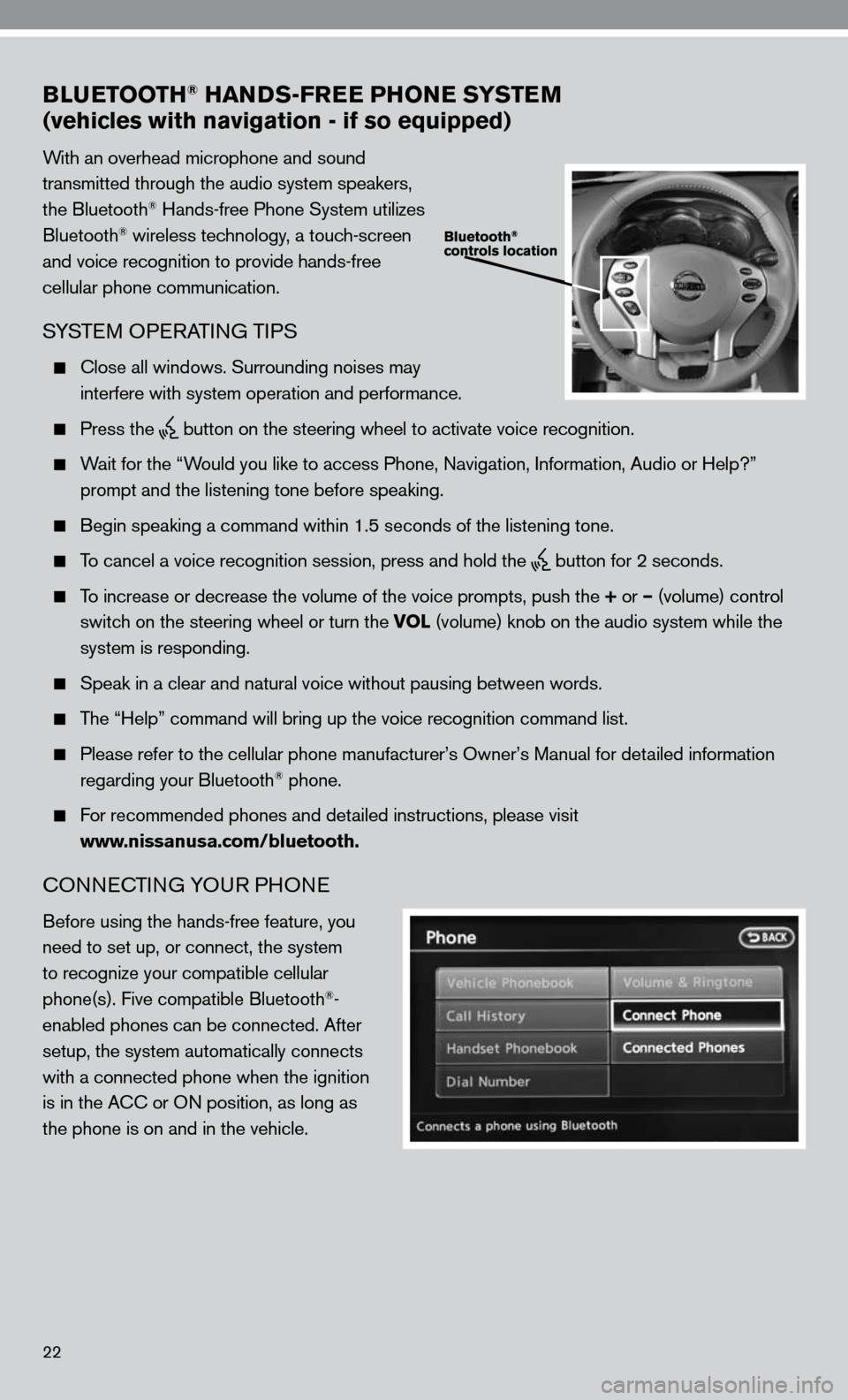
cOnnec TinG YOu R PHOne
Before using the hands-free feature, you
need to set up, or connect, the system
to recognize your compatible cellular
phone(s). five compatible Bluetooth
®-
enabled phones can be connected. After
setup, the system automatically connects
with a connected phone when the ignition
is in the A cc or O n position, as long as
the phone is on and in the vehicle.
Page 25 of 40
23
cOnnecTinG PROcedu Re
n OTe: The vehicle must be stationary when connecting the phone.
1. Press the SETTING button and select the “Bluetooth” key.
2. Select the “connect Bluetooth” key and a pop up box will appear.
3. Read the information and select “Yes.”
4. initiate connecting from the phone.
The connecting procedure for cellular phones varies according to each cellular phone
model. f or detailed connecting instructions and compatible phones, please visit
www.nissanusa.com/bluetooth.
The P in code will appear on the screen (1234 is the default).
5. When the connecting is complete, the screen will return to the Bluetooth
® screen.
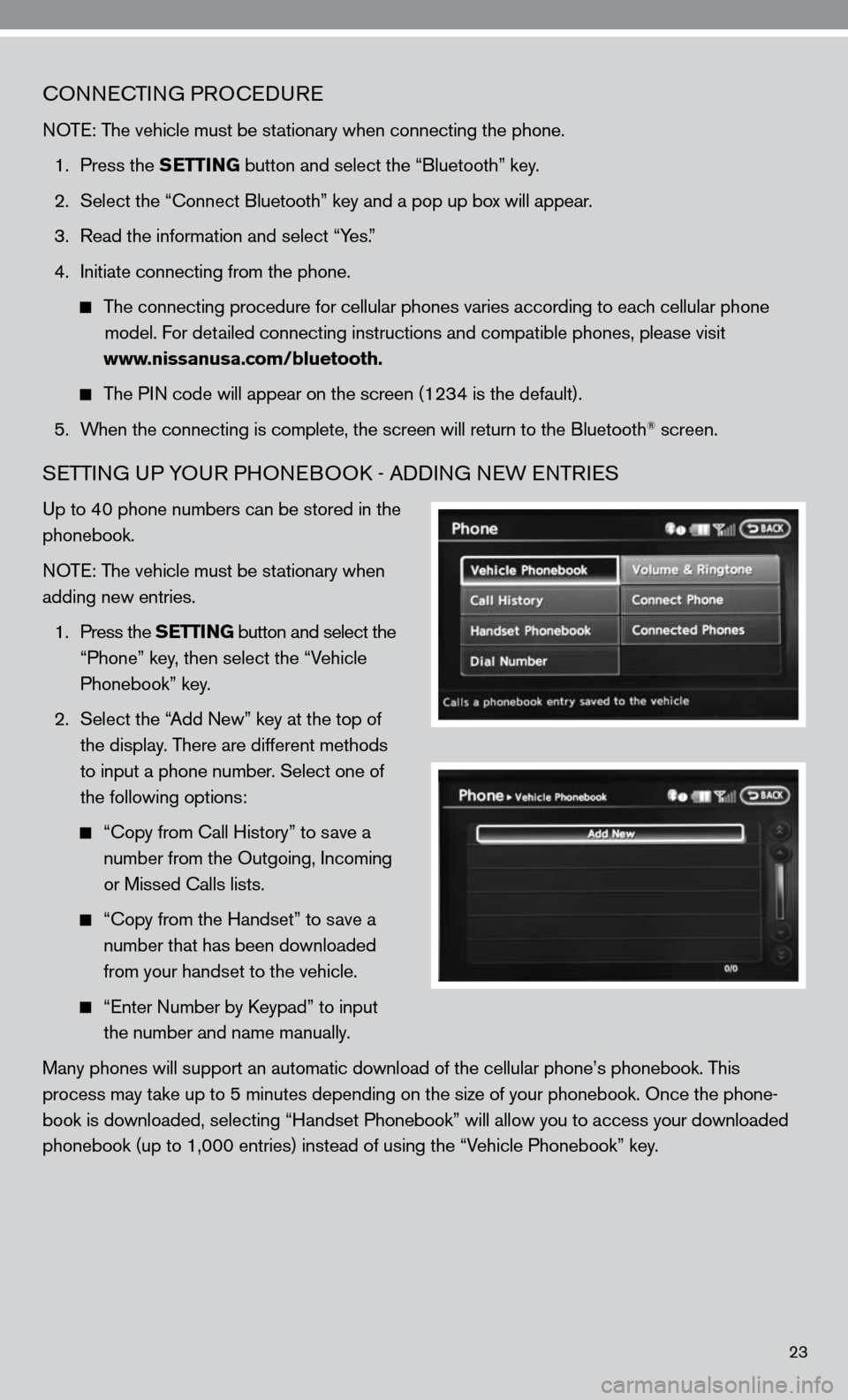
SeTTin G uP YO uR PHO neBOO k - Addin G neW enTR ieS
up to 40 phone numbers can be stored in the
phonebook.
n OT e: The vehicle must be stationary when
adding new entries.
1. Press the SETTING button and select the
“Phone” key, then select the “Vehicle
Phonebook” key.
2. Select the “Add new” key at the top of
the display. There are different methods
to input a phone number. Select one of
the following options:
“c opy from call History” to save a
number from the Outgoing, incoming
or Missed calls lists.
“c opy from the Handset” to save a
number that has been downloaded
from your handset to the vehicle.
“e nter number by keypad” to input
the number and name manually.
Many phones will support an automatic download of the cellular phone’\
s phonebook. This
process may take up to 5 minutes depending on the size of your phonebook. Once the ph\
one-
book is downloaded, selecting “Handset Phonebook” will allow you t\
o access your downloaded
phonebook (up to 1,000 entries) instead of using the “Vehicle Phonebook” key.