X
To switch off: set theFast route or
Short route route type.
Proceed as described in the "Setting the
route type" section.
i COMAND calculates a new route if you
change the route type setting with route
guidance active. If you change the route
type setting when route guidance is inac-
tive, COMAND uses the new setting for the
next route guidance. RDS-TMC displays on the map
COMAND can show certain traffic incidents
on the map. These displays can be see non
map scales from 50 m (0.05 miles) up to
20 km (20 miles).
X To set the map scale: turn002800130029until the
desired map scale is set.
Turning clockwise zooms out from the map,
turning anti-clockwise zooms in. Example display of a traffic jam on the route
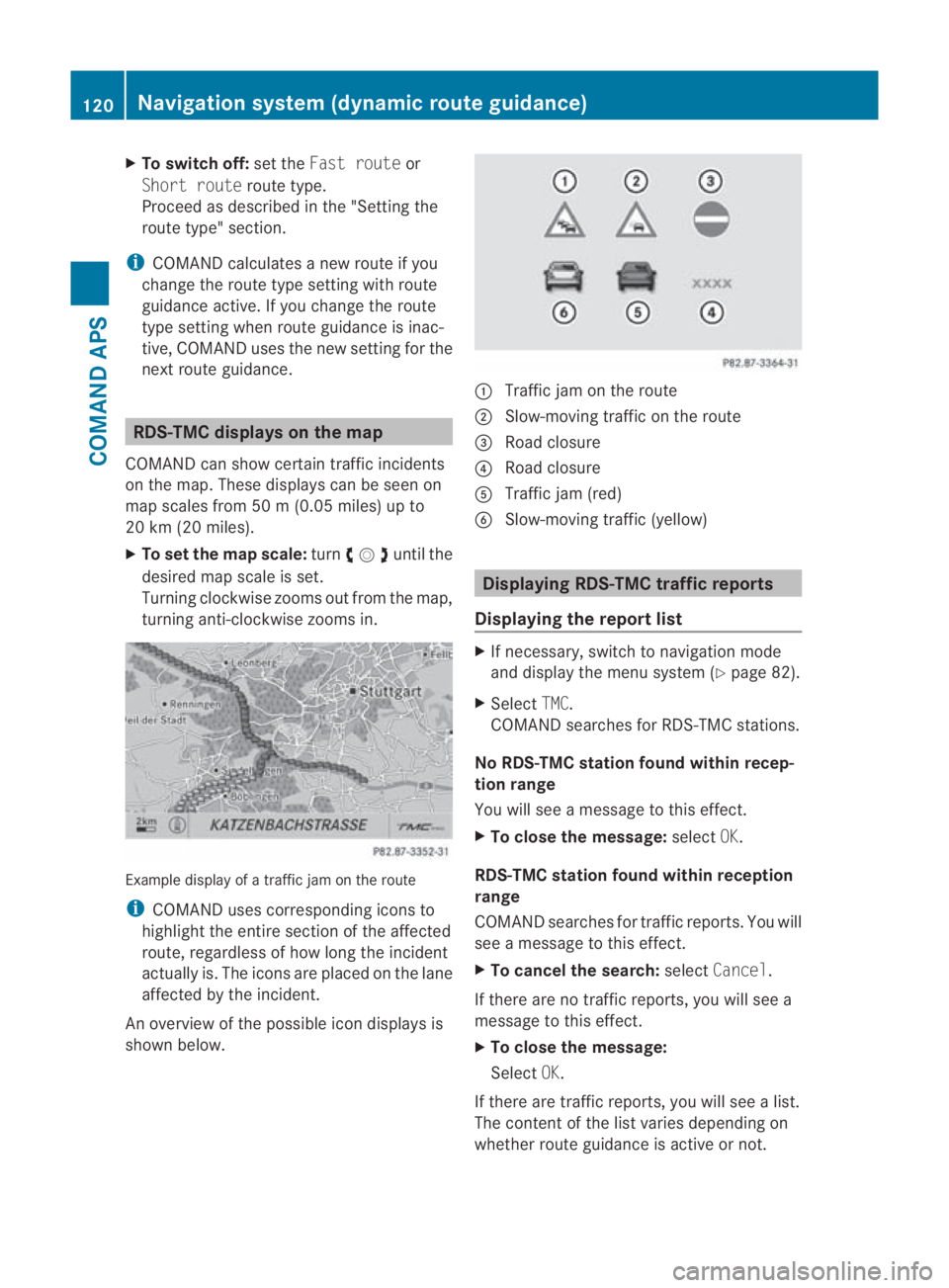
i COMAND uses corresponding icons to
highlight the entire section of the affected
route, regardless of how lon gthe incident
actually is. The icons are placed on the lane
affected by the incident.
An overview of the possible icon displays is
shown below. 0001
Traffic jam on the route
0002 Slow-moving traffic on the route
0015 Road closure
0014 Road closure
0012 Traffic jam (red)
0013 Slow-moving traffic (yellow) Displaying RDS-TMC traffic reports
Displaying the report list X
If necessary, switch to navigation mode
and display the menu system (Y page 82).
X Select TMC.
COMAND searches for RDS-TMC stations.
No RDS-TMC station found within recep-
tion range
You will see a message to this effect.
X To close the message: selectOK.
RDS-TMC station found within reception
range
COMAND searches for traffic reports. You will
see a message to this effect.
X To cancel the search: selectCancel.
If there are no traffic reports, you will see a
message to this effect.
X To close the message:
Select OK.
If there are traffic reports, you will see a list.
The content of the list varies depending on
whether route guidance is active or not. 120
Navigation system (dynamic route guidance)COMAND APS
BA 197 ECE RE 2010/6a; 1; 2, en-GB
sabbaeu
Version: 3.0.3.6 2010-05-07T14:19:43+02:00 - Seite 120
X
To change the character set for the
input speller: select0001.
The character set changes each time you
make this selection.
X To change the language for the input
speller: select0014.
X Turn 002800130029or slide 001F0013000Duntil the desired
language is highlighted and then press 0017.
X To move the cursor in the data field:
select 0018or0019.
Deleting
X To delete individual characters: select
0004 and briefly press 0017.
or
X Press the 0013button next to the
COMAND controller.
The character to the left of the cursor is
deleted.
X To delete an entire entry: select0004and
press and hold the 0017butto nuntil the entire
entry has been deleted.
or
X Press the 0013button next to the
COMAND controller and hold it until the
entire entry is deleted.
Cancelling an entry
X Select 0002.
If one of the data fields contains new data,
a prompt will appear asking whethe ryou
wish to store the entry.
X Select YesorNo.
The entry will either be stored or not,
depending on your selection.
Storing an entry
X Select 0005.
The address book displays the entry. Searching for an address book entry X
Call up the address book (Y page 149) and
select Search.
If there are more than eight entries, the
search menu with the smart speller
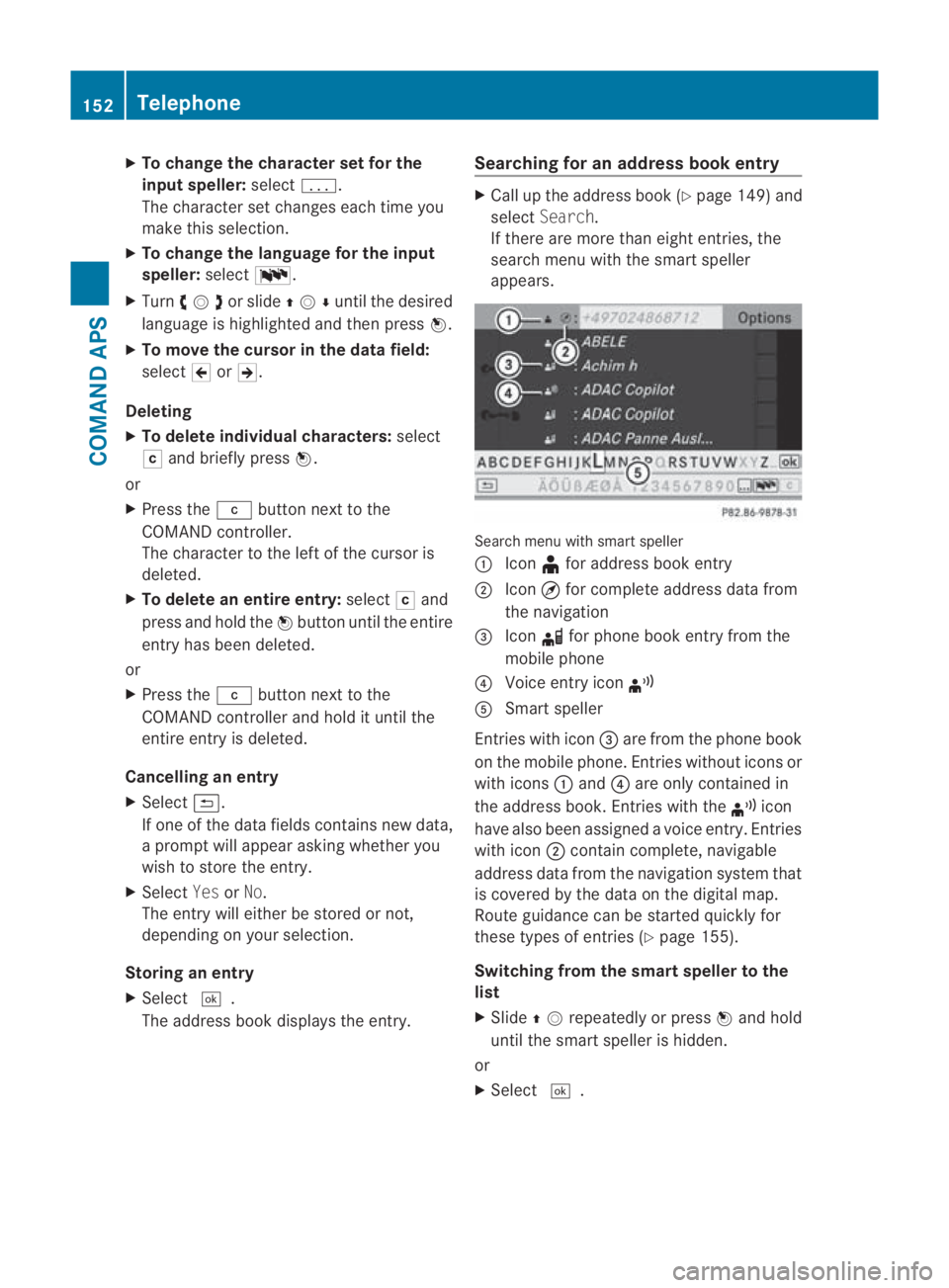
appears. Search menu with smart speller
0001
Icon ¥for address book entry
0002 Icon ¤for complete address data from
the navigation
0015 Icon 000Ffor phone book entry from the
mobile phone
0014 Voice entry icon ¦
0012 Smart speller
Entries with icon 0015are from the phone book
on the mobile phone. Entries without icons or
with icons 0001and 0014are only contained in
the address book. Entries with the ¦icon
have also been assigned a voice entry. Entries
with icon 0002contain complete, navigable
address data from the navigation system that
is covered by the data on the digital map.
Route guidance can be started quickly for
these types of entries (Y page 155).
Switching from the smart speller to the
list
X Slide 001F0013repeatedly or press 0017and hold
until the smart speller is hidden.
or
X Select 0005. 152
TelephoneCOMAND APS
BA 197 ECE RE 2010/6a; 1; 2, en-GB
sabbaeu Version: 3.0.3.6 2010-05-07T14:19:43+02:00 - Seite 152