2010 MERCEDES-BENZ CL550 ad blue
[x] Cancel search: ad bluePage 148 of 500

Calling an additional party
You can call another party during an active
call. The active call is put on hold.
X
Select NEW from the telephone menu and
press W.
or
X Press button 6 on the telephone
keypad in the center console.
X Enter the number to call manually
(Y page 143) or from the phone book
(Y page 149).
Switching between two parties (call hold)
When you are connected to two parties, the
telephone menu appears as follows: :
Active call
; Call on hold
X Switching to the other party: Select ;
using the COMAND controller.
or
X Press button 6 on the telephone
keypad in the center console.
or
X Press button 6 on the multifunction
steering wheel.
Initiating a conference call
You can initiate a conference call with the
active parties and parties that are on hold. All
participants will be able to hear and talk to
each other. :
Active call
; Call on hold
= Initiating conference call
X Initiating conference call: Select
Conference = using the COMAND
controller. COMAND phone book and address
book
G
Observe Safety notes, see page 68.
The COMAND phone book is an extract of
entries from the address book that contain at
least one phone number.
The COMAND address book holds entries
from various sources such as mobile phones,
SD cards, imports from Bluetooth ®
devices,
the COMAND phone book, or the navigation
system. These entries can be used for making
phone calls or for navigation.
Importing contacts automatically When a mobile phone is connected to
COMAND via the Bluetooth
®
interface, the
contacts of the mobile phone are imported
into the COMAND phone book automatically.
This may take some time, depending on the
mobile phone. Phone book entries stored in
the mobile phone itself or the SIM card may
be imported, depending on the mobile phone.
Contacts in the COMAND that have been
imported automatically are identified by the
symbols d or 0. Such contacts can only 146
COMAND telephoneControl systems
216_AKB; 3; 90, en-US
d2ureepe,
Version: 2.11.8.1 2009-05-15T11:47:50+02:00 - Seite 146
Page 149 of 500
be accessed when the respective mobile
phone is connected to COMAND via the
Bluetooth
®
interface.
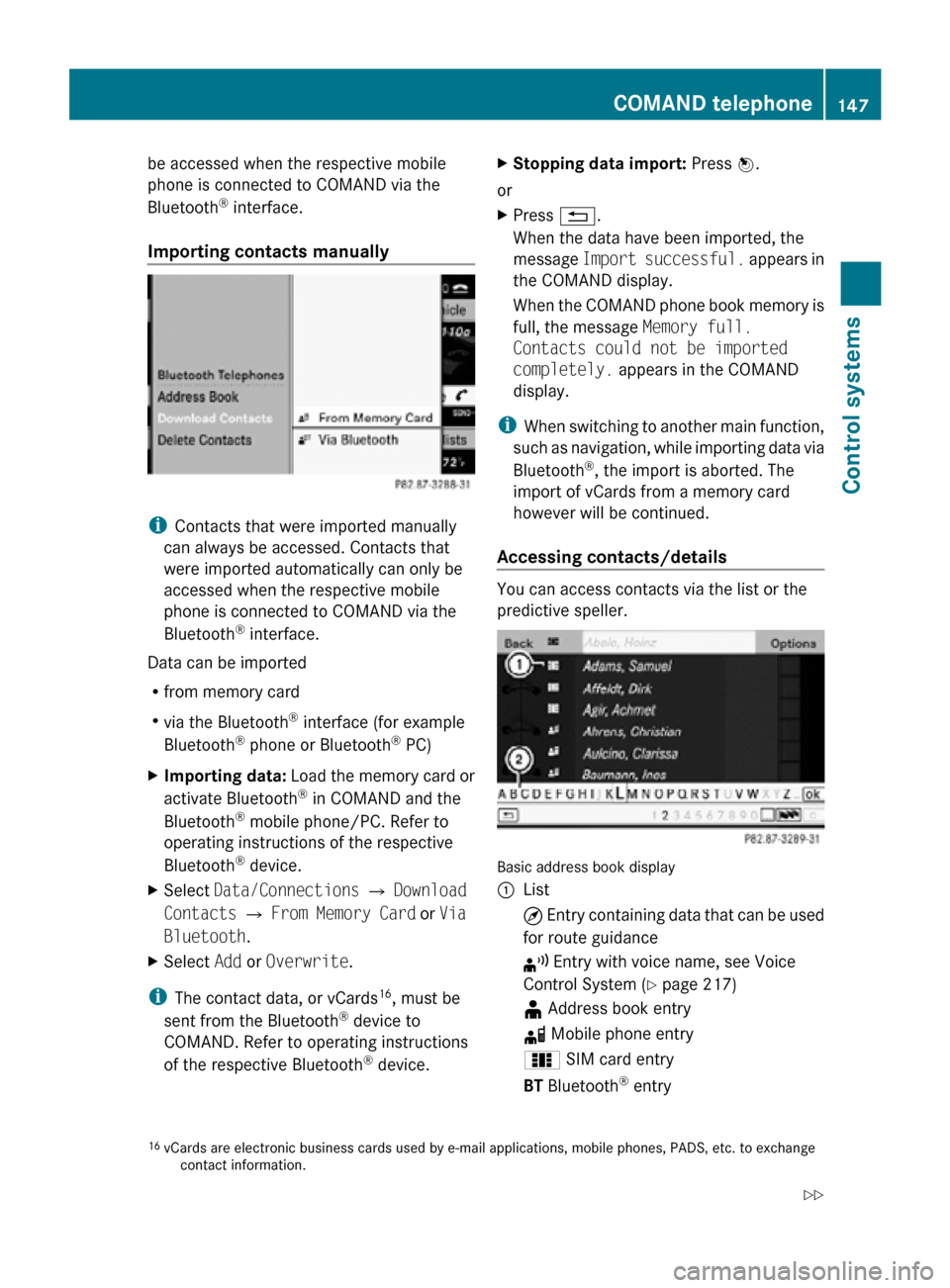
Importing contacts manually i
Contacts that were imported manually
can always be accessed. Contacts that
were imported automatically can only be
accessed when the respective mobile
phone is connected to COMAND via the
Bluetooth ®
interface.
Data can be imported
R from memory card
R via the Bluetooth ®
interface (for example
Bluetooth ®
phone or Bluetooth ®
PC)
X Importing data: Load the memory card or
activate Bluetooth ®
in COMAND and the
Bluetooth ®
mobile phone/PC. Refer to
operating instructions of the respective
Bluetooth ®
device.
X Select Data/Connections Q Download
Contacts Q From Memory Card or Via
Bluetooth.
X Select Add or Overwrite.
i The contact data, or vCards 16
, must be
sent from the Bluetooth ®
device to
COMAND. Refer to operating instructions
of the respective Bluetooth ®
device. X
Stopping data import: Press W.
or
X Press %.
When the data have been imported, the
message Import successful. appears in
the COMAND display.
When the COMAND phone book memory is
full, the message Memory full.
Contacts could not be imported
completely. appears in the COMAND
display.
i When switching to another main function,
such as navigation, while importing data via
Bluetooth ®
, the import is aborted. The
import of vCards from a memory card
however will be continued.
Accessing contacts/details You can access contacts via the list or the
predictive speller.
Basic address book display
:
List
¤ Entry containing data that can be used
for route guidance
¦ Entry with voice name, see Voice
Control System (Y page 217)
¥ Address book entry
d Mobile phone entry
0 SIM card entry
BT Bluetooth ®
entry
16 vCards are electronic business cards used by e-mail applications, mobile phones, PADS, etc. to exchange
contact information. COMAND telephone
147Control systems
216_AKB; 3; 90, en-US
d2ureepe, Version: 2.11.8.1 2009-05-15T11:47:50+02:00 - Seite 147 Z
Page 151 of 500

:
Cursor
; Data field
= Two-row predictive speller
B Selecting language
p Changing character set
*/E Selecting upper or lower case
% Back
F Deleting selection
¬ Confirming selection
? Preset category
X Enter data into the data fields.
X Entering data into data field: Select the
respective characters in predictive speller
=.
X Moving the cursor: Select the respective
arrow YÆXZ in predictive speller =.
X Changing to other data field: Slide ZV
until the predictive speller disappears.
X Slide ZVÆ and press W.
or
X Select Æ in the predictive speller.
X Aborting data entry: Select Back.
When a data field contains data, you will be
asked whether you would like to save the
entry.
X Saving data: Select ¬.
The entry is created in the phone book and
the address book. Deleting contacts
X
Selecting contact: Select Data/
Connections Q Delete Contacts Q
Internal Contacts or Imported from
memory card. or Imported via
Bluetooth. or Delete All.
X Confirming selection: Press W.
You will be asked whether you want to
delete the data.
X Select Yes.
i Automatically imported contacts cannot
be deleted (Y page 146).
Calling a number saved in an entry Via phone book
X
Select Name.
X Select contact (Y page 147).
X Contact with multiple phone numbers
(entry with symbol G): Rotate cVd and
press W.
or
X Press 6 on the telephone keypad in the
center console.
X Contact with one phone number (entry
without symbol G): Press W.
or
X Press 6 on the telephone keypad in the
center console. COMAND telephone
149Control systems
216_AKB; 3; 90, en-US
d2ureepe, Version: 2.11.8.1 2009-05-15T11:47:50+02:00 - Seite 149 Z
Page 187 of 500

i
Do not leave external devices in the
vehicle. Proper function of the device could
be impaired due to excessive
temperatures, for example when exposing
to direct sunlight or when the outside
temperature is extremely low. Mercedes-
Benz does not assume liability for damage
to external devices. :
3.5 mm stereo jack AUX cable (4-pin) for
connecting external devices via AUX port,
e.g. MP3 players (audio and video)
; iPod ®
cable
= USB cable for supported USB devices
(optional)
? Example device: iPod ®
X Connect the audio device to the media
interface in the glove box using the
required cable :, ;, or = while the
vehicle is standing still.
COMAND activates the device 23
.
When you disconnect a device, the message
No device connected. appears.
i Do not operate iPods ®
or MP3 players via
a remote control, for example Bluetooth ®
remote control, while operating the
respective device via the media interface.
This could cause unpredictable
interactions.
Connecting a completely discharged
iPod ®
or MP3 player can increase the
initialization time. i
Error messages appear while activating a
device when
R COMAND does not support the
connected device
R the power consumption of the connected
device is too high
R the media interface is malfunctioning
Contact an authorized Mercedes-Benz
Center if required.
Notes on operating a device via the AUX
socket G
Warning!
Due to the different volumes of the external
audio sources, system messages of the
vehicle may be much louder. You may need to
disable these system messages or adjust the
volume of these messages manually.
i The volume of external audio sources is
extremely variable. It is possible that a
device connected as an external audio
source will sound quieter or louder in the
vehicle or that the usual maximum volume
cannot be achieved. On certain devices the
volume can be set separately. In this case,
start at a moderate volume and increase it
slowly. In this way, you can determine
whether the system is capable of playback
without distortion, even at high volume. Switching to media interface
operation
i Starting individual function may take
several minutes, depending on the external
device and the content of the medium, for
example video podcasts.
Do not use software other than the genuine
software for uploading your iPod ®
or MP3
player. Otherwise some or all functions
may not be available.
23 Does not apply to AUX devices. Media Interface
185Control systems
216_AKB; 3; 90, en-US
d2ureepe, Version: 2.11.8.1 2009-05-15T11:47:50+02:00 - Seite 185 Z
Page 194 of 500

Delayed Shut-off: Slide XVY or rotate
cVd and press W.
A menu appears.
The dot
# indicates the currently selected
setting.
X Selecting setting: Slide ZVÆ or rotate
cVd and press W.
The dot # indicates the currently selected
setting.
i The exterior lamp switch must be in
position c (Y page 275) before turning
off the engine. Otherwise the exterior
lighting will not come on when leaving the
vehicle. Setting interior ambient lighting
i The components and operating principles
of COMAND can be found on ( Y page 68).
You can select the following settings:
R SOLAR (amber interior lighting)
R NEUTRAL (white interior lighting)
R POLAR (blue interior lighting)
R Brightness of the interior lighting ranging
from 0 (off) to 5 (bright) X
Select Vehicle.
The main area is active.
X Selecting Ambient Lighting: Slide
XVY or rotate cVd and press W.
A menu appears. The dot
# indicates the currently selected
setting.
X Selecting setting: Slide ZVÆ or rotate
cVd and press W.
The dot # indicates the currently selected
setting. Setting automatic mirror folding
i The components and operating principles
of COMAND can be found on ( Y page 68).
In the Automatic Mirror Folding menu,
you can determine whether the exterior rear
view mirrors fold in when you lock the vehicle. X
Select Vehicle.
The main area is active.
X Selecting Automatic Mirror Folding:
Slide XVY or rotate cVd.
X Switching automatic fold-in function
on/off: Press W. Locator lighting on/off
i The components and operating principles
of COMAND can be found on ( Y page 68).
With the locator lighting feature activated and
the exterior lamp switch in position c
(Y page 275), the following lamps will switch
on during darkness when the vehicle is
unlocked from the outside: 192
COMAND vehicle menuControl systems
216_AKB; 3; 90, en-US
d2ureepe,
Version: 2.11.8.1 2009-05-15T11:47:50+02:00 - Seite 192
Page 211 of 500

The engine oil temperature will be shown in
blue if the engine oil temperature has not yet
reached 176‡ (80†). During this time, avoid
driving at full engine speed.
If the engine reaches the overspeed range in
the manual shift program, you will see
up next
to gear indicator : as a reminder to upshift.
Use buttons : or 9 to select the
following functions in the AMG menu:
R RACETIMER (Y page 209)
R Overall analysis ( Y page 210)
R Lap analysis (Y page 210)
RACETIMER G
Warning!
The RACETIMER feature is only for use on
roads and in conditions where high speed
driving is permitted. Racing on public roads is
prohibited under all circumstances. The driver
is and must always remain responsible for
following posted speed limits.
The RACETIMER allows you to time and save
driving stretches.
X Press button = or ; to select the
AMG menu.
X Press button 9 to select the
RACETIMER. :
Gear indicator
; Second hand
= RACETIMER
? Lap
You can start the RACETIMER when the
engine is running or the starter switch is in
position 2 (Y page 262). While the RACETIMER is being displayed, you
cannot adjust the audio volume using buttons
W or X.
X
Starting: Press button W.
X Displaying intermediate time: Press
button X while the timer is running.
The intermediate time is shown for
5 seconds.
X Stopping: Press button W.
When you stop the vehicle and turn the
SmartKey to position 1 (Y page 262) or, in
vehicles with KEYLESS-GO, turn off the
engine and do not open the driver’s door, the
RACETIMER stops timing. Timing is resumed
when you press button W after switching
the ignition back on or restarting the engine.
When you switch on the Night View Assist
(Y page 333) while the RACETIMER is
operating, the RACETIMER will continue to
run in the background but cannot be operated
with the multifunction steering wheel
buttons.
To stop the RACETIMER, switch off the Night
View Assist first.
Saving lap time and starting a new lap
You can save up to 16 laps.
X Press button X while the timer is
running.
The intermediate time will be shown for
5 seconds.
X Press button X within 5 seconds.
The intermediate time shown will be saved
as a lap time.
The RACETIMER begins timing the new lap.
The new lap begins to be timed as soon as
the intermediate time is called up. Instrument cluster control system
209Control systems
216_AKB; 3; 90, en-US
d2ureepe, Version: 2.11.8.1 2009-05-15T11:47:50+02:00 - Seite 209 Z
Page 213 of 500
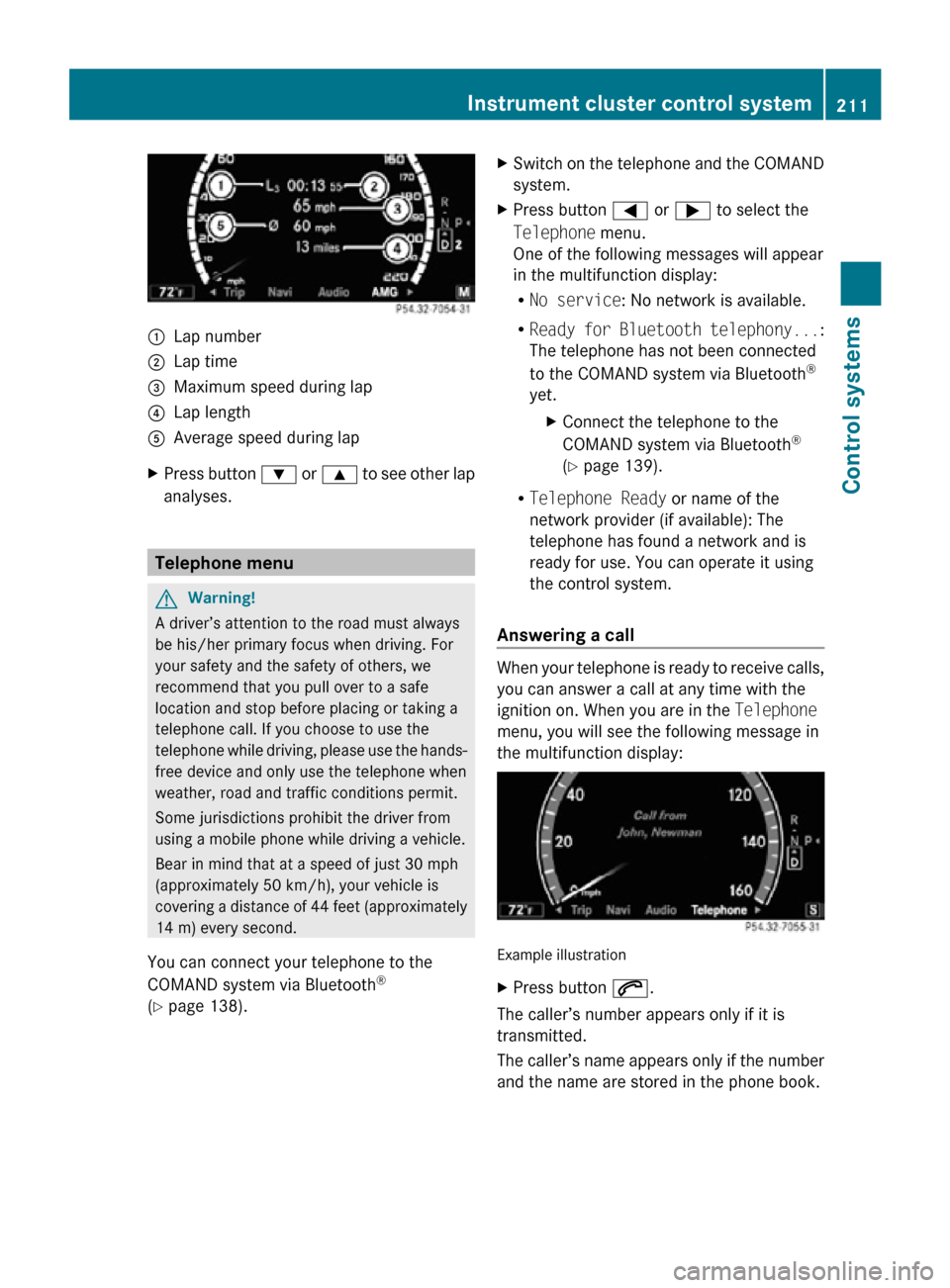
:
Lap number
; Lap time
= Maximum speed during lap
? Lap length
A Average speed during lap
X Press button : or 9 to see other lap
analyses. Telephone menu
G
Warning!
A driver’s attention to the road must always
be his/her primary focus when driving. For
your safety and the safety of others, we
recommend that you pull over to a safe
location and stop before placing or taking a
telephone call. If you choose to use the
telephone while driving, please use the hands-
free device and only use the telephone when
weather, road and traffic conditions permit.
Some jurisdictions prohibit the driver from
using a mobile phone while driving a vehicle.
Bear in mind that at a speed of just 30 mph
(approximately 50 km/h), your vehicle is
covering a distance of 44 feet (approximately
14 m) every second.
You can connect your telephone to the
COMAND system via Bluetooth ®
(Y page 138). X
Switch on the telephone and the COMAND
system.
X Press button = or ; to select the
Telephone menu.
One of the following messages will appear
in the multifunction display:
R
No service: No network is available.
R Ready for Bluetooth telephony... :
The telephone has not been connected
to the COMAND system via Bluetooth ®
yet. XConnect the telephone to the
COMAND system via Bluetooth ®
(Y page 139).
R Telephone Ready or name of the
network provider (if available): The
telephone has found a network and is
ready for use. You can operate it using
the control system.
Answering a call When your telephone is ready to receive calls,
you can answer a call at any time with the
ignition on. When you are in the Telephone
menu, you will see the following message in
the multifunction display:
Example illustration
X
Press button 6.
The caller’s number appears only if it is
transmitted.
The caller’s name appears only if the number
and the name are stored in the phone book. Instrument cluster control system
211Control systems
216_AKB; 3; 90, en-US
d2ureepe, Version: 2.11.8.1 2009-05-15T11:47:50+02:00 - Seite 211 Z
Page 227 of 500

“Enter intersection”, “Enter crossing”
Use the command “Enter intersection” or
“Enter crossing” to enter an intersection.
Sample dialog:
\
Enter intersection.
^ Please say the name of the first street.
\ Forest Drive.
^ Forest Drive accepted.
^ Please say the name of the
intersecting street.
\ Dudley Street.
^ Dudley Street accepted.
The intersection is adopted for route
guidance.
“Enter house number” Use the command “Enter house number” to
enter a house number for the street
previously selected.
Sample dialog:
\
Enter house number.
^ Please say the house number.
\ Thirty-two.
^ House number accepted.
The house number is adopted for route
guidance.
“Correction” If you have entered a city or street, you can
use the “Correction” command to enter the
city or street again.
Voice Control System telephone
Safety notes
i For more information on telephone, see
(Y page 135). Safety notes for using the Voice Control
System G
Observe Safety notes, see page 217.
Safety notes for using the telephone G
Observe Safety notes, see page 135. Telephone operation
You can use the Voice Control System to
R dial phone number
R store names
and numbers in the COMAND
address book
R dial a phone number directly from the
COMAND address book
R delete the voice name of an address book
entry
R have the system read out the phone book
of the address book entry by entry
R manage and access an automated
answering system/voice mail box 29
R redial
The Voice Control System detects whether
R your telephone is switched on
R your telephone is connected via Bluetooth ®
R the corresponding mobile network is
logged in
R it is possible to dial
If dialing is not possible, the Voice Control
System will advise you accordingly.
i You can continue operating your mobile
phone using the telephone keypad or the
keypad on your phone. Telephone commands
For a list of commands, see ( Y page 237).
29 Only when supported by the mobile phone. Voice Control System telephone
225
Control systems
216_AKB; 3; 90, en-US
d2ureepe, Version: 2.11.8.1 2009-05-15T11:47:50+02:00 - Seite 225 Z