2010 FORD KUGA Start
[x] Cancel search: StartPage 149 of 226

Air cleaner: No maintenance necessary.
H
Engine oil dipstick *
: See Engine oil check (page 147).
I
* For easy identification, filler caps and the engine oil dipstick are marked in colour.
ENGINE OIL DIPSTICK - 2.5L
DURATEC (VI5) MINA
MAX
B
ENGINE OIL DIPSTICK - 2.0L
DURATORQ-TDCI (DW)
DIESEL MINA
MAX
B ENGINE OIL CHECK CAUTION
Do not use oil additives or other
engine treatments. Under certain
conditions, they could damage the
engine. Note:The oil consumption of new
engines reaches its normal level after approximately 5 000 kilometres (3 000miles).
Checking the oil level CAUTION
Make sure that the level is between
the
MIN and the MAXmarks. Note:
Check the level before starting the
engine.
Note:Make sure that your vehicle is on
level ground.
Note:Oil expands when it is hot. The level
may therefore extend a few millimetres
beyond the MAXmark.
Remove the dipstick and wipe it with a
clean, lint free cloth. Replace the dipstick
and remove it again to check the oil level.
If the level is at the MINmark, top up
immediately.
147
MaintenanceE95542BA E95543BA
Page 157 of 226

1. Position the vehicles so that they do
not touch one another.
2. Switch off the engine and any electrical equipment.
3. Connect the positive (+) terminal of vehicle Bwith the positive (+) terminal
of vehicle A(cable C).
4. Connect the negative (-) terminal of vehicle Bto the ground connection
on the left-hand side suspension turret
of vehicle A(cable D). CAUTIONS
Do not connect to the negative
(–) terminal of the flat battery.
Make sure that the cables are clear
of any moving parts.
To start the engine
1.
Run the engine of vehicle Bat
moderately high speed.
2. Start the engine of vehicle A.
3. Run both vehicles for a minimum of three minutes before disconnecting
the cables. CAUTION
Do not switch on the headlamps
when disconnecting the cables. The
peak voltage could blow the bulbs.
Disconnect the cables in the reverse
order.
155
Vehicle battery
Page 165 of 226

Protective cap
A
Pressure relief valve
B
Hose
C
Orange cap
D
Bottle holder
E
Pressure gauge
F
Power plug with cable
G
Compressor switch
H
Label
I Bottle lid
J
Sealant bottle
K
1. Open the lid of the tyre repair kit.
2. Peel off the label Ishowing the
maximum permissible speed of
80 km/h (50 mph) from the casing
and attach it to the instrument panel
in the driver’s field of view. Make sure
the label does not obscure anything
important.
3. Take the hose Cand the power plug
with cable Gout of the kit.
4. Unscrew the orange cap Dand the
bottle lid J.
5. Screw the sealant bottle Kclockwise
into the bottle holder Efully tight.
6. Remove the valve cap from the damaged tyre.
7. Detach the protective cap Afrom the
hose Cand screw the hose Cfirmly
onto the valve of the damaged tyre.
8. Make sure that the compressor switch
His in position 0.
9. Insert the power plug Ginto the cigar
lighter socket or auxiliary power
socket. See Cigar lighter (page 97).
See Auxiliary power sockets
(page 97).
10. Start the engine.
11. Move the compressor switch Hto
position 1.
12. Inflate the tyre for no longer than seven minutes to an inflation
pressure of minimum 1.8 bar (26 psi)
and a maximum of 3.5 bar (51 psi).
Move the compressor switch Hto
position 0and check the current tyre
pressure with pressure gauge F.
13. Remove the power plug Gfrom the
cigar lighter socket or auxiliary power
socket.
163
Wheels and tyresE94973BJIFECKAGHD
Page 177 of 226

GENERAL INFORMATION
CAUTION
Using the system with the engine off
will drain the battery.
This section describes the functions and
features of the Bluetooth mobile phone
hands free system.
The Bluetooth mobile phone part of the
system provides interaction with the audio
or navigation system and your mobile
phone. It allows you to use the audio or
navigation system to make and receive
calls without having to use your mobile
phone.
Compatibility of phones
CAUTION
As no common agreement exists,
mobile phone manufacturers are able
to implement a variety of profiles in
their Bluetooth devices. Because of this,
an incompatibility can occur between the
phone and hands-free system, which in
some cases may significantly degrade the
system performance. To avoid this
situation, only recommended phones
should be used.
Please visit the website www.ford-
mobile-connectivity.com for full
details. TELEPHONE SETUP
Phonebook
After start up access to the phonebook
list can be delayed for several minutes,
depending upon the size. Phonebook categories
Depending on your phonebook entry,
different categories can be displayed in
the audio unit.
For example: Mobile
M
Office
O
Home
H
Fax
F
Note:Entries may be displayed without
a category attachment.
The category can also be indicated as an
icon: Phone
Mobile
Home
Office
Fax
Making a phone an active
phone
When using the system for the first time,
no phone is connected to the system.
Bluetooth phone
After bonding a Bluetooth phone to the
system, this becomes the active phone.
For further information refer to the phone
menu.
175
TelephoneE87990 E87991 E87992 E87993 E87994
Page 185 of 226
•
automatic climate control:
"TEMPERATURE", "AUTO MODE",
"DEFROSTING/DEMISTING ON" and
"DEFROSTING/DEMISTING OFF"
• radio: "TUNE NAME"
• external device (USB): "TRACK"
• external device (iPod): "TRACK"
• SD card: "TRACK".
Start communicating with the
system
Before you can start talking to the system
you first have to press the VOICEor
MODE button for each operation and
wait until the system answers with a beep.
See Voice control (page 40).
Press the button again to cancel the voice
session. Name tag
The name tag functionality can support
the phone, audio and navigation features
by using the "STORE NAME" function. You
can assign name tags to items such as
favourite radio stations and personal
phone contacts. See
Audio unit
commands (page 183). See Telephone
commands (page 192). See
Navigation system commands
(page 197).
• Store up to 20 name tags per function.
• The average recording time for each
name tag is approximately 2-3
seconds.
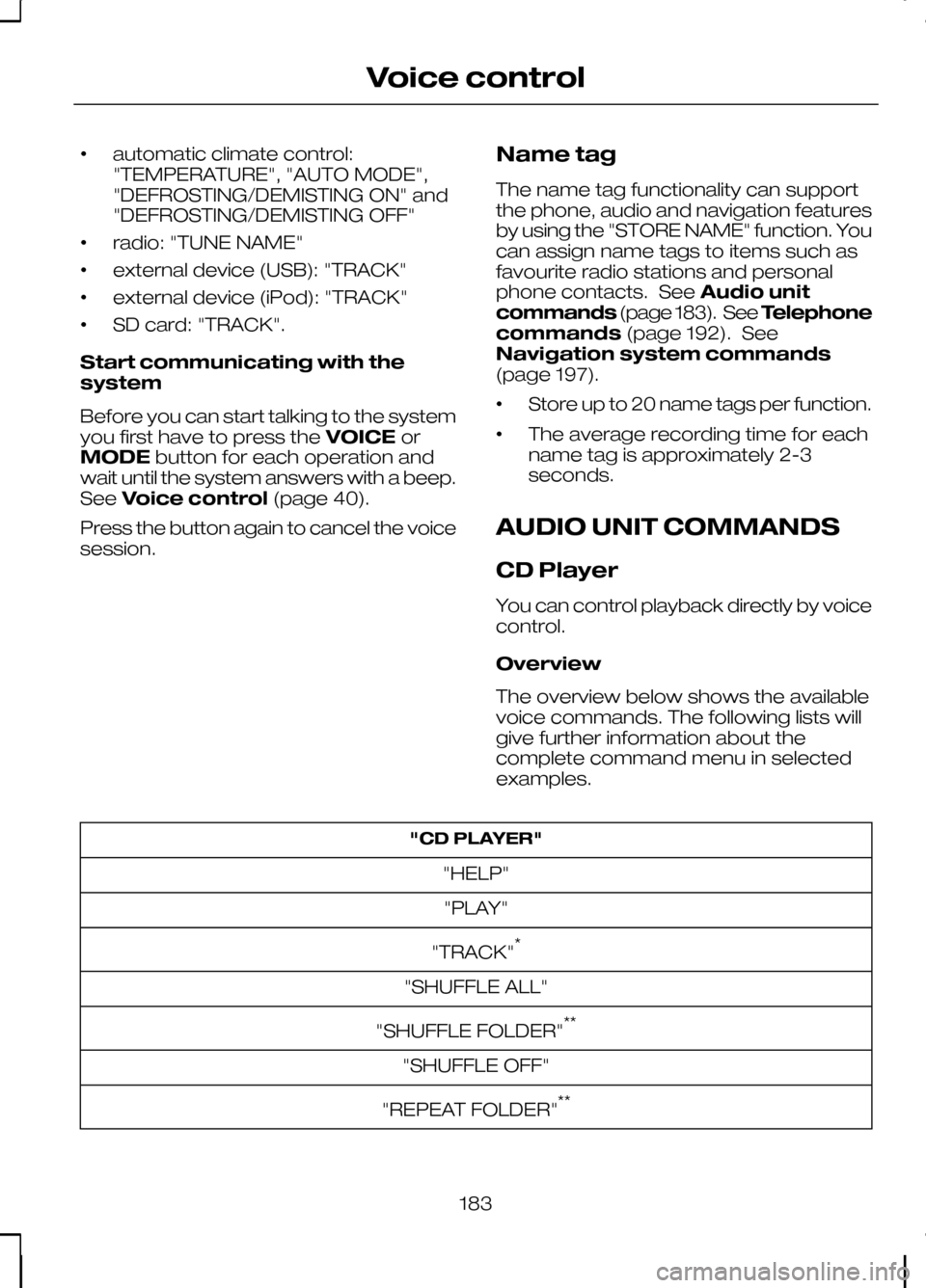
AUDIO UNIT COMMANDS
CD Player
You can control playback directly by voice
control.
Overview
The overview below shows the available
voice commands. The following lists will
give further information about the
complete command menu in selected
examples. "CD PLAYER"
"HELP""PLAY"
"TRACK" *
"SHUFFLE ALL"
"SHUFFLE FOLDER" **
"SHUFFLE OFF"
"REPEAT FOLDER" **
183
Voice control
Page 204 of 226

Bonding the device
Note:Some audio and navigation units
have a separate Bluetooth audio menu. Use this to access setup and control.
To connect the device to the system
follow the same procedure as for
Bluetooth hands free phones. See
Bluetooth setup (page 176).
Operating the device
Select Bluetooth audio as the active
source.
Tracks can be accessed by skipping
forwards and backwards using the
steering wheel controls, or directly from
the audio unit controls.
USING A USB DEVICE
Various icons are used to identify types
of audio file, folders etc. USB device is the active source
Folder
Playlist
Album
Artist
Filename
Track title Information not available
Sony radio
Operation
Select the USB device as the audio
source by repeatedly pressing the
CD/AUX button until USB appears in the
display. After first connecting the USB
device, the first track within the first folder
will start to play automatically.
Subsequently, following audio source
switching, the position of playback on the
USB device is remembered.
To browse the device contents, press the
up/down arrow key or the OK button
once.
The display will show the track
information, together with other important
information described below:
• A vertical scroll bar on the right side of
the display shows the current position
of the folder view.
• ">" after an entry indicates a further
level down is readable (for example a
folder named after an album, with
individual album tracks within that
folder).
• "<" before the list indicates that a
further level up is readable.
• Icons to the left of track/folder text
indicate the type of file/folder. Refer
to the list for an explanation of these
icons.
To navigate the USB device contents, use
the up/down arrow keys to scroll through
lists, and the left/right keys to move up or
down within the folder hierarchy. Once
your desired track, playlist or folder is
highlighted, press the OK button to select
playback.
202
ConnectivityE100029 E100022 E100023 E100024 E100025 E100026 E100027 E100028
Page 205 of 226

Note:If you wish to jump to the top level
of the USB device contents, press and hold the left arrow key.
Audio control
Press the left and right arrow keys to skip
backwards and forwards through tracks.
Press and hold the left/right arrow keys
to enable fast rewind/fast forward through
track content.
Press the up/down arrow key or the OK
button to browse the device contents.
Press the MENU key to enter the USB
menu. It is possible to enable shuffle and
repeat functions here with respect to
folders and playlists.
Press the SCAN button to scan the whole
device, current folder or a playlist if it is in
operation.
Press the INFObutton to display the
following:
• filename
• title
• artist
• album
• track number and playing time.
Repeated button presses will scroll
through these displays.
CD Navigation units
Operation
Select the USB device as the audio
source by pressing the CD/AUXbutton
until DEVICES appears in the display.
Select DEVICES and then select USB from
the available device list. After first
connecting the USB device, the first track
within the first folder will start to play
automatically. Subsequently, following
audio source switching, the position of
playback on the USB device is
remembered. To browse the device contents, press the
SELECT
button once.
The display will show the track
information, together with other important
information described below:
• A vertical scroll bar on the right side of
the display shows the current position
of the folder view.
• ">" after an entry indicates a further
level down is readable (for example a
folder named after an album, with
individual album tracks within that
folder).
• "<" to the left hand side of the display
indicates that a further level up is
readable.
• Icons to the left of track/folder text
indicate the type of file/folder. Refer
to the list for an explanation of these
icons.
To navigate the USB device contents, use
the rotary scroll/select button to browse
through lists. Push the button to expand
the contents within the highlighted playlist
or folder, or to commence playback of a
particular track. Press ESCto go up one
level.
Audio control
Press the SEEKup and down keys to
skip backwards and forwards through
tracks.
Press and hold the SEEKkeys to enable
fast rewind/fast forward through track
content.
Rotate or press the SELECTbutton to
browse the device contents.
Press SHUFFLE or REPEAT buttons to
enable shuffle and repeat functions with
respect to folders and playlists. Different
options may appear depending upon
whether or not a playlist is in operation.
203
Connectivity
Page 206 of 226

Press the SCAN button to scan the
current playlist if it is in operation, or the
complete USB device or folder.
Press the
INFObutton to display the
following:
• filename
• title
• artist
• album
• track number and playing time.
DVD Navigation units
Operation
Select the USB device as the audio
source by pressing the CD/AUXbutton
until the USB button appears to the left of
the display. Select USB from the available
device list.
Note:Some devices may be shown but
not selectable, depending if the device is connected or not.
After first connecting the USB device, the
first track within the first folder will start to
play automatically. Subsequently, following
audio source switching, the position of
playback on the USB device is
remembered.
To browse the device contents, press the
scroll up or down arrow button.
The display will show the track
information, together with other important
information described below:
• A vertical scroll bar on the right side of
the display shows the current position
of the folder view.
• ">" after an entry indicates a further
level down is readable (for example a
folder named after an album, with
individual album tracks within that
folder). •
"<" to the left hand side of the display
indicates that a further level up is
readable.
• Icons to the left of track/folder text
indicate the type of file/folder. Refer
to the list for an explanation of these
icons.
To navigate the USB device contents, use
the scroll buttons to browse through lists.
Push the button to expand the contents
within the highlighted playlist or folder, or
to commence playback of a particular
track. Press the left arrow key to go up
one level.
Audio control
Press the SEEKup and down keys to
skip backwards and forwards through
tracks.
Press and hold the SEEKkeys to enable
fast rewind/fast forward through track
content.
Press the scroll bar arrow keys to browse
the device contents.
Press SHUFFLE or REPEAT buttons to
enable shuffle and repeat functions with
respect to folders and playlists.
Press the SCAN button to scan the
current playlist if it is in operation, or the
complete USB device or folder.
Press the INFObutton to display the
following:
• filename
• title
• artist
• album
• track number and playing time.
USING AN IPOD
Various icons are used to identify types
of audio file, folders etc.
204
Connectivity