Page 39 of 404
AUDIO SYSTEMS
Quick start — How to get going
WARNING:Driving while distracted can result in loss of vehicle
control, accident and injury. Ford strongly recommends that
drivers use extreme caution when using any device that may take their
focus off the road. The drivers primary responsibility is the safe
operation of their vehicle. Only use cell phones and other devices not
essential to the driving task when it is safe to do so.
Listening to the radio
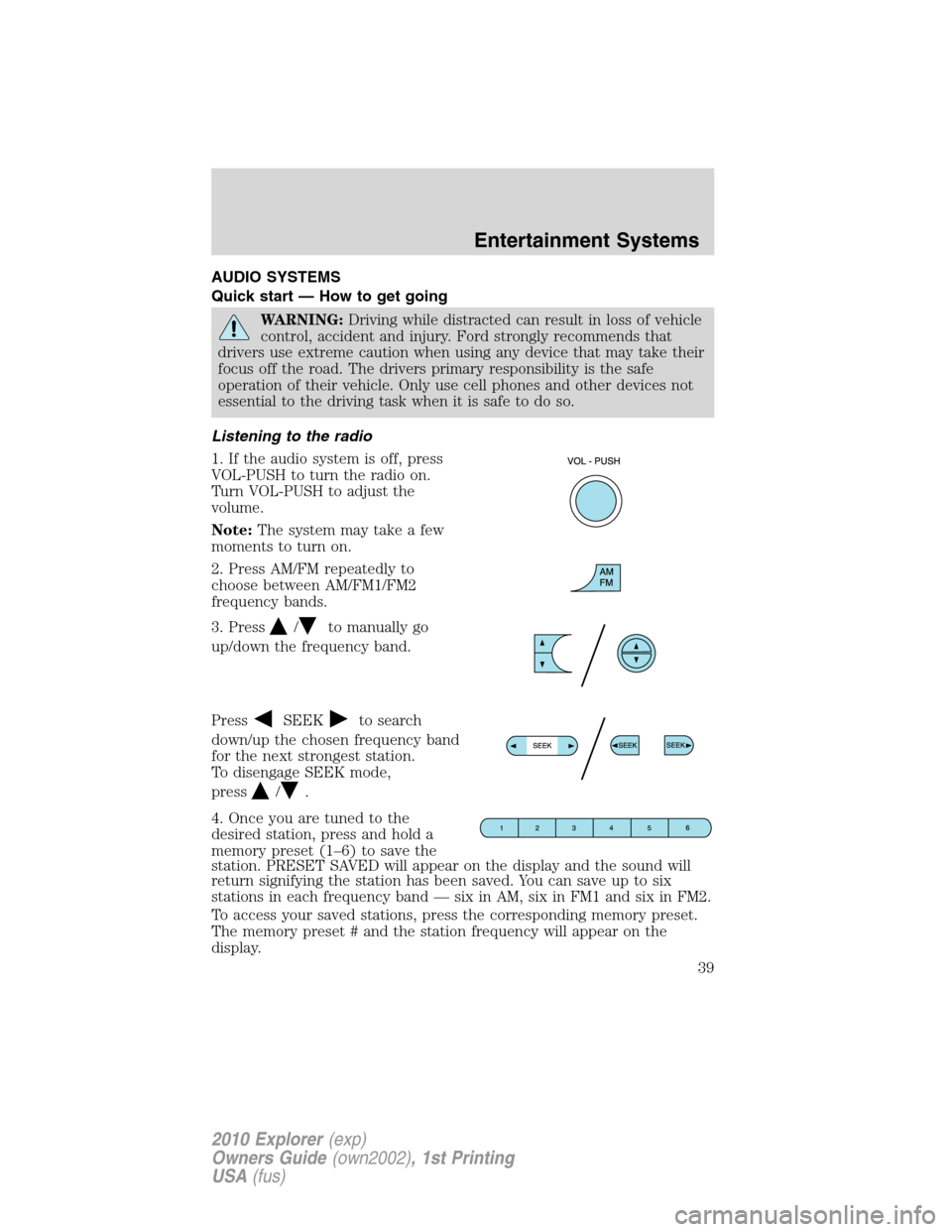
1. If the audio system is off, press
VOL-PUSH to turn the radio on.
Turn VOL-PUSH to adjust the
volume.
Note:The system may take a few
moments to turn on.
2. Press AM/FM repeatedly to
choose between AM/FM1/FM2
frequency bands.
3. Press
/to manually go
up/down the frequency band.
Press
SEEKto search
down/up the chosen frequency band
for the next strongest station.
To disengage SEEK mode,
press
/.
4. Once you are tuned to the
desired station, press and hold a
memory preset (1–6) to save the
station. PRESET SAVED will appear on the display and the sound will
return signifying the station has been saved. You can save up to six
stations in each frequency band — six in AM, six in FM1 and six in FM2.
To access your saved stations, press the corresponding memory preset.
The memory preset # and the station frequency will appear on the
display.
Entertainment Systems
39
2010 Explorer(exp)
Owners Guide(own2002), 1st Printing
USA(fus)
Page 43 of 404
AM/FM Single CD/MP3 satellite compatible sound system
(if equipped)
WARNING:Driving while distracted can result in loss of vehicle
control, accident and injury. Ford strongly recommends that
drivers use extreme caution when using any device that may take their
focus off the road. The driver’s primary responsibility is the safe
operation of their vehicle. Only use cell phones and other devices not
essential to the driving task when it is safe to do so.
Accessory delay:Your vehicle is equipped with accessory delay. With
this feature, the window switches, radio and moon roof (if equipped)
may be used for up to ten minutes after the ignition is turned off or until
either front door is opened.
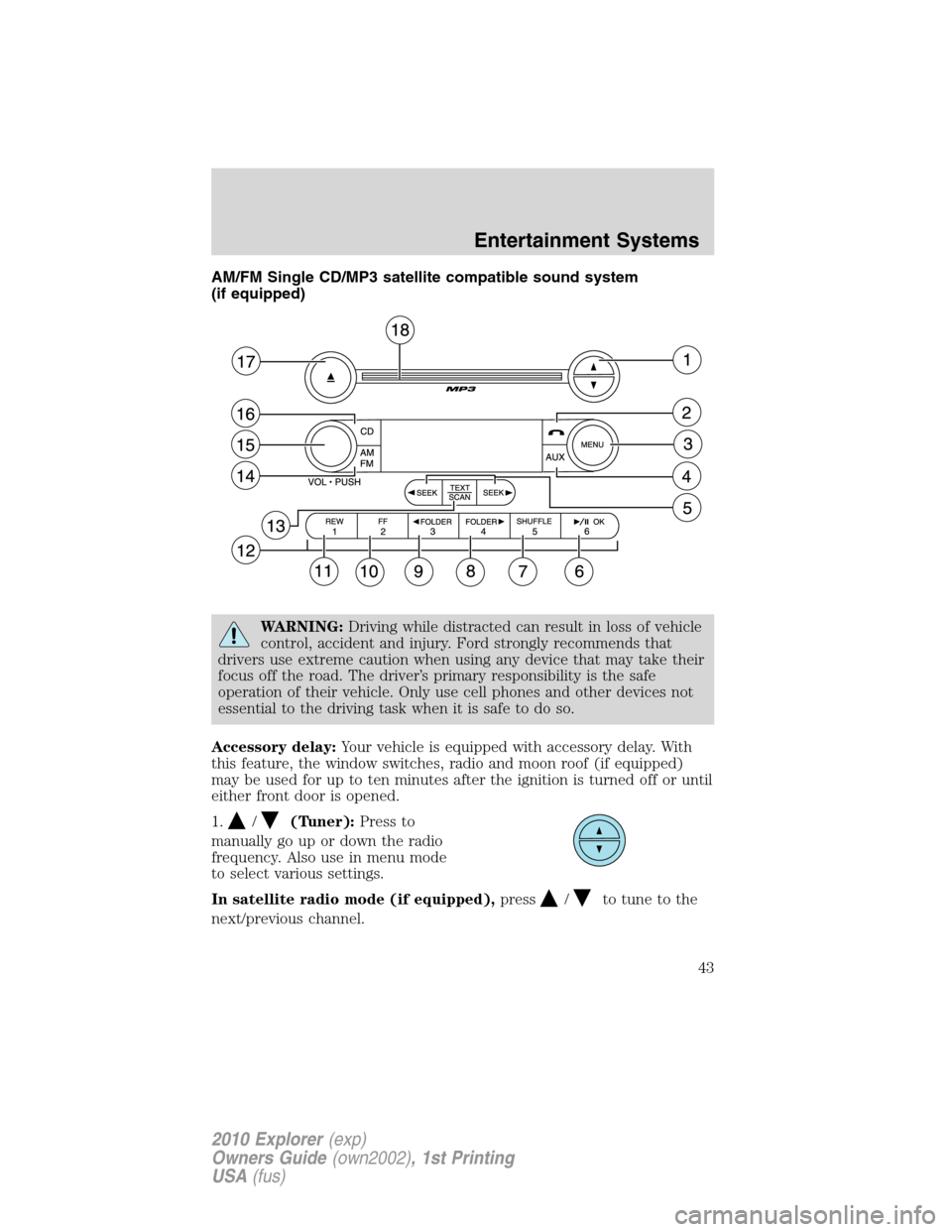
1.
/(Tuner):Press to
manually go up or down the radio
frequency. Also use in menu mode
to select various settings.
In satellite radio mode (if equipped),press
/to tune to the
next/previous channel.
Entertainment Systems
43
2010 Explorer(exp)
Owners Guide(own2002), 1st Printing
USA(fus)
Page 50 of 404
16.CD:Press to enter CD/MP3
mode. If a CD/MP3 is already loaded
into the system, CD/MP3 play will
begin where it ended last. If no CD is loaded, NO DISC will appear in the
display.
17.
(CD eject):Press to eject a
CD.
18.CD slot:Insert a CD label side
up in the CD slot.
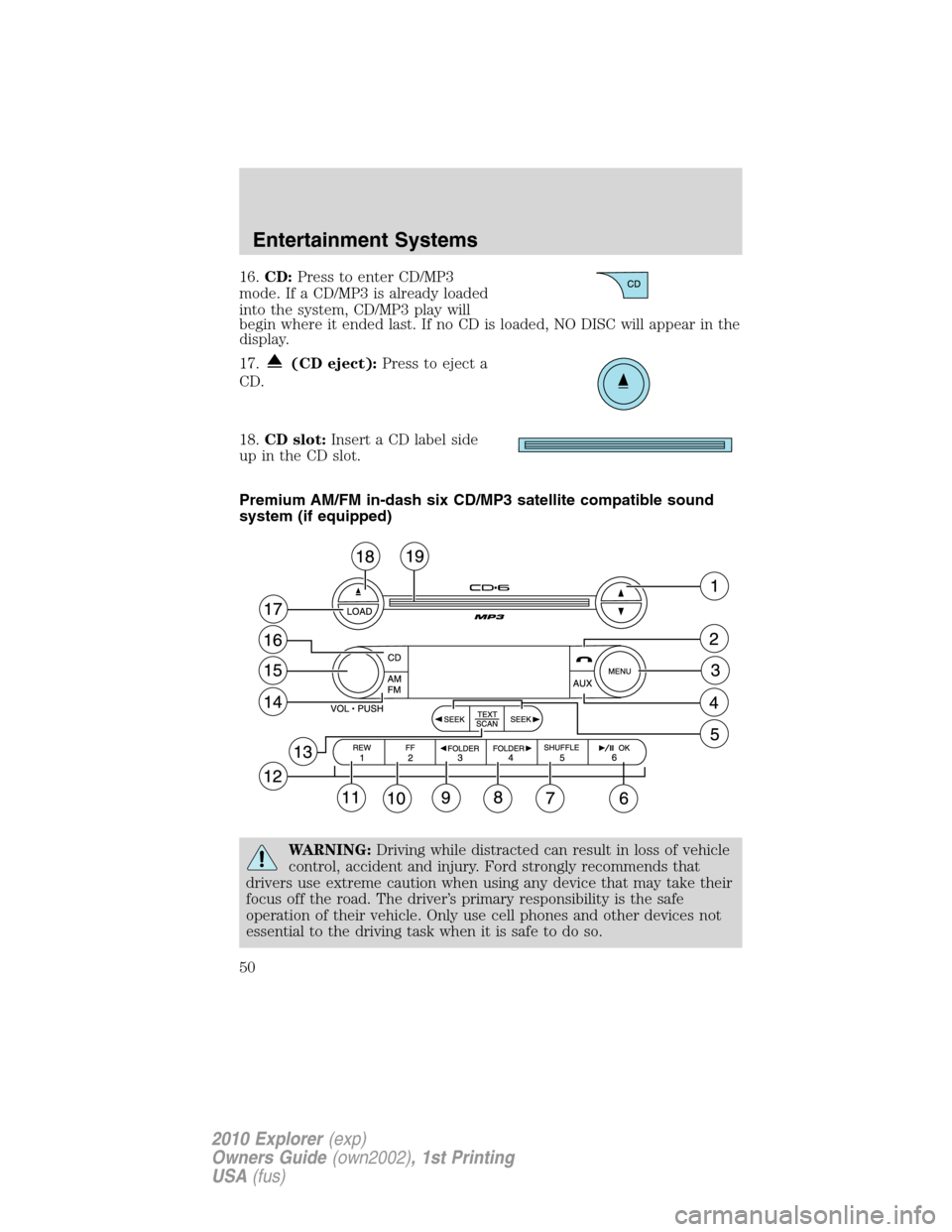
Premium AM/FM in-dash six CD/MP3 satellite compatible sound
system (if equipped)
WARNING:Driving while distracted can result in loss of vehicle
control, accident and injury. Ford strongly recommends that
drivers use extreme caution when using any device that may take their
focus off the road. The driver’s primary responsibility is the safe
operation of their vehicle. Only use cell phones and other devices not
essential to the driving task when it is safe to do so.
Entertainment Systems
50
2010 Explorer(exp)
Owners Guide(own2002), 1st Printing
USA(fus)
Page 58 of 404
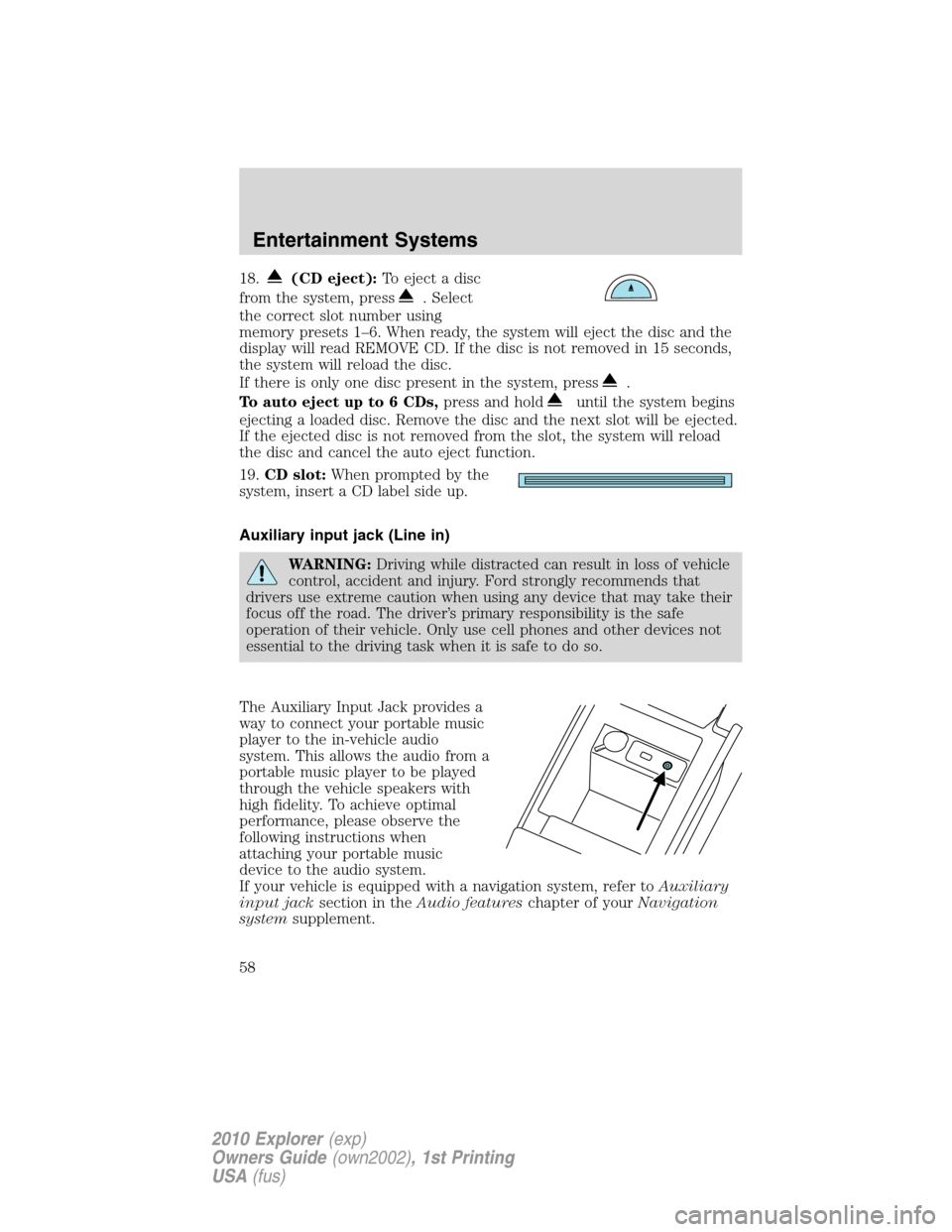
18.(CD eject):To eject a disc
from the system, press
. Select
the correct slot number using
memory presets 1–6. When ready, the system will eject the disc and the
display will read REMOVE CD. If the disc is not removed in 15 seconds,
the system will reload the disc.
If there is only one disc present in the system, press
.
To auto eject up to 6 CDs,press and hold
until the system begins
ejecting a loaded disc. Remove the disc and the next slot will be ejected.
If the ejected disc is not removed from the slot, the system will reload
the disc and cancel the auto eject function.
19.CD slot:When prompted by the
system, insert a CD label side up.
Auxiliary input jack (Line in)
WARNING:Driving while distracted can result in loss of vehicle
control, accident and injury. Ford strongly recommends that
drivers use extreme caution when using any device that may take their
focus off the road. The driver’s primary responsibility is the safe
operation of their vehicle. Only use cell phones and other devices not
essential to the driving task when it is safe to do so.
The Auxiliary Input Jack provides a
way to connect your portable music
player to the in-vehicle audio
system. This allows the audio from a
portable music player to be played
through the vehicle speakers with
high fidelity. To achieve optimal
performance, please observe the
following instructions when
attaching your portable music
device to the audio system.
If your vehicle is equipped with a navigation system, refer toAuxiliary
input jacksection in theAudio featureschapter of yourNavigation
systemsupplement.
Entertainment Systems
58
2010 Explorer(exp)
Owners Guide(own2002), 1st Printing
USA(fus)
Page 60 of 404

5. For safety reasons, connecting or adjusting the settings on your
portable music player should not be attempted while the vehicle is
moving. Also, the portable music player should be stored in a secure
location, such as the center console or the glove box, when the vehicle is
in motion. The audio extension cable must be long enough to allow the
portable music player to be safely stored while the vehicle is in motion.
USB port (if equipped)
WARNING:Driving while distracted can result in loss of vehicle
control, accident and injury. Ford strongly recommends that
drivers use extreme caution when using any device that may take their
focus off the road. The driver’s primary responsibility is the safe
operation of their vehicle. Only use cell phones and other devices not
essential to the driving task when it is safe to do so.
Your vehicle may be equipped with a
USB port inside your center console.
This feature allows you to plug in
media playing devices, memory
sticks, and also to charge devices if
they support this feature. For
further information on this feature,
refer toAccessing and using your
USB portin theSYNC�supplement
orNavigation Systemsupplement.
GENERAL AUDIO INFORMATION
Radio frequencies:
AM and FM frequencies are established by the Federal Communications
Commission (FCC) and the Canadian Radio and Telecommunications
Commission (CRTC). Those frequencies are:
AM: 530, 540–1700, 1710 kHz
FM: 87.7, 87.9–107.7, 107.9 MHz
Radio reception factors:
There are three factors that can affect radio reception:
•Distance/strength: The further you travel from an FM station, the
weaker the signal and the weaker the reception.
•Terrain: Hills, mountains, tall buildings, power lines, electric fences,
traffic lights and thunderstorms can interfere with your reception.
Entertainment Systems
60
2010 Explorer(exp)
Owners Guide(own2002), 1st Printing
USA(fus)
Page 66 of 404
Radio Display Condition Action Required
NO TEXT Song title information
not available.Song title information
not available at this
time on this channel.
The system is working
properly.
NO TEXT Category information
not available.Category information
not available at this
time on this channel.
The system is working
properly.
NO SIGNAL Loss of signal from
the SIRIUS satellite or
SIRIUS tower to the
vehicle antenna.You are in a location
that is blocking the
SIRIUS signal (i.e.,
tunnel, under an
overpass, dense foliage,
etc). The system is
working properly. When
you move into an open
area, the signal should
return.
UPDATING Update of channel
programming in
progress.No action required. The
process may take up to
three minutes.
CALL SIRIUS
1–888–539–7474Satellite service has
been deactivated by
SIRIUS Satellite
Radio.Call SIRIUS at
1–888–539–7474 to
re-activate or resolve
subscription issues.
FAMILY ENTERTAINMENT DVD SYSTEM (IF EQUIPPED)
WARNING:Driving while distracted can result in loss of vehicle
control, accident and injury. Ford strongly recommends that
drivers use extreme caution when using any device that may take their
focus off the road. The driver’s primary responsibility is the safe
operation of their vehicle. Only use cell phones and other devices not
essential to the driving task when it is safe to do so.
Entertainment Systems
66
2010 Explorer(exp)
Owners Guide(own2002), 1st Printing
USA(fus)
Page 72 of 404
Using wired headphones (not included):
WARNING:Do not leave children unattended in the vehicle and
do not let children operate the system while unsupervised. If
wired headphones or auxiliary systems are used, children may become
entangled in the cords and seriously injure themselves.
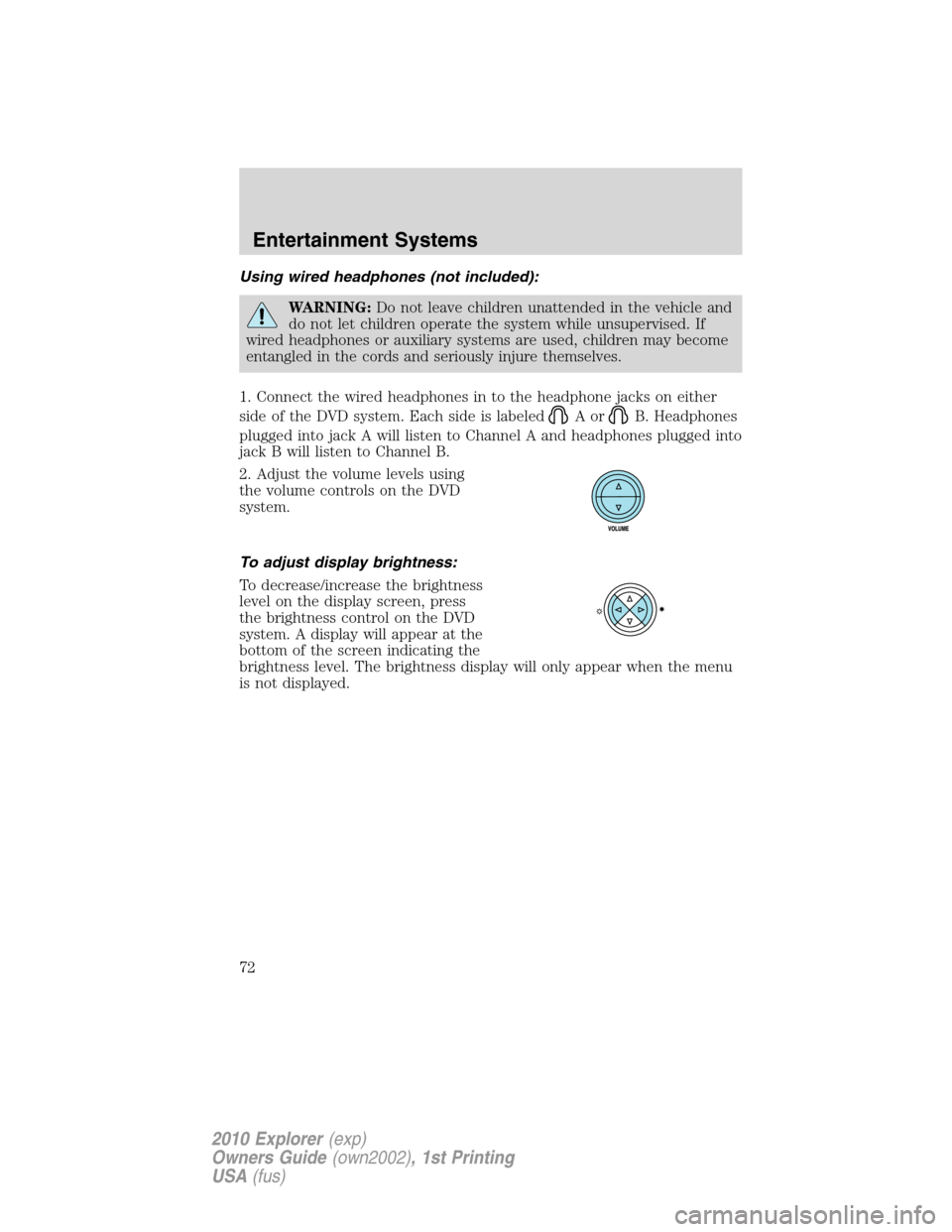
1. Connect the wired headphones in to the headphone jacks on either
side of the DVD system. Each side is labeled
AorB. Headphones
plugged into jack A will listen to Channel A and headphones plugged into
jack B will listen to Channel B.
2. Adjust the volume levels using
the volume controls on the DVD
system.
To adjust display brightness:
To decrease/increase the brightness
level on the display screen, press
the brightness control on the DVD
system. A display will appear at the
bottom of the screen indicating the
brightness level. The brightness display will only appear when the menu
is not displayed.
Entertainment Systems
72
2010 Explorer(exp)
Owners Guide(own2002), 1st Printing
USA(fus)
Page 79 of 404
Headphones
Wireless headphones
WARNING:The driver should never use the headphones while
driving the vehicle. Using headphones may prevent the driver
from hearing audible warnings such as horns or emergency sirens,
which could result in a crash causing serious injury. Give your full
attention to driving and to the road.
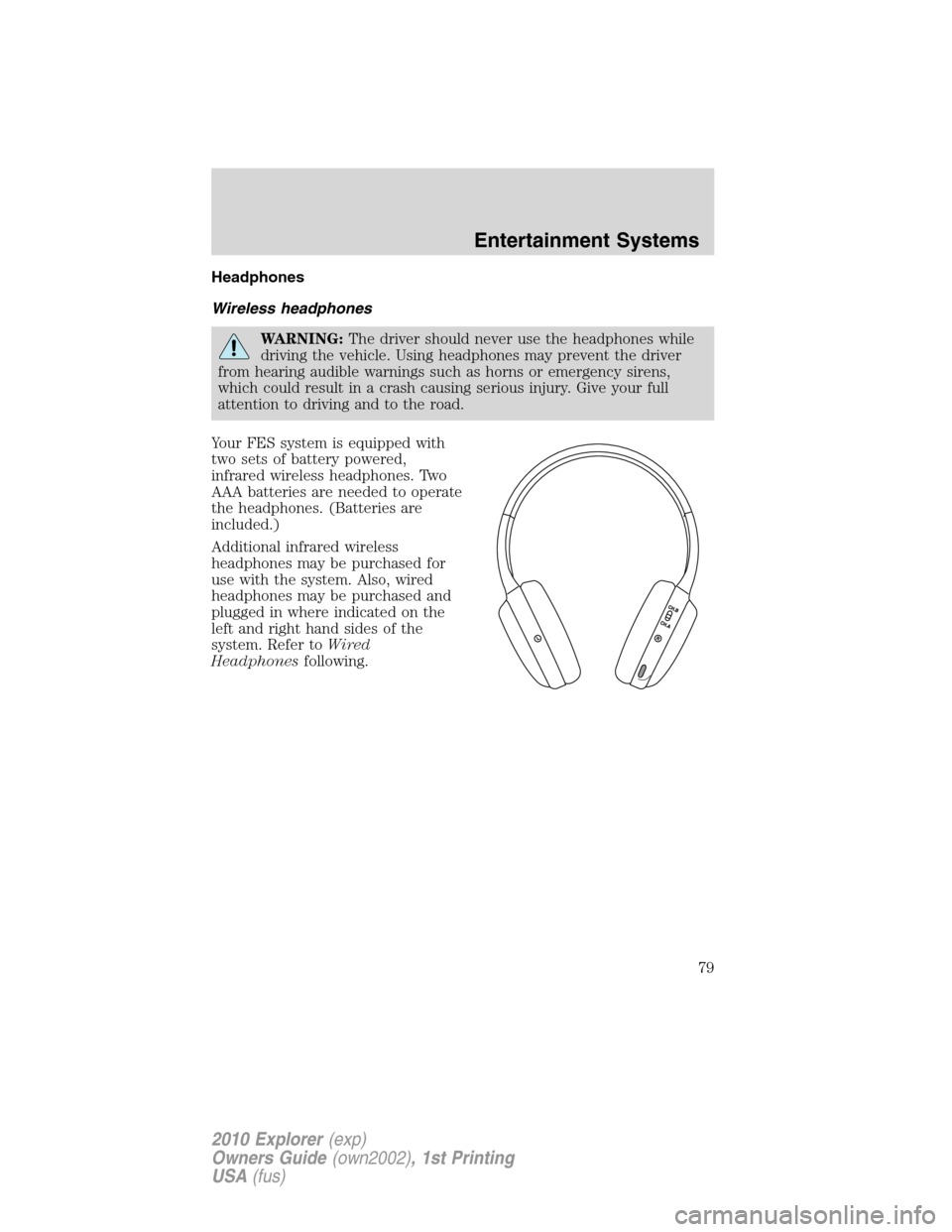
Your FES system is equipped with
two sets of battery powered,
infrared wireless headphones. Two
AAA batteries are needed to operate
the headphones. (Batteries are
included.)
Additional infrared wireless
headphones may be purchased for
use with the system. Also, wired
headphones may be purchased and
plugged in where indicated on the
left and right hand sides of the
system. Refer toWired
Headphonesfollowing.
Entertainment Systems
79
2010 Explorer(exp)
Owners Guide(own2002), 1st Printing
USA(fus)