Page 216 of 465

2. Press and hold the HOME button for approximately
two seconds.
3. Press the SCROLL button until “Compass Variance”
message and the last variance zone number displays in
the EVIC.
4. Press and release FUNCTION SELECT button until
the proper variance zone is selected according to the
map.
5. Press and release the HOME button to exit.
Uconnect™ gps — If Equipped
Uconnect™ gps Display Control
Press and release the MENU button until Navigation
displays in the EVIC. When the Navigation System is On,
the steering wheel buttons can be used to select the Map
or Menu display on the Navigation Unit. When the Menu
display is active, the SCROLL button can be used to scroll
through the list, the FUNCTION SELECT button can beused to select an item, and the AUDIO MODE button can
be used to return to the previous menu. When the Map
display is active, pressing the FUNCTION SELECT but-
ton will change the Navigation Unit Display to the Menu.
Turn-by-Turn Directions
The EVIC displays turn-by-turn directions to a pro-
grammed destination when Turn-by-Turn Navigation is
enabled through Personal Settings. When enabled, the
EVIC displays the name of the approaching road at the
top of the screen, followed by an arrow to indicate the
direction to turn the vehicle, and a count down to
indicate the distance to the turn.
NOTE:
Refer to your “Navigation User’s Manual” for
detailed operating instructions.
4
UNDERSTANDING YOUR INSTRUMENT PANEL 215
Page 251 of 465
for that track. Pressing theINFObutton again jumps
to the next screen of data for that track. Once all
screens have been viewed, the last INFObutton press
will go back to the play mode screen on the radio.
•Pressing the REPEATbutton will change the iPod�
mode to repeat the current playing track.
•Press the SCANbutton to use iPod� scan mode, which
will play the first five seconds of each track in the
current list and then forward to the next song. To stop
SCAN mode and start playing the desired track, when
it is playing the track, press the SCANbutton again.
During Scan mode, pressing the << SEEKandSEEK
>> buttons will select the previous and next tracks.
•RND button (available on sales code RES radio only):
Pressing this button toggles between Shuffle ON and
Shuffle OFF modes for the iPod�.IftheRND icon is
showing on the radio display, then the shuffle mode is
ON.
List Or Browse Mode
During Play mode, pressing any of the buttons described
below, will bring up List mode. List mode enables
scrolling through the list of menus and tracks on the
iPod�.
•TUNE control knob: The TUNEcontrol knob functions
in a similar manner as the scroll wheel on the iPod�.
•Turning it clockwise (forward) and counterclock-
wise (backward) scrolls through the lists, displaying
the track detail on the radio display. Once the track
to be played is highlighted on the radio display,
press the TUNEcontrol knob to select and start
playing the track. Turning the TUNEcontrol knob
fast will scroll through the list faster. During fast
scroll, a slight delay in updating the information on
the radio display may be noticed.
250 UNDERSTANDING YOUR INSTRUMENT PANEL
Page 252 of 465
•During all List modes, the iPod�displays all lists in
“wrap-around” mode. So if the track is at the
bottom of the list, just turn the wheel backwards
(counter-clockwise) to get to the track faster.
•In List mode, the radio PRESETbuttons are used as
shortcuts to the following lists on the iPod�.
•Preset 1 – Playlists
•Preset 2 – Artists
•Preset 3 – Albums
•Preset 4 – Genres
•Preset 5 – Audiobooks
•Preset 6 – Podcasts
•Pressing a PRESET button will display the current
list on the top line and the first item in that list on
the second line.
•To Exit List mode without selecting a track, press the
same PRESET button again to go back to Play
mode.
•LIST button: The LISTbutton will display the top
level menu of the iPod�. Turn the TUNEcontrol knob
to list the top-menu item to be selected and press the
TUNE control knob. This will display the next sub-
menu list item on the iPod� then follow the same steps
to go to the desired track in that list. Not all iPod�
sub-menu levels are available on this system.
•MUSIC TYPE button: TheMUSIC TYPE button is
another shortcut button to the genre listing on your
iPod�.
4
UNDERSTANDING YOUR INSTRUMENT PANEL 251
Page 261 of 465
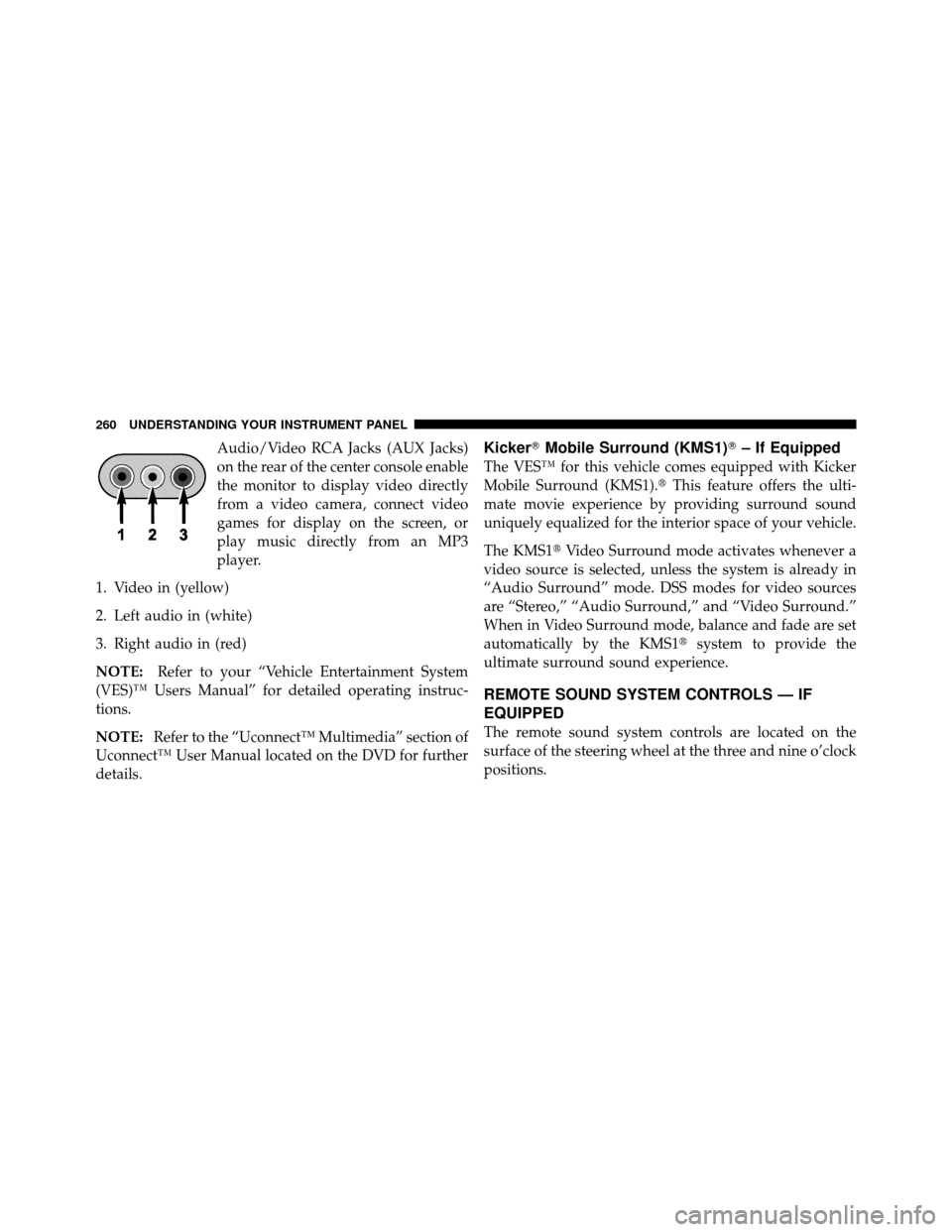
Audio/Video RCA Jacks (AUX Jacks)
on the rear of the center console enable
the monitor to display video directly
from a video camera, connect video
games for display on the screen, or
play music directly from an MP3
player.
1. Video in (yellow)
2. Left audio in (white)
3. Right audio in (red)
NOTE: Refer to your “Vehicle Entertainment System
(VES)™ Users Manual” for detailed operating instruc-
tions.
NOTE: Refer to the “Uconnect™ Multimedia” section of
Uconnect™ User Manual located on the DVD for further
details.Kicker� Mobile Surround (KMS1)� – If Equipped
The VES™ for this vehicle comes equipped with Kicker
Mobile Surround (KMS1).� This feature offers the ulti-
mate movie experience by providing surround sound
uniquely equalized for the interior space of your vehicle.
The KMS1� Video Surround mode activates whenever a
video source is selected, unless the system is already in
“Audio Surround” mode. DSS modes for video sources
are “Stereo,” “Audio Surround,” and “Video Surround.”
When in Video Surround mode, balance and fade are set
automatically by the KMS1� system to provide the
ultimate surround sound experience.
REMOTE SOUND SYSTEM CONTROLS — IF
EQUIPPED
The remote sound system controls are located on the
surface of the steering wheel at the three and nine o’clock
positions.
260 UNDERSTANDING YOUR INSTRUMENT PANEL
Page 262 of 465
Vehicles equipped with steering wheel-mounted buttons
are also equipped with the Electronic Vehicle Information
Center (EVIC). The EVIC features a driver-interactive
display which is located in the instrument cluster.The VOLUME button controls the sound level
of the sound system. Press the top of the
VOLUME button to increase the sound level.
Press the bottom of the VOLUME button to
decrease the sound level.
Press the AUDIO MODE button to select the
Compass/Temp/Audio screen. This screen
displays radio and media mode information
depending on which radio is in the vehicle.
If the Compass/Temp/Audio screen is already displayed
when the AUDIO MODE button is pressed, then the
mode will change (i.e. from AM to FM, to Media mode,
etc., depending on which radio is in the vehicle).
Remote Sound System Controls
VOLUME Button
AUDIOMODEButton
4
UNDERSTANDING YOUR INSTRUMENT PANEL 261
Page 287 of 465
When parking on a flat surface, place the shift lever in the
PARK position first, and then apply the parking brake.
When parking on a hill, it is important to set the parking
brake before placing the shift lever in PARK, otherwise
the load on the transmission locking mechanism may
make it difficult to move the shift lever out of PARK. As
an added precaution, turn the front wheels toward the
curb on a downhill grade and away from the curb on an
uphill grade.
WARNING!
Never use the PARK position as a substitute for the
parking brake. Always apply parking brake fully
when parked to guard against vehicle movement and
possible injury or damage.
The following indicators should be used to ensure that
you have engaged the shift lever in the PARK position:
•When shifting into PARK, move the shift lever all the
way forward and left until it stops and is fully seated.
•Look at the shift indicator display on the instrument
panel to ensure it is in the PARK position.
CAUTION!
Damage to the shift lever could result if the shift
lever is moved out of PARK before the ignition
switch is turned from the LOCK (OFF position with
Keyless Go™) to the ON position (RUN position
with Keyless Go™).
REVERSE
This range is for moving the vehicle backward. Use only
after the vehicle has come to a complete stop.
286 STARTING AND OPERATING
Page 291 of 465
for at least one second. The transmission will now
operate automatically, shifting between the five available
gears.
General Information
•
You can start out in first or second gear. The system
will ignore attempts to upshift at too low of a vehicle
speed.
•The transmission will automatically downshift to first
gear when coming to a stop.
•Starting out in second gear is helpful in snowy or icy
conditions.
•Avoid using speed control when AutoStick�is en-
gaged.
•The transmission will automatically shift up when
maximum engine speed is reached while AutoStick� is
engaged.
•Transmission shifting will be more crisp/abrupt when
AutoStick� is engaged.
DRIVING ON SLIPPERY SURFACES
Acceleration
Rapid acceleration on snow covered, wet, or other slip-
pery surfaces may cause the rear wheels to pull errati-
cally to the right or left. This phenomenon occurs when
there is a difference in the surface traction under the rear
(driving) wheels.
WARNING!
Rapid acceleration on slippery surfaces is dangerous.
Unequal traction can cause sudden pulling of the rear
wheels. You could lose control of the vehicle and
possibly have an accident. Accelerate slowly and
carefully whenever there is likely to be poor traction
(ice, snow, wet mud, loose sand, etc.).
290 STARTING AND OPERATING
Page 294 of 465
WARNING!
•Driving through standing water limits your vehi-
cle’s traction capabilities. Do not exceed 5 mph
(8 km/h) when driving through standing water.
•Driving through standing water limits your vehi-
cle’s braking capabilities, which increases stop-
ping distances. Therefore, after driving through
standing water, drive slowly and lightly press on
the brake pedal several times to dry the brakes.
•Getting water inside your vehicle’s engine can
cause it to lock up and stall out, and leave you
stranded.
•Failure to follow these warnings may result in
injuries that are serious or fatal to you, your
passengers, and others around you.
POWER STEERING
The standard power steering system will give you good
vehicle response and increased ease of maneuverability
in tight spaces. The system will provide mechanical
steering capability if power assist is lost.
If for some reason the power assist is interrupted, it will
still be possible to steer your vehicle. Under these condi-
tions, you will observe a substantial increase in steering
effort, especially at very low vehicle speeds and during
parking maneuvers.
NOTE:
•Increased noise levels at the end of the steering wheel
travel are considered normal and do not indicate that
there is a problem with the power steering system.
5
STARTING AND OPERATING 293