2010 CHEVROLET SUBURBAN AUX
[x] Cancel search: AUXPage 347 of 608
Audio Output
Audio from the DVD player or auxiliary inputs can be
heard through the following possible sources:
.Wireless Headphones
.Vehicle Speakers
.Vehicle wired headphone jacks on the rear seat
audio system, if the vehicle has this feature.
The RSE system always transmits the audio signal to
the wireless headphones, if there is audio available.
See “Headphones” earlier in this section for more
information.
The DVD player is capable of outputting audio to the
wired headphone jacks on the RSA system, if the
vehicle has this feature. The DVD player can be
selected as an audio source on the RSA system. See
Rear Seat Audio (RSA)
on page 4‑134for more
information.
When a device is connected to the A/V jacks, or the
radio's auxiliary input jack, if the vehicle has this
feature, the rear seat passengers are able to hear audio
from the auxiliary device through the wireless or wired
headphones. The front seat passengers are able to
listen to playback from this device through the vehicle
speakers by selecting AUX as the source on the radio.
Video Screen(s)
The video screen(s) are located in the overhead
console.
To use the video screen(s):
1. Push the release button located on the overhead console.
2. Move the screen to the desired position.
When the video screen is not in use, push it up into its
locked position.
If a DVD is playing and the screen is raised to its locked
position, the screen remains on, this is normal, and the
DVD continues to play through the previous audio
source. Use the remote control power button or eject
the disc to turn off the screen.
The overhead console contains the infrared transmitters
for the wireless headphones and the infrared receivers
for the remote control. They are located at the rear of
the console.
Notice: Avoid directly touching the video screen,
as damage may occur. See “Cleaning the Video
Screen” later in this section for more information.
4-129
Page 349 of 608
On some radios, play may be slowed down by pressing
the play/pause button then pressing the fast forward
button when the DVD is playing. The DVD continues
playing in a slow play mode. Some radios may perform
reverse slow play by pressing the play/pause button
and then pressing the fast reverse button. To cancel
slow play mode, press the play/pause button.
t(Previous Track/Chapter):Press this button to
return to the start of the current track or chapter. Press
this button again to go to the previous track or chapter.
This button might not work when the DVD is playing the
copyright information or the previews.
u(Next Track/Chapter): Press this button to go to the
beginning of the next chapter or track. This button might
not work when the DVD is playing the copyright
information or the previews.
r(Fast Reverse): Press this button to fast reverse
the DVD or CD. To stop fast reversing a DVD video,
press the play button. To stop fast reversing a DVD
audio or CD, release this button. This button might not
work when the DVD is playing the copyright information
or the previews.
[(Fast Forward): Press this button to fast forward the
DVD or CD. To stop fast forwarding a DVD video, press
the play/pause button. To stop fast forwarding a DVD
audio or CD, release this button. This button might not
work when the DVD is playing the copyright information
or the previews.
e(Audio): Press this button to change audio tracks on
DVDs that have this feature when the DVD is playing.
The format and content of this function vary for
each disc.
{(Subtitles): Press this button to turn ON/OFF
subtitles and to move through subtitle options when a
DVD is playing. The format and content of this function
vary for each disc.
AUX (Auxiliary): Press this button to switch the system
between the DVD player and an auxiliary source.
d(Camera): Press this button to change camera
angles on DVDs that have this feature when a DVD is
playing. The format and content of this function vary for
each disc.
1 through 0 (Numeric Keypad): The numeric keypad
provides the capability of direct chapter or track number
selection.
\(Clear): Press this button within three seconds after
entering a numeric selection, to clear all numerical
inputs.
}10 (Double Digit Entries): Press this button to select
chapter or track numbers greater than nine. Press this
button before entering the number.
If the remote control becomes lost or damaged, a new
universal remote control can be purchased. If this
happens, make sure the universal remote control uses
a code set of Toshiba
®.
4-131
Page 350 of 608
Battery Replacement
To change the remote control batteries:1. Slide the rear cover back on to the remote control.
2. Replace the two batteries in the compartment. Make sure that they are installed correctly,
using the diagram on the inside of the battery
compartment.
3. Replace the battery cover.
If the remote control is to be stored for a long period of
time, remove the batteries and keep them in a cool, dry
place.
Tips and Troubleshooting Chart
Problem Recommended Action
No power. The ignition might not be
turned ON/RUN or in
ACC/ACCESSORY.
The picture does not fill the
screen. There are black
borders on the top and
bottom or on both sides or
it looks stretched out. Check the display mode
settings in the setup menu
by pressing the display
menu button on the remote
control.
In auxiliary mode, the
picture moves or scrolls. Check the auxiliary input
connections at both
devices.
Tips and Troubleshooting Chart (cont'd)
Problem
Recommended Action
The remote control does
not work. Check to make sure there
is no obstruction between
the remote control and
the transmitter window.
Check the batteries to
make sure they are not
dead or installed
incorrectly.
After stopping the player,
I push Play but sometimes
the DVD starts where I left
off and sometimes at the
beginning. If the stop button was
pressed one time, the DVD
player resumes playing
where the DVD was
stopped. If the stop button
was pressed two times the
DVD player begins to play
from the beginning of
the DVD.
The auxiliary source is
running but there is no
picture or sound. Check that the RSE
video screen is in the
auxiliary source mode.
Check the auxiliary input
connections at both
devices.
4-132
Page 351 of 608
Tips and Troubleshooting Chart (cont'd)
ProblemRecommended Action
Sometimes the wireless
headphone audio cuts out
or buzzes. Check for obstructions, low
batteries, reception range,
and interference from
cellular telephone towers
or by using a cellular
telephone in the vehicle.
Check that the headphones
are on correctly using the
L (left) and R (right) on the
headphones.
I lost the remote and/or the
headphones. See your dealer for
assistance.
The DVD is playing, but
there is no picture or
sound. Check that the RSE video
screen is sourced to the
DVD player.
DVD Display Error Messages
The DVD display error message depends on which
radio is in the vehicle. The video screen can display
one of the following:
Disc Load/Eject Error:
Displays when there are disc
load or eject problems.
Disc Format Error: Displays if the disc is inserted with
the disc label wrong side up, or if the disc is damaged. Disc Region Error:
Displays if the disc is not from a
correct region.
No Disc Inserted: Displays if no disc is present when
EJECT or DVD AUX is pressed on the radio.
DVD Distortion
Video distortion can occur when operating cellular
phones, scanners, CB radios, Global Position Systems
(GPS)*, two-way radios, mobile fax, or walkie talkies.
It might be necessary to turn off the DVD player when
operating one of these devices in or near the vehicle.
*Excludes the OnStar
®System.
Cleaning the RSE Overhead Console
When cleaning the RSE overhead console surface, use
only a clean cloth dampened with clean water.
Cleaning the Video Screen
When cleaning the video screen, use only a clean cloth
dampened with clean water. Use care when directly
touching or cleaning the screen, as damage could
result.
4-133
Page 352 of 608
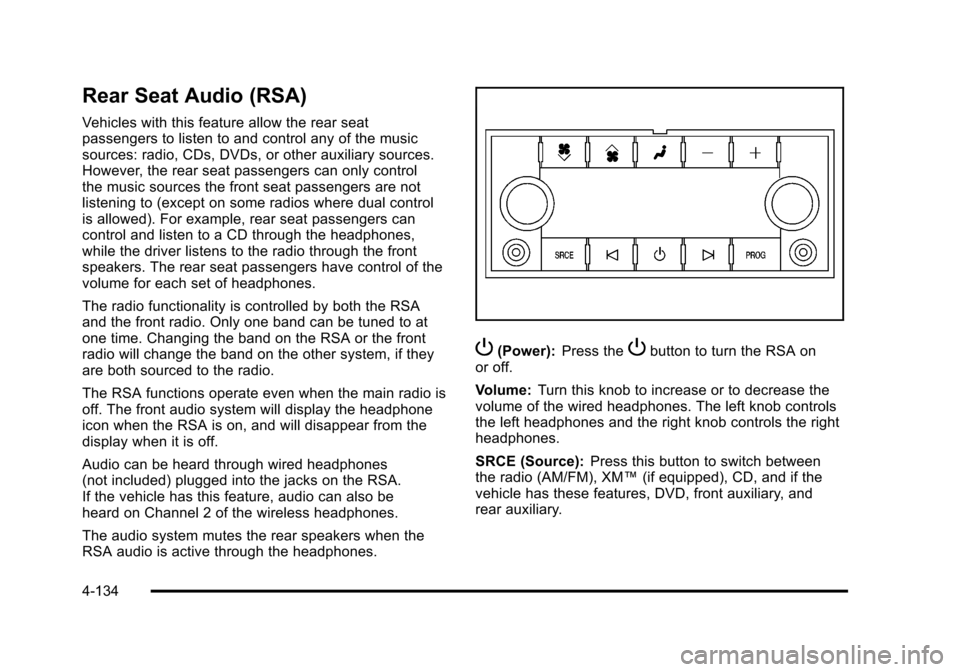
Rear Seat Audio (RSA)
Vehicles with this feature allow the rear seat
passengers to listen to and control any of the music
sources: radio, CDs, DVDs, or other auxiliary sources.
However, the rear seat passengers can only control
the music sources the front seat passengers are not
listening to (except on some radios where dual control
is allowed). For example, rear seat passengers can
control and listen to a CD through the headphones,
while the driver listens to the radio through the front
speakers. The rear seat passengers have control of the
volume for each set of headphones.
The radio functionality is controlled by both the RSA
and the front radio. Only one band can be tuned to at
one time. Changing the band on the RSA or the front
radio will change the band on the other system, if they
are both sourced to the radio.
The RSA functions operate even when the main radio is
off. The front audio system will display the headphone
icon when the RSA is on, and will disappear from the
display when it is off.
Audio can be heard through wired headphones
(not included) plugged into the jacks on the RSA.
If the vehicle has this feature, audio can also be
heard on Channel 2 of the wireless headphones.
The audio system mutes the rear speakers when the
RSA audio is active through the headphones.
P(Power):Press thePbutton to turn the RSA on
or off.
Volume: Turn this knob to increase or to decrease the
volume of the wired headphones. The left knob controls
the left headphones and the right knob controls the right
headphones.
SRCE (Source): Press this button to switch between
the radio (AM/FM), XM™ (if equipped), CD, and if the
vehicle has these features, DVD, front auxiliary, and
rear auxiliary.
4-134
Page 355 of 608
3. Press and releaseworxto scroll up or down
the list.
.To select a folder, press and holdw, or press
¨when the folder is highlighted.
.To go back further in the folder list, press and
hold
x.
Navigating an iPod or USB Device on
the Main Audio Screen (Vehicles with a
Navigation System)
Press and releaseworxto select the next or
previous track within the selected category.
Press and hold
worxto move quickly through the
tracks.
Press and release
¨to move up one track within the
selected category.
Navigating an iPod or USB Device on the
Music Navigator Screen (Vehicles with a
Navigation System)
Press and releaseworxto select the next or
previous track within the selected category.
Press and hold
worxto move quickly through the
tracks within the selected category. Press and release
¨to move up one track within the
selected category.
b g(Mute/Push to Talk): Press to silence the vehicle
speakers only. Press again to turn the sound on.
For vehicles with Bluetooth or OnStar
®systems, press
and hold for longer than two seconds to interact with
those systems. See Bluetooth
®on page 4‑114and the
OnStar Owner's Guide for more information.
c(End): Press to reject an incoming call, or end a
current call.
SRCE (Source/Voice Recognition): Press to switch
between the radio, CD, and for vehicles with, DVD, front
auxiliary, and rear auxiliary.
For vehicles with the navigation system, press and hold
this button for longer than one second to initiate voice
recognition. See “Voice Recognition” in the Navigation
System manual for more information.
¨(Seek): Press to go to the next radio station while in
AM, FM, or XM™.
For vehicles with or without a navigation system:
Press
¨to go to the next track or chapter while
sourced to the CD or DVD slot.
Press
¨to select a track or a folder when navigating
folders on an iPod or USB device.
4-137
Page 397 of 608
{WARNING:
On some vehicles that have certain front mounted
equipment, such as a snow plow, it may be
possible to load the front axle to the front gross
axle weight rating (GAWR) but not have enough
weight on the rear axle to have proper braking
performance. If your brakes can not work properly,
you could have a crash. To help your brakes work
properly when a snow plow is installed, always
follow the snow plow manufacturer or installer's
recommendation for rear ballast to ensure a
proper front and rear weight distribution ratio,
even though the actual front weight may be less
than the front GAWR, and the total vehicle weight
is less than the gross vehicle weight rating
(GVWR). Maintaining a proper front and rear
weight distribution ratio is necessary to provide
proper braking performance.Total vehicle reserve capacity is the difference between
your GVWR and the weight of your vehicle with full fuel
and passengers. It is the amount of weight you can add
to your vehicle before reaching your GVWR. Keep in
mind that reserve capacity numbers are intended as
a guide when selecting the amount of equipment or
cargo your vehicle can carry. If you are unsure of your
vehicle's front, rear, or total weight, go to a weigh
station and weigh your vehicle. Your dealer can also
help you with this.
The total vehicle reserve capacity for your vehicle can
be found in the lower right corner of the Certification/
Tire label as shown previously.
See your dealer for additional advice and information
about using a snow plow on your vehicle. Also, see
Loading the Vehicle on page 5‑29.
Emergency Roof Lamp Provisions
Vehicles with the RPO VYU snow plow prep package
also have an emergency roof lamp provision package,
RPO TRW. Wiring for the emergency roof lamp is
provided above the overhead console. See
Auxiliary
Roof-Mounted Lamp
on page 4‑14for switch location.
5-39
Page 549 of 608
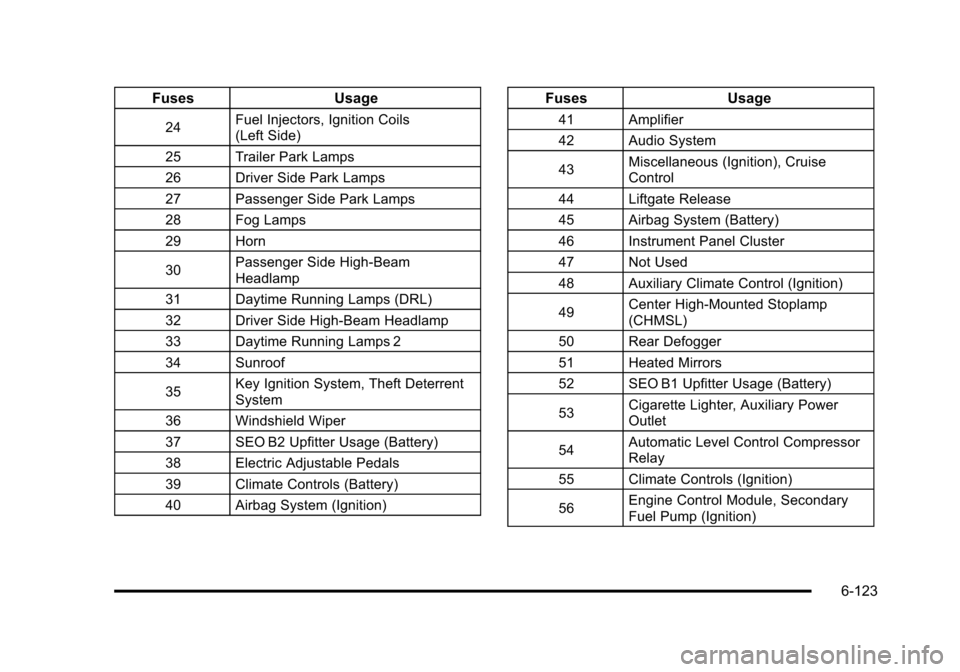
FusesUsage
24Fuel Injectors, Ignition Coils
(Left Side)
25 Trailer Park Lamps
26 Driver Side Park Lamps
27 Passenger Side Park Lamps
28 Fog Lamps
29 Horn
30 Passenger Side High-Beam
Headlamp
31 Daytime Running Lamps (DRL)
32 Driver Side High-Beam Headlamp
33 Daytime Running Lamps 2
34 Sunroof
35 Key Ignition System, Theft Deterrent
System
36 Windshield Wiper
37 SEO B2 Upfitter Usage (Battery)
38 Electric Adjustable Pedals
39 Climate Controls (Battery)
40 Airbag System (Ignition)
Fuses Usage
41 Amplifier
42 Audio System
43Miscellaneous (Ignition), Cruise
Control
44 Liftgate Release
45 Airbag System (Battery)
46 Instrument Panel Cluster
47 Not Used
48 Auxiliary Climate Control (Ignition)
49 Center High-Mounted Stoplamp
(CHMSL)
50 Rear Defogger
51 Heated Mirrors
52 SEO B1 Upfitter Usage (Battery)
53 Cigarette Lighter, Auxiliary Power
Outlet
54 Automatic Level Control Compressor
Relay
55 Climate Controls (Ignition)
56 Engine Control Module, Secondary
Fuel Pump (Ignition)
6-123