2010 CHEVROLET EQUINOX remote start
[x] Cancel search: remote startPage 124 of 394
4-38 Instruments and Controls
Remote Lock Feedback
This allows selection of what type of
feedback is given when unlocking
the vehicle with the RKE transmitter.
Press the MENU / SELECT knob
when“Remote Lock Feedback” is
highlighted. Turn the knob to select
“Lights and Horn”, “Lights Only”,
“Horn Only”, or “Off”. Press the knob
to confirm and go back to the
last menu.
Remote Door Unlock
This allows selection of which doors
will unlock when pressing the unlock
button on the RKE transmitter.
Press the MENU / SELECT knob
when “Remote Door Unlock” is
highlighted. Turn the knob to select
“All Doors” or“Driver Door”. Press
the knob to confirm and go back to
the last menu. Memory Remote Recall
This allows the
“Memory Remote
Recall” feature to be turned on or
off. “Memory Remote Recall” is
when the memorized settings will be
recalled as you unlock the vehicle.
Press the MENU / SELECT knob
when “Memory Remote Recall” is
highlighted to toggle between “On”
or “Off”. Press
0BACK to confirm
the selection and go back to the
last menu.
Remote Vehicle Start
This allows the “Remote Vehicle
Start” to be turned on or off, if the
vehicle has this feature. Press the MENU / SELECT knob
when
“Remote Vehicle Start” is
highlighted to toggle between “On”
or “Off”. Press
0BACK to confirm
the selection and go back to the
last menu.
Return to Factory Settings
Select “Return to Factory Settings”
to return all of the vehicle
personalization to the default
settings. Turn the knob to select
“Yes” or“No”. Press the knob to
confirm and go back to the
last menu.
Page 154 of 394
6-24 Infotainment System
Playing a DVD‐V
SeeRear Seat Entertainment (RSE)
Systemon page 6‑33for
information about how to control a
Video DVD using the wireless
remote control.
Selecting a Chapter
Using the control buttons:
.Press thegSEEK orlSEEK
button to select the previous or
next track.
.Turn the MENU/SEL knob.
Using DVD Menu:
1. Press the MENU/SEL knob.
2. Select Chapter List.
3. Select the chapter.
Selecting a Title
1. Press the MENU/SEL knob.
2. Select Title List.
3. Select the title. Changing the Audio Stream
1. Press the MENU/SEL knob.
2. Select Audio Stream.
3. Select Change Audio Stream.
4. Press MENU/SEL to change the
selection.
Select Cancel to exit the menu.
Pausing a DVD
1. Press the MENU/SEL knob.
2. Select Pause, to pause the disc. Select Unpause to start
playback.
Navigating the DVD‐V Disc Menu
Use the following actions to
navigate the title menu on a
DVD‐V Disc.
.Select / Enter
.Cursor UP
.Cursor DOWN
.Cursor RIGHT
.Cursor LEFT
.Up Menu
Use the following actions to
navigate the menu on a DVD‐V
Disc while playing chapters.
.Pause (Play)
.Chapter List
.Title List
.DVD/DVD
.DVD/AUX
.AUX/DVD
.AUX/AUX
To navigate the menu:
1. Press the MENU/SEL knob.
2. Select the action.
Page 163 of 394

Infotainment System 6-33
Selecting a Track
Using the control buttons:
.PressgSEEK orlSEEK to
select the previous or next track.
.Turn the MENU/SEL knob to
select a track in the current sub
menu. The track will start to play.
Selecting a track in a different
folder:
1. Press the MENU/SEL knob.
2. Select Folder List.
3. Select the folder.
4. Select the track.
Searching for Tracks
It is normal for the search feature
to take some time to display the
information after reading the device
due to the amount of information
stored.
Files that do not have any meta
data stored in the ID3 tag display
as Unknown. Tracks can be searched by:
.Playlists
.Artists
.Albums
.Song Titles
.Genres
The number of objects in each
category is shown in parentheses
after the category.
To search for tracks:
1. Press the MENU/SEL knob.
2. Select Search.
3. Select: Playlists, Artists, Albums, Song Titles, Genres,
Composers, or Audiobooks.
4. Select the track. The search rate increases if the MENU/SEL knob
is continuously turned while
searching in a list.
Recording Tracks to MEM
See Mass Storage Media (MEM)
on
page 6‑25for more information.
Rear Seat
Infotainment
Rear Seat Entertainment
(RSE) System
The vehicle may have a DVD Rear
Seat Entertainment (RSE) system.
The RSE system works with the
vehicle's infotainment system. The
DVD player is part of the front radio.
The RSE system includes a radio
with a DVD player, two rear seat
video display screens, audio/video
jacks, two wireless headphones,
and a remote control. See CD/DVD
Player
on page 6‑21or the
separate navigation system manual
for more information on the vehicle's
DVD system.
Page 168 of 394
6-38 Infotainment System
If a CD, DVD, or MP3 disc is in the
Radio DVD slot, the remote control
Obutton can be used to turn on the
video screen display and start the
disc. The infotainment system can
also turn on the video screen
display. See CD/DVD Player
on
page 6‑21or the separate
navigation system manual for
more information.
Notice: Storing the remote
control in a hot area or in direct
sunlight can damage it, and the
repairs will not be covered by the
warranty. Storage in extreme cold
can weaken the batteries. Keep
the remote control stored in a
cool, dry place.
Remote Control Buttons
O(Power): Press to turn the
video screens on and off.
P(Illumination): Press to turn the
remote control backlight on. The
backlight times out after several
seconds if no other button is
pressed.
v(Title): Press to return to the
main menu of the DVD. This
function could vary for each disc.
y(Main Menu): Press to access
the DVD menu. The DVD menu is
different on every DVD. Use the
navigation arrows to move the
cursor. After making a selection
press the enter button. This button
only operates when using a DVD.
n,q,p,o(Menu Navigation
Arrows): Use the arrow buttons to
navigate through a menu.
r(Enter): Press to select the
highlighted choice in any menu.
z(Display Menu): Press to adjust
the brightness, screen display
mode, and display the
language menu.
q(Return): Press to exit the
current active menu and return to
the previous menu. This button
operates only when the display
menu or a DVD menu is active.
c(Stop): Press to stop playing,
rewinding, or fast forwarding a DVD.
Press twice to return to the
beginning of the DVD.
s(Play/Pause): Press to start
playing a DVD. Press to pause a
DVD while it is playing. Press again
to continue playing.
Depending on the infotainment
system in the vehicle, DVD
playback may be slowed down by
pressing
sthen[. Reverse slow
play by pressing
sthenr. Press
sagain to cancel slow play.
t(Previous Track/Chapter):
Press to go to the start of the
current track or chapter. Press again
to go to the previous track or
chapter. This button may not work
when the DVD is playing the
copyright information or the
previews.
Page 170 of 394
6-40 Infotainment System
Battery Replacement
To change the remote control
batteries:
1. Slide back the rear cover on theremote control.
2. Replace the two batteries in the compartment.
3. Replace the battery cover.
Remove the batteries from the
remote control if unused for an
extended period of time.Tips and Troubleshooting Chart
Problem Recommended Action
No power. The ignition might not be turned to
ON/RUN or in ACC/ACCESSORY.
The picture does not fill the screen.
There are black borders on the top
and bottom or on both sides or it
looks stretched out. Check the display mode settings in
the setup menu by pressing the
display menu button on the remote
control.
In auxiliary mode, the picture moves
or scrolls. Check the auxiliary input
connections at both devices.
The remote control does not work. Check to make sure there is no obstruction between the remote
control and the transmitter window.
Check the batteries to make sure
they are not dead or installed
incorrectly.
After stopping the player, I push
Play but sometimes the DVD starts
where I left off and sometimes at the
beginning. If the stop button was pressed one
time, the DVD player resumes
playing where the DVD was
stopped. If the stop button was
pressed two times the DVD player
begins to play from the beginning of
the DVD.
Page 275 of 394

Vehicle Care 9-7
A.Engine Air Cleaner/Filteron
page 9‑13.
B. Engine Cover on page 9‑9.
C. Engine Oil Dipstick (out of view). See Engine Oil
on
page 9‑10.
D. Engine Oil Fill Cap. See Engine
Oil on page 9‑10. E. Brake Fluid Reservoir. See
Brakes on page 9‑21.
F. Engine Compartment Fuse
Block on page 9‑34.
G. Remote Positive (+) Terminal. See Jump Startingon
page 9‑69.
H. Remote Negative (−) Terminal. See Jump Starting
on
page 9‑69. I.
Battery on page 9‑24.
J. Engine Coolant Surge Tank and Pressure Cap. See Engine
Coolant on page 9‑15.
K. Windshield Washer Fluid Reservoir. See Washer Fluid
on
page 9‑21.
Page 277 of 394
Vehicle Care 9-9
A.Engine Air Cleaner/Filteron
page 9‑13.
B. Power Steering Fluid (2.4L L4
Engine)
on page 9‑20or
Power Steering Fluid (3.0L
V6 Engine) on page 9‑20.
C. Engine Oil Fill Cap. See Engine
Oil on page 9‑10.
D. Engine Cover on page 9‑9.
E. Engine Oil Dipstick (out of view). See Engine Oil
on
page 9‑10.
F. Brake Fluid Reservoir. See Brakes on page 9‑21. G.
Engine Compartment Fuse
Block on page 9‑34.
H. Remote Positive (+) Terminal. See Jump Starting
on
page 9‑69.
I. Remote Negative (−) Terminal. See Jump Starting
on
page 9‑69.
J. Battery on page 9‑24.
K. Engine Coolant Surge Tank and Pressure Cap. See Engine
Coolant on page 9‑15.
L. Windshield Washer Fluid Reservoir. See Washer Fluid
on
page 9‑21.
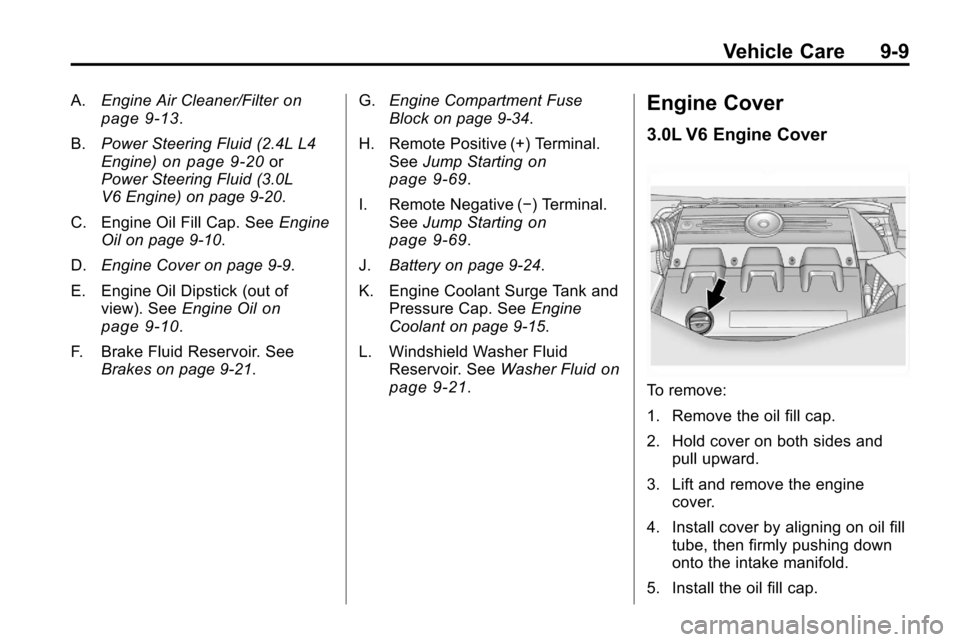
Engine Cover
3.0L V6 Engine Cover
To remove:
1. Remove the oil fill cap.
2. Hold cover on both sides and pull upward.
3. Lift and remove the engine cover.
4. Install cover by aligning on oil fill tube, then firmly pushing down
onto the intake manifold.
5. Install the oil fill cap.
Page 338 of 394
9-70 Vehicle Care
1. The vehicle used to jump startmust have 12-volt battery with a
negative ground.
Notice: If the other vehicle's
system is not a 12-volt system
with a negative ground, both
vehicles can be damaged. Only
use vehicles with 12-volt systems
with negative grounds to jump
start your vehicle.
2. The vehicles should be close enough for the jumper cables to
reach, but the vehicles should
not be touching. Touching could
cause grounding and possible
electrical system damage.
Put both vehicles in P (Park)
and set the parking brake firmly.
3. Unplug accessories plugged into the cigarette lighter or the
accessory power outlet. Turn off
the radio and all lamps that are
not needed. Turn off the ignition
on both vehicles. 4. Locate the positive (+) and
negative (−) terminals on both
vehicles. Some vehicles have
remote jump starting terminals.
{WARNING
An electric fan can start up even
when the engine is not running
and can injure you. Keep hands,
clothing and tools away from any
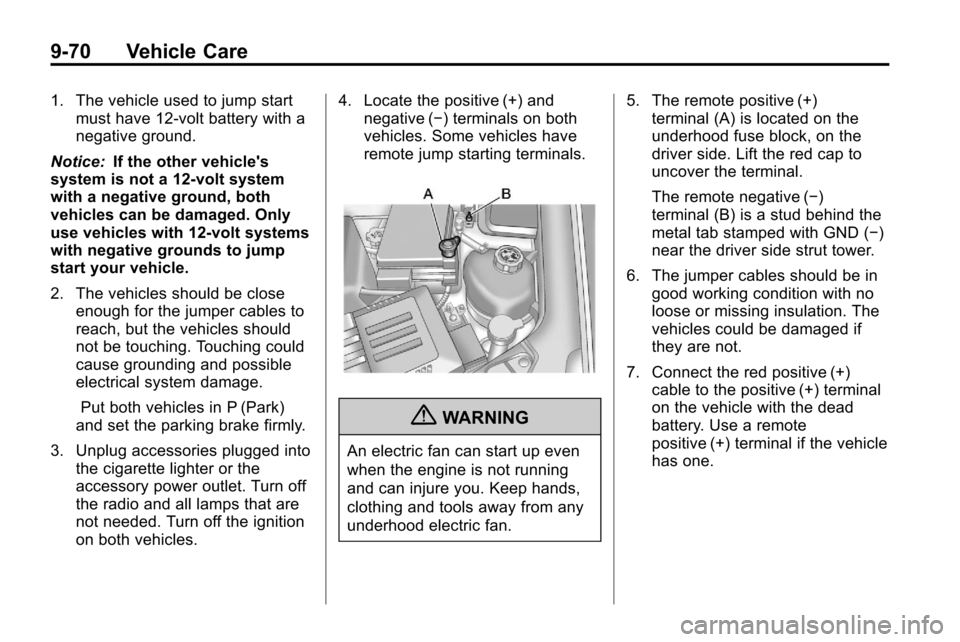
underhood electric fan. 5. The remote positive (+)
terminal (A) is located on the
underhood fuse block, on the
driver side. Lift the red cap to
uncover the terminal.
The remote negative (−)
terminal (B) is a stud behind the
metal tab stamped with GND (−)
near the driver side strut tower.
6. The jumper cables should be in good working condition with no
loose or missing insulation. The
vehicles could be damaged if
they are not.
7. Connect the red positive (+) cable to the positive (+) terminal
on the vehicle with the dead
battery. Use a remote
positive (+) terminal if the vehicle
has one.