2010 CADILLAC ESCALADE radio
[x] Cancel search: radioPage 368 of 616

No Artist Info :No artist information is available.The system is working properly.
No Title Info :No song title information is available.The system is working properly.
No CAT Info :No category information is available.The system is working properly.
CAT Not Found :There are no channels available forthe selected category. The system is working properly.
No Information :No text or informational messages areavailable. The system is working properly.
XM Theftlocked :The XM™receiver may havepreviously been in another vehicle. For securitypurposes, XM™receivers cannot be swapped betweenvehicles. If this message is received after having yourvehicle serviced, check with your dealer/retailer.
XM Radio ID :If tuned to channel 0, this message willalternate with the XM™Radio eight digit radio ID label.This label is needed to activate the service.
Unknown :If this message is received when tuned tochannel 0, there may be a receiver fault. Consult withyour dealer/retailer.
Check XM Receiver :If this message does not clearwithin a short period of time, the receiver may have afault. Consult with your dealer/retailer.
CD Player
The player can be used for CD, MP3, DVD audio, andas a DVD video player. SeeDVD Playeron page 5!75for more information about DVD audio and video.
Six-Disc CD Player
While playing a CD, the navigation system is available.
When you insert a CD, the CD tab displays. If a DSPsetting is selected for the CD, it activates each time youplay a CD.
If the ignition or radio is turned off with a CD in theplayer, it stays in the player. When the ignition or radiois turned on, the CD starts playing where it stopped, if itwas the last selected audio source.
As each new track starts to play, the track numberdisplays.
If an error appears on the display, see“CD Messages”later in this section.
If viewing a map screen, touch the CD screen button.The display will split between the audio screen and themap screen. If you do not want to view a split screen oryou are not on a map screen, press the AUDIO keythen press the AUDIO key repeatedly until CD isselected or touch the CD screen button.
5-68
Page 371 of 616

Using an MP3 CD
MP3 Format
There are guidelines that must be met, when creatingan MP3 disc. If the guidelines are not met whenrecording a CD-R(W), the CD may not play.The guidelines are:
.Sampling rate: 16 kHz, 22.05 kHz, 24 kHz, 32 kHz,and 44.1 kHz.
.Bit rates supported: 32, 40, 48, 56, 64, 80, 96, 112,128, 160, 192, 224, 256, and 320 kbps.
.ID3 tag information is displayed by the radio if it isavailable. The radio supports ID3 tag informationv1.0, v1.1, or v2.0. The radio will display afilename, song name, artist name, album name,and directory name.
.Maximum 32 characters, including spaces, in a fileor folder name.
.Maximum number of folders is 100 with amaximum hierarchy of eight folders.
.Create a folder structure that makes it easy to findsongs while driving. Organize songs by albumsusing one folder for each album. Each folder oralbum should contain 18 songs or less.
.It is recommended that there is a maximum of192 files on a disc.
.The files can be recorded on a CD-R or CD-RWwith a maximum capacity of 700MB.
.DVD with MP3 are not playable on this system.
Root Directory
The root directory will be treated as a folder. If the rootdirectory has compressed audio files, the directory willbe displayed as No Folder or ALL.
Empty Directory or Folder
If a root directory or a folder exists somewhere in thefile structure that contains only folders/subfolders andno compressed files directly beneath them, the playerwill advance to the next folder in the file structure thatcontains compressed audio files and the empty folderwill not be displayed or numbered.
No Folder
When the CD contains only compressed files, the fileswill be located under the root folder. The next andprevious folder functions will have no function on aCD that was recorded without folders or playlists.When displaying the name of the folder the radio willdisplay No Folder.
5-71
Page 372 of 616

Order of Play
Play will begin from the first track under the rootdirectory. When all tracks from the root directory havebeen played, play will continue from files according totheir numerical listing. After playing the last track fromthe last folder, play will begin again at the first track ofthe first folder or root directory.
When play enters a new folder, the display will notautomatically show the new folder name. The new trackname will appear on the display.
File System and Naming
The song name that will display will be the song namethat is contained in the ID3 tag. If the song name is notpresent in the ID3 tag, then the radio will display the filename without the extension (such as .mp3) as thetrack name.
Track names longer than 32 characters or four pageswill be shortened. The display will not show parts ofwords on the last page of text and the extension of thefilename will not display.
Playing an MP3
While playing a CD, the navigation system is available.
When you insert a CD, the CD tab will display. If youselect a DSP setting for the CD, it will be activated eachtime you play a CD.
If you turn off the ignition or radio with a CD in theplayer, it will stay in the player. When you turn on theignition or radio, the CD will start playing where itstopped, if it was the last selected audio source.
As each new track starts to play, the track number willappear on the display.
If an error appears on the display, see“CD Messages”later in this section.
If viewing a map screen, touch the CD screen button.The display will split between the audio screen and themap screen. If you do not want to view a split screen oryou are not on a map screen, press the AUDIO keythen press the AUDIO key repeatedly until CD isselected or touch the CD screen button.
M(Load):To load one disc, do the following:
1. Press the load hard key and follow the screenmessage displayed.
2. When the system displays“Insert Disc (number)”,insert the disc partway into the slot, label side up.The system will pull it into the first available slotand start playing. The system will display the typeof disc inserted.
5-72
Page 375 of 616

DVD Player
The player can be used for DVD audio and DVD video.
DVD video will not display on the navigation screenunless the vehicle is in PARK (P). It will operate on therear seat entertainment screens while the vehicle ismoving. The Rear Seat Entertainment (RSE) videoscreen will start play of the DVD when a DVD videohas been inserted into the navigation system. TheDVD player can be controlled by the buttons on thenavigation system, the Rear Seat Audio (RSA) system,and the remote control. The DVD player can also beused for the rear seat passengers with the radio off.The rear seat passengers can power on the videoscreen and use the remote control to navigate the disc.See“Rear Seat Entertainment System”in the Index ofyour vehicle's owner manual for more information.
The DVD player is only compatible with DVDs of theappropriate region code that is printed on the jacket ofmost DVDs.
The DVD slot is compatible with most audio CDs,CD-R, CD-RW, DVD-Video, DVD-Audio, DVD-R/RW,DVD+R/RW media along with MP3 and WMA formats.
If an error appears on the display, see“DVD Messages”later in this section.
M(Load):To load one disc, do the following:
1. Press the load hard key and follow the screenmessage displayed.
2. When the system displays“Insert Disc (number)”,insert the disc partway into the slot, label side up.The system will pull it into the first available slotand start playing. The system will display the typeof disc inserted.
To load multiple discs, do the following:
1. Press and hold the load hard key and follow thescreen message displayed.
2. When the system displays“Insert Disc (number)”,insert the disc partway into the slot, label side up.The system will pull it in.
3. Once a disc is loaded, the system will display“Insert Disc (number)”again. Load the next disc.Repeat this procedure for each disc. The playertakes up to six discs, do not try to load more thansix. The system will not display the disc typeswhen loading all, until the discs have been read bythe system.
Once all discs have been inserted, the system willstart playing the last loaded disc.
5-75
Page 381 of 616

.You are driving on a very rough road. When theroad becomes smoother, the DVD should play.
.The DVD is dirty, scratched, wet, or upside down.
.The air is very humid. If so, wait about an hour andtry again.
.There may have been a problem while burningthe DVD.
.The label may be caught in the DVD player.
If the DVD is not playing correctly, for any other reason,try a known good DVD.
If any error occurs repeatedly or if an error cannot becorrected, contact your dealer/retailer.
Connecting a USB Storage Device
or iPod®
The USB Port, located in the center console, can beused to control an iPod®or a USB storage device.
To avoid connection problems, extension cords arenot recommended. Use only the cable that came withthe device.
To connect a USB storage device, connect the device tothe USB port located in the center console.
To connect an iPod®, connect one end of the USB cablethat came with the iPod to the iPod’s dock connectorand connect the other end to the USB port. If thevehicle is on and the USB connection works,“OK todisconnect”and a GM logo may appear on the iPod andiPod appears on the radio's display. The iPod musicappears on the radio’s display and begins playing.
The iPod charges while it is connected to thevehicle if the vehicle is in the ACC/ACCESSORY orON/RUN position. When the vehicle is turned off, theiPod automatically powers off and will not charge ordraw power from the vehicle's battery.
USB Supported File and Folder Structure
The guidelines that must be met while using USBsupported files and folders are:
.Up to 700 folders.
.Up to 8 folders in depth.
.Up to 65,535 files.
.Folder and file names up to 64 bytes.
.Files with an .mp3 or .wma file extension.
.AAC files stored on an iPod.
.FAT16
.FAT32
5-81
Page 382 of 616
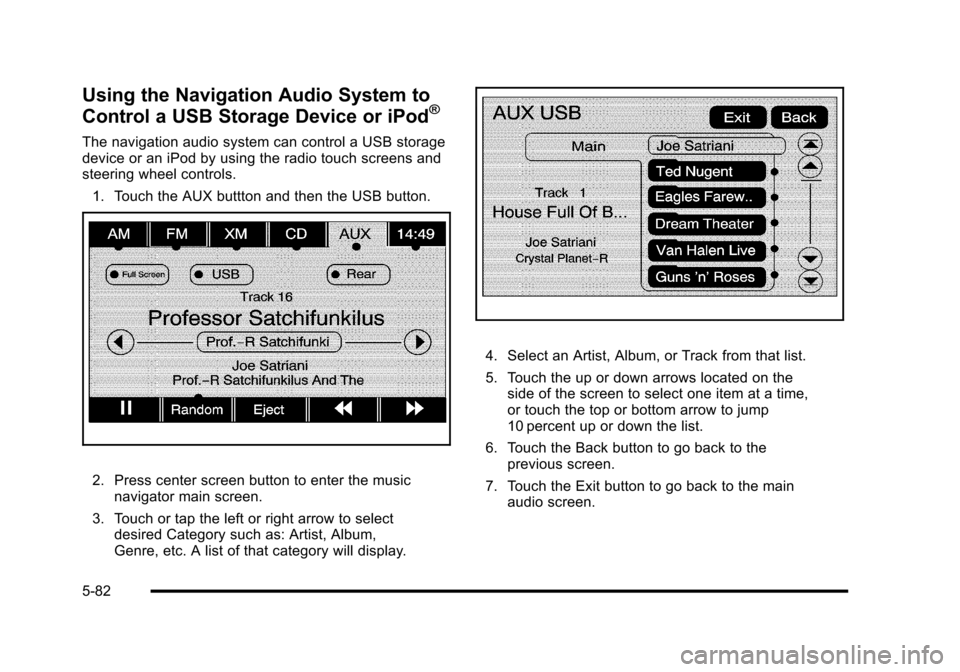
Using the Navigation Audio System to
Control a USB Storage Device or iPod®
The navigation audio system can control a USB storagedevice or an iPod by using the radio touch screens andsteering wheel controls.
1. Touch the AUX buttton and then the USB button.
2. Press center screen button to enter the musicnavigator main screen.
3. Touch or tap the left or right arrow to selectdesired Category such as: Artist, Album,Genre, etc. A list of that category will display.
4. Select an Artist, Album, or Track from that list.
5. Touch the up or down arrows located on theside of the screen to select one item at a time,or touch the top or bottom arrow to jump10 percent up or down the list.
6. Touch the Back button to go back to theprevious screen.
7. Touch the Exit button to go back to the mainaudio screen.
5-82
Page 386 of 616

3. For the second row display select the Rear AUXscreen button next to Rear Display 1 and for thethird row display select the Rear AUX screenbutton next to Rear Display 2. Each screen worksindependently of the other. The second row screencan watch a DVD while the third row screen canuse the auxiliary device.
The rear seat passengers can also use the remotecontrol to change the functions of the RSE. SeeRearSeat Entertainment (RSE) System (Overhead)onpage 4!77orRear Seat Entertainment (RSE) System(Headrest DVD)on page 4!86for more information.
Voice Recognition
The navigation system's voice recognition allowsfor hands-free operation of the navigation system,audio system, and OnStar®features. The DVD mapdisc must be installed in the navigation system for voicerecognition to work. See“Installing the DVD Map Disc”underMapson page 5!14for more information.
Voice recognition can be used when the ignition is onor when Retained Accessory Power (RAP) is active.See“Retained Accessory Power (RAP)”in the Index ofyour vehicle's owner manual for more information.
To use voice recognition, do the following:
1. Push and hold theSRCE button on thesteering wheel untilyou hear a beep. Theaudio system mutes.
2. Clearly state one of the commands listed on thefollowing pages.
Helpful Hints for Stating Commands
.When a multiple command is available, choose thecommand that works best.
.Words that are in brackets are optional. Forexample, for the command Radio [band] [select]FM, stating Radio FM or Radio select FM are bothvalid commands.
5-86
Page 388 of 616

Storing Voice Tags
From the address book entry information page, pressthe Add Voice tag screen button. The system responds“Name Please?”and you will have four seconds torecord a name. The system asks for confirmation of thename before saving it as a voice tag.
Navigation Help
Navigation Help :This command instructs the systemto assist with navigation commands.
Display Commands
Use the following display commands to set thedisplay mode.
Display [set] day [mode] :Sets the display todaytime mode.
Display [set] night [mode] :Sets the display tonight mode.
Display [set] auto [mode] :Sets the display toautomatic mode. The system changes between day andnight mode automatically.
System help :Instructs the system to assist withdisplay commands.
Radio Commands
The following are radio commands that can beaccessed by clearly stating the commands exactly asthey are written.
Radio [band] [select] AM, radio [band] [select] FM,radio [band] [select] XM, radio [band] [select]satellite :Instructs the system to go to either theAM, FM, or XM (if equipped).
Radio [select] (frequency) AM, radio [select](frequency) FM :Instructs the system to go to aspecific frequency on either AM or FM.
Radio [select] (channel) XM, radio [select] (channel)satellite :Instructs the system to go to a specificchannel on the XM™band (if equipped).
Radio help :Instructs the system to assist with radiocommands.
5-88