2010 CADILLAC ESCALADE ad blue
[x] Cancel search: ad bluePage 313 of 616

5(Phone):Press to access calling through OnStar®.See the OnStar®owner guide andBluetooth®onpage 4!67for more information.
e(Sound):Press to access the Sound screen toadjust bass, midrange, treble, and Digital SignalProcessing (DSP). See“Sound Menu”underNavigationAudio Systemon page 5!60for more information.
DEST (Destination) :Press to access the DestinationEntry screen to plan a destination. SeeDestinationonpage 5!24for more information.
CONFIG (Configure Menu) :Press to adjust featuresfor sound, radio, navigation, and the display. SeeConfigure Menuon page 5!42for more information.
NAV (Navigation) :Press to view your vehicle's currentposition on the map screen. Each press of this keycycles through Full Map and the tab that displays thecurrent audio source (AM, FM, CD, etc.). Full Mapdisplays the screen in full map view. Selecting the audiotab splits the screen between the map screen and thecurrent audio source screen menu. See“Audio”underNavigation Audio Systemon page 5!60for moreinformation.
RPT (Navigation Repeat) :Press to repeat the lastvoice guidance prompt.
y © ¨ z(Seek):Press the seek arrows to seekand scan radio stations, to seek tracks on a CD, and toseek chapters on a DVD. SeeNavigation Audio Systemon page 5!60,CD Playeron page 5!68, orDVDPlayeron page 5!75for more information.
Touch-Sensitive Screen Buttons
Touch-sensitive screen buttons are located on thescreen. When a screen button has been selected, abeep sounds. Screen buttons are highlighted when afeature is available.
Alpha-Numeric Keyboard
Letters of the alphabet, symbols, punctuation, andnumbers, when available, displays on the navigationscreen as an alpha or numeric keyboard. The alphakeyboard displays when the system requires entry of acity or street name.
All characters are touch-sensitive screen buttons.Touch a character to select it.
A-Y (Accent Alphabet) :Select to enter letters withaccent symbols. This button may toggle to A-Z.
A-Z (Alphabet) :Select to enter letters from thealphabet. This button may toggle to A-Y.
0-9 (Numbers) :Select to enter numbers.
5-13
Page 321 of 616

POI Close to:
1. Once a category has been selected, touch thisbutton to display the list of available POIs for theselected POI category. The list provides the POIicon, the name, the direction, and the distance tothe POI from the vehicle's current position.
2. Use the scroll arrows to move up and down the list.
3. Use the sorting screen buttons: Dist (distance),Icon, Name, and on Route as needed.
Go :Select this screen button, next to the desired POI,to make this POI a destination or a stopover.
Select a POI name to receive information about thePOI. From this screen you can select: Address Book,Go, Map, or Call (if Bluetooth®or OnStar®personalcalling is activated).
Address Book :Press to add this POI to the addressbook. See“Nav”underConfigure Menuon page 5!42for information on editing address book entries.
Go :Select to make this POI a destination or astopover.
Map :Select to display the map showing the location ofthe POI.
Call :Select to dial the phone number using yourBluetooth®phone (if“paired”with the vehicle) or theOnStar HandsFree Calling system. For moreinformation about Bluetooth calling, seeBluetooth®onpage 4!67. For more information about OnStarHandsFree calling, see the OnStar Owner Guide.
OK :Select to display the map screen.
Show POI :Select to display or remove the POI iconsfrom the map screen.
List all Categories :Select to list all POIs sortedalphabetically.
Delete :To delete a specific POI category, select thecategory.
Clear All :Select this screen button to clear all selectedPOI categories.
5-21
Page 334 of 616
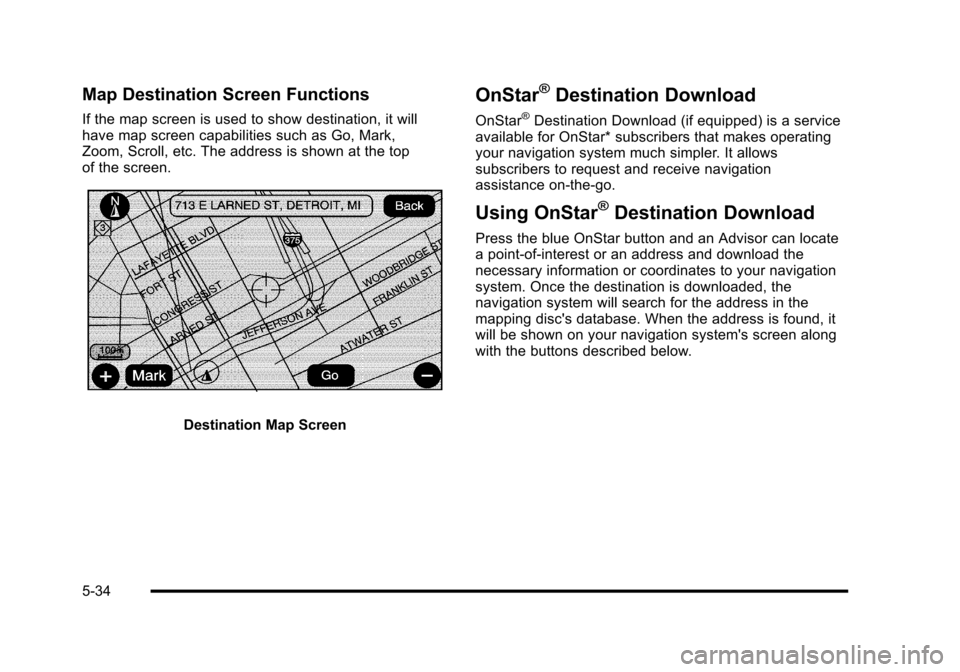
Map Destination Screen Functions
If the map screen is used to show destination, it willhave map screen capabilities such as Go, Mark,Zoom, Scroll, etc. The address is shown at the topof the screen.
Destination Map Screen
OnStar®Destination Download
OnStar®Destination Download (if equipped) is a serviceavailable for OnStar* subscribers that makes operatingyour navigation system much simpler. It allowssubscribers to request and receive navigationassistance on-the-go.
Using OnStar®Destination Download
Press the blue OnStar button and an Advisor can locatea point-of-interest or an address and download thenecessary information or coordinates to your navigationsystem. Once the destination is downloaded, thenavigation system will search for the address in themapping disc's database. When the address is found, itwill be shown on your navigation system's screen alongwith the buttons described below.
5-34
Page 335 of 616

OnStar Download Screen
.Select Go, the navigation system calculatesroute(s). Select a route (i.e. Shortest Route), andStart Guidance.
.Select Map, the navigation system displays theDestination Map Screen.
.Select Call, the navigation system initiates a callto your destination with your Bluetooth phone(if available) or OnStar Hands-Free Calling(if minutes are available).
.Select Add to Address Book, the navigationsystem copies the downloaded destination tothe address book and displays the new addressbook entry.
.Select Back, the navigation system cancels yourOnStar Destination Download and returns to theprevious screen. The downloaded address will notbe added to the previous destinations
Route Guidance Not Active
If an OnStar destination is downloaded while routeguidance is not active, the navigation system displaysan OnStar Destination Download Screen and operationswill continue as outlined in the Using OnStarDestination Download section:
Route Guidance Active
If OnStar downloads a destination while route guidanceis already active, the navigation system adds thedownloaded destination as the next waypoint in theexisting route. All features such as Call and Add toAddress Book will be available for the waypoint.Refer to the section on Waypoints for more information.
5-35
Page 336 of 616

Previous Destinations
Previous OnStar Destination Downloads are savedunder Previous Destinations in the navigation systemwhere they can be accessed or saved to theaddress book.
Important Notes regarding OnStar DestinationDownload:
.If the navigation system is turned off when thedestination download is attempted, the navigationsystem will automatically turn on and display theOnStar Destination Download Screen. The radiowill remain on after the download occurs.
.If OnStar downloads a destination and the addressis not found in the mapping disc’s database androuting by coordinates is not available, the Go andMap buttons gray out and routing will not beavailable. Press the blue OnStar button for furtherassistance.
.The Call button grays out when there is no phonenumber available for your destination and whileconnected to OnStar.
Map Destination Screen Functions
If the map screen is used to show destination, it willhave map screen capabilities such as Go, Mark,Zoom, Scroll, etc. The address is shown at the top ofthe screen.
Destination Map Screen
5-36
Page 444 of 616

Trailer Wiring Harness
Heavy-Duty Trailer Wiring Harness Package
The vehicle has a seven-pin universal heavy-duty trailerconnector attached to the rear bumper beam next to theintegrated trailer hitch.
The seven-wire harness contains the followingtrailer circuits:
.Yellow: Left Stop/Turn Signal
.Dark Green: Right Stop/Turn Signal
.Brown: Taillamps
.White: Ground
.Light Green: Back-up Lamps
.Red: Battery Feed*
.Dark Blue: Trailer Brake*
*The fuses for these two circuits are installed in theunderhood electrical center, but the wires are notconnected. They should be connected by yourdealer/retailer or a qualified service center.
If charging a remote (non-vehicle) battery, press thetow/haul mode button located at the end of the shiftlever. This will boost the vehicle system voltage andproperly charge the battery. If the trailer is too light fortow/haul mode, turn on the headlamps as a second wayto boost the vehicle system and charge the battery.
6-54
Page 445 of 616

Electric Brake Control Wiring
Provisions
These wiring provisions are included with the vehicle aspart of the trailer wiring package. These provisions arefor an electric brake controller. The instrument panelcontains blunt cut wires near the data link connector forthe trailer brake controller. The harness contains thefollowing wires:
.Dark Blue: Brake Signal to Trailer Connector
.Red/Black: Battery
.Light Blue/White: Brake Switch
.White: Ground
It should be installed by your dealer/retailer or aqualified service center.
Trailer Recommendations
Subtract the hitch loads from the Cargo Weight Rating(CWR). CWR is the maximum weight of the load thevehicle can carry. It does not include the weight of thepeople inside, but you can figure about 150 lbs. (68 kg)for each passenger. The total cargo load must not bemore than the vehicles CWR.
Weigh the vehicle with the trailer attached, so theGVWR or GAWR are not exceeded. If using aweight-distributing hitch, weigh the vehicle without thespring bars in place.
The best performance is obtained by correctlyspreading out the weight of the load and choosing thecorrect hitch and trailer brakes.
For more information seeTowing a Traileronpage 6!42.
6-55
Page 600 of 616

Appearance Care (cont.)
Underbody Maintenance . . . . . . . . . . . . . . . . . . . . . . . . .7-106
Washing Your Vehicle . . . . . . . . . . . . . . . . . . . . . . . . . . .7-102
Weatherstrips . . . . . . . . . . . . . . . . . . . . . . . . . . . . . . . . . . . .7-102
Windshield, Backglass, and Wiper Blades . . . . . . .7-104
Wood Panels . . . . . . . . . . . . . . . . . . . . . . . . . . . . . . . . . . . .7-101
Ashtray . . . . . . . . . . . . . . . . . . . . . . . . . . . . . . . . . . . . . . . . . . . . 4-20
Assist Handles . . . . . . . . . . . . . . . . . . . . . . . . . . . . . . . . . . . . 3-64
Audio System . . . . . . . . . . . . . . . . . . . . . . . . . . . . . . . . . . . . . . 4-67
Audio Steering Wheel Controls . . . . . . . . . . . . . . . . . .4-105
Radio . . . . . . . . . . . . . . . . . . . . . . . . . . . . . . . . . . . . . . . . . . . . . 5-60
Radio Reception . . . . . . . . . . . . . . . . . . . . . . . . . . . . . . . . .4-107
Rear Seat (RSA) . . . . . . . . . . . . . . . . . . . . . . . . . . . . . . . .4-103
Theft-Deterrent Feature . . . . . . . . . . . . . . . . . . . . . . . . . .4-105
XM™Satellite Radio Antenna System . . . . . . . . . . .4-108
Automatic Headlamp System . . . . . . . . . . . . . . . . . . . . . . 4-15
Automatic Transmission
Fluid . . . . . . . . . . . . . . . . . . . . . . . . . . . . . . . . . . . . . . . . . . . . . . 7-24
Operation . . . . . . . . . . . . . . . . . . . . . . . . . . . . . . . . . . . . . . . . . 3-32
Autoride®. . . . . . . . . . . . . . . . . . . . . . . . . . . . . . . . . . . . . . . . . . 6-42
Axle, Rear . . . . . . . . . . . . . . . . . . . . . . . . . . . . . . . . . . . . . . . . . 7-50
B
Back-Up Lamps - Ambulance Body
Bulb Replacement . . . . . . . . . . . . . . . . . . . . . . . . . . . . . . . . 7-55
Battery . . . . . . . . . . . . . . . . . . . . . . . . . . . . . . . . . . . . . . . . . . . . 7-43
Electric Power Management . . . . . . . . . . . . . . . . . . . . . . 4-18
Run-Down Protection . . . . . . . . . . . . . . . . . . . . . . . . . . . . . 4-18
Belt Routing, Engine . . . . . . . . . . . . . . . . . . . . . . . . . . . . . . . 8-13
Bench Seat, Split (60/40) . . . . . . . . . . . . . . . . . . . . . . . . . . 2-10
Bluetooth®. . . . . . . . . . . . . . . . . . . . . . . . . . . . . . . . . . . . . . . . . 4-67
Brake
Emergencies . . . . . . . . . . . . . . . . . . . . . . . . . . . . . . . . . . . . . . 6-6
Pedal and Adjustable Throttle . . . . . . . . . . . . . . . . . . . . 3-30
Brakes . . . . . . . . . . . . . . . . . . . . . . . . . . . . . . . . . . . . . . . . . . . . . 7-40
Antilock . . . . . . . . . . . . . . . . . . . . . . . . . . . . . . . . . . . . . . . . . . . . 6-5
Parking . . . . . . . . . . . . . . . . . . . . . . . . . . . . . . . . . . . . . . . . . . . 3-38
System Warning Light . . . . . . . . . . . . . . . . . . . . . . . . . . . . 4-33
Braking . . . . . . . . . . . . . . . . . . . . . . . . . . . . . . . . . . . . . . . . . . . . . .6-4
Braking in Emergencies . . . . . . . . . . . . . . . . . . . . . . . . . . . . .6-6
Break-In, New Vehicle . . . . . . . . . . . . . . . . . . . . . . . . . . . . . 3-26
Bucket Seats, Rear . . . . . . . . . . . . . . . . . . . . . . . . . . . . . . . . 2-15
Bulb Replacement . . . . . . . . . . . . . . . . . . . . . . . . . . . . . . . . . 7-56
Back-Up Lamps - Ambulance Body . . . . . . . . . . . . . . . 7-55
Fog Lamps . . . . . . . . . . . . . . . . . . . . . . . . . . . . . . . . . . . . . . . 4-16
Headlamp Aiming . . . . . . . . . . . . . . . . . . . . . . . . . . . . . . . . . 7-52
i - 2