2010 BUICK LACROSSE display
[x] Cancel search: displayPage 171 of 414
Infotainment System 6-25
Navigating the DVD-V Disc Menu
Use the following actions to
navigate the title menu on a
DVD-V Disc.
.Select / Enter
.Cursor UP
.Cursor DOWN
.Cursor RIGHT
.Cursor LEFT
.Up Menu
Use the following actions to
navigate the menu on a DVD-V Disc
while playing chapters.
.Pause (Play)
.Chapter List
.Title List
.DVD/DVD
.DVD/AUX
.AUX/DVD
.AUX/AUX To navigate the menu:
1. Turn the menu knob.
2. Select the action.
Mass Storage
Media (MEM)
Infotainment systems with MEM
storage are able to record up to
1.1 GB (gigabyte) of music from
Audio CDs, MP3/WMA/AAC discs,
and USB storage devices. The MEM
player can also time shift audio from
AM, FM, and XM™
radio.
Music or content that is stored in
MEM that you did not create,
or have the right to distribute, must
be deleted before the sale or end of
the lease of the vehicle.
Control Buttons
The buttons used to control the
MEM player are:
MEM/DVD/AUX: Press to select
the MEM player.
l/g: Press to select tracks or
to fast forward or rewind within a
track.
INFO: Press to display additional
information about the MEM track
that may be available.
k/TUNE : Press to pause the
track currently playing, press again
to resume playback. Turn to select
tracks.
OREC: Press to record music
from a CD or USB drive.
DEL: Press to delete the current
track from MEM.
FAV (Favorites): Press to display
MEM favorites.
1 to 6: Press to select a track or
playlist stored in that numeric
position.
Recording From Audio CDs
The infotainment system can record
the current song playing or all songs
from an audio CD to MEM. A status
bar appears on the top of the
display when the recording process
Page 172 of 414

6-26 Infotainment System
starts and disappears when the
process has ended. Copy protected
CDs cannot be recorded to MEM.
Recording to MEM
Press
OREC, then select Record
Current Song or Record All Songs
on Disc. If the track has started
playing, the system will restart the
track and begin recording from the
beginning of the track. When the
song recording is completed, the
message Song Recorded to MEM
displays, and there may be a slight
pause.
Songs recorded to MEM are stored
as the current date, disc and track
number.
Re-recording a Previously
Recorded Disc
If the disc or track has already been
recorded to MEM, the message The
Song(s) is Already Recorded
displays. Stopping the Recording
Press the
OREC button while
recording from an audio CD to
display the stop recording option.
Select Stop Recording Song
to MEM.
Renaming Recorded Discs
Discs that have been recorded to
MEM can be renamed.
1. Turn the menu knob.
2. Select Rename Recorded Discs.
3. Select the disc.
4. Select Album or Artist to rename either one.
5. Use the menu knob to enter the character sequence. See
Operation
on page 6‑7for
more information.
Recording From MP3/WMA
Discs or USB Storage Devices
USB Host Support
The USB connector uses the USB
standards, 1.1 and 2.0. USB Supported Devices
.USB Flash Drives
.Portable USB Hard Drives
Recording to MEM
Press
OREC, then select Record
Current Song or Record Current
Folder.
The information stored by MEM is
titled according to the ID3 tag
associated with it.
Re-recording a Previously
Recorded Disc
If the disc or track has already been
recorded to MEM, the message The
Song(s) is Already Recorded
displays.
Stopping the Recording
Press the
OREC button while
recording from an MP3/WMA CD or
USB storage device to display the
stop recording option. Select Stop
Recording Song to MEM.
Page 176 of 414
6-30 Infotainment System
Connecting and Controlling a
PlaysForSure Device (PFD)
or Zune™
Connecting a PFD or Zune
Connect the PFD or Zune to the
USB port.
Searching For a Track
Tracks can be searched for by:
.Playlists
.Artists
.Albums
.Song Titles
.Podcasts
.GenresTo search for tracks:
1. Turn the menu knob.
2. Select Search.
3. Select: Playlists, Artists, Albums,
Song Titles, Podcasts,
or Genres.
4. Select the track.
Shuffle Functionality
Turn the menu knob and set Shuffle
Songs (Random) to On or Off.
On: Plays current tracks in random
order.
Off: Plays current tracks in
sequential order.
Repeat Functionality
Turn the menu knob and set Repeat
to On or Off.
Repeat On: Repeats the current
track.
Repeat Off: Playback starts from
the beginning of the current track
after the last track finishes.
Connecting and Controlling a
USB Drive
The infotainment system can only
play back .mp3 and .wma files from
a USB drive.
Only the first 10,000 songs are
recognized on the device.
When a device is not supported, the
message “No supported data found.
You can safely disconnect the
device” appears.
Connecting a USB Drive
Connect the USB drive to the
USB port.
Searching For a Track
It is normal for the search feature to
take some time to display the
information after reading the device
due to the amount of information
stored.
Files that do not have any meta
data stored in the ID3 tag display as
Unknown.
Page 177 of 414
Infotainment System 6-31
Tracks can be searched for by:
.Playlists*
.Artists
.Albums
.Song Titles
.Genres
.Folder View
*This only displays if a playlist is
found on the device.
To search for tracks:
1. Turn the menu knob.
2. Select Search.
3. Select: Playlists, Artists, Albums, Song Titles, Genres,
or Folder View.
4. Select the track.
Shuffle Functionality
Turn the menu knob and set Shuffle
Songs (Random) to On or Off.
On: Plays current tracks in random
order. Off:
Plays current tracks in
sequential order.
Repeat Functionality
Turn the menu knob and set Repeat
to On or Off.
Repeat On: Repeats the current
track.
Repeat Off: Playback starts from
the beginning of the current track
after the last track finishes.
Auxiliary Devices (Radio
with CD/DVD and MEM)
The optional AUX input allows
portable devices to be connected
using the 3.5 mm (1/8 in.) input jack
or the USB port.
Portable devices are controlled by
using the menu system described in
Operation on page 6‑7.
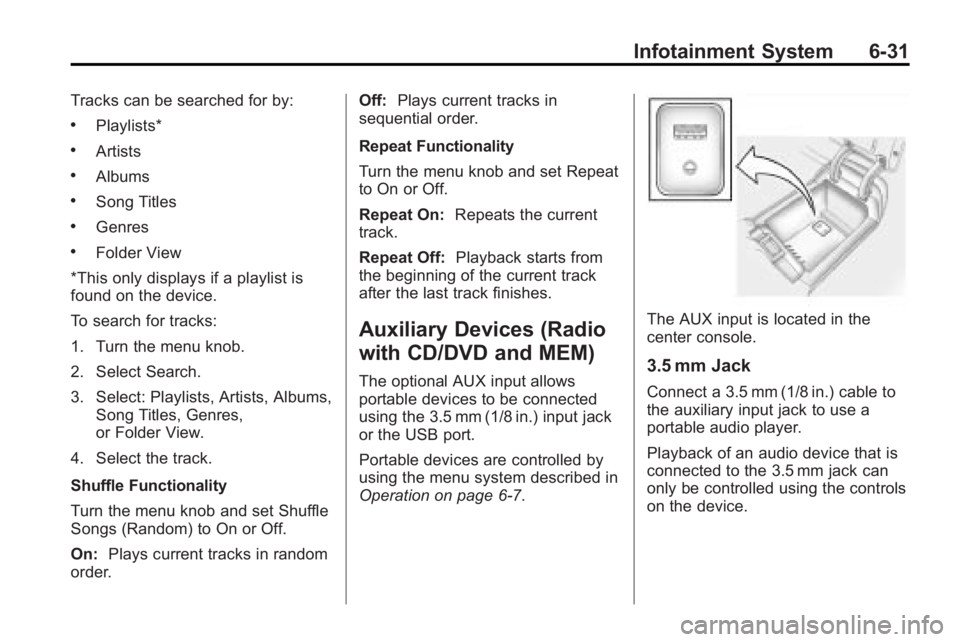
The AUX input is located in the
center console.
3.5 mm Jack
Connect a 3.5 mm (1/8 in.) cable to
the auxiliary input jack to use a
portable audio player.
Playback of an audio device that is
connected to the 3.5 mm jack can
only be controlled using the controls
on the device.
Page 179 of 414
Infotainment System 6-33
Connecting and Controlling a
USB Drive
Files that are not stored in folders
are displayed in the root
directory (USB).
Connecting a USB Drive
Connect the USB drive to the
USB port.
Disconnecting a USB Drive
A USB drive should be ejected from
the USB port before disconnecting
it. To eject a USB drive:
1. Turn the menu knob.
2. Select USB Eject.
Playing Tracks in Random Order
Turn the menu knob and then set
Shuffle Songs to On.Selecting a Track
Using the control buttons:.Pressgorlto select the
previous or next track.
.Turn the TUNE knob to select a
track in the current sub menu.
The track will start to play.
Selecting a track in a different
folder:
1. Turn the menu knob.
2. Select Folder List.
3. Select the folder.
4. Select the track.
Searching for Tracks
It is normal for the search feature to
take some time to display the
information after reading the device
due to the amount of information
stored.
Files that do not have any meta
data stored in the ID3 tag display as
Unknown. Tracks can be searched by:
.Playlists
.Artists
.Albums
.Song Titles
.Genres
The number of objects in each
category is shown in parentheses
after the category.
To search for tracks:
1. Turn the menu knob.
2. Select Search.
3. Select: Playlists, Artists, Albums, Song Titles, or Genres.
4. Select the track. The search rate increases if the menu knob is
continuously turned while
searching in a list.
Recording Tracks to MEM
See Mass Storage Media (MEM)
on
page 6‑25for more information.
Page 180 of 414

6-34 Infotainment System
Rear Seat
Infotainment
Rear Seat Entertainment
(RSE) System
The vehicle may have a DVD Rear
Seat Entertainment (RSE) system.
The RSE system works with the
vehicle's infotainment system. The
DVD player is part of the front radio.
The RSE system includes a radio
with a DVD player, two rear seat
video display screens, audio/video
jacks, two wireless headphones,
and a remote control. SeeCD/DVD
Player
on page 6‑22or the
separate navigation system manual
for more information on the vehicle's
DVD system.
Before Driving
The RSE is for rear seat
passengers only. The driver cannot
safely view the video screen while
driving. In severe or extreme weather
conditions the RSE system may not
work until the temperature is within
the operating range. The operating
range is above
−20°C (−4°F) and
below 60°C (140°F). If the
temperature is outside of this range,
heat or cool the vehicle until it is
within the operating range.
Global Off
Depending on the infotainment
system, the RSE system may have
a Global Off feature. The Global Off
feature disables all RSE system
features. Press and hold the radio
power button for more than
three seconds for Global Off to
disable the RSE features. A padlock
icon may display on the
infotainment screen when the
Global Off feature is on. On some
infotainment systems, the Global Off
feature can be turned off by
performing one of the following:
.Press and hold the radio
power button for more than
three seconds.
.Insert or eject any disc.
.Insert a DVD video disc.
.Press the Remote Control power
button.
.Press the MEM/DVD/AUX button
or the
kbutton when a DVD
video disc is in the player.
.Press the SRC button on the
steering wheel when a DVD
video disc is in the player.
.Cycle the ignition.
Headphones
RSE includes two 2-channel
wireless headphones. Channel 1 is
dedicated to the DVD player, and
Channel 2 is dedicated to any
external auxiliary device connected
to the A/V jacks. The headphones
are used to listen to various
multi-media. The wireless
headphones have an On/Off button,
channel 1/2 switch, and a volume
control. Turn the headphones off
when not in use.
Page 182 of 414

6-36 Infotainment System
Power for auxiliary devices is not
supplied by the radio system.
To use the auxiliary inputs of the
RSE system:
1. Connect the auxiliary devicecables to the A/V jacks.
2. Power on both the auxiliary device and the RSE video
screen.
Changing the Source on the Video
Display Screens
The image from the auxiliary device
can be switched between the video
display screens.
To change the display:
1. Press the AUX button on the remote control to change the
source of both video screens
from the DVD player to the
auxiliary device.
2. Press the AUX button a second time to change the
left video screen source to the
DVD player and the right video
screen to the auxiliary device. 3. Press the AUX button a
third time to change the left
video screen source to the
auxiliary device and the right
video screen to the DVD player.
4. Press the AUX button a fourth time to change the
source of both video screens
to the DVD player.
How to Change the RSE Video
Screen Settings
The screen display mode,
brightness, and language can be
changed from the setup menu using
the remote control. To change a
setting:
1. Press
z.
2. Use
n,q,p,oand
rselect the settings.
3. Press
zagain to exit the
setup menu.
Audio Output
Audio from the DVD player or
auxiliary inputs can be heard
through the following:
.Wireless Headphones
.Vehicle Speakers
The RSE system transmits the
audio signal to the wireless
headphones if an audio signal is
available. See “Headphones” earlier
in this section for more information.
The front seat passengers are
able to listen to playback from the
A/V jacks through the vehicle
speakers by selecting Rear A/V as
the source on the radio.
Video Screens
The video screens are located in the
back of the driver and front
passenger seats.
Page 183 of 414

Infotainment System 6-37
To use the video screen:
1. Push the release button locatedon the seatback console.
2. Move the screen to the desired viewing position.
Push the video screen down into its
locked position when it is not in use,
the screen turns off automatically.
Only the left RSE seatback console
contains the infrared transmitters for
the wireless headphones, they may
be visible as eight illuminated LEDs.
These LEDs are not on the right
video screen. Both seatback
consoles contain an infrared
receiver for the remote control. They
are located at the top of each
console.
Notice: Avoid directly touching
the video screen, as damage may
occur. See “Cleaning the Video
Screen” later in this section for
more information.Video Screen Input Jack
Each video screen is equipped with
a video input jack to allow video
cables to be connected from an
auxiliary device such as a
camcorder or a video game system.
This signal will override any video
provided by the RSE system; either
the DVD or Auxiliary A/V jack
source. The RSE system must be
on for this input to operate.
Remote Control
To use the remote control, aim it at
the transmitter window at either
seatback console and press the
button. Direct sunlight or very bright
light could affect the ability of the
RSE transmitter to receive signals
from the remote control. Check the
batteries if the remote control does
not seem to be working. See
“Battery Replacement” later in this
section. Objects blocking the line of
sight could also affect the function
of the remote control. If a CD, DVD, or MP3 disc is in the
Radio DVD slot, the remote control
Obutton can be used to turn on the
video screen display and start the
disc. The infotainment system can
also turn on the video screen
display. See CD/DVD Player
on
page 6‑22or the separate
navigation system manual for more
information.
Notice: Storing the remote
control in a hot area or in direct
sunlight can damage it, and the
repairs will not be covered by the
warranty. Storage in extreme cold
can weaken the batteries. Keep
the remote control stored in a
cool, dry place.