Page 184 of 414

6-38 Infotainment System
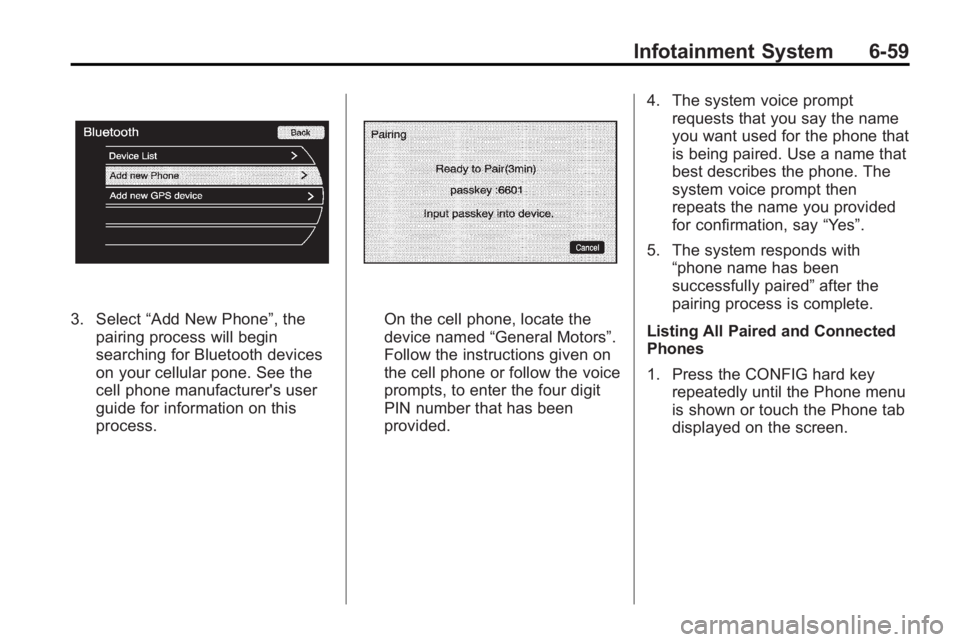
Remote Control ButtonsO(Power):Press to turn the
video screens on and off.
P(Illumination): Press to turn the
remote control backlight on. The
backlight times out after several
seconds if no other button is
pressed.
v(Title): Press to return to the
main menu of the DVD. This
function could vary for each disc.
y(Main Menu): Press to access
the DVD menu. The DVD menu is
different on every DVD. Use the
navigation arrows to move the
cursor. After making a selection
press the enter button. This button
only operates when using a DVD.
n,q,p,o(Menu Navigation
Arrows): Use the arrow buttons to
navigate through a menu.
r(Enter): Press to select the
highlighted choice in any menu.
z(Display Menu): Press to adjust
the brightness, screen display
mode, and display the
language menu.
q(Return): Press to exit the
current active menu and return to
the previous menu. This button
operates only when the display
menu or a DVD menu is active.
c(Stop): Press to stop playing,
rewinding, or fast forwarding a DVD.
Press twice to return to the
beginning of the DVD.
s(Play/Pause): Press to start
playing a DVD. Press to pause a
DVD while it is playing. Press again
to continue playing.
Depending on the infotainment
system in the vehicle, DVD
playback may be slowed down by
pressing
sthen[. Reverse slow
play by pressing
sthenr.
Press
sagain to cancel slow play.
Page 185 of 414

Infotainment System 6-39
t(Previous Track/Chapter):
Press to go to the start of the
current track or chapter. Press again
to go to the previous track or
chapter. This button may not work
when the DVD is playing the
copyright information or the
previews.
u(Next Track/Chapter): Press to
go to the beginning of the next
chapter or track. This button might
not work when the DVD is playing
the copyright information or the
previews.
r(Fast Reverse): Press to
quickly reverse the DVD or CD. To
stop fast reversing a DVD video,
press
s. To stop fast reversing a
DVD audio or CD, release
r. This
button might not work when the
DVD is playing the copyright
information or the previews.
[(Fast Forward): Press to fast
forward the DVD or CD. To stop fast
forwarding a DVD video, press
s.
To stop fast forwarding a DVD audio
or CD, release
[. This button
might not work when the DVD is
playing the copyright information or
the previews.
e(Audio): Press to change audio
tracks on DVDs that have this
feature when the DVD is playing.
{(Subtitles): Press to turn
ON/OFF subtitles and to move
through subtitle options when a
DVD is playing.
AUX (Auxiliary): Press to switch
the video display between the DVD
player and an auxiliary source.
d(Camera): Press to change the
camera angle on DVDs that have
this feature when the DVD is
playing.
\(Clear) (If Available): Press this
button within three seconds after
inputting a numeric selection, to
clear all numeric inputs.
}10 (Double Digit Entries)
(If Available): Press this button to
select chapter or track numbers
greater than 9. Press this button
before inputting the number.
1 through 0 (Numeric Keypad):
The numbered keypad provides the
capability of direct chapter or track
number selection.
Replacing the Remote Control
If the remote control becomes lost
or damaged, a new universal
remote control can be purchased.
Use a Toshiba
®code set for
replacement universal remote
controls.
Page 186 of 414

6-40 Infotainment System
Battery Replacement
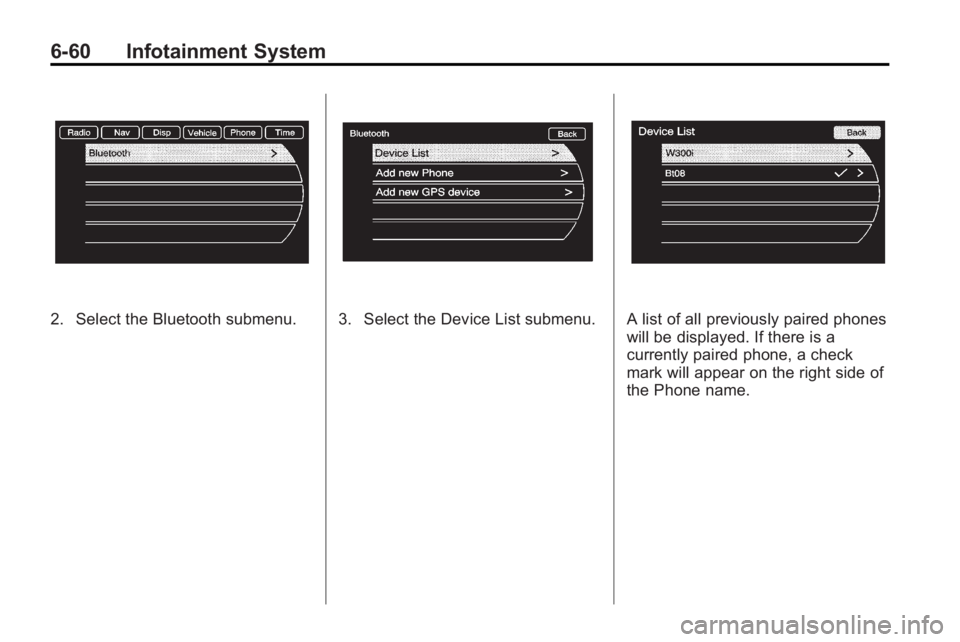
To change the remote control
batteries:
1. Slide back the rear cover on theremote control.
2. Replace the two batteries in the compartment.
3. Replace the battery cover.
Remove the batteries from the
remote control if unused for an
extended period of time.Tips and Troubleshooting Chart
Problem Recommended Action
No power. The ignition might not be turned to
ON/RUN or in ACC/ACCESSORY.
The picture does not fill the screen.
There are black borders on the top
and bottom or on both sides or it
looks stretched out. Check the display mode settings in
the setup menu by pressing the
display menu button on the remote
control.
In auxiliary mode, the picture moves
or scrolls. Check the auxiliary input
connections at both devices.
The remote control does not work. Check to make sure there is no obstruction between the remote
control and the transmitter window.
Check the batteries to make sure
they are not dead or installed
incorrectly.
After stopping the player, I push
Play but sometimes the DVD starts
where I left off and sometimes at the
beginning. If the stop button was pressed one
time, the DVD player resumes
playing where the DVD was
stopped. If the stop button was
pressed two times the DVD player
begins to play from the beginning of
the DVD.
Page 187 of 414
Infotainment System 6-41
Tips and Troubleshooting Chart (cont'd)
ProblemRecommended Action
The auxiliary source is running but
there is no picture or sound. Check that the RSE video screen is
in the auxiliary source mode by
pressing the AUX button on the
remote control.
Check the auxiliary input
connections at both devices.
Sometimes the wireless headphone
audio cuts out or buzzes. Check for obstructions, low
batteries, reception range, and
interference from cellular telephone
towers or by using a cellular
telephone in the vehicle.
Check that the headphones are
on correctly using the L (left) and
R (right) on the headphones.
Check that the headphones are
positioned properly with the
headband across the top of
the head.
I lost the remote and/or the
headphones. See your dealer/retailer for
assistance.
The DVD is playing, but there is no
picture or sound. Check that the RSE video screen is
sourced to the DVD player by
pressing the AUX button on the
remote control.
DVD Display Error Messages
The DVD display error message
depends on which radio the vehicle
has. The video screen may display
one of the following:
Disc Load/Eject Error or
Mechanical Error:
There are disc
load or eject problems.
Disc Format Error or Unknown
Format: The disc is inserted with
the disc label wrong side up, or if
the disc is damaged.
Disc Region Error or Disc Error:
The disc is not from a correct
region.
No Disc Inserted: No disc is
present when the
ZEJECT or
MEM/DVD/AUX button is pressed
on the radio.
Page 190 of 414

6-44 Infotainment System
To link to a different paired phone,
see“Linking to a Different Phone”
later in this section.
Pairing a Phone
1. Press the CONFIG button.
2. Select Phone Settings.
3. Select Bluetooth.
4. Select Pair Device (Phone). A four digit PIN number appears
on the display.
5. Start the pairing process on the cell phone that will be paired to
the vehicle. Reference the cell
phone manufacturers user guide
for information on this process.
Locate the device named
“General Motors” in the list on
the cell phone and follow the
instructions on the cell phone to
enter the four digit PIN number
provided by the system. 6. The system prompts for a name
for the phone and confirms the
name provided. This name is
used to indicate which phone is
connected.
7. The system responds with “ has been
successfully paired” after the
pairing process is complete.
8. Repeat Steps 1 through 7 to pair additional phones.
Listing All Paired and Connected
Phones
1. Press the CONFIG button.
2. Select Phone Settings.
3. Select Bluetooth.
4. Select Device List.
Deleting a Paired Phone
1. Press the CONFIG button.
2. Select Phone Settings.
3. Select Bluetooth. 4. Select Device List.
5. Select the phone to delete and
follow the on screen prompts.
Linking to a Different Phone
To link to a different phone, the new
phone must be in the vehicle and
available to be connected to the
bluetooth system before the process
is started.
1. Press the CONFIG button.
2. Select Phone Settings.
3. Select Bluetooth.
4. Select Device List.
5. Select the new phone to link to and follow the on screen
prompts.
If delete is selected, the
highlighted phone will be
deleted.
Page 205 of 414
Infotainment System 6-59
3. Select“Add New Phone”, the
pairing process will begin
searching for Bluetooth devices
on your cellular pone. See the
cell phone manufacturer's user
guide for information on this
process.On the cell phone, locate the
device named “General Motors”.
Follow the instructions given on
the cell phone or follow the voice
prompts, to enter the four digit
PIN number that has been
provided. 4. The system voice prompt
requests that you say the name
you want used for the phone that
is being paired. Use a name that
best describes the phone. The
system voice prompt then
repeats the name you provided
for confirmation, say “Yes”.
5. The system responds with “phone name has been
successfully paired” after the
pairing process is complete.
Listing All Paired and Connected
Phones
1. Press the CONFIG hard key repeatedly until the Phone menu
is shown or touch the Phone tab
displayed on the screen.
Page 206 of 414
6-60 Infotainment System
2. Select the Bluetooth submenu.3. Select the Device List submenu.A list of all previously paired phones
will be displayed. If there is a
currently paired phone, a check
mark will appear on the right side of
the Phone name.
Page 209 of 414
Infotainment System 6-63
4. Select the phone to be pairedand then follow the on screen
prompts.5. The Phone menu will bedisplayed with the name of the
phone paired.
Accepting or Declining an
Incoming Call
When an incoming call is received,
the infotainment system mutes any
audio being played and sounds a
ring tone. Accepting a Call
Press
5on the mirror orgon the
steering wheel control to answer the
incoming call, or touch the Answer
option to answer the call.
Declining a Call
Press the
c/$on the steering
wheel controls or select the Decline
option to decline the call.