2009 VOLVO XC60 ECO mode
[x] Cancel search: ECO modePage 93 of 297

03 Your driving environment
Lighting03
}}
* Option/accessory, for more information, see Introduction. 91
Interior lighting, rear
Rear reading lights (models with the optional pan-
orama moonroof)
Rear reading lights (models without the panorama
moonroof) The lights are switched on or off by pressing
each respective button.
Courtesy lights/door step lighting*The courtesy lights/door step lighting switch
on/off automatically when one of the front
doors is opened/closed.
Glove compartment lightingThe glove compartment lighting switches on/
off automatically when the lid is opened/
closed.
Overhead courtesy lightingThe passenger compartment lighting is
switched on and off automatically when button
(3) is in the neutral position.
The lighting comes on and remains on for
30 seconds if:
\b
the vehicle is unlocked from the outside
with the key or remote control
\b the engine is switched off and the ignition
is in mode 0.
The lighting switches off when:
\b the engine is started
\b the vehicle is locked from the outside.
The lighting comes on and remains on for two
minutes if one of the doors is open. The passenger compartment lighting can be
switched on and off manually within 30 minutes
after the vehicle has been unlocked.
If the lighting is switched on manually and the
vehicle is locked, the courtesy lighting will
switch off automatically after one minute.
Home safe lighting
When you leave your vehicle at night, you can
make use of the home safe lighting function to
illuminate the area in front of the vehicle.
1. Remove the key from the ignition slot.
2. Pull the direction indicator lever as far as
possible towards the steering wheel and
release it.
3. Exit the vehicle and lock the doors.
The headlights, parking lights, turn signals,
lights in the door mirrors, license plate lights,
and footwell lighting will illuminate and remain
on for 30 1
, 60 or 90 seconds. The time interval
can be set under Car settings Light
settings Home safe lighting. For a
description of the menu system, see
page 122. 1
Factory setting G031416 G021150
Page 98 of 297

03 Your driving environmentPower windows 03
96
* Option/accessory, for more information, see Introduction.
Power windows
Driver's door control panel
Switch for power child safety locks* and
disengaging rear power window buttons,
see page 65
Rear window controls
Front window controls.
WARNING
\b
Always remove the ignition key when
the vehicle is unattended.
\b Never leave children unattended in the
vehicle.
\b Make sure that the windows are com-
pletely unobstructed before they are
operated.
Operating Operating the power windows
Manual up/down
Auto up/down.
All power windows can be operated using the
control panel in the driver\fs door. The control
panels in the other doors only operate the win-
dow in the respective doors.
For the power windows to function, the ignition
must be in at least mode I. When the vehicle
has been running, the power windows can be
operated for several minutes after the remote
key has been removed from the ignition slot, or
until a door has been opened.NOTE \b
Movement of the windows will stop if
they are obstructed in any way.
\b To reduce buffeting wind noise if the
rear windows are opened, also open the
front windows slightly.
Manual up/down–
Move one of the controls up/down slightly.
> The power windows move up/down as
long as the control is held in position.
Auto up/down– Move one of the controls up/down as far
as possible and release it.
> The window will open or close com-
pletely.
ResettingIf the battery has been disconnected, the auto
open function must be reset so that it will work
properly.
1. Gently raise the front section of the button
to close the window and hold it for one
second.
2. Release the button briefly.
3. Raise the front section of the button again for one second. G031423 G031424
Page 104 of 297
03 Your driving environmentHomeLink® Wireless Control System* 03
102
* Option/accessory, for more information, see Introduction.
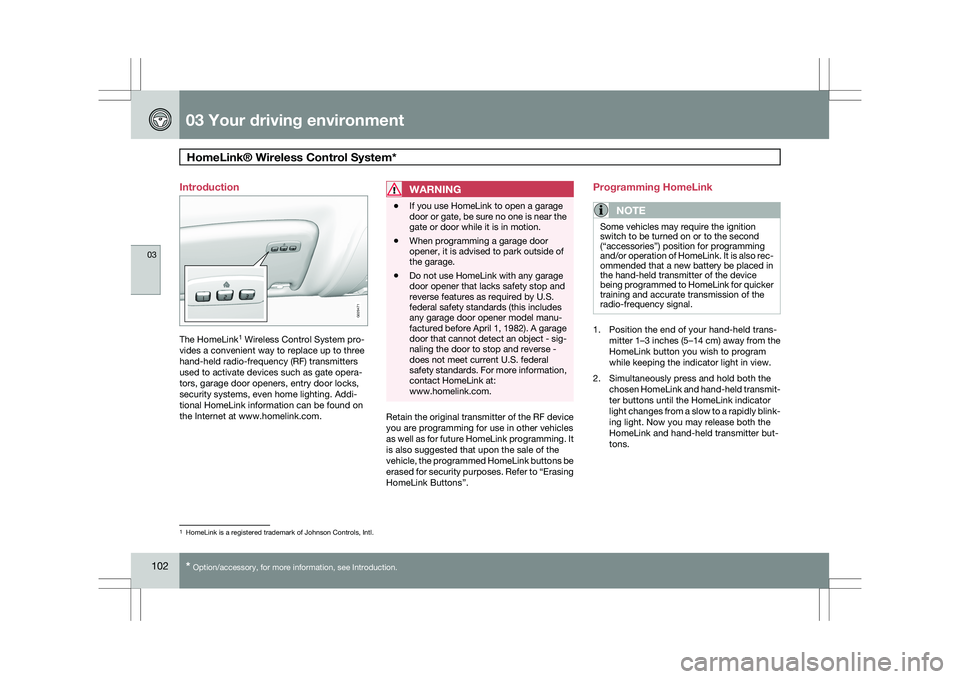
Introduction
The HomeLink
1
Wireless Control System pro-
vides a convenient way to replace up to three
hand-held radio-frequency (RF) transmitters
used to activate devices such as gate opera-
tors, garage door openers, entry door locks,
security systems, even home lighting. Addi-
tional HomeLink information can be found on
the Internet at www.homelink.com.
WARNING \b
If you use HomeLink to open a garage
door or gate, be sure no one is near the
gate or door while it is in motion.
\b When programming a garage door
opener, it is advised to park outside of
the garage.
\b Do not use HomeLink with any garage
door opener that lacks safety stop and
reverse features as required by U.S.
federal safety standards (this includes
any garage door opener model manu-
factured before April 1, 1982). A garage
door that cannot detect an object - sig-
naling the door to stop and reverse -
does not meet current U.S. federal
safety standards. For more information,
contact HomeLink at:
www.homelink.com. Retain the original transmitter of the RF device
you are programming for use in other vehicles
as well as for future HomeLink programming. It
is also suggested that upon the sale of the
vehicle, the programmed HomeLink buttons be
erased for security purposes. Refer to “Erasing
HomeLink Buttons”.Programming HomeLink
NOTE Some vehicles may require the ignition
switch to be turned on or to the second
(“accessories”) position for programming
and/or operation of HomeLink. It is also rec-
ommended that a new battery be placed in
the hand-held transmitter of the device
being programmed to HomeLink for quicker
training and accurate transmission of the
radio-frequency signal.
1. Position the end of your hand-held trans-
mitter 1–3 inches (5–14 cm) away from the
HomeLink button you wish to program
while keeping the indicator light in view.
2. Simultaneously press and hold both the chosen HomeLink and hand-held transmit-
ter buttons until the HomeLink indicator
light changes from a slow to a rapidly blink-
ing light. Now you may release both the
HomeLink and hand-held transmitter but-
tons. 1
HomeLink is a registered trademark of Johnson Controls, Intl. G029471
Page 106 of 297

03 Your driving environmentHomeLink® Wireless Control System* 03
104
* Option/accessory, for more information, see Introduction.
Erasing HomeLink Buttons
To erase programming from the three Home-
Link buttons (individual buttons cannot be
erased but can be “reprogrammed” as outlined
below), follow the step noted:
\b
Press and hold the two outer HomeLink
buttons until the indicator light begins to
flash-after 10 seconds. Release both but-
tons. Do not hold for longer that 20 sec-
onds. HomeLink is now in the train (or
learning) mode and can be programmed at
any time beginning with “Programming” -
step 1.
Reprogramming a Single HomeLink
Button
To program a device to HomeLink using a
HomeLink button previously trained, follow
these steps:
1. Press and hold the desired HomeLink but-
ton. DO NOT release the button.
2. The indicator light will begin to flash after 20 seconds. Without releasing the Home-
Link button, proceed with “Programming”
- step 1.
For questions or comments, contact HomeLink
at: www.homelink.com or 1–800–355–3515. This device complies with FCC rules part 15
and Industry Canada (IC) RSS-210. Operation
is subject to the following two conditions: (1)
This device may not cause harmful interfer-
ence, and (2) This device must accept any
interference that may be received including
interference that may cause undesired opera-
tion.
NOTE
The transmitter has been tested and com-
plies with FCC and IC rules. Changes or
modifications not expressly approved by
the party responsible for compliance could
void the user’s authority to operate the
device.
2 HomeLink and the HomeLink house are regis-
tered trademarks of Johnson Controls, Inc.
2
The term “IC:” before the certification/registration number only s\
ignifies that Industry Canada technical specifications were met.
Page 107 of 297

03 Your driving environment
Starting the engine03
}}
105
Starting the engine
Ignition switch with remote key inserted ( see
page 79for more information on ignition modes)
WARNING
Before starting the engine:
\b
Fasten the seat belt.
\b Check that the seat, steering wheel and
mirrors are adjusted properly.
\b Make sure the brake pedal can be
depressed completely. Adjust the seat
if necessary. 1. Insert the remote key into the ignition slot
with the buttons upward and the metallic
key blade pointing outward (not inserted
into the slot) 1
. 2. Push lightly on the remote key. It will be
automatically drawn into the ignition slot in
the correct position. 3.
Depress the brake pedal 2
. Press and
release the START/STOP ENGINE button.
The autostart function will operate the
starter motor until the engine starts.
The starter motor operates for a maximum
of 10 seconds. If the engine has not
started, repeat the procedure.
WARNING An extra mat on the driver\fs floor can cause
the accelerator and/or brake pedal to catch.
Check that the movement of these pedals is
not impeded. Not more than one protective
floor covering may be used at one time.
1
On vehicles with the optional keyless drive, it is only necessary to hav\
e a remote key in the passenger’s compartment.
2 If the vehicle is moving, it is only necessary to press the START/STOP E\
NGINE button to start the vehicle.
Page 129 of 297

04 Comfort and driving pleasure
Climate system04
}}
127
your Warranty and Service Records Informa-
tion booklet, or consult a trained and qualified
Volvo service technician for these intervals.
The filter should be replaced more often when
driving under dirty and dusty conditions. The
filter cannot be cleaned and therefore should
always be replaced with a new one.
NOTE
There are different types of cabin air filters.
Ensure that the correct type is installed.
Interior Air Quality System (IAQS)A multifilter helps reduce gases and particles
in the incoming air, thereby reducing the levels
of odors and contaminants entering the vehi-
cle. The air quality sensor detects increased
levels of contaminants in the outside air. When
the air quality sensor detects contaminated
outside air, the air intake closes and the air
inside the passenger compartment is recircu-
lated, i.e. no outside air enters the vehicle. The
filter also cleans recirculated passenger com-
partment air.
NOTE
Contact your Volvo retailer for IAQS air filter
replacement intervals.
Menu settingsThe default settings for three of the climate
system\fs functions can be changed in the
menu system, see page 122:
\b
Blower speed in automatic mode.
\b Recirculation timer for passenger com-
partment air.
\b Automatic rear window defrosting.
The functions can also be returned to factory
settings in the menu system.
Air distribution The incoming air is distributed from 20 different
vents in the passenger compartment.
Air distribution is fully automatic in
AUTO
mode. If desired, air distribution can be controlled
manually, see page 128.
Air vents in the dashboard
Open
Closed
Horizontal airflow
Vertical airflow
Direct the outer air vents toward the side win-
dows to defrost. G032070 G031437
Page 137 of 297

04 Comfort and driving pleasure
Audio system04
}}
* Option/accessory, for more information, see Introduction. 135
tem must be set to USB Removable device/
Mass Storage Device.
iPodAn iPod receives current and its battery is
charged through the connecting cord. How-
ever, if the iPod\fs battery is completely
drained, it should be recharged before the iPod
is connected to the audio system.
NOTE
When an iPod® is used as a sound source,
the vehicle\fs audio system has a menu
structure similar to the one in the iPod
®. See
the iPod\fs manual for detailed information. For further information, refer to the accessory
manual USB/iPod Music Interface.
Rear seat control panel with
headphone sockets
Headphones with an impedance of
16 – 32 ohm and sensitivity of 102 dB or higher
are recommended for best sound reproduc-
tion. Volume control (right/left sides)
Scroll/search forward and back
MODE – select AM, FM, HD Radio™
1
, CD,
AUX, USB/iPod®* and ON/OFF. Headphones sockets (3.5 mm)
Activating/deactivatingThe control panel is activated by pressing
MODE when the audio system is switched on.
It can be switched off by a long press on
MODE.
Scroll/search forward and backwardShort presses on (2) are used to scroll between
CD tracks or preset radio stations. Longpresses are used to fast-wind CD tracks or to
search for the next available radio station.
LimitationsThe audio source (FM, AM, CD, etc.) being
played in the speakers cannot be controlled
from the rear control panel.
Menu control and MY KEY
Certain functions can be controlled from the
menu system in the center console. For more
information on menus, see page 122.
Storing your favorite functions with MY
KEY
1
Available on U.S. models only G031439
Page 138 of 297

04 Comfort and driving pleasureAudio system 04
136
* Option/accessory, for more information, see Introduction.
1. Select the function in the menu to be
stored. Only certain functions can be
stored.
2. Press and hold MY KEY for more than two
seconds.
Activate the stored function by pressing MY
KEY briefly.
The following functions can be pro-
grammed using MY KEY:
FM
Radio text on/off
Audio settings Sound stage (front/driver/rear)
Auto. volume control (off/low/medium/
high)
Sirius satellite radio* Add song to memory
Direct channel entry
Song seek (on/off)
Sirius settings – Song memory (show
memory list)
CD/CD changer Random (CD changer)
Disc text (on/off) Track information (on/off)
Car settings Fold mirror when locking
Audio functions Center console, controls for audio functions
Internal audio sources:
AM, FM and CD External audio source or Sirius satellite
radio*. For connection, see page 134
Push button and knob controls for adjust-
ing sound settings
Menu navigation button
Volume and on/off
Audio volume and automatic volume
control
The audio system compensates for disrupting
noises in the passenger compartment by
increasing the volume according to the speed
of the vehicle. The level of sound compensa-
tion can be set at low, medium or high. Select
the level under Audio settings Auto
volume control in the menu system.
External audio source volumeExternal devices such as an MP3 player can be
connected to the AUX input, see page 134. The
volume of the external sound source AUX may
be different from the volume of the internal
sound sources such as the CD player or the
radio. Before connecting an external device, it
may be advisable to adjust the device to
approximately 2/3 of its maximum volume. If
the external sound source\fs volume is too high,
the quality of the sound may be impaired. To
help prevent this, adjust the input volume of the
external audio source:
1. Set the audio system in AUX mode using MODE and use (4) to navigate to Volume,
AUX input.
2. Turn the control (3) or press / the nav-
igation button. G031440