2009 NISSAN MURANO KEY
[x] Cancel search: KEYPage 221 of 443
Black plate (219,1)
Model "Z51-D" EDITED: 2007/ 10/ 2
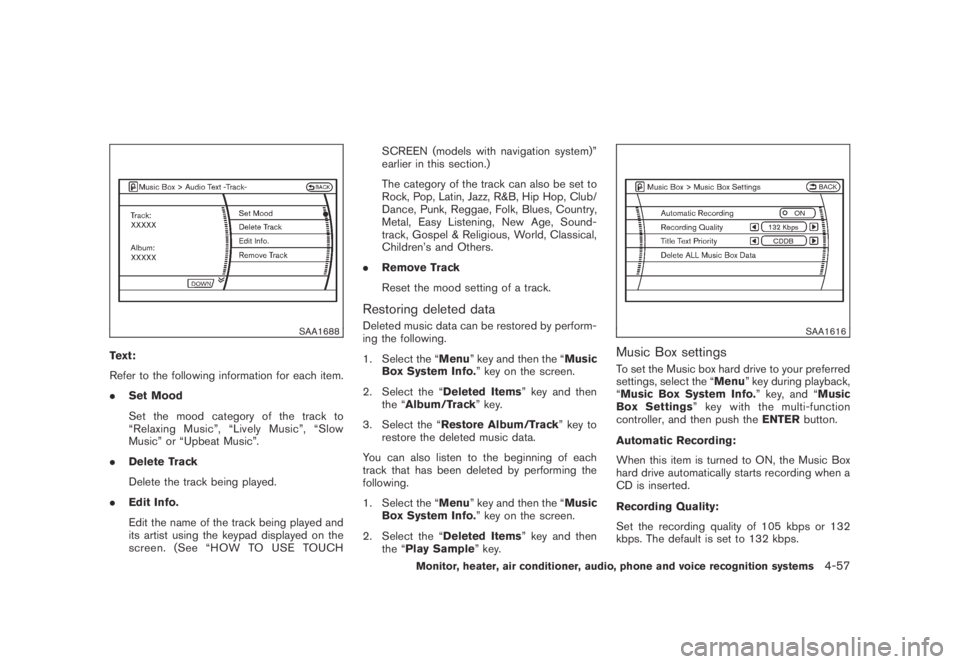
SAA1688
Text:
Refer to the following information for each item.
.Set Mood
Set the mood category of the track to
“Relaxing Music”, “Lively Music”, “Slow
Music” or “Upbeat Music”.
.Delete Track
Delete the track being played.
.Edit Info.
Edit the name of the track being played and
its artist using the keypad displayed on the
screen. (See “HOW TO USE TOUCHSCREEN (models with navigation system)”
earlier in this section.)
The category of the track can also be set to
Rock, Pop, Latin, Jazz, R&B, Hip Hop, Club/
Dance, Punk, Reggae, Folk, Blues, Country,
Metal, Easy Listening, New Age, Sound-
track, Gospel & Religious, World, Classical,
Children’s and Others.
.Remove Track
Reset the mood setting of a track.
Restoring deleted data
Deleted music data can be restored by perform-
ing the following.
1. Select the “Menu” key and then the “Music
Box System Info.” key on the screen.
2. Select the “Deleted Items” key and then
the “Album/Track” key.
3. Select the “Restore Album/Track” key to
restore the deleted music data.
You can also listen to the beginning of each
track that has been deleted by performing the
following.
1. Select the “Menu” key and then the “Music
Box System Info.” key on the screen.
2. Select the “Deleted Items” key and then
the “Play Sample” key.SAA1616
Music Box settings
To set the Music box hard drive to your preferred
settings, select the “Menu” key during playback,
“Music Box System Info.” key, and “Music
Box Settings” key with the multi-function
controller, and then push theENTERbutton.
Automatic Recording:
When this item is turned to ON, the Music Box
hard drive automatically starts recording when a
CD is inserted.
Recording Quality:
Set the recording quality of 105 kbps or 132
kbps. The default is set to 132 kbps.
Monitor, heater, air conditioner, audio, phone and voice recognition systems4-57
Page 231 of 443
Black plate (229,1)
Model "Z51-D" EDITED: 2007/ 10/ 2
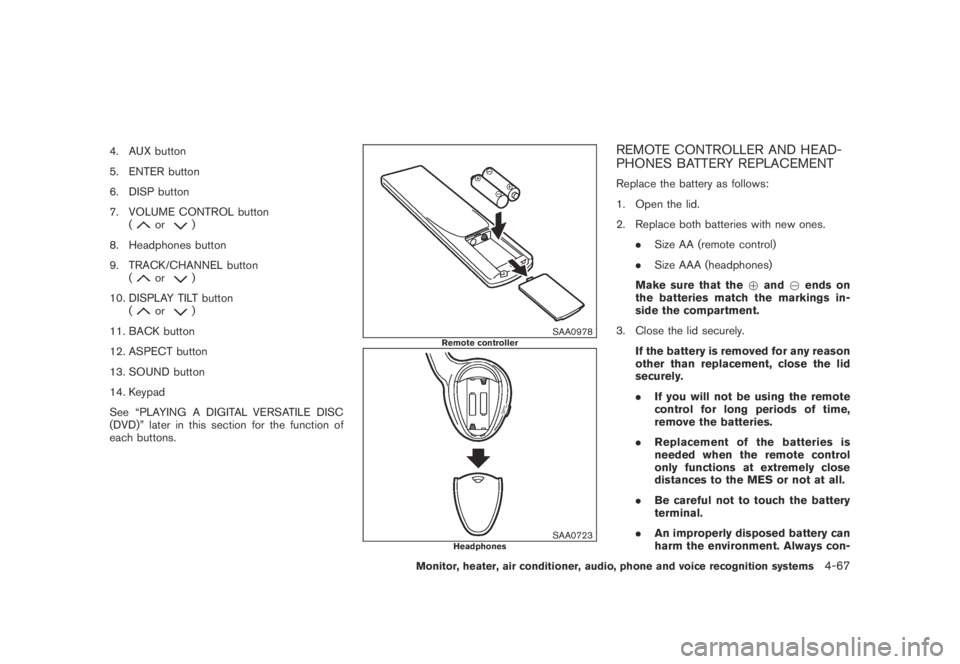
4. AUX button
5. ENTER button
6. DISP button
7. VOLUME CONTROL button
(
or)
8. Headphones button
9. TRACK/CHANNEL button
(
or)
10. DISPLAY TILT button
(
or)
11. BACK button
12. ASPECT button
13. SOUND button
14. Keypad
See “PLAYING A DIGITAL VERSATILE DISC
(DVD)” later in this section for the function of
each buttons.
SAA0978Remote controller
SAA0723Headphones
REMOTE CONTROLLER AND HEAD-
PHONES BATTERY REPLACEMENT
Replace the battery as follows:
1. Open the lid.
2. Replace both batteries with new ones.
.Size AA (remote control)
.Size AAA (headphones)
Make sure that the+and7ends on
the batteries match the markings in-
side the compartment.
3. Close the lid securely.
If the battery is removed for any reason
other than replacement, close the lid
securely.
.If you will not be using the remote
control for long periods of time,
remove the batteries.
.Replacement of the batteries is
needed when the remote control
only functions at extremely close
distances to the MES or not at all.
.Be careful not to touch the battery
terminal.
.An improperly disposed battery can
harm the environment. Always con-
Monitor, heater, air conditioner, audio, phone and voice recognition systems4-67
Page 233 of 443
Black plate (231,1)
Model "Z51-D" EDITED: 2007/ 10/ 2
installed DVD player cannot play DVDs with a
region code other than “1” or “ALL”.
Display settings
Front display:
To adjust the front display mode, press the
SETTING button while the DVD is being played,
select the “Display” key with the multi-function
controller, and then press the ENTER button.
To adjust the display ON/OFF, brightness, tint,
color, contrast and black level select each key
using the multi-function controller and press the
ENTER button.
Then you can adjust each item using the multi-
function controller. After changes have been
made press the BACK button to save the
settings.
Rear display:
To adjust the rear display mode, push the “DISP”
(Display) button on the remote controller.
To adjust the display brightness, tint, color and
contrast, select each key using the joystick on
the remote controller and tilt the joystick to right
or left.
Push the BACK button to apply the settings and
return to the previous display.
SAA1829
PLAYING A DIGITAL VERSATILE DISC
(DVD)
DISC button
Park the vehicle in a safe location for the
front seat occupants to operate the DVD
drive while watching the images.
Push the “DISC” button on the instrument panel
to turn the display to the DVD mode.
When a DVD is loaded, it will be replayed
automatically.
The operation screen will be turned on when the
“DISC” button located on the instrument panel
is pushed while a DVD is being played, and itwill turn off automatically after a period of time.
To turn it on again, push the “DISC” button once
more.
DVD operation keys
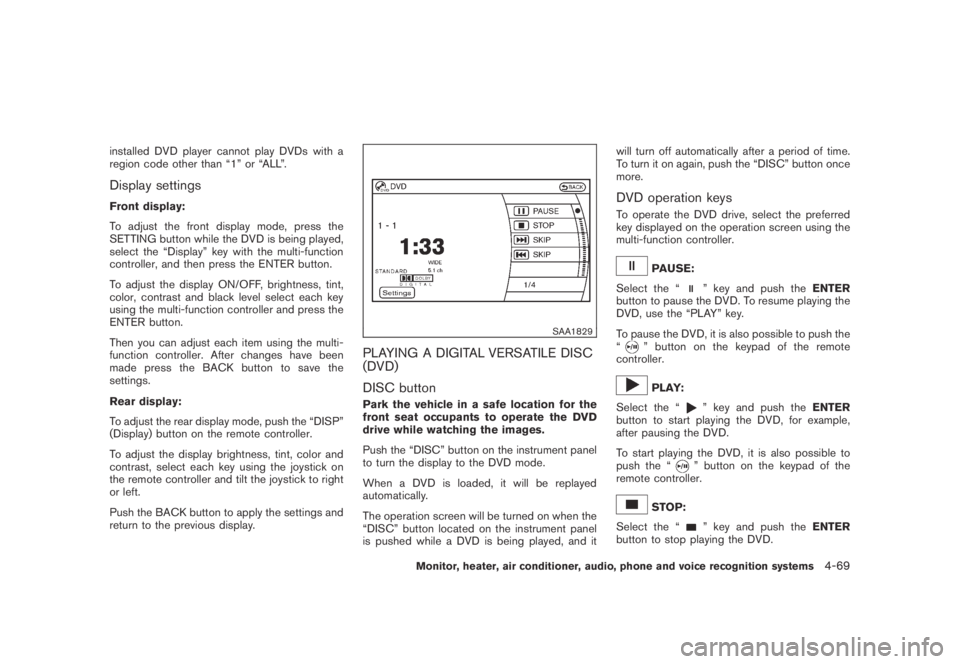
To operate the DVD drive, select the preferred
key displayed on the operation screen using the
multi-function controller.
PAUSE:
Select the “
” key and push theENTER
button to pause the DVD. To resume playing the
DVD, use the “PLAY” key.
To pause the DVD, it is also possible to push the
“
” button on the keypad of the remote
controller.
PLAY:
Select the “
” key and push theENTER
button to start playing the DVD, for example,
after pausing the DVD.
To start playing the DVD, it is also possible to
push the “
” button on the keypad of the
remote controller.
STOP:
Select the “
” key and push theENTER
button to stop playing the DVD.
Monitor, heater, air conditioner, audio, phone and voice recognition systems4-69
Page 234 of 443

Black plate (232,1)
Model "Z51-D" EDITED: 2007/ 10/ 2
To stop playing the DVD, it is also possible to
push the “” button on the keypad of the
remote controller.
SKIP (FORWARD):
Select the “
” key and push theENTER
button to skip the chapter(s) of the disc forward.
The chapters will advance the number of times
theENTERbutton is pushed.
To skip the chapter(s) forward, it is also possible
to push the “
” button on the keypad of the
remote controller.
SKIP (REWIND):
Select the “
” key and push theENTER
button to skip the chapter(s) of the disc back-
ward. The chapters will go back the number of
times theENTERbutton is pushed.
To skip the chapter(s) backward, it is also
possible to push the “
” button on the
keypad of the remote controller.
SAA2003Setting (front) — DVD VIDEO-1
SAA1831Setting (front) — DVD VIDEO-2
SAA2013Setting (front) — DVD VIDEO-3
SAA2014Setting (rear) — DVD VIDEO-1
4-70Monitor, heater, air conditioner, audio, phone and voice recognition systems
Page 235 of 443
Black plate (233,1)
Model "Z51-D" EDITED: 2007/ 10/ 2
SAA1194Setting (rear) — DVD VIDEO-2
SAA1195Setting (rear) — DVD VIDEO-3
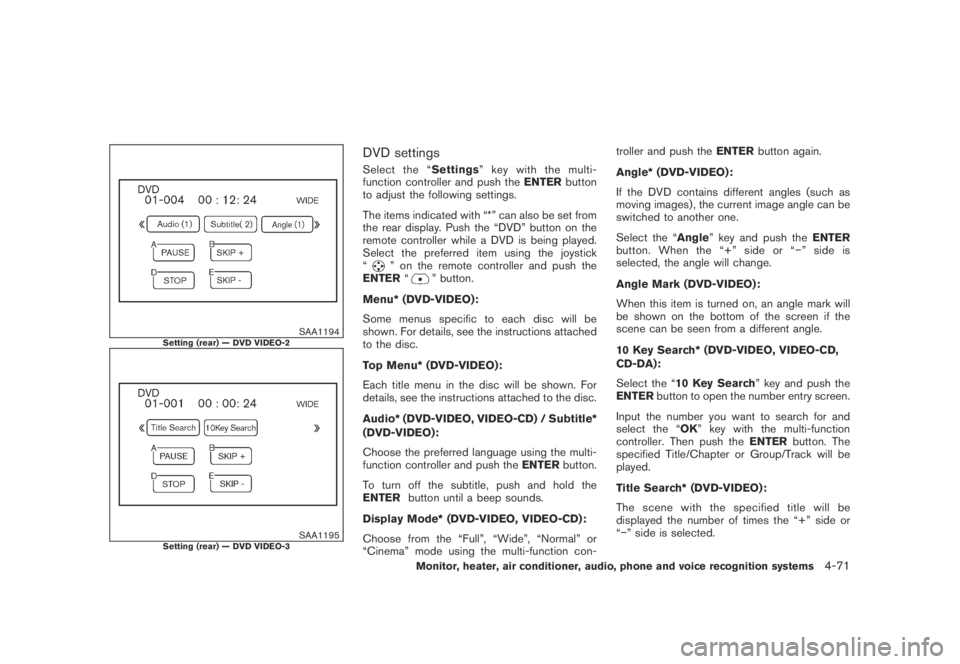
DVD settings
Select the “Settings” key with the multi-
function controller and push theENTERbutton
to adjust the following settings.
The items indicated with “*” can also be set from
the rear display. Push the “DVD” button on the
remote controller while a DVD is being played.
Select the preferred item using the joystick
“
” on the remote controller and push the
ENTER“” button.
Menu* (DVD-VIDEO):
Some menus specific to each disc will be
shown. For details, see the instructions attached
to the disc.
Top Menu* (DVD-VIDEO):
Each title menu in the disc will be shown. For
details, see the instructions attached to the disc.
Audio* (DVD-VIDEO, VIDEO-CD) / Subtitle*
(DVD-VIDEO):
Choose the preferred language using the multi-
function controller and push theENTERbutton.
To turn off the subtitle, push and hold the
ENTERbutton until a beep sounds.
Display Mode* (DVD-VIDEO, VIDEO-CD):
Choose from the “Full”, “Wide”, “Normal” or
“Cinema” mode using the multi-function con-troller and push theENTERbutton again.
Angle* (DVD-VIDEO):
If the DVD contains different angles (such as
moving images) , the current image angle can be
switched to another one.
Select the “Angle” key and push theENTER
button. When the “+” side or “−” side is
selected, the angle will change.
Angle Mark (DVD-VIDEO):
When this item is turned on, an angle mark will
be shown on the bottom of the screen if the
scene can be seen from a different angle.
10 Key Search* (DVD-VIDEO, VIDEO-CD,
CD-DA):
Select the “10 Key Search” key and push the
ENTERbutton to open the number entry screen.
Input the number you want to search for and
select the “OK” key with the multi-function
controller. Then push theENTERbutton. The
specified Title/Chapter or Group/Track will be
played.
Title Search* (DVD-VIDEO) :
The scene with the specified title will be
displayed the number of times the “+” side or
“−” side is selected.
Monitor, heater, air conditioner, audio, phone and voice recognition systems4-71
Page 236 of 443
Black plate (234,1)
Model "Z51-D" EDITED: 2007/ 10/ 2
Select No.* (VIDEO-CD) :
Select the “Select No.” key and push the
ENTERbutton to open the number entry screen.
Input the number you wish to search for and
select the “OK” key with the multi-function
controller, and then push theENTERbutton.
The specified scene will be played.
Menu Skip (DVD-VIDEO):
DVD menus are automatically configured and
the contents will be played directly when the
“Menu Skip” key is turned on. Note that some
discs may not be played directly even if this item
is turned on.
DVD Language (DVD-VIDEO, VIDEO-CD):
Select the “DVD Language” key and push the
ENTERbutton to open the number entry screen.
Input the number corresponding to the preferred
language and select the “OK” key with the multi-
function controller. Then push theENTER
button. The DVD top menu language will be
changed to the one specified.
DRC (DVD-VIDEO) :
DRC (Dynamic Range Compression) allows you
to tune the dynamic range of the sound
recorded in the Dolby Digital format.Remote controller operation
Use the remote controller to adjust the following
items.
Rear display open/close:
To open or close the flip-down rear display, push
the “
” button on the remote controller.
Joystick:
Use the joystick “
” to select the items
displayed on the rear screen.
ENTER button:
Push theENTER“
” button to make the
selected item complete on the rear screen.
BACK button:
Press to go back to the previous screen or
cancel the selection.
Display tilt:
Adjust the display angle by pushing the “DIS-
PLAY TILT” button
or.
DVD mode:
To select the DVD mode, push the DVD button.
AUX mode:
To select the AUX (Auxiliary input jacks) mode,
push the AUX button.Volume:
To control the volume level, push the “VOL”
button
or.
Display:
Press to adjust the rear display screen bright-
ness, tint, contrast, etc.
Aspect:
To change the display size, push the “ASPECT”
button. Each time the button is pushed, the
display size will change to “Cinema”, “Wide”,
“Full” or “Normal”.
Sound:
To change the language, push the “SOUND”
button. Each time the button is pushed, the
language will change to each language stored in
the DVD.
Headphones:
The DVD sound can be heard through the
headphones.
Push the “
” button. Each time the button is
pushed the mode will switch to ON or OFF.
To control the volume of sound from the
headphones, use the VOLUME CONTROL
knob attached to the headphones.
4-72Monitor, heater, air conditioner, audio, phone and voice recognition systems
Page 237 of 443
Black plate (235,1)
Model "Z51-D" EDITED: 2007/ 10/ 2
Track/Channel:
Press to skip to the previous or next DVD scene
selection.
Keypad:
: PLAY/PAUSE button
: STOP button
: FORWARD button
: REWIND button
: FORWARD button for still images (for
DVD-AUDIO)
: REWIND button for still images (for DVD-
AUDIO)
CARE AND MAINTENANCE
Use a lightly dampened, lint free cloth to clean
the surfaces of your Mobile Entertainment
System. (DVD player face, screen, remote
controller, etc.)
CAUTION
.Do not use any solvents or cleaning
solutions when cleaning the video
system.
.Do not use excessive force on the
monitor screen..Avoid touching or scratching the
monitor screen as it may become
dirty or damaged.
.Do not attempt to operate the
system in extreme temperature con-
ditions [below−48F(−208C) and
above 1588F (708C)].
.Do not attempt to operate the
system in extreme humidity condi-
tions (less than 10% or more than
75%) .
SAA0451
How to handle the DVD
CAUTION
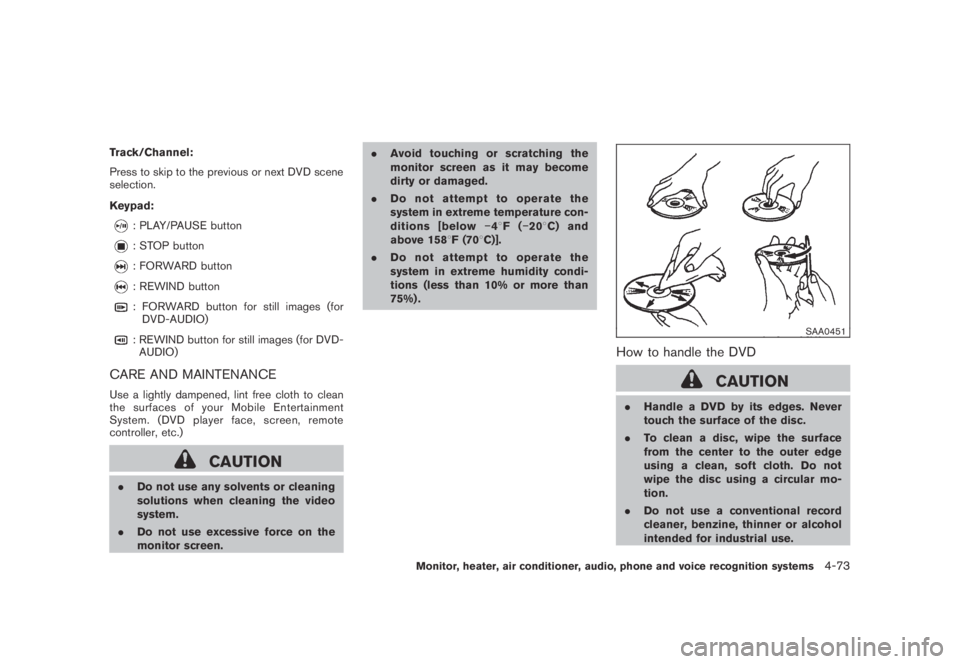
.Handle a DVD by its edges. Never
touch the surface of the disc.
.To clean a disc, wipe the surface
from the center to the outer edge
using a clean, soft cloth. Do not
wipe the disc using a circular mo-
tion.
.Do not use a conventional record
cleaner, benzine, thinner or alcohol
intended for industrial use.
Monitor, heater, air conditioner, audio, phone and voice recognition systems4-73
Page 241 of 443
Black plate (239,1)
Model "Z51-D" EDITED: 2007/ 10/ 2
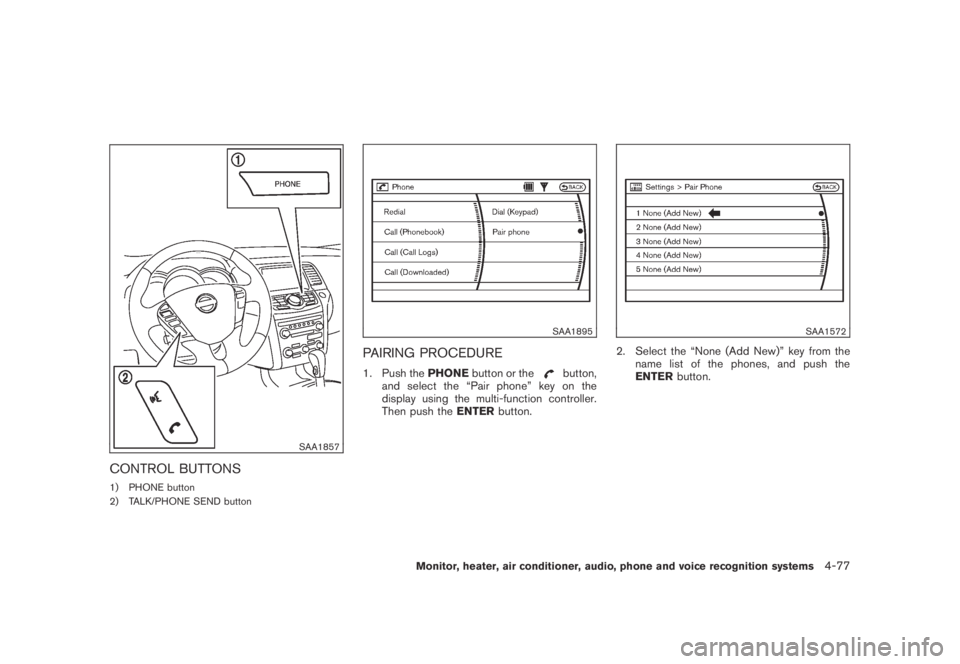
SAA1857
CONTROL BUTTONS
1) PHONE button
2) TALK/PHONE SEND button
SAA1895
PAIRING PROCEDURE
1. Push thePHONEbutton or thebutton,
and select the “Pair phone” key on the
display using the multi-function controller.
Then push theENTERbutton.
SAA1572
2. Select the “None (Add New)” key from the
name list of the phones, and push the
ENTERbutton.
Monitor, heater, air conditioner, audio, phone and voice recognition systems4-77