Page 141 of 308
Features of your vehicle
86
4
Care of cassette tapes (if equipped)
Because the thickness of a cassette
tape with the total playback time of
over 60 minutes (C-60) are too thin, we
suggest that you do not use any of
them to avoid having tapes being tan-gled.
To achieve better sound quality, period- ically clean the tape head using a cot-
ton stick with colorless alcohol (onceper month).
If a tape is too loose, fasten it to reel by winding with objects like a pencil.
Because dust or foreign objects on a cassette tape may damage the play-
back head, always store tapes in their
cases when not in use.
Make sure cassette tapes are kept away from magnetic devices (TV,
stereo system, etc) in order to achieve
better sound quality.
Be certain that no objects or sub- stances other than cassette tapes are
inserted into the cassette tape player.
Because tape media can be distorted when exposed to direct sunlight, Do
not leave cassette tapes on the seats,
dashboard or near the back wind-shield. Care of disc (if equipped)
If the temperature inside the car is too
high, open the car windows for ventila-
tion before using your car audio.
It is illegal to copy and use MP3/WMA/AAC/WAVE files without
permission. Use CDs that are created
only by lawful means.
Do not apply volatile agents such as benzene and thinner, normal cleaners
and magnetic sprays made for ana-
logue disc onto CDs.
To prevent the disc surface from get- ting damaged. Hold and carry CDs bythe edges or the edges of the centre
hole only.
Clean the disc surface with a piece of soft cloth before playback (wipe it fromthe centre to the outside edge).
Do not damage the disc surface or attach pieces of sticky tape or paperonto it.
Make sure on undesirable matter other than CDs are inserted into the CD
player (Do not insert more than oneCD at a time).
Keep CDs in their cases after use to protect them from scratches or dirt.
WARNING
Hyundai recommends that you
never use a mobile phone while
driving. This could result in loss of
control, and an accident that may
cause death, serious injury, or
property damage. You must stop at
a safe place to use a mobile phone.
Page 142 of 308
487
Features of your vehicle
Depending on the type of CD-R/CD-RW CDs, certain CDs may not operate
normally according to manufacturingcompanies or making and recording
methods. In such circumstances, if you
still continue to use those CDs, they
may cause the malfunction of your caraudio system.
✽✽ NOTICE - Playing an
Incompatible Copy-Protected
Audio CD
Some copy-protected CDs, which do not comply with the international audio CDstandards(Red Book), may not play on
your car audio. Please note that if you
try to play copy protected CDs and the
CD player of your car audio is not per-
forming to your expectation, this may becaused by those CDs and not a defect in
the device itself. Please replace thoseCDs.
Page 143 of 308
Features of your vehicle
88
4
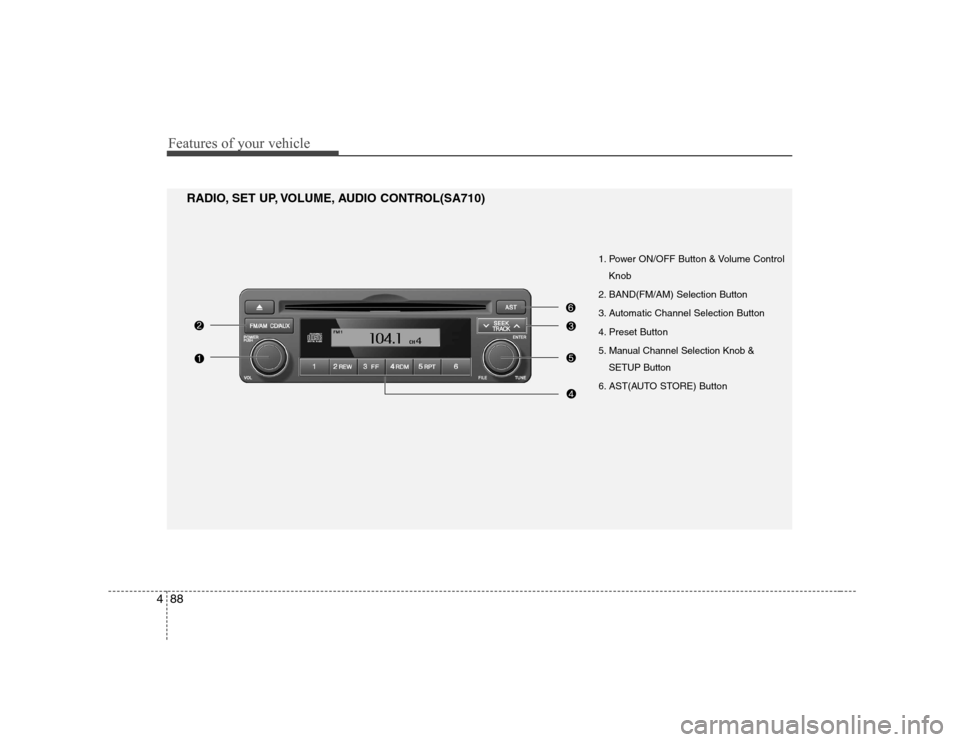
1. Power ON/OFF Button & Volume Control
Knob
2. BAND(FM/AM) Selection Button
3. Automatic Channel Selection Button
4. Preset Button
5. Manual Channel Selection Knob & SETUP Button
6. AST(AUTO STORE) Button
RADIO, SET UP, VOLUME, AUDIO CONTROL(SA710)
Page 144 of 308
489
Features of your vehicle
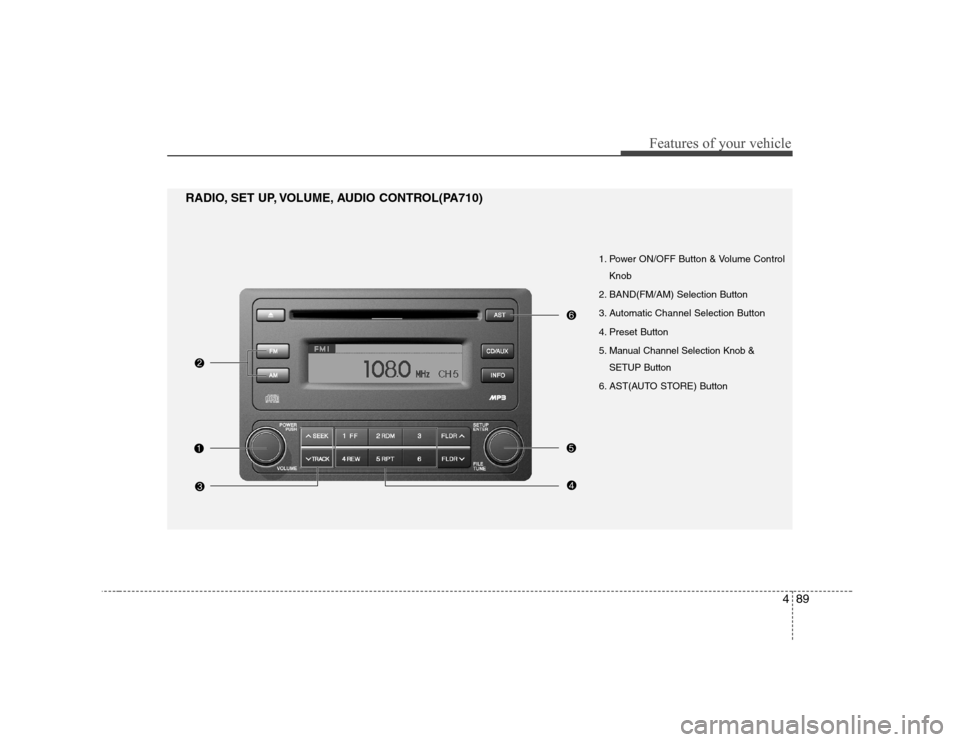
1. Power ON/OFF Button & Volume ControlKnob
2. BAND(FM/AM) Selection Button
3. Automatic Channel Selection Button
4. Preset Button
5. Manual Channel Selection Knob & SETUP Button
6. AST(AUTO STORE) Button
RADIO, SET UP, VOLUME, AUDIO CONTROL(PA710)
Page 145 of 308
Features of your vehicle
90
4
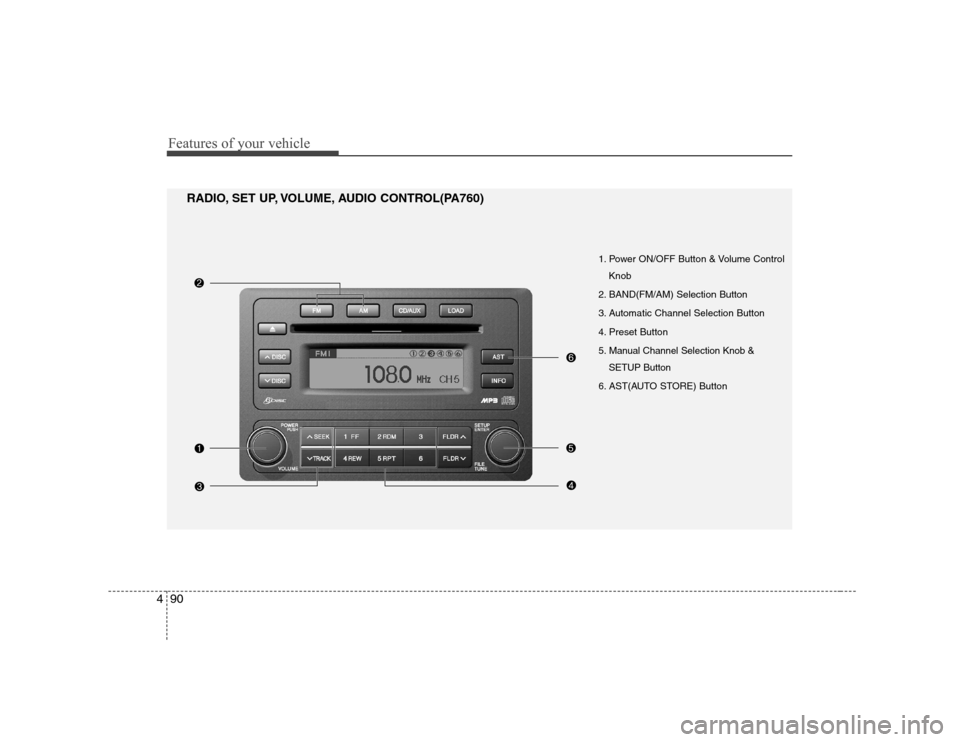
1. Power ON/OFF Button & Volume Control
Knob
2. BAND(FM/AM) Selection Button
3. Automatic Channel Selection Button
4. Preset Button
5. Manual Channel Selection Knob & SETUP Button
6. AST(AUTO STORE) Button
RADIO, SET UP, VOLUME, AUDIO CONTROL(PA760)
Page 146 of 308
491
Features of your vehicle
1. Power ON/OFF Button &Volume Control Knob
Turns the set on/off when the ignition
switch is on ACC or ON. If the button is
turned to the right, it increases the vol-
ume and left,decreases the volume.
2. BAND(FM/AM) Selection Button
Pressing the FM button changes the
FM1 and FM2 bands.
Pressing the AM button selects AMband.
3. Automatic Channel Selection Button
] button is pressed, it increases the band frequency to auto-matically select a channel.
Stops at the previous frequency if no
channel is found.
] button is press- ed, it reduces the band frequency toautomatically select a channel.
Stops at the previous frequency if no
channel is found. 4. Preset Button
Push [1]~[6] buttons less than 0.8 sec-
ond to play the channel saved in each
button. Push [PRESET] button for 0.8
second or longer to save current channel
to the respective button with a beep.
5. Manual Channel Selection
Knob & SETUP Button
Manual Channel Selection knob
Turn this knob while listening to a radio
channel to manually adjust frequency.
Turn clockwise to increase frequency and
counterclockwise to reduce frequency. SETUP Button
Press this button to turn to the SCROLL
option and SOUND adjustment mode. If
no action is taken for 5 seconds after
pressing the button, it will return to the
play mode.(After entering SETUP mode,
move between items using the left, right
and PUSH functions of the [TUNE] but-ton.)
The setup item changes from SCROLL ➟ TONE ➟ POSITION... Audio Control Knob
In SETUP mode, SCROLL option or
TONE, POSITION settings can be adjust-
ed. After selecting each mode by pushing
Sound Control knob, rotate the knob to
adjust and push again to changes take
effect.
SCROLL option When "ON" is selected, long file name
scrolls continuously while playing.
TONE adjustment Sound tone(BASS/MIDDLE/TREBLE) can
be adjusted by rotating the knob. To select
next item, press the knob again.
POSITION adjustment
Sound position(FADER/BALANCE) can
be adjusted by rotating the knob. FADER
adjusts FRONT/REAR position, and BAL-ANCE adjusts LEFT/RIGHT position of
the speaker sound. To select next item,press the knob again.
RETURN
Exits SETUP mode and returns to play
mode. Pressing AM,FM or CD/AUX button
also exits SETUP mode and switches to
selected mode.
Page 156 of 308
4101
Features of your vehicle
CAUTION IN USING
USB DEVICE
To use an external USB device, make sure the device is notmounted when starting up the
vehicle and mount the deviceafter starting up.
If you start the vehicle when the USB device is mounted, it maydamage the USB device. (USB is
not ESA)
If the vehicle is started up or turned off while the external USBdevice is connected, the external
USB device may not work.
It may not play inauthentic MP3 or WMA files.
1) It can only play MP3 files with the compression rate between8Kbps~320Kbps.
2) It can only play WMA music files with the compression ratebetween 8Kbps~320Kbps.
Take cautions for static electricity when mounting or dismountingthe external USB device.
An encoded MP3 player is not recognizable.
(Continued)
(Continued) Depending on the condition of the external USB device, the con-nected external USB device can
be unrecognizable.
When the formatted byte/sector setting of External USB devices isnot either 512BYTE or 2048BYTE,
then the device will not be recog-nized.
Use only a USB device formatted to FAT 12/16/32.
USB devices without USB I/F authentication may not be recog-nizable.
Make sure the USB connection terminal does not come in contactwith a human body or any object.
If you repeat mounting or dis- mounting USB device in a shortperiod of time, it may break thedevice.
You might hear a strange noise when mounting or dismounting aUSB device.
(Continued)(Continued) If you dismount the external USB device during playback in USBmode, the external USB device can
be damaged or malfunction.Therefore, mount the external USBdevice when the engine is turned
off or in another mode.
Depending on the type and capac- ity of the external USB device orthe type of the files stored in the
device, there is a difference in thetime taken for recognition of the device, but this is not an indicatorof trouble and you only have to
wait.
Do not use the USB device for other purposes than playing music files.
Use of USB accessories such as recharger or heater using USB I/Fmay lower performance or cause
trouble.
If you use devices such as a USB hub you purchased separately,the vehicle’s audio system may
not recognize the USB device. Connect the USB device directlyto the multimedia terminal of the vehicle.
(Continued)
Page 157 of 308
Features of your vehicle
102
4
(Continued)
If USB device is divided by logical drives, only the music files on thehighest-priority drive are recog-
nized by car audio.
Devices such as MP3 Player/ Cellular phone/Digital camerathose are not recognizable by
standard USB I/F can be unrecog-nizable.
USB devices other than standard- ized goods (METAL COVER TYPE
USB) can be unrecognizable.
USB flash memory reader (such as CF, SD, microSD, etc.) or exter-nal-HDD type devices can beunrecognizable.
Music files protected by DRM (DIGITAL RIGHTS MANAGEMENT)are not recognizalbe.
The data in the USB memory may be lost while using this AUDIO. It
is recommeded to back up impor- tant data on a personal storagedevice.
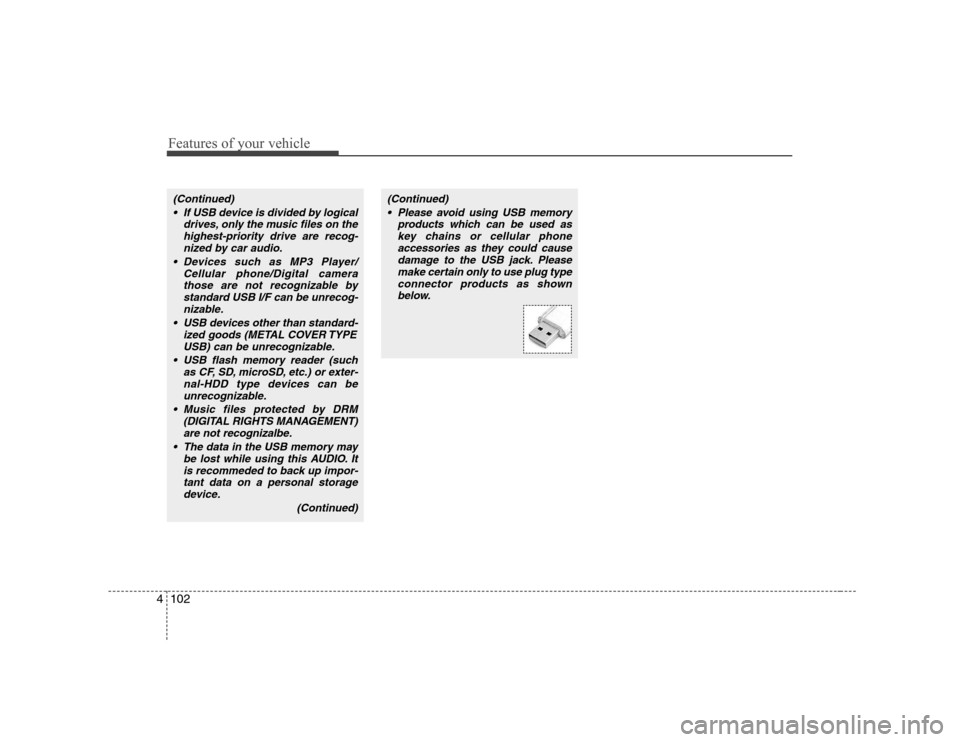
(Continued)(Continued) Please avoid using USB memory products which can be used askey chains or cellular phone
accessories as they could cause damage to the USB jack. Pleasemake certain only to use plug type
connector products as shownbelow.