Page 111 of 526
•After the�Ready�prompt and the following beep, say
�Setup Phone Pairing.�
•At the next prompt, say�Delete�and follow the
prompts.
•You can also press the VOICE RECOGNITION button
at any time while the list is being played, and then
choose the phone you wish to delete.
Things You Should Know About Your uconnect�
phone
uconnect�phone Tutorial
To hear a brief tutorial of the system features, press the
PHONE button and say “uconnect�Tutorial.”
Voice Training
For users experiencing difficulty with the system recog-
nizing their voice commands or numbers, the uconnect�phone Voice Training feature may be used. To enter this
training mode, follow one of the two following proce-
dures:
From outside the uconnect�phone mode (e.g., from radio
mode):
•Press and hold the VOICE RECOGNITION button for
five seconds until the session begins, or,
•Press the VOICE RECOGNITION button and say the
�Setup, Voice Training�command.
Repeat the words and phrases when prompted by the
uconnect�phone. For best results, the Voice Training
session should be completed when the vehicle is parked
with the engine running, all windows closed, and the
blower fan switched off.
This procedure may be repeated with a new user. The
system will adapt to the last trained voice only.
UNDERSTANDING THE FEATURES OF YOUR VEHICLE 109
3
Page 114 of 526
Bluetooth�Communication Link
Cellular phones have been found to lose connection to
the uconnect�phone. When this happens, the connection
can generally be reestablished by switching the phone
off/on. Your cellular phone is recommended to remain in
Bluetooth�ON mode.
Power-Up
After switching the ignition key from OFF to either the
ON or ACC position, or after a language change, you
must wait at least five seconds prior to using the system.
112 UNDERSTANDING THE FEATURES OF YOUR VEHICLE
Page 122 of 526
Commands
The Voice Recognition system understands two types of
commands. Universal commands are available at all
times. Local commands are available if the supported
radio mode is active.
Changing the Volume
1. Start a dialogue by pressing the VR button.
2. Say a command (e.g., “Help”).
3. Use the ON/OFF VOLUME rotary knob to adjust the
volume to a comfortable level while the Voice Recogni-
tion system is speaking. Please note the volume setting
for VR is different than the audio system.
Main Menu
Start a dialogue by pressing the VR button. You may say
“Main Menu” to switch to the main menu.
In this mode, you can say the following commands:
•“Radio” (to switch to the radio mode)
•“Disc” (to switch to the disc mode)
•“Memo” (to switch to the memo recorder)
•“System Setup” (to switch to system setup)
Radio AM (or Radio Long Wave or Radio Medium
Wave — If Equipped)
To switch to the AM band say “AM” or “Radio AM”. In
this mode, you may say the following commands:
•“Frequency” (to change the frequency)
•“Next Station” (to select the next station)
•“Previous Station” (to select the previous station)
•“Radio Menu” (to switch to the radio menu)
•“Main Menu” (to switch to the main menu)
120 UNDERSTANDING THE FEATURES OF YOUR VEHICLE
Page 124 of 526
Memo
To switch to the voice recorder mode say “Memo”. In this
mode, you may say the following commands:
•“New Memo” (to record a new memo) — During the
recording you may press the VR button to stop record-
ing. You proceed by saying one of the following
commands:
“Save” (to save the memo)
“Continue” (to continue recording)
“Delete” (to delete the recording)
•“Play Memos” (to play previously recorded memos)
— During the playback you may press the VR button
to stop playing memos. You proceed by saying one of
the following commands:
“Repeat” (to repeat a memo)
“Next” (to play the next memo)
“Previous” (to play the previous memo)
“Delete” (to delete a memo)
•“Delete All” (to delete all memos)
System Setup
To switch to system setup say “Setup”. In this mode, you
may say the following commands:
•“Language German”
•“Language Dutch”
•“Language Italian”
•“Language English”
•“Language French”
•“Language Spanish”
•“Tutorial”
•“Voice Training”
122 UNDERSTANDING THE FEATURES OF YOUR VEHICLE
Page 139 of 526
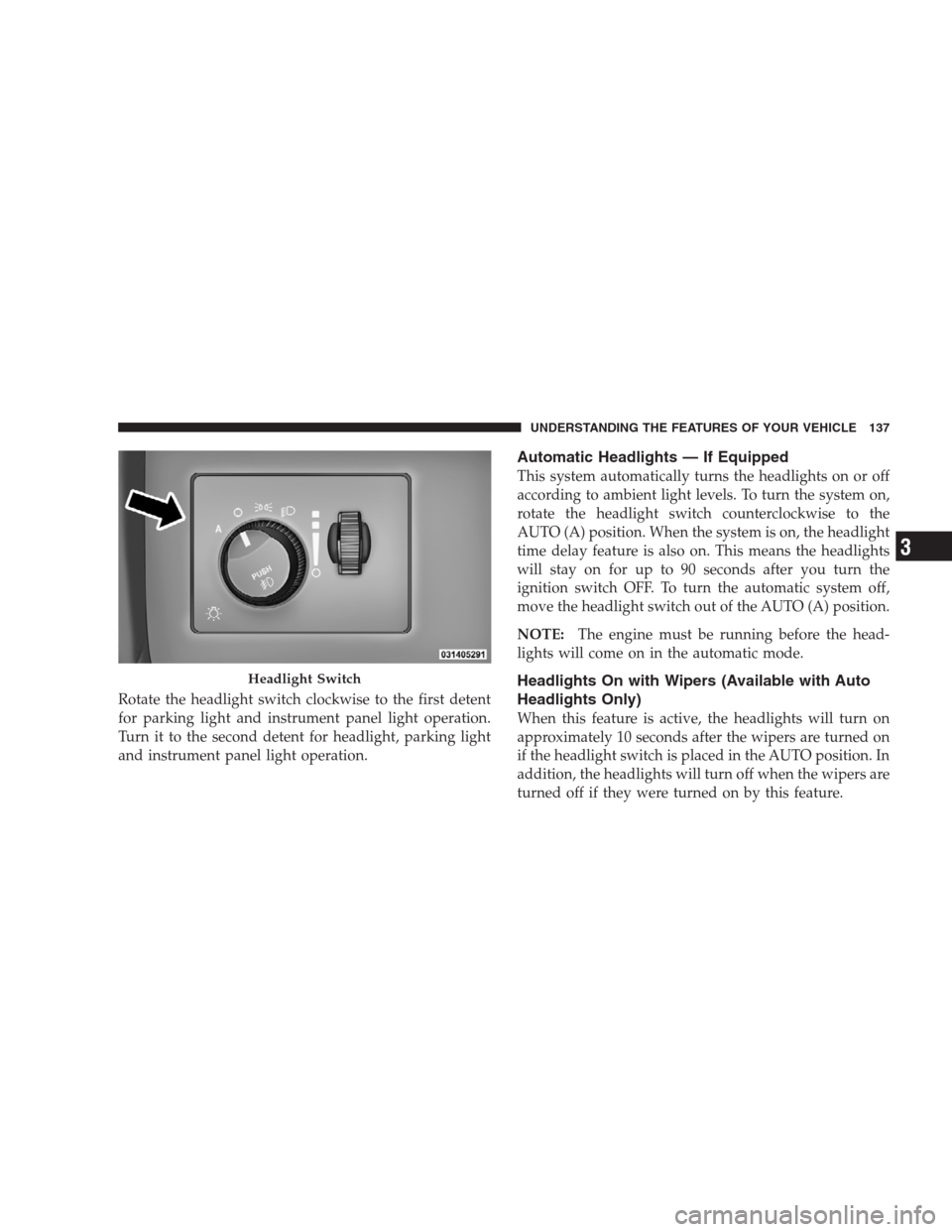
Rotate the headlight switch clockwise to the first detent
for parking light and instrument panel light operation.
Turn it to the second detent for headlight, parking light
and instrument panel light operation.
Automatic Headlights — If Equipped
This system automatically turns the headlights on or off
according to ambient light levels. To turn the system on,
rotate the headlight switch counterclockwise to the
AUTO (A) position. When the system is on, the headlight
time delay feature is also on. This means the headlights
will stay on for up to 90 seconds after you turn the
ignition switch OFF. To turn the automatic system off,
move the headlight switch out of the AUTO (A) position.
NOTE:The engine must be running before the head-
lights will come on in the automatic mode.
Headlights On with Wipers (Available with Auto
Headlights Only)
When this feature is active, the headlights will turn on
approximately 10 seconds after the wipers are turned on
if the headlight switch is placed in the AUTO position. In
addition, the headlights will turn off when the wipers are
turned off if they were turned on by this feature.
Headlight Switch
UNDERSTANDING THE FEATURES OF YOUR VEHICLE 137
3
Page 145 of 526
because a door is open. This includes the glove box light,
but not the trunk light. To restore interior light operation,
either turn the ignition switch ON or cycle the light
switch.
Dimmer Control
The dimmer control is part of the
headlight switch and is located on the
left side of the instrument panel. With
the parking lights or headlights on,
rotating the dimmer control upward
will increase the brightness of the in-
strument panel lights and, if so
equipped, the lighting in the door map pockets and
cupholders.
Dome Light Position
Rotate the dimmer control completely upward to the
second detent to turn on the interior lights. The interior
lights will remain on when the dimmer control is in this
position.
Interior Light Defeat (OFF)
Rotate the dimmer control to the extreme bottom OFF
position. The interior lights will remain off when the
doors are open.
Parade Mode (Daytime Brightness Feature)
Rotate the dimmer control upward to the first detent.
This feature brightens all text displays such as the
odometer, EVIC (if equipped), and radio when the park-
ing lights or headlights are on.
WINDSHIELD WIPERS AND WASHERS
The multifunction lever operates the windshield wipers
and washer when the ignition switch is in the ON
UNDERSTANDING THE FEATURES OF YOUR VEHICLE 143
3
Page 170 of 526
Display Warnings and Maintenance
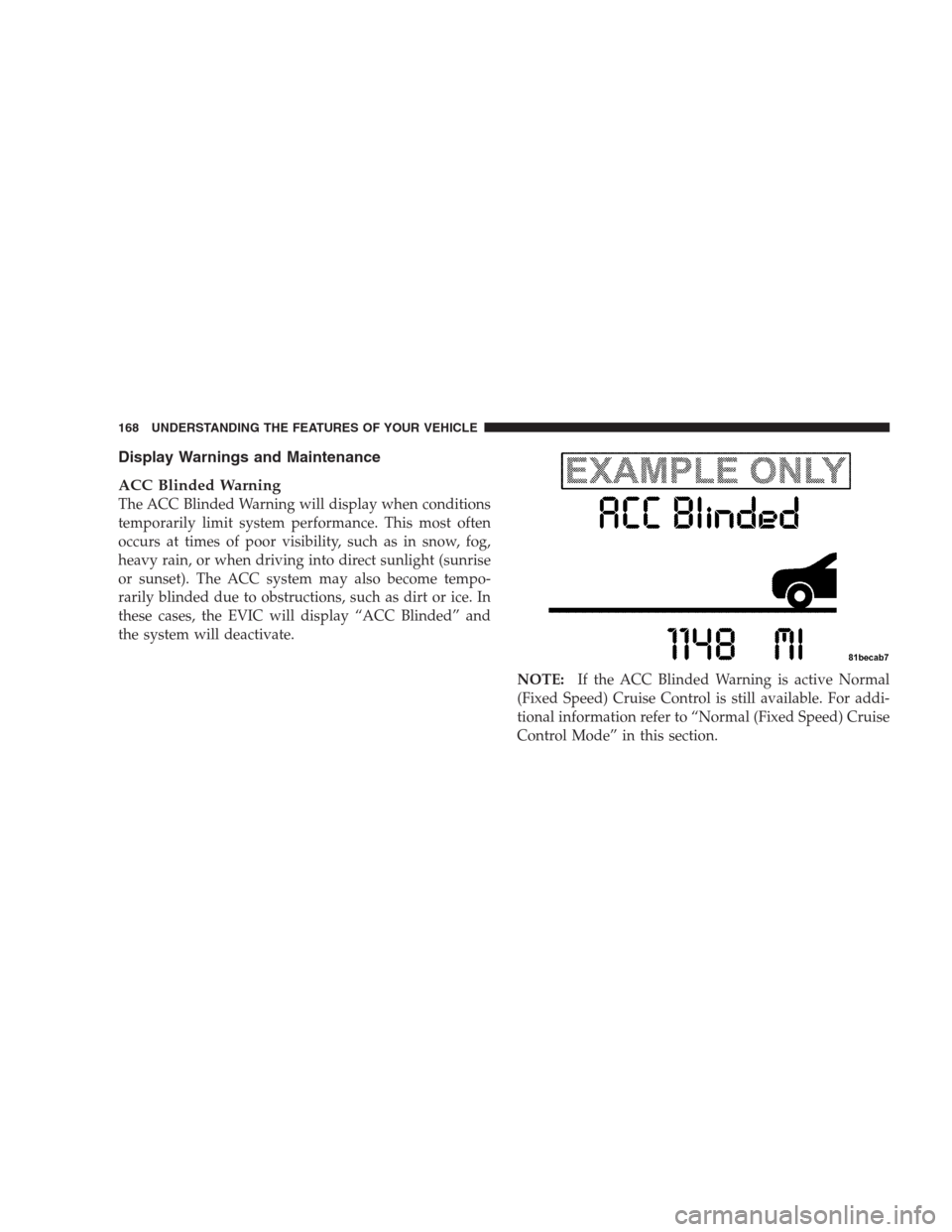
ACC Blinded Warning
The ACC Blinded Warning will display when conditions
temporarily limit system performance. This most often
occurs at times of poor visibility, such as in snow, fog,
heavy rain, or when driving into direct sunlight (sunrise
or sunset). The ACC system may also become tempo-
rarily blinded due to obstructions, such as dirt or ice. In
these cases, the EVIC will display “ACC Blinded” and
the system will deactivate.
NOTE:If the ACC Blinded Warning is active Normal
(Fixed Speed) Cruise Control is still available. For addi-
tional information refer to “Normal (Fixed Speed) Cruise
Control Mode” in this section.
168 UNDERSTANDING THE FEATURES OF YOUR VEHICLE
Page 177 of 526
Normal (Fixed Speed) Cruise Control Mode
In addition to adaptive cruise control mode, a normal
(fixed speed) cruise control mode is available for cruising
at fixed speeds. The Normal cruise control mode is
designed to maintain a set cruising speed without requir-
ing the driver to operate the accelerator. Cruise control
can only be operated if the vehicle speed is above 25 mph
(40 km/h).
To change modes, press and hold the�ON/OFF/MODE�
button for at least one second in either the OFF state or
the READY state.�Normal Cruise Ready�will be dis-
played once the mode becomes available. To switch back
to ACC, press and hold the “ON/OFF/MODE” button
again for at least one second.WARNING!
In the normal cruise control mode, the system will
not react to vehicles ahead. In addition, the proximity
warning does not activate and no alarm will sound
even if you are too close to the vehicle ahead since
the presence of the vehicle ahead nor the vehicle-to-
vehicle distance is detected. Be sure to maintain a
safe distance between your vehicle and the vehicle
ahead. Always be aware which mode is selected.
To set a Desired Speed
When the vehicle reaches the speed desired, tap the lever
down and release (“SET/DECEL”). The EVIC will dis-
play the set speed.
NOTE:You must observe the display when setting or
changing speed, not the speedometer.
UNDERSTANDING THE FEATURES OF YOUR VEHICLE 175
3