2009 CADILLAC SRX lock
[x] Cancel search: lockPage 213 of 442

Setting the Tone
(Bass/Midrange/Treble)
BASS/MID/TREB (Bass, Midrange, or Treble):
To adjust bass, midrange, or treble, press the
aknob
until the tone control labels display. Continue pressing to
highlight the desired label, or press the pushbutton
positioned under the desired label. Turn this knob
clockwise or counterclockwise to adjust the highlighted
setting. The highlighted setting can also be adjusted
by pressing either SEEK arrow,
\FWD, orsREV
button until the desired levels are obtained. If a
station’s frequency is weak, or if there is static, decrease
the treble.
To quickly adjust bass, midrange, or treble to the middle
position, press the
aknob for more than two seconds.
A beep sounds and the level adjusts to the middle
position. Pressing this knob for more than two seconds
also centers the fade and balance settings to the
factory default positions.
Finding a Category (CAT) Station
CAT (Category):The CAT button is used to nd
XM stations when the radio is in the XM mode.
To nd XM channels within a desired category:
1. Press the BAND button until the XM frequency
displays. Press the CAT button to display the
category labels on the radio display. Continue
pressing the CAT button until the desired category
name displays.
2. Press either of the two buttons below the desired
category label to immediately tune to the rst
XM station associated with that category.
3. Turn the
aknob, press the buttons below the right
or left arrows displayed, or press either SEEK arrow
to go to the previous or to the next XM station
within the selected category.
4. To exit the category search mode, press the
FAV button or BAND button to display your
favorites again.
3-75
Page 214 of 442

Undesired XM categories can be removed through the
setup menu. To remove an undesired category:
1. Press the MENU button to display the radio
setup menu.
2. Press the pushbutton located below the XM CAT
label.
3. Turn the
aknob to display the category you want
removed.
4. Press the pushbutton located under the Remove
label until the category name along with the word
Removed displays.
5. Repeat the steps to remove more categories.
Removed categories can be restored by pressing the
pushbutton under the Add label when a removed
category displays or by pressing the pushbutton under
the Restore All label.
The radio does not let you remove or add categories
while the vehicle is moving faster than 5 mph (8 km/h).
The CAT button also toggles between compressed
and uncompressed audio when a mixed disc is present.
See “Compressed Audio” later in this section.
Radio Message
Locked:This message displays when the
THEFTLOCK®system has locked up the radio.
Take the vehicle to your dealer/retailer for service.
If any error occurs repeatedly or if an error cannot be
corrected, contact your dealer/retailer.
XM Satellite Radio Service
XM is a satellite radio service that is based in the
48 contiguous United States and 10 Canadian
provinces. XM Satellite Radio has a wide variety
of programming and commercial-free music,
coast-to-coast, and in digital-quality sound. During your
trial or when you subscribe, you will get unlimited
access to XM Radio Online for when you are not in
the vehicle. A service fee is required to receive the
XM service. For more information, contact XM at
xmradio.com or call 1-800-929-2100 in the U.S. and
xmradio.ca or call 1-877-438-9677 in Canada.
Radio Messages for XM Only
SeeXM Radio Messages on page 3-87later in this
section for further detail.
3-76
Page 216 of 442

a(Tune):Turn to select tracks on the CD currently
playing.
©SEEK¨:Press the left arrow to go to the start of the
current track, if more than ten seconds have played.
Press the right arrow to go to the next track. If either
arrow is held or pressed multiple times, the player
continues moving backward or forward through the CD.
sREV (Fast Reverse):Press and hold to reverse
playback quickly within a track. Sound is heard at
a reduced volume. Release to resume playing the track.
The elapsed time of the track displays.
\FWD (Fast Forward):Press and hold to advance
playback quickly within a track. Sound is heard at a
reduced volume. Release to resume playing the track.
The elapsed time of the track displays.
RDM (Random):With the random setting, CD tracks
can be played in random, rather than sequential
order. This feature is not available in playlist mode.
To use random:
1. To play tracks from the CD you are listening to in
random order, press the pushbutton positioned
under the RDM label. The random icon displays.
2. Press the same pushbutton again to turn off random
play. The random icon disappears from the display.RDM (Random):For the Radio with Six-Disc CD
player, the tracks can be listened to in random, rather
than sequential order, on one CD or all CDs in the
six-disc CD player. To use random:
To play the tracks from the CD you are listening to
in random order, press the pushbutton positioned
under the RDM label until Randomize Current
Disc displays. Press the pushbutton again to turn
off random play.
To play tracks from all CDs loaded in a six-disc CD
player in random order, press the pushbutton
positioned under the RDM label until Randomize All
Discs displays. Press the same pushbutton again
to turn off random play.
4(Information):Press to switch the display between
the track number, elapsed time of the track, and
the time. When the ignition is off, press to display the
time, if the clock display is enabled.
BAND:Press to listen to the radio when a CD is
playing. The CD remains inside the radio for future
listening.
3-78
Page 219 of 442
To use a portable audio player, connect a 3.5 mm
(1/8 inch) cable to the radio’s front auxiliary input jack.
When a device is connected, press the radio CD/AUX
button to begin playing audio from the device over
the vehicle speakers.
O(Power/Volume):Turn clockwise or counterclockwise
to increase or decrease the volume of the portable player.
You might need to do additional volume adjustments
from the portable device if the volume is not loud or soft
enough.
BAND:Press to listen to the radio when a portable
audio device is playing. The portable audio device
continues playing, so you might want to stop it or
power it off.
CD/AUX (CD/Auxiliary):Press to play a CD when a
portable audio device is playing. Press again and
the system begins playing audio from the connected
portable audio player. If a portable audio player is
not connected, No Aux Input Device displays.
Using an MP3
MP3/WMA CD-R or CD-RW Disc
The radio plays MP3 and WMA les that were recorded
on a CD-R or CD-RW disc. The les can be recorded
with the following xed bit rates: 32 kbps, 40 kbps,
56 kbps, 64 kbps, 80 kbps, 96 kbps, 112 kbps,
128 kbps, 160 kbps, 192 kbps, 224 kbps, 256 kbps, and
320 kbps or a variable bit rate. Song title, artist name,
and album can display when les are recorded
using ID3 tags version 1 and 2.
Compressed Audio
The radio also plays discs that contain both
uncompressed CD audio (.CDA les) and MP3/WMA
les. By default the radio reads only the uncompressed
audio and ignores the MP3/WMA les. Pressing the
CAT button toggles between compressed and
uncompressed audio format.
3-81
Page 225 of 442

XM Radio Messages
XL (Explicit Language Channels):These channels, or
any others, can be blocked at a customer’s request,
by calling 1-800-852-XMXM (9696).
XM Updating:The encryption code in the receiver is
being updated, and no action is required. This process
should take no longer than 30 seconds.
No XM Signal:The system is functioning correctly, but
the vehicle is in a location that is blocking the XM™
signal. When the vehicle is moved into an open area,
the signal should return.
Loading XM:The audio system is acquiring and
processing audio and text data. No action is needed.
This message should disappear shortly.
Channel Off Air:This channel is not currently in service.
Tune in to another channel.
Channel Unauth:This channel is blocked or cannot be
received with your XM Subscription package.
Channel Unavail:This previously assigned channel is
no longer assigned. Tune to another station. If this
station was one of the presets, choose another station
for that preset button.
No Artist Info:No artist information is available at this
time on this channel. The system is working properly.No Title Info:No song title information is available at
this time on this channel. The system is working properly.
No CAT Info:No category information is available at this
time on this channel. The system is working properly.
No Information:No text or informational messages are
available at this time on this channel. The system is
working properly.
CAT Not Found:There are no channels available for
the selected category. The system is working properly.
XM Theftlocked:The XM™ receiver in your vehicle
could have previously been in another vehicle. For
security purposes, XM™ receivers cannot be swapped
between vehicles. If this message is received after having
your vehicle serviced, check with your dealer/retailer.
XM Radio ID:If tuned to channel 0, this message
alternates with the XM™ Radio 8 digit radio ID label.
This label is needed to activate the service.
Unknown:If this message is received when tuned to
channel 0, there could be a receiver fault. Consult with
your dealer/retailer.
Check XM Receivr:If this message does not clear
within a short period of time, the receiver could have a
fault. Consult with your dealer/retailer.
XM Not Available:If this message does not clear
within a short period of time, the receiver could have a
fault. Consult with your dealer/retailer.
3-87
Page 228 of 442
PROG (Program):Press this button to go to the next
preset radio station or channel set on the main
radio. This function is inactive, with some radios, if the
front seat passengers are listening to the radio.
When a CD or DVD audio disc is playing, press this
button to go to the beginning of the CD or DVD audio.
This function is inactive, with some radios, if the
front seat passengers are listening to the CD or
DVD audio.
When a disc is playing in the CD or DVD changer,
press this button to select the next disc, if multiple discs
are loaded. This function is inactive, with some radios,
if the front seat passengers are listening to the disc.
When a DVD video menu is being displayed, press the
PROG button to perform the menu function, enter.
Theft-Deterrent Feature
THEFTLOCK®is designed to discourage theft of the
vehicle’s radio by learning a portion of the Vehicle
Identication Number (VIN). The radio does not operate
if it is stolen or moved to a different vehicle.
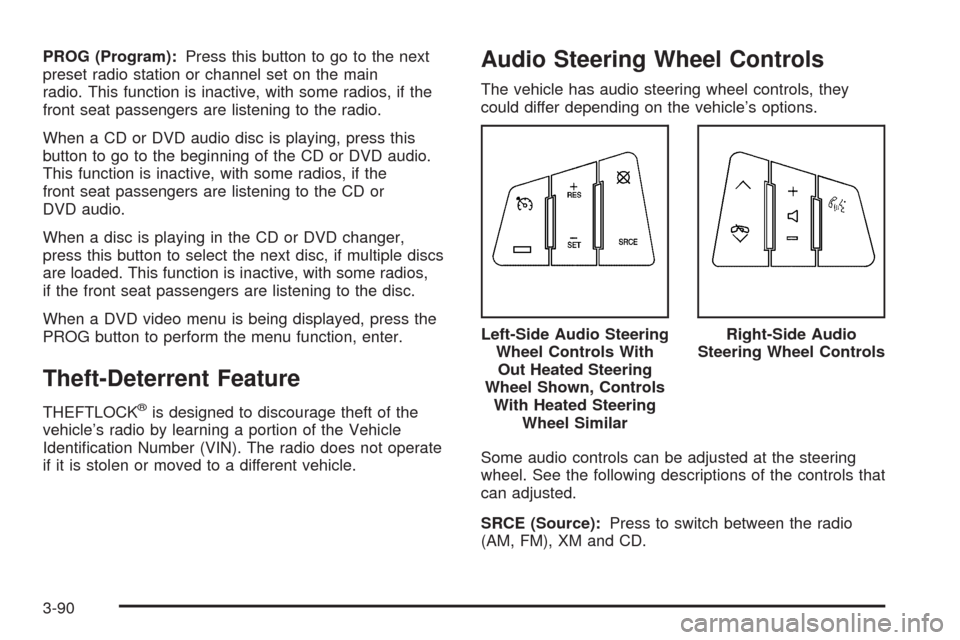
Audio Steering Wheel Controls
The vehicle has audio steering wheel controls, they
could differ depending on the vehicle’s options.
Some audio controls can be adjusted at the steering
wheel. See the following descriptions of the controls that
can adjusted.
SRCE (Source):Press to switch between the radio
(AM, FM), XM and CD.Left-Side Audio Steering
Wheel Controls With
Out Heated Steering
Wheel Shown, Controls
With Heated Steering
Wheel Similar
Right-Side Audio
Steering Wheel Controls
3-90
Page 231 of 442

Your Driving, the Road, and the Vehicle............4-2
Defensive Driving...........................................4-2
Drunk Driving.................................................4-2
Control of a Vehicle........................................4-3
Braking.........................................................4-3
Antilock Brake System (ABS)...........................4-4
Braking in Emergencies...................................4-5
StabiliTrak
®System........................................4-6
Traction Control System (TCS).........................4-6
Magnetic Ride Control™..................................4-8
Limited-Slip Rear Axle.....................................4-8
All-Wheel Drive (AWD) System.........................4-8
Steering........................................................4-8
Off-Road Recovery.......................................4-10
Passing.......................................................4-10
Loss of Control.............................................4-10Off-Road Driving...........................................4-11
Driving at Night............................................4-24
Driving in Rain and on Wet Roads..................4-25
Before Leaving on a Long Trip.......................4-26
Highway Hypnosis........................................4-26
Hill and Mountain Roads................................4-26
Winter Driving..............................................4-27
If Your Vehicle is Stuck in Sand, Mud,
Ice, or Snow.............................................4-29
Rocking Your Vehicle to Get It Out.................4-30
Loading the Vehicle......................................4-30
Towing..........................................................4-36
Towing Your Vehicle.....................................4-36
Recreational Vehicle Towing...........................4-36
Level Control...............................................4-38
Towing a Trailer...........................................4-39
Section 4 Driving Your Vehicle
4-1
Page 234 of 442

Avoid needless heavy braking. Some people drive
in spurts — heavy acceleration followed by heavy
braking — rather than keeping pace with traffic. This is
a mistake. The brakes might not have time to cool
between hard stops. The brakes will wear out much
faster if you do a lot of heavy braking. If you keep pace
with the traffic and allow realistic following distances,
you will eliminate a lot of unnecessary braking.
That means better braking and longer brake life.
If your vehicle’s engine ever stops while you are driving,
brake normally but do not pump the brakes. If you do, the
pedal could get harder to push down. If the engine stops,
you will still have some power brake assist. But you will
use it when you brake. Once the power assist is used up,
it can take longer to stop and the brake pedal will be
harder to push.
Adding non-dealer/non-retailer accessories can affect
your vehicle’s performance. SeeAccessories and
Modifications on page 5-3.Antilock Brake System (ABS)
Your vehicle has the Antilock Brake System (ABS),
an advanced electronic braking system that will
help prevent a braking skid.
When you start the engine and begin to drive away,
ABS will check itself. You might hear a momentary
motor or clicking noise while this test is going on.
This is normal.
If there is a problem with
the ABS, this warning light
will stay on. SeeAntilock
Brake System (ABS)
Warning Light on
page 3-37.
Let us say the road is wet and you are driving safely.
Suddenly, an animal jumps out in front of you. You slam
on the brakes and continue braking. Here is what
happens with ABS:
A computer senses that the wheels are slowing down.
If one of the wheels is about to stop rolling, the computer
will separately work the brakes at each front wheel
and at both rear wheels.
4-4