2009 CADILLAC DTS steering wheel
[x] Cancel search: steering wheelPage 157 of 462

Setting Cruise Control
{CAUTION:
If you leave your cruise control on when you
are not using cruise, you might hit a button and go
into cruise when you do not want to. You could be
startled and even lose control. Keep the cruise
control switch off until you want to use cruise
control.
The cruise control buttons
are located on left side of
the steering wheel.
I(On):Turns on the cruise control system.
+ RES (Resume/Accelerate):Press to make the
vehicle accelerate or resume to a previously set speed.
SET– (Set):Press to set the speed.
[(Cancel):Press to cancel cruise control.
Cruise control will not work if the parking brake is set, or
if the master cylinder brake uid level is low.
If the brakes are applied, the cruise control shuts off.
The cruise light on the instrument panel cluster comes
on after the cruise control has been set to the desired
speed.
1. Press
I.
2. Get up to the desired speed.
3. Press the SET– button located on the steering
wheel and release it.
4. Take your foot off the accelerator.
3-17
Page 159 of 462

Passing Another Vehicle While Using
Cruise Control
Use the accelerator pedal to increase the vehicle speed.
When you take your foot off the pedal, the vehicle
slows down to the previous cruise control speed.
Using Cruise Control on Hills
How well your cruise control works on hills depends
upon the vehicle speed, load, and the steepness of the
hills. When going up steep hills, you might have to step
on the accelerator pedal to maintain the vehicle’s speed.
When going downhill, you might have to brake or shift to
a lower gear to keep the vehicle’s speed down. Applying
the brake or shifting into a lower gear ends cruise control.
If you need to apply the brake or shift to a lower gear due
to the grade of the downhill slope, you might not want to
attempt to use the cruise control feature.
Ending Cruise Control
To turn off the cruise control, step lightly on the brake
pedal, or press the cancel button on the steering wheel.
Erasing Speed Memory
The cruise control set speed memory is erased when
the cruise control or the ignition is turned off.
Adaptive Cruise Control
For vehicles with this feature, be sure to read this entire
section before using it.
The system operates on a radio frequency subject to
Federal Communications Commission (FCC) Rules and
with Industry Canada.
This device complies with Part 15 of the FCC Rules.
Operation is subject to the following two conditions:
1. This device may not cause interference.
2. This device must accept any interference received,
including interference that may cause undesired
operation of the device.
This device complies with RSS-210 of Industry Canada.
Operation is subject to the following two conditions:
1. This device may not cause interference.
2. This device must accept any interference received,
including interference that may cause undesired
operation of the device.
Changes or modications to this system by other than
an authorized service facility could void authorization to
use this equipment.
Adaptive Cruise Control (ACC) is an enhancement
to traditional cruise control. It allows you to keep
cruise control engaged in moderate traffic conditions
without having to constantly reset your cruise control.
3-19
Page 161 of 462
CAUTION: (Continued)
When weather limits visibility, such as when in
fog, rain, or snow conditions, Adaptive Cruise
Control performance is limited. There may not
be enough distance to adapt to the changing
traffic conditions. Do not use cruise control
when visibility is low.
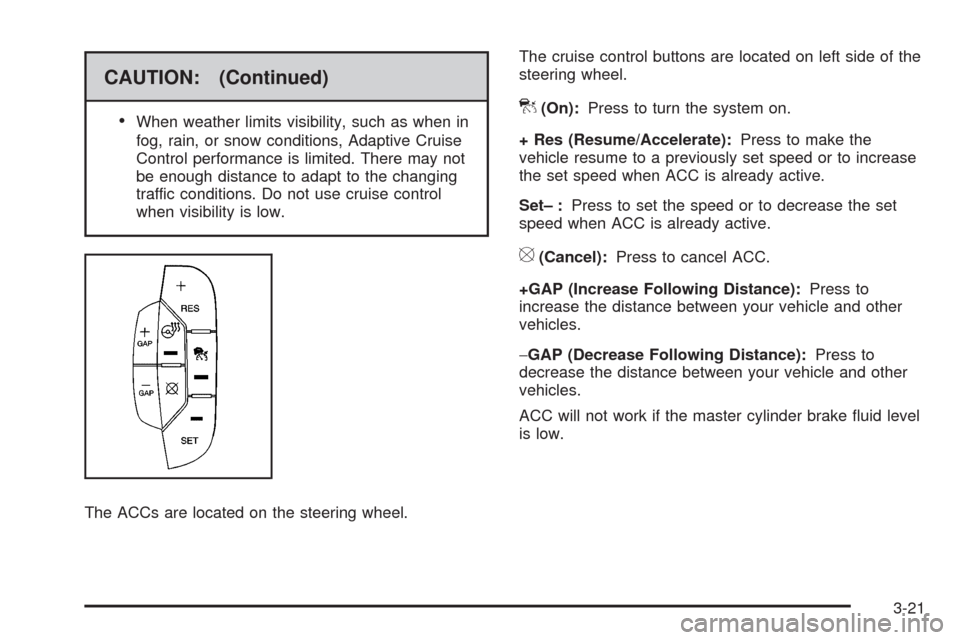
The ACCs are located on the steering wheel.The cruise control buttons are located on left side of the
steering wheel.](On):Press to turn the system on.
+ Res (Resume/Accelerate):Press to make the
vehicle resume to a previously set speed or to increase
the set speed when ACC is already active.
Set– :Press to set the speed or to decrease the set
speed when ACC is already active.
[(Cancel):Press to cancel ACC.
+GAP (Increase Following Distance):Press to
increase the distance between your vehicle and other
vehicles.
−GAP (Decrease Following Distance):Press to
decrease the distance between your vehicle and other
vehicles.
ACC will not work if the master cylinder brake uid level
is low.
3-21
Page 163 of 462

Your vehicle will not reach the set speed until the
system determines there is not a vehicle in front of you.
At that point, your vehicle speed will increase to the
set speed.
Decreasing Set Speed While Using ACC
Press the SET– button until you reach the lower speed
desired, then release it.
To slow down in very small amounts, briey press the
SET– button. Each time this is done, the set speed
decreases by 1 mph (1 km/h) slower.
Resuming a Set Speed
Suppose the ACC is set at a desired speed and then
the brakes are applied. This will turn off the ACC.
But it does not need to be reset.
Once the vehicle speed reaches about 25 mph (40 km/h)
or more, press the +RES button. ACC will be engaged
with the previously chosen set speed.
Selecting the Follow Distance (GAP)
When the system detects a slower moving vehicle, it will
adjust your vehicle’s speed and maintain the follow
distance (gap) you select.
Use the plus and minus buttons on the steering wheel
to adjust the follow distance.
Press the plus button to increase the distance or the
minus button to decrease the distance. The rst button
press shows the current follow distance setting on
the DIC. The current follow distance setting will be
maintained until it is changed.
There are six follow distances to choose from.
The follow distance selection ranges from near to far
(one second to two seconds follow time). The distance
maintained for a selected follow distance will vary based
on vehicle speed. The faster the vehicle speed the further
back your vehicle will follow. Consider traffic and weather
conditions when selecting the follow distance. The range
of selectable distances may not be appropriate for all
drivers and driving conditions. If you prefer to travel at
a follow distance farther than ACC allows, disengage
the system and drive manually.
3-23
Page 169 of 462

Erasing Set Speed Memory
Press the ACC button or turn the ignition off.
Other Messages
There are three additional messages that may appear
on the DIC. They are SERVICE RADAR CRUISE,
RADAR CRUISE NOT READY and CLEAN RADAR.
These messages will appear to indicate a problem
with the ACC. SeeDIC Warnings and Messages
on page 3-73for more information.
Cleaning the System
The radar can become blocked by snow, ice, or dirt.
If so, you may need to turn off the engine and clean
the lens. Remember, do not use ACC in icy conditions,
or when visibility is low, such as in fog, rain or snow.
The emblem/lens is located in the center of the grille.
To clean the emblem/lens, wipe the surface with a soft
cloth. After cleaning the emblem/lens, try to engage the
ACC. If you are unable to do so, see your dealer/retailer.
Exterior Lamps
The exterior lamps control
is located on the instrument
panel to the left of the
steering wheel.
It controls the following systems:
Headlamps
Taillamps
Parking Lamps
License Plate Lamps
Instrument Panel Lights
Fog Lamps
3-29
Page 185 of 462

There is also an interior
temperature sensor
located next to the steering
wheel that measures the
temperature of the air
inside the vehicle.
There is also an exterior temperature sensor located
behind the front grille. This sensor reads the outside
air temperature and helps maintain the temperature
inside the vehicle. Any cover on the front of the vehicle
could cause a false reading in the displayed temperature.In order to prevent false temperature readings at
startup, the displayed temperature will not change
until the following occurs:
Vehicle speed is above 10 mph (16 km/h) for
5 minutes.
Vehicle speed is above 32 mph (51 km/h) for
2 and a half minutes.
The climate control system uses the information from
these sensors to maintain your comfort setting by
adjusting the outlet temperature, fan speed, and the air
delivery mode. The system may also supply cooler air to
the side of the vehicle facing the sun. The recirculation
mode will also be used as needed to maintain cool outlet
temperatures.
3-45
Page 207 of 462

Here are a few situations that may occur with the fuel
gage. All of these situations are normal and do not
indicate that anything is wrong with the fuel gage:
At the gas station the gas pump shuts off before the
gage reads full.
The gage may change when the vehicle is turning,
stops quickly or accelerates quickly.
It takes a little more or less fuel to ll the tank
than the gage indicated. For example, the gage
may have indicated that the tank was half full,
but it actually took a little more or less than half
the tank’s capacity to ll the tank.
Driver Information Center (DIC)
The Driver Information Center (DIC) gives you the status
of many of your vehicle’s systems. The DIC is also used
to display warning/status messages. All messages will
appear in the DIC display located at the bottom of the
instrument panel cluster, below the tachometer and
speedometer. The DIC buttons are located on the
instrument panel, to the left of the steering wheel.
The DIC comes on when the ignition is on. After a short
delay, the DIC will display the information that was
last displayed before the engine was turned off.
The top line of the DIC display shows the vehicle
system information and the warning/status messages.
The bottom line of the DIC display shows the odometer
on the left side. The bottom line of the DIC display
also shows a digital speedometer on the right side.
If a problem is detected, a warning message will appear
on the display. Be sure to take any message that
appears on the display seriously and remember that
clearing the message will only make the message
disappear, not correct the problem.
3-67
Page 208 of 462

DIC Operation and Displays
The Driver Information
Center (DIC) has different
displays which can be
accessed by pressing the
DIC buttons located on
the instrument panel, to the
left of the steering wheel.
3Trip/Fuel:Press this button to scroll through the
trip and fuel displays. See “Trip/Fuel Display Menu Items”
following for more information on these displays.
TVehicle Information:Press this button to scroll
through the vehicle information displays. See “Vehicle
Information Display Menu Items” following for more
information on these displays.
UCustomization:Press this button to scroll through
each of the customization features. SeeDIC Vehicle
Customization on page 3-86for more information on
the customization features.
VSet/Reset:Press this button to reset certain DIC
features and to acknowledge DIC warning messages
and clear them from the DIC display.
yzMenu Up/Down:Press this button to scroll up
and down the menu items.
Trip/Fuel Display Menu Items
3
(Trip/Fuel):The following display menu items can
be displayed by pressing the trip/fuel button:
TRIP A or TRIP B
These displays show the current distance traveled since
the last reset for each trip odometer in either miles (mi)
or kilometers (km). Both odometers can be used at the
same time. Each trip odometer can be reset to zero
separately by pressing and holding the set/reset button
for a few seconds while the desired trip odometer is
displayed.
3-68