2009 AUDI S6 steering wheel
[x] Cancel search: steering wheelPage 118 of 398
• ..__O_ n_ t_ h _e _ ro_ a_d __________________________________________________ _
Easy entry feature
The easy entry feature makes it easier to enter and exit the
vehicle by automatically adjusting the steering wheel.
Press the button @~ page 115, fig. 115 to turn the easy
entry feature on or off.
When the easy entry feature is turned on (button depressed), the
steering wheel moves up to the parked position when the ignition is
turned off. After you enter the vehicle, the steering wheel moves to
the stored position as soon as you turn on the ignition .
Easy entry feature on vehicles with memory seat*
For the stored steering wheel position to be recalled, the driver's
seat memory must be switched on
(I ON OFF I switch in depressed
position).
If the easy entry feature is switched off, the steering wheel moves to
the stored position as soon as you press the seat memory button. •
Ignition lock and ignition switch
Ignition key positions
The engine can be started or turned off with the ignition
key.
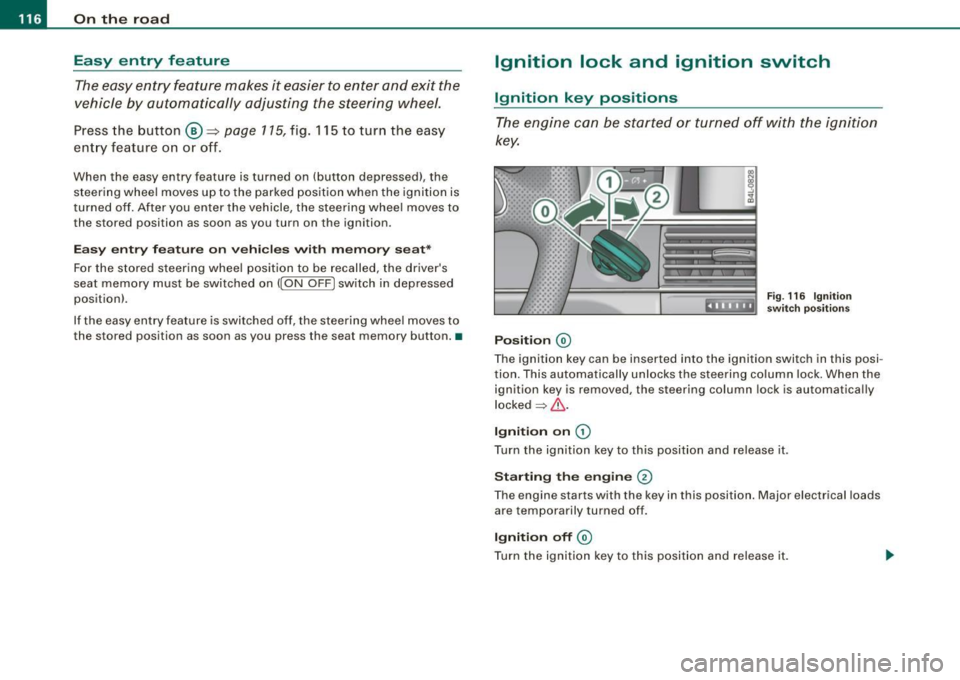
Position @
Fig. 116 Ignition
switch positions
The ignition key can be inserted into the ignition switch in this posi
tion. This automatically unlocks the steering column lock. When the
ignition key is removed, the steering column lock is automatically
locked
~ & .
Ignition on 0
Turn the ignition key to this position and release it .
Starting the engine 0
The engine starts with the key in this position. Major electrical loads
are temporarily turned off.
Ignition off @
Turn the ignition key to this position and release it.
Page 129 of 398

_____________________________________________ A_ d_a ...: p_ t_ i_ v _e_ C_ ru_ is_ e_ C_ o_n _ t_ r_o _ l _ __._
Adaptive Cruise Control
Speed and distance control system
Applies to vehic les : with Adaptive C ruise Cont rol
Description
The Adaptive Cruise Control driver assistance pr ogram is
a combined speed and distance control system .
Fig. 123 Fro nt
bu mper: Pos it io n of
r adar senso r
Adaptive Cruise Control can help make driving more re laxed and
less t iring, particula rly during long trips on interstates or other
highways that are generally straight .
Set ACC to maintain a constant, legal travel speed between 20 and
95 mph (30 -150 km/h) that is appropriate for prevailing traffic
conditions. Select a following distance to the vehicle ahead and ACC
w ill adjust your speed to maintain that distance .
Adaptive Cruise Contro l has technical limitations that you must
know, so please read this section carefully, understand how the
system works and use it proper ly at all times .
How does it work ?
You can operate the Adaptive Cruise Control using the lever on the
steering wheel column=> page 130, "How is the speed stored?" a nd
=> page 133, "How is the distance (time interval) set? ".
Con tro ls and eq uip
ment
Driver inf ormation
Important information is brought up in the speedometer and in the
instrument cluster display as the ve hicle is being driven
=> page 135, "Driver information" .
What is important for y ou to kn ow
The Adaptive Cruise Control is set with system -specified limits; that
is, as a driver, you will have to adj ust the speed and distance to the
vehic le ahead in some instances=> page 138 , "Driver intervention
prompt" and=> page 140, "System limita tions" .
& WARNING
Improper u se of the Adapti ve Crui se Control can c ause colli sion s,
oth er ac cident s and s eriou s per sonal injur y.
• Alway s reme mber that the Adapt ive Cruise Control ha s limit s -
it will not slow the veh icle do wn or maintain the set dis tance
w hen you drive to w ard s an obst acle or something o n or ne ar the
road th at is not moving, such as vehicle s stopped in a traffi c jam ,
a stalled or disabled vehicle .
• Alwa ys remember th at the Adaptive Cru ise Control can not
dete ct a vehicle th at is driving to ward s you in your tr affi c lane and
th at it can not dete ct n arr ow vehi cles su ch as motorcycl es and
bicycle s.
• Never dr ive at speed s th at ar e too fa st for traff ic, road and
we ather co nd ition s.
• The Adaptive Cru ise Control cannot slow or brake th e vehi cle
sa fely wh en yo u follo w anothe r vehi cle too closely . Al wa ys
remember th at the Adaptive Crui se C ontrol ha s a braki ng power
t hat i s onl y ab out 30% of the veh icle 's maximum braking abilit y.
Alway s be p rep ared to br ake and take eva sive a ctio n to avoid colli-
s ion s and other a ccident situa tio ns. ._
Vehicle care
I I irechnical data
Page 145 of 398
Audi lane ass is t 11111 -----------------------------------
Audi lane assist
Lane assist
A pplies to veh icles : with lane assist
Description
Lane a ssist helps you keep y our vehicle in your lane .
Lane assist uses a camera to detect lane boundary lines. If the
system detects that your vehicle is about to leave a lane boundary
line, the steering wheel
vibrates to alert the driver. If lane assist
detects boundary lines on both sides of the vehicle's lane, the
system enters active standby mode, which is indicated by the green
indica tor light /: on the instrument cluster .
I f the system is in active standby mode and the turn signal is acti
vated before driving ov er the boundary line, the warning does not
occur since the sys tem allows for intenti onal lane changes.
The system is designed for driving on freeways and expanded high
ways and t hus works on ly at speeds of 40 mph (65 km/h) or mo re .
& WARNING
• Lane ass ist will not k eep your vehicle in your lane. The sy stem
only warns the d riv er w hen t he vehicle i s le av ing the lan e. The
driv er is alway s re spon sible for keeping the vehicle in the lane.
• The camera is not able to d ete ct all lane boundary lines and in
s o me cases might al so dete ct lane str ucture s or objects as
boundary lines . This c an le ad to in corre ct wa rning s or warnings
that fa il to go off at all .
• The camer a's visibili ty ca n be i mpaired by vehi cle s ahe ad of
you , for instan ce, or by rain , snow , h eavy spray or li ght shining into
th e cam era lens . Thi s can ca use lane as sis t to f ail to d ete ct
boundary line s. •
Con tro ls and eq uip
ment
Ap plies to vehi cles : wi th la ne assi st
Activating and deactivating
Fig . 14 3 Turn signal
l ev er: La ne assis t
butt on
F ig . 144 Win dshie ld:
L ane assist ca mera
v iewing win dow
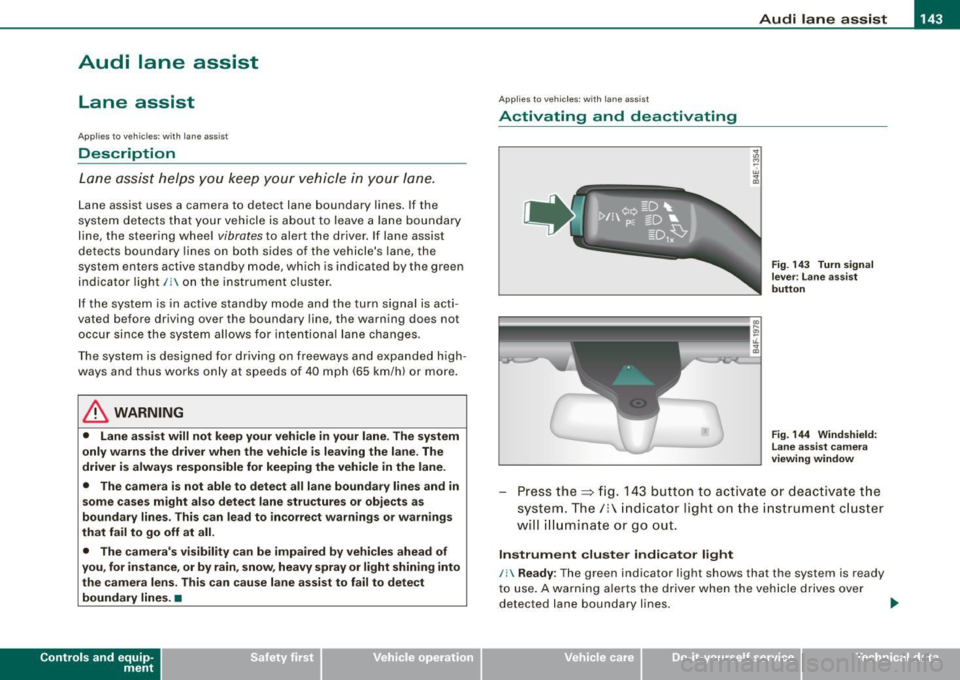
Press the :::> fig. 143 button to activa te or deactivate the
syst em . T he/ : in dica tor ligh t on t he i nstrument c luster
will illuminate or go out.
Instrument c lu ster indi ca tor light
/: Ready:
The green indicator light shows that the system is ready
to use . A warning a lerts the drive r when the veh icle drives over
dete cted lane boundary l ines. .,.
Vehicle care I I irechnical data
Page 146 of 398

• .___A_ u_ d _ i_l_a _n _ e_ a_ s_s _is _ t _________________________________________________ _
I Not ready: The yellow indicator light shows that the system is
turned on but unable to send a warn ing. This can be due to the
following:
• There are no boundary lines, or there is on ly one boundary line
present .
• The boundary lines are not detected (e.g. due to snow, dirt, wet
conditions or light shining into the camera lens).
• More than two boundary lines (such as at construction sites) are
located in the vehicle's lane.
• The vehicle's speed is below the speed needed to activate it,
which is about 40 mph (65 km/h).
• The lane is narrower than about 8 ft . (2.5 ml, or wider than about
16 ft. (5 ml.
• The curve is too sharp.
Notes on the instrument cluster display
When the lane assist turns off automatically, the instrument cluster
indicator goes out and one of the following messages appears on
the display:
Audi lane assist not available: Currently no sensor vision
This message appears when the camera can no longer function
because it cannot detect the boundary lines. This may be due to the
following :
• The exterior s ide of the camera viewing window=>
page 143,
fig. 144 is covered with dirt or ice. Clean this part of the windshield.
• The camera v iewing window is fogged up on the inside. In this
case, wait until the fog disappears before turning lane assist on
again.
• The system was unable to detect boundary lines over an
extended period of time due to road conditions (such as snow
covered lanes). Do not turn lane assist on again until the lines can
be more easily detected.
Audi lane assist not available
A temporary malfunction is preventing lane assist from operating .
Try turning on lane assist again a t a later time.
Audi lane assist: system fault
The system should be checked by an authorized Audi dealer or other
qualified workshop .
[ i ] Tips
• Make sure that the camera viewing window=> page 143, fig. 144
is not covered by stickers or similar objects .
• Always keep the camera viewing window clean. This can usually
be done by operating the windshield wipers. •
Applies to vehicles: with lane assist
MMI settings
You can use the MM/ to adjust the warning time and
steering wheel vibration.
Setting the warning time
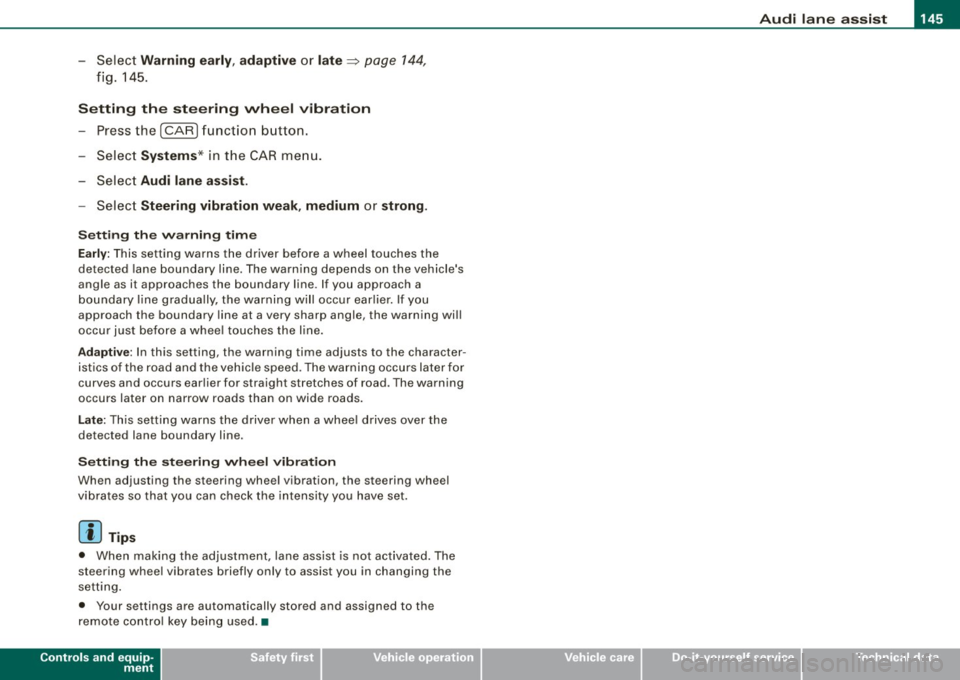
Press the I CAR] function button.
- Select
Systems * in the CAR menu .
- Select
Audi lane assist.
Fig. 145 MMI Display:
Setting the warning
time and stee ring
wheel vibration
Page 147 of 398
___________________________________________________ A_u_ d_i_ l_ a _ n_ e_ a _ s_s _ i_s _t __ lffll
- Sele ct Warning early , adaptive or late ~ page 144,
fig. 145.
Setting th e st eering wheel vibration
- Press the
I CAR I function button.
- Selec t Sy stems ·* in t he CAR me nu.
- Selec t Audi lane a ssis t.
- Selec t Steering vibrat ion weak , medium or strong.
Setting th e warning tim e
Earl y:
This setting warns the driver before a wheel touches the
detected lane boundary line. The warning depends on the vehicle's
angle as it approaches the boundary line . If you approach a
boundary l ine gradua lly, the warning will occur ear lier. If you
approach the boundary line at a very sharp angle, the warning wi ll
occur just before a whee l touches the line.
Adapti ve : In this setting, the warning time adjusts to the character
istics of the road and the vehicle speed. The warning occurs later for
curves and occurs earlier for straight stretches of road . The warning
occurs later on narrow roads than on wide roads.
Late: This setting warns the driver when a whee l drives over the
detected lane boundary line.
Se ttin g th e steering wheel vibrat ion
When adjusting the steering wheel vibration, the steering wheel
v ibrates so that you can check the intensity you have set.
[ i ] Tips
• When making the adjustment, lane assist is not activated . The
steering whee l vibrates briefly only to assist you in changing the
setting .
• Your settings are automatically stored and assigned to the
remote contro l key being used. •
Controls and equip
ment I • •
Page 162 of 398
• ..__A_ u_ t _o_ m_ a_ t_ i_ c _ t_r _a _n_ s_ m_ is_ s_i o _ n ________________________________________________ _
[ i J Tip s
• When you shift into the next lower gear, the transmission will
downshift only when there is no possibi lity of over -revving the
engine.
• When the kickdown comes on, the transmission will shift down
to a lower gear, depending on vehicle and engine speeds.
• tiptronic ® is inoperative when the transmission is in the fail -safe
mode .•
A pplies to vehicl es: with 6-s peed automatic transmission
Steering wheel with tiptronic ®
The shift buttons on the steering wheel allow the driver to
shift gears manually.
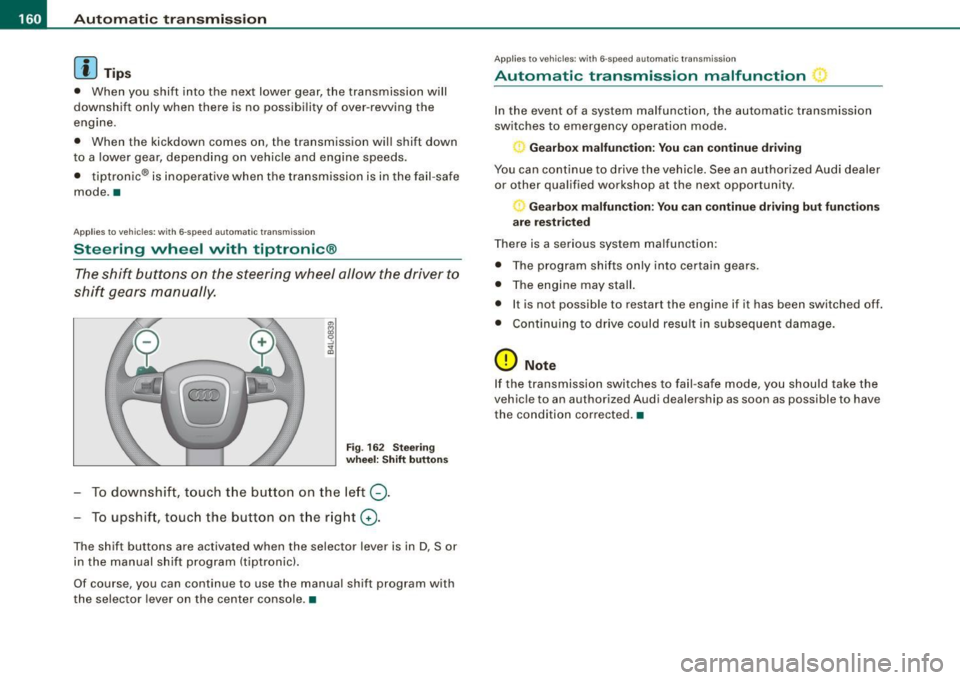
Fig . 16 2 Stee ring
w heel: Shift button s
To downshift, touch the button on the left Q.
To upshift, touch the button on the right G) .
The shift buttons are activated when the selector lever is in D, Sor
in the manual shift program (tiptronic).
Of course, you can continue to use the manual shift program with
the selec tor lever on the center console. •
Applie s to vehicle s: wi th 6-speed automatic transmiss ion
Automatic transmission malfunction
In the event of a system malfunction, the automatic transmission
switches to emergency operation mode.
Gearbox malfunction : You c an continue driving
You can continue to drive the vehicle. See an authorized Audi dealer
or other qualified workshop at the next opportunity.
Gearbox malfunction: You can continue driving but fun cti ons
a re re st ric ted
There is a serious system malfunction:
• The program shif ts only into certain gears.
• The engine may stall.
• It is not possib le to restart the engine if it has been switched off.
• Cont inuing to drive could result in subsequent damage.
0 Note
If the transmission switches to fail -safe mode, you should take the
vehic le to an authorized Audi dealership as soon as possible to have
the condition co rrected. •
Page 169 of 398
_______________________________________________ A_ u_t _o _m_ a_ t_ i_ c _ t_r _ a _n _s_ m_ i_ s _ s_ i_ o _ n _ ___._
[ i J Tips
• When you shift into the next lower gear, the engine will down
shift only when there is no possibility of over -revv ing.
• When the kick-down comes on , the transmission will shif t down
to a lower gear depending on vehicle and engine speeds.
• The tiptronic® is inopera tive when the t ransmission is in the fail
safe mode .•
Ap plies t o vehi cles: w it h mu lt it ro nic® Co ntin uou sly Va ria ble Tra nsm iss io n (CVT )
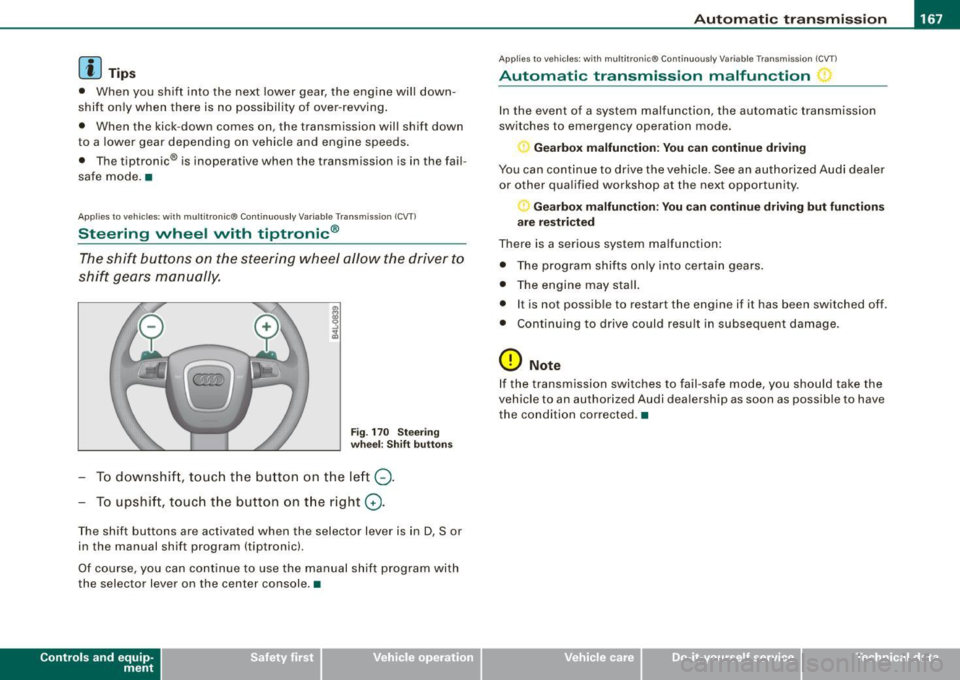
Steering wheel with tiptronic ®
The shift buttons on the steering wheel allow the driver to
shift gears manually.
Fig . 170 Steering
wheel: Shift buttons
To downshift , touch the button on the left Q.
To upshift, touch the button on the right G).
The shift buttons are activated when the selector lever is in D, Sor
in the manual shift program (tiptron ic).
Of course, you can continue to use the manual shift program with
the selec tor lever on the center console .•
Con tro ls and eq uip
ment
A pp lies to vehicles: w it h muh it r on ic® Cont inuous ly Variable Transm iss ion ( CVT)
Automatic transmission malfunction
In the event of a system malfunction, the automatic transmission
switches to emergency operation mode.
Gearbox malfunction: You can continue driving
You can continue to drive the vehicle . See an authorized Audi dealer
or other qualified workshop at the next opportunity .
Gearbox malfunction: You can continue driving but functions
are restricted
There is a serious system malfunction:
• The program shifts only into certain gears.
• The engine may stall.
• It is not possible to res tar t t he engine i f it has been switched off .
• Continuing to drive could result in subsequent damage .
0 Note
If the transmission switches to fail -safe mode , you should take the
vehicle to an authorized Audi deale rship as soon as possible to have
the condition corrected .•
Vehicle care I I irechnical data
Page 177 of 398

Audi Parking System -
----------------=----=------'
Applies to vehicles: with Audi Parking System (r ear) and rea r-v iew came ra
Rear -view camera coverage area
®
Fig . 177 Top view:
Rear-view camera
coverage area
Fig . 178 Side view :
Covered area 0 and
uncovered area
0 of
the rear-view camera
The rear-view camera section appearing in the MMI Display is
approximately the same as the coverage area represented in
=> fig. 177 or
G) in=> fig . 178. Objects located in the rear-view
camera's uncovered area@=> fig . 178 or in the close vicinity of the
bumper are not recognized.
& WARNING
Please note that objects not touching the ground can appear to be
further away than they really are (for example, the bumper of a
parked vehicle, a trailer hitch , or the rear of a truck) . In this case,
Contro ls and eq uip
ment
& WARNING !continued)
you should not use the guide help lines to measure distance -
danger of accident! •
Applies to veh ic les : w ith Aud i Park in g Sys tem (re ar) and rear-view camera
Parking mode 1
"Parking mode 1" can aid when parking in a garage or
parking space, for example .
M I ij
~------------------:
Fig. 179 MMI Display:
Aiming at the parking
spot by adjusting the
steering wheel angle
Fig . 180 MMI Display:
Orienting the vehicle
with aid of the blue
surface
Before parking, switch on the Adaptive Air Suspension*
~ page 20 comfort or automatic mode. .,,_
Vehicle care I I irechnical data