Page 90 of 238
ADVANCED FUNCTIONS
1062008 TUNDRA Navigation from Oct.07 Prod.(OM34469U) LAYOUT TYPE
4U5070G
�“ABC” type
4U5071G
�“QWE” type
The selected button is highlighted.
4. Touch “OK”.
�Time zone
Time zone can be changed.
1. Push the “MENU” button.
2. Touch “Setup” on the “Menu” screen.
4U5093G
3. Touch “Change” of “Time Zone”.
The “Adjust Time Zone” screen will be dis-
played on the display.
4U5072G
4. Touch the desired time zone.
The selected button is highlighted.
“Daylight Saving Time”: Daylight saving
time can be set or cancelled.
To set daylight saving time, touch “ON”, and
to cancel it, touch “OFF”.
5. Touch “OK”.
Page 98 of 238

OTHER FUNCTIONS
11 42008 TUNDRA Navigation from Oct.07 Prod.(OM34469U)
Maintenance information —
— Maintenance information
setting
When the Navigation System is turned on, the
“Information” screen displays when it is time
to replace a part or certain components. (See
page 18.)
XS00203
1. Push the “INFO” button.
RS02028
2. Touch “Maintenance”.
5U5077G
3. Touch the desired touchscreen but-
ton.
For details of each touch−screen button, see
“INFORMATION ITEMS” on page 115.
“Delete All”: To cancel all conditions which
have been inputted.
“Reset All”: To reset the item which has sat-
isfied a condition.“Set Dealer”: To register or edit dealer infor-
mation. (See “ — Dealer setting” on page
116.)
If “ON” is selected, the system gives mainte-
nance information with the “Information”
screen when the system is turned on. (See
page 18.)
If “OFF” is selected, the “Information” screen
is disabled.
When the vehicle needs to be serviced, the
touch−screen button color will change to
orange.
Page 128 of 238
OTHER FUNCTIONS
1442008 TUNDRA Navigation from Oct.07 Prod.(OM34469U) (iv) Setting the screen
5U5178G
1. Touch “Screen” to display the “Screen
Settings” screen.
5U5179G
2. Do the detail settings of the screen and
touch “OK”.
�Incoming Call Display
You can select the method of the receiving
call display.
5U5179G
Touch “Full” or “Icon”.
Full mode When a call is received, the . . . . .
Hands−free screen is
displayed and you can
operate it on the screen.
Icon mode The message is displayed. . . . .
on the upper side of the
screen. You can only
operate the steering
switch.
�Auto answer
When a call is received, the display auto-
matically changes to the talking screen
and you can start to talk on the phone
(without touching any switch) after the
preset time.
5U5180G
Touch “ON” of “Auto Answer” and “” or
“+” to adjust the waiting time of auto an-
swer within 1 60 seconds.
Page 141 of 238
OTHER FUNCTIONS
1572008 TUNDRA Navigation from Oct.07 Prod.(OM34469U) (b) All at once
5U5236G
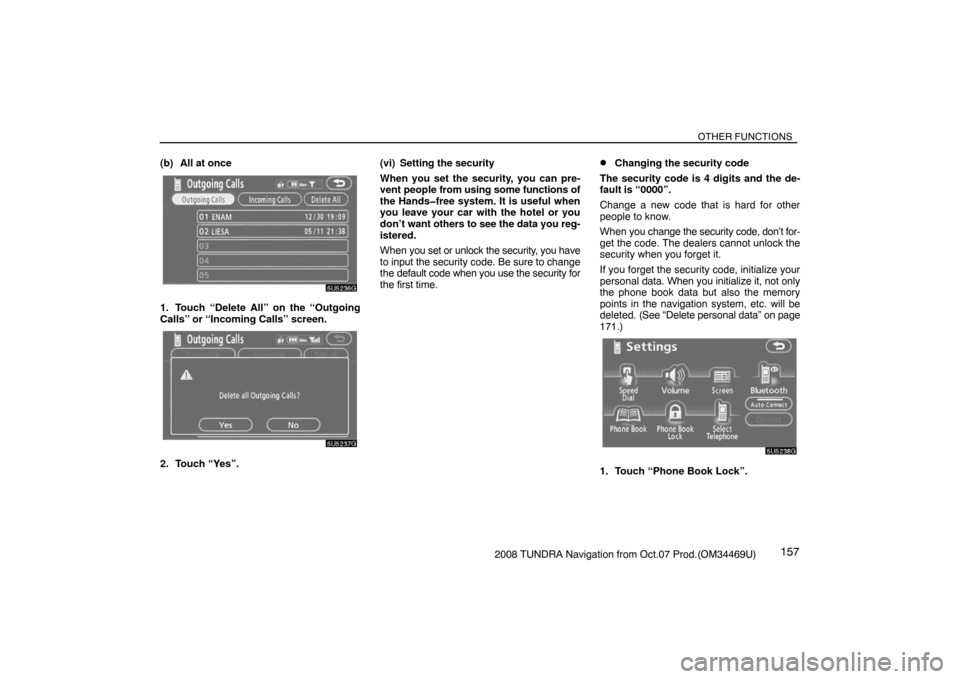
1. Touch “Delete All” on the “Outgoing
Calls” or “Incoming Calls” screen.
5U5237G
2. Touch “Yes”.(vi) Setting the security
When you set the security, you can pre-
vent people from using some functions of
the Handsfree system. It is useful when
you leave your car with the hotel or you
don’t want others to see the data you reg-
istered.
When you set or unlock the security, you have
to input the security code. Be sure to change
the default code when you use the security for
the first time.
�Changing the security code
The security code is 4 digits and the de-
fault is “0000”.
Change a new code that is hard for other
people to know.
When you change the security code, don’t for-
get the code. The dealers cannot unlock the
security when you forget it.
If you forget the security code, initialize your
personal data. When you initialize it, not only
the phone book data but also the memory
points in the navigation system, etc. will be
deleted. (See “Delete personal data” on page
171.)
5U5238G
1. Touch “Phone Book Lock”.
Page 142 of 238
OTHER FUNCTIONS
1582008 TUNDRA Navigation from Oct.07 Prod.(OM34469U)
5U5239G
2. Touch “Change”.
5U5240G
3. Input the current security code.
Each time you touch �, an inputted digit is de-
leted.
RS02018a
4. Input the new code.
5U5242G
5. Touch “Yes”.
�Phone Book Lock
When you set the phone book lock, you
can have the following functions locked.
�Display of the phone book screen and
transferring, registering, editing, deleting
the phone book data.
�Display of speed dial screen, registering,
deleting the speed dial and speed dialing.
�Display of the other party’s name for calls
being received or made.
�Display of dialed numbers screen and
received calls screen, deleting dialed
numbers and received numbers.
�Display of phone information screen.
�Changing the security code.
When you set this function, the speed dial
screen is not displayed while you are driving.
Page 161 of 238
AUDIO/VIDEO SYSTEM
1772008 TUNDRA Navigation from Oct.07 Prod.(OM34469U)
8“LOAD·/CLOSE” button
Push this button to display the
“LOAD·EJECT” screen or close the dis-
play. For details, see page 190.
9“SEEK/TRACK” button
Push either side of this button to seek up
or down for a station, or to access a de-
sired track, file or chapter. For details,
see pages 183, 194, 198, 202 and 205.
10“PWR·VOL” knob
Push this knob to turn the audio system
on and off, and turn it to adjust the volu-
me. For details, see page 178.
Using your audio/video
system —
— Some basics
This section describes some of the basic fea-
tures of your audio system. Some information
may not pertain to your system.
Your audio system works when the engine
switch is turned to the ACC or ON position.
NOTICE
To prevent the battery from being dis-
charged, do not leave the audio system
on longer than necessary when the en-
gine is not running.
CAUTION
For vehicles sold in U.S.A. and
Canada:
�Part 15 of the FCC Rules
FCC Warning:
Changes or modifications in construc-
tion not expressly approved by the
party responsible for compliance
could void the user’s authority to oper-
ate the equipment. Radio frequency
exposure. This device is approved for
Mobile Application only and, to comply
with applicable FCC radio frequency
exposure regulations, must be used
with a distance of at least 7.9 in. (20
cm) between the antenna and the body
of any person at all time during use.
Page 166 of 238
AUDIO/VIDEO SYSTEM
1822008 TUNDRA Navigation from Oct.07 Prod.(OM34469U)
XS00223
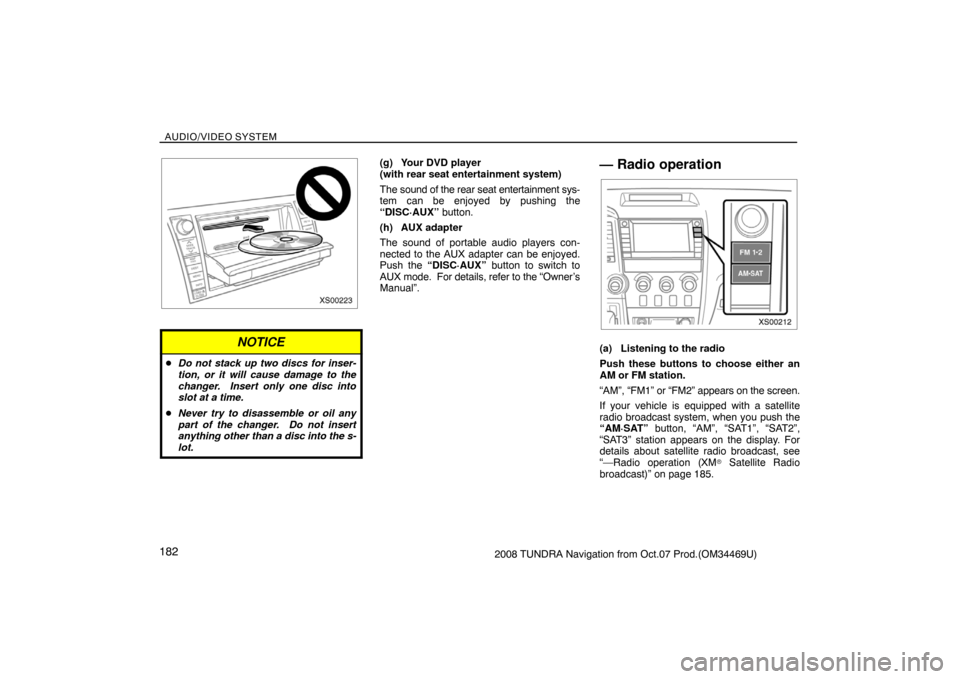
NOTICE
�Do not stack up two discs for inser-
tion, or it will cause damage to the
changer. Insert only one disc into
slot at a time.
�Never try to disassemble or oil any
part of the changer. Do not insert
anything other than a disc into the s-
lot.
(g) Your DVD player
(with rear seat entertainment system)
The sound of the rear seat entertainment sys-
tem can be enjoyed by pushing the
“DISC·AUX” button.
(h) AUX adapter
The sound of portable audio players con-
nected to the AUX adapter can be enjoyed.
Push the “DISC·AUX” button to switch to
AUX mode. For details, refer to the “Owner’s
Manual”.— Radio operation
XS00212
(a) Listening to the radio
Push these buttons to choose either an
AM or FM station.
“AM”, “FM1” or “FM2” appears on the screen.
If your vehicle is equipped with a satellite
radio broadcast system, when you push the
“AM·SAT” button, “AM”, “SAT1”, “SAT2”,
“SAT3” station appears on the display. For
details about satellite radio broadcast, see
“—Radio operation (XM
� Satellite Radio
broadcast)” on page 185.
Page 167 of 238
AUDIO/VIDEO SYSTEM
1832008 TUNDRA Navigation from Oct.07 Prod.(OM34469U)
XS00213
Turn the knob clockwise to step up the sta-
tion band or counterclockwise to step
down.
Your radio automatically changes to stereo
reception when a stereo broadcast is re-
ceived. “ST” appears on the screen. If the
signal becomes weak, the radio reduces the
amount of channel separation to prevent the
weak signal from creating noise. If the signal
becomes extremely weak, the radio switches
from stereo to mono reception. In this case,
“ST” disappears from the screen.
6U5014G
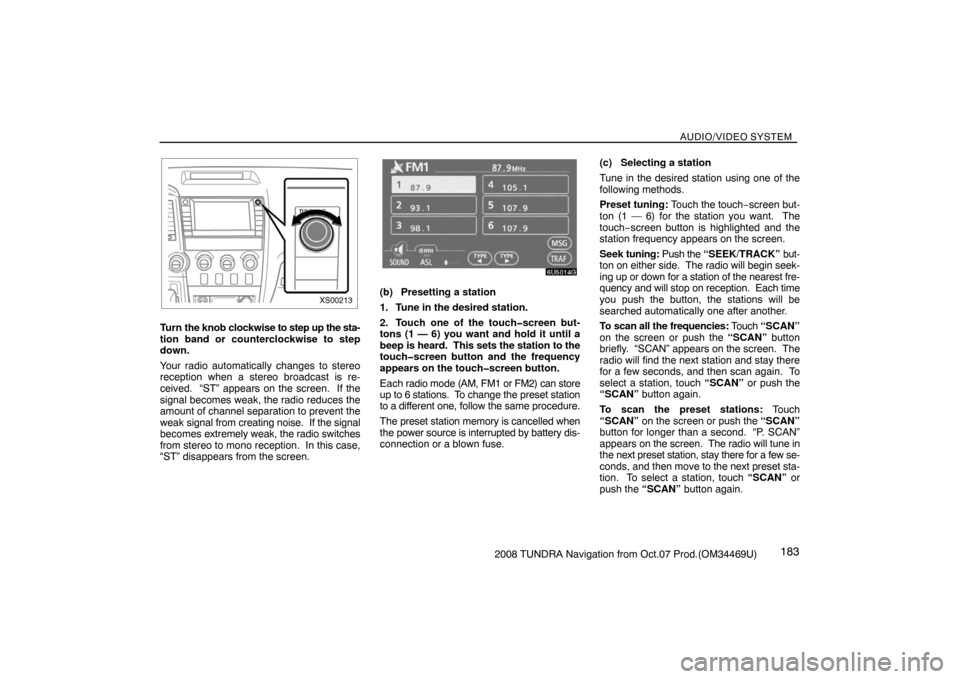
(b) Presetting a station
1. Tune in the desired station.
2. Touch one of the touchscreen but-
tons (1 — 6) you want and hold it until a
beep is heard. This sets the station to the
touchscreen button and the frequency
appears on the touchscreen button.
Each radio mode (AM, FM1 or FM2) can store
up to 6 stations. To change the preset station
to a different one, follow the same procedure.
The preset station memory is cancelled when
the power source is interrupted by battery dis-
connection or a blown fuse.(c) Selecting a station
Tune in the desired station using one of the
following methods.
Preset tuning: Touch the touch−screen but-
ton (1 — 6) for the station you want. The
touch−screen button is highlighted and the
station frequency appears on the screen.
Seek tuning: Push the “SEEK/TRACK” but-
ton on either side. The radio will begin seek-
ing up or down for a station of the nearest fre-
quency and will stop on reception. Each time
you push the button, the stations will be
searched automatically one after another.
To scan all the frequencies: Touch “SCAN”
on the screen or push the “SCAN” button
briefly. “SCAN” appears on the screen. The
radio will find the next station and stay there
for a few seconds, and then scan again. To
select a station, touch “SCAN” or push the
“SCAN” button again.
To scan the preset stations: Touch
“SCAN” on the screen or push the “SCAN”
button for longer than a second. “P. SCAN”
appears on the screen. The radio will tune in
the next preset station, stay there for a few se-
conds, and then move to the next preset sta-
tion. To select a station, touch “SCAN” or
push the “SCAN” button again.


