Page 79 of 259
ADVANCED FUNCTIONS
80
The “Menu” screen allows effective use of the navigation system. To display the “Menu”
screen, push the “MENU” button.
0U5087X
1“Suspend Guidance” and
“Resume Guidance”
Suspends or resumes guidance 82. . . .
2“Volume”
Sets the volume for voice guidance.
83 . . . . . . . . . . . . . . . . . . . . . . . . . . . . . . . . .
3“?”
Function help for the “Menu” screen can be
viewed on this screen. 22. . . . . . . . . . . .
4“Map DVD”
Displays information regarding the disc
version or covered area. 250. . . . . . . . . .
5“Select User”
Up to 3 different settings for different users
can be memorized. 84. . . . . . . . . . . . . . .
6“Setup”
Enables various settings for the navigation
system. 81,100. . . . . . . . . . . . . . . . . . . . . .
7“My Places”
Enables changes to “Memory points”,
“Home” and “Areas to avoid”. Enables
deletion of the previous point. 86. . . . . .
Quick reference (“Menu” screen)
Page 171 of 259
OTHER FUNCTIONS
172
5U5197F
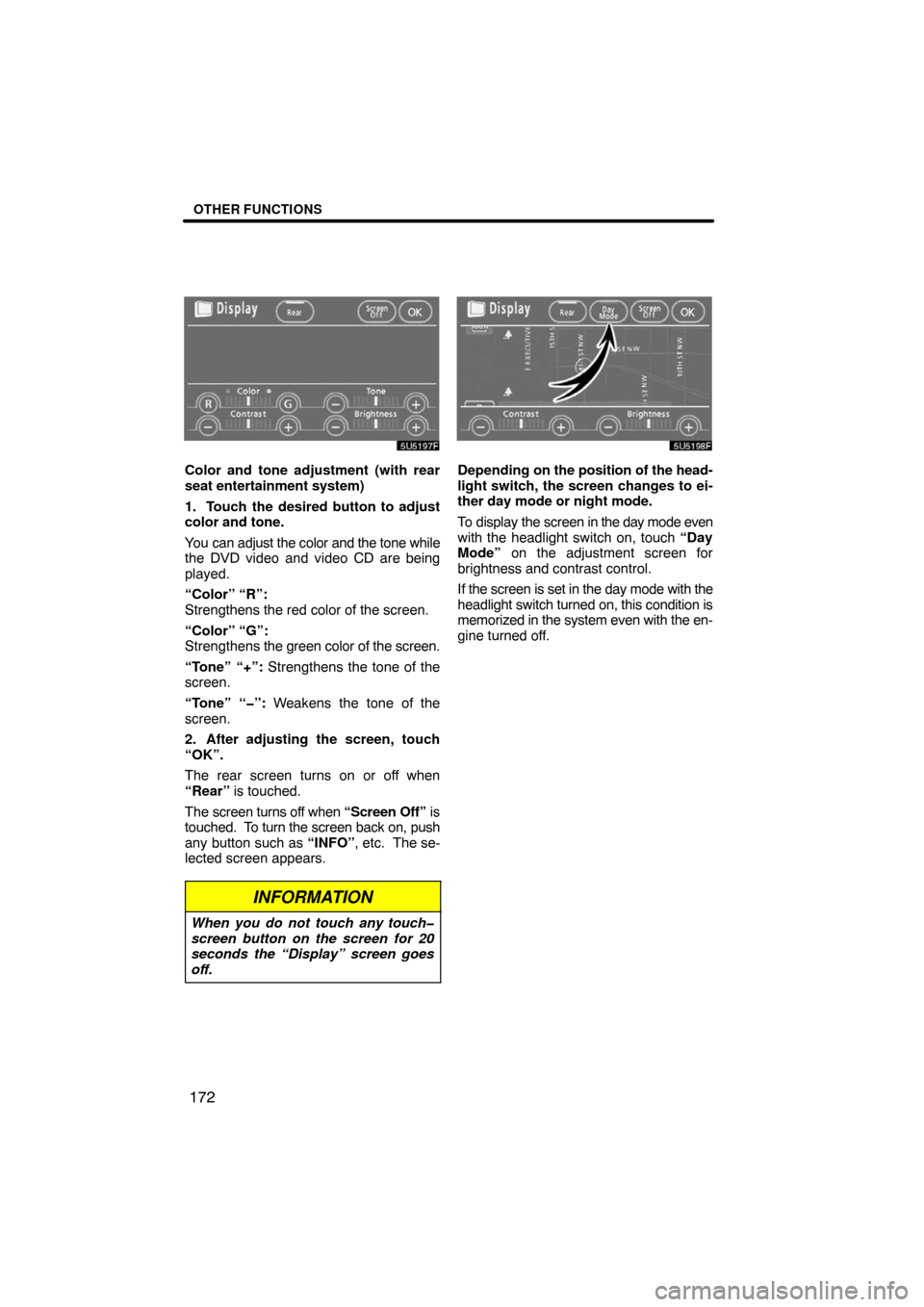
Color and tone adjustment (with rear
seat entertainment system)
1. Touch the desired button to adjust
color and tone.
You can adjust the color and the tone while
the DVD video and video CD are being
played.
“Color” “R”:
Strengthens the red color of the screen.
“Color” “G”:
Strengthens the green color of the screen.
“Tone” “+”: Strengthens the tone of the
screen.
“Tone” “”: Weakens the tone of the
screen.
2. After adjusting the screen, touch
“OK”.
The rear screen turns on or off when
“Rear” is touched.
The screen turns off when “Screen Off” is
touched. To turn the screen back on, push
any button such as “INFO”, etc. The se-
lected screen appears.
INFORMATION
When you do not touch any touch
screen button on the screen for 20
seconds the “Display” screen goes
off.
5U5198F
Depending on the position of the head-
light switch, the screen changes to ei-
ther day mode or night mode.
To display the screen in the day mode even
with the headlight switch on, touch “Day
Mode” on the adjustment screen for
brightness and contrast control.
If the screen is set in the day mode with the
headlight switch turned on, this condition is
memorized in the system even with the en-
gine turned off.
Page 178 of 259
SECTION 6
AUDIO/VIDEO SYSTEM
179
AUDIO/VIDEO SYSTEM
Audio/video system
�Quick reference 166
�Using your audio/video system 167
Some basics181 . . . . . . . . . . . . . . . . . . . . . . . . . . . . . . . . . . . . . . . .
Radio operation187 . . . . . . . . . . . . . . . . . . . . . . . . . . . . . . . . . . . . .
CD changer operation197 . . . . . . . . . . . . . . . . . . . . . . . . . . . . . . .
DVD player operation209 . . . . . . . . . . . . . . . . . . . . . . . . . . . . . . . .
�Audio remote controls 218
�Audio/video system operating hints 219
Page 179 of 259
AUDIO/VIDEO SYSTEM
180
XS00309
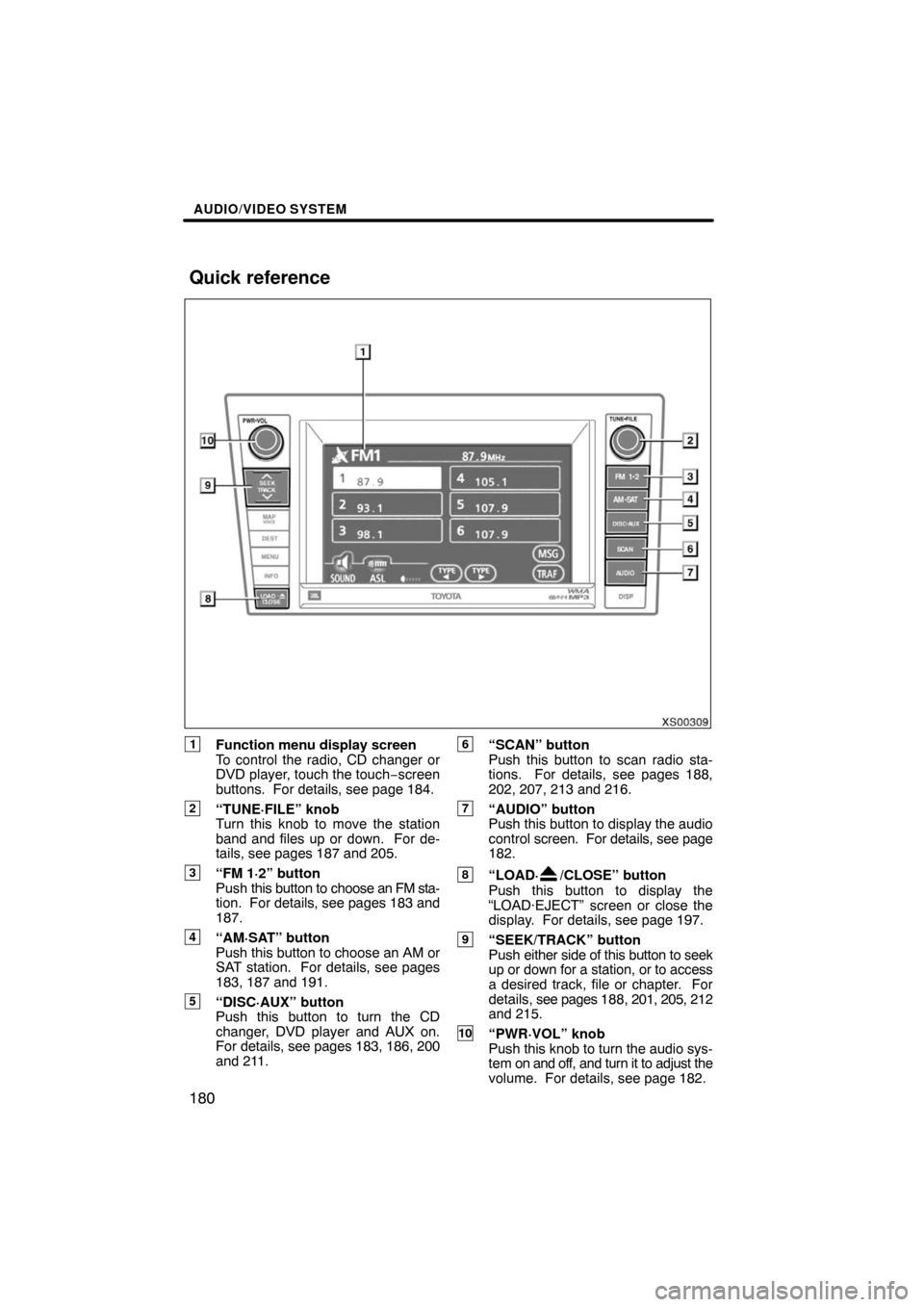
1Function menu display screen
To control the radio, CD changer or
DVD player, touch the touch−screen
buttons. For details, see page 184.
2“TUNE·FILE” knob
Turn this knob to move the station
band and files up or down. For de-
tails, see pages 187 and 205.
3“FM 1·2” button
Push this button to choose an FM sta-
tion. For details, see pages 183 and
187.
4“AM·SAT” button
Push this button to choose an AM or
SAT station. For details, see pages
183, 187 and 191.
5“DISC·AUX” button
Push this button to turn the CD
changer, DVD player and AUX on.
For details, see pages 183, 186, 200
and 211.
6“SCAN” button
Push this button to scan radio sta-
tions. For details, see pages 188,
202, 207, 213 and 216.
7“AUDIO” button
Push this button to display the audio
control screen. For details, see page
182.
8“LOAD·/CLOSE” button
Push this button to display the
“LOAD·EJECT” screen or close the
display. For details, see page 197.
9“SEEK/TRACK” button
Push either side of this button to seek
up or down for a station, or to access
a desired track, file or chapter. For
details, see pages 188, 201, 205, 212
and 215.
10“PWR·VOL” knob
Push this knob to turn the audio sys-
tem on and off, and turn it to adjust the
volume. For details, see page 182.
Quick reference
Page 183 of 259

AUDIO/VIDEO SYSTEM
184
6U5004F
The touchscreen buttons for radio, CD
changer and DVD player operation are
displayed on the function touch
screen button display screen when the
audio control mode is selected. Touch
them lightly and directly on the screen.
The selected switch is highlighted.
INFORMATION
�If the system does not respond to a
touch of a touchscreen button,
move your finger away from the
screen and then touch it again.
�You cannot operate dimmed
touchscreen buttons.
�Wipe off fingerprints on the surface
of the display using a glass clean-
ing cloth.
(c) Automatic sound levelizer (ASL)
When the audio sound becomes diffi-
cult to be heard due to road noise, wind
noise or other noises while driving, the
system adjusts to the optimum volume
according to the noise level. To turn
this function on, touch “ASL” on the au-
dio control screen.
(d) Tone and balance
Tone
How good an audio program sounds to you
is largely determined by the mix of the
treble, midrange, and bass levels. In fact,
different kinds of music and vocal pro-
grams usually sound better with different
mixes of treble, mid−range, and bass.
Balance
A good balance of the left and right stereo
channels and of the front and rear sound
levels is also important.
Keep in mind that if you are listening to a
stereo recording or broadcast, changing
the right/left balance will increase the vol-
ume of one group of sounds while de-
creasing the volume of another.
1. Push the “AUDIO” button.
6U5002aF
2. Touch “SOUND” to display the
sound adjustment screen.
Page 185 of 259
AUDIO/VIDEO SYSTEM
186
(f) Your CD changer
When you insert a disc, touch “LOAD” and
gently push the disc in with the label side
up. This CD changer can store up to four
discs. The changer will play from track 1
through to the end of the disc. Then it will
play from track 1 of the next disc.
The changer is intended for use with 12 cm
(4.7 in.) discs only.
XS00312
NOTICE
�Do not stack up two discs for inser-
tion, or it will cause damage to the
changer. Insert only one disc into
slot at a time.
�Never try to disassemble or oil any
part of the changer. Do not insert
anything other than a disc into the
slot.
(g) Your DVD player
(with rear seat entertainment system)
The sound of the rear seat entertainment
system can be enjoyed by pushing the
“DISC·AUX” button.
(h) AUX adapter
The sound of portable audio players
connected to the AUX adapter can be
enjoyed. Push the “DISC·AUX” button to
switch to AUX mode. For details, refer to
the “Owner’s Manual”.
Page 199 of 259

AUDIO/VIDEO SYSTEM
200
XS00317
(c) Playing a disc
Push the “DISC·AUX” button if the
discs are already loaded in the changer.
“CD CHANGER” appears on the screen.
The discs set in the changer are played
continuously, starting with the last disc you
inserted. The disc number of the disc cur-
rently being played, the track number and
the time from the beginning of the program
appear on the screen.
When play of one disc ends, the first track
of the following disc starts. When play of
the final disc ends, play of the first disc
starts again.
The changer will skip any empty disc trays.
Vehicles with rear entertainment system
—
If the DVD player is turned on, push the
“DISC·AUX” button again to switch to the
CD changer.
If the rear seat entertainment system is on,
pushing the “DISC·AUX” button switches
the sound of the front audio system and
that of the rear seat entertainment system.
6U5061F
(d) Selecting a desired disc
Touch the desired disc number on the
screen.
The selected disc number is highlighted.
The changer will start playing the selected
disc from the first track.
Page 201 of 259

AUDIO/VIDEO SYSTEM
202
6U5023F
Touch the desired track number. The
changer will start playing the selected
track from the beginning.
: By touching this touch−screen but-
ton, the list moves up by 6 track groups. If
this button is touched when the top page of
the list is displayed, the last page is dis-
played.
: By touching this touch−screen but-
ton, the list moves down by 6 track groups.
If this button is touched when the last page
of the list is displayed, the top page is dis-
played.
Vehicles with rear entertainment system
—
While the DVD player is in operation, the
chapter or track can be changed by push-
ing either side of the “SEEK/TRACK” but-
ton.
Fast forward: Push “�” side of the
“SEEK/TRACK” button and hold it to fast
forward the disc. When you release the
button, the changer will resume playing
from that position.
Reverse: Push “�” side of the “SEEK/
TRACK” button and hold it to reverse the
disc. When you release the button, the
changer will resume playing.
6U5024F
SEARCHING FOR A DESIRED TRACK
OR DISC
Searching for a desired track —
Touch “SCAN” on the screen or push
the “SCAN” button briefly while the
disc is playing.
“SCAN” appears on the screen. The
changer will play the next track for 10 sec-
onds, then scan again. To select a track,
touch “SCAN” on the screen or push the
“SCAN” button a second time. If the
changer reaches the end of the disc, it will
continue scanning at track 1.
After all the tracks are scanned in one
pass, normal play resumes.
Searching for a desired disc —
Touch “SCAN” on the screen or push
the “SCAN” button for longer than a
second while the disc is playing.
“D·SCAN” appears on the screen. The
program at the beginning of each audio
disc will be played for 10 seconds. To con-
tinue listening to the program of your
choice, touch “SCAN” on the screen or
push the “SCAN” button a second time.
After all the audio discs are scanned in one
pass, normal play resumes.


