Page 260 of 512
260 3-3. Using the audio system
PRIUS_U_(L/O_0802)
●MP3 and WMA playback
When a disc containing MP3 or WMA files is inserted, all files on the disc
are first checked. Once the file check is finished, the first MP3 or WMA file
is played. To make the file check finish more quickly, we recommend you
do not write in any files other than MP3 or WMA files or create any unnec-
essary folders.
Discs that contain a mixture of music data and MP3 or WMA format data
cannot be played.
● Extensions
If the file extensions .mp3 and .wma are used for files other than MP3 and
WMA files, they will be mistakenly recognized and played as MP3 and
WMA files. This may result in large amounts of interference and damage
to the speakers.
● Playback
• To play MP3 files with steady sound quality, we recommend a fixed bit
rate of 128 kbps and a sampling frequency of 44.1 kHz.
• CD-R or CD-RW playback may not be possible in some instances, depending on the characteristics of the disc.
• There is a wide variety of freeware and other encoding software for MP3 and WMA files on the market, and depending on the status of the encod-
ing and the file format, poor sound quality or noise at the start of playback
may result. In some cases, playback may not be possible at all.
• When files other than MP3 or WMA files are recorded on a disc, it may take more time to recognize the disc and in some cases, playback may
not be possible at all.
• Microsoft, Windows, and Windows Media are the registered trademarks of Microsoft Corporation in the U.S. and other countries.
Page 273 of 512
273
3-4. Using the hands-free system
3
Interior features
PRIUS_U_(L/O_0802)
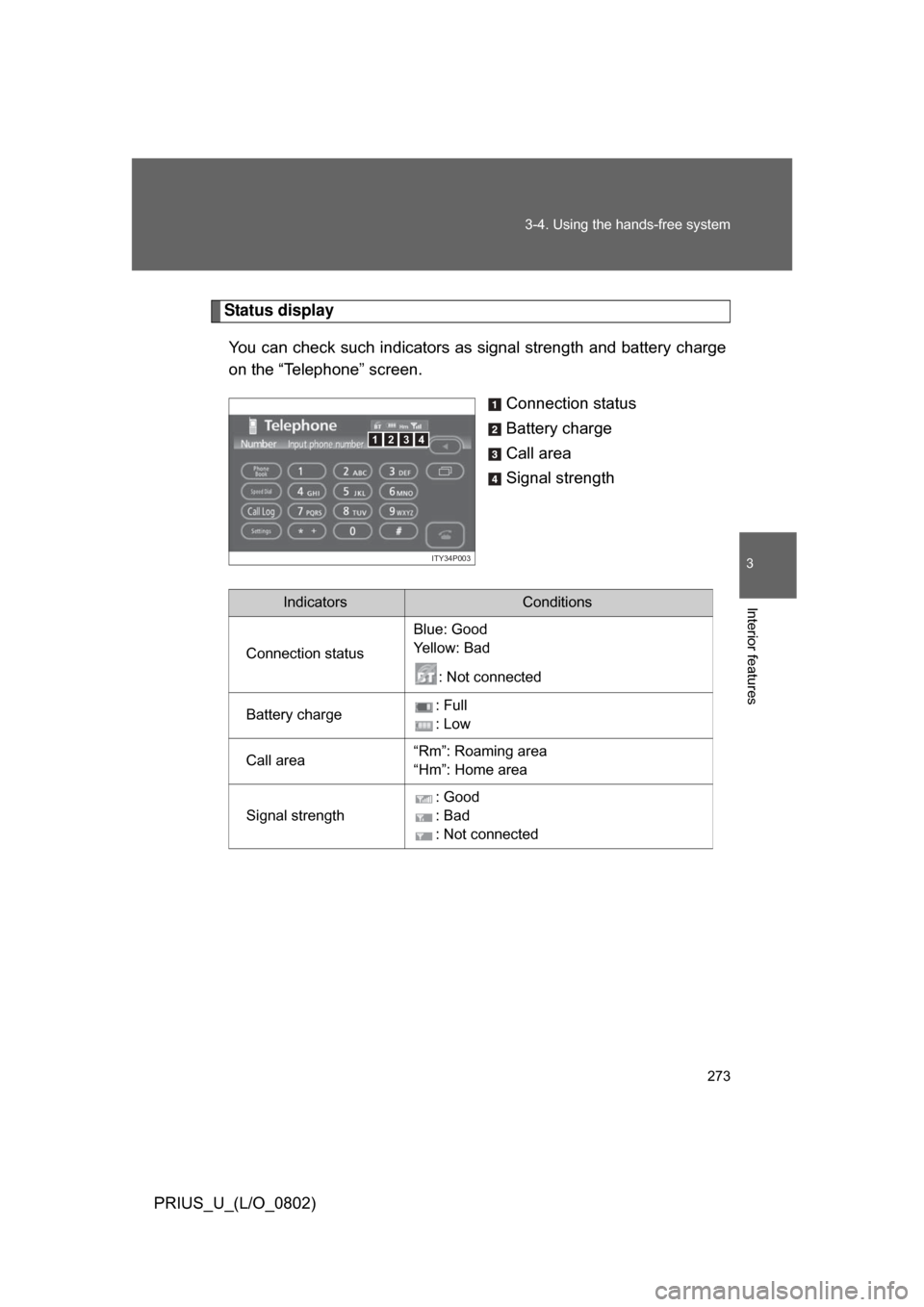
Status display
You can check such indicators as signal strength and battery charge
on the “Telephone” screen.
Connection status
Battery charge
Call area
Signal strength
4123
ITY34P003
IndicatorsConditions
Connection status Blue: Good
Ye l l o w : B a d
: Not connected
Battery charge : Full
: Low
Call area “Rm”: Roaming area
“Hm”: Home area
Signal strength : Good
: Bad
: Not connected
Page 278 of 512
278 3-4. Using the hands-free system
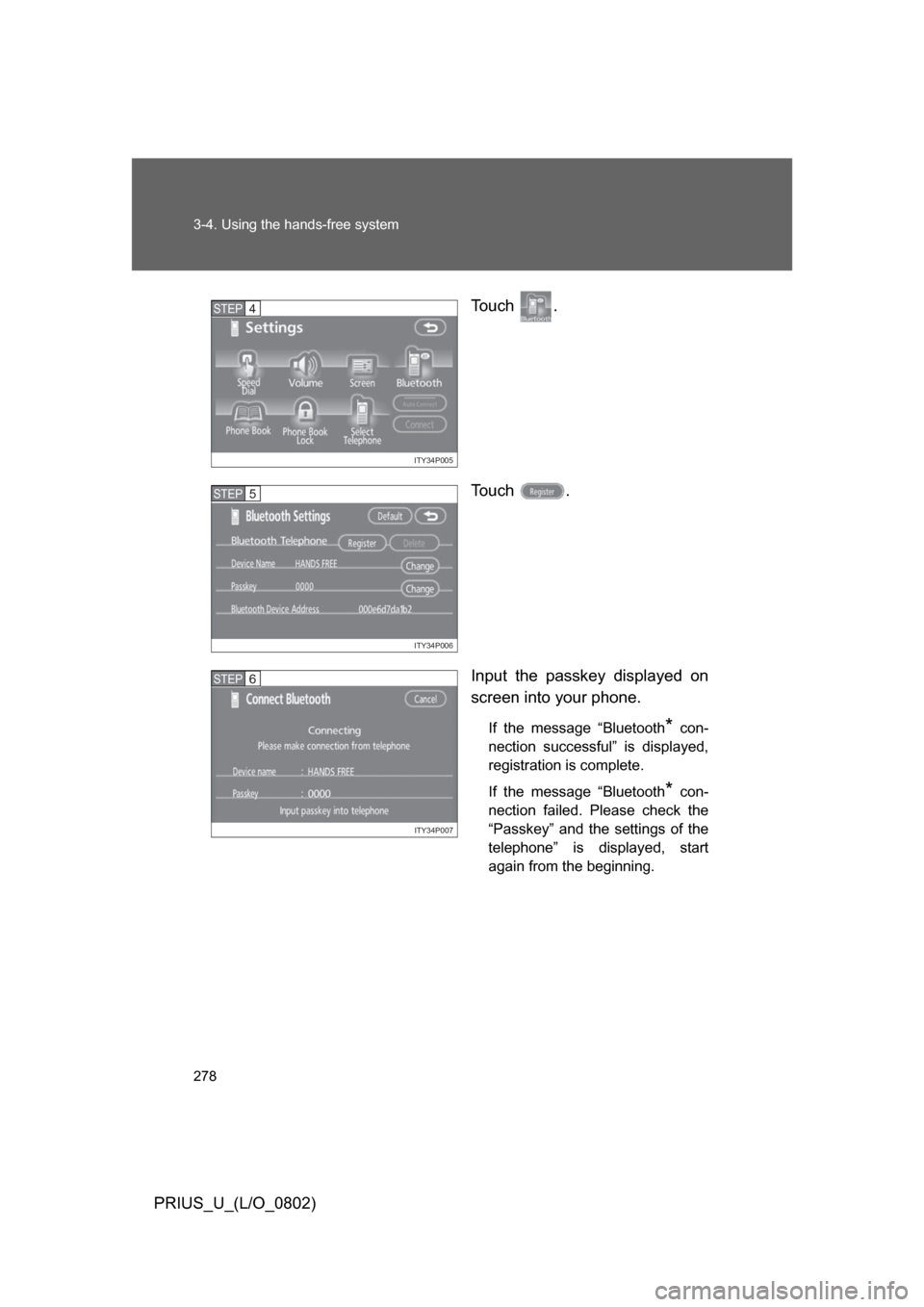
PRIUS_U_(L/O_0802)To u c h .
To u c h .
Input the passkey displayed on
screen into your phone.
If the message “Bluetooth* con-
nection successful” is displayed,
registration is complete.
If the message “Bluetooth
* con-
nection failed. Please check the
“Passkey” and the settings of the
telephone” is displayed, start
again from the beginning.
ITY34P005
STEP4
ITY34P006
STEP5
ITY34P007
STEP6
Page 305 of 512
305
3-4. Using the hands-free system
3
Interior features
PRIUS_U_(L/O_0802)
■
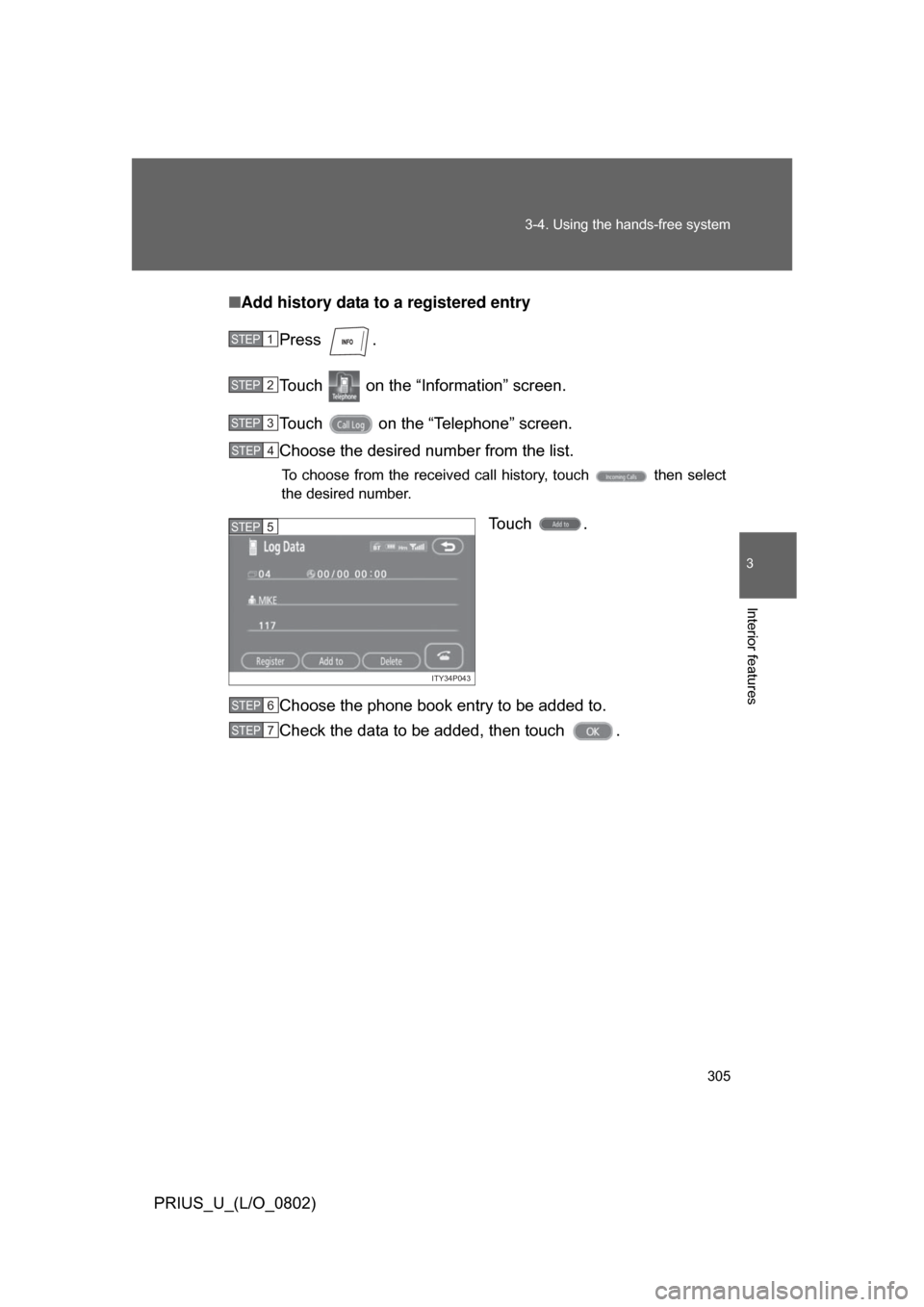
Add history data to a registered entry
Press .
Touch on the “Information” screen.
Touch on the “Telephone” screen.
Choose the desired number from the list.
To choose from the received call history, touch then select
the desired number.
Touch .
Choose the phone book entry to be added to.
Check the data to be added, then touch .
STEP1
STEP2
STEP3
STEP4
ITY34P043
STEP5
STEP6
STEP7
Page 307 of 512
307
3-4. Using the hands-free system
3
Interior features
PRIUS_U_(L/O_0802)
■
To delete all data
Follow the steps “Deleting phone book data” to “STEP 5”. In the “Phone
Book” section of the “Phone Book Management” screen, touch . To
delete all data within a group, touch , then select the group to
delete. To delete all contact data, touch . Check that everything is
correct, then touch .
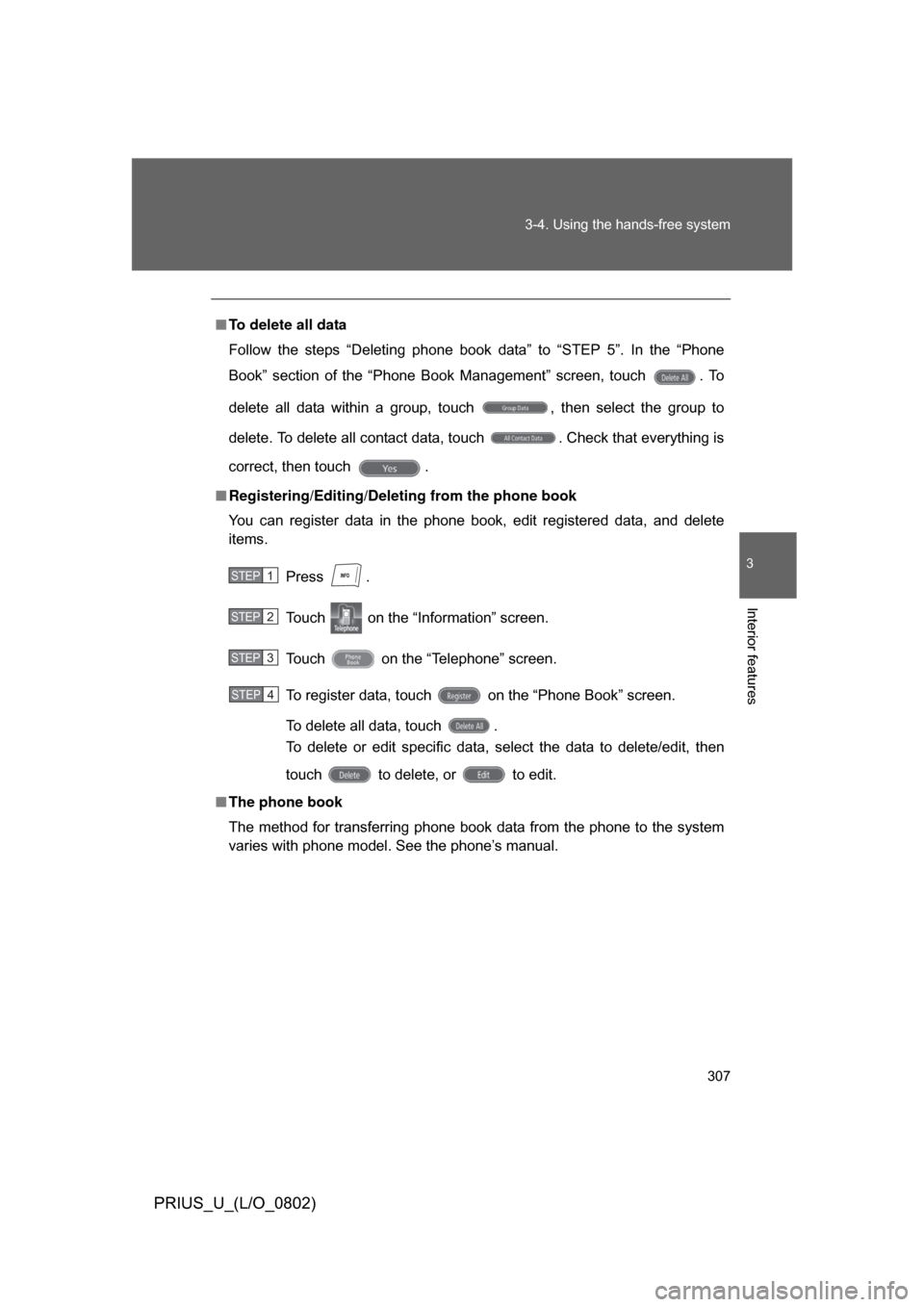
■ Registering/Editing/Deleting from the phone book
You can register data in the phone book, edit registered data, and delete
items.
Press .
Touch on the “Information” screen.
Touch on the “Telephone” screen.
To register data, touch on the “Phone Book” screen.
To delete all data, touch .
To delete or edit specific data, select the data to delete/edit, then
touch to delete, or to edit.
■ The phone book
The method for transferring phone book data from the phone to the system
varies with phone model. See the phone’s manual.
STEP1
STEP2
STEP3
STEP4
Page 310 of 512
310 3-4. Using the hands-free system
PRIUS_U_(L/O_0802)
Deleting the historyPress .
Touch on the “Inf ormation” screen.
Touch on the “Telephone” screen.
Select the data to delete from the list.
To delete data from the received calls history, touch , then
select the data to delete.
To u c h .
Check that everything is correct, then touch .
STEP1
STEP2
STEP3
STEP4
ITY34P043
STEP5
■To delete all data
Follow the steps “Deleting a group name” to “STEP 4”. Touch on the
“Outgoing Calls” screen. To delete all received call history data, touch
, then touch . Check that everything is correct, then touch
.
STEP6
Page 315 of 512
315
3-4. Using the hands-free system
3
Interior features
PRIUS_U_(L/O_0802)
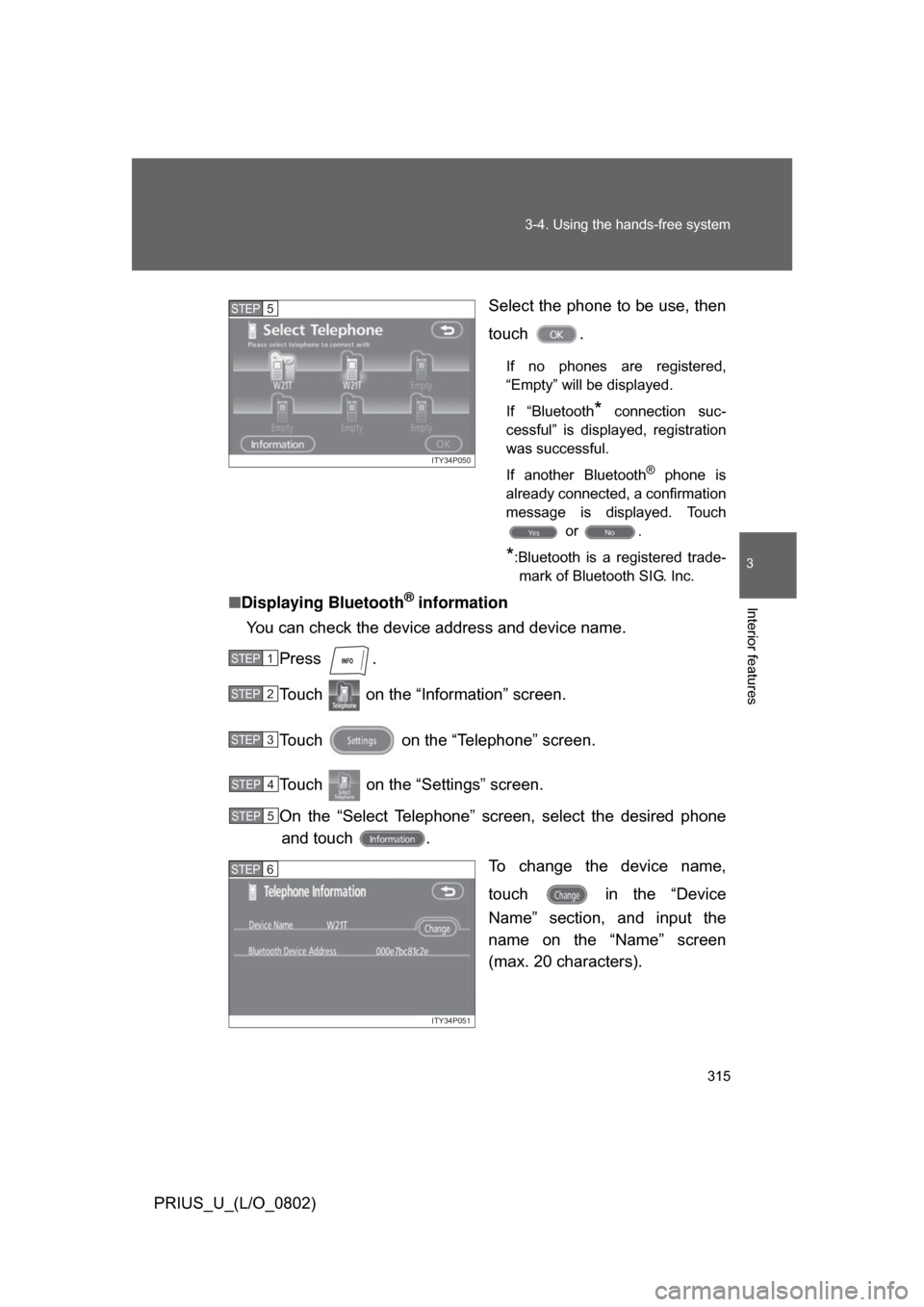
Select the phone to be use, then
touch .
If no phones are registered,
“Empty” will be displayed.
If “Bluetooth
* connection suc-
cessful” is displayed, registration
was successful.
If another Bluetooth
® phone is
already connected, a confirmation
message is displayed. Touch or .
*:Bluetooth is a registered trade-mark of Bluetooth SIG. Inc.
■ Displaying Bluetooth® information
You can check the device address and device name.
Press .
Touch on the “Information” screen.
Touch on the “Telephone” screen.
Touch on the “Settings” screen.
On the “Select Telephone” screen, select the desired phoneand touch .
To change the device name,
touch in the “Device
Name” section, and input the
name on the “Name” screen
(max. 20 characters).
ITY34P050
STEP5
STEP1
STEP2
STEP3
STEP4
STEP5
ITY34P051
STEP6
Page 317 of 512
317
3-4. Using the hands-free system
3
Interior features
PRIUS_U_(L/O_0802)
■
To delete the Bluetooth
® settings
Press .
Touch on the “Information” screen.
Touch on the “Telephone” screen.
Touch on the “Settings” screen.
Touch in the “Bluetooth
* Telephone” section of the
“Bluetooth
* Settings” screen.
On the “Delete Telephone” scre en, select the phone to delete.
To check the device address, touch .
If you touch , a confirmation message is displayed. If
everything is correct, touch .
*:Bluetooth is a registered trademark of Bluetooth SIG. Inc.
STEP1
STEP2
STEP3
STEP4
STEP5
STEP6
STEP7