2008 PEUGEOT 4007 ad blue
[x] Cancel search: ad bluePage 185 of 226

11
AUDIO EQUIPMENT and TELEMATICS
NAVIGATION-GUIDANCE
What is the navigation system and
the GPS?
The satellite navigation system guides
the driver to the destination that he has
set in accordance with a chosen route.
Initially, it searches for the destination
required by the user, then it calculates
the route and fi nally it provides the visual
and audible guidance instructions. What precautions should be
observed in order to use the system
under good conditions?
Do not place anything on or near the
GPS aerial.
Do not use any digital communication
equipment (personal computers, etc.)
near the GPS aerial.
Do not affi x any refl ective fi lms or fi lms
containing carbon to the window.
The GPS (Global Positioning
System) consists of several
satellites distributed around
the earth. They continuously
transmit digital signals which
travel at the speed of light, on 2 different
frequencies.
At any given time, the system receives
its position in relation to the satellites
detected and the time of transmission
of the signal.
This enables the telematic unit to de-
duce its position and therefore that of
the vehicle.
A repositioning process using the map
database stored on the hard disc permits
repositioning of the vehicle’s position on
the road network in order to improve the
accuracy of the locating function. What is a point of interest (POI)?
Up to 40 different icons may
be displayed (refer to the
section "Points of interest
icon").
They are classifi ed in 5 groups and
identifi ed by one colour for each group:
- Shops, fi nance and businesses (Green),
- Vehicles and travel (Dark blue),
- Restaurants (Orange),
- Public places and emergency services (Brown),
- Entertainment and attractions (Blue).
GPS
The system’s measurements may be
inaccurate if the vehicle is:
- in a tunnel or underground car park,
- underneath a two-level motorway,
- in an area with several very high buildings,
- surrounded by closely planted trees.
Depending on the vehicle’s situation and
the reception of the GPS information,
the displayed information may disappear
from the display temporarily. A point of interest (POI) is
represented by an icon on
the map, it represents an
airport, a station, a town
hall, ...
Page 190 of 226
11
AUDIO EQUIPMENT and TELEMATICS
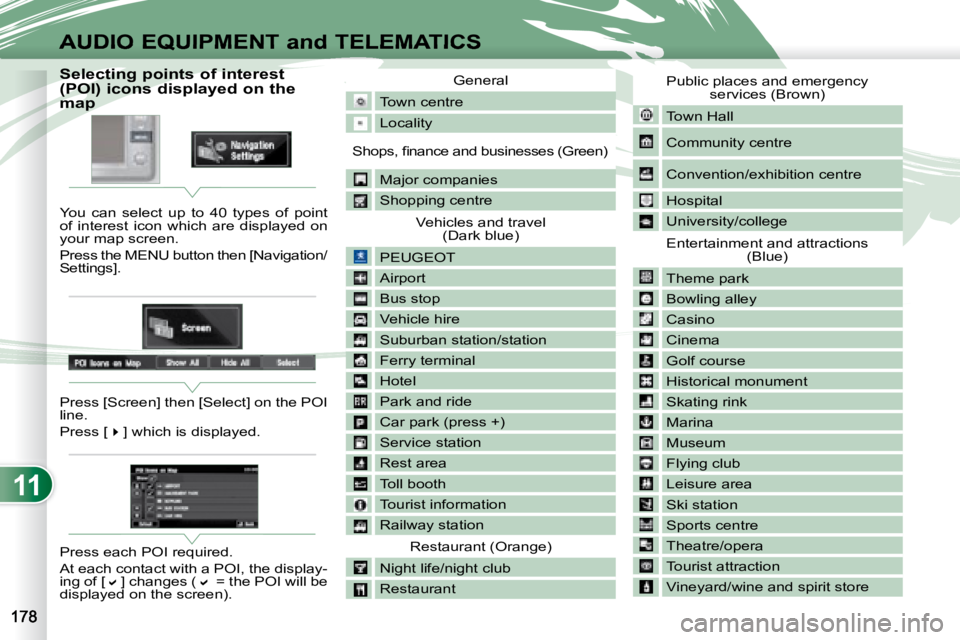
Selecting points of interest
(POI) icons displayed on the
map
You can select up to 40 types of point
of interest icon which are displayed on
your map screen.
Press the MENU button then [Navigation/
Settings].
Press [Screen] then [Select] on the POI
line.
Press [] which is displayed.
Press each POI required.
At each contact with a POI, the display-
ing of [ ] changes ( = the POI will be
displayed on the screen). General
Town centre
Locality
Shops, fi nance and businesses (Green)
Major companies
Shopping centre Vehicles and travel (Dark blue)
PEUGEOT
Airport
Bus stop
Vehicle hire
Suburban station/station
Ferry terminal
Hotel
Park and ride
Car park (press +)
Service station
Rest area
Toll booth
Tourist information
Railway station Restaurant (Orange)
Night life/night club
Restaurant Public places and emergency
services (Brown)
Town Hall
Community centre
Convention/exhibition centre
Hospital
University/college
Entertainment and attractions (Blue)
Theme park
Bowling alley
Casino
Cinema
Golf course
Historical monument
Skating rink
Marina
Museum
Flying club
Leisure area
Ski station
Sports centre
Theatre/opera
Tourist attraction
Vineyard/wine and spirit store
Page 198 of 226
11
ABC
DE
F
GHI
J
K
L
M
AUDIO EQUIPMENT and TELEMATICS
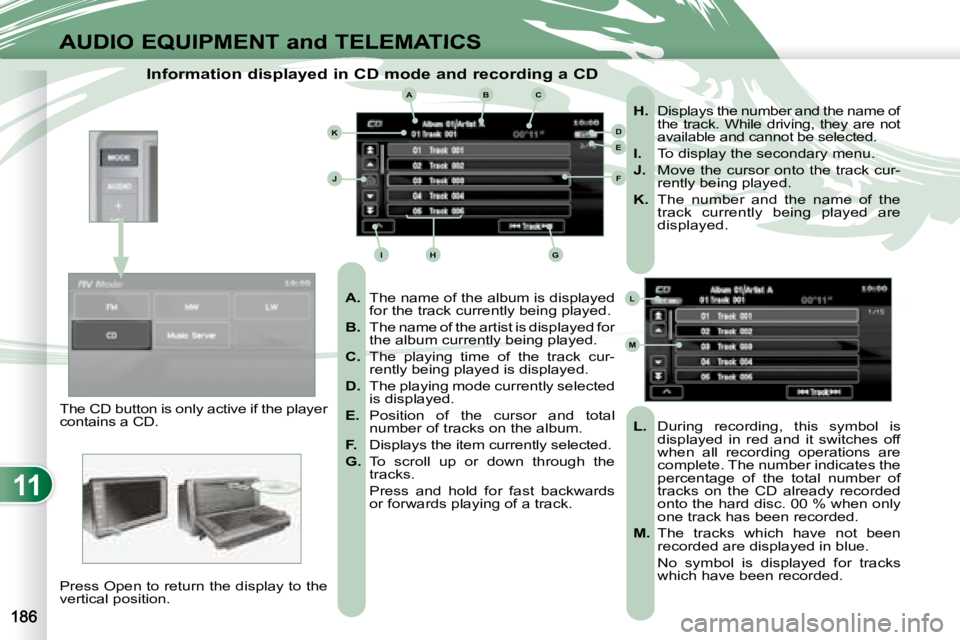
Information displayed in CD mode and recording a CD
A. The name of the album is displayed
for the track currently being played.
B. The name of the artist is displayed for
the album currently being played.
C. The playing time of the track cur-
rently being played is displayed.
D. The playing mode currently selected
is displayed.
E. Position of the cursor and total
number of tracks on the album.
F. Displays the item currently selected.
G. To scroll up or down through the
tracks.
Press and hold for fast backwards or forwards playing of a track.
H. Displays the number and the name of
the track. While driving, they are not
available and cannot be selected.
I. To display the secondary menu.
J. Move the cursor onto the track cur-
rently being played.
K. The number and the name of the
track currently being played are
displayed.
L. During recording, this symbol is
displayed in red and it switches off
when all recording operations are
complete. The number indicates the
percentage of the total number of
tracks on the CD already recorded
onto the hard disc. 00 % when only
one track has been recorded.
M. The tracks which have not been
recorded are displayed in blue.
No symbol is displayed for tracks which have been recorded.
The CD button is only active if the player
contains a CD.
Press Open to return the display to the
vertical position.
Page 214 of 226

11
DE
E1E2E3E4
D1D2
D3D4
AUDIO EQUIPMENT and TELEMATICS
Time and date, language, unit,
picture size
E - Choose the size of the DVD picture for:
E1 - normal 4/3,
E2 - extends the picture evenly to the right and to the left in wide screen mode,
E3 - extends the right and left parts only leaving the centre as it stands in
wide screen mode,
E4 -
enlarges the picture in 4/3 format. The top
and the bottom are outside the frame.
D - Choose the base settings of the sys- tem for:
D1 - setting of the time by the RDS signal, time zone, summer time,
D2 - the language (English, Français, Deutsch, Nederlands, Portuguese,
Español, Svenska, Italiano, Dansk),
D3 - the units for calculation of the dis- tances (km or miles and °C or °F),
D4 - other settings such as:
- the voice guidance volume,
- the type of voice guidance voice (female or male),
- the volume of the operation bleeps (1 to 3 and 0 = no bleep),
- the type of inputting keypad (alphabet or PC),
- the range of menu colours (red or blue),
- the displaying or not of the audio playing icons on the map screen,
- the reinitialisation of the vehicle sensor,
- the interruption or not of the display when the air conditioning is used.
Page 218 of 226
11
i
G
EFF1F2
F3F4
F5
F6
E1
E2
E3
G1G2
G3
AUDIO EQUIPMENT and TELEMATICS
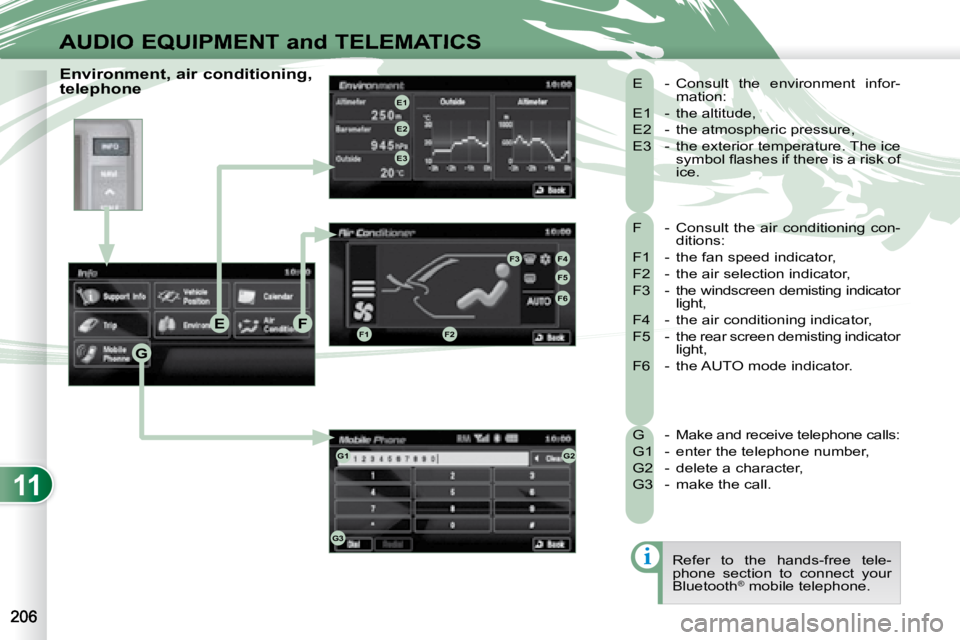
F - Consult the air conditioning con-ditions:
F1 - the fan speed indicator,
F2 - the air selection indicator,
F3 - the windscreen demisting indicator light,
F4 - the air conditioning indicator,
F5 - the rear screen demisting indicator light,
F6 - the AUTO mode indicator.
E - Consult the environment infor-
mation:
E1 - the altitude,
E2 - the atmospheric pressure,
E3 - the exterior temperature. The ice symbol fl ashes if there is a risk of
ice.
G - Make and receive telephone calls:
G1 - enter the telephone number,
G2 - delete a character,
G3 - make the call. Refer to the hands-free tele-
phone section to connect your
Bluetooth ®
mobile telephone.
Environment, air conditioning,
telephone
Page 219 of 226
11
AUDIO EQUIPMENT and TELEMATICS
HANDS-FREE TELEPHONE
What is the Bluetooth®
hands-free telephone with voice recognition?
The system uses wireless communication technology referred to as
Bluetooth ®
which allows you to make hands-free telephone calls in
your vehicle via your Bluetooth ®
compatible mobile telephone.
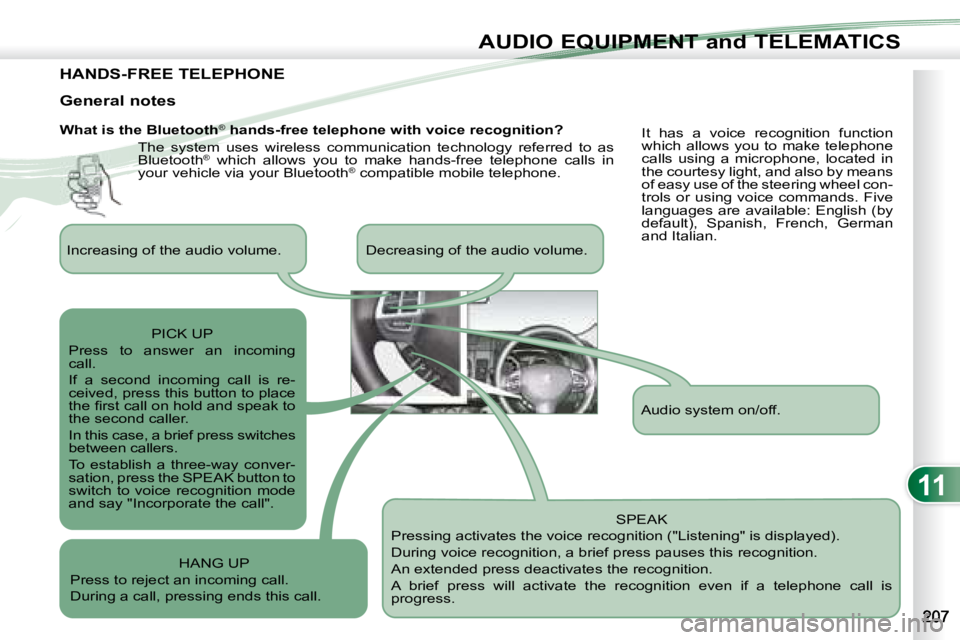
SPEAK
Pressing activates the voice recognition ("Listening" is displayed).
During voice recognition, a brief press pauses this recognition.
An extended press deactivates the recognition.
A brief press will activate the recognition even if a telep hone call is
progress.
General notes
It has a voice recognition function
which allows you to make telephone
calls using a microphone, located in
the courtesy light, and also by means
of easy use of the steering wheel con-
trols or using voice commands. Five
languages are available: English (by
default), Spanish, French, German
and Italian.
Audio system on/off.
Increasing of the audio volume. Decreasing of the audio vo
lume.
PICK UP
Press to answer an incoming
call.
If a second incoming call is re-
ceived, press this button to place
the fi rst call on hold and speak to
the second caller.
In this case, a brief press switches
between callers.
To establish a three-way conver-
sation, press the SPEAK button to
switch to voice recognition mode
and say "Incorporate the call".
HANG UP
Press to reject an incoming call.
During a call, pressing ends this call.
Page 222 of 226
11
i
i
AUDIO EQUIPMENT and TELEMATICS
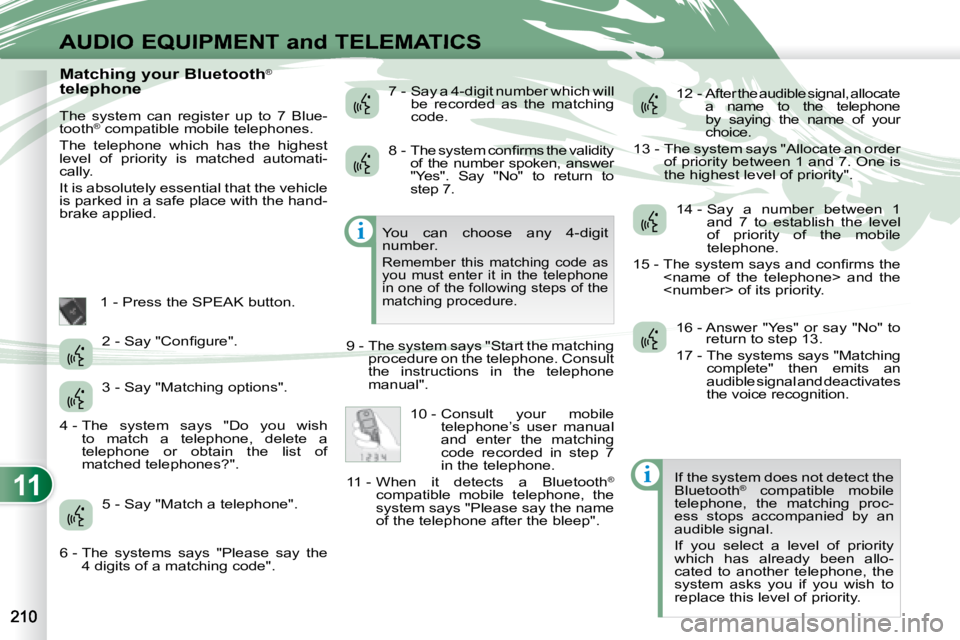
Matching your Bluetooth®
telephone
The system can register up to 7 Blue-
tooth ®
compatible mobile telephones.
The telephone which has the highest
level of priority is matched automati-
cally.
It is absolutely essential that the vehicle
is parked in a safe place with the hand-
brake applied.
1 - Press the SPEAK button. 7 - Say a 4-digit number which will
be recorded as the matching
code. 12 - After the audible signal, allocate
a name to the telephone
by saying the name of your
choice.
13 - The system says "Allocate an order of priority between 1 and 7. One is
the highest level of priority".
If the system does not detect the
Bluetooth ®
compatible mobile
telephone, the matching proc-
ess stops accompanied by an
audible signal.
If you select a level of priority
which has already been allo-
cated to another telephone, the
system asks you if you wish to
replace this level of priority.
You can choose any 4-digit
number.
Remember this matching code as
you must enter it in the telephone
in one of the following steps of the
matching procedure.
9 - The system says "Start the matching
procedure on the telephone. Consult
the instructions in the telephone
manual".
2 - Say "Confi gure".
3 - Say "Matching options".
5 - Say "Match a telephone". 8 - The system confi rms the validity
of the number spoken, answer
"Yes". Say "No" to return to
step 7.
10 - Consult your mobile telephone’s user manual
and enter the matching
code recorded in step 7
in the telephone.
11 - When it detects a Bluetooth ®
compatible mobile telephone, the
system says "Please say the name
of the telephone after the bleep". 14 - Say a number between 1
and 7 to establish the level
of priority of the mobile
telephone.
15 - The system says and confi rms the
16 - Answer "Yes" or say "No" to return to step 13.
17 - The systems says "Matching complete" then emits an
audible signal and deactivates
the voice recognition.
4 - The system says "Do you wish to match a telephone, delete a
telephone or obtain the list of
matched telephones?".
6 - The systems says "Please say the 4 digits of a matching code".
Page 223 of 226
11
i
AUDIO EQUIPMENT and TELEMATICS
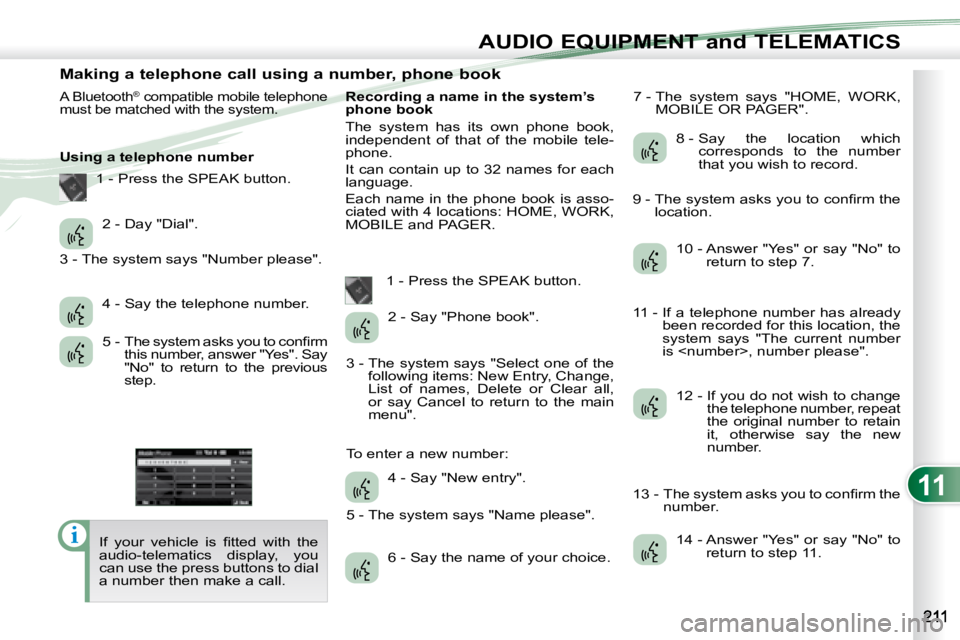
Making a telephone call using a number, phone book
A Bluetooth® compatible mobile telephone
must be matched with the system.
Using a telephone number
If your vehicle is fi tted with the
audio-telematics display, you
can use the press buttons to dial
a number then make a call. Recording a name in the system’s
phone book
The system has its own phone book,
independent of that of the mobile tele-
phone.
It can contain up to 32 names for each
language.
Each name in the phone book is asso-
ciated with 4 locations: HOME, WORK,
MOBILE and PAGER.
1 - Press the SPEAK button. 7 - The system says "HOME, WORK,
MOBILE OR PAGER".
2 - Day "Dial".
4 - Say the telephone number.
5 - The system asks you to confi rm this number, answer "Yes". Say
"No" to return to the previous
step. 2 - Say "Phone book".
4 - Say "New entry".
6 - Say the name of your choice. 8 - Say the location which
corresponds to the number
that you wish to record.
10 - Answer "Yes" or say "No" to return to step 7.
12 - If you do not wish to change the telephone number, repeat
the original number to retain
it, otherwise say the new
number.
14 - Answer "Yes" or say "No" to return to step 11.
1 - Press the SPEAK button.
3 - The system says "Number please".
3 - The system says "Select one of the following items: New Entry, Change,
List of names, Delete or Clear all,
or say Cancel to return to the main
menu".
5 - The system says "Name please".
To enter a new number: 9 - The system asks you to confi rm the
location.
11 - If a telephone number has already been recorded for this location, the
system says "The current number
is
13 - The system asks you to confi rm the number.