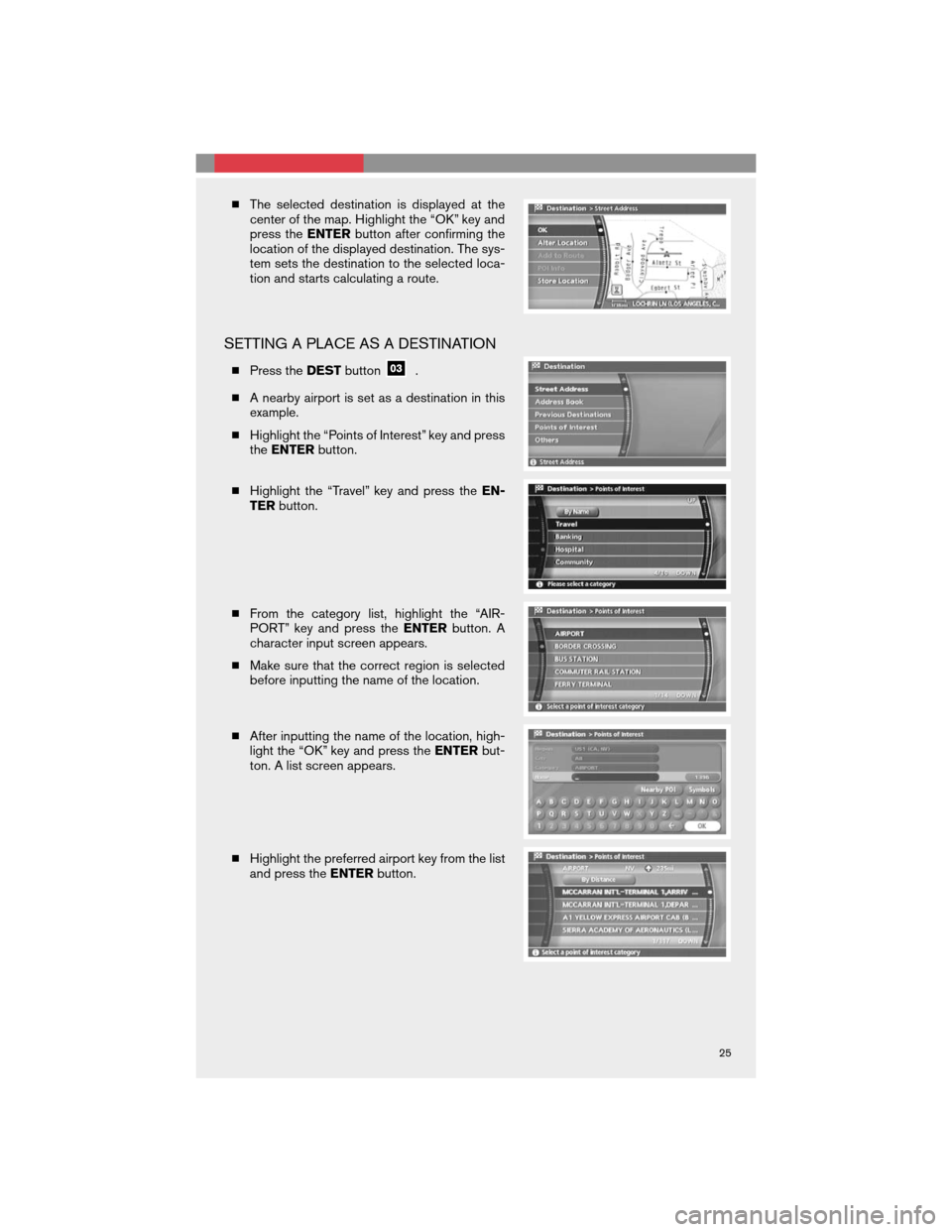
�The selected destination is displayed at the
center of the map. Highlight the “OK” key and
press theENTERbutton after confirming the
location of the displayed destination. The sys-
tem sets the destination to the selected loca-
tion and starts calculating a route.
SETTING A PLACE AS A DESTINATION
�Press theDESTbutton.
�A nearby airport is set as a destination in this
example.
�Highlight the “Points of Interest” key and press
theENTERbutton.
�Highlight the “Travel” key and press theEN-
TERbutton.
�From the category list, highlight the “AIR-
PORT” key and press theENTERbutton. A
character input screen appears.
�Make sure that the correct region is selected
before inputting the name of the location.
�After inputting the name of the location, high-
light the “OK” key and press theENTERbut-
ton. A list screen appears.
�Highlight the preferred airport key from the list
and press theENTERbutton.
25
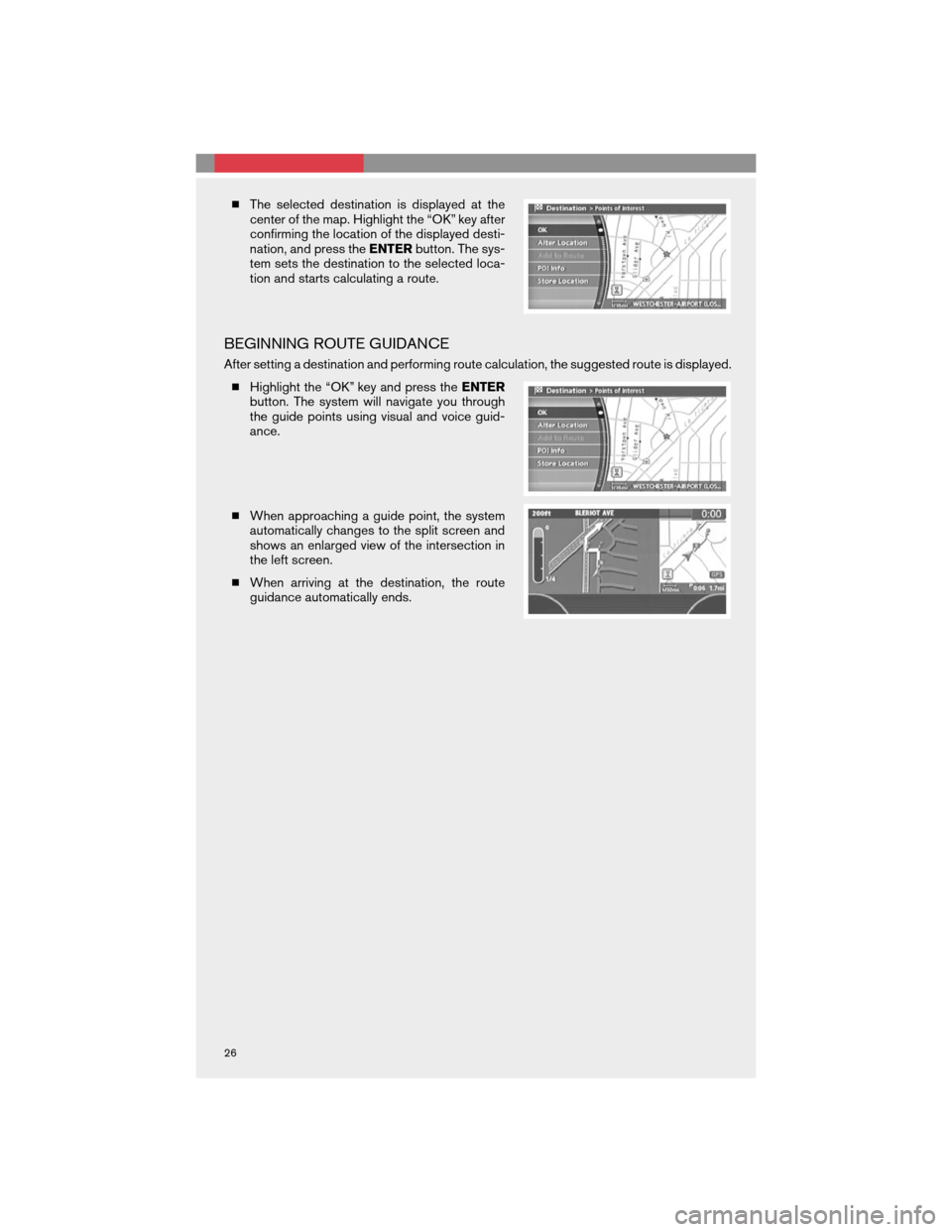
�The selected destination is displayed at the
center of the map. Highlight the “OK” key after
confirming the location of the displayed desti-
nation, and press theENTERbutton. The sys-
tem sets the destination to the selected loca-
tion and starts calculating a route.
BEGINNING ROUTE GUIDANCE
After setting a destination and performing route calculation, the suggested route is displayed.
�Highlight the “OK” key and press theENTER
button. The system will navigate you through
the guide points using visual and voice guid-
ance.
�When approaching a guide point, the system
automatically changes to the split screen and
shows an enlarged view of the intersection in
the left screen.
�When arriving at the destination, the route
guidance automatically ends.
26