Page 17 of 225
16 At a glance
COMAND control system
Main Function menu items
The table below illustrates the structure of the main functions and the associated menu items.
NaviAudioPhoneVideoSystem
Map DisplayFM / AM RadioPhone(Resumes playback if
DVD video is loaded in
changer)(Main function display
appears)
ModeSatRadio*Address Book
Block AreaDisc
Information On MapMemory Card (MP3 mode)
D Highway InformationMusic Register
Aux
Page 20 of 225
19 At a glance
COMAND control system
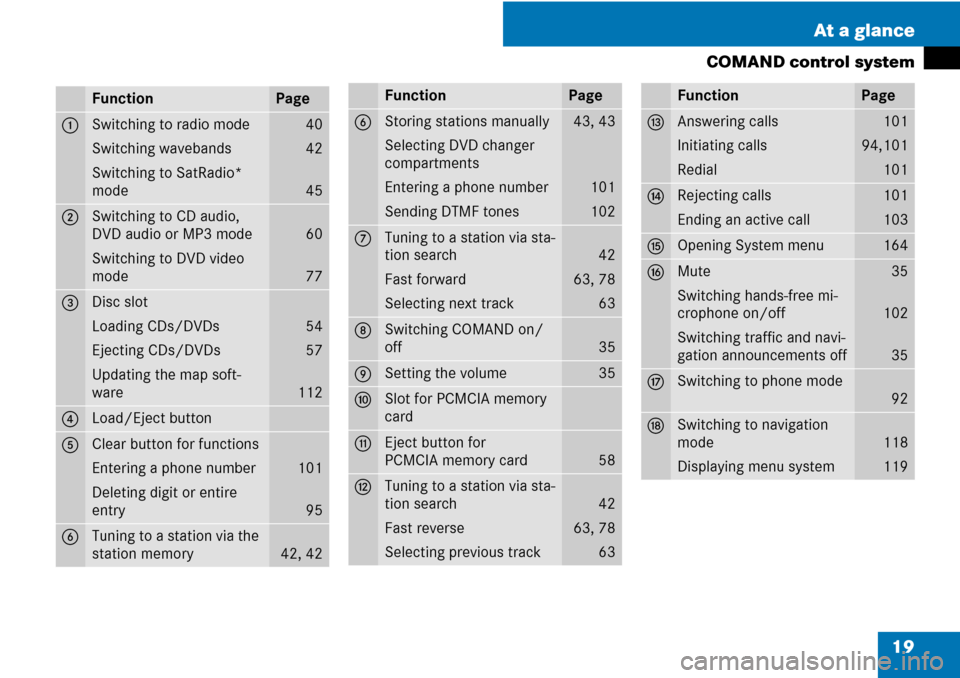
FunctionPage
1Switching to radio mode
Switching wavebands
Switching to SatRadio*
mode40
42
45
2Switching to CD audio,
DVD audio or MP3 mode
Switching to DVD video
mode
60
77
3Disc slot
Loading CDs/DVDs
Ejecting CDs/DVDs
Updating the map soft-
ware
54
57
112
4Load/Eject button
5Clear button for functions
Entering a phone number
Deleting digit or entire
entry
101
95
6Tuning to a station via the
station memory
42, 42
6Storing stations manually
Selecting DVD changer
compartments
Entering a phone number
Sending DTMF tones43, 43
101
102
7Tuning to a station via sta-
tion search
Fast forward
Selecting next track
42
63, 78
63
8Switching COMAND on/
off
35
9Setting the volume35
aSlot for PCMCIA memory
card
bEject button for
PCMCIA memory card
58
cTuning to a station via sta-
tion search
Fast reverse
Selecting previous track
42
63, 78
63
FunctionPage
dAnswering calls
Initiating calls
Redial101
94,101
101
eRejecting calls
Ending an active call101
103
fOpening System menu164
gMute
Switching hands-free mi-
crophone on/off
Switching traffic and navi-
gation announcements off35
102
35
hSwitching to phone mode
92
jSwitching to navigation
mode
Displaying menu system
118
119
FunctionPage
Page 22 of 225
21 At a glance
COMAND control system
SymbolHow to use the COMAND controllerFunction
n�Press briefly.�Select menu item.
�Exit full-screen image with Navi.
�Press and hold until the selected
action has been carried out.�Accept destination for navigation.
ymz�Rotate.�Move through vertical or horizontal menus.
�Move through text.
�Program settings.
qmr �Slide.�Move through vertical menus.
�Exit horizontal menus.
�Slide and hold.�Moves through a navigation map.
omp�Slide.�Move through horizontal menus.
�Exit vertical menus.
�Slide and hold.�Fast forward or reverse for audio CD or audio DVD playback.
�Move through a navigation map.
wmx�Slide and hold.�Move through a navigation map.
Page 24 of 225
23 At a glance
Multifunction steering wheel
Use the buttons on the multifunction steer-
ing wheel to operate the multifunction dis-
play.
Luxury steering wheel illustrated
Multifunction steering wheelFunctionPage
1Multifunction display
2æ volume up
ç volume down
F Mute
t End and reject calls
s Accept and iniate
calls35
35
103
101
3! Activate
Voice Control
177
4L Cancel
Voice Control
Navigate one level
up in the menu
structure of the mul-
tifunction display
177
24
FunctionPage
5Select submenu or scroll
through lists
$ Upwards
% Downwards
Selecting a menu
& Right
( Left
# Confirm selection
Page 26 of 225
25 At a glance
Multifunction steering wheel
Multifunction display menus
MenusFunctions and submenus
Navi (�page 26)�Navigation messages
Audio (�page 27)�Selecting radio stations
�Operating the DVD changer/Music register /Memory card
Tel (�page 29)�Accepting a call
�Selecting a phone book entry
�Calls dialed
Page 27 of 225
26 At a glance
Multifunction steering wheel
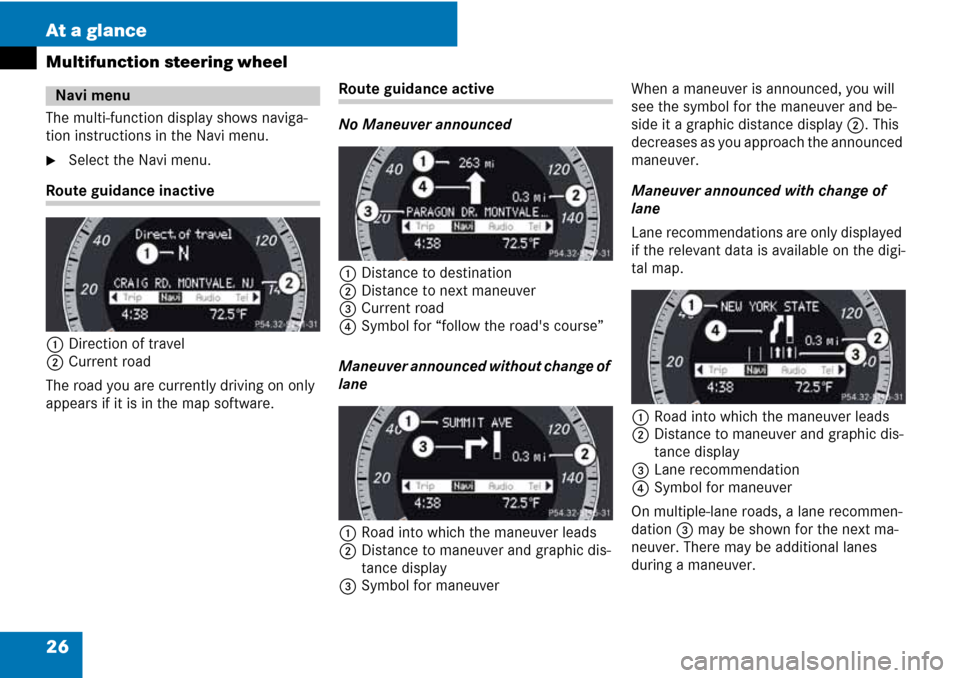
The multi-function display shows naviga-
tion instructions in the Navi menu.
�Select the Navi menu.
Route guidance inactive
1Direction of travel
2Current road
The road you are currently driving on only
appears if it is in the map software.
Route guidance active
No Maneuver announced
1Distance to destination
2Distance to next maneuver
3Current road
4Symbol for “follow the road's course”
Maneuver announced without change of
lane
1Road into which the maneuver leads
2Distance to maneuver and graphic dis-
tance display
3Symbol for maneuverWhen a maneuver is announced, you will
see the symbol for the maneuver and be-
side it a graphic distance display 2. This
decreases as you approach the announced
maneuver.
Maneuver announced with change of
lane
Lane recommendations are only displayed
if the relevant data is available on the digi-
tal map.
1Road into which the maneuver leads
2Distance to maneuver and graphic dis-
tance display
3Lane recommendation
4Symbol for maneuver
On multiple-lane roads, a lane recommen-
dation 3 may be shown for the next ma-
neuver. There may be additional lanes
during a maneuver.
Navi menu
Page 28 of 225
27 At a glance
Multifunction steering wheel
Navigation status indicators in the
multi-function display
When route guidance is activated, the fol-
lowing messages may appear:
�< : you have reached the destination.
�“Dest. area reached”: you are ap-
proaching the destination. This mes-
sage appears, for example, with
relatively large special destinations.
�“New route”: the system is calculating
a new route, for example because you
have deviated from the previous route.
Route guidance is subsequently re-
sumed.
�“Calculating route”: a route is being cal-
culated, after which route guidance will
start.
�“Off map”: the vehicle is outside the
range of the digital map. The vehicle is
in an off-map position.
�“Off mapped road”: the vehicle is on a
road which is not in the digital map, or
is away from the road, for example in a
car park.
�“No route”: no route to the selected
destination could be calculated.
Use the functions in the Audio menu to op-
erate the audio equipment. If no audio
equipment is switched on, the multi-func-
tion display shows the message Audio Off.
�To adjust the volume:
press the
æ or ç button.
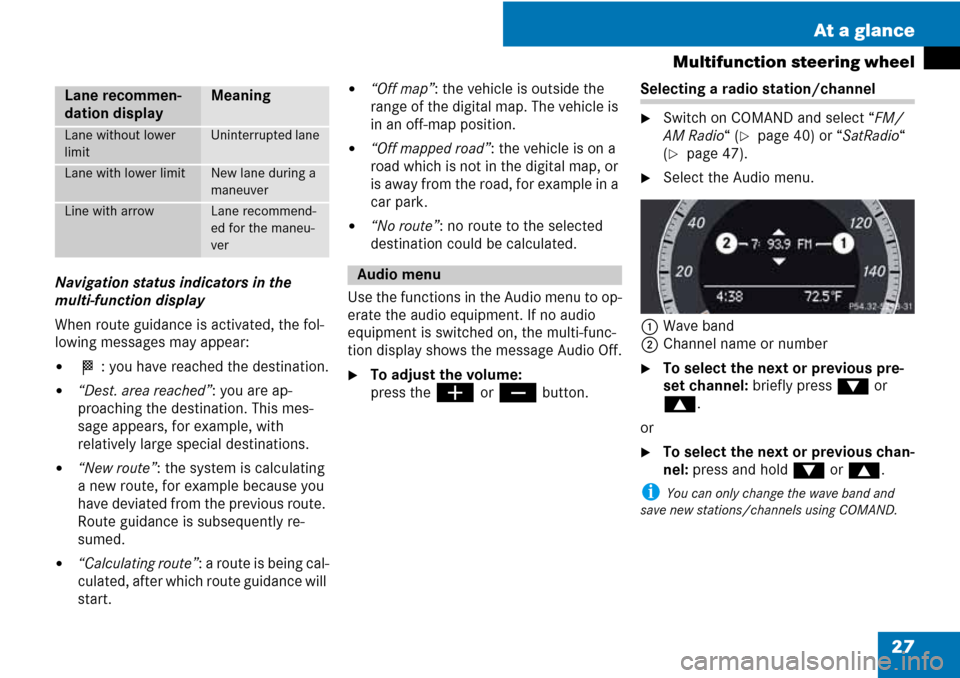
Selecting a radio station/channel
�Switch on COMAND and select “FM/
AM Radio“ (
�page 40) or “SatRadio“
(
�page 47).
�Select the Audio menu.
1Wave band
2Channel name or number
�To select the next or previous pre-
set channel: briefly press % or
$.
or
�To select the next or previous chan-
nel: press and hold % or $.
i You can only change the wave band and
save new stations/channels using COMAND.
Lane recommen-
dation displayMeaning
Lane without lower
limitUninterrupted lane
Lane with lower limitNew lane during a
maneuver
Line with arrowLane recommend-
ed for the maneu-
ver
Audio menu
Page 32 of 225
31 At a glance
Operating COMAND
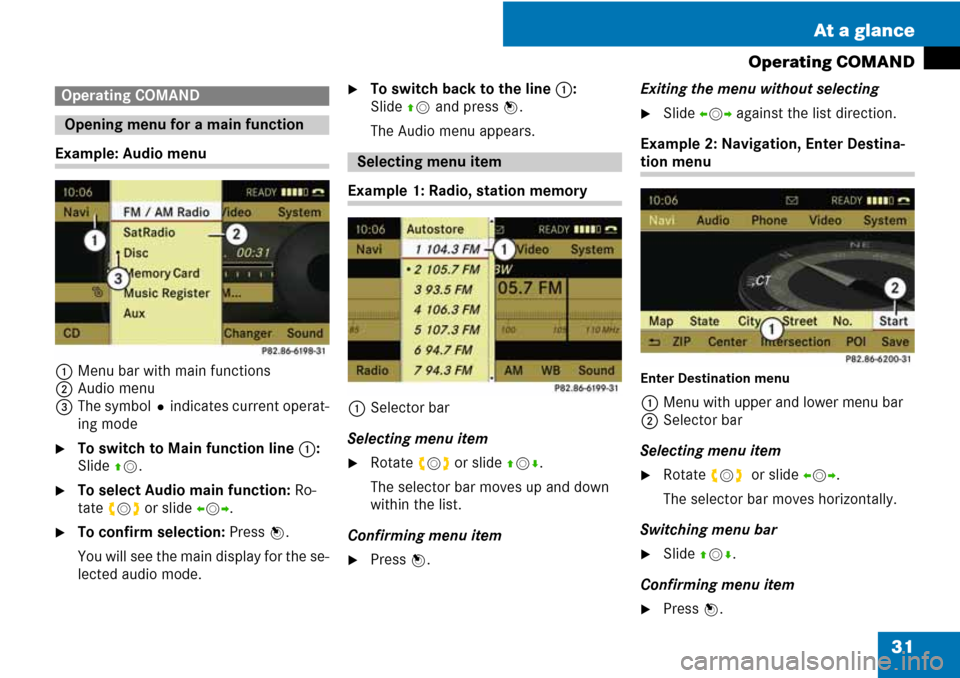
Example: Audio menu
1Menu bar with main functions
2Audio menu
3The symbolRindicates current operat-
ing mode
�To switch to Main function line 1:
Slide qm.
�To select Audio main function: Ro-
tate ymz or slide omp.
�To confirm selection: Press n.
You will see the main display for the se-
lected audio mode.
�To switch back to the line 1:
Slide qm and press n.
The Audio menu appears.
Example 1: Radio, station memory
1Selector bar
Selecting menu item
�Rotate ymz or slide qmr.
The selector bar moves up and down
within the list.
Confirming menu item
�Press n.Exiting the menu without selecting
�Slide omp against the list direction.
Example 2: Navigation, Enter Destina-
tion menu
Enter Destination menu
1Menu with upper and lower menu bar
2Selector bar
Selecting menu item
�Rotate ymz or slide omp.
The selector bar moves horizontally.
Switching menu bar
�Slide qmr.
Confirming menu item
�Press n.
Operating COMAND
Opening menu for a main function
Selecting menu item


