2008 HYUNDAI ENTOURAGE warning
[x] Cancel search: warningPage 186 of 393
Features of your vehicle170 3Reprogramming a single
HomeLink buttonTo program a device to HomeLink using
a HomeLink button previously trained,
follow these steps:
1. Press and hold the desired HomeLink
button. Do NOT release until step 4
has been completed.
2. When the indicator light begins to flash
slowly (after 20 seconds), position the
hand-held transmitter 1 to 3 inches
away from the HomeLink surface.
3. Press and hold the hand-held trans-
mitter button (or press and “cycle” - as
described in “Canadian Programming”
above).
4. The HomeLink indicator light will flash,
first slowly and then rapidly. When the
indicator light begins to flash rapidly,
release both buttons.
The previous device has now been
erased and the new device can be acti-
vated by pushing the HomeLink button
that has just been programmed. This pro-
cedure will not affect any other pro-
grammed HomeLink buttons.
Gate operator programming &
canadian programmingDuring programming, your hand-held
transmitter may automatically stop trans-
mitting. Continue to press and hold the
HomeLink button (note steps 2 through 4
in the “Programming” portion of this text)
while you press and re-press (“cycle”)
your handheld transmitter every two sec-
onds until the frequency signal has been
learned. The indicator light will flash
slowly and then rapidly after several sec-
onds upon successful training.
AccessoriesIf you would like additional information on
the HomeLink Wireless Control System,
HomeLink compatible products, or to
purchase other accessories such as the
HomeLink® Lighting Package, please
contact HomeLink at 1-800-355-3515 or
on the internet at www.homelink.com.
This device complies with Part 15 of
the FCC rules.Operation is subject to
the following two conditions:
1. This device may not cause harmful
interference, and
2. This device must accept any interfer-
ence received, including interference
that may cause undesired operation.
CAUTION
If programming a garage door
opener or gate, it is advised to
unplug the device during the
“cycling” process to prevent possi-
ble motor burn-up.
WARNING
The HomeLink transmitter has been
tested and complies with FCC and
DOC/MDC rules. Changes or modifi-
cations not expressly approved by
the party responsible for compli-
ance could void the user’s authority
to operate the equipment.
IC: 4112104541A Gentex
MODEL/FCC ID: NZLSTDHL3
Page 187 of 393
3 171
Features of your vehicle
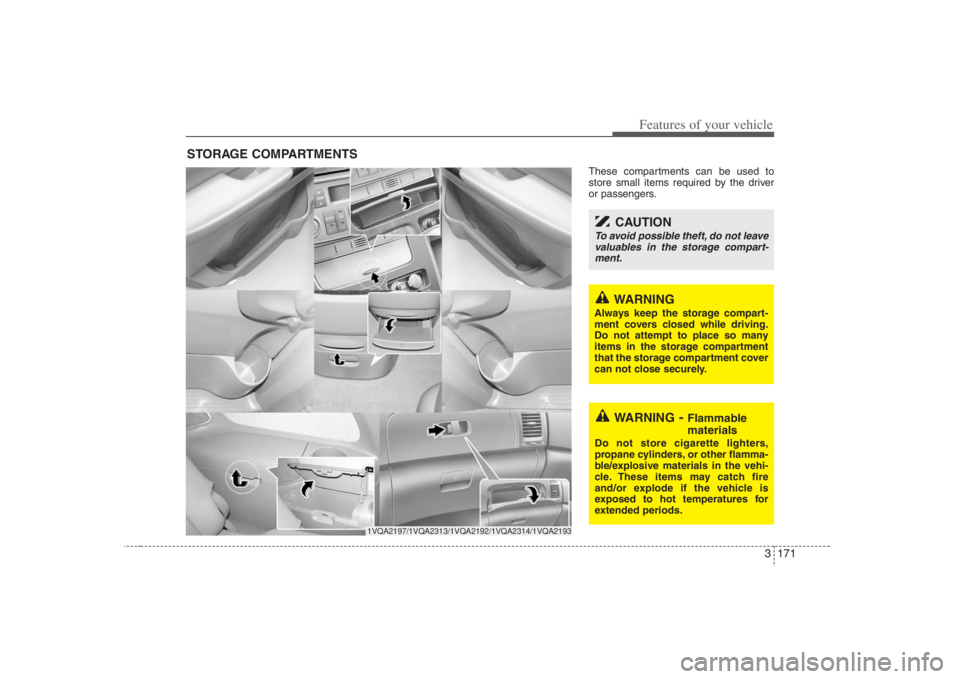
These compartments can be used to
store small items required by the driver
or passengers.
STORAGE COMPARTMENTS
WARNING
- Flammable
materials
Do not store cigarette lighters,
propane cylinders, or other flamma-
ble/explosive materials in the vehi-
cle. These items may catch fire
and/or explode if the vehicle is
exposed to hot temperatures for
extended periods.
WARNING
Always keep the storage compart-
ment covers closed while driving.
Do not attempt to place so many
items in the storage compartment
that the storage compartment cover
can not close securely.
1VQA2197/1VQA2313/1VQA2192/1VQA2314/1VQA2193
CAUTION
To avoid possible theft, do not leave
valuables in the storage compart-
ment.
Page 188 of 393
Features of your vehicle172 3Glove boxThe glove box can be locked and
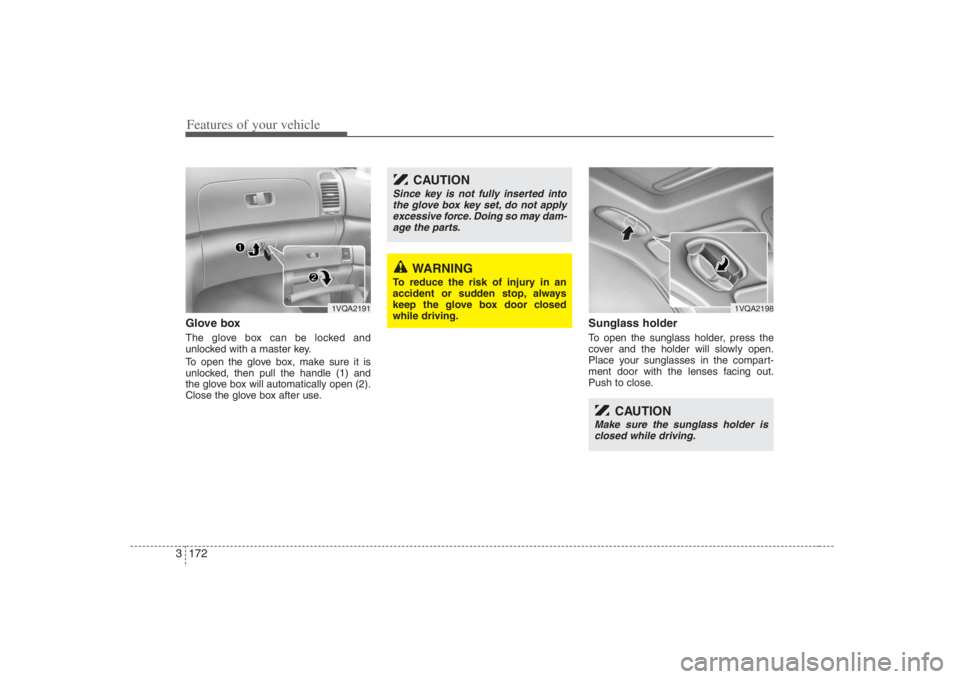
unlocked with a master key.
To open the glove box, make sure it is
unlocked, then pull the handle (1) and
the glove box will automatically open (2).
Close the glove box after use.
Sunglass holder To open the sunglass holder, press the
cover and the holder will slowly open.
Place your sunglasses in the compart-
ment door with the lenses facing out.
Push to close.
1VQA2191
WARNING
To reduce the risk of injury in an
accident or sudden stop, always
keep the glove box door closed
while driving.
CAUTION
Since key is not fully inserted into
the glove box key set, do not apply
excessive force. Doing so may dam-
age the parts.
1VQA2198
CAUTION
Make sure the sunglass holder is
closed while driving.
Page 190 of 393
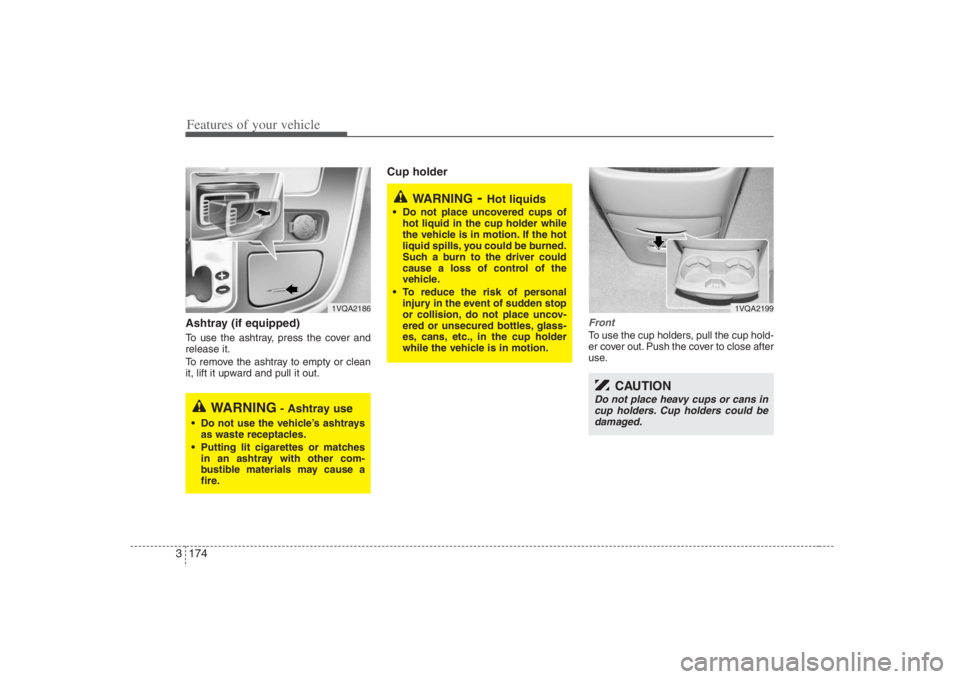
Features of your vehicle174 3Ashtray (if equipped)To use the ashtray, press the cover and
release it.
To remove the ashtray to empty or clean
it, lift it upward and pull it out.
Cup holder
FrontTo use the cup holders, pull the cup hold-
er cover out. Push the cover to close after
use.
1VQA2186
WARNING
- Ashtray use
Do not use the vehicle’s ashtrays
as waste receptacles.
Putting lit cigarettes or matches
in an ashtray with other com-
bustible materials may cause a
fire.
WARNING
- Hot liquids
Do not place uncovered cups of
hot liquid in the cup holder while
the vehicle is in motion. If the hot
liquid spills, you could be burned.
Such a burn to the driver could
cause a loss of control of the
vehicle.
To reduce the risk of personal
injury in the event of sudden stop
or collision, do not place uncov-
ered or unsecured bottles, glass-
es, cans, etc., in the cup holder
while the vehicle is in motion.
1VQA2199
CAUTION
Do not place heavy cups or cans in
cup holders. Cup holders could be
damaged.
Page 197 of 393
3181
Features of your vehicle
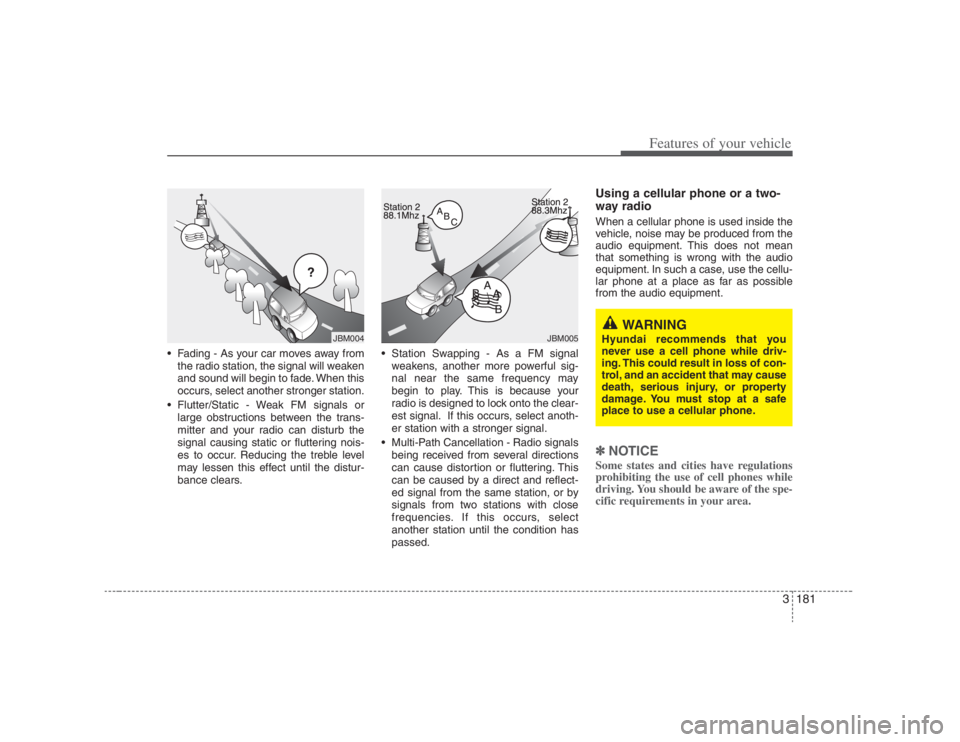
Fading - As your car moves away from
the radio station, the signal will weaken
and sound will begin to fade. When this
occurs, select another stronger station.
Flutter/Static - Weak FM signals or
large obstructions between the trans-
mitter and your radio can disturb the
signal causing static or fluttering nois-
es to occur. Reducing the treble level
may lessen this effect until the distur-
bance clears. Station Swapping - As a FM signal
weakens, another more powerful sig-
nal near the same frequency may
begin to play. This is because your
radio is designed to lock onto the clear-
est signal. If this occurs, select anoth-
er station with a stronger signal.
Multi-Path Cancellation - Radio signals
being received from several directions
can cause distortion or fluttering. This
can be caused by a direct and reflect-
ed signal from the same station, or by
signals from two stations with close
frequencies. If this occurs, select
another station until the condition has
passed.
Using a cellular phone or a two-
way radio When a cellular phone is used inside the
vehicle, noise may be produced from the
audio equipment. This does not mean
that something is wrong with the audio
equipment. In such a case, use the cellu-
lar phone at a place as far as possible
from the audio equipment.✽ ✽
NOTICESome states and cities have regulations
prohibiting the use of cell phones while
driving. You should be aware of the spe-
cific requirements in your area.
¢¢¢
JBM004
JBM005
WARNING
Hyundai recommends that you
never use a cell phone while driv-
ing. This could result in loss of con-
trol, and an accident that may cause
death, serious injury, or property
damage. You must stop at a safe
place to use a cellular phone.
Page 226 of 393
Features of your vehicle210 3Using the DVD playerDisc compatibilityYour RSE player accepts and plays all
DVDs in 4:3 (normal) and 16:9 (wide
screen) video formats. With DVDs that
offer multiple formats, the default format
is 16:9 and will stay that way unless the
user changes the format. (See “Display”
to learn how to adjust the format.)✽ ✽
NOTICE• The DVD player has the capability to
play DVD-Video, DVD-R, DVD-RW,
CD-DA, CD-R, CD-RW and Video-
CD.
• The DVD player has the capability to
play CD-DA, DVD, VCD, PCM,
Dolby Digital and DTS formats.
• Please refer to the appendix for the
error messages.Loading a DiscInsert the disc part way into the load slot.
The player will automatically grip the disc
and pull it in the rest of the way. The player
will display “reading” on the screen and
show the “Hyundai Motors” logo before
beginning the DVD.The player is only capable of reading the
bottom side of a disc. When inserting a
single-sided disc, the label side should be
up. When inserting a two-sided disc, the
desired play side should be down.
✽ ✽
NOTICE• Because there is no universal standard
for DVD programming, your disc may
behave differently than below. Some
DVDs may present warning messages
about unauthorized duplication, some
will go directly to a menu and others
may start playing the movie immedi-
ately.
• When the vehicle's ignition is active,
the loading of any playable disc will
cause the player to initialize and auto-
matically play the disc. If a disc was
playing prior to the ignition being
turned off, it will not automatically
replay once the ignition is turned on
again. Instead, it will go into standby
mode. Press the SRC or
PLAY/PAUSE( ) button to “wake
up” the unit and resume disc play.
Disc ProtectionThe player has an Auto-Reload Disc
Protection feature to protect discs from
accidental damage. If an ejected disc is
not removed within 25 seconds after being
ejected, it will be pulled back into the play-
er. The disc will not begin playing. Disc can
be played by the SRC or
PLAY/PAUSE( ) buttons.DVD ControlsYou can control your DVD by using the
buttons on the unit's control panel or by
using the remote control. Instructions for
the controls listed below are the same
whether you are using the control panel
or the remote control. However, there are
functions that are only available from the
remote control. These buttons and their
functionality are discussed in the
“REMOTE CONTROL” section begin-
ning.
Page 229 of 393
3213
Features of your vehicle
You have two options: 4:3 (normal) and
16:9 (widescreen). Press the display but-
ton to select the preferred aspect ratio.
When the RSE unit receives video sig-
nals from the AUX, the aspect ratio can
be changed to 16:9 or 4:3 by the DISP
button.
The aspect ratio information will auto-
matically disappear if no button is
pressed for three seconds.5. ForwardThere are three DVD and VCD fast for-
ward speeds. Press and hold the FWD
button for up to 2 seconds and the player
will fast forward at 4 times the normal
speed (8 times for VCDs). Hold the but-
ton for more than 2 seconds but less than
4 seconds and the player will fast forward
at about 8 times the normal speed (20
times for VCDs). Hold the button for more
than 4 seconds and the fast forward will
increase to about 32 times the normal
speed for both DVDs and VCDs. Press
the FWD button again to stop fast for-
warding and return to normal speed play.
6. ReverseThere are three DVD and VCD fast
reverse speeds. Press and hold the REV
button for up to 2 seconds and the player
will reverse through the DVD at 4 times
the normal speed (8 times for VCDs).
Hold the button for more than 2 seconds
but less than 4 seconds and the player
will reverse at about 8 times the normal
speed (20 times for VCDs). Hold the but-
ton for more than 4 seconds and the
reverse will increase to 32 times the nor-
mal speed for both DVDs and VCDs.
Press the REV button again to stop
reversing and return to normal speed
play.7. Next ChapterWhile a DVD is playing, press the NEXT
button to skip to the next chapter. The
current chapter number is shown on the
screen. Press and hold the NEXT button
to move quickly through the chapters.✽ ✽
NOTICEDepending on the DVD, if NEXT is
pressed during the last chapter on a
DVD, a red circle with a “Invalid
icon[: :
]” may be displayed, indicating
an invalid button press.
8. Previous ChapterPress the PREV button to skip to the
beginning of the previous chapter. Press
and hold the PREV button to move quick-
ly through the chapters.
Depending on your DVD, if the PREV
button is pressed during the first 8 sec-
onds of the first chapter, the player will
skip to the beginning of the last chapter
of the DVD.9. EnterA momentary press shall initiate a select
or enter function of a selected menu
item.10. Menu DVDs may contain special programming
or features that are accessed by using
the menu. To use the menu with a DVD
that is playing, press the MENU button
once to display the DVD disc menu.
Press the button a second time to exit the
menu and return to the DVD program.
The menu is not available during disc ini-
tialization, the beginning credits or any
copyright warnings.
Page 236 of 393
Features of your vehicle220 35. ForwardThere are three DVD and VCD fast for-
ward speeds. Press and hold the FWD
button for up to 2 seconds and the player
will fast forward at 4 times the normal
speed (8 times for VCDs). Hold the but-
ton for more than 2 seconds but less than
4 seconds and the player will fast forward
at about 8 times the normal speed (20
times for VCDs). Hold the button for more
than 4 seconds and the fast forward will
increase to about 32 times the normal
speed for both DVDs and VCDs. Press
the FWD button again to stop fast for-
warding and return to normal speed play.6. ReverseThere are three DVD and VCD fast
reverse speeds. Press and hold the REV
button for up to 2 seconds and the player
will reverse through the DVD at 4 times
the normal speed (8 times for VCDs).
Hold the button for more than 2 seconds
but less than 4 seconds and the player
will reverse at about 8 times the normal
speed (20 times for VCDs). Hold the but-
ton for more than 4 seconds and the
reverse will increase to 32 times the nor-
mal speed for both DVDs and VCDs.
Press the REV button again to stop
reversing and return to normal speed
play.
7. Next While a DVD is playing, press the NEXT
button to skip to the next chapter. The
current chapter number is shown on the
screen. Press and hold the NEXT button
to move quickly through the chapters.✽ ✽
NOTICEDepending on the DVD, if NEXT is
pressed during the last chapter on a
DVD, a red circle with a “Invalid
icon[: :
]” may be displayed, indicating
an invalid button press.8. PreviousPress the PREV button to skip to the
beginning of the previous chapter. Press
and hold the PREV button to move quick-
ly through the chapters.
Depending on your DVD, if the PREV
button is pressed during the first 8 sec-
onds of the first chapter, the player will
skip to the beginning of the last chapter
of the DVD.
9. EnterA momentary press shall initiate a select
or enter function of a selected menu
item.10. Menu DVDs may contain special programming
or features that are accessed by using the
menu. To use the menu with a DVD that is
playing, press the MENU button once to
display the DVD disc menu. Press the but-
ton a second time to exit the menu and
return to the DVD program.
The menu is not available during disc ini-
tialization, the beginning credits or any
copyright warnings.
When viewing a menu, pressing the
MENU button again will automatically
return to the movie at the point it was
being viewed. You can also select “play” or
any other option by using the NEXT,
PREV, FWD and REV buttons.
Press the NEXT button to move the cursor
up and the PREV button to move the cur-
sor down the menu.
Press the FWD button to move the cursor
to the right, and the REV button to move
the cursor to the left.