2008 HONDA CR-V check
[x] Cancel search: checkPage 45 of 145

Navigation System45
Driving to Your Destination
Changing the Routing Method
The system lets you select the way you
want to drive to your destination. Select
the desired method using the CHANGE
METHOD scroll bar back ( ) or
forward ( ) buttons. “Direct Route” (the factory default) is
the route that is the quickest (least
time) and is usually the best choice. If
you choose any other method, it
becomes the new default for all future
routing. Make sure to check the
routing method if the displayed route
is not what you expected to see.
“Easy Route” produces a route with the least turns.
“Maximize Freeways,” “Minimize Freeways,” and “Minimize Toll
Roads” are also available.
NOTE:
If the trip is greater than 100 miles, then
“Minimize Freeways” and “Minimize
Toll Roads” may be grayed out. This is
normal. The generated route may not be the
route you would choose. For safety
reasons, the system
generally applies the
following rules to your route:
It tries to avoid “short cuts” through residential areas.
Right turns are favored over left turns or U-turns.
Restricted turns (turns that cannot be made during certain hours), are not
used for routing during any time of
the day.
2008 CR- V
Page 61 of 145

Navigation System61
Driving to Your Destination
Pop-ups and Disclaimers
When you say “OK” in the Calculate
Route to screen, or if you change your
route, the system checks your route and
provides you with “pop-up” messages
for the following situation:
Your route takes you into an area that you previously set as an “Avoid
Area” (see Edit Avoid Area on
page85). Your route passes near an unverified
area (see Unverified Area Routing on
page81).
Your route includes unverified areas (see Unverified Area Routing on
page81). You are about to enter an unverified
area (see Unverified Area Routing on
page81).
You actually ente red an unverified
area (see Unverified Area Routing on
page81).
2008 CR- V
Page 88 of 145
88Navigation System
System Set-up
For “Places Along the Route,” the
system looks in fron t of you within a
corridor width specified by your values
for “On Freeways” or “On Surface
Street.” The system checks the
upcoming area, based on your input.
For “Places Around the Destination,”
the system searches outwards in a spiral
from the destination. In this case,
specific search values are not needed;
the matches are displayed in order of
distance from destination.
NOTE:
These settings do not affect the search
range used for the voice commands like,
“Find nearest gas station,” that are
also available wh en viewing the map
screen.Guidance Mode
Allows you to select the guidance
display mode: Single Screen or Split
Screen .
To get to Guidance Mode from the
Setup screen, select in sequence,
“More,” “Routing & Guidance,” and
“Guidance Mode.”
The default setting is Single Screen.
NOTE:
The Guidance Mode can also be
selected on the Icon Selection screen.
See Showing Icons on the Map on
page57.
Vehicle
From the Setup screen (second), say or
select Vehicle and the following screen
appears:
Off-road Tracking
With this On, the system will provide
white off-road tracking dots
(“breadcrumbs”) on the map screen
whenever you drive into an area where
the map does not show any roads.
2008 CR- V
Page 96 of 145
96Navigation System
System Initialization
GPS Initialization
Depending on the length of time the
battery was disconnected, your system
may require GPS initialization. If it
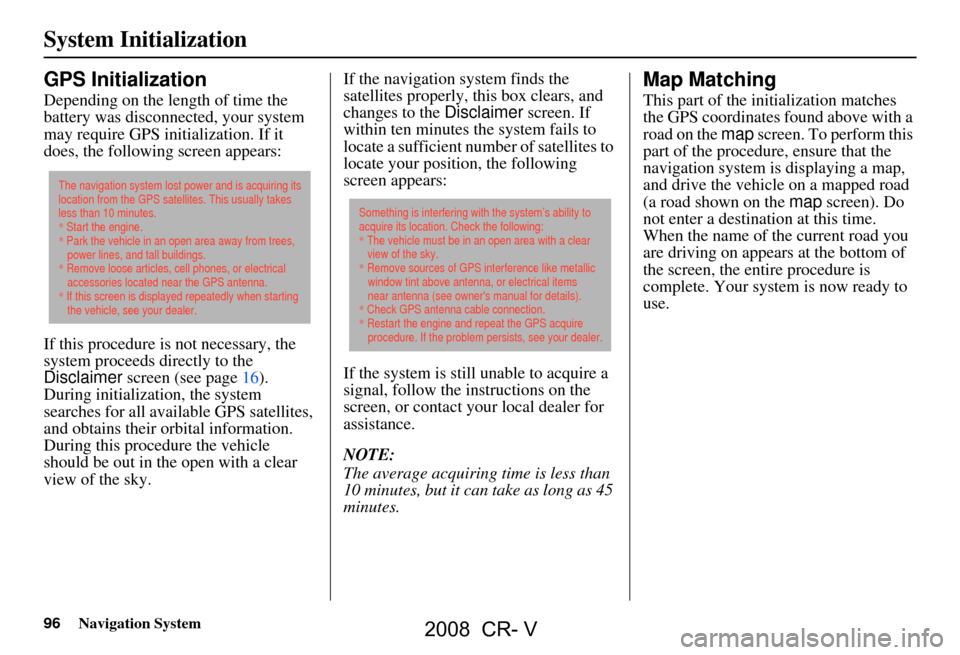
does, the following screen appears:
If this procedure is not necessary, the
system proceeds directly to the
Disclaimer screen (see page16).
During initialization, the system
searches for all available GPS satellites,
and obtains their orbital information.
During this procedure the vehicle
should be out in th e open with a clear
view of the sky. If the navigation system finds the
satellites properly, this box clears, and
changes to the
Disclaimer screen. If
within ten minutes the system fails to
locate a sufficient number of satellites to
locate your position, the following
screen appears:
If the system is still unable to acquire a
signal, follow the instructions on the
screen, or contact you r local dealer for
assistance.
NOTE:
The average acquiring time is less than
10 minutes, but it can take as long as 45
minutes.
Map Matching
This part of the initialization matches
the GPS coordinates found above with a
road on the map screen. To perform this
part of the procedure, ensure that the
navigation system is displaying a map,
and drive the vehicle on a mapped road
(a road shown on the map screen). Do
not enter a destina tion at this time.
When the name of the current road you
are driving on appears at the bottom of
the screen, the entire procedure is
complete. Your system is now ready to
use.
The navigation system lost power and is acquiring its
location from the GPS satellites. This usually takes
less than 10 minutes.
* Start the engine.
* Park the vehicle in an open area away from trees,
power lines, and tall buildings.
* Remove loose articles, cell phones, or electrical
accessories located near the GPS antenna.
* If this screen is displayed repeatedly when starting
the vehicle, see your dealer.
Something is interfering with the system’s ability to
acquire its location. Check the following:
* The vehicle must be in an open area with a clear
view of the sky.
* Remove sources of GPS interference like metallic
window tint above antenna, or electrical items
near antenna (see owner's manual for details).
* Check GPS antenna cable connection.
* Restart the engine and repeat the GPS acquire
procedure. If the problem persists, see your dealer.
2008 CR- V
Page 99 of 145
Navigation System99
Database Limitations
You will find that some points of
interest (POI) may be missing when you
search the database. This can be caused
if at the time the database was gathered,
the name was misspelled, the place was
improperly categorized, or the POI
change is not yet in the database. This
means you may not find places listed
that you know exist. This is also true for
police agencies and hospitals. In
outlying areas, facilities listed may not
be the closest. Always check with local
information sources if you need law
enforcement or hospital services.
Every effort has been made to verify
that the system’s database was accurate
at the time it was created. However,
businesses do fail or move to new
locations, and new businesses start in
the old locations. For this reason, you
may occasionally find “inaccurate”
information when you select and drive
to a point of interest (for example, a
restaurant is now a jewelry store). The
number of these inaccuracies increases
the longer you go without an update. The digitized map database reflects
conditions as they existed at various
points in time before production.
Accordingly, your
DVD may contain
inaccurate or inco mplete data or
information due to the passage of time,
road construction, ch anging conditions,
or other causes.
Due to ongoing software and database
improvements, navigation disc versions
may change in the middle of a
production year. The version shipped
with your vehicle was the most recent
available at the time of production, and
is considered standard equipment for
that vehicle. There is no free program to
retrofit early production vehicles with
the latest disc. For DVD ordering
information, see page102. In addition, this database does not
include, analyze, proc
ess, consider, or
reflect any of the following categories
of information:
Neighborhood quality or safety
Population density
Availability or proximity of law enforcement
Emergency, rescue, medical, or other assistance
Construction work, zones, or hazards
Road and lane closures
Legal restrictions (such as vehicular type, weight, load, height, and speed
restrictions)
Road slope or grade
Bridge height, width, weight, or other limits
Road, traffic or traffic facilities safety, or conditions
2008 CR- V
Page 123 of 145

Navigation System123
Frequently Asked Questions
I insert a PC card with music files, but the CARD button or
navi “PC Card” voice commands do not work. What’s
wrong? After inserting the card, a delay of
up to 30 seconds may be required to
read the tag information (album, artist , and track names) - this is normal.
Ensure that the music files on the media chip are either the WMA or MP3 music format. Other formats are not recognized.
Some downloaded WMA and MP3 files are copy protected, and require
that the copyright authentication f iles accompany the MP3/WMA files on
the Card.
Media types, and media capacity continues to grow. As a rule stick to
Compact Flash or SD media with capaci ties of 2GB or less. Other types of
media, or larger capacities may work, but have not been tested.
Single type media PC Card adapto rs are recommended over multi-media
type adaptors.
Ensure that there are files on the card . For SD and other media with a write
lock switch, ensure that the write protect is off when adding files to the
card.
The system only recognizes the FAT, and FAT-32 file format for the
media.
Some of the files on the PC card will not play, or I have an 8
GB card with 2500 songs, but only 999 play. Why is this? The quantity of tracks is limited to
999 tracks, and a file structure of up to
8 folder levels deep. Tracks beyond 999 are simply not recognized.
Ensure that the music files on the media chip are either the WMA or MP3 music format. Other formats are not recognized.
When I eject the media chip, but leave the empty adaptor in
the PC card slot, the display door will not close. Why is this? To prevent damage to the display mechanism or your PC card/media chip,
the system checks for a partially inserted PC card, and a partially inserted
media chip. Always remove the PC ca
rd and media chip when not in use.
Problem
Solution
2008 CR- V
Page 127 of 145

Navigation System127
Troubleshooting
* If the error persists, or is shown for a wide area, see your dealer.
Screen Error Message Solution
Navigation system is unable to acquire a pr oper GPS signal. Make sure there is nothing on the dash blocking the GPS antenna, suc h as
after-market metallic window tinting or after-market devices placed on the
dash, like radar detectors, cell phones, or loose ite ms. If the dashboard is
clear of objects, move the vehicle to an open space away from tall buildings,
trees, etc.
Navigation unit door is open or No DVD disc is inserted.
Please check system. Make sure that the navigation DVD disc
is inserted with the label side up
and the navigation unit door is fully snapped closed (see page103).
No DVD disc. Please check system. Check that the navigation DVD disc is in serted with the label side up (see
page103). If the problem persists, see your dealer.
Display temp is too high. Syst em will shut down until display
cools down. This message will appear briefly when
the display temperature is too high,
and then the display will turn off until the temperature cools down. The
system will turn back on when the display cools down.
DVD disc reading error (unfor matted). Please consult your
dealer. Check the DVD disc surface
for deep scratches or other damage. Make sure
you are using a Navigation DVD (turquoise [blue/green] colored label). The
system cannot read other mapping data bases or video DVDs. If the problem
persists, see your dealer.
Route has not been complete d. Please try again from a
different location. This message will appear when you are routing to or from a place (new
area) that is not in the database. Try
planning a different route to or from a
different location.*
No alternate route found. Origin al route will be followed. No alternative route method was f ound. The original route method will be
used.*
Ensure that a road name is di splayed at the bottom of the map.
This destination cannot be found in da tabase.The destination was not found in the database. Try another destination
nearby, or select the des tination with the joystick.*
Vehicle is out of the databa se coverage area. The vehicle is located outside of the mapped area provided by your
navigation DVD. See pa ge106 for map coverage.
2008 CR- V
Page 133 of 145

Navigation System133
Voice Command Index
Find Place Commands
The system accepts these commands on
a map/guidance screen.
Find nearest: (find the nearest
selection)
ACURA dealers
HONDA dealers
gas station
hydrogen station
ATM
bank
post office
hospital
police station
hotel
tourist attraction
restaurant (all restaurant types)
American restaurant
Chinese restaurant
fast food
Italian restaurant
Japanese restaurant
Mexican restaurant
seafood restaurant
shopping (all shopping types)
parking garage parking lot
other car dealers
auto parts & electronics
auto repair & maintenance
car wash & detailing
motorcycle dealers
roadside assistance
check cashing
currency exchange
veterinarian
Korean restaurant
California restaurant
continental restaurant
French restaurant
German restaurant
Greek restaurant
Indian restaurant
Thai restaurant
vegetarian restaurant
Vietnamese restaurant
other restaurant
business
civic center
convention center
library
schoolcity hall
court house
higher education
amusement park
golf course
historical monument
marina
movie theater
museum
park
performing arts
sports complex
bed & breakfast
accessory store
book store
clothing store
grocery store
home improvement store
mall
office supply store
pharmacy
pet food store
sewing store
shoe store
sporting goods store
toy store
2008 CR- V