Page 292 of 531

additional three seconds will make the radio display the
Song Title all of the time (press and hold again to return
to normal display).
INFO Button Ð REU Radio
Pressing the INFO button will display information about
Artist, Song Title, and Composer (if available). Pressing
the INFO button again will close the INFO screen.
RW/FF
Pressing the RW (Rewind) or FF (Fast Forward) buttons
causes the tuner to search for the next channel in the
direction of the arrows.
TUNE Control (Rotary)
Turn the rotary Tune/Scroll control knob clockwise to
increase or counterclockwise to decrease the channel.
MUSIC TYPE Button Ð Except REU Radio
Pressing this button once will turn on the Music Type
mode for five seconds. Pressing the MUSIC TYPE buttonor turning the Tune/Scroll control knob within five
seconds will allow the program format type to be se-
lected.
Toggle the MUSIC TYPE button again to select the music
type.
By pressing the SEEK button when the Music Type
function is active, the radio will be tuned to the next
channel with the same selected Music Type name.
If a preset button is activated while in the Music Type
(Program Type) mode, the Music Type mode will be
exited and the radio will tune to the preset channel.
MUSIC TYPE Button Ð REU Radio
Pressing this button provides a MUSIC TYPES list from
which you can make a selection. Once a selection is
made, you can seek up, or down, or scan the channels
and the radio will tune to the next station matching the
selected format. There is no time-out for this screen.
290 UNDERSTANDING YOUR INSTRUMENT PANEL
Page 293 of 531
Pressing the MUSIC TYPE button again will close the
MUSIC TYPE screen. Once closed, seek up, seek down,
and scan will no longer be based on your selection.
SETUP Button
Pressing the SETUP button allows you to select the
following items:
²Display Sirius ID number Ð Press the AUDIO/
SELECT button to display the Sirius ID number. This
number is used to activate, deactivate, or change the
Sirius subscription.
SET Button ± To Set the Pushbutton Memory
When you are receiving a channel that you wish to
commit to pushbutton memory, press the SET button.
The symbol SET 1 will now show in the display window.
Select the button (1-6) you wish to lock onto this channel
and press and release that button. If a button is notselected within five seconds after pressing the SET but-
ton, the channel will continue to play but will not be
stored into pushbutton memory.
You may add a second channel to each pushbutton by
repeating the above procedure with this exception: Press
the SET button twice and SET 2 will show in the display
window. Each button can be set for SET 1 and SET 2. This
allows a total of 12 Satellite channels to be stored into
pushbutton memory. The channels stored in SET 2
memory can be selected by pressing the pushbutton
twice.
Every time a preset button is used, a corresponding
button number will display.
Buttons1-6
These buttons tune the radio to the channels that you
commit to pushbutton memory (12 Satellite stations).
UNDERSTANDING YOUR INSTRUMENT PANEL 291
4
Page 295 of 531
Connecting The iPodTDevice
Use the optional connection cable to connect an iPodtto
the vehicle's UCI connector (which is located in the glove
box or center console on some vehicles. This location may
vary with vehicle). Once the iPodtis connected and
synchronized to the vehicle system (this may take a few
seconds to connect), the vehicle brand logo appears on
the iPodtdisplay, and it starts charging and is ready for
use by pressing radio switches as described below.
Controlling The iPodTUsing Radio Buttons
To get into the UCI (iPodt) mode and access a connected
iPodt, press the AUX button on the radio faceplate. Once
in the UCI (iPodt) mode, the iPodtaudio track (if
available from iPodt) will start playing over the vehicle
audio system.
Play Mode
When switched to UCI mode the iPodtwill be in Play
mode. In Play mode, you may use the following buttons
on the radio faceplate to control the iPodtand display
data:
Tune/Scroll Knob
Use the Tune/Scroll knob to go to the next or previous
track.
The Tune/Scroll knob functions similar to the scroll
wheel on the iPodtmobile digital device.
Turning it clockwise (forward) by one click while playing
a track skips to the next track.
Turning it counterclockwise (backward) by one click
during the first two seconds of the track will jump to the
previous track in the list and turning this button at any
other time in the track will jump to the beginning of the
current track.
UNDERSTANDING YOUR INSTRUMENT PANEL 293
4
Page 297 of 531
SCAN Button
Pressing the SCAN button will play the first five seconds
of each track in the current list and then forward to the
next song. To stop the SCAN mode and start playing the
desired track, press the SCAN button again.
During the SCAN mode, you can also press the SEEK
button to the left or right to go to the previous or next
tracks.
RND (Random) Button (RES/REL Radios Only)
Pressing the RND button will switch between the shuffle
on and shuffle off modes of the iPodt. If the RND icon is
showing on the radio display then the Shuffle mode is on.
List or Browse Mode
During Play mode, pressing any of the following buttons
will take you to List mode. List mode enables you to
scroll through the list of menus and tracks on the iPodt
device.Tune/Scroll Knob
In the List mode, the Tune/Scroll knob functions in a
similar manner as the scroll wheel on the iPodt.
Turning the Tune/Scroll knob clockwise (forward) and
counterclockwise (backward) scrolls through lists, dis-
playing the track detail on the radio display. Once you
have the track to be played highlighted on the radio
display, press the Tune/Scroll knob to select and start
playing the track. By turning the Tune/Scroll knob fast,
you can jump through the list faster. During fast scroll,
you may notice a slight delay in updating the informa-
tion on the radio display.
During all List modes, the iPodtwill display all lists in
ªwrap-aroundº mode. So if the track you wish to select is
at the bottom of the list, you just turn the Tune/Scroll
knob backward (counterclockwise) to get to the track
faster.
UNDERSTANDING YOUR INSTRUMENT PANEL 295
4
Page 301 of 531
RADIO OPERATION AND CELLULAR PHONES
Under certain conditions, the cellular phone being ON in
your vehicle can cause erratic or noisy performance from
your radio. This condition may be lessened or eliminated
by relocating the cellular phone antenna. This condition
is not harmful to the radio. If your radio performance
does not satisfactorily ªclearº by the repositioning of the
antenna, it is recommended that the radio volume be
turned down or off during cellular phone operation.
REMOTE SOUND SYSTEM CONTROLS Ð IF
EQUIPPED
The remote sound system controls are located on the rear
surface of the steering wheel at the 3 and 9 O'clock
positions.
The right-hand rocker switch has a push button in the
center and controls the volume and mode of the sound
system. Pressing the top of the rocker switch will increase
the volume. Pressing the bottom of the rocker switch willdecrease the volume. Pressing the center button changes
the operation of the radio from AM to FM or Tape to CD
mode depending on which radio is in the vehicle.
The left-hand rocker switch has a push button in the
center. The function of the left-hand switch is different
depending on which mode you are in.
The following describes the left hand rocker switch
operation in each mode:
Radio Operation
Pressing the top of the switch will SEEK up for the next
listenable station and pressing the bottom of the switch
will SEEK down for the next listenable station.
The button located in the center of the left hand switch
will tune to the next pre-set station that you have
programmed in the radio pre-set push-button.
UNDERSTANDING YOUR INSTRUMENT PANEL 299
4
Page 304 of 531
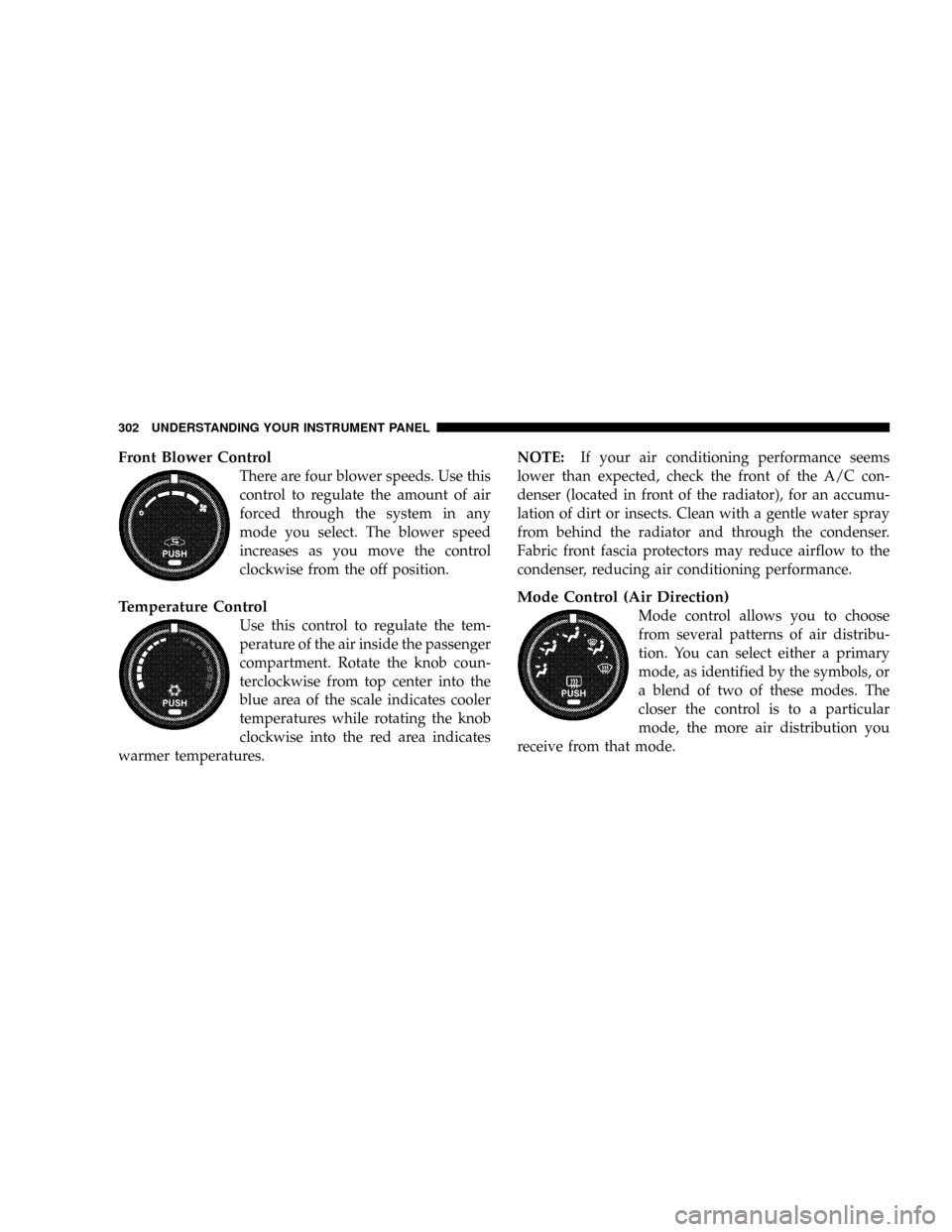
Front Blower Control
There are four blower speeds. Use this
control to regulate the amount of air
forced through the system in any
mode you select. The blower speed
increases as you move the control
clockwise from the off position.
Temperature Control
Use this control to regulate the tem-
perature of the air inside the passenger
compartment. Rotate the knob coun-
terclockwise from top center into the
blue area of the scale indicates cooler
temperatures while rotating the knob
clockwise into the red area indicates
warmer temperatures.NOTE:If your air conditioning performance seems
lower than expected, check the front of the A/C con-
denser (located in front of the radiator), for an accumu-
lation of dirt or insects. Clean with a gentle water spray
from behind the radiator and through the condenser.
Fabric front fascia protectors may reduce airflow to the
condenser, reducing air conditioning performance.
Mode Control (Air Direction)
Mode control allows you to choose
from several patterns of air distribu-
tion. You can select either a primary
mode, as identified by the symbols, or
a blend of two of these modes. The
closer the control is to a particular
mode, the more air distribution you
receive from that mode.
302 UNDERSTANDING YOUR INSTRUMENT PANEL
Page 306 of 531
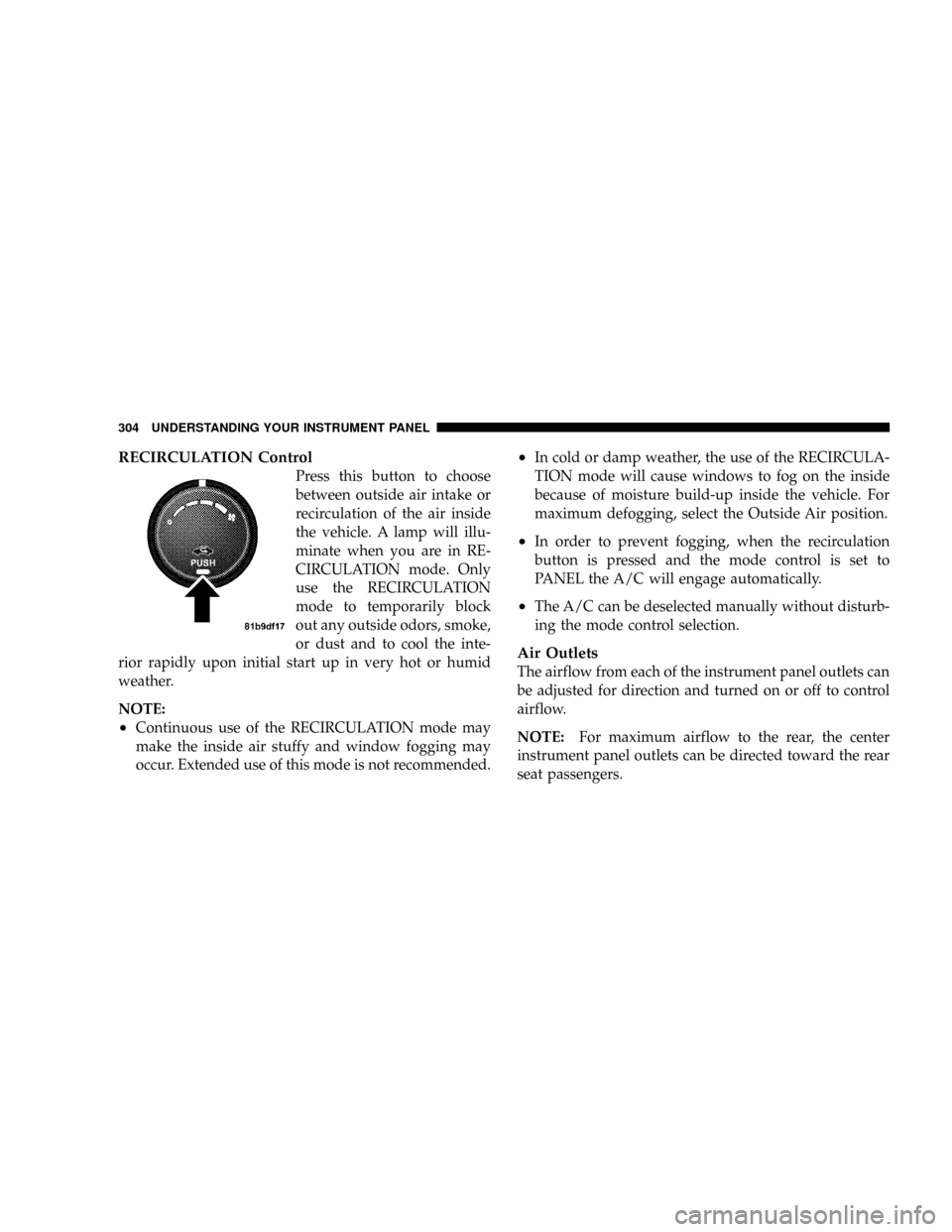
RECIRCULATION Control
Press this button to choose
between outside air intake or
recirculation of the air inside
the vehicle. A lamp will illu-
minate when you are in RE-
CIRCULATION mode. Only
use the RECIRCULATION
mode to temporarily block
out any outside odors, smoke,
or dust and to cool the inte-
rior rapidly upon initial start up in very hot or humid
weather.
NOTE:
²Continuous use of the RECIRCULATION mode may
make the inside air stuffy and window fogging may
occur. Extended use of this mode is not recommended.
²In cold or damp weather, the use of the RECIRCULA-
TION mode will cause windows to fog on the inside
because of moisture build-up inside the vehicle. For
maximum defogging, select the Outside Air position.
²In order to prevent fogging, when the recirculation
button is pressed and the mode control is set to
PANEL the A/C will engage automatically.
²The A/C can be deselected manually without disturb-
ing the mode control selection.
Air Outlets
The airflow from each of the instrument panel outlets can
be adjusted for direction and turned on or off to control
airflow.
NOTE:For maximum airflow to the rear, the center
instrument panel outlets can be directed toward the rear
seat passengers.
304 UNDERSTANDING YOUR INSTRUMENT PANEL
Page 309 of 531
The primary control for the rear blower is on the front
climate control unit located on the instrument panel.
The front climate control unit has five positions, off, rear,
and a range of blower speeds. Only when the primary
control for the rear blower is in the REAR position do the
second seat occupants have control of the rear blower
speed.
REAR MANUAL CLIMATE CONTROL ZONE Ð IF
EQUIPPED
The Rear Manual Climate Control Zone system has floor
air outlets at the rear of the right side sliding door and
overhead outlets at each outboard rear seating position.
The unit provides warm or cool air through the floor and
upper outlets.
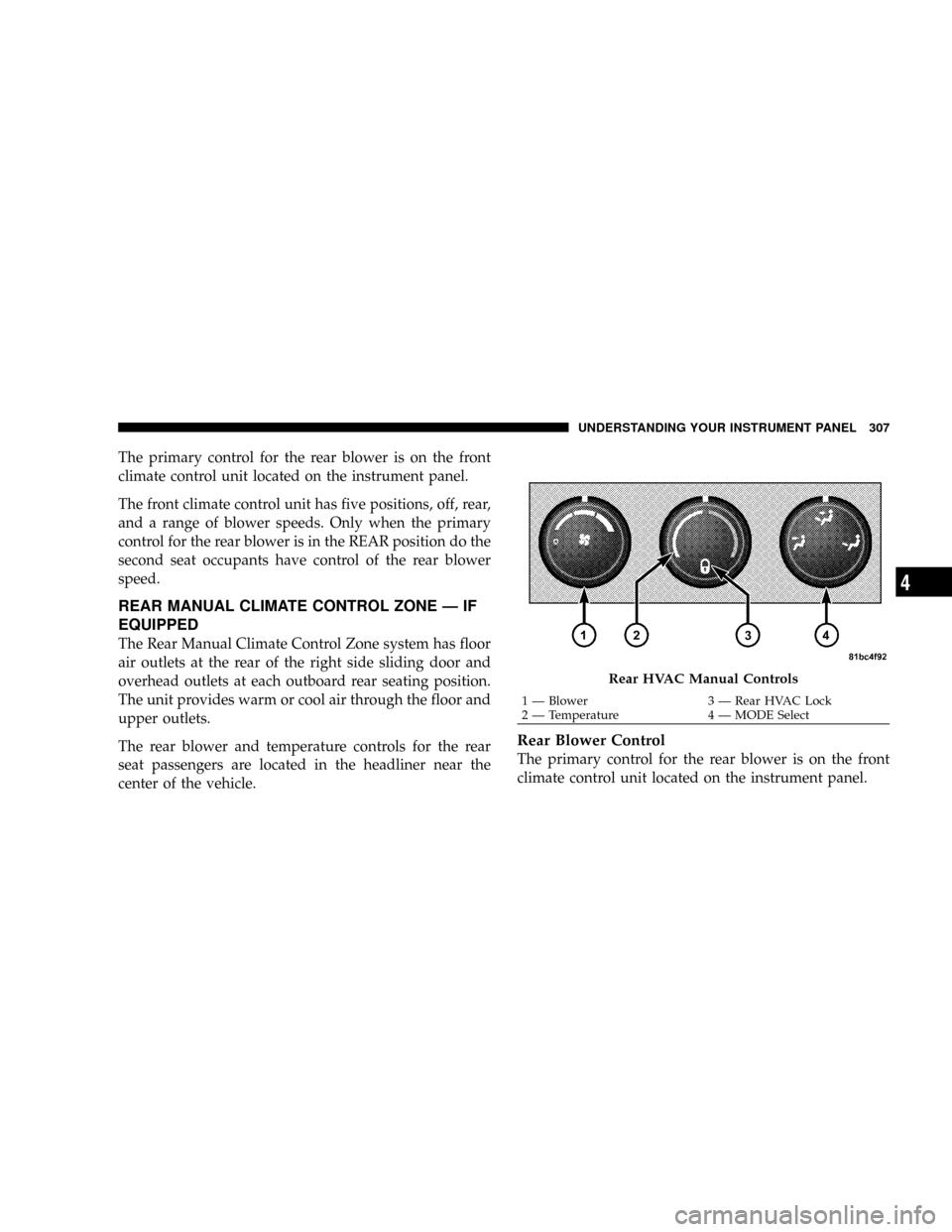
The rear blower and temperature controls for the rear
seat passengers are located in the headliner near the
center of the vehicle.
Rear Blower Control
The primary control for the rear blower is on the front
climate control unit located on the instrument panel.
Rear HVAC Manual Controls
1 Ð Blower 3 Ð Rear HVAC Lock
2 Ð Temperature 4 Ð MODE SelectUNDERSTANDING YOUR INSTRUMENT PANEL 307
4