Page 196 of 466

Phone Button (UConnectŸ Hands Free Phone) Ð
If Equipped
Press this button to operate the Hand Free Phone (UCon-
nectŸ) feature (if equipped). Refer to ªHands-Free Com-
munication (UConnectŸ)º in Section 3 for more informa-
tion.
If your vehicle is not equipped with or this feature is not
available on your vehicle, a ªUConnectŸ System Not
Availableº message will display on the radio screen.
TIME Button
Press the TIME button and the time of day will display. In
AM or FM mode, pressing the TIME button will switch
between the time and frequency displays.
Clock Setting Procedure
1. Press and hold the TIME button, until the hours blink.
2. Adjust the hours by turning the right side TUNE
control knob.3. After adjusting the hours, press the right side TUNE
control knob to set the minutes. The minutes will begin to
blink.
4. Adjust the minutes using the right side TUNE control
knob. Press the TUNE control knob to save time change.
5. To exit, press any button/knob or wait 5 seconds.
The clock can also be set by pressing the SETUP button
and selecting the ªSET HOME CLOCKº entry. Once in
this display follow the above procedure, starting at step
2.
INFO Button (Radio Mode)
Press the INFO button for an RDS station (one with call
letters displayed). The radio will return a Radio Text
message broadcast from an FM station (FM mode only).
196 UNDERSTANDING YOUR INSTRUMENT PANEL
Page 197 of 466

RW/FF (Radio Mode)
Pressing the rewind or fast forward button causes the
tuner to search for the next frequency in the direction of
the arrows. This feature operates in either AM, FM or
Satellite (if equipped) frequencies.
TUNE Control (Radio Mode)
Turn the right side rotary control clockwise to increase or
counter-clockwise to decrease the frequency.
Setting the Tone, Balance, and Fade
Press the rotary TUNE control knob and BASS will
display. Turn the TUNE control knob to the right or left to
increase or decrease the Bass tones.
Press the rotary TUNE control knob a second time and
MID will display. Turn the TUNE control knob to the
right or left to increase or decrease the Mid Range tones.Press the rotary TUNE control knob a third time and
TREBLE will display. Turn the TUNE control knob to the
right or left to increase or decrease the Treble tones.
Press the rotary TUNE control knob a fourth time and
BALANCE will display. Turn the TUNE control knob to
the right or left to adjust the sound level from the right or
left side speakers.
Press the rotary TUNE control knob a fifth time and
FADE will display. Turn the TUNE control knob to the
left or right to adjust the sound level between the front
and rear speakers.
Press the rotary TUNE control knob again to exit setting
tone, balance, and fade.
MUSIC TYPE Button (Radio Mode)
Pressing this button once will turn on the Music Type mode
for 5 seconds. Pressing the Music Type button or turning
the TUNE control knob within 5 seconds will allow the
UNDERSTANDING YOUR INSTRUMENT PANEL 197
4
Page 198 of 466
program format type to be selected. Many radio stations do
not currently broadcast Music Type information.
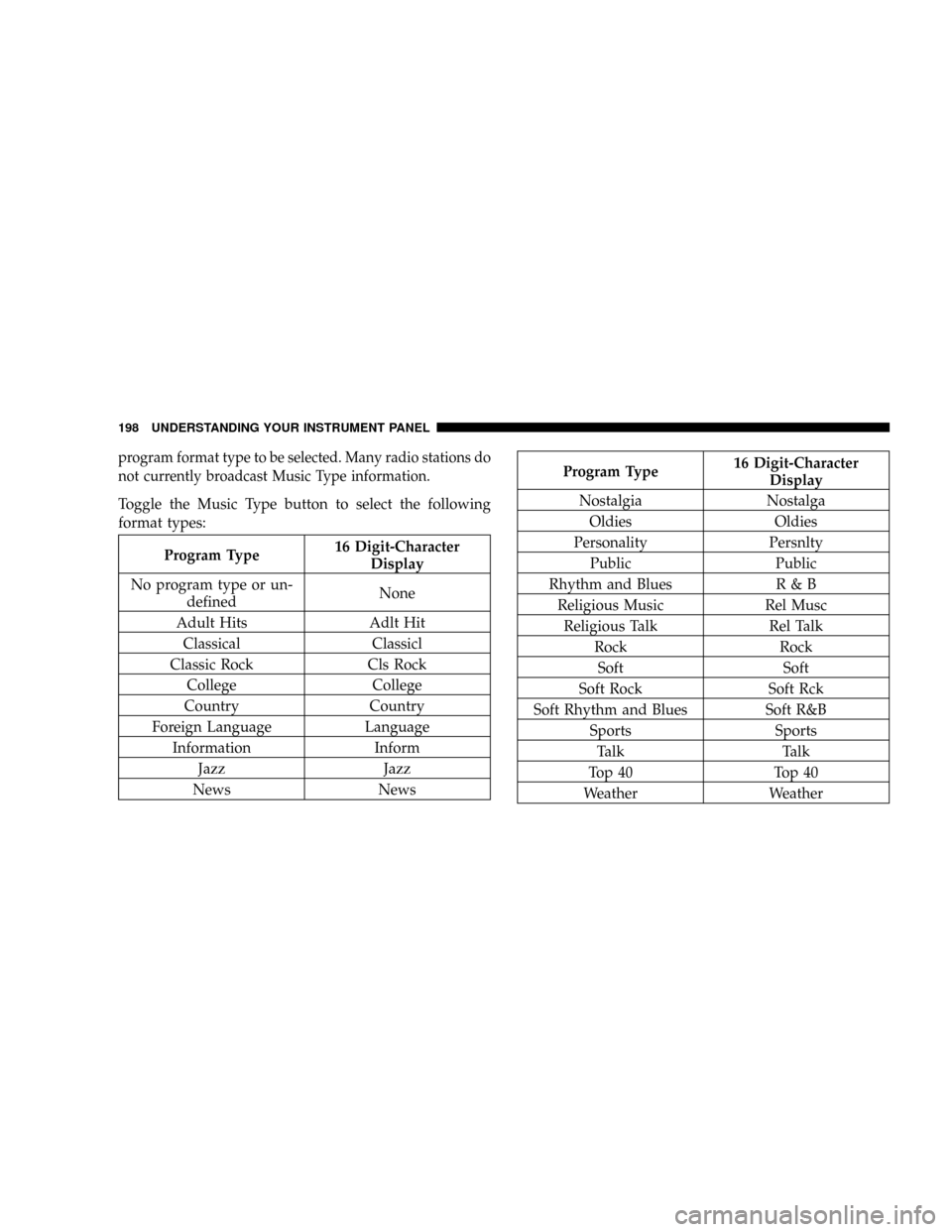
Toggle the Music Type button to select the following
format types:
Program Type16 Digit-Character
Display
No program type or un-
definedNone
Adult Hits Adlt Hit
Classical Classicl
Classic Rock Cls Rock
College College
Country Country
Foreign Language Language
Information Inform
Jazz Jazz
News News
Program Type16 Digit-Character
Display
Nostalgia Nostalga
Oldies Oldies
Personality Persnlty
Public Public
Rhythm and Blues R & B
Religious Music Rel Musc
Religious Talk Rel Talk
Rock Rock
Soft Soft
Soft Rock Soft Rck
Soft Rhythm and Blues Soft R&B
Sports Sports
Talk Talk
Top 40 Top 40
Weather Weather
198 UNDERSTANDING YOUR INSTRUMENT PANEL
Page 199 of 466

By pressing the SEEK button when the Music Type icon
is displayed, the radio will be tuned to the next frequency
station with the same selected Music Type name. The
Music Type function only operates when in the FM
mode.
If a preset button is activated while in the Music Type
(Program Type) mode, the Music Type mode will be
exited and the radio will tune to the preset station.
SETUP Button
Pressing the SETUP button allows you to select between
the following items:
NOTE:Use the Tune Control Knob to scroll through the
entries. Push the Audio/Select button to select an entry
and make changes.
²DVD Enter -When the disc is in DVD Menu mode,
selecting DVD Enter will allow you to play the current
highlighted selection. Use the remote control to scroll
up and down the menu (If Equipped).
²DISC Play/Pause -You can toggle between
playing the DVD and pausing the DVD by
pushing the SELECT button (If Equipped).
²DVD Play Options -Selecting the DVD Play Options
will display the following:
²Subtitle ± Repeatedly Pressing SELECT will switch
subtitles to different subtitle languages that are
available on the disc (If Equipped).
²Audio Stream ± Repeatedly Pressing SELECT will
switch to different audio languages (if supported on
the disc) (If Equipped).
UNDERSTANDING YOUR INSTRUMENT PANEL 199
4
Page 202 of 466

a disc is loaded, changes will not be effective. Also, the
defaults are effective only if the disc supports the
customer-preferred settings.
AM and FM Buttons (Radio Mode)
Press the buttons to select AM or FM Modes.
SET Button (Radio Mode) Ð To Set the
Push-Button Memory
When you are receiving a station that you wish to
commit to push-button memory, press the SET button.
The symbol SET 1 will now show in the display window.
Select the button (1-6) you wish to lock onto this station
and press and release that button. If a button is not
selected within 5 seconds after pressing the SET button,
the station will continue to play but will not be stored
into push-button memory.
You may add a second station to each push-button by
repeating the above procedure with this exception: Press
the SET button twice and SET 2 will show in the displaywindow. Each button can be set for SET 1 and SET 2 in
both AM and FM. This allows a total of 12 AM, 12 FM,
and 12 Satellite (if equipped) stations to be stored into
push-button memory. The stations stored in SET 2
memory can be selected by pressing the push-button
twice.
Every time a preset button is used, a corresponding
button number will display.
Buttons1-6(Radio Mode)
These buttons tune the Radio to the stations that you
commit to push-button memory {12 AM, 12 FM, and 12
Satellite (if equipped) stations}.
DISC Button
Pressing the DISC button will allow you to switch from
AM/FM modes to Disc modes.
202 UNDERSTANDING YOUR INSTRUMENT PANEL
Page 203 of 466
Operation Instructions - (DISC MODE for CD and
MP3/WMA Audio Play, DVD-VIDEO)
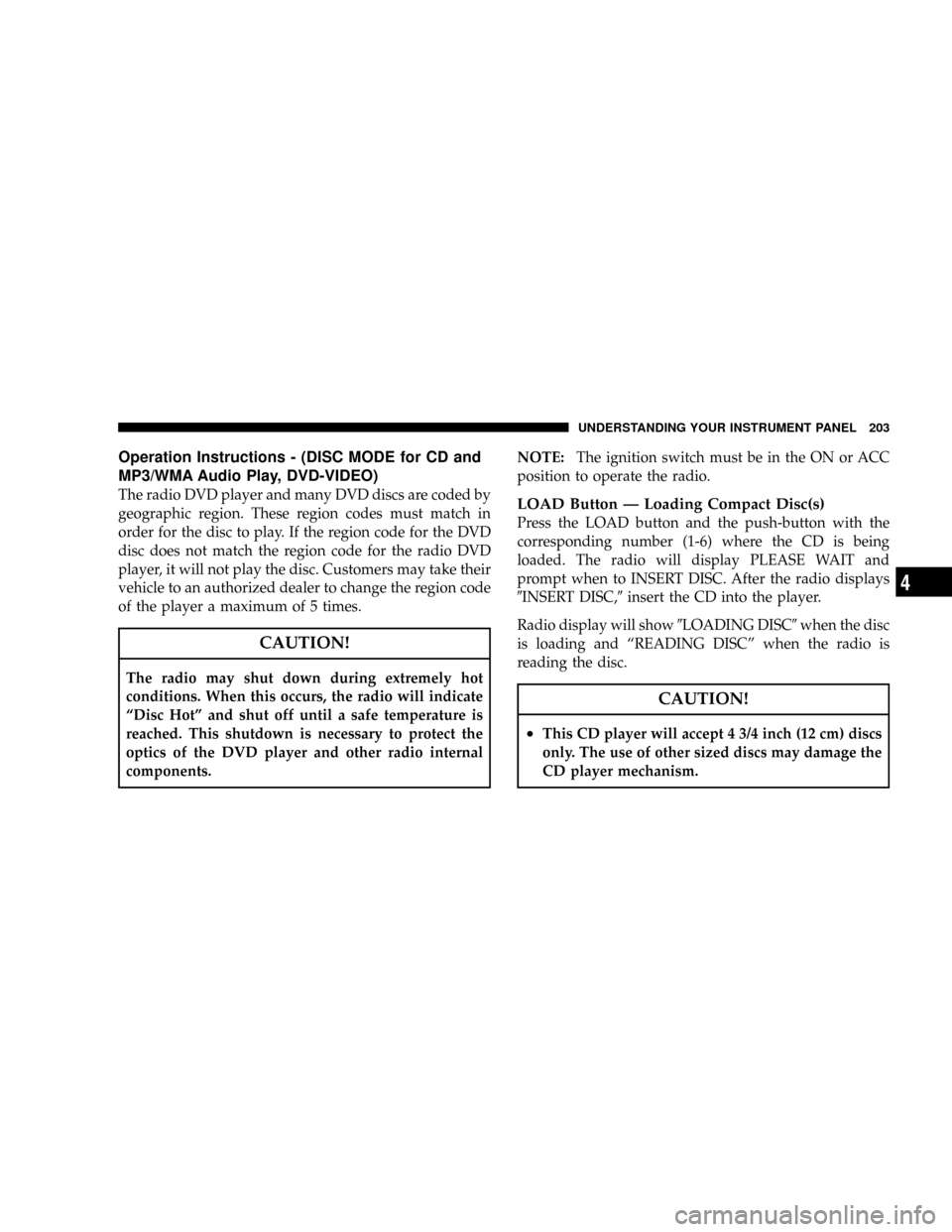
The radio DVD player and many DVD discs are coded by
geographic region. These region codes must match in
order for the disc to play. If the region code for the DVD
disc does not match the region code for the radio DVD
player, it will not play the disc. Customers may take their
vehicle to an authorized dealer to change the region code
of the player a maximum of 5 times.
CAUTION!
The radio may shut down during extremely hot
conditions. When this occurs, the radio will indicate
ªDisc Hotº and shut off until a safe temperature is
reached. This shutdown is necessary to protect the
optics of the DVD player and other radio internal
components.NOTE:The ignition switch must be in the ON or ACC
position to operate the radio.
LOAD Button Ð Loading Compact Disc(s)
Press the LOAD button and the push-button with the
corresponding number (1-6) where the CD is being
loaded. The radio will display PLEASE WAIT and
prompt when to INSERT DISC. After the radio displays
9INSERT DISC,9insert the CD into the player.
Radio display will show9LOADING DISC9when the disc
is loading and ªREADING DISCº when the radio is
reading the disc.
CAUTION!
²This CD player will accept 4 3/4 inch (12 cm) discs
only. The use of other sized discs may damage the
CD player mechanism.
UNDERSTANDING YOUR INSTRUMENT PANEL 203
4
Page 204 of 466

Eject Button Ð Ejecting Compact Disc(s)
Press the eject button and the push-button with
the corresponding number (1-6) where the CD
was loaded and the disc will unload and move
to the entrance for easy removal. Radio display
will show9EJECTING DISC9when the disc is being
ejected and prompt the user to remove the disc.
Press and hold the eject button for 5 seconds and all CDs
will be ejected from the radio.
The disc can be ejected with the radio and ignition OFF.
SEEK Button (CD MODE)
Press the right SEEK button for the next selection on the
CD. Press the left SEEK button to return to the beginning
of the current selection, or return to the beginning of the
previous selection if the CD is within the first second of
the current selection. Pressing and holding the SEEK
button will allow to scroll through tracks faster in CD,
MP3/MWA modes.
SCAN Button (CD MODE)
Press the Scan button to scan through each track on the
CD currently playing.
TIME Button (CD MODE)
Press this button to change the display from a large CD
playing time display to a small CD playing time display.
RW/FF (CD MODE)
Press and hold FF (Fast Forward) and the CD player will
begin to fast forward until FF is released or RW or
another CD button is pressed. The RW (Reverse) button
works in a similar manner.
AM or FM Button (CD MODE)
Switches the Radio to the Radio mode.
204 UNDERSTANDING YOUR INSTRUMENT PANEL
Page 208 of 466

Press the INFO button once more to return to9elapsed
time9priority mode.
Press and hold the INFO button for 3 seconds or more
and radio will display song titles for each file.
Press and hold the INFO button again for 3 seconds to
return to9elapsed time9display.
Operation Instructions - Auxiliary Mode
The auxiliary (AUX) jack is an audio input jack, which
allows the user to plug in a portable device such as an
MP3/WMA player, cassette player, or microphone and
utilize the vehicle's audio system to amplify the source
and play through the vehicle speakers.
Pushing the AUX button will change the mode to auxil-
iary device if the AUX jack is connected.
NOTE:The AUX device must be turned on and the
device's volume set to proper level. If the AUX audio isnot loud enough, turn the device's volume up. If the AUX
audio sounds distorted, turn the device's volume down.
SEEK Button (Auxiliary Mode)
No function.
SCAN Button (Auxiliary Mode)
No function.
EJECT Button (Auxiliary Mode)
No function.
TIME Button (Auxiliary Mode)
Press this button to change the display from elapsed
playing time to time of day. The time of day will display
for 5 seconds.
RW/FF (Auxiliary Mode)
No function.
208 UNDERSTANDING YOUR INSTRUMENT PANEL