Page 207 of 457
Compass Display Ð If Equipped
This display provides one of eight compass readings to
indicate the direction the vehicle is facing.
Automatic Compass Calibration
This compass is self-calibrating which eliminates the
need to manually calibrate the compass. When the ve-
hicle is new, the compass may appear erratic and the
EVIC will display ªCOMPASS CALIBRATINGº until the
compass is calibrated. The compass will function nor-
mally.
To calibrate the compass, drive the vehicle in one or more
complete 360É circles, under 5 mph (8 km/h) in an area
free from large metal objects, until the ªCOMPASS CALI-
BRATINGº message turns off.
Manual Compass Calibration
If the compass appears erratic, inaccurate or abnormal,
you may wish to manually calibrate the compass. Prior to
calibration, make sure the proper zone is selected.To put into a Calibration Mode:Turn on the ignition
switch and set the display to Compass. Press the RESET
button for at least 10 seconds until the ªCOMPASS
CALIBRATINGº message appears. Release the MENU
button and drive the vehicle in one or more complete
three, 360É circles, under 5 mph (8 km/h) in an area free
from large metal objects, until the ªCOMPASS CALI-
BRATINGº message turns off.
Compass Variance
Compass Variance is the difference between magnetic
North and Geographic North. In some areas of the
country, the difference between magnetic and geographic
North is great enough to cause the compass to give false
readings. In order to ensure accuracy, the compass vari-
ance should be properly set according to the compass
variance zone that the vehicle is in.
UNDERSTANDING YOUR INSTRUMENT PANEL 207
4
Page 209 of 457
²Off Mode
Shows a blank display.
²Step Button
Push this button to cycle through all the Mini-trip
functions.
To Reset The Display
Pressing and releasing the Reset button once will clear
the resettable function currently being displayed. The
resettable function is average fuel economy. Reset will
only occur if the resettable function is currently being
displayed.
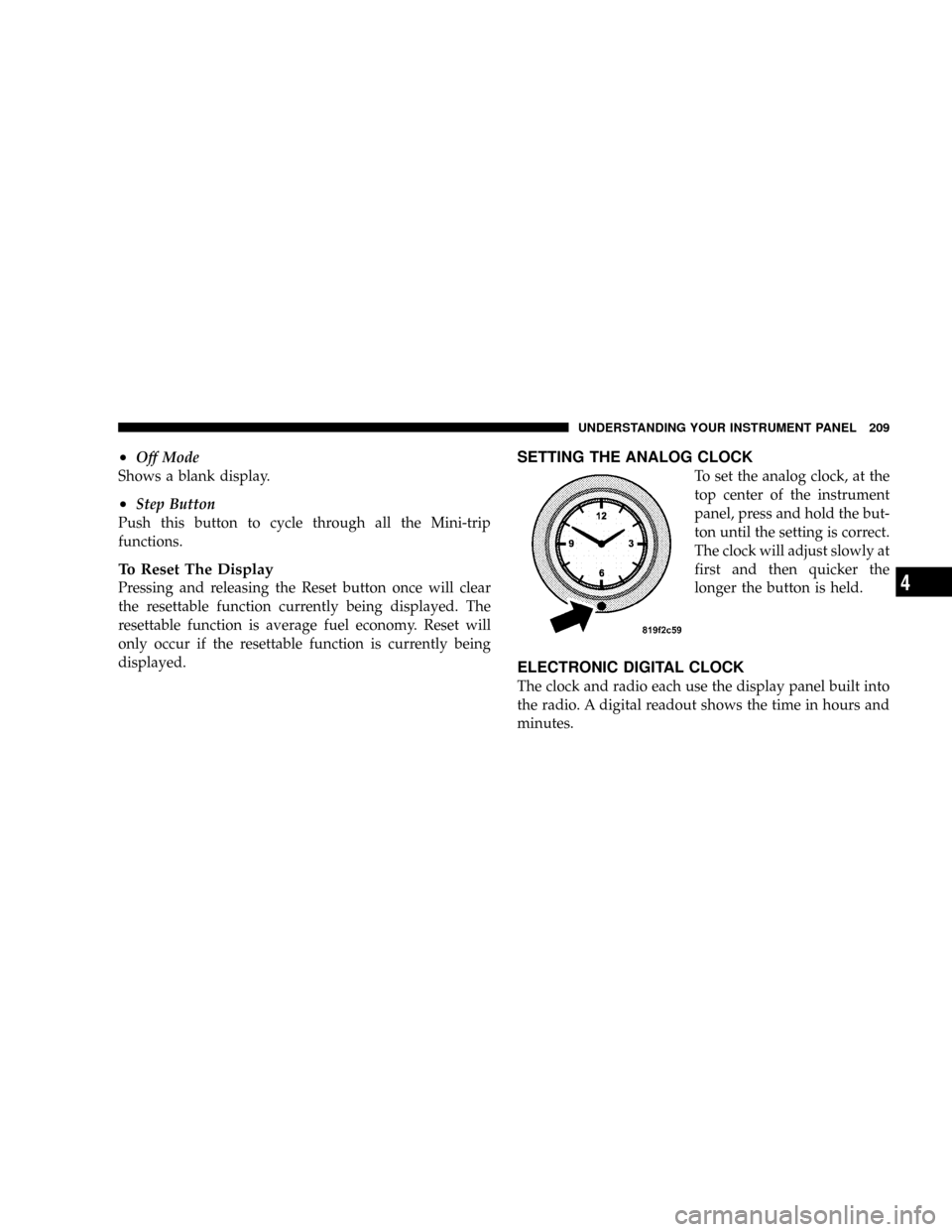
SETTING THE ANALOG CLOCK
To set the analog clock, at the
top center of the instrument
panel, press and hold the but-
ton until the setting is correct.
The clock will adjust slowly at
first and then quicker the
longer the button is held.
ELECTRONIC DIGITAL CLOCK
The clock and radio each use the display panel built into
the radio. A digital readout shows the time in hours and
minutes.
UNDERSTANDING YOUR INSTRUMENT PANEL 209
4
Page 212 of 457
SALES CODE RAH Ð AM & FM STEREO RADIO
WITH CD PLAYER AND CD/DVD CHANGER
CONTROLS
NOTE:The radio sales code is located on the lower left
side of your radio faceplate.
Radio Operation
Power/Volume Control
Press the ON/VOL control to turn the radio on. Turn the
volume control clockwise to increase the volume.
NOTE:Power to operate the radio is supplied through
the ignition switch. It must be in the ON or ACC position
to operate the radio.
PTY (Program Type)
Pressing the INFO button once while in FM mode will
turn on the PTY mode for 5 seconds. If no action is taken
during the 5 second time out, the PTY icon will turn off.
Pressing the TUNE button within 5 seconds will allow
the program format type to be selected. Many radio
stations do not currently broadcast PTY information.
RAH radio
212 UNDERSTANDING YOUR INSTRUMENT PANEL
Page 215 of 457
Tone Control
The Bass and/or Treble controls sound for the desired
tone. Press the AUDIO button, select Bass or TREBLE,
then press SEEK + or SEEK2to increase or decrease
amplification of the band.
To Set The Radio Push-Button Memory
When you are receiving a station that you wish to
commit to push-button memory, press the SET button.
SET 1 will show in the display window. Select the
push-button you wish to lock onto this station and press
and release that button. If a station is not selected within
5 seconds after pressing the SET button, the station will
continue to play but will not be locked into push-button
memory.
You may add a second station to each push-button by
repeating the above procedure with this exception: Press
the SET button twice and SET 2 will show in the display
window. Each button can be set for SET 1 and SET 2 inboth AM and FM. This allows a total of 10 AM and 10 FM
stations to be locked into memory. You can recall the
stations stored in SET 2 memory by pressing the push-
button twice.
To Change From Clock To Radio Mode
Press the TIME button to change the display between
radio frequency and time.
General Information
This radio complies with Part 15 of FCC rules and with
RSS-210 of Industry Canada. Operation is subject to the
following conditions:
1. This device may not cause harmful interference,
2. This device must accept any interference received,
including interference that may cause undesired opera-
tion.
UNDERSTANDING YOUR INSTRUMENT PANEL 215
4
Page 216 of 457
NOTE:Changes or modifications not expressively ap-
proved by the party responsible for compliance could
void the user's authority to operate the equipment.
CD Player Operation
NOTE:
²The ignition switch must be in the ON or ACC
position and the volume control ON before the CD
player will operate.
²This Radio is capable of playing compact discs (CD),
recordable compact discs (CD-R), rewritable compact
discs (CD-RW) compact discs with MP3 tracks and
multisession compact discs with CD and MP3 tracks.
Inserting The Compact Disc
CAUTION!
This CD player will accept only 4±3/4 inch (12 cm)
discs only. The use of other sized discs may damage
the CD player mechanism.
You may either insert or eject a disc with the radio OFF.
If you insert a disc with the ignition ON and the radio
OFF, the display will show the time of day. If you insert
a disc with the ignition OFF, the display will show the
time of day for about 5 seconds, then go out.
If the power is ON, the unit will switch from radio to CD
mode and begin to play when you insert the disc. The
display will show the track number and index time in
minutes and seconds. Play will begin at the start of track
one.
216 UNDERSTANDING YOUR INSTRUMENT PANEL
Page 217 of 457
Seek
Press the top of the SEEK button for the next selection on
the CD. Press the bottom of the button to return to the
beginning of the current selection, or return to the
beginning of the previous selection if the CD is within the
first 10 seconds of the current selection.
EJT Ð Eject
Press the EJT button and the disc will unload and move
to the entrance for easy removal. The unit will switch to
the radio mode.
If you do not remove the disc within 15 seconds, it will be
reloaded. The radio mode will continue to appear.
The disc can be ejected with the radio OFF.
FF/TUNE/RW
Press FF (Fast Forward) and the CD player will begin to
fast forward until FF is released. The RW (Reverse)
button works in a similar manner.
RND Ð Random Play
Press the RND button while the CD is playing to activate
Random Play. This feature plays the selections on the
compact disc in random order to provide an interesting
change of pace.
Press the SEEK button to move to the next randomly
selected track.
Press TUNE FF to fast forward through the tracks. Press
the FF button a second time to stop the fast forward
feature. If TUNE RW is pressed, the current track will
reverse to the beginning of the track and begin playing.
Press the RND button a second time to stop Random
Play.
UNDERSTANDING YOUR INSTRUMENT PANEL 217
4
Page 218 of 457

CD/DVD Changer Operation
Press the MODE button to select between the CD player
and the optional remote CD/DVD changer.
Time
Press the TIME button to change the display from
elapsed CD or DVD playing time to time of day.
Notes On Playing MP3 Files
The radio can play MP3 files, however, acceptable MP3
file recording media and formats are limited. When
writing MP3 files, pay attention to the following restric-
tions.
Supported media (disc types)
The MP3 file recording media supported by the radio are
CD-ROM, CD-R and CD-RW.
Supported medium formats (file systems)
The medium formats supported by the radio are ISO 9660
Level 1 and Level 2 and includes the Joliet extension.When reading discs recorded using formats other than
ISO 9660 Level 1 and Level 2, the radio may fail to read
files properly and may be unable to play the file nor-
mally. UDF and Apple HFS formats are not supported.
The radio uses the following limits for file systems:
²Maximum number of directory levels: 15
²Maximum number of files: 255
²Maximum number of folders: 100
²Maximum number of characters in file/folder names:
²Level 1: 12 (including a separator9.9anda3
character extension)
²Level 2: 31 (including a separator9.9anda3
character extension)
Multisession disc formats are supported by the radio.
Multisession discs may contain combinations of normal
218 UNDERSTANDING YOUR INSTRUMENT PANEL
Page 220 of 457

Playback of MP3 files
When a medium containing MP3 data is loaded, the
radio checks all files on the medium. If the medium
contains a lot of folders or files, the radio will take more
time to start playing the MP3 files.
Loading times for playback of MP3 files may be affected
by the following:
²Media - CD-RW media may take longer to load than
CD-R media
²Medium formats - Multisession discs may take longer
to load than non-multisession discs
²Number of files and folders - Loading times will
increase with more files and folders
To increase the speed of disc loading, it is recommended
to use CD-R media and single-session discs. To create a
single-session disc, enable the Disc at Once option before
writing to the disc.
Operation Instructions - (CD Mode For MP3 Audio
Play)
SEEK Button (CD Mode For MP3 Play)
Pressing the SEEK + button plays the next MP3 File.
Pressing the SEEK2button plays the beginning of the
MP3 file. Pressing the button within the first ten seconds
plays the previous file.
INFO Button (CD Mode For MP3 Play)
Press and INFO button while playing MP3 disc. The
radio scrolls through the following TAG information:
Song Title, Artist, File Name, and Folder Name (if avail-
able).
Press the INFO button once more to return to9elapsed
time9priority mode.
220 UNDERSTANDING YOUR INSTRUMENT PANEL