2008 CHEVROLET UPLANDER light
[x] Cancel search: lightPage 268 of 476

MENU (Disc):Press this button to view the main DVD
menu. The menu is different on every disc. Use the up,
down, right, and left arrow buttons to move the cursor
around the menu. After making a selection, press the
enter button.
r(Enter/Select):Press this button to select the
choice that is highlighted in any menu.
z(Display Control Button):For vehicles without rear
seat climate control, this button can take the place of the
fan/temp button. For vehicles with rear seat climate
control, this button is also found on the remote control.
Press this button to open the RSE On-Screen Display
(OSD) menus to adjust the color, tint, brightness,
contrast, and display modes.
Playing a Disc
To play a disc, gently insert the disc, with the label side
up, into the loading slot. The DVD player continues
loading the disc and the player automatically starts if
the vehicle is in ACC/ACCESSORY, ON/RUN, or RAP.
If a disc is already in the player, make sure that the
DVD player is on, then press the
r/jbutton on
the player faceplate or on the remote control. Press
the DVD AUX button on the player faceplate, or the CD
AUX button on the radio faceplate until RSE displays,
to start playing a disc.Some DVDs do not allow fast forwarding or skipping
of the copyright information or previews. Some
DVDs begins playing after the previews have nished.
If the DVD does not begin playing at the main title, refer
to the on-screen instructions.
To stop playing a disc, press and release
the
c/Ybutton on the DVD player faceplate
or the remote control.
To resume playback, press the
r/jbutton on
the DVD player faceplate or the remote control.
The movie should resume play from where it was
last stopped if the disc has not been ejected.
If the disc has been ejected, the disc resumes play at
the beginning of the disc.
Ejecting a Disc
Press thec/Ybutton on the DVD player faceplate,
when the disc is stopped, to eject the disc. There is
no eject button on the remote control.
If a disc is ejected from the player, but not removed,
the DVD player reloads the disc after a short period
of time.
3-108
Page 269 of 476
Remote Control
The RSE system includes a remote control (batteries may
be included with the remote control). To use the remote
control, aim it at the transmitter window next to the RSE
faceplate and press the desired button. Direct sunlight or
very bright light can affect the ability of the transmitter to
receive signals from the remote control. If the remote
control does not seem to be working, the batteries may
need to be replaced. See “Battery Replacement” later in
this section. Objects blocking the line of sight will affect
the function of the remote control.
Notice:Storing the remote control in a hot area
or in direct sunlight can damage it, and the repairs
will not be covered by your warranty. Storage in
extreme cold can weaken the batteries. Keep
the remote control stored in a cool, dry place.
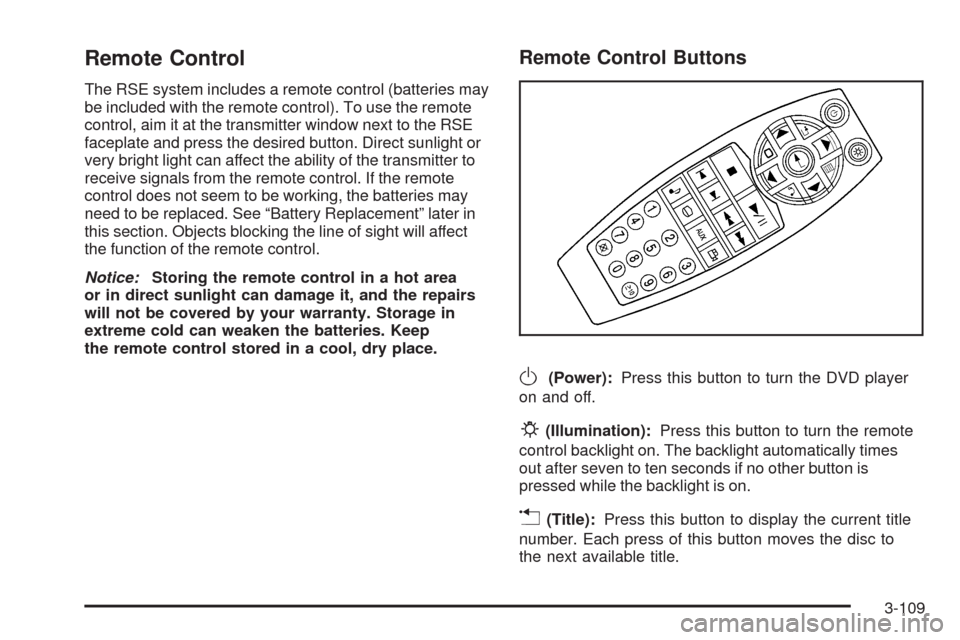
Remote Control Buttons
O(Power):Press this button to turn the DVD player
on and off.
P(Illumination):Press this button to turn the remote
control backlight on. The backlight automatically times
out after seven to ten seconds if no other button is
pressed while the backlight is on.
v(Title):Press this button to display the current title
number. Each press of this button moves the disc to
the next available title.
3-109
Page 270 of 476

q,Q,r,R(Menu Navigation Arrows):Press the
navigation arrows to move through DVD menus.
The up and down arrows move through MP3 folders.
r(Enter):Press this button to select the choice that
is highlighted in any menu.
z(Display Control Button):Press this button to open
the RSE On-Screen Display (OSD) menus to adjust the
color, tint, brightness, contrast, and display modes.
y(Main Menu):Press this button to view the main
DVD menu. The menu is different on every disc. Use
the navigation arrows to move the cursor around
the menu. After making a selection, press the enter
button.
q(Return):Press this button to go back one step in
the RSE On-Screen Display (OSD) menu and some
DVD menus. Press this button to exit the current menu
and to move to the previous menu.
c(Stop):Press this button to stop playing, rewinding,
or fast forwarding a disc.
s(Play/Pause):Press this button to start play of
a disc. Press this button while a disc is playing to pause
it. Press it again to continue playing the disc.
t(Previous Chapter/Track):Press this button to go
to the beginning of the current chapter or track. Press this
button again to return to the previous chapter or track.
This button might not work while the DVD is playing the
copyright information or previews.
u(Next Chapter/Track):Press this button to go to
the beginning of the next chapter or track. This button
might not work while the DVD is playing the copyright
information or the previews.
r(Fast Reverse):Press this button to fast reverse
the DVD and CD. To stop reversing, press the play/pause
or stop/eject button. This button might not work while the
DVD is playing the copyright information or the previews.
[(Fast Forward):Press this button to fast forward
the DVD and CD. To stop fast forwarding, press
the play/pause or stop/eject button. This button might
not work while the DVD is playing the copyright
information or the previews.
e(Sound):Press this button to display the current
audio track. Each press moves the DVD to the next
language or commentary. The format and content of
this function vary for each disc.
3-110
Page 272 of 476

To use the RSE OSD menu when using a CD or an
MP3, do the following:
Make sure that a CD or an MP3 is loaded in the RSE
system and that the system is not in auxiliary, then press
the
zbutton on the remote control, or faceplate if there
is no rear seat climate control. Once the menu is on the
screen, use the
q,Q,r,Rnavigation arrows and
the
rbutton to navigate the screen. This menu lets
you select default preferences for language and playback
settings. To exit this menu, press the
zbutton, or
the
qbutton on the remote control, or faceplate if
there is no rear seat climate control, or wait for the menu
to time out.
Battery Replacement
To change the remote control batteries, do the following:
1. Slide the rear cover back on the remote control.
2. Replace the two batteries in the compartment. Make
sure that they are installed correctly, using the
diagram on the inside of the battery compartment.
3. Replace the battery cover.
If the remote control is to be stored for a long period of
time, remove the batteries and keep them in a cool,
dry place.
Tips and Troubleshooting Chart
Problem Recommended Action
No power. The ignition might not be
in ACC/ACCESSORY,
ON/RUN, or Retained
Accessory Power (RAP).
Disc will not play. The system might be off.
The parental control
button might have been
pressed. The power
indicator lights ash.
The system might be in
auxiliary source mode.
Press the DVD AUX
button on the player
faceplate or the AUX
button on the remote to
switch between the DVD
player and the auxiliary
sources. The disc is
upside down or is not
compatible.
3-112
Page 274 of 476
Tips and Troubleshooting Chart (cont’d)
Problem Recommended Action
The remote control does
not work.Point the remote control
directly at the face of the
DVD unit. The batteries
could be weak or put in
wrong. The parental
control button might have
been pressed, the power
indicator lights ash.
How do I get subtitles on
or off?Press the subtitle button
on the remote control to
select subtitle option or
go to the DVDs main
menu and follow the
screen prompts.
The auxiliary source is
running but there is no
picture or sound.Press and release the
AUX button on the
remote control or the
DVD AUX button on the
player faceplate to get
to auxiliary input. Check
to make sure that the
auxiliary source is
connected to the
inputs properly.
Tips and Troubleshooting Chart (cont’d)
Problem Recommended Action
The audio or video skips
or jumps.The DVD could be dirty
or scratched. Try cleaning
the disc.
The fast forward, fast
reverse, previous, and
next functions do
not work.Some commands that do
one thing for DVDs do
not always work or
perform the same
function for audio, audio
discs, or games. These
functions could also be
disabled when the DVD
is playing the copyright
information or the
previews. When RSA is
on, these buttons could
control RSA functions.
I lost the remote control
and/or the headphones.Contact your
dealer/retailer for
assistance.
Sometimes the wireless
headphone audio cuts out
or buzzes for a moment,
then it comes back.This could be caused by
interference from cell
towers or by using the
cellular telephone or other
radio transmitter devices
in the vehicle.
3-114
Page 278 of 476

Left Arrow– Press the left arrow while in AM/FM tuner,
or XM™ Satellite Radio Service to seek down. Press the
left arrow while sourcing the single CD player, or the
six-disc CD player to go to the previous track.
Right Arrow– Press the right arrow while in AM/FM
tuner, or XM™ Satellite Radio Service to seek up. Press
the right arrow while sourcing the single CD player, or the
six-disc CD player to go to the next track.
43(Wired Headphone Volume):Press this button
to select the correct headphone. Then press the left
or right navigation arrows to increase or decrease the
headphone volume.
rj(Parental Control):This button is located behind
the video screen next to the auxiliary and headphone
jacks. Press this button while using RSA, or when a DVD
or CD is playing to blank the video screen and to mute
the audio. The power indicator lights on the DVD player
ashes. Turning on the parental control also disables all
other button operations from the remote control and the
DVD player, except for the eject button. Press this button
again to restore operation of the RSA, DVD player, and
remote control.This button can also be used to turn the DVD player
power on and automatically resume play if the vehicle is
on and a disc is in the player. If no disc is in the player
then the system powers up in auxiliary mode.
Theft-Deterrent Feature
THEFTLOCK®is designed to discourage theft of your
vehicle’s radio. The feature works automatically by
learning a portion of the Vehicle Identication Number
(VIN). If the radio is moved to a different vehicle, it does
not operate and LOC, LOCK, or LOCKED could display.
With THEFTLOCK
®activated, the radio does not
operate if stolen.
3-118
Page 281 of 476
Fixed Mast Antenna
The xed mast antenna can withstand most car washes
without being damaged. If the mast should ever become
slightly bent, straighten it out by hand. If the mast is badly
bent, replace it.
Check occasionally to make sure the mast is still
tightened to the antenna base. If tightening is required,
tighten by hand.
XM™ Satellite Radio Antenna
System
The XM™ Satellite Radio antenna is located on the roof
of your vehicle. Keep this antenna clear of snow and
ice build up for clear radio reception.
Loading items onto the roof of your vehicle can interfere
with the performance of the XM™ system. Make sure
that the XM™ satellite antenna is not obstructed.
Chime Level Adjustment
The radio is used to adjust the vehicle’s chime level.
To change the volume level of the chime, press and hold
pushbutton 6 with the ignition on and the radio power off.
The volume level will change from the normal level to
loud, and LOUD will appear on the radio display. To
change back to the default or normal setting, press and
hold pushbutton 6 again. The volume level will change
from the loud level to normal, and NORMAL will appear
on the radio display. Removing the radio and not
replacing it with a factory radio or chime module will
disable vehicle chimes.
3-121
Page 286 of 476
Control of a Vehicle
The following three systems help to control your vehicle
while driving — brakes, steering, and accelerator. At
times, as when driving on snow or ice, it is easy to ask
more of those control systems than the tires and
road can provide. Meaning, you can lose control of your
vehicle. SeeTraction Control System (TCS) on
page 4-6andStabiliTrak
®System on page 4-7.
Adding non-dealer/non-retailer accessories can affect
your vehicle’s performance. SeeAccessories and
Modifications on page 5-3.
Braking
SeeBrake System Warning Light on page 3-41.
Braking action involves perception time and reaction
time. First, you have to decide to push on the brake
pedal. That is perception time. Then you have to bring
up your foot and do it. That is reaction time.
Average reaction time is about three-fourths of a
second. But that is only an average. It might be less
with one driver and as long as two or three seconds or
more with another. Age, physical condition, alertness,
coordination, and eyesight all play a part. So do alcohol,
drugs, and frustration. But even in three-fourths of a
second, a vehicle moving at 60 mph (100 km/h) travels66 feet (20 m). That could be a lot of distance in an
emergency, so keeping enough space between
your vehicle and others is important.
And, of course, actual stopping distances vary greatly
with the surface of the road, whether it is pavement or
gravel; the condition of the road, whether it is wet, dry, or
icy; tire tread; the condition of the brakes; the weight of
the vehicle; and the amount of brake force applied.
Avoid needless heavy braking. Some people drive in
spurts — heavy acceleration followed by heavy
braking — rather than keeping pace with traffic. This is a
mistake. The brakes might not have time to cool between
hard stops. The brakes will wear out much faster if you do
a lot of heavy braking. If you keep pace with the traffic
and allow realistic following distances, you will eliminate a
lot of unnecessary braking. That means better braking
and longer brake life.
If your vehicle’s engine ever stops while you are driving,
brake normally but do not pump the brakes. If you do, the
pedal could get harder to push down. If the engine stops,
you will still have some power brake assist. But you will
use it when you brake. Once the power assist is used up,
it can take longer to stop and the brake pedal will be
harder to push.
Adding non-dealer/non-retailer accessories can affect
your vehicle’s performance. SeeAccessories and
Modifications on page 5-3.
4-4