2008 CHEVROLET SILVERADO remote start
[x] Cancel search: remote startPage 168 of 596
Programming Universal Home
Remote — Fixed Code
For questions or help programming the Universal
Home Remote System, call 1-866-572-2728 or go
to www.learcar2u.com.
Most garage door openers sold before 1996 are Fixed
Code units.
Programming a garage door opener involves
time-sensitive actions, so read the entire procedure
before starting. Otherwise, the device will time out
and the procedure will have to be repeated.To program up to three devices:
1. To verify that the garage door opener is a Fixed
Code unit, remove the battery cover on the hand
held transmitter supplied by the manufacturer of the
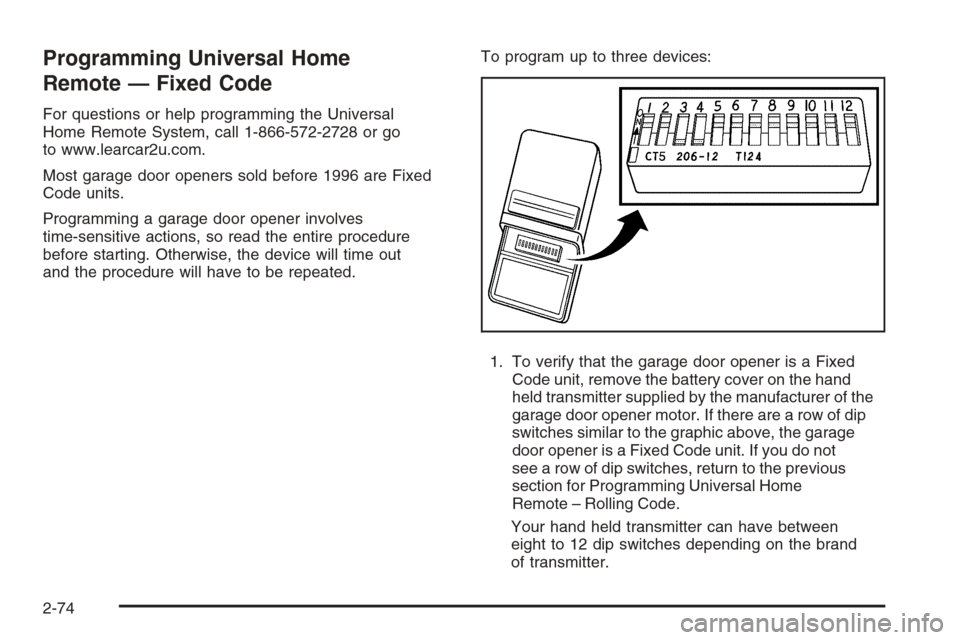
garage door opener motor. If there are a row of dip
switches similar to the graphic above, the garage
door opener is a Fixed Code unit. If you do not
see a row of dip switches, return to the previous
section for Programming Universal Home
Remote – Rolling Code.
Your hand held transmitter can have between
eight to 12 dip switches depending on the brand
of transmitter.
2-74
Page 198 of 596
Puddle Lamps
If your vehicle has puddle lamps, they come on when
the unlock button on the Remote Keyless Entry (RKE)
Transmitter is pressed. The lamps time out or turn
off once the engine is started.
Fog Lamps
-(Fog Lamps):If your vehicle has fog lamps, the
control is located next to the exterior lamps control
on the instrument panel, to the left of the steering
column.
The ignition must be in the ON/RUN position for the fog
lamps to come on.
Press the button to turn the fog lamps on or off. A light
will come on in the instrument panel cluster.
When the fog lamps are turned on, the parking lamps
automatically turn on.
When the headlamps are changed to high-beam, the
fog lamps also go off. When the high-beam headlamps
are turned off, the fog lamps will come on again.
Some localities have laws that require the headlamps to
be on along with the fog lamps.
Auxiliary Roof Mounted Lamp
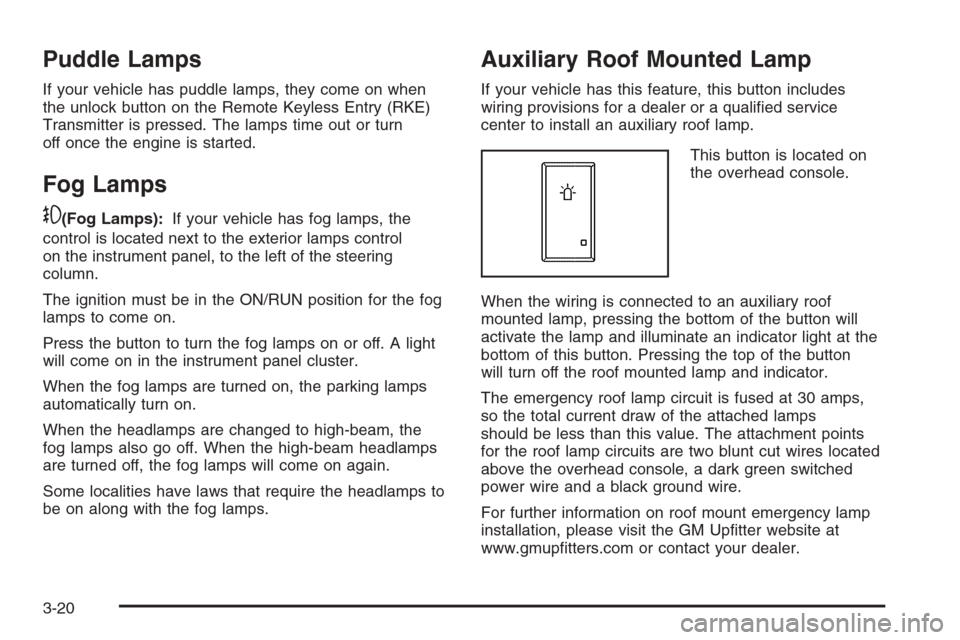
If your vehicle has this feature, this button includes
wiring provisions for a dealer or a qualied service
center to install an auxiliary roof lamp.
This button is located on
the overhead console.
When the wiring is connected to an auxiliary roof
mounted lamp, pressing the bottom of the button will
activate the lamp and illuminate an indicator light at the
bottom of this button. Pressing the top of the button
will turn off the roof mounted lamp and indicator.
The emergency roof lamp circuit is fused at 30 amps,
so the total current draw of the attached lamps
should be less than this value. The attachment points
for the roof lamp circuits are two blunt cut wires located
above the overhead console, a dark green switched
power wire and a black ground wire.
For further information on roof mount emergency lamp
installation, please visit the GM Uptter website at
www.gmuptters.com or contact your dealer.
3-20
Page 248 of 596

OIL PRESSURE LOW STOP ENGINE
Notice:If you drive your vehicle while the engine
oil pressure is low, severe engine damage may
occur. If a low oil pressure warning appears on the
Driver Information Center (DIC), stop the vehicle
as soon as possible. Do not drive the vehicle until
the cause of the low oil pressure is corrected.
SeeEngine Oil (Gasoline Engine) on page 5-15for
more information.
This message displays if low oil pressure levels occur.
Stop the vehicle as soon as safely possible and do
not operate it until the cause of the low oil pressure has
been corrected. Check the oil as soon as possible
and have your vehicle serviced by your dealer/retailer.
SeeEngine Oil (Gasoline Engine) on page 5-15.
PARK ASSIST OFF
If your vehicle has the Ultrasonic Rear Parking Assist
(URPA) system, after the vehicle has been started, this
message displays to remind the driver that the URPA
system has been turned off. Press the set/reset
button or the trip odometer reset stem to acknowledge
this message and clear it from the DIC display.
To turn the URPA system back on, seeUltrasonic
Rear Parking Assist (URPA) on page 2-64.
PASSENGER DOOR OPEN
This message displays and a chime sounds if the
passenger door is not fully closed and the vehicle is
in a drive gear. Stop and turn off the vehicle, check the
door for obstructions, and close the door again.
Check to see if the message still appears on the DIC.
REMOTE KEY LEARNING ACTIVE
This message displays while you are matching a Remote
Keyless Entry (RKE) transmitter to your vehicle. See
“Matching Transmitter(s) to Your Vehicle” underRemote
Keyless Entry (RKE) System Operation on page 2-5and
DIC Operation and Displays (With DIC Buttons) on
page 3-57orDIC Operation and Displays (Without DIC
Buttons) on page 3-63for more information.
REPLACE BATTERY IN REMOTE KEY
This message displays if a Remote Keyless Entry (RKE)
transmitter battery is low. The battery needs to be
replaced in the transmitter. See “Battery Replacement”
underRemote Keyless Entry (RKE) System Operation
on page 2-5.
3-70
Page 261 of 596
REMOTE START
If your vehicle has this feature, it allows you to turn the
remote start off or on. The remote start feature allows you
to start the engine from outside of the vehicle using the
Remote Keyless Entry (RKE) transmitter. SeeRemote
Vehicle Start on page 2-7for more information.
Press the customization button until REMOTE START
appears on the DIC display. Press the set/reset button
once to access the settings for this feature. Then
press the customization button to scroll through the
following settings:
OFF:The remote start feature will be disabled.
ON (default):The remote start feature will be enabled.
NO CHANGE:No change will be made to this feature.
The current setting will remain.
To select a setting, press the set/reset button while the
desired setting is displayed on the DIC.
FACTORY SETTINGS
This feature allows you to set all of the customization
features back to their factory default settings.
Press the customization button until FACTORY
SETTINGS appears on the DIC display. Press the
set/reset button once to access the settings for
this feature. Then press the customization button to
scroll through the following settings:
RESTORE ALL (default):The customization features
will be set to their factory default settings.
DO NOT RESTORE:The customization features will
not be set to their factory default settings.
To select a setting, press the set/reset button while the
desired setting is displayed on the DIC.
3-83
Page 281 of 596
Playing a DVD
DVD/CD AUX (Auxiliary):Press this button to cycle
through DVD, CD, or Auxiliary when listening to
the radio. The DVD/CD text label and a message
showing track or chapter number displays when a disc
is in either slot. Press this button again and the
system automatically searches for an auxiliary input
device, such as a portable audio player. If a portable
audio player is not connected, “No Aux Input Device”
displays. If a disc is in both the DVD slot and the
CD slot the DVD/CD AUX button cycles between the
two sources and not indicate “No Aux Input Device”.
If a front auxiliary device is connected, the DVD/CD AUX
button cycles through all available options, such as:
DVD slot, CD slot, Front Auxiliary, and Rear Auxiliary
(if available). See “Using the Auxiliary Input Jack(s)”
later in this section, or “Audio/Video (A/V) Jacks” under,
Rear Seat Entertainment (RSE) System on page 3-121
for more information.
O(Power):Press to turn the radio on or off. Turn this
knob clockwise or counterclockwise to increase or
decrease the volume. Press and hold for more than
two seconds to turn off the entire radio and Rear Seat
Entertainment (RSE) system and to start the parental
control feature. Parental control prevents the rear seat
occupant from operating the Rear Seat Audio (RSA)
system or remote control.
A lock symbol displays next to the clock display.
The parental control feature remains on until the knob
is pressed and held for more than two seconds again,
or until the driver turns the ignition off and exits the
vehicle.
f(Tune):Turn to change tracks on a CD or DVD,
to manually tune a radio station, or to change clock or
date settings, while in the clock or date setting mode. See
the information given earlier in this section specic to the
radio, CD, and the DVD. Also, see “Setting the Time” in
the index, for setting the clock and date.
©SEEK (Previous Track/Chapter):Press the left
arrow to return to the start of the current track or
chapter. Press the left arrow again to go to the previous
track or chapter. This button might not work when the
DVD is playing the copyright information or the previews.
3-103
Page 282 of 596
SEEK¨(Next Track/Chapter):Press the right arrow
to go to the next track or chapter. This button might
not work when the DVD is playing the copyright
information or the previews.
sREV (Fast Reverse):Press to quickly reverse the
CD or DVD at ve times the normal speed. The radio
displays the elapsed time while in fast reverse. To stop
fast reversing, press again. This button might not work
when the DVD is playing the copyright information or the
previews.
\FWD (Fast Forward):Press to fast forward the CD
or DVD. The radio displays the elapsed time and fast
forwards ve times the normal speed. To stop fast
forwarding, press again. This button might not work
when the DVD is playing the copyright information or
the previews.
Z(Eject):Press to eject a CD or DVD. If a CD or
DVD is ejected, but not removed, the player
automatically pulls it back in after 15 seconds.
If loading and reading of a CD cannot be completed,
because of an unknown format, etc., and the disc fails
to eject, press and hold for more than ve seconds
to force the disc to eject.
DVD-V (Video) Display Buttons
Once a DVD-V is inserted, the radio display menu
shows several tag options for DVD playing. Press the
pushbuttons located under any desired tag option
during DVD playback. See the tag options listed after,
for more information.
The rear seat passenger can navigate the DVD-V
menus and controls through the remote control.
See “Remote Control”, underRear Seat Entertainment
(RSE) System on page 3-121for more information.
The Video Screen automatically turns on when
the DVD-V is inserted into the DVD slot.
r/j(Play/Pause):Press either the play or pause
icon displayed on the radio system, to toggle between
pausing or restarting playback of a DVD. If the
forward arrow is showing on display, the system is in
pause mode. If the pause icon is showing on display, the
system is in playback mode. If the DVD screen is off,
press the play button to turn the screen on.
Some DVDs begin playing after the previews have
nished, although there could be a delay of up to
30 seconds. If the DVD does not begin playing the
movie automatically, press the pushbutton located
under the play/pause symbol tag displayed on the radio.
If the DVD still does not play, refer to the on-screen
instructions, if available.
3-104
Page 283 of 596

c(Stop):Press to stop playing, rewinding, or fast
forwarding a DVD.
r(Enter):Press to select the choices that are
highlighted in any menu.
y(Menu):Press to access the DVD menu. The DVD
menu is different on every DVD. Use the pushbuttons
located under the navigation arrows to navigate
the cursor through the DVD menu. After making a
selection press this button. This button only operates
when using a DVD.
Nav (Navigate):Press to display directional arrows for
navigating through the menus.
q(Return):Press to exit the current active menu
and return to the previous menu. This button operates
only when a DVD is playing and a menu is active.
DVD-A (Audio) Display Buttons
Once a DVD-A is inserted, radio display menu shows
several tag options for DVD playing. Press the
pushbuttons located under any desired tag option
during DVD playback. See the tag options listed after,
for more information.The rear seat operator can navigate the DVD-A menus
and controls through the remote control. See “Remote
Control”, underRear Seat Entertainment (RSE) System
on page 3-121for more information. The Video
Screen does not automatically power on when the
DVD-A is inserted into the DVD slot. It must be manually
turned on by the rear seat occupant through the
remote control power button.
r/j(Play/Pause):Press either the play or pause
icon displayed on the radio system, to toggle between
pausing or restarting playback of a DVD. If the
forward arrow is showing on the display, the system is
in pause mode. If the pause icon is showing on the
display, the system is in playback mode.
qGroupr:Press to cycle through musical groupings
on the DVD-A disc.
Nav (Navigate):Press to display directional arrows for
navigating through the menus.
e(Audio Stream):Press to cycle through audio
stream formats located on the DVD-A disc. The video
screen shows the audio stream changing.
3-105
Page 284 of 596

Inserting a Disc
To play a disc, gently insert the disc, with the label side
up, into the loading slot. The DVD player might not
accept some paper labeled media. The player starts
loading the disc into the system and show “Loading
Disc” on the radio display. At the same time, the radio
displays a softkey menu of option(s). Some discs
automatically play the movie while others default to the
softkey menu display, which requires the Play, Enter,
or Navigation softkeys to be pressed; either by softkey
or by the rear seat passenger using the remote control.
Loading a disc into the system, depending on media
type and format, ranges from 5 to 20 seconds for a CD,
and up to 30 seconds for a DVD.
Stopping and Resuming Playback
To stop playing a DVD without turning off the system,
press the
cbutton on the remote control, or press the
pushbutton located under the stop or the play/pause
symbol tags displayed on the radio. If the radio head is
sourced to something other than DVD-V, press the
DVD/CD AUX button to make DVD-V the active source.To resume DVD playback, press the
r/jbutton on
the remote control, or press the pushbutton located
under the play/pause symbol tag displayed on the radio.
The DVD should resume play from where it last
stopped if the disc has not been ejected and the stop
button has not been pressed twice on the remote
control. If the disc has been ejected or the stop button
has been pressed twice on the remote control, the
disc resumes playing at the beginning of the disc.
Ejecting a Disc
Press theZbutton on the radio to eject the disc.
If a disc is ejected from the radio, but not removed,
the radio reloads the disc after a short period of time.
The disc is stored in the radio. The radio does not
resume play of the disc automatically. If the RSA system
is sourced to the DVD, the movie when reloaded into
the DVD player begins to play again. In case loading
and reading of a DVD or CD cannot be completed
(unknown format, etc.), and the disc fails to eject, press
and hold the DVD
Zbutton more than ve seconds
to force the disc to eject.
3-106