2008 CHEVROLET SILVERADO clock
[x] Cancel search: clockPage 268 of 596

Radios with CD and DVD
Radios with CD and DVD have a Bose®Surround
Sound System. Some of its features are explained
later in this section under, “Adjusting the Speakers
(Balance/Fade)”.
If the vehicle has a Rear Seat Entertainment (RSE)
system, it has a CD/DVD radio. SeeRear Seat
Entertainment (RSE) System on page 3-121for more
information on the vehicle’s RSE system.
The DVD player is the top slot on the radio faceplate.
The player is capable of reading the DTS programmed
DVD Audio or DVD Video media, (DTS and DTS
Digital Surround are registered trademarks of Digital
Theater Systems, Inc.).
Manufactured under license from Dolby Laboratories.
Dolby and the double-D symbol are trademarks of
Dolby Laboratories.
Radio Data System (RDS)
The audio system has a Radio Data System (RDS).
The RDS feature is available for use only on FM stations
that broadcast RDS information. This system relies
upon receiving specic information from these stations
and only works when the information is available.
While the radio is tuned to an FM-RDS station, the
station name or call letters displays. In rare cases,
a radio station could broadcast incorrect information that
causes the radio features to work improperly. If this
happens, contact the radio station.
Playing the Radio
O
(Power/Volume):Press to turn the system on
and off.
Turn clockwise or counterclockwise to increase or
decrease the volume.
4(Information) (AM-FM Radio):Press to switch the
display between the radio station frequency and
the time. While the ignition is off, press this button to
display the time.
3-90
Page 269 of 596
H(Clock) (AM-FM Radio):The radio may have a
clock button for setting the time. With this type of radio,
the clock can be set with either the radio turned on
or off. SeeSetting the Clock on page 3-86for more
information.
Speed Compensated Volume (SCV):Radios with
Speed Compensated Volume (SCV) automatically
adjusts the radio volume to compensate for road and
wind noise as the vehicle’s speed changes while driving,
so that the volume level stays consistent.
To activate SCV:
1. Set the radio volume to the desired level.
2. Press the MENU button to display the radio
setup menu.
3. Press the pushbutton under the AUTO VOLUM
(automatic volume) label on the radio display.
4. Press the pushbutton under the desired Speed
Compensated Volume setting (OFF, Low, Med,
or High) to select the level of radio volume
compensation. The display times out after
approximately 10 seconds. Each higher setting
allows for more radio volume compensation at
faster vehicle speeds.Finding a Station
BAND:Press to switch between AM, FM, or XM™
(if equipped). The selection displays.
f(Tune):Turn to select radio stations.
©SEEK¨:Press either arrow to go to the previous
or to the next station and stay there.
To scan stations, press and hold either arrow for a
few seconds until a beep sounds. The radio goes to a
station, plays for a few seconds, then goes to the next
station.
For AM-FM Radio, the station frequency ashes while the
radio is in the scan mode.
Press either arrow again to stop scanning.
The radio only seeks and scans stations with a strong
signal that are in the selected band.
For the AM-FM Radio, scan presets within the current
selected band by pressing and holding either seek arrow
for four seconds until a double beep sounds. The radio
goes to a stored preset, plays for a few seconds if a
strong signal is present, then goes to the next stored
preset. The station frequency ashes while the radio is
in the scan mode.
3-91
Page 271 of 596
3. Press and hold one of the six pushbuttons until a
beep sounds. When that pushbutton is pressed
and released, the station that was set, returns.
4. Repeat the steps for each pushbutton radio station
to store as a favorite.
The number of favorites pages can be setup using the
MENU button. To setup the number of favorites pages,
perform the following steps:
1. Press the MENU button to display the radio
setup menu.
2. Press the pushbutton located below the
FAV 1-6 label.
3. Select the desired number of favorites pages by
pressing the pushbutton located below the
displayed page numbers.
4. Press the FAV button, or let the menu time out, to
return to the original main radio screen showing the
radio station frequency labels and to begin the
process of programming favorites for the chosen
amount of numbered pages.Setting the Tone (Bass/Treble)
(AM-FM Radio)
Bass/Treble:To adjust the bass or treble, press the
tune knob or the EQ button until the desired tone control
label displays. Turn the tune knob clockwise or
counterclockwise to increase or decrease the setting.
The display shows the current bass or treble level.
If a station’s frequency is weak, or if there is static,
decrease the treble.
Setting the Tone
(Bass/Midrange/Treble)
BASS/MID/TREB (Bass, Midrange, or Treble):
To adjust bass, midrange, or treble, press the
fknob
until the tone control labels display. Continue pressing
to highlight the desired label, or press the pushbutton
positioned under the desired label. Turn the
fknob
clockwise or counterclockwise to adjust the highlighted
setting, or adjust the highlighted setting by pressing
either SEEK arrow,
\FWD (forward), orsREV
(reverse) button until the desired levels are obtained.
If a station’s frequency is weak or if there is static,
decrease the treble.
3-93
Page 272 of 596
To quickly adjust bass, midrange, or treble to the middle
position, press the pushbutton positioned under the
BASS, MID, or TREB label for more than two seconds.
A beep sounds and the level adjusts to the middle
position.
To quickly adjust all tone and speaker controls to the
middle position, press the
fknob for more than
two seconds until a beep sounds.
EQ (Equalization):Press this button to choose bass
and treble equalization settings designed for different
types of music. The choices are pop, rock, country, talk,
jazz, and classical. Selecting MANUAL or changing
bass or treble, returns the EQ to the manual bass and
treble settings.
Unique EQ settings can be saved for each source.
If the radio has a Bose
®audio system, the EQ settings
are either MANUAL or TALK.
Adjusting the Speakers (Balance/Fade)
(AM-FM Radio)
`
(Balance/Fade):To adjust the balance or fade,
press this button or the tune knob until the desired
speaker control label displays. Turn the tune knob
clockwise or counterclockwise to adjust the setting.
The setting can also be adjusted by pressing the
seek arrows.
Adjusting the Speakers (Balance/Fade)
BAL/FADE (Balance/Fade):To adjust balance or
fade, press the
fknob until the speaker control labels
display. Continue pressing to highlight the desired
label, or press the pushbutton positioned under the
desired label. Turn the
fknob clockwise or
counterclockwise to adjust the highlighted setting, or
adjust the highlighted setting by pressing either
SEEK arrow,
\FWD, orsREV button until the
desired levels are obtained.
To quickly adjust balance or fade to the middle position,
press the pushbutton positioned under the BAL or
FADE label for more than two seconds. A beep sounds
and the level adjusts to the middle position.
3-94
Page 281 of 596
Playing a DVD
DVD/CD AUX (Auxiliary):Press this button to cycle
through DVD, CD, or Auxiliary when listening to
the radio. The DVD/CD text label and a message
showing track or chapter number displays when a disc
is in either slot. Press this button again and the
system automatically searches for an auxiliary input
device, such as a portable audio player. If a portable
audio player is not connected, “No Aux Input Device”
displays. If a disc is in both the DVD slot and the
CD slot the DVD/CD AUX button cycles between the
two sources and not indicate “No Aux Input Device”.
If a front auxiliary device is connected, the DVD/CD AUX
button cycles through all available options, such as:
DVD slot, CD slot, Front Auxiliary, and Rear Auxiliary
(if available). See “Using the Auxiliary Input Jack(s)”
later in this section, or “Audio/Video (A/V) Jacks” under,
Rear Seat Entertainment (RSE) System on page 3-121
for more information.
O(Power):Press to turn the radio on or off. Turn this
knob clockwise or counterclockwise to increase or
decrease the volume. Press and hold for more than
two seconds to turn off the entire radio and Rear Seat
Entertainment (RSE) system and to start the parental
control feature. Parental control prevents the rear seat
occupant from operating the Rear Seat Audio (RSA)
system or remote control.
A lock symbol displays next to the clock display.
The parental control feature remains on until the knob
is pressed and held for more than two seconds again,
or until the driver turns the ignition off and exits the
vehicle.
f(Tune):Turn to change tracks on a CD or DVD,
to manually tune a radio station, or to change clock or
date settings, while in the clock or date setting mode. See
the information given earlier in this section specic to the
radio, CD, and the DVD. Also, see “Setting the Time” in
the index, for setting the clock and date.
©SEEK (Previous Track/Chapter):Press the left
arrow to return to the start of the current track or
chapter. Press the left arrow again to go to the previous
track or chapter. This button might not work when the
DVD is playing the copyright information or the previews.
3-103
Page 285 of 596
DVD Radio Error Messages
Player Error:This message displays when there are
disc load or eject problems.
Disc Format Error:This message displays, if the disc
is inserted with the disc label wrong side up, or if
the disc is damaged.
Disc Region Error:This message displays, if the disc
is not from a correct region.
No Disc Inserted:This message displays, if no disc is
present when the
Zor DVD/CD AUX button is
pressed on the radio.
Using the Auxiliary Input Jack
The radio system has an auxiliary input jack located on
the lower right side of the faceplate. This is not an
audio output; do not plug the headphone set into the
front auxiliary input jack. An external audio device such
as an iPod, laptop computer, MP3 player, CD player,
etc. can be connected to the auxiliary input jack for use
as another source for audio listening.Drivers are encouraged to set up any auxiliary device
while the vehicle is in P (Park). SeeDefensive Driving
on page 4-2for more information on driver distraction.
To use a portable audio player, connect a 3.5 mm
(1/8 inch) cable to the radio’s front auxiliary input jack.
When a device is connected, press the radio CD/AUX
button to begin playing audio from the device over
the vehicle speakers.
For optimal sound quality, increase the portable audio
device’s volume to the loudest level.
It is always best to power the portable audio device
through its own battery while playing.
O(Power/Volume):Turn clockwise or
counterclockwise to increase or decrease the volume of
the portable player. Additional volume adjustments
might have to be made from the portable device if the
volume is not loud or soft enough.
BAND:Press to listen to the radio when a portable
audio device is playing. The portable audio device
continues playing.
3-107
Page 318 of 596
StabiliTrak®System
Your vehicle may have the StabiliTrak®system which
combines antilock brake, traction and stability control
systems and helps the driver maintain directional control
of the vehicle in most driving conditions.
When you rst start your vehicle and begin to drive away,
the system performs several diagnostic checks to ensure
there are no problems. You may hear or feel the system
working. This is normal and does not mean there is a
problem with your vehicle. The system should initialize
before the vehicle reaches 20 mph (32 km/h). In some
cases, it may take approximately two miles of driving
before the system initializes.
If the system fails to turn on or activate, the StabiliTrak
®
light along with one of the following messages will be
displayed on the Driver Information Center (DIC):
TRACTION CONTROL OFF, SERVICE TRACTION
CONTROL, STABILITRAK OFF, SERVICE
STABILITRAK. If these DIC messages appear, make
sure the StabiliTrak
®system has not been turned
off using the StabiliTrak®on/off button.Then turn the steering wheel clockwise from the nine
o’clock position to the three o’clock position. If this clears
the message(s), your vehicle does not need servicing. If
this does not clear the message(s), then turn the vehicle
off, wait 15 seconds, and then turn it back on again to
reset the system. If any of these messages still appear on
the Driver Information Center (DIC), your vehicle should
be taken in for service. For more information on the DIC
messages, seeDriver Information Center (DIC) on
page 3-56.
The StabiliTrak
®light will
ash on the instrument
panel cluster when
the system is both on and
activated.
You may also feel or hear the system working; this is
normal.
4-6
Page 322 of 596
An emergency like this requires close attention and a
quick decision. If you are holding the steering wheel at
the recommended 9 and 3 o’clock positions, you
can turn it a full 180 degrees very quickly without
removing either hand. But you have to act fast, steer
quickly, and just as quickly straighten the wheel
once you have avoided the object.
The fact that such emergency situations are always
possible is a good reason to practice defensive driving
at all times and wear safety belts properly.
Off-Road Recovery
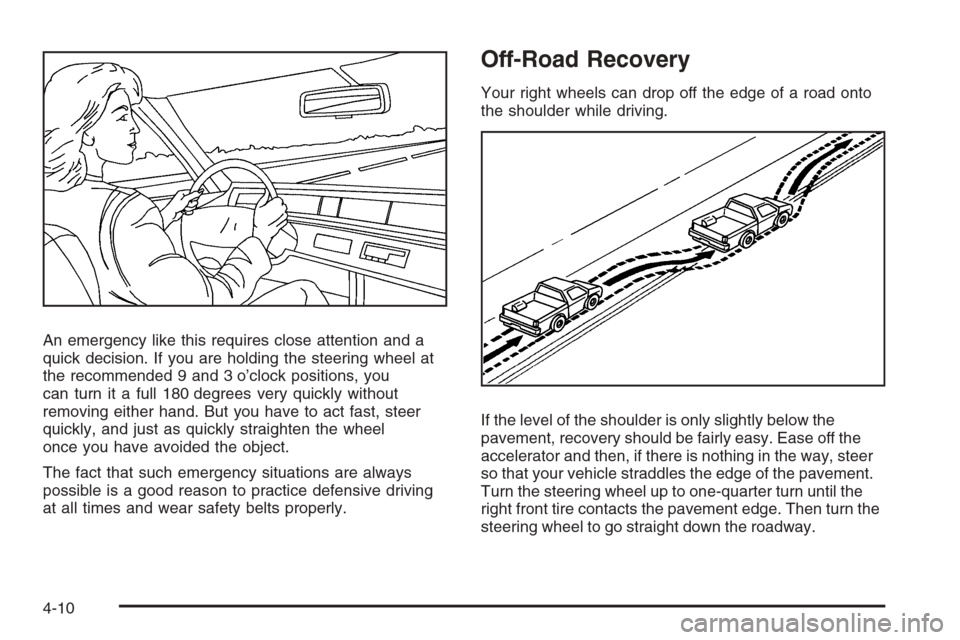
Your right wheels can drop off the edge of a road onto
the shoulder while driving.
If the level of the shoulder is only slightly below the
pavement, recovery should be fairly easy. Ease off the
accelerator and then, if there is nothing in the way, steer
so that your vehicle straddles the edge of the pavement.
Turn the steering wheel up to one-quarter turn until the
right front tire contacts the pavement edge. Then turn the
steering wheel to go straight down the roadway.
4-10