2008 CHEVROLET AVEO lock
[x] Cancel search: lockPage 179 of 384
Using the Auxiliary Input Jack
The radio system has an auxiliary input jack located on
the lower right side of the faceplate. This is not an audio
output. Do not plug the headphone set into the front
auxiliary input jack. An external audio device such as
an iPod, laptop computer, MP3 player, CD changer,
or cassette tape player, etc. can be connected to the
auxiliary input jack for use as another source for audio
listening.
The auxiliary input jack also accepts cell phone
connectors. Plug the cell phone connector into the
auxiliary input jack to hear a person speaking on a cell
phone during conversation through the vehicle sound
system.
Drivers are encouraged to set up any auxiliary device
while the vehicle is in PARK (P). SeeDefensive Driving
on page 4-2for more information on driver distraction.To use a portable audio player, connect a 3.5 mm
(1/8 inch) cable to the radio’s front auxiliary input jack.
While a device is connected, turn the portable audio
player on and press the radio CD/AUX button to
hear audio from the device over the vehicle speakers.
CD/AUX (CD/Auxiliary):Press this button once to
play a CD while a portable audio device is playing.
Press this button a second time for the system to begin
playing audio from the connected portable audio player.
Once in this mode, Auxinput appears on the display. If the
auxiliary jack does not detect the presence of an output
jack, the auxiliary mode does not display.
O(Power/Volume):Turn theOknob clockwise or
counterclockwise to increase or decrease the volume
of the portable player. Additional adjustments on a
portable device might be needed to get the desired
volume.
3-65
Page 180 of 384
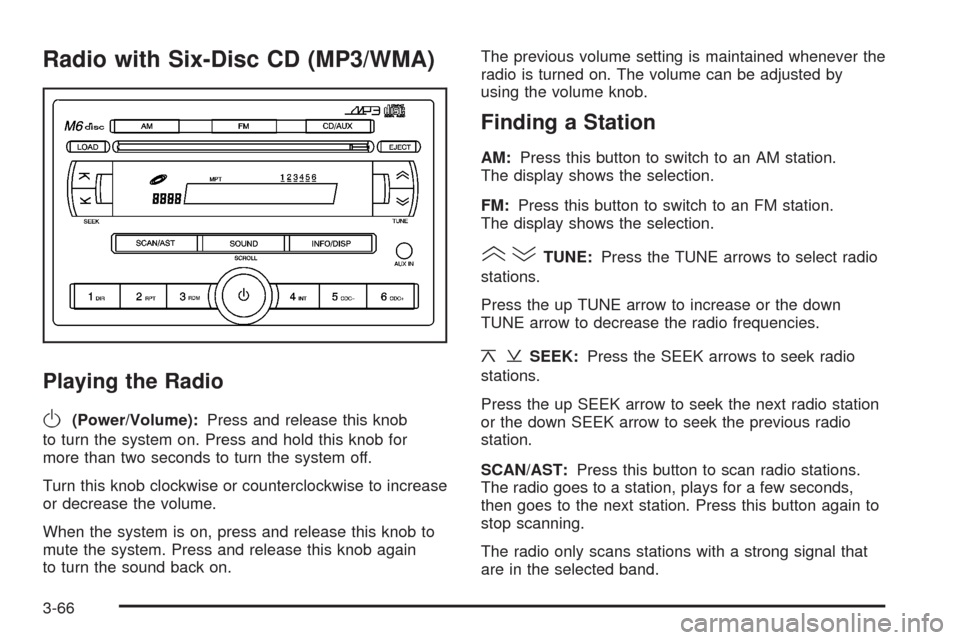
Radio with Six-Disc CD (MP3/WMA)
Playing the Radio
O
(Power/Volume):Press and release this knob
to turn the system on. Press and hold this knob for
more than two seconds to turn the system off.
Turn this knob clockwise or counterclockwise to increase
or decrease the volume.
When the system is on, press and release this knob to
mute the system. Press and release this knob again
to turn the sound back on.The previous volume setting is maintained whenever the
radio is turned on. The volume can be adjusted by
using the volume knob.
Finding a Station
AM:Press this button to switch to an AM station.
The display shows the selection.
FM:Press this button to switch to an FM station.
The display shows the selection.
()TUNE:Press the TUNE arrows to select radio
stations.
Press the up TUNE arrow to increase or the down
TUNE arrow to decrease the radio frequencies.
¦¥SEEK:Press the SEEK arrows to seek radio
stations.
Press the up SEEK arrow to seek the next radio station
or the down SEEK arrow to seek the previous radio
station.
SCAN/AST:Press this button to scan radio stations.
The radio goes to a station, plays for a few seconds,
then goes to the next station. Press this button again to
stop scanning.
The radio only scans stations with a strong signal that
are in the selected band.
3-66
Page 185 of 384
If any error occurs repeatedly or if an error cannot be
corrected, contact your dealer/retailer. If the radio
displays an error message, write it down and provide it
to your dealer/retailer when reporting the problem.
Using the Auxiliary Input Jack
AUX IN (Auxiliary Input):The radio system has an
auxiliary input jack located on the lower right side of
the faceplate. This is not an audio output. Do not plug
the headphone set into the front auxiliary input jack.
An external audio device such as an iPod, laptop
computer, MP3 player, CD changer, or XM™ receiver,
etc. can be connected to the auxiliary input jack for
use as another source for audio listening.
The auxiliary input jack also accepts cell phone
connectors. Plug the cell phone connector into the
auxiliary input jack to hear a person speck on a
cell phone during a conversation through the vehicle
sound system.Drivers are encouraged to set up any auxiliary device
while the vehicle is in PARK (P). SeeDefensive Driving
on page 4-2for more information on driver distraction.
To use a portable audio player, connect a 3.5 mm
(1/8 inch) cable to the radio’s front auxiliary input jack.
While a device is connected, turn the portable audio
player on and press the radio CD/AUX button to
hear audio from the device over the vehicle speakers.
O(Power/Volume):Turn this knob clockwise or
counterclockwise to increase or decrease the volume of
the portable player. Additional adjustments on a portable
device might be needed to get the desired volume.
CD/AUX (CD/Auxiliary):Press this button once to play
a CD while a portable audio device is playing. Press
this button a second time for the system to begin playing
audio from the connected portable audio player. Once
in this mode, Auxinput displays. If the auxiliary jack does
not detect the presence of an output jack, the auxiliary
mode does not display.
3-71
Page 195 of 384
Your Driving, the Road, and Your Vehicle..........4-2
Defensive Driving...........................................4-2
Drunk Driving.................................................4-2
Control of a Vehicle........................................4-3
Braking.........................................................4-3
Antilock Brake System (ABS)...........................4-4
Braking in Emergencies...................................4-5
Steering........................................................4-6
Off-Road Recovery.........................................4-8
Passing........................................................4-8
Loss of Control..............................................4-8
Driving at Night............................................4-10
Driving in Rain and on Wet Roads..................4-10Before Leaving on a Long Trip.......................4-12
Highway Hypnosis........................................4-12
Hill and Mountain Roads................................4-12
Winter Driving..............................................4-13
If Your Vehicle is Stuck in Sand, Mud,
Ice, or Snow.............................................4-17
Rocking Your Vehicle to Get It Out.................4-17
Loading Your Vehicle....................................4-18
Towing..........................................................4-27
Towing Your Vehicle.....................................4-27
Recreational Vehicle Towing...........................4-27
Towing a Trailer...........................................4-28
Section 4 Driving Your Vehicle
4-1
Page 198 of 384
And, of course, actual stopping distances vary greatly
with the surface of the road, whether it is pavement
or gravel; the condition of the road, whether it is
wet, dry, or icy; tire tread; the condition of the brakes;
the weight of the vehicle; and the amount of brake
force applied.
Avoid needless heavy braking. Some people drive
in spurts — heavy acceleration followed by heavy
braking — rather than keeping pace with traffic. This is
a mistake. The brakes might not have time to cool
between hard stops. The brakes will wear out much
faster if you do a lot of heavy braking. If you keep pace
with the traffic and allow realistic following distances,
you will eliminate a lot of unnecessary braking.
That means better braking and longer brake life.
If your vehicle’s engine ever stops while you are
driving, brake normally but do not pump the brakes.
If you do, the pedal could get harder to push down.
If the engine stops, you will still have some power
brake assist. But you will use it when you brake.
Once the power assist is used up, it can take longer
to stop and the brake pedal will be harder to push.
Adding non-dealer/non-retailer accessories can affect
your vehicle’s performance. SeeAccessories and
Modifications on page 5-3.Antilock Brake System (ABS)
Your vehicle might have the Antilock Brake System
(ABS), an advanced electronic braking system that will
help prevent a braking skid.
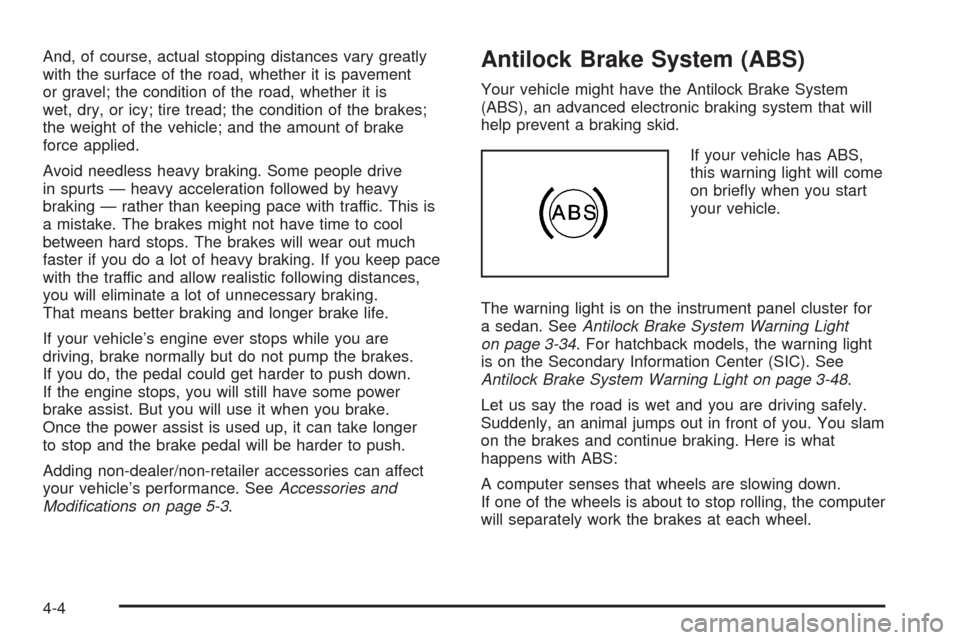
If your vehicle has ABS,
this warning light will come
on briefly when you start
your vehicle.
The warning light is on the instrument panel cluster for
a sedan. SeeAntilock Brake System Warning Light
on page 3-34. For hatchback models, the warning light
is on the Secondary Information Center (SIC). See
Antilock Brake System Warning Light on page 3-48.
Let us say the road is wet and you are driving safely.
Suddenly, an animal jumps out in front of you. You slam
on the brakes and continue braking. Here is what
happens with ABS:
A computer senses that wheels are slowing down.
If one of the wheels is about to stop rolling, the computer
will separately work the brakes at each wheel.
4-4
Page 199 of 384
ABS can change the brake pressure faster than any
driver could. The computer is programmed to make the
most of available tire and road conditions. This can
help you steer around the obstacle while braking hard.
As you brake, the computer keeps receiving updates
on wheel speed and controls braking pressure
accordingly.
Remember: ABS does not change the time you need to
get your foot up to the brake pedal or always decrease
stopping distance. If you get too close to the vehicle
in front of you, you will not have time to apply the brakes
if that vehicle suddenly slows or stops. Always leave
enough room up ahead to stop, even though you
have ABS.
Using ABS
Do not pump the brakes. Just hold the brake pedal
down firmly and let antilock work for you. You might
feel a slight brake pedal pulsation or notice some
noise, but this is normal.
Braking in Emergencies
At some time, nearly every driver gets into a situation
that requires hard braking.
If you have ABS, you can steer and brake at the same
time. However, if you do not have ABS, your first
reaction — to hit the brake pedal hard and hold it
down — might be the wrong thing to do. Your wheels
can stop rolling. Once they do, the vehicle cannot
respond to your steering. Momentum will carry it in
whatever direction it was headed when the wheels
stopped rolling. That could be off the road, into the
very thing you were trying to avoid, or into traffic.
If you do not have ABS, use a “squeeze” braking
technique. This will give you maximum braking while
maintaining steering control. You can do this by pushing
on the brake pedal with steadily increasing pressure.
In an emergency, you will probably want to squeeze
the brakes hard without locking the wheels. If you hear
or feel the wheels sliding, ease off the brake pedal.
This will help you retain steering control. If you do have
ABS, it is different. SeeAntilock Brake System (ABS)
on page 4-4.
In many emergencies, steering can help you more
than even the very best braking.
4-5
Page 200 of 384
Steering
Power Steering
If you lose power steering assist because the engine
stops or the system is not functioning, you can steer
but it will take much more effort.
Steering Tips
It is important to take curves at a reasonable speed.
A lot of the “driver lost control” accidents mentioned
on the news happen on curves. Here is why:
Experienced driver or beginner, each of us is subject
to the same laws of physics when driving on curves.
The traction of the tires against the road surface makes
it possible for the vehicle to change its path when
you turn the front wheels. If there is no traction, inertia
will keep the vehicle going in the same direction.
If you have ever tried to steer a vehicle on wet ice,
you will understand this.
The traction you can get in a curve depends on the
condition of the tires and the road surface, the angle at
which the curve is banked, and your speed. While you
are in a curve, speed is the one factor you can control.
Suppose you are steering through a sharp curve.
Then you suddenly apply the brakes. Both control
systems — steering and braking — have to do theirwork where the tires meet the road. Unless you have
antilock brakes, adding the hard braking can demand
too much of those places. You can lose control.
The same thing can happen if you are steering through
a sharp curve and you suddenly accelerate. Those
two control systems — steering and acceleration — can
overwhelm those places where the tires meet the road
and make you lose control.
What should you do if this ever happens? Ease up on
the brake or accelerator pedal, steer the vehicle the
way you want it to go, and slow down.
Speed limit signs near curves warn that you should adjust
your speed. Of course, the posted speeds are based on
good weather and road conditions. Under less favorable
conditions you will want to go slower.
If you need to reduce your speed as you approach a
curve, do it before you enter the curve, while the front
wheels are straight ahead.
Try to adjust your speed so you can drive through the
curve. Maintain a reasonable, steady speed. Wait
to accelerate until you are out of the curve, and then
accelerate gently into the straightaway.
Adding non-dealer/non-retailer accessories can affect
your vehicle’s performance. SeeAccessories and
Modifications on page 5-3.
4-6
Page 201 of 384
Steering in Emergencies
There are times when steering can be more effective
than braking. For example, you come over a hill and
find a truck stopped in your lane, or a car suddenly
pulls out from nowhere, or a child darts out from
between parked cars and stops right in front of you.
You can avoid these problems by braking — if you can
stop in time. But sometimes you cannot; there is not
room. That is the time for evasive action — steering
around the problem.
Your vehicle can perform very well in emergencies
like these. First apply the brakes — but, unless you
have antilock brakes, not enough to lock the wheels.
SeeBraking on page 4-3. It is better to remove as
much speed as you can from a possible collision.
Then steer around the problem, to the left or right
depending on the space available.An emergency like this requires close attention and a
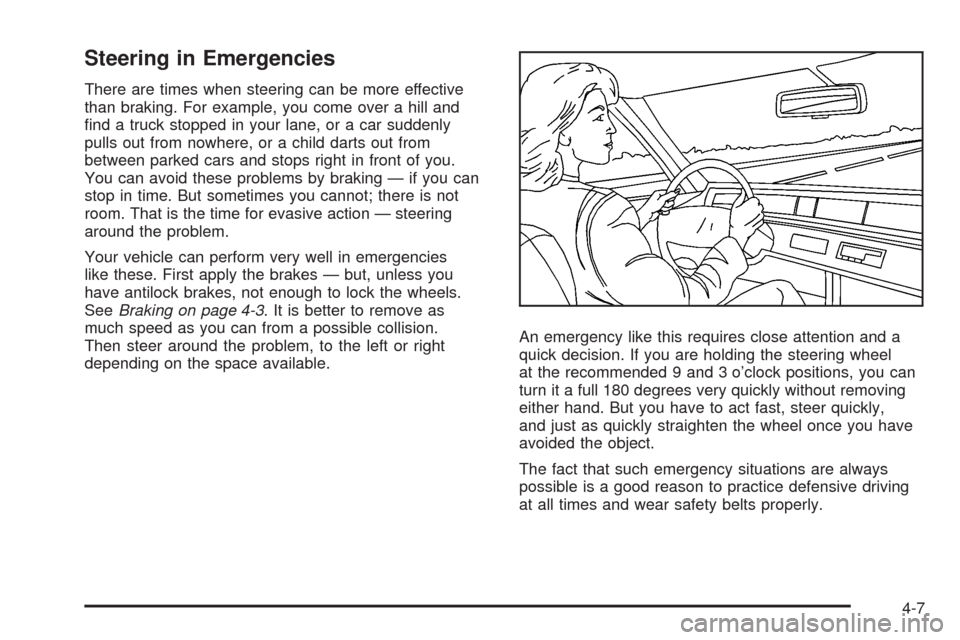
quick decision. If you are holding the steering wheel
at the recommended 9 and 3 o’clock positions, you can
turn it a full 180 degrees very quickly without removing
either hand. But you have to act fast, steer quickly,
and just as quickly straighten the wheel once you have
avoided the object.
The fact that such emergency situations are always
possible is a good reason to practice defensive driving
at all times and wear safety belts properly.
4-7