2007 VOLKSWAGEN JETTA Premium Sound
[x] Cancel search: Premium SoundPage 445 of 477
Booklet 3.4 Premium Sound System
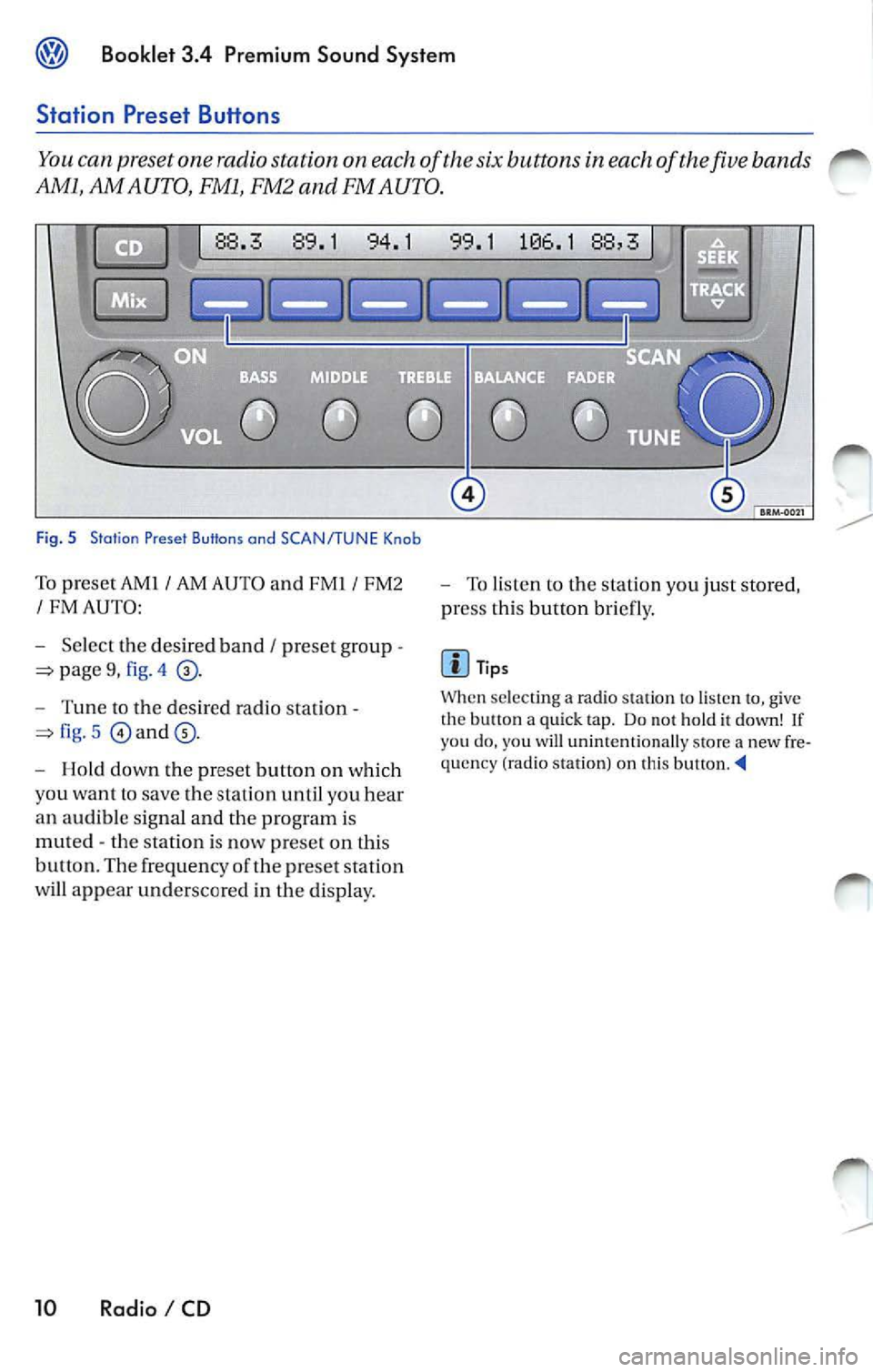
Station Preset Buttons
You can preset one radio station on each of the six buttons in each of the five bands
AMl, AM AUTO, FMl, FM2 and FM AUTO.
Fig. 5 Station Preset Buttons ond SCAN/TUNE Knob
To pr eset AMJ I AM AUTO and FMI I FMZ
I FM AUTO:
- Select the de sir ed band
I pr ese t group -
pag e 9, fig . 4
- Tun e to the desired radio station -
fig. 5 and
- Hold down the preset button on which
you wa nt lo save the stat io n until you hear
an aud ible sig nal and the program is
mut ed - t he station is now prese t on this
b utt on. Th e frequen cy of th e pr ese t station
w ill appear underscore d in the display.
10 Radio I CD
-To li sten to the s tation you ju st stored,
pr ess thi s button bri efl y.
Tip s
When sclec iin g a ra dio slal ion to, give
t he button a qui ck t ap . Do not h old it down! If yo u do , you will uninten tio nally store a new fre
qu en cy (radi o station ) on this button. --4
Page 447 of 477
@ Booklet 3.4 Premium Sound System
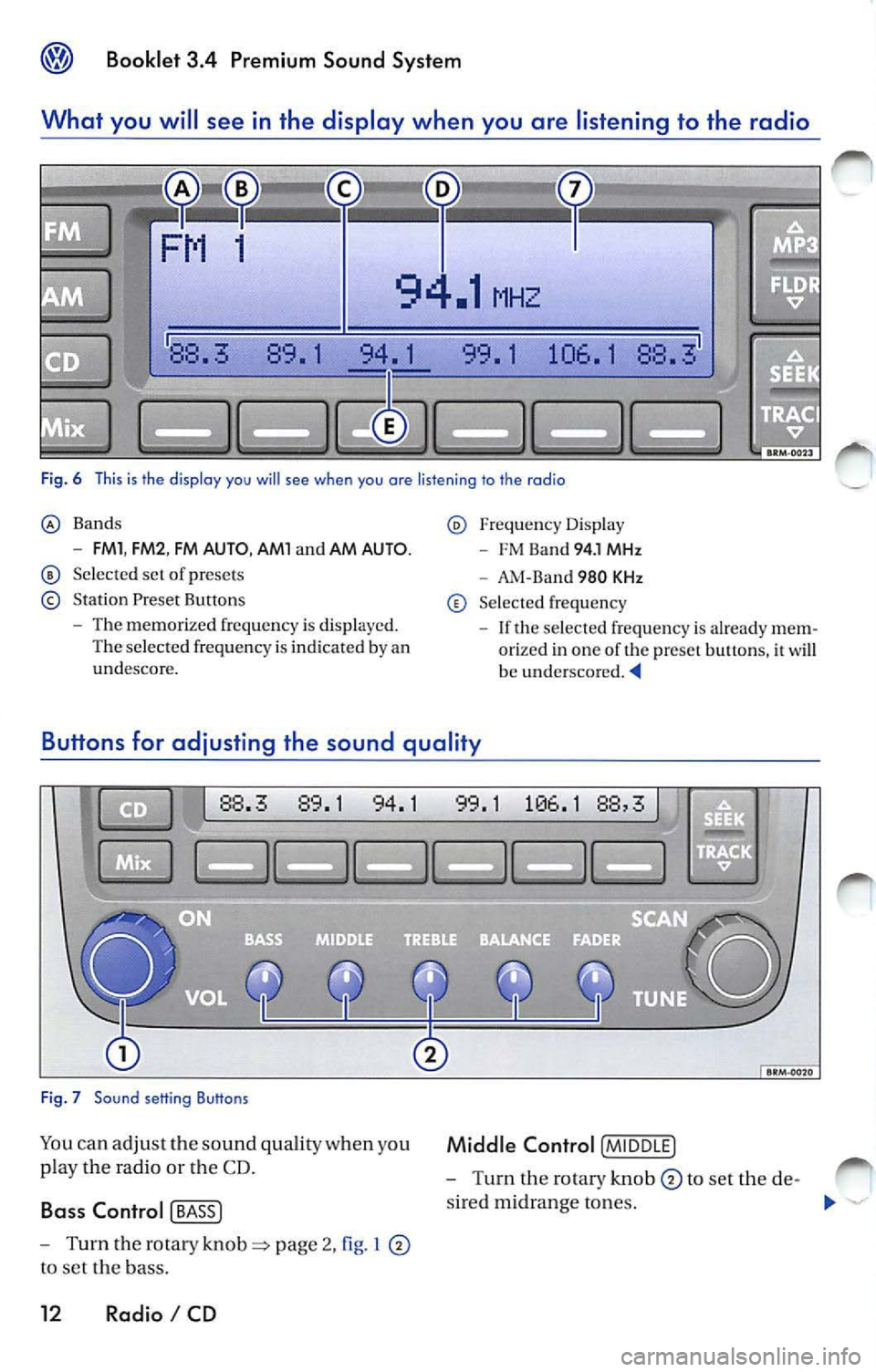
What you will se e in the di splay when you are listening to the rad io
88. 89. 1 94. 1 99. 1 106. 1 88.
Fig. 6 This is th e display you will see when you are listening to the radio
Bands
- FMl , FM2 , FM AUTO , AMl and AM AUTO.
Se lected set of presets
Station Preset Buttons
- The memorized frequ ency is displayed.
The selected frequency is indicated by an
undescore.
Freq uency Displa y
- FM Ba nd 94. 1 MHz
- AM-Ba nd 980 KHz
Selec ted frequency
- If the selec ted frequency is alrea dy m em
orized in one of the preset buttons, it
w ill be underscored.
Bu tton s for adju sting the sound qualit y
88.3 89.1 94.1
Fig . 7 Sound setting Buttons
Yo u ca n adju st th e so und quality when you
p lay the radio or the CD.
Ba ss Control [ BASS J
- Turn the rotary page 2, I
to se t the bass.
12 Radio I CD
1 1 88,
Middle Control [M IDD LE]
- Turn the rotary knob to set the de-
s ire d m idrange to nes.
"'
Page 448 of 477
![VOLKSWAGEN JETTA 2007 Owners Manual Booklet 3.4 Premium Sound System ®
Treble Control [TR EBLE]
- Turn the ro tary knob to set th e de
s ired treb le .
Balance Control (B ALA N CE]
- Turn the rotary knob to set th](/manual-img/18/55689/w960_55689-447.png "VOLKSWAGEN JETTA 2007 Owners Manual Booklet 3.4 Premium Sound System ®
Treble Control [TR EBLE]
- Turn the ro tary knob to set th e de
s ired treb le .
Balance Control (B ALA N CE]
- Turn the rotary knob to set th")
Booklet 3.4 Premium Sound System ®
Treble Control [TR EBLE]
- Turn the ro tary knob to set th e de
s ired treb le .
Balance Control (B ALA N CE]
- Turn the rotary knob to set the de
sired bala n ce between t he left and right
speakers.
Fade r Control !FADER !
-Turn the rotary knob to set the de
s ire d balance between the front and rear
the rad io unit.
Sat ellit e ra di o pr ovi ders
Volkswagen offers two satellite radio provider s:
• XM Satellite Radio
• Sirius Satellite Radio
Ask your authorized Volkswagen dea ler for more
information about the service each provider
Radio I CD 13
Page 449 of 477
Booklet 3.4 Premium Sound System
Activate your Satellite Radio Service
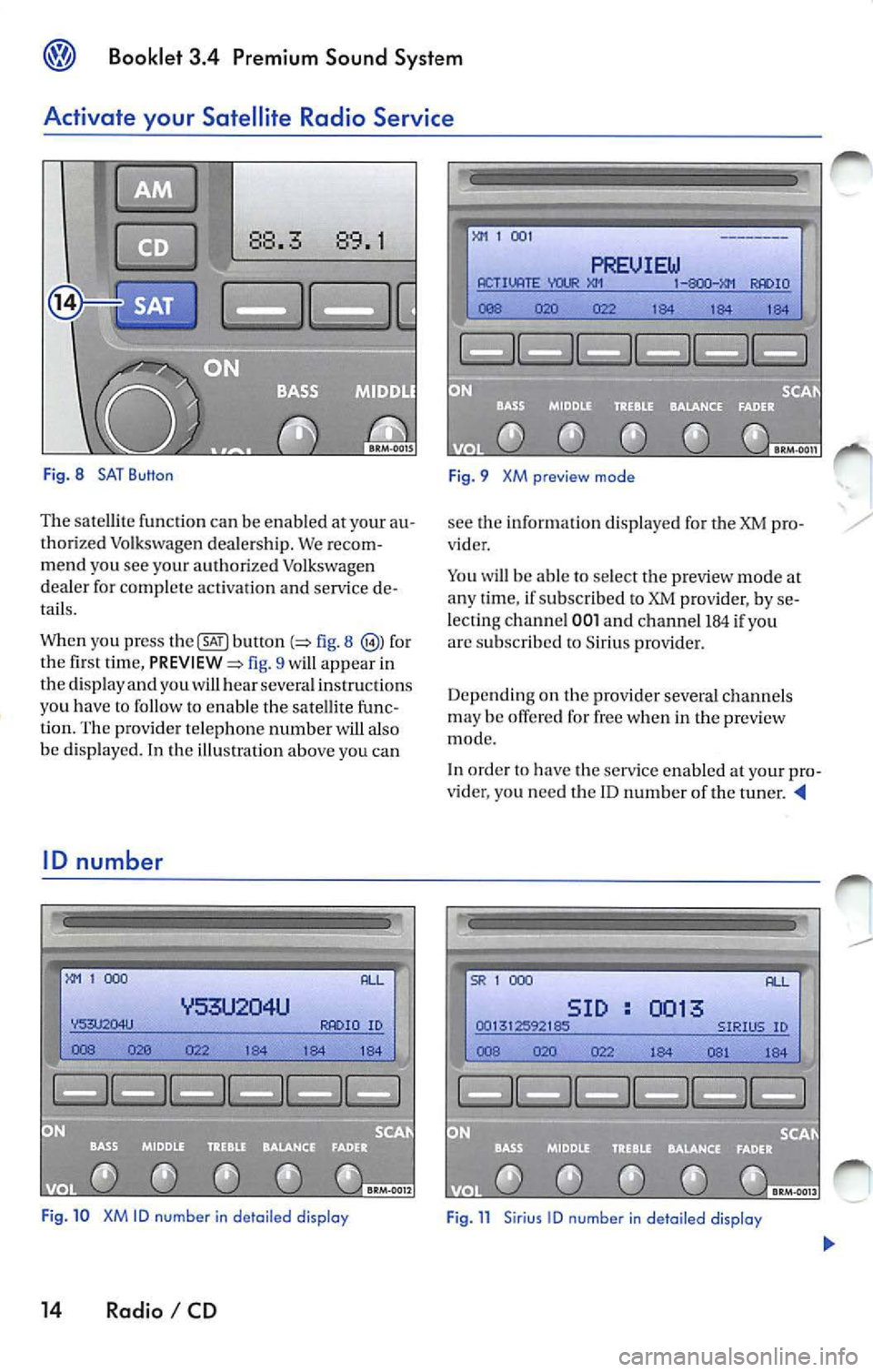
Fig. 8 SAT Button
The sate llite functio n ca n be en abled at your au
tho rized Volkswagen deale rs h ip. We recom
me nd you see your aut horized Volkswage n
de aler for complete activatio n an d service de
tails.
When you press
b utl on fig. 8 for
the fi rst tim e, fig. 9 will app ear in
the disp lay a nd you wi ll hear sever al ins truc tions
yo u h ave
to fo llow to enab le t he sa te lli te fu nc
tion. The prov ide r telep hone number w ill also
be d isp layed. In the illu stratio n above you can
ID number
1 000
ID
Fig . 10 XM ID number in de tail ed display
14 Radio I CD
1 00 1
PREUIEW ACTIVATE IO
184 1 84 184
F ig. 9 XM preview mode
see the informat io n d isplaye d for the XM pro
vider .
Yo u will be able to select t he p review mode at
a n y ti me , if su bscribed to XM prov ider, by se
lecting channel
001 a nd ch an ne l 184 if yo u
arc s ubscribed to Sirius provide r.
Depe nd in g on th e provi der sever al ch an ne ls
m ay be offe red for free w hen i n th e preview
mode.
In order
have the serv ice enable d your pro
v ider, you nee d t he ID n um ber of the t uner.
SR 1 000
SID 0013
Page 450 of 477

Booklet 3.4 Premium Sound System
To show the ID number in the display
-Before en ab lin g, press button
pa ge 14, fig. 8 The ID number wi ll
appear in the di spla y.
- After enabling, turn the
!SCAN/TUNE !
button page 10, fig. 5 until channel
000 is di sp layed
XM ID
Thi s number i s an eight character a lphanumeri c
numb er. Firs t, th e m essage RADIO ID will appear
in the di spl ay, then the eight-c haracter
ID number. Th edis pl aywi ll alt ernat e automatically
aft er a few seco nds.
SAT button
88.3 89.1
Fig. 12 SAT button
Select the satellite mode
- Press button fig. 12 to se
l ect the sate llite mode or to se lec t any o f
d 1e thr ee memory b and s ava ilab le.
Storing a channel
- In SAT mode , memo ry band s w ith
storage position s are availabl e. Pre ss
button to select each memory
b an d. Th e se lec te d b and is in dic ated in the
di spla y.
Sirius ID
Thi s numb er is an twe lve character alphanu
m er ic numb er. First SID and the fir st four char
acter s of the
ID number will app ear in the dis
p lay, then the re m ainin g eight characte rs will be
di splaye d. Also the pro vider t elephon e numb er
w ill be displ aye d. The displa y will alternate au
tomati cally af te r a few second s.
Display selection
It is po ssibl e to select betwe en a ba sic SAT dis
pl ay a nd a mor e deta il ed one. If the basi c SAT
di spla y is se lec te d information (such as song
and artis t nam e) will not be displa yed. See page
=> page 18.
- While in the desired channel , h old
down the stat ion pre set
page IO,
fig . 5
on which you want to save the sta
tion until you hear an audible sign al and
th e radio sound is muted. Th e ch annel i s
now preset on this button. The pre set sta
tion will appear underscored in the di s
p lay.
- To reca ll th e c hannel you ju st sto re d,
pr ess this button briefly.
XM 1, XM 2 or XM 3 will appear in the d isplay to
s h ow you Lhc m emo ry band if you arc sub
sc rib ed to XM provider.
SR 1 , SR 2 or SR 3 will a ppear in the disp lay to
s ho w yo u the memory band if you arc s ub
sc rib ed to Sir iu s prov ider.
Tip s
Wh en se lec ting station s, onl y press the butt on
bri efly. If yo u h old it down for some tim e, the
c ur re ntly displ ayed frequ en cy will b e stor ed on
t h is butlon.
XM and its co rr es pon ding logos are uademark s Satellite Hadi o In c.
Siriu s an d related ma rk s ar c tra dem ark s of Sir iu s Rad io In c.
Radio I CD 15
Page 451 of 477
® Booklet 3.4 Premium Sound System
Selecting a category
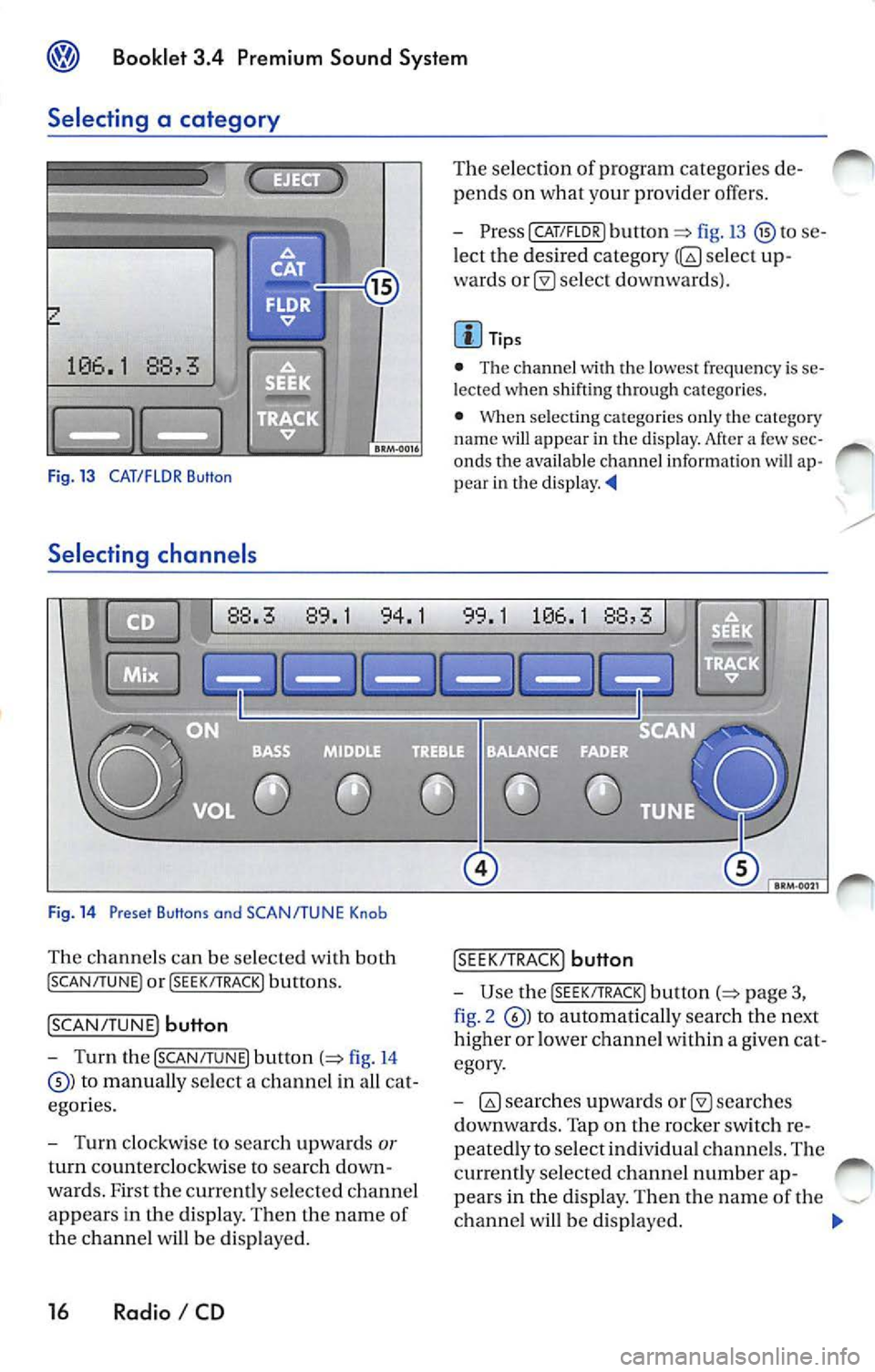
Fig. 13 CAT/FLOR Button
Selecting channe ls
Fig . 14 Preset Buttons and SCAN/TUNE Knob
Th e chan nels can be selected with both
! SCAN/TUNE ) or !SEEK/ TRACK) buttons.
!SCAN/ TUNE) button
- Turn the [SCAN /TUNE) button (=> fig. 14
to manually select a channe l in a ll ca t
egor ies.
- Turn clockwis e to sea rc h up wards
or
turn coun tercl ockwise to searc h down
wards. F irst the currently selecte d ch a nnel
appears in the di sp lay. Then the name of
the ch anne l w ill be di spla yed.
16 Radio I CD
The se lection of program categorie s de
pends on what your provid er offers.
- PresslCAT/FLDR) button
fig.13 to se
l ect the desired category
selec t up
wards
se lec t do wnwa rds).
Tips
• The chann el
th e lo wes t frequency is se
l e cted when shifti ng through ca tego ries.
•
se lecting ca tegories on ly th e category
nam e will appear in the disp lay. Af te r a few sec
onds the availa ble channel informatio n will ap
p ear in th e d is play.
!S EE K/TRA CK) button
-Use the [S EE K/TRACK ) button p age 3,
fig . 2
to autom ati ca lly sea rch the next
higher or lower ch anne l w ith in a g iven cat
egory .
-
sea rche s
d ownwa rds. Tap on the rocker switch r e
peated ly to selec t indi vidual ch anne ls. The
currently selected ch ann el numb er ap-
pea rs in the displa y. The n the nam e of the
ch anne l w ill b e disp layed.
Page 452 of 477

Booklet 3.4 Premium Sound System
Automatic channel selection
-Briefly press the ISCAN/TUN EJ button to
sta rt a utom atic sca nning to the n ext
c hann el w ithin a give n category. Aft er
abou t 10 sec ond s, scan ning will resume
and go to the ne xt channel.
SCAN appears
in the displ ay and the c hann el available in
formation will be display ed.
- To stop scan ning, press the
ISCAN/T UNEJ
button bri efly during th e 10 seco nd "h old "
time.
- T he sca n function stop s automatica lly
after one loop of the available chann els in
the pr eset memori es or in the ca tego ry if
the operation is not manually stopped.
If a
diff erent cate gory i s to b e scan ned, first se
le ct that category manually and th en pr ess
[SCAN/TUNEJ.
Preset scan
-It is po ssible for you to select between a
sca n opera tion through the enti re range of
chann els w ithin a giv en category or ju st
tho se memorized in the station preset but
t o ns. Press and hold do wn the
!SCAN/T UNE )
button for l on ge r th an 2 seco nds to e nter
th e set up mod e. You'll hear a sign al ton e.
- Turn th e
!SCAN/T U NE J rotary knob , until
SELECT SCAN SAT appears in the di spl ay. -
In th e lower part of the di spla y th e
w ord s
CHANNELS and PRESETS wi ll ap
pear . By using the stat ion pr eset button s©
belo w these wor ds se lect th e type of scan
operat ion you want.
- P ress the
ISCAN/T UNEJ button again for
long er than 2 secon ds to c onfirm th e set
ting you've just m ad e. You' ll hea r a s ig nal
ton e. Th e pr ese t scan function sto ps au to
m aticall y after one loop of th e available
channels in the preset memories if the op
eration is not manuall y stopped .
Tips
• The category name to which each chan nel
b elong s w ill app ear in the displ ay.
• When se lec tin g cha nnels on ly th e ch ann el
and ca tegory names will app ear in th e di splay.
After a few second s the availab le chan nel infor
mat ion will appea r in the display.
• Non se lec ta bl e ch annel s arc automatically
p asse d over w hen search ing ch annel s and are
not shown in the display. It dep ends on your
provider wheth er the chann el is covered.
• If the channel fou nd is already saved on a sta
tion butt on , the corres pon din g chann el numb er
will be undersc ored in th e displa y.
• When category ALL is select ed the
(SEEK /TRACK) button will sea rc h chan nels in all cat egories.
• category ALL is selec ted t he next ava ilable
c h annel will be selec ted when usin g th e
(SEEK/TRACK) button, rega rdless if it belong s to different category. -'4
Radio I CD 17
Page 453 of 477

Booklet 3.4 Premium Sound System
SAT display selection
Fig. 15 D etail ed SAT disp lay
It i s possible to select between a bas ic SAT
di spl ay an d a more detailed one .
If the
ba sic SAT displa y is sel ecte d the availab le
channe l information ( such as song and
arti st nam e) will not b e displayed.
Press and hold down the [SCAN /TUNE]
button page 16, fig. 14 for longer
than 2 seco nds to enter th e se t up mode.
You'll hear a signal tone.
Turn th e [SCAN/T UNE] rotary knob , unti l
SELECT SAT DISPLAY appears in the
pla y.
In th e lo wer part of the di spl ay the
wo rds
BASIC and DETAIL will appear. By
u sing th e sta tion pre set
p age 16 ,
fig . 14
se lec t eit her the ba sic or detai l
di spla y.
18 Radio I CD
Press the [SCAN /TUN El button again for
l onger than 2 seco nds to confirm th e
ting you have just made. You will hear a
signa l ton e.
Information displayed
Satellit e service provider
Memor y band
© Chann el n um ber
C hann el name
C at egory nam e
Art is t name
The inform ation w ill be displayed if able and if the detail ed di spla y is s ele cted.
No tex t sc roll is ava ilab le.
S el ecte d ch anne l
If the se lec ted c hannel is already rize d in one of th e prese t button s, it wi ll
b e und ersco re d.
C hann els m em or ized in the sta tion preset
b utt ons fo r th e se lecte d memory band
Song name
- Th e information
will be di splayed if ava il
ab le and if th e de ta iled displa y is se lec te d.
N o tex t sc roll is av ail able.
• The inform ation d is p layed is var iable and
dep ends o n the channel sele cted, the c hann el
c ate gory or o n th e prov ider.
• If no inform ation is av ailabl e
will app ear
in th e displ ay.
• The acc ura cy of the information shown is
sponsibilit y of th e sa te llit e serv ice pro vider