Page 230 of 470
2202007 4Runner from Aug. ’06 Prod. (OM35866U)
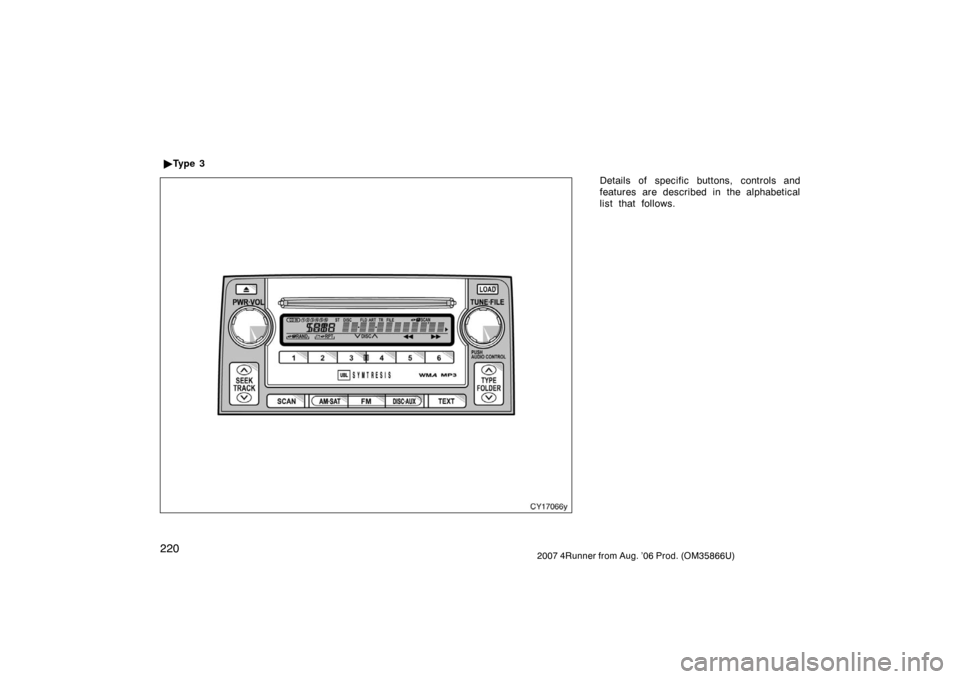
Details of specific buttons, controls and
features are described in the alphabetical
list that follows.
�
Ty p e 3
CY17066y
Page 231 of 470

2212007 4Runner from Aug. ’06 Prod. (OM35866U)
1 2 3 4 5 6 (Preset buttons)
These buttons are used to preset and
tune in radio stations.
To preset a station to a button: Tune in
the desired station. (See “TUNE·FILE” or
“SEEK/TRACK”.) Push and hold down the
button until you hear a beep—this will set
the station to the button. The preset but-
ton number will appear on the display.
To recall a preset station: Push the button
for the station you want. The preset but-
ton number and station frequency will ap-
pear on the display.
These systems can store one AM and two
FM stations for each button. (The display
will show “AM”, “FM1” or “FM2” when you
push “AM·SAT” or “FM” button.)
XM
� satellite radio∗—
These buttons are used to preset and
tune in radio channels.
To preset a channel to a button: Tune in
the desired channel. (See “TUNE·FILE” or
“SEEK/TRACK”.) Push and hold down the
button until you hear a beep—this will set
the channel to the button. The preset but-
ton number will appear on the display. To recall a preset channel: Push the but-
ton for the channel you want. The preset
button number and channel number will
appear on the display.
This radio can store three XM
� channels
for each button. (The display will show
“SAT1”, “SAT2” or “SAT3” when you push
“AM·SAT” button.)
∗: Use of satellite radio requires XM�
tuner and service. Contact your Toyota
dealer for details.
(Eject button)
This button is used to eject one or all
compact discs.
To eject the current compact disc, push
and release the compact disc eject button.
To eject a specific disc, push “ �” (preset
button 3) or “ �” (preset button 4) until the
number of the disc you want to eject is
displayed. Push and release the eject but-
ton.
To eject all discs at a time, press and
hold the eject button until you hear a
beep. The last compact disc played before
pushing the button will be ejected first. If
the ejected disc is not removed for a long
time, the eject function will be cancelled.
(Reverse/Fastforward button)
Push and hold “
” (preset button 6) or
“
” (preset button 5) to fast −forward or
reverse within a compact disc. When you
release the button, the compact disc play-
er will resume playing.
AM·SAT (AM band and XM
� satellite ra-
dio∗)
Push the “AM·SAT” button to turn on the
radio and select the AM or XM
� band.
“AM”, “SAT1”, “SAT2” or “SAT3” will ap-
pear on the display.
Error messages
If the satellite radio tuner malfunctions,
your audio system will display following
error messages.
“ANTENNA”:
�The XM� antenna is not connected.
Check whether the XM
� antenna cable
is attached securely.
�A short −circuit occurs in the antenna or
the surrounding antenna cable. See a
Toyota certified dealer.
Page 233 of 470

2232007 4Runner from Aug. ’06 Prod. (OM35866U)
Vehicles with rear seat entertainment sys-
tem—
The “DISC·AUX” button may also be used
to operate the DVD player when a disc is
in the DVD player. Pressing the
“DISC·AUX” button allows you to switch
between the CD player and the DVD play-
er. When the DVD player is in operation,
“RSE DVD” appears on the display.
Vehicles with AUX adapter—
To switch between CD, DVD, and AUX
(external device) modes, press the
“DISC·AUX” button. The AUX mode is only
available when AUX adapter is connected
to the system. When the AUX adapter is
in use, “AUX” will appear on the display.
Error messages
If the player malfunctions, your audio sys-
tem will display following error messages.
“WAIT”: The compact disc player unit
may be too hot. Allow the player to cool
down.
“ERROR 1”: The disc may be dirty, dam-
aged or inserted incorrectly (up −side
down). Clean the disc and re −insert it.
“NO DISC”: The compact disc changer of
the separate unit is empty. Insert a disc. “ERROR 3”:
There is a problem inside
the system. Eject the disc or magazine.
Set the disc or magazine again.
“ERROR 4”: Over−current. Ask your
Toyota dealer to inspect.
“CD OPEN”: The compact disc changer
lid of the separate unit is open. Close the
compact disc changer lid.
If “NO MUSIC” appears on the display,
it indicates that a disc with no MP3/WMA
data has been inserted. Remove the disc
from the player and insert an MP3/WMA
data disc.
If the malfunction still exists, take your
vehicle to your Toyota dealer.
� DISC �
Use these buttons to select a disc you
want to listen to.
Push “ �” (preset button 3) or “� ” (preset
button 4) until the number of the disc you
want to listen appears on the display.
FM
Push the “FM” button to turn on the radio
and select the FM band. “FM1” or “FM2”
will appear on the display. This system
allows you to set twelve FM stations, two
for each of the preset buttons. FOLDER (Folder up/down)
To skip up or down to a different folder:
Push either side of the “FOLDER” several
times until the number of the folder you
want to listen to appears on the display.
To jump to the first file in the current
folder:
Push and hold the “�
” side of the button
until you hear a beep.
When playing a disc featuring both audio
data (CD −DA) and MP3/WMA files, audio
data (CD −DA) is played.
LOAD
This button is used to load the compact
discs in the compact disc player. This
player can store up to six discs.
To load one compact disc only, quickly
push and release the button, then insert
a compact disc. After the disc is loaded,
the shutter of the slot will close.
If no compact disc is inserted, the shutter
will close after 15 seconds.
Page 244 of 470
2342007 4Runner from Aug. ’06 Prod. (OM35866U)
The rear seat entertainment system can
be operated with the rear seat entertain-
ment system controller and buttons on the
DVD player unit. The system cannot be
operated by touching the switches on the
screen directly.
CAUTION
Do not disassemble or modify the
controller. It may cause an accident,
fire or electric shock.
NOTICE
Keep the controller away from direct
sunlight, high heat and high humidity.
These conditions could cause the
case to deform or the battery to ex-
plode or leak.
BEFORE USING THE CONTROLLER
(for new vehicle owners)
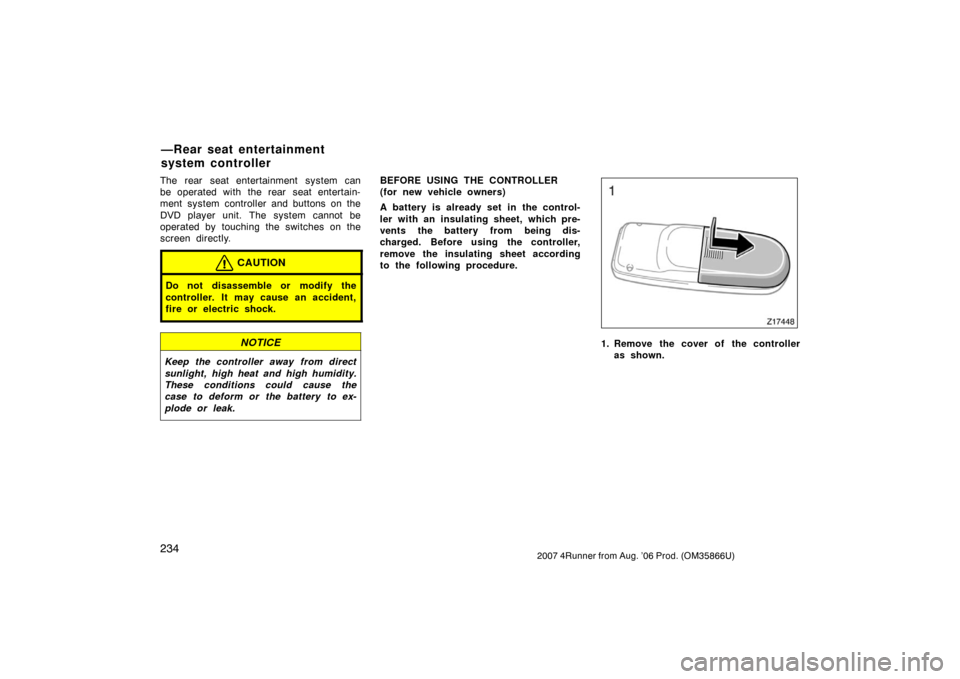
A battery is already set in the control-
ler with an insulating sheet, which pre-
vents the battery from being dis-
charged. Before using the controller,
remove the insulating sheet according
to the following procedure.
Z17448
1. Remove the cover of the controlleras shown.
—Rear seat entertainment
system controller
Page 247 of 470
2372007 4Runner from Aug. ’06 Prod. (OM35866U)
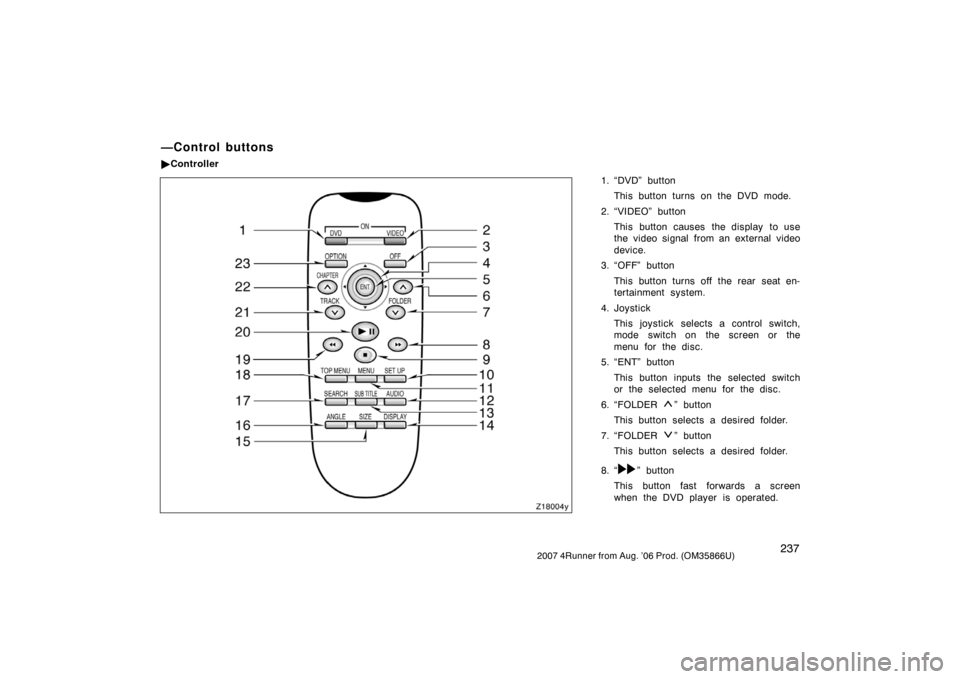
1. “DVD” buttonThis button turns on the DVD mode.
2. “VIDEO” button This button causes the display to use
the video signal from an external video
device.
3. “OFF” button
This button turns off the rear seat en-
tertainment system.
4. Joystick This joystick selects a control switch,
mode switch on the screen or the
menu for the disc.
5. “ENT” button
This button inputs the selected switch
or the selected menu for the disc.
6. “FOLDER
” button
This button selects a desired folder.
7. “FOLDER
” button
This button selects a desired folder.
8. “
” button
This button fast forwards a screen
when the DVD player is operated.
—Control buttons
� Controller
Z18004y
Page 254 of 470
2442007 4Runner from Aug. ’06 Prod. (OM35866U)
Z17461
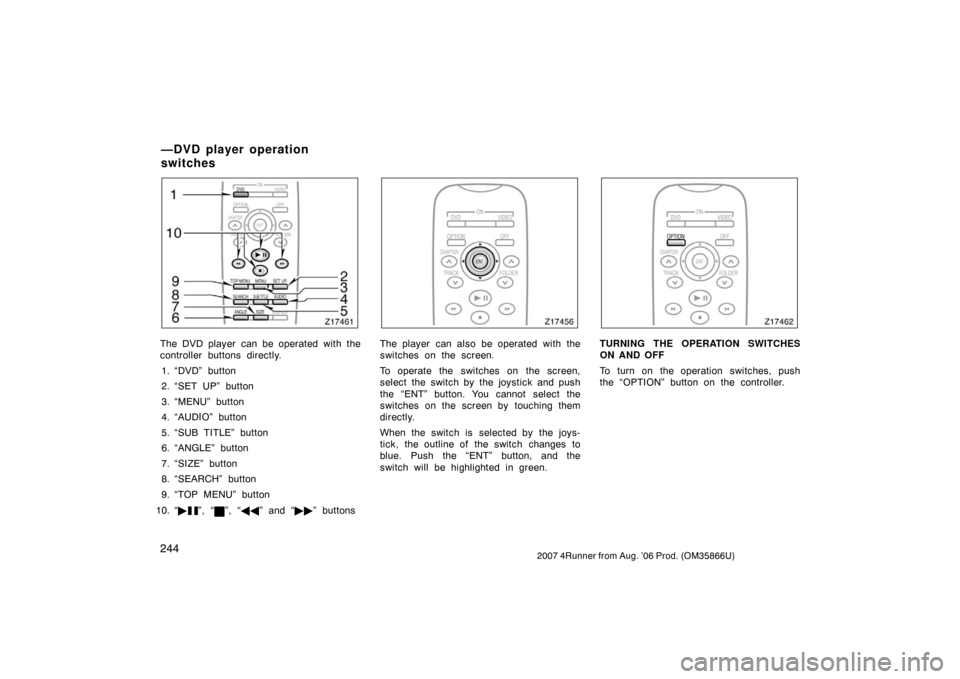
The DVD player can be operated with the
controller buttons directly.1. “DVD” button
2. “SET UP” button
3. “MENU” button
4. “AUDIO” button
5. “SUB TITLE” button
6. “ANGLE” button
7. “SIZE” button
8. “SEARCH” button
9. “TOP MENU” button
10. “ �
”, “”, “�� ” and “�� ” buttons
Z17456
The player can also be operated with the
switches on the screen.
To operate the switches on the screen,
select the switch by the joystick and push
the “ENT” button. You cannot select the
switches on the screen by touching them
directly.
When the switch is selected by the joys-
tick, the outline of the switch changes to
blue. Push the “ENT” button, and the
switch will be highlighted in green.
Z17462
TURNING THE OPERATION SWITCHES
ON AND OFF
To turn on the operation switches, push
the “OPTION” button on the controller.
—DVD player operation
switches
Page 256 of 470
2462007 4Runner from Aug. ’06 Prod. (OM35866U)
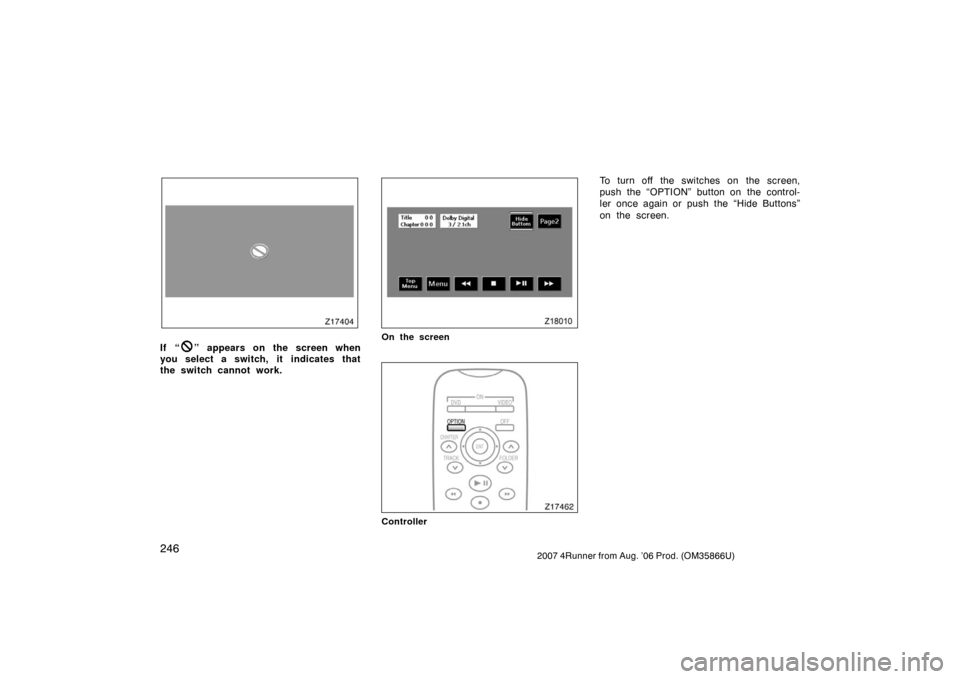
Z17404
If “” appears on the screen when
you select a switch, it indicates that
the switch cannot work.
Z18010
On the screen
Z17462
Controller
To turn off the switches on the screen,
push the “OPTION” button on the control-
ler once again or push the “Hide Buttons”
on the screen.
Page 259 of 470
2492007 4Runner from Aug. ’06 Prod. (OM35866U)
OPERATING THE “�”, “”, “��”
AND “ ��” SWITCHES/BUTTONS
“ �
” switch/button: Push this switch/but-
ton to pause the disc or to cancel the
pause and return to normal playing.
“
” switch/button: This switch/button
stops a screen when the DVD player is
operated.
“ �� ” and “�� ” switches/buttons: Push
and hold the “ ��” or “�� ” switch/button
to fast forward or reverse. When you re-
lease the switch/button, the DVD player
will resume playing.
Push the “�� ” switch/button while paus-
ing, the DVD video plays the slow −motion
video replay.
Z17409
SKIPPING TO THE PREDETERMINED
SCREEN
To skip to the predetermined screen, push
the “Return” switch. The DVD player starts
playing from the beginning of the predeter-
mined screen.
For further details of the predetermined
screen, see the separate manual for the
DVD disc.