2007 NISSAN VERSA ECO mode
[x] Cancel search: ECO modePage 153 of 304

2. The time will start flashing. Press the
SEEK/TRACK/FILE buttonorto adjust the hours.
3. Press the TUNE/FF·REW/FOLDER
button
orto adjust the minutes.
4. Press the CLOCK button again to exit the
clock set mode.
The display will return to the regular clock display
after 10 seconds, or you may press the CLOCK
button again to return to the regular clock display.
DISP (display) button:
The DISP (display) button will show text about
FM stations, CD or MP3 and SAT (satellite, if so
equipped) information in the audio display.
FM display mode
To change the text displayed while listening to an
FM station that broadcasts with Radio Data Sys-
tem (RDS) , press the DISP button. The DISP
button will allow you to change RDS information
as follows: Station call number!Program type
!Station information!Station call number.
cStation call number displays the radio fre-
quency number of the station.
cProgram type displays the type or category
of radio station.cStation information displays information the
radio station wants to broadcast.
For additional information, see “Radio data sys-
tem (RDS)” later in this section.
CD display mode
To change the text displayed while playing a CD
with text, press the DISP button. The DISP button
will allow you to scroll through CD text as follows:
Track number and Track timeÃ!Disc titleÃ!
Track number and Track title.
cTrack number displays the number selected
on the disc.
cTrack time displays the amount of time the
track has played.
cDisc title displays the title of the CD being
played.
cTrack title displays the title of the selected
CD track.
MP3 display mode
To change the text displayed when listening to an
MP3 with MP3 text (when CD with text is being
used) , press the DISP button. The DISP button
will scroll through the CD text as follows: Track
number and Track timeÃ!Folder number andFolder titleÃ!Album titleÃ!Artist titleÃ!
Song titleÃ!Disc titleÃ!Track number and
Track title.
cTrack number and time displays the number
of the track and how long it has been playing.
cFolder number and title displays the number
of the folder and the name.
cAlbum title displays the album name of the
track playing.
cSong title displays the song name of the
track playing.
cDisc title displays the disc name of the CD
playing
cTrack number and title displays the number
of the track and the name.
Display satellite radio display mode (if so
equipped)
To change the text displayed when listening to
satellite radio (if so equipped) press the DISP
button. The DISP button will scroll through the
broadcast information as follows: NameÃ!
TitleÃ!Current display mode.
To change the default display mode press the
AUDIO button to display mode and press the
TUNE button to select the following display
modes: Channel numberÃ!Channel name
Heater, air conditioner, audio and phone systems4-21
ZREVIEW COPYÐ2007 Versa(vrs)
Owners ManualÐUSA_English(nna)
10/05/06Ðdebbie
X
Page 154 of 304

Ã!NameÃ!Title. Once the display mode is
selected press the AUDIO button again to store
the setting. If the AUDIO button is not pressed
after 8 seconds the display will refresh with the
last selected display mode setting.
cChannel number mode displays the channel
number of the selected satellite radio sta-
tion.
cChannel name mode displays the channel
name of the selected satellite radio station.
cName mode displays the name of the artist,
host or weather condition of the selected
satellite radio station.
cTitle mode displays the song title, show
name, or temperature of the selected satel-
lite radio station.
SCRL (Scroll) button:
Press the SCRL button to scroll through
CD/MP3 text that is too long to be displayed on
the first line of the display.
FM/AM/SAT radio operation
FM/AM/SAT band select:
Pressing the RADIO button will change the band
as follows:
AMÃ!FMÃ!SAT (satellite, if so equipped)When the RADIO button is pressed while the
ignition switch is in the ACC or ON position, the
radio will come on at the station last played.
No satellite radio reception is available when the
RADIO button is pressed to access satellite radio
stations unless optional satellite receiver and an-
tenna are installed and an XMTor SIRIUS™ sat-
ellite radio service subscription is active. Satellite
radio can only be installed in vehicles that were
factory pre-wired for satellite radio. Satellite radio
is not available in Alaska, Hawaii and Guam. If
satellite radio is not operational then the RADIO
button is used to toggle between AM and FM
bands.
If a compact disc is playing when the RADIO
button is pressed, the compact disc will auto-
matically be turned off and the last radio station
played will come on.
The FM stereo indicator ST will glow during FM
stereo reception. When the stereo broadcast
signal is weak, the radio will automatically change
from stereo to monaural reception.
TUNE/FF·REW/FOLDER
(Tuning):
To manually tune the radio, press the
TUNE/FF·REW/FOLDER button
or.To move quickly through the channels, hold either
the
orbutton down for more than
1.5 seconds.
SEEK/TRACK/FILE tun-
ing:
Press the SEEK/TRACK/FILE button
orfor less than 1.5 seconds to tune from
high to low or low to high frequencies and stop at
the next broadcasting station.
To seek quickly through the channels, press and
hold the SEEK/TRACK/FILE button for more than
1.5 seconds. When the button is released, the
radio will seek to the next broadcasting station.
SCAN tuning:
Press the SCAN button for more than 1.5 sec-
onds to stop at each broadcasting station for 5
seconds. Pressing the button again during this 5
second period will stop SCAN tuning and the
radio will remain tuned to that station. If the
SCAN button is not pressed within 5 seconds,
SCAN tuning moves to the next station.
PRESET A·B·C (Station memory opera-
tions):
18 stations can be set for the FM, AM and SAT
(satellite, if so equipped) radio to the A, B and C
preset button in any combination of FM, AM or
SAT stations.
4-22Heater, air conditioner, audio and phone systems
ZREVIEW COPYÐ2007 Versa(vrs)
Owners ManualÐUSA_English(nna)
10/05/06Ðdebbie
X
Page 156 of 304

several times to skip back through tracks. The
compact disc will go back the number of times
the button is pressed.
When the
button is pressed for less than
1.5 seconds while the compact disc is playing,
the next track will start to play from its beginning.
Press several times to skip through tracks. The
compact disc will advance the number of times
the button is pressed. (When the last track on the
compact disc is skipped through, the first track
will be played.)
TUNE/FF·REW/FOLDER:
While playing an MP3, press the
TUNE/FF·REW/FOLDER button
orto scan forward or backward through available
folders.
To fast forward or rewind through an audio track,
press the TUNE/FF·REW/FOLDER
button
orfor more than 1.5 sec-
onds.
SCAN button:
While listening to a CD, press the SCAN button
to preview the first 10 seconds of each track on
the current CD playing. Pressing the SCAN but-
ton during this 10 second period stops the scan
and the CD remains on that track.Press the SCAN button for more than 1.5 sec-
onds to preview 10 seconds of the first track on
each disc, only if more than 1 disc is loaded into
the CD changer. Pressing the button again dur-
ing this 10 second period will stop the scan and
the CD that was being previewed will remain on
and will continue the regular playback.
CD select buttons:
To play another CD that has been loaded, press a
CD select button (1 – 6) .
RPT/RDM button:
When the RPT/RDM button is pressed while the
compact disc is played, the play pattern can be
changed as follows:
RPT DISC!RPT TRACK!RDM ALL DISC!
RDM DISC!RPT ALL DISC!RPT DISC
RPT DISC: The disc that is currently playing will
be repeated.
RPT TRACK: The track that is currently playing
will be repeated.
RDM ALL DISC: Tracks from all discs will be
played randomly.
RDM DISC: Tracks from the disc that is currently
playing will be played randomly.
RPT ALL DISC: All discs will be played normally,
with no special play pattern enabled.MP3 RPT/RDM mode:
When the RPT/RDM button is pressed while an
MP3 compact disc is played, the play pattern can
be changed as follows:
RPT DISC!RPT FOLDER!RPT TRACK!
RDM ALL DISC!RDM DISC!RDM FOLDER
!RPT ALL DISC!RPT DISC
RPT DISC: The disc that is currently playing will
be repeated.
RPT FOLDER: The folder selected that is cur-
rently playing will be repeated.
RPT TRACK: The track that is currently playing
will be repeated.
RDM ALL DISC: Tracks from all discs will be
played randomly.
RDM DISC: The discs loaded into the cd
changer will be selected randomly.
RDM FOLDER: The folders on the disc will be
played randomly.
RPT ALL DISC: All discs will be played normally,
with no special play pattern enabled.
EJECT button:
Current disc:
cPress the slot number (1 – 6) for the desired
disc, then press the
button. The com-
pact disc will be ejected.
4-24Heater, air conditioner, audio and phone systems
ZREVIEW COPYÐ2007 Versa(vrs)
Owners ManualÐUSA_English(nna)
10/05/06Ðdebbie
X
Page 157 of 304

cWhen thebutton is pressed twice,
the CD will be ejected further for easier CD
removal. If the disc is not removed within 15
seconds, the disc will reload.
All discs:
cPress and hold the
button for more
than 1.5 seconds. The compact discs will be
ejected one by one. If a disc is not removed
within 15 seconds, or the
button is
pressed again during the eject sequence,
the entire disc eject sequence will be can-
celed.
When this button is pressed while the compact
disc is being played, the compact disc will eject
and the last source will be played.
CD IN indicator:
The slot numbers (1 – 6) will illuminate if CDs
have been loaded into the changer in CD mode
only.
AUX (Auxiliary) button:
The AUX jack is located on the CD player. The
AUX audio input jack accepts any standard ana-
log audio input such as from a portable cassette
tape/CD player, MP3 player or laptop computers.
Press the AUX button to play a compatible device
when it is plugged into the AUX jack.
CD CARE AND CLEANING
cHandle a CD by its edges. Do not bend the
disc. Never touch the surface of the disc.
cAlways place the discs in the storage case
when they are not being used.
cTo clean a disc, wipe the surface from the
center to the outer edge using a clean, soft
cloth. Do not wipe the disc using a circular
motion.
cDo not use a conventional record cleaner or
alcohol intended for industrial use.cA new disc may be rough on the inner and
outer edges. Remove the rough edges by
rubbing the inner and outer edges with the
side of a pen or pencil as illustrated.
LHA0049
Heater, air conditioner, audio and phone systems4-25
ZREVIEW COPYÐ2007 Versa(vrs)
Owners ManualÐUSA_English(nna)
10/05/06Ðdebbie
X
Page 158 of 304

1. Tuning switch
2. Phone operation switch
3. POWER on and SOURCE select
switch
4. Volume control switch
STEERING WHEEL SWITCH FOR
AUDIO CONTROL (if so equipped)
The audio system can be operated using the
controls on the steering wheel.
POWER on switch
With the ignition key turned to the ACC or ON
position, push the POWER switch to turn the
audio system on.
SOURCE select switch:
Push the SOURCE select switch to change the
mode in the following sequence: PRESET A!
PRESET B!PRESET C!PRESET A.
With a CD inserted and an auxiliary device
plugged in, push the SOURCE select switch to
change the mode in the following sequence: CD
!AUX!PRESET A!PRESET B!PRESET
C!CD.
While in one of the preset radio station banks (A,
B or C) , use the tuning switch
orto
select one of the preset radio stations (1–6) .
Volume control switch
Push the volume control switch to increase or
decrease the volume.
Tuning
Memory change (radio):
While in one of the preset radio station banks (A,
B or C) , push the tuning switch
orfor less than 1.5 seconds to change to the next
preset station in memory.
Seek tuning (radio):
Push the tuning switch
orfor more
than 1.5 seconds to seek the next or previous
radio station.
Next/Previous track (CD):
Push the tuning switch
orfor less
than 1.5 seconds to return to the beginning of the
present track or skip to the next track. Push
several times to skip back or skip through tracks.
Change disc (CD) (if so equipped):
Push the tuning switch
orfor more
than 1.5 seconds to change the playing disc up
or down.
WHA0785
4-26Heater, air conditioner, audio and phone systems
ZREVIEW COPYÐ2007 Versa(vrs)
Owners ManualÐUSA_English(nna)
10/05/06Ðdebbie
X
Page 159 of 304
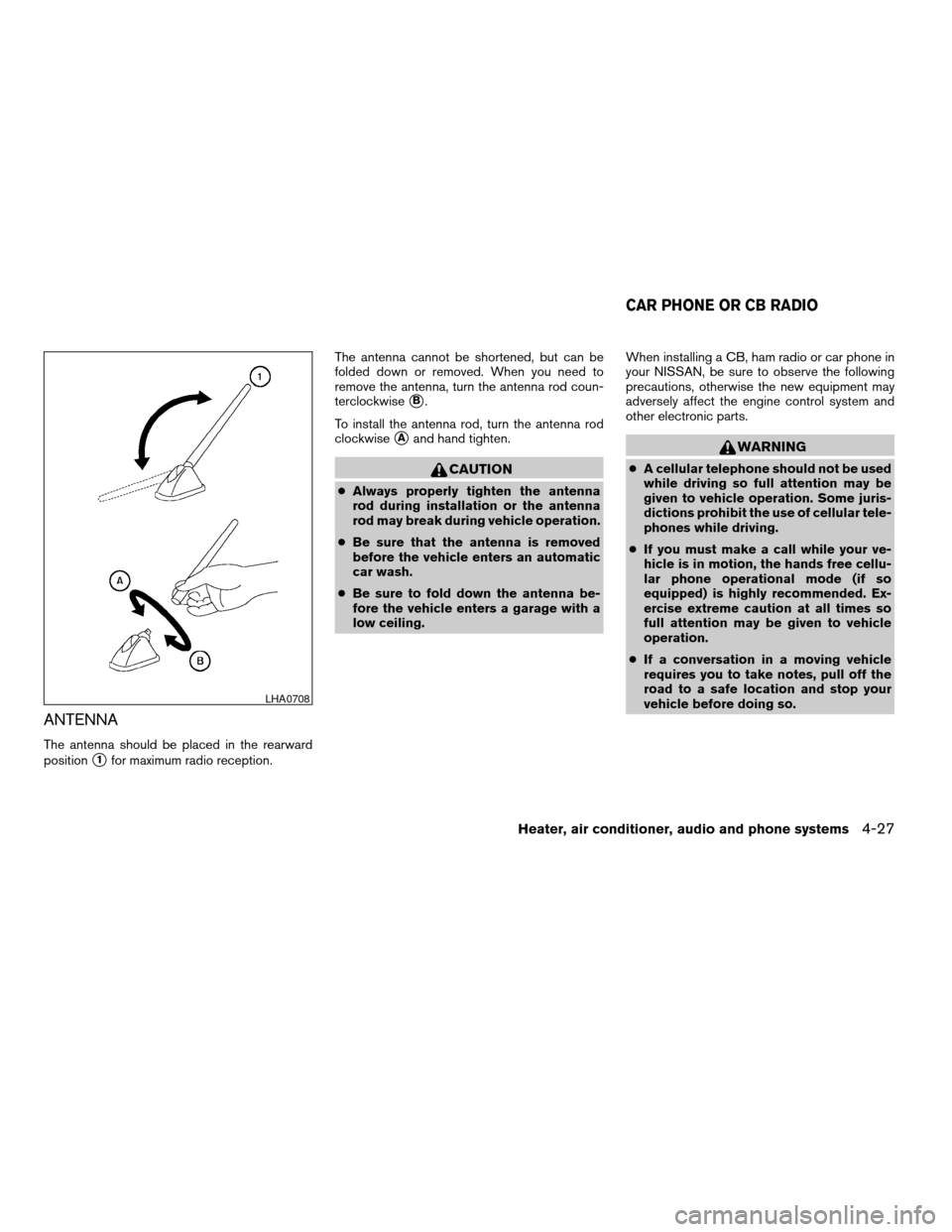
ANTENNA
The antenna should be placed in the rearward
position
s1for maximum radio reception.The antenna cannot be shortened, but can be
folded down or removed. When you need to
remove the antenna, turn the antenna rod coun-
terclockwise
sB.
To install the antenna rod, turn the antenna rod
clockwise
sAand hand tighten.
CAUTION
cAlways properly tighten the antenna
rod during installation or the antenna
rod may break during vehicle operation.
cBe sure that the antenna is removed
before the vehicle enters an automatic
car wash.
cBe sure to fold down the antenna be-
fore the vehicle enters a garage with a
low ceiling.When installing a CB, ham radio or car phone in
your NISSAN, be sure to observe the following
precautions, otherwise the new equipment may
adversely affect the engine control system and
other electronic parts.
WARNING
cA cellular telephone should not be used
while driving so full attention may be
given to vehicle operation. Some juris-
dictions prohibit the use of cellular tele-
phones while driving.
cIf you must make a call while your ve-
hicle is in motion, the hands free cellu-
lar phone operational mode (if so
equipped) is highly recommended. Ex-
ercise extreme caution at all times so
full attention may be given to vehicle
operation.
cIf a conversation in a moving vehicle
requires you to take notes, pull off the
road to a safe location and stop your
vehicle before doing so.
LHA0708
CAR PHONE OR CB RADIO
Heater, air conditioner, audio and phone systems4-27
ZREVIEW COPYÐ2007 Versa(vrs)
Owners ManualÐUSA_English(nna)
10/05/06Ðdebbie
X
Page 164 of 304
CONTROL BUTTONS
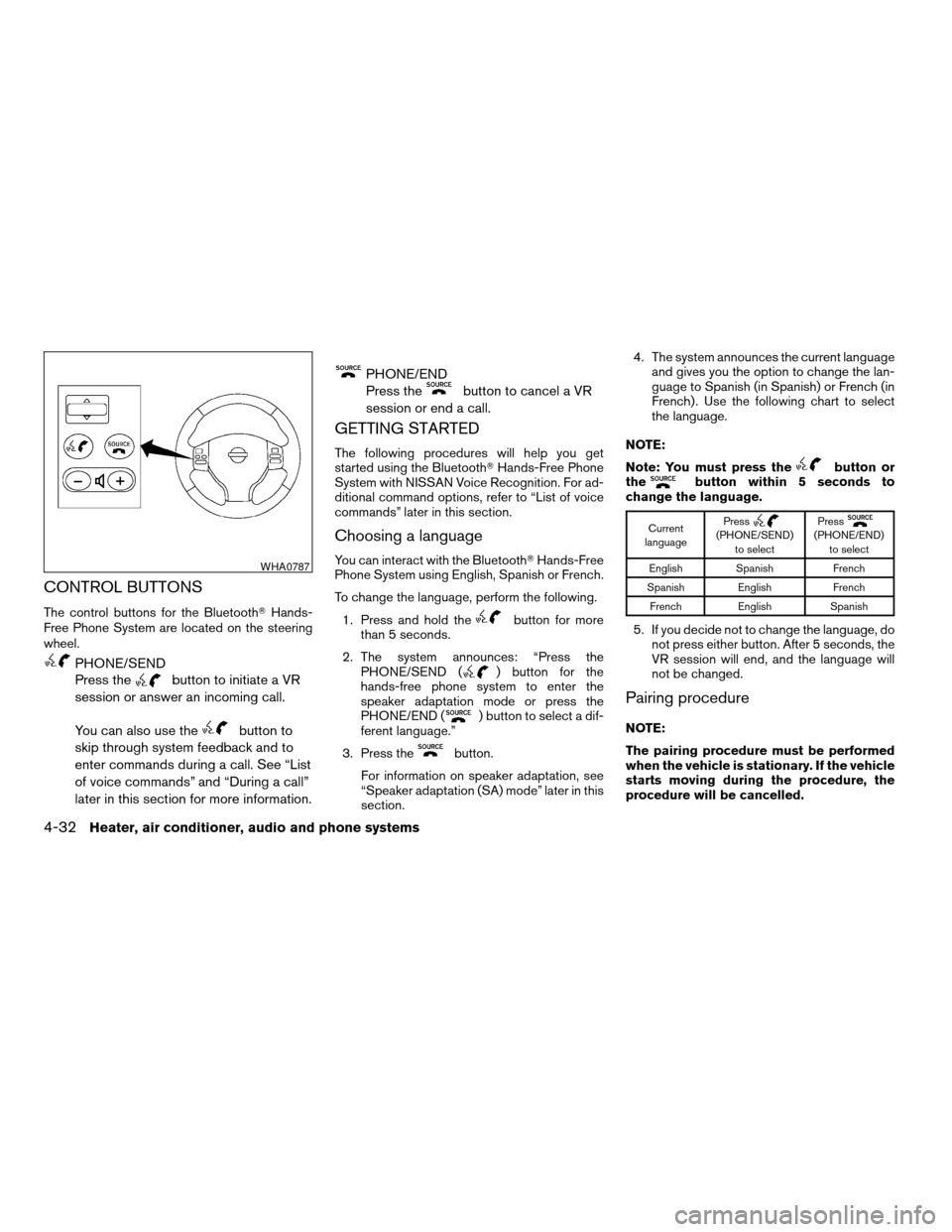
The control buttons for the BluetoothTHands-
Free Phone System are located on the steering
wheel.
PHONE/SEND
Press the
button to initiate a VR
session or answer an incoming call.
You can also use the
button to
skip through system feedback and to
enter commands during a call. See “List
of voice commands” and “During a call”
later in this section for more information.
PHONE/END
Press the
button to cancel a VR
session or end a call.
GETTING STARTED
The following procedures will help you get
started using the BluetoothTHands-Free Phone
System with NISSAN Voice Recognition. For ad-
ditional command options, refer to “List of voice
commands” later in this section.
Choosing a language
You can interact with the BluetoothTHands-Free
Phone System using English, Spanish or French.
To change the language, perform the following.
1. Press and hold the
button for more
than 5 seconds.
2. The system announces: “Press the
PHONE/SEND (
) button for the
hands-free phone system to enter the
speaker adaptation mode or press the
PHONE/END (
) button to select a dif-
ferent language.”
3. Press the
button.
For information on speaker adaptation, see
“Speaker adaptation (SA) mode” later in this
section.4. The system announces the current language
and gives you the option to change the lan-
guage to Spanish (in Spanish) or French (in
French) . Use the following chart to select
the language.
NOTE:
Note: You must press the
button or
thebutton within 5 seconds to
change the language.
Current
languagePress(PHONE/SEND)
to selectPress(PHONE/END)
to select
English Spanish French
Spanish English French
French English Spanish
5. If you decide not to change the language, do
not press either button. After 5 seconds, the
VR session will end, and the language will
not be changed.
Pairing procedure
NOTE:
The pairing procedure must be performed
when the vehicle is stationary. If the vehicle
starts moving during the procedure, the
procedure will be cancelled.
WHA0787
4-32Heater, air conditioner, audio and phone systems
ZREVIEW COPYÐ2007 Versa(vrs)
Owners ManualÐUSA_English(nna)
10/05/06Ðdebbie
X
Page 165 of 304

Main Menu
“Setup”sA“Pair Phone”sB“New Phone”sCInitiate from handsetsDName phonesEAssign prioritysFChoose ringtonesG
1. Press thebutton on the steering
wheel. The system announces the available
commands.
2. Say: “Setup”
sA. The system acknowledges
the command and announces the next set of
available commands.
3. Say: “Pair phone”
sB. The system acknowl-
edges the command and announces the
next set of available commands.
4. Say: “New phone”
sC. The system acknowl-
edges the command and asks you to initiate
pairing from the phone handset
sD.
The pairing procedure of the cellular phone
varies according to each cellular phone
model. See the cellular phone Owner’s
Manual for details. You can also visit
www.nissanusa.com/bluetooth for instruc-
tions on pairing NISSAN recommended cel-
lular phones.When prompted for a PIN code, enter
“1234” from the handset. The PIN code
“1234” has been assigned by NISSAN and
cannot be changed.
5. The system asks you to say a name for the
phone
sE.
If the name is too long or too short, the
system tells you, then prompts you for a
name again.
Also, if more than one phone is paired and
the name sounds too much like a name
already used, the system tells you, then
prompts you for a name again.
6. The system asks you to assign a priority level
sF. The priority level determines which
phone is active when more than one paired
BluetoothTphone is in the vehicle. Follow
the instructions provided by the system or
refer to “Setup” later in this section for more
information on changing priorities.
7. The system will ask if you would like to select
a custom ring tone
sG. Follow the instruc-
tions provided by the system or refer to
“Setup” later in this section for more infor-
mation on selecting ringtones.
Making a call by entering a phone
number
Main Menu
“Call”sANumber (speak digits)sB“Dial”sC
1. Press thebutton on steering wheel. A
tone will sound.
2. Say: “Call”
sA. The system acknowledges
the command and announces the next set of
available commands.
3. Say the number you wish to call
sB. For
example, 555-1212 can be said as “five five
five one two one two.” See “How to say
numbers” earlier in this section for more
information.
4. When you have finished speaking the phone
number, the system repeats it back and an-
nounces the available commands.
5. Say: “Dial”
sC. The system acknowledges
the command and makes the call.
For additional command options, see “List of
voice commands” later in this section.
Heater, air conditioner, audio and phone systems4-33
ZREVIEW COPYÐ2007 Versa(vrs)
Owners ManualÐUSA_English(nna)
10/05/06Ðdebbie
X