Page 27 of 206
27 At a glance
Multifunction steering wheel
�Switch the multifunction display to the
respective system if you wish to
operate the system using the buttons
on the multifunction steering wheel.
�On the multifunction steering wheel,
press è or ÿ repeatedly until
one of the following, Radio, Single CD
or MP3 CD, CD changer*, Satellite
radio* or Telephone* display appears
in the multifunction display of the
instrument cluster.Radio operation
1Waveband
2Station frequencySingle CD/ CD changer* operation
1Current CD
2Current track
Selecting the multifunction display
Page 28 of 206
28 At a glance
Multifunction steering wheel
MP3 CD operation
1MP3 mode
2Current MP3 trackSatellite radio* operation
1SAT mode and preset channel number
2Channel nameTelephone* operation
List with a phone book entry
On display will appear either:
�the main display with the READY
message
�a list with either a phone book entry or
one of the last 10 outgoing calls
�In order to close the list display,
press t.
This switches to the telephone main
display.
Page 29 of 206
29 At a glance
Menu system
� Menu system
The menu system allows for easy
operation of COMAND.
Main menus are provided for the following
main functions:
�Audio (AM/FM radio, CD,
CD changer*, MP3 CD)
�Satellite radio*
�Telephone*
�Navigation*
�ServiceCalling up main menus Menu display
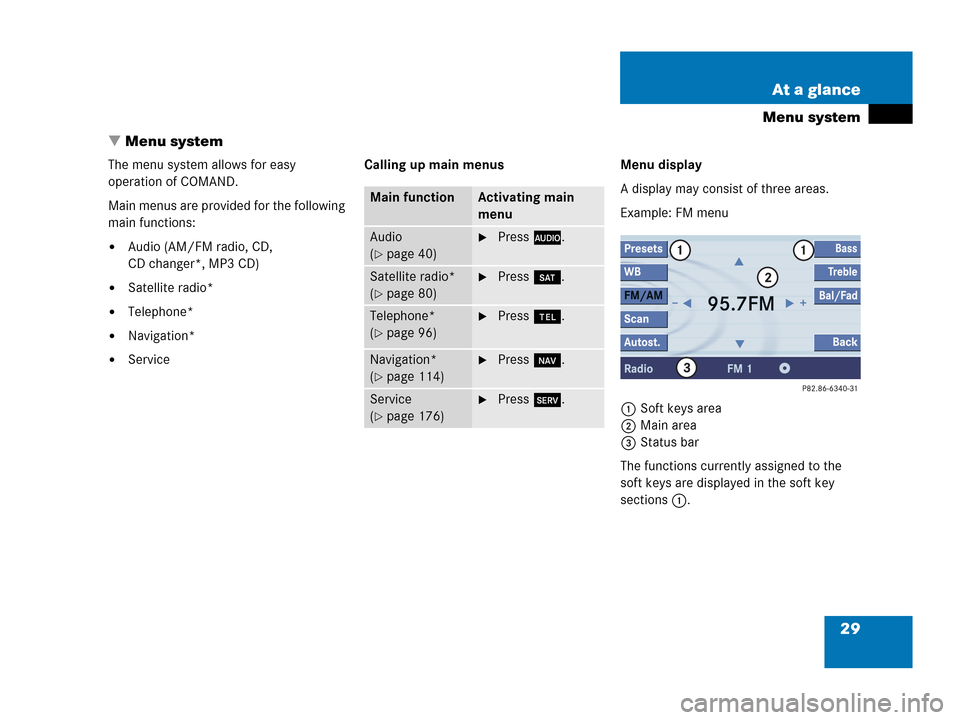
A display may consist of three areas.
Example: FM menu
1Soft keys area
2Main area
3Status bar
The functions currently assigned to the
soft keys are displayed in the soft key
sections 1.
Main functionActivating main
menu
Audio
(
�page 40)
�Press A.
Satellite radio*
(
�page 80)
�Press B.
Telephone*
(
�page 96)
�Press a.
Navigation*
(
�page 114)
�Press b.
Service
(
�page 176)
�Press C.
Page 30 of 206
30 At a glance
Menu system
The main area 2 shows messages and
settings.
You can change the settings by operating
the system.
The status bar 3 is divided into three
areas.
Left side:
The current operating mode is indicated. In
this example: RadioCenter:
The status of the current operating mode
or other selectable functions are indicated.
In this example:�FM = current waveband
�1 = memory location of station,
e.g. “1”
Right side:
General status information is indicated
independent of the operating mode.
In this example:
�Ready = Telephone* is ready for
operation
� = Reception strength of the
mobile phone*Menu functions and submenus
Using the soft keys, functions can be
switched ON or OFF, or submenus can be
called up.
E.g. the radio menu:�The FM/AM soft key switches between
FM and AM band.
�The Scan soft key starts/stops the
channel scan.
i
A maximum of five soft keys may be
displayed on each side of the main
area2.
Page 32 of 206

32 At a glance
Quick reference COMAND
� Quick reference COMAND
Switching on
�Turn the key in the starter switch to
position 1 or 2 if the COMAND was
switched off by turning the key in the
starter switch to position 0 and
removing it.
or
�Press e.
In both cases, the system will activate
the operating mode which was active
when the system was switched off.Switching off
�Turn the key in the starter switch to
position 0 and pull the key out.
or
�Press e.
When the audio is playing, the volume
knob will adjust the audio volume, and also
the volume for telephone and navigation.
During a telephone call (talking or ringing),
the volume knob will adjust the telephone
voice and ringer volume.
The volume for the navigation announce-
ments can only be changed while an
announcement is being made.
When you adjust the volume, the system
will automatically store the setting for the
current operating mode.
i
You have the following options to
control the system:
�at the COMAND
�at the multifunction steering wheel
(refer to vehicle Operator’s Manual)
This Operator’s Manual describes the
control at the COMAND.
Unless otherwise indicated, the
descriptions and illustrations refer to
the COMAND.
Switching the COMAND control unit
on and off
i
For an explanation of starter switch
positions, refer to vehicle Operator’s
Manual.
i
If the key is not in the starter switch in
position 1 or 2, the system will automa-
tically stop after around 30 minutes.
Volume
Page 37 of 206
37 At a glance
Quick reference COMAND
The Rear view camera is activated by
shifting into reverse gear. The area behind
the vehicle appears in the COMAND
screen if COMAND is already switched on.
If COMAND is switched on while in reverse,
the Rear view camera display will appear
immediately following the COMAND
startup screens.Switch back to the COMAND operating
mode
�Shift into P, N or D.
or
�Press A, c, b, C, a,
B while in reverse to activate the
corresponding main menu (
�page 29).
Rear view camera*i
The following audio sources remain
available while the Rear view camera is
activated:
�FM/AM radio, Weather band WB
�CD (CD drive, CD changer*)
�MP3 CD
�Satellite radio*
�Telephone (ringing, talking)
�Navigation announcements
For additional information about the
Rear view camera please refer to the
separate Operator’s Manual.
Page 79 of 206
79 Satellite radio*
Subscribing
� Subscribing
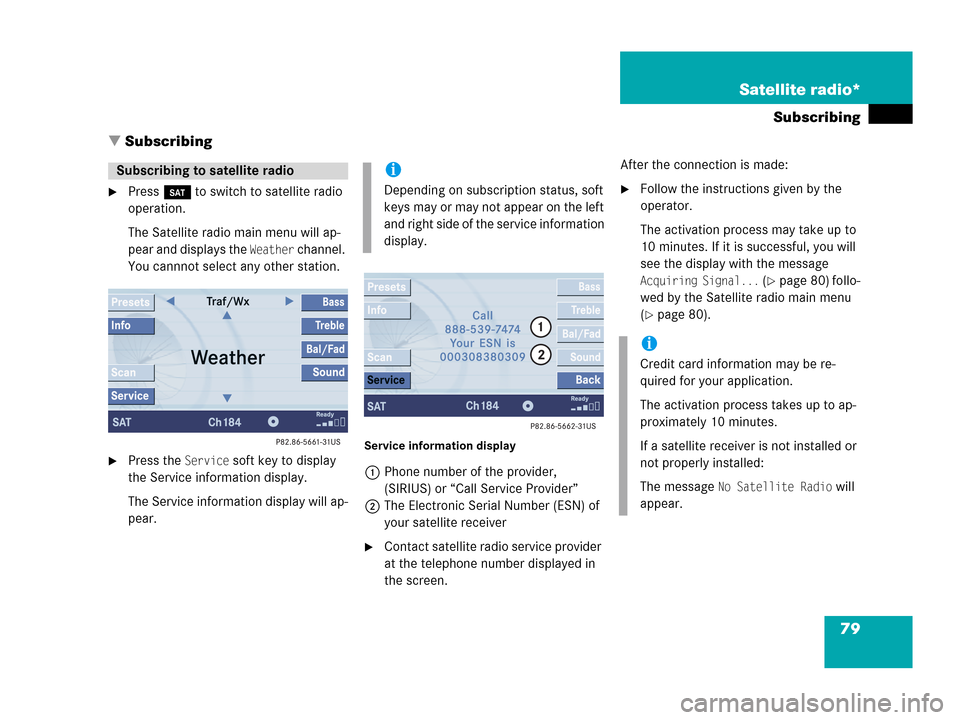
�Press B to switch to satellite radio
operation.
The Satellite radio main menu will ap-
pear and displays the
Weather channel.
You cannnot select any other station.
�Press the Service soft key to display
the Service information display.
The Service information display will ap-
pear.
Service information display
1Phone number of the provider,
(SIRIUS) or “Call Service Provider”
2The Electronic Serial Number (ESN) of
your satellite receiver
�Contact satellite radio service provider
at the telephone number displayed in
the screen.After the connection is made:
�Follow the instructions given by the
operator.
The activation process may take up to
10 minutes. If it is successful, you will
see the display with the message
Acquiring Signal... (�page 80) follo-
wed by the Satellite radio main menu
(
�page 80).
Subscribing to satellite radioi
Depending on subscription status, soft
keys may or may not appear on the left
and right side of the service information
display.
i
Credit card information may be re-
quired for your application.
The activation process takes up to ap-
proximately 10 minutes.
If a satellite receiver is not installed or
not properly installed:
The message
No Satellite Radio will
appear.
Page 85 of 206
85 Satellite radio*
Satellite radio operation
You can call the provider service center for
questions or releases, whenever you need.
�Press the Service soft key.
The Service information display will ap-
pear.
1Phone number of the provider,
(SIRIUS) or “Call Service Provider”
2The Electronical Serial Number (ESN)
of your satellite receiver
�Press the Back soft key to switch back
to the Satellite radio main menu.While receiving a new channel list the mes-
sage
Updating station list will appear.
The station last tuned will be muted until
the update is completed. You cannot ope-
rate the satellite radio.
After completion of the update, the
Satellite radio main menu will appear.
The station last tuned to will begin to play.Refer to chapter “At a glance” on how to
adjust sound settings.
�Volume (�page 33)
�Balance control and fader (�page 34)
�Bass and treble control (�page 35)
�Sound functions* (�page 36)
Displaying service informationStation list updatesSound settings