2007 KIA Sorento ECO mode
[x] Cancel search: ECO modePage 119 of 325

Knowing your vehicle110
35. Station Preset buttons (1~6) There are 6 Station Preset buttons which
you can use to store the frequencies of
your 6 favorite radio stations. Saving a
station as a preset gives you one-touch
access to the station you want.
Remember that the 6 presets stations
you store are for the specific radio band
mode you are in. That means that you
can store up to 6 stations in AM mode, 6
in FM1 mode, and 6 in FM2 mode. This
means that you can store up to 18 of your
favorite stations in the preset memory.✽ ✽
NOTICE• To switch between FM1 and FM2
mode:
Use the FM1 and FM2 buttons (for
Model D446)
Press the FM button to switch
between FM1 and FM2 modes (For
Model D465)
• Remember that if you store a station as preset 1 in FM2 mode, you must
first select FM2 mode before you can
use that preset button.
• This function is not effective if you are experiencing poor reception in your
vicinity.
6. Using PresetsTo save a radio station as a preset:
1. Take note of the band selection dis-
played on the LCD screen (AM, FM1 or
FM2)
2. Tune in to the radio station you want using either the SEEK UP and DOWN
buttons or the Tuning Knob.
3. Choose the Preset button (1~6) you want to use to store the radio station.
4. Press and hold the Preset button for more than 2 seconds.
The system beeps to indicate that it
has saved the new station and displays
the frequency and preset number on
the LCD screen.✽ ✽ NOTICESaving a new station erases the previous
setting saved in that preset.
To tune in to a preset station:
1. Select the band (AM, FM1 or FM2) you
want using the band selector buttons.
2. Press the preset button corresponding to the radio station you want.
The system automatically jumps to the
preset station. The frequency and pre-
set number is displayed on the LCD
screen.
Buttons not in use in Radio mode:
The following buttons and functions are
not used in Radio mode.
• REW button
FF button
RPT button
RDM button
MARK button
NFO button
Page 121 of 325

Knowing your vehicle112
31. SCAN buttonDisc Scan function
Model D446:
During CD playback, press the SCAN
button to play the first 10 seconds (pre-
view) of all tracks on the current CD.
Model D465:
To preview the first track of all the CDs in
the CD changer, press and hold the
SCAN button for more than 2 seconds.
Once you hear a track you want, press
the SCAN button again to resume nor-
mal playback.2. Track UP and DOWN but- tons During CD playback, press the and buttons to select and play the
next or previous track on the current disc.
The LCD screen displays the track num-
ber as you press the buttons. You can
press the button several times to select
the track you want.
3. CD selector buttons (1~6) Model D446:
The CDselector buttons are not used
with Model D446.
Model D465:
Press the CD selector button correspon-
ding to the CD you want. The CD player
automatically interrupts playback and
loads the selected CD.✽ ✽ NOTICEIf no CD is loaded in the selected posi-
tion, the LCD screen displays the No
Disc indicator.4. Rewind REW and Fast Forward FF
buttonsDuring CD playback, press and hold the
REW or FF buttons to rewind or fast-for-
ward playback of the current track. The
LCD screen displays the elapsed time of
the track you are rewinding or fast-for-
warding.
Release the REW or FF button when you
have reached the point you want.
Playback resumes automatically at the
selected point.
5. Dir and buttons (MP3 and WMA discs)During MP3/WMA CD playback, press
the DIR or buttons to switch to the
next or previous directory on the CD. The
LCD screen displays the name of the
directory you have switched to. You can
press the button several times to search
for the directory you want. The directories
are displayed in sequence (i.e. ascend-
ing or descending alphabetical order).
To access the directory displayed, press
the File Search knob to ENTER your
selection.✽ ✽ NOTICEThe Directory UP and DOWN buttons
can only be used when you are playing a
CD which has organized its tracks in the
form of directories. Normally, only MP3
or WMA CDs will contain a directory
tree which you can navigate using these
buttons.
Page 123 of 325
Knowing your vehicle114
3Model D465
You can load one or more CDs (maxi-
mum of 6) into the CD changer through
the CD loading slot. To do so:
1. Press the Load button to load 1 CD.
The LCD screen displays the number
assigned to the CD as a flashing num-
ber. For example, if the CD changer
currently contains 4 CDs, the loaded
disc will be CD 5.
OR
Press and hold the Load button for
more than 2 seconds to load more than
1 CD.
The LCD screen displays empty slots
in the CD changer as flashing num-
bers.
2. The LCD screen displays the instruc- tions for loading one or more CDs.
Follow the instructions - Wait, Insert
CD1, Loading CD 1, Reading CD1,…
Reading CD6.
3. Once you have finished loading the CD or CDs, the CD player automatically
plays the first track of the last CD
loaded.
If the audio system was in Radio mode
while you were loading the CDs, it
automatically switches to CD player
mode.
✽ ✽ NOTICEThe LCD screen displays Changer Full
to indicate that the CD changer is full.
Do not try to load any other disc.2. Ejecting CDsModel D446
Press the CD EJECT ( ) button to
eject the CD in the CD player.
Model D465
Press the button once to eject the
last CD played.
Press and hold button for more than
2 seconds to eject all the CDs in the
changer in sequence beginning with the
last CD played.✽ ✽NOTICEYou can eject discs without switching on
the audio system using the Power ON-
OFF knob.
To eject 1 CD:
Press the EJECT button once.
If you are playing a CD, playback will
automatically switch to the next available
CD.
The LCD screen displays the number of
the CD ejected as a flashing number.
If there are no other disc left in the CD
changer, the audio system automatically
switches to Radio mode and resumes
with the last channel or frequency select-
ed.
OR
If the audio system is in Radio mode, the
last CD played will be ejected.
The LCD screen displays the number of
the CD ejected as a flashing number.
To eject all CDs:
Press and hold the EJECT button for
more than 2 seconds to eject all the CDs
in the CD changer.
The LCD screen displays the CDs being
ejected in the CD changer as flashing
numbers. The CDs are ejected in
sequence. Follow the instructions dis-
played on the LCD screen to remove all
CDs from the changer.
Page 125 of 325
Knowing your vehicle116
35. Using the Repeat function (RPT
button)To repeat playback of the current
track:
Press the RPT button once. The LCD
screen displays RPT to indicate that it is
in REPEAT mode. Playback of the cur-
rent track will be repeated.
Press the RPT button again to resume
normal playback. The RPT indicator is
cleared.
To repeat playback of all tracks on the
current CD/File Directory:
Press and hold the RPT button for more
than 2 seconds. The LCD screen dis-
plays RPT ALL to indicate that it is in
REPEAT ALL mode. The tracks of the
current audio CD or the tracks in the cur-
rent MP3 file directory will be repeated.
Press the RPT button again to resume
normal playback. The RPT ALL indicator
is cleared.
6. Using the Random playback func- tion (RDM button)For random playback in audio CDs
(also applies to current MP3 file direc-
tory):
Press the RDM button once. The LCD
screen displays RDM to indicate that it is
in RANDOM mode. Tracks on the current
audio CD/MP3 directory will be randomly
selected and played.
Press the RDM button again to resume
normal playback. The RDM indicator is
cleared. Normal playback resumes.
For random playback of all tracks on a
CD (only for MP3 and WMA CDs):
Press and hold the RDM button for more
than 2 seconds. The LCD screen dis-
plays RDM ALL to indicate that it is in
RANDOM ALL mode. Tracks from all
directories in the MP3/WMA CD will be
randomly selected and played.
Press the RDM button again to resume
normal playback. The RDM ALLindicator
is cleared.
7. Using the Bookmark function (MARK button) The Bookmark function allows you to
select and add up to 20 tracks from any
CD in the CD changer to a playlist (mark-
list). You can then play the tracks on the
playlist whenever you want.
Adding tracks to the playlist (mark-
list):
1. Play the track you want.
2. Press and hold the MARK button for
more than 2 seconds to add the cur-
rent track to the playlist (marklist). The
LCD screen displays MARK to indicate
that the track has been added to the
playlist (marklist).
3. Repeat steps 1 & 2 to add more tracks to the marklist (maximum of 20 book-
marks.)
Page 126 of 325
3 117
Knowing your vehicle
Playing tracks on the playlist (mark-
list):
1. Press the MARKbutton once. The
LCD screen displays MARK to indicate
that it is in bookmark mode and auto-
matically begins playback of the tracks
saved on the playlist (marklist) in
sequence.
2. Press the MARK button again to
resume normal playback. The MARK
indicator is cleared. Normal playback
resumes.
Deleting tracks from the playlist
(marklist):
1. Press the MARK button once. The
LCD screen displays MARK to indicate
that it is in bookmark mode and auto-
matically begins playback of the tracks
saved on the playlist (marklist) in
sequence.
2. Select the track you want to remove. (See Selecting and playing tracks
(songs))
3. Press and hold the MARK button for
more than 2 seconds. The LCD screen
displays TRACK DELETED to confirm
that the bookmark has been deleted. Deleting all tracks from the playlist
(marklist):
1. Press the MARK
button once. The
LCD screen displays MARK to indicate
that it is in bookmark mode and auto-
matically begins playback of the tracks
saved on the playlist (marklist) in
sequence.
2. Press and hold the MARK button for
more than 4 seconds. The LCD screen
displays MARKLIST EMPTY to con-
firm that all the bookmarks in the
playlist (marklist) have been deleted.
✽ ✽ NOTICEIf rotate the File Search knob in non-
bookmark mode, LCD screen shall dis-
play MARK indicator for the tracks
saved on the playlist (marklist).
8. Using the file information function*
(INFO button)* This function can only be used withMP3/WMA tracks.
Press the INFO button repeatedly to dis-
play information about the track. The
LCD screen displays the File Name,
Artiste Name and Song Title in
sequence.✽ ✽ NOTICEThe information (File Name, Artiste
Name and Song Title) available for dis-
play depends on the information the
MP3/WMA file was encoded with. If the
relevant information was not included
when the file was encoded, you will not
be able to see it.
Page 127 of 325
Knowing your vehicle118
3Using External Controls1. The Dimmer control
The Dimmer control setting determines
the brightness of the entire vehicle's dis-
plays.
Turn the scroll wheel up or down to
increase or decrease the brightness of
the vehicle's instrument panels, backlit
displays and the audio system's LCD
screen and backlit controls.
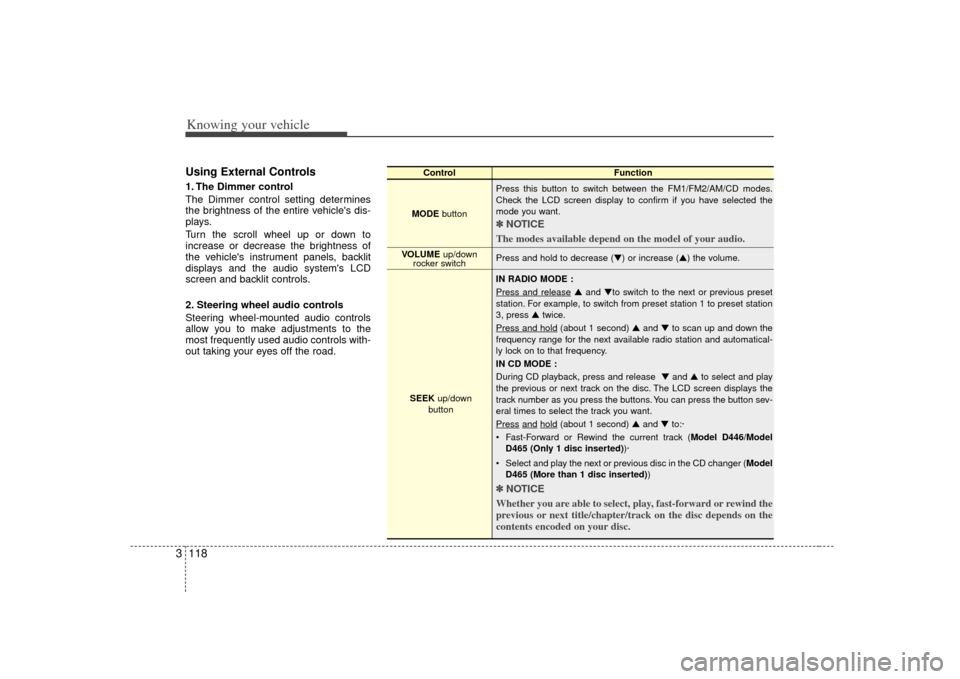
2. Steering wheel audio controls
Steering wheel-mounted audio controls
allow you to make adjustments to the
most frequently used audio controls with-
out taking your eyes off the road.
Control Function
MODE button Press this button to switch between the FM1/FM2/AM/CD modes.
Check the LCD screen display to confirm if you have selected the
mode you want.
✽ ✽
NOTICE
The modes available depend on the model of your audio. Press and hold to decrease (▼) or increase (▲) the volume.
IN RADIO MODE :
Press and release
▲ and ▼to switch to the next or previous preset
station. For example, to switch from preset station 1 to preset station
3, press ▲ twice.
Press and hold
(about 1 second) ▲ and ▼to scan up and down the
frequency range for the next available radio station and automatical-
ly lock on to that frequency.
IN CD MODE :
During CD playback, press and release ▼ and ▲to select and play
the previous or next track on the disc. The LCD screen displays the
track number as you press the buttons. You can press the button sev-
eral times to select the track you want.
Press
and
hold
(about 1 second) ▲ and ▼to:·
Fast-Forward or Rewind the current track ( Model D446/Model
D465 (Only 1 disc inserted) )·
Select and play the next or previous disc in the CD changer (Model D465 (More than 1 disc inserted) )
✽ ✽
NOTICE
Whether you are able to select, play, fast-forward or rewind the
previous or next title/chapter/track on the disc depends on the
contents encoded on your disc.
VOLUME up/down
rocker switch
SEEK up/down
button
Page 139 of 325

49
Driving your vehicle
Moving up a steep grade from a
standing startTo move up a steep grade from a stand-
ing start, depress the brake pedal, shift
the shift lever to D (Drive). Select the
appropriate gear depending on load
weight and steepness of the grade, and
release the parking brake. Depress the
accelerator gradually while releasing the
service brakes.
When accelerating from a stop on a
steep hill, the vehicle may have a ten-
dency to roll backwards. Shifting the
shift lever into 2 (Second Gear) while
in Sport mode will help prevent the
vehicle from rolling backwards.
Shift lock systemFor your safety, the Automatic
Transmission has a shift lock system
which prevents shifting the transmission
out of P (Park) unless the brake pedal is
depressed.
To shift the transmission out of P (Park):
1. Depress and hold the brake pedal.
2. Start the engine or turn the ignition tothe ACC or ON position.
3. Depress the lock release button and move the shift lever.
When the ignition switch is in the LOCK
position, the transmission cannot be
shifted from P (Park).
If the brake pedal is repeatedly
depressed and released with the shift
lever in the P (Park) position, a chattering
noise near the shift lever may be heard.
This is a normal condition.
Ignition key interlock systemThe ignition key cannot be removed
unless the shift lever is in the P (Park)
position. If the ignition switch is in any
other position, the key cannot be
removed.
Page 142 of 325

Driving your vehicle12
4✽
✽
NOTICEWhen the vehicle shifts into 4WD mode,
a slight mechanical sound and vibration
may be felt and does not indicate a prob-
lem with the system. To avoid shift shock, when the vehicle is
stopped and you make a transfer case
shift using the transfer shift knob, wait
until the corresponding indicator light in
the instrument cluster illuminates before
driving.
Knob positionThis is used to set different positions.
AUTO
Full power delivered to front and rear
axle for increased traction. Use this mode
for normal on-road driving.
The 4WD LOW indicator light ( ) will
be turned off after blinking for a few sec-
onds to remind you that you are in the
AUTO mode.
LOW
Full power to both axles, including a
lower gear ratio for low speed applica-
tions that require extra power such as
wet pavement, snow-covered roads
and/or off-road.
LOW Mode is not recommended on dry
pavement.
The 4WD LOW indicator light
( )
will
be turned on after blinking for a few sec-
onds to remind you that you are in the
LOW mode.
Transfer shift knob operationAUTO ↔ ↔
LOW
1. Stop the vehicle.
2. Depress the clutch pedal (Manual transmission) or put the shift lever into
N (Neutral) position (Automatic trans-
mission).
3. AUTO ➝ ➝
LOW
: Turn the transfer shift knob to LOW mode.
LOW ➝
➝
AUTO
: Turn the transfer shift knob to AUTO mode.
4. Before releasing the clutch pedal (Manual transmission) or shifting to
other ranges from N (Automatic trans-
mission), wait for the corresponding
indicator light in the instrument cluster
to go ON or OFF.
4WD
LOW4WD
LOW
CAUTION
If the vehicle moves while the trans-
fer shift is in process, the gearbox may be damaged.