Page 214 of 440
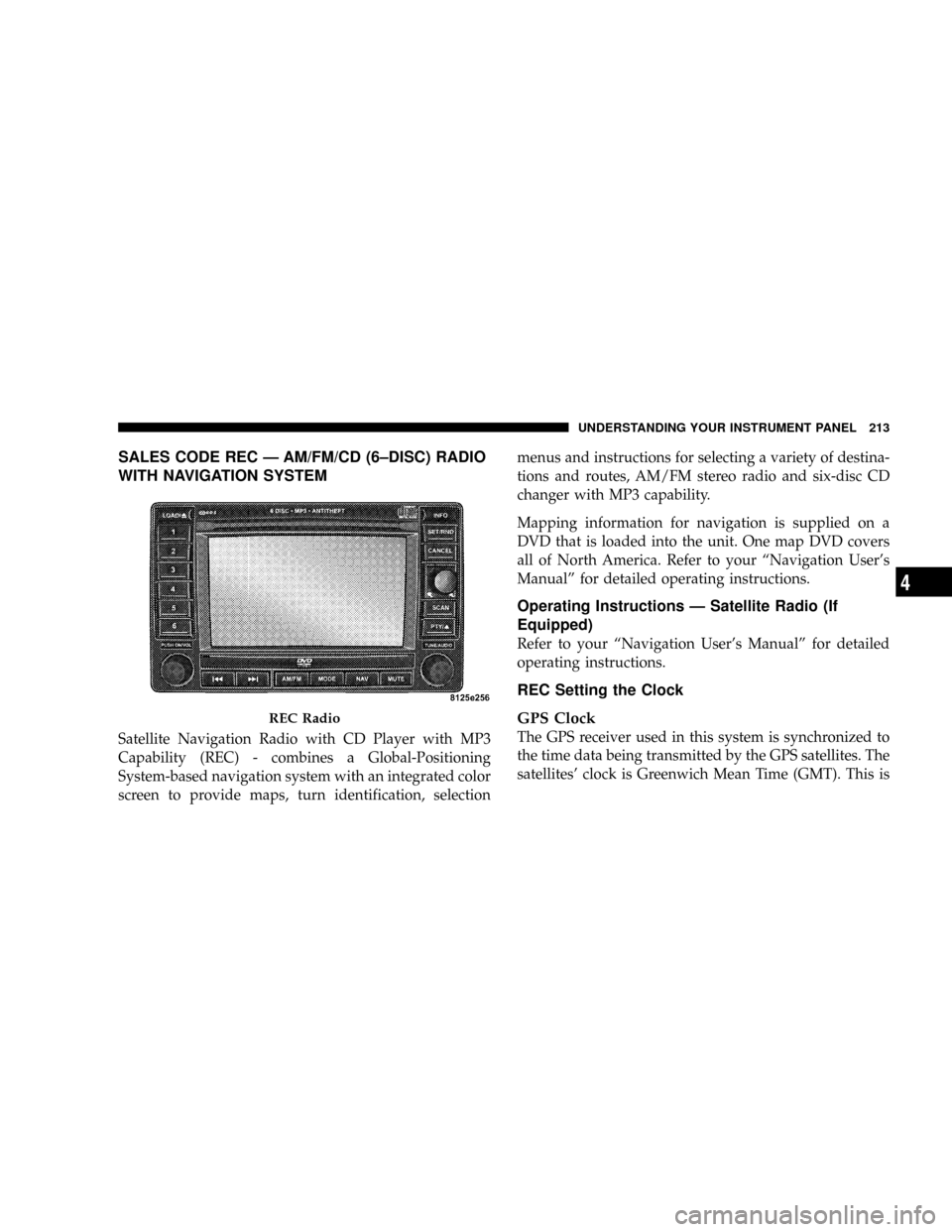
SALES CODE REC Ð AM/FM/CD (6±DISC) RADIO
WITH NAVIGATION SYSTEM
Satellite Navigation Radio with CD Player with MP3
Capability (REC) - combines a Global-Positioning
System-based navigation system with an integrated color
screen to provide maps, turn identification, selectionmenus and instructions for selecting a variety of destina-
tions and routes, AM/FM stereo radio and six-disc CD
changer with MP3 capability.
Mapping information for navigation is supplied on a
DVD that is loaded into the unit. One map DVD covers
all of North America. Refer to your ªNavigation User's
Manualº for detailed operating instructions.
Operating Instructions Ð Satellite Radio (If
Equipped)
Refer to your ªNavigation User's Manualº for detailed
operating instructions.
REC Setting the Clock
GPS Clock
The GPS receiver used in this system is synchronized to
the time data being transmitted by the GPS satellites. The
satellites' clock is Greenwich Mean Time (GMT). This is
REC Radio
UNDERSTANDING YOUR INSTRUMENT PANEL 213
4
Page 215 of 440
the worldwide standard for time. This makes the sys-
tem's clock very accurate once the appropriate time zone
and daylight savings information is set.
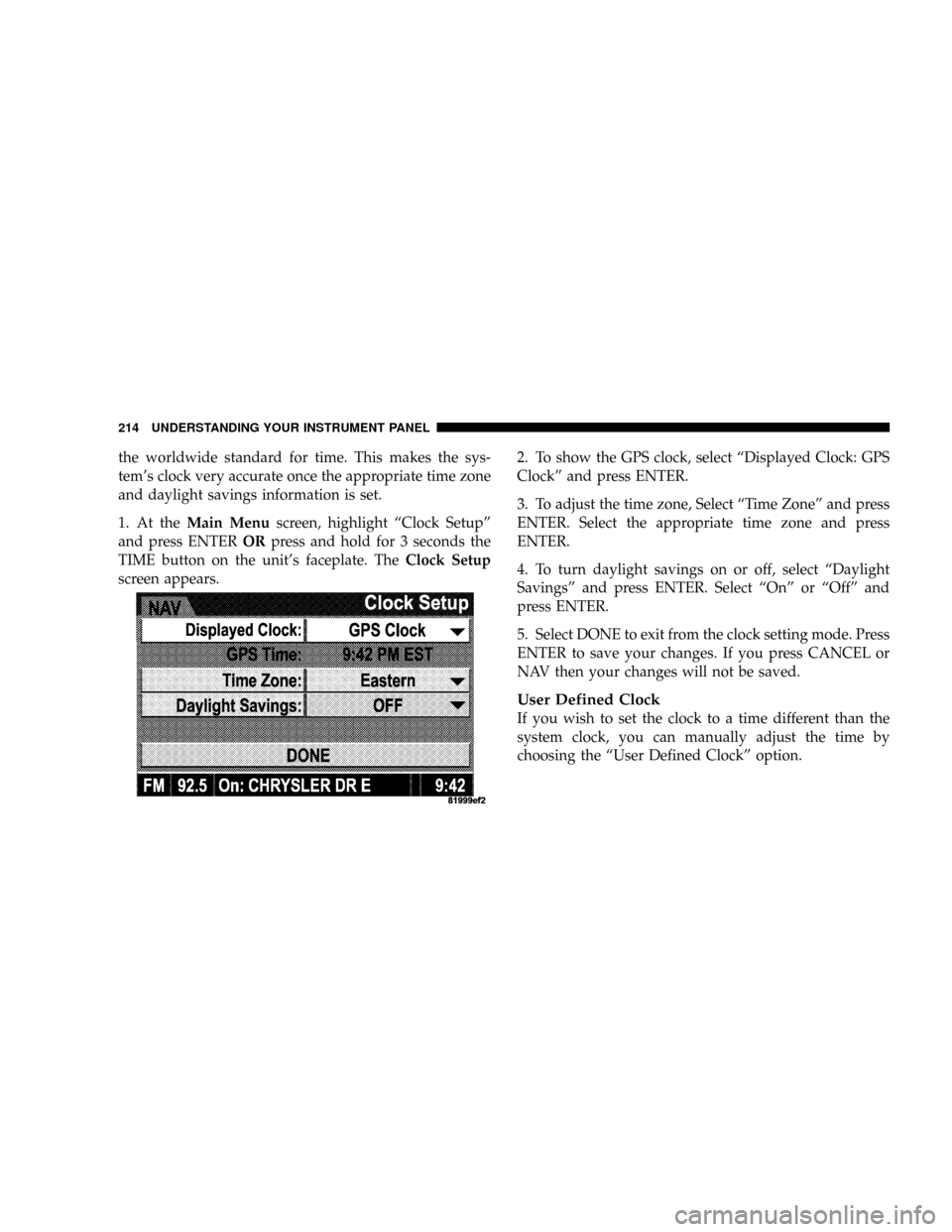
1. At theMain Menuscreen, highlight ªClock Setupº
and press ENTERORpress and hold for 3 seconds the
TIME button on the unit's faceplate. TheClock Setup
screen appears.2. To show the GPS clock, select ªDisplayed Clock: GPS
Clockº and press ENTER.
3. To adjust the time zone, Select ªTime Zoneº and press
ENTER. Select the appropriate time zone and press
ENTER.
4. To turn daylight savings on or off, select ªDaylight
Savingsº and press ENTER. Select ªOnº or ªOffº and
press ENTER.
5. Select DONE to exit from the clock setting mode. Press
ENTER to save your changes. If you press CANCEL or
NAV then your changes will not be saved.
User Defined Clock
If you wish to set the clock to a time different than the
system clock, you can manually adjust the time by
choosing the ªUser Defined Clockº option.
214 UNDERSTANDING YOUR INSTRUMENT PANEL
Page 216 of 440
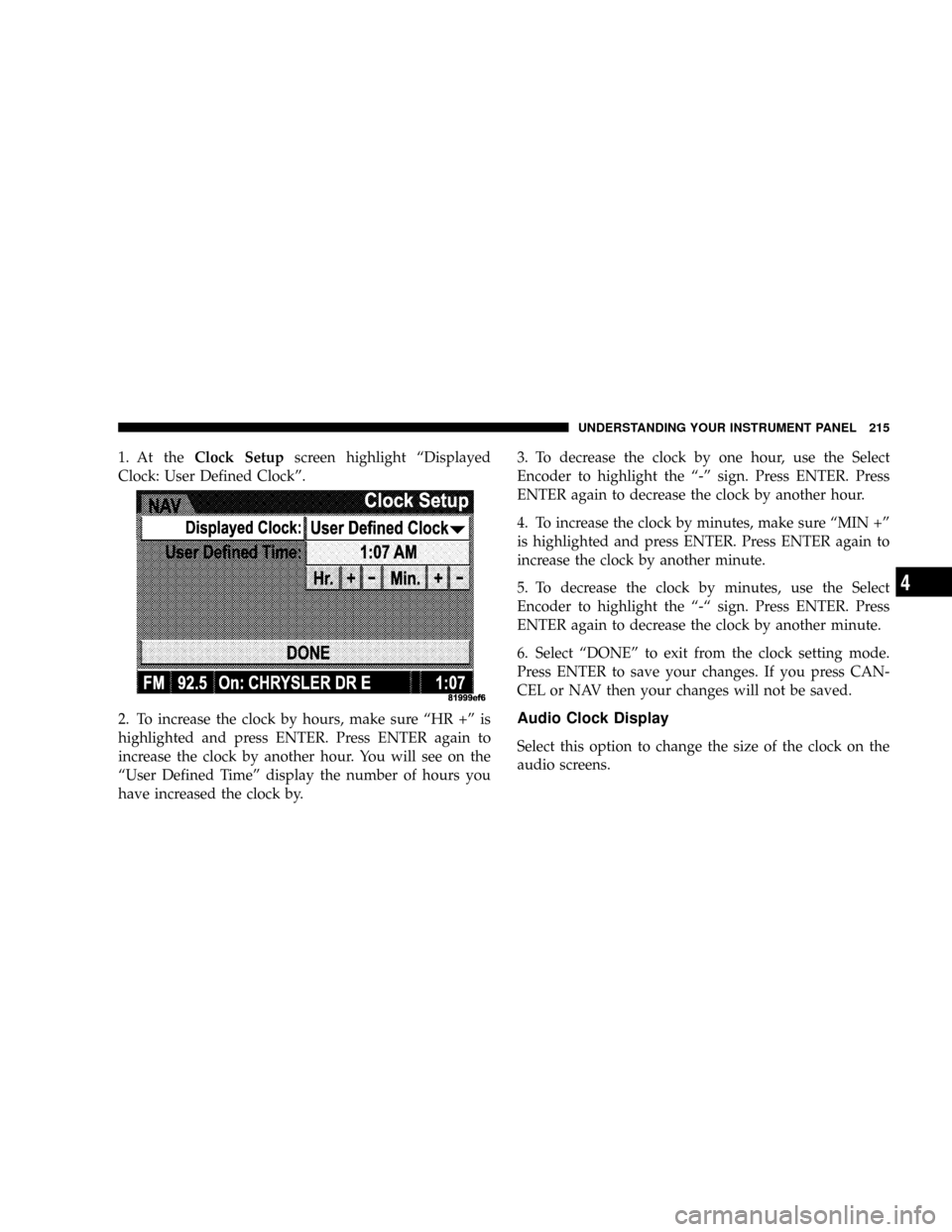
1. At theClock Setupscreen highlight ªDisplayed
Clock: User Defined Clockº.
2. To increase the clock by hours, make sure ªHR +º is
highlighted and press ENTER. Press ENTER again to
increase the clock by another hour. You will see on the
ªUser Defined Timeº display the number of hours you
have increased the clock by.3. To decrease the clock by one hour, use the Select
Encoder to highlight the ª-º sign. Press ENTER. Press
ENTER again to decrease the clock by another hour.
4. To increase the clock by minutes, make sure ªMIN +º
is highlighted and press ENTER. Press ENTER again to
increase the clock by another minute.
5. To decrease the clock by minutes, use the Select
Encoder to highlight the ª-ª sign. Press ENTER. Press
ENTER again to decrease the clock by another minute.
6. Select ªDONEº to exit from the clock setting mode.
Press ENTER to save your changes. If you press CAN-
CEL or NAV then your changes will not be saved.
Audio Clock Display
Select this option to change the size of the clock on the
audio screens.
UNDERSTANDING YOUR INSTRUMENT PANEL 215
4
Page 217 of 440
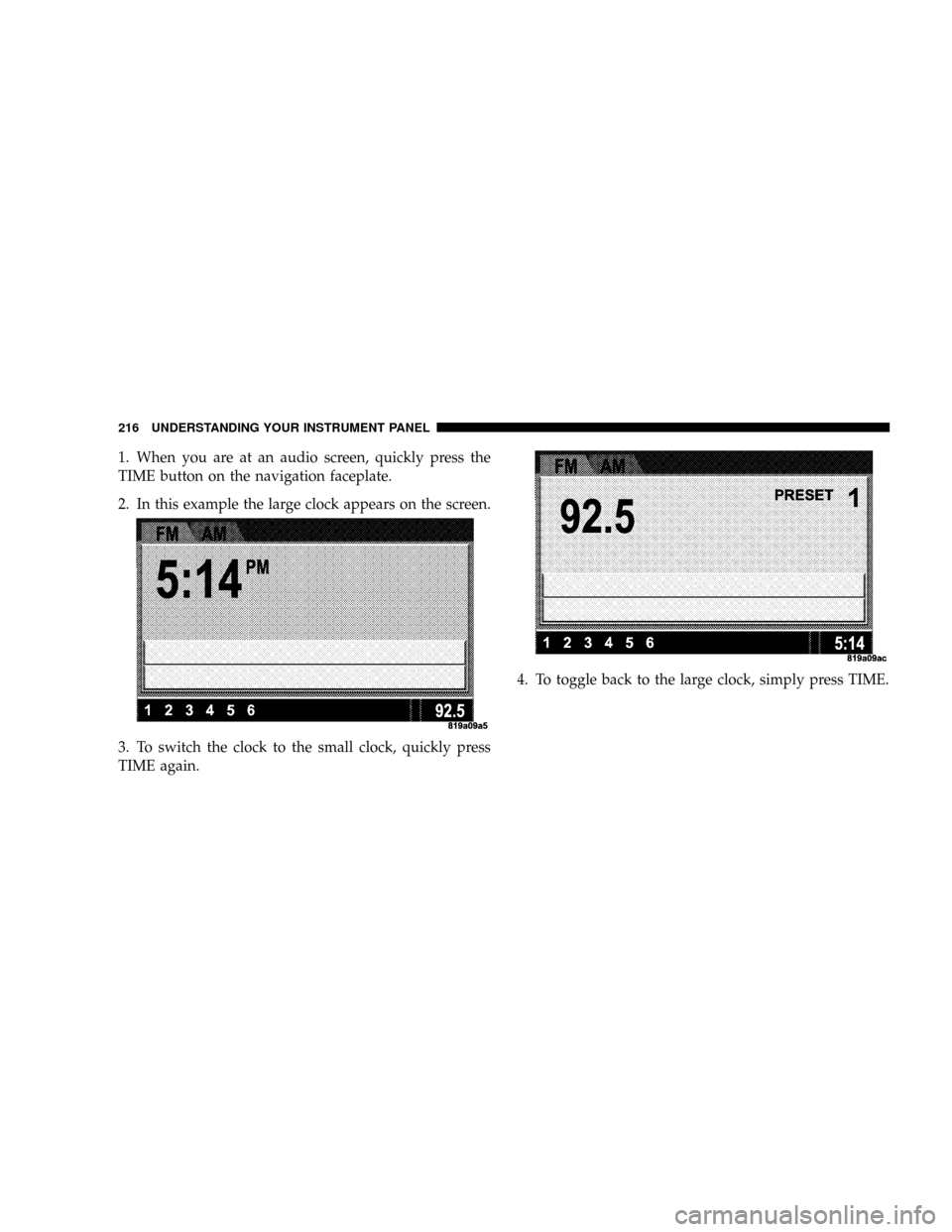
1. When you are at an audio screen, quickly press the
TIME button on the navigation faceplate.
2. In this example the large clock appears on the screen.
3. To switch the clock to the small clock, quickly press
TIME again.4. To toggle back to the large clock, simply press TIME.
216 UNDERSTANDING YOUR INSTRUMENT PANEL
Page 220 of 440
Press and release the SCAN button (if equipped) to
automatically change channels every 7 seconds. The
radio will pause on each channel for 7 seconds before
moving on to the next channel. The word9SCAN9will
appear in the display between each channel change. Press
the SCAN button a second time to stop the search.
NOTE:Channels that may contain objectionable content
can be blocked. Contact Sirius Customer Care at 888-539-
7474 to discuss options for channel blocking or unblock-
ing. Please have your ESN/SID information available.
Storing and Selecting Pre-Set Channels
In addition to the 12 AM and 12 FM pre-set stations, you
may also commit 12 satellite stations to push button
memory. These satellite channel pre-set stations will not
erase any AM or FM pre-set memory stations. Follow the
memory pre-set procedures that apply to your radio.
Using the PTY (Program Type) Button (if
equipped)
Follow the PTY button instructions that apply to your
radio.
PTY Button(SCAN(
When the desired program type is obtained, press the
9SCAN9button within five seconds. The radio will play 7
seconds of the selected channel before moving to the next
channel of the selected program type. Press the9SCAN9
button a second time to stop the search.
NOTE:Pressing the9SEEK9or9SCAN9button while
performing a music type scan will change the channel by
one and stop the search. Pressing a pre-set memory
button during a music type scan, will call up the memory
channel and stop the search.
UNDERSTANDING YOUR INSTRUMENT PANEL 219
4
Page 221 of 440
PTY Button(SEEK(
When the desired program is obtained, press the9SEEK9
button within five seconds. The channel will change to
the next channel that matches the program type selected.
Satellite Antenna
To ensure optimum reception, do not place items on the
roof around the rooftop antenna location. Metal objects
placed within the line of sight of the antenna will cause
decreased performance. Larger luggage items should be
placed as far forward as possible. Do not place items
directly on or above the antenna. The luggage rack (if
equipped), should also not be positioned directly above
the antenna.
Reception Quality
Satellite reception may be interrupted due to one of the
following reasons.
²The vehicle is parked in an underground parking
structure or under a physical obstacle.
²Dense tree coverage may interrupt reception in the
form of short audio mutes.
²Driving under wide bridges or along tall buildings can
cause intermittent reception.
²Placing objects over or too close to the antenna can
cause signal blockage.
220 UNDERSTANDING YOUR INSTRUMENT PANEL
Page 228 of 440
NOTE:See ªCirculation Controlº later in this section,
for proper or extended use of this position.
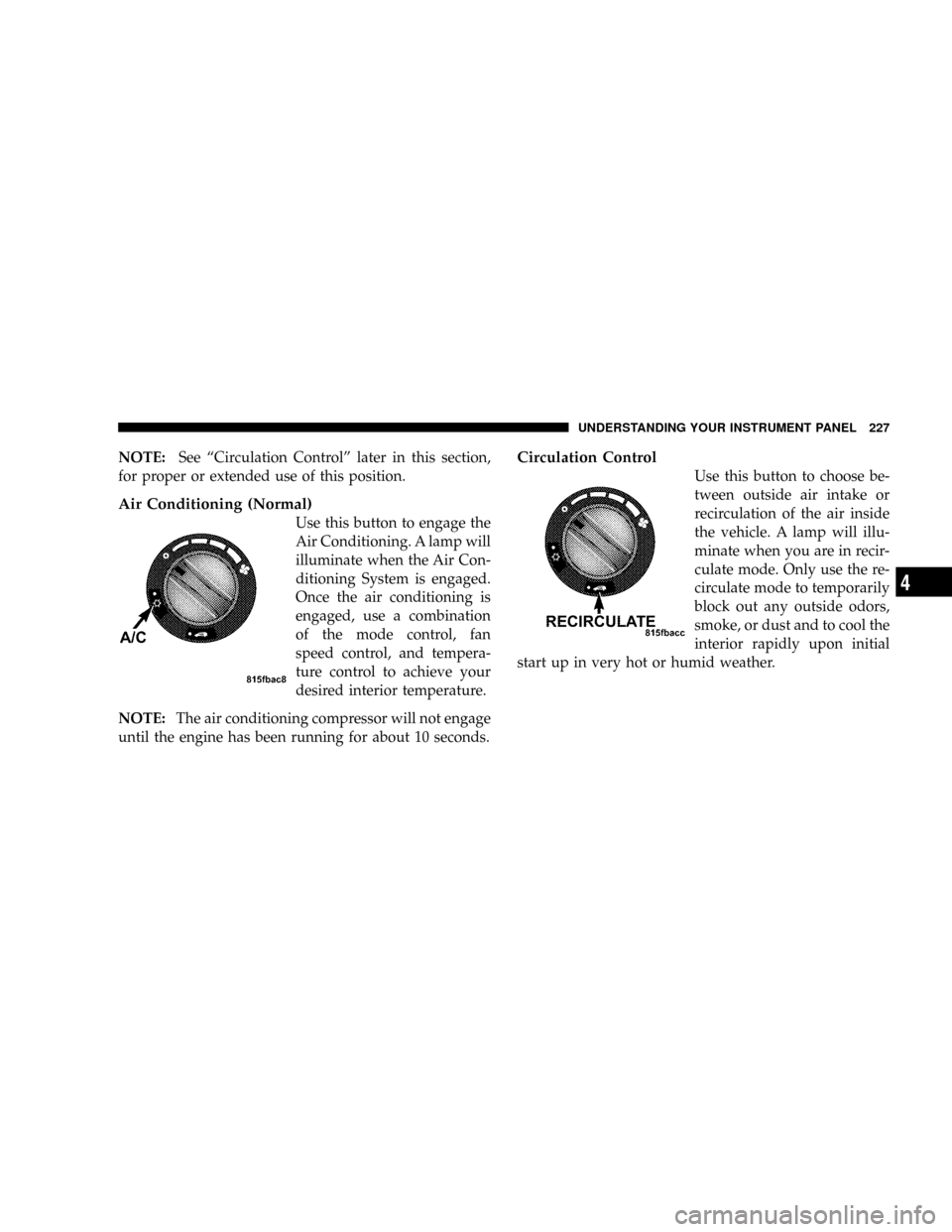
Air Conditioning (Normal)
Use this button to engage the
Air Conditioning. A lamp will
illuminate when the Air Con-
ditioning System is engaged.
Once the air conditioning is
engaged, use a combination
of the mode control, fan
speed control, and tempera-
ture control to achieve your
desired interior temperature.
NOTE:The air conditioning compressor will not engage
until the engine has been running for about 10 seconds.
Circulation Control
Use this button to choose be-
tween outside air intake or
recirculation of the air inside
the vehicle. A lamp will illu-
minate when you are in recir-
culate mode. Only use the re-
circulate mode to temporarily
block out any outside odors,
smoke, or dust and to cool the
interior rapidly upon initial
start up in very hot or humid weather.
UNDERSTANDING YOUR INSTRUMENT PANEL 227
4
Page 234 of 440
STARTING AND OPERATING
CONTENTS
mStarting Procedures.....................237
NAutomatic Transaxle...................237
NManual Transaxle.....................238
NNormal Starting......................238
NExtremely Cold Weather (Below220ÉF
Or229ÉC)..........................238
NIf Engine Fails To Start.................239
NAfter Starting........................239
mAutomatic Transaxle Ð If Equipped.........240NBrake/Transmission Interlock System.......241
N
Automatic Transaxle Ignition Interlock System. 241
NGear Ranges For Continuously Variable
Automatic Transaxle (CVT)..............242
mManual Transaxle Operation...............244
NRecommended Shift Speeds..............245
NDownshifting........................245
mFour Wheel Drive System Ð If Equipped......246
mPatriot Freedom Drive II ± Safe Off-Road
Driving..............................247
5