Page 194 of 464
Display U.S. or Metric?
Pressing the US/M button will change the EVIC, odom-
eter, navigation system and A/C Control units from US
to Metric.
Use factory Settings?
When in this display you may select to use the factory
settings and no programmable features will be offered.
Auto Door Locks?
When this feature is selected, all doors and the liftgate
lock automatically when the speed of the vehicle reaches
15 mph (25 km/h). Pressing the STEP button when in this
display will select “Yes” or “No.”
Auto Unlock On Exit?
When this feature is selected all the vehicle’s doors will
unlock when the driver’s door is opened if the vehicle is
stopped and the transmission is in P (Park) or N (Neu-
tral) position. Pressing the STEP button when in this
display will select “Yes” or “No.”
Remote Unlock Driver’s Door 1st?
When this feature is selected only the driver’s door will
unlock on the first press of the remote keyless entry unlock
button and require a second press to unlock the remaining
locked doors and liftgate. WhenREMOTE UNLOCK ALL
DOORSis selected all of the doors and the liftgate will
unlock at the first press of the remote keyless entry unlock
button. Pressing the STEP button when in this display will
select DRIVER’S DOOR 1ST or ALL DOORS.
Remote Linked To Memory? (Available with
Memory Seat Only)
When this feature is selected the memory seat, mirror,
and radio settings will return to the memory set position
when the remote keyless entry “Unlock” button is
pressed. If this feature is not selected then the memory
seat, mirror, and radio settings can only return to the
memory set position using the door mounted switch.
Pressing the STEP button when in this display will select
“Yes” or “No.”
194 UNDERSTANDING YOUR INSTRUMENT PANEL
Page 221 of 464
RW/FF (CD Mode For MP3 Play)
Press the FF side of the button to move forward through
the MP3 selection. Press the RW side of the button to
move back through the MP3 selection.
AM/FM Button (CD Mode For MP3 Play)
Switches back to Radio mode.
RND Button (CD Mode For MP3 Play)
Pressing this button plays files randomly.
DIR Button (CD Mode For MP3 Play)
Press the DIR Button to display folders, when playing an
MP3 discs that have a file/folder structure. Press DISC
up (button 1) or DISC down (button 5) to move through
the folders. Press the SET button to select a folder.
Operating Instructions - Hands Free Phone (If
Equipped)
Refer to Hands Free Phone section of the Owner’s
Manual.
Operating Instructions - Satellite Radio Mode (If
Equipped)
Refer to the Satellite Radio section of the Owner’s
Manual.
6 DISC CD/DVD CHANGER (RDV) — IF EQUIPPED
The Rear Seat Audio/Video System allows passengers to
listen to a CD or DVD from the 6 disc CD/DVD changer
through wireless headphones, while the front seat pas-
sengers listen to either AM/FM, Cassette or CDs from the
radio speakers. A remote control is provided for func-
tions such as changing tracks or DVD functions, as well
as selecting discs loaded in the 6 disc CD/DVD changer
while listening to the Rear Audio/Video System.
The Rear Seat Audio/Video System may be available in a
base and premium version. The premium version in-
cludes a six disc changer, remote control and two sets of
wireless headphones. The base version includes a single
disc player and remote control.
UNDERSTANDING YOUR INSTRUMENT PANEL 221
4
Page 223 of 464
which numbered position the disc will be loaded into.
The disc will automatically be pulled into the CD/DVD
changer.
3. Upon insertion, the disc will begin to play, and the
light below the loading slot will turn off. On vehicles
equipped with the premium version the light above the
chosen button will remain illuminated.
4. Repeat the process for loading any additional CD/
DVDs into the premium version multi-disc changer. The
CD/DVD changer will stop while additional CD/DVDs
are loaded.
If the radio volume control is ON, the unit will switch
from radio to CD/DVD mode and the video screen will
turn on. If the DVD supports the autoplay feature, play
will begin automatically in approximately 10 seconds,
after the DVD disc menu is displayed. If the DVD does
not play automatically, press the ENTER button on the
remote control or on the side of the video screen to selectplay from the menu options. The radio display will show
the chapter number and index time in hours and minutes
of the DVD, or the track number, minutes and second of
the CD.
NOTE:
•You may eject a disc with the radio OFF.
•If you insert a disc with the ignition ON and the radio
OFF, the DVD will automatically be pulled into the
DVD changer and the display will show the time of
day.
•It is recommended to label home made burned discs
with a permanent marker instead of adhesive labels.
These types of labels may become loose and cause the
disc to be stuck in the DVD player. This may cause
permanent damage to the DVD mechanism.
UNDERSTANDING YOUR INSTRUMENT PANEL 223
4
Page 224 of 464
EJECT (EJT) Button
If there is a disc in the changer, press the EJT button and
the disc will eject. If you do not remove the disc within 10
seconds, it will be reloaded and the display will show
PAUSE. The radio mode will continue to operate.
To eject additional discs from the premium version
multi-disc changer, first select the numbered button
where the disc is located and then press the EJT button.
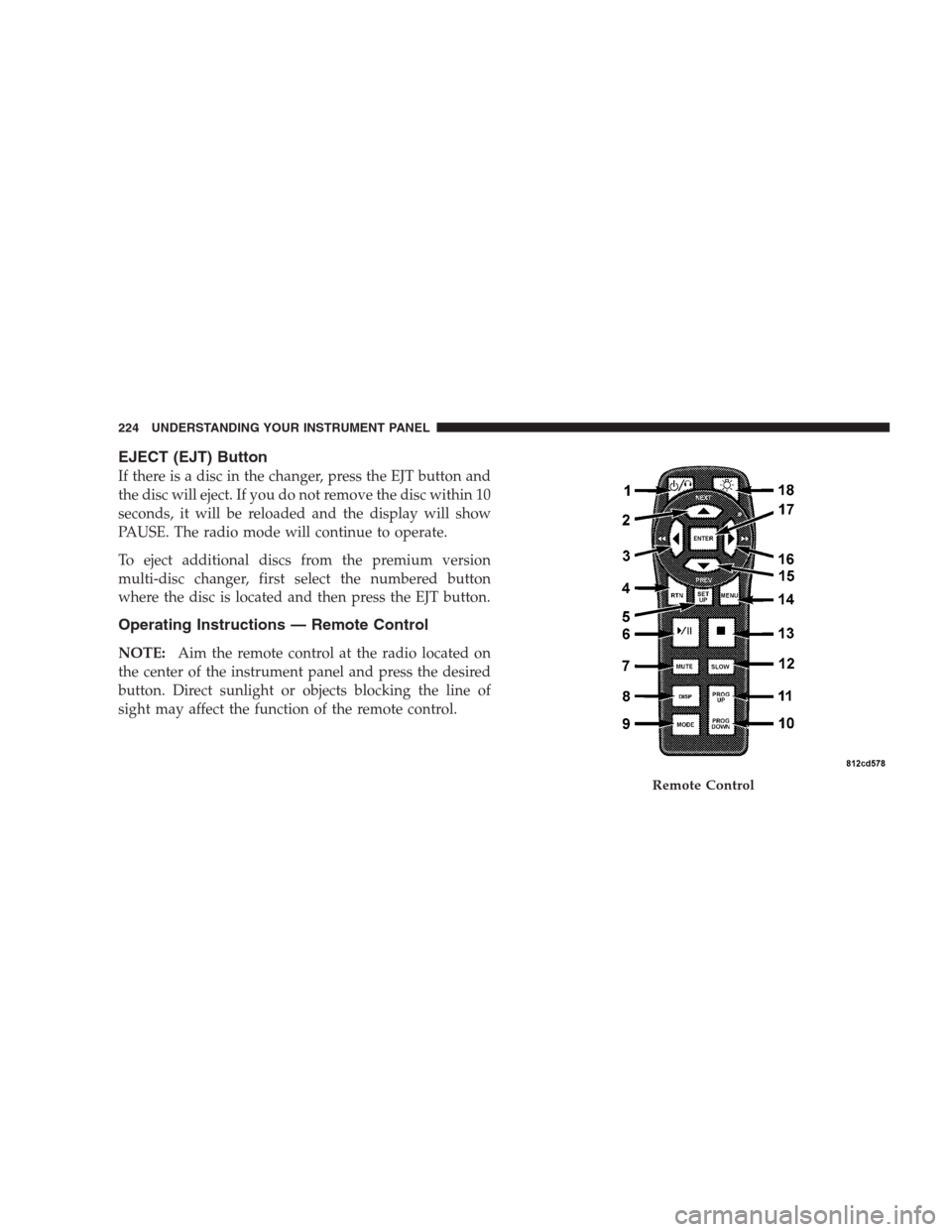
Operating Instructions — Remote Control
NOTE:Aim the remote control at the radio located on
the center of the instrument panel and press the desired
button. Direct sunlight or objects blocking the line of
sight may affect the function of the remote control.
Remote Control
224 UNDERSTANDING YOUR INSTRUMENT PANEL
Page 225 of 464
Remote Control Buttons
1. Headphone Transmitter
2. Menu Up/Next Track/Chapter
3. Menu Left/Fast Rewind
4. Return
5. Setup
6. Pause/Play
7. Mute
8. Display
9. Mode
10. Program Down - Previous Disc
11. Program Up - Next Disc
12. Slow
13. Stop
14. Menu
15. Menu Down/Previous Track/Chapter
16. Menu Right/Fast ForwardRemote Control Buttons
17. Enter
18. Light
Headphone Transmitter Button (1)
The headphone transmitter button on the remote control
and the power button on the headphones must be turned
ON before sound can be heard from the headphones. On
some radios the headphone symbol will flash for ap-
proximately 5 seconds in the radio display, indicating the
headphones are in use.
ARROW Buttons (2, 3, 15, 16)
These arrow buttons only function in CD/ DVD mode.
Use the arrow buttons to toggle through the disc menu
screen options.
UNDERSTANDING YOUR INSTRUMENT PANEL 225
4
Page 228 of 464
Remote Control Battery Service
•
To replace the batteries for the remote control slide the
cover rearward.
The replacement batteries for the remote control are two
AAA batteries.
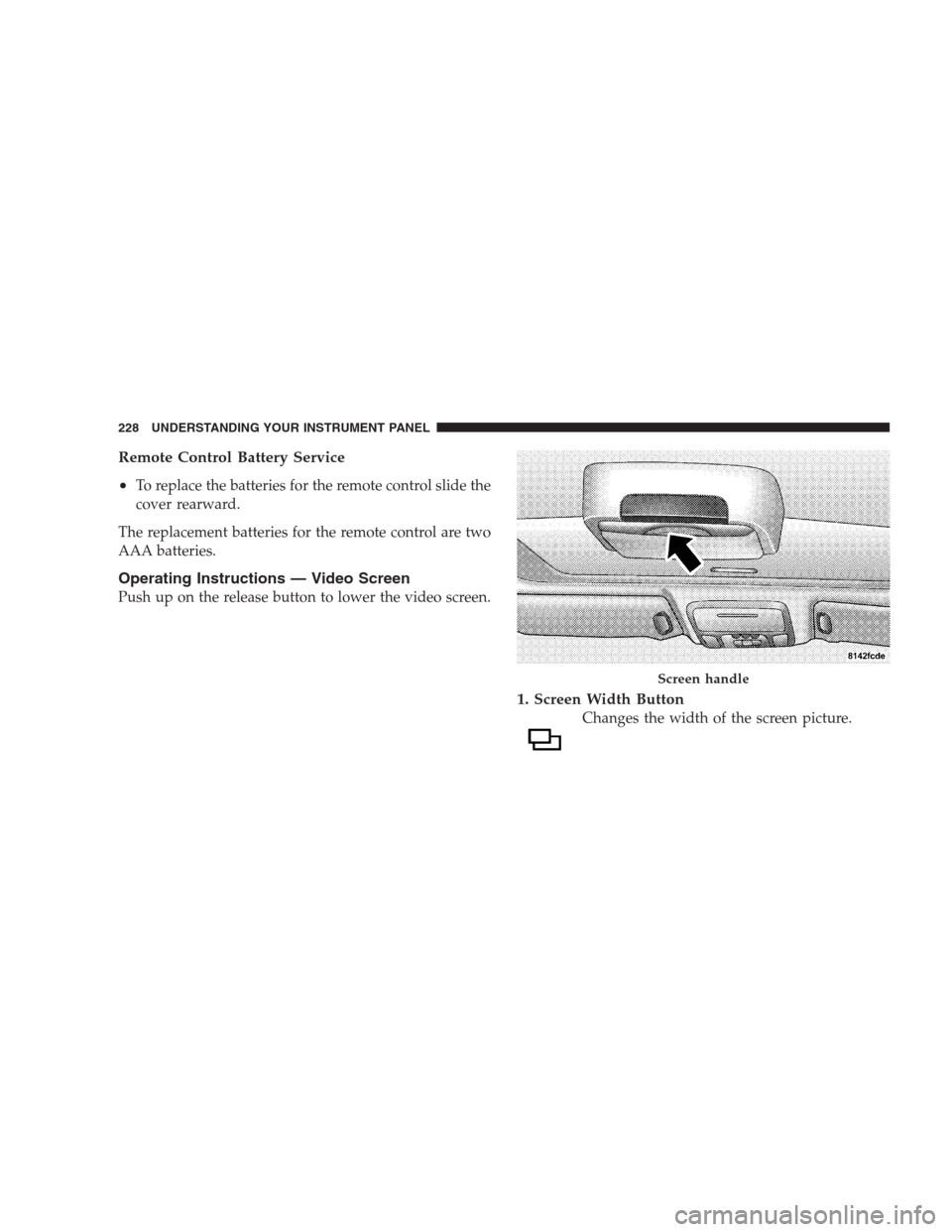
Operating Instructions — Video Screen
Push up on the release button to lower the video screen.
1. Screen Width Button
Changes the width of the screen picture.
Screen handle
228 UNDERSTANDING YOUR INSTRUMENT PANEL
Page 231 of 464

Headphone Battery Service
•
Press the button at the bottom of each headphone
earpiece and lift the cover upward.
•Replace the battery in each earpiece and reinstall the
cover. The headphones require two AAA batteries.
General Information
This device complies with part 15 of the FCC rules and
RSS 210 of Industry Canada. Operation is subject to the
following two conditions: (1) This device may not cause
harmful interference and (2) This device must accept any
interference received, including interference that may
cause undesired operation.
If you do not hear sound coming from the headphones,
check for the following conditions:
1. Rear Seat Audio/Video System and headphones are
on. Press the headphone transmitter button (1) on the
remote control and the power button on the headphones.
An indicator light will illuminate on the headphone
earpiece to indicate the headphones are ON.
2. Weak batteries in the headphones.
Headphone Battery Service
UNDERSTANDING YOUR INSTRUMENT PANEL 231
4
Page 237 of 464
Satellite Antenna
To ensure optimum reception, do not place items on the
roof around the rooftop antenna location or strap items to
the trunk lid around the trunk lid antenna (if equipped).
Metal objects placed within the line of sight of the
antenna will cause decreased performance. Larger lug-
gage items such as bikes should be placed as far rearward
as possible, within the loading design of the rack. Do not
place items directly on or above the antenna.
Reception Quality
Satellite reception may be interrupted due to one of the
following reasons.
•The vehicle is parked in an underground parking
structure or under a physical obstacle.
•Dense tree coverage may interrupt reception in the
form of short audio mutes.
•Driving under wide bridges or along tall buildings can
cause intermittent reception.
•Placing objects over or too close to the antenna can
cause signal blockage.
REMOTE SOUND SYSTEM CONTROLS
The remote sound system controls are located on the rear
surface of the steering wheel at the 3 and 9 o’clock
positions.
The right hand rocker switch has a push button in the
center and controls the volume and mode of the sound
system. Pressing the top of the rocker switch will increase
the volume and pressing the bottom of the rocker switch
will decrease the volume. Pressing the center button
changes the operation of the radio from AM to FM to
Tape or CD mode depending on which radio is in the
vehicle.
UNDERSTANDING YOUR INSTRUMENT PANEL 237
4