2007 CHEVROLET SUBURBAN buttons
[x] Cancel search: buttonsPage 343 of 634
Remote Control
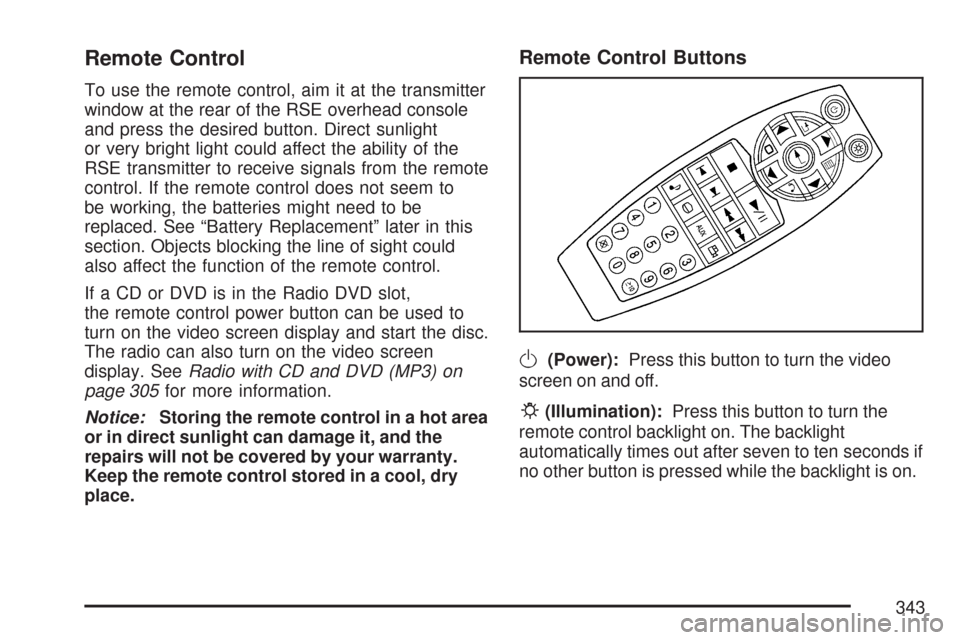
To use the remote control, aim it at the transmitter
window at the rear of the RSE overhead console
and press the desired button. Direct sunlight
or very bright light could affect the ability of the
RSE transmitter to receive signals from the remote
control. If the remote control does not seem to
be working, the batteries might need to be
replaced. See “Battery Replacement” later in this
section. Objects blocking the line of sight could
also affect the function of the remote control.
If a CD or DVD is in the Radio DVD slot,
the remote control power button can be used to
turn on the video screen display and start the disc.
The radio can also turn on the video screen
display. SeeRadio with CD and DVD (MP3) on
page 305for more information.
Notice:Storing the remote control in a hot area
or in direct sunlight can damage it, and the
repairs will not be covered by your warranty.
Keep the remote control stored in a cool, dry
place.
Remote Control Buttons
O(Power):Press this button to turn the video
screen on and off.
P(Illumination):Press this button to turn the
remote control backlight on. The backlight
automatically times out after seven to ten seconds if
no other button is pressed while the backlight is on.
343
Page 344 of 634

v(Title):Press this button to return the DVD to
the main menu of the DVD. This function could
vary for each disc.
y(Main Menu):Press this button to access the
DVD menu. The DVD menu is different on every
DVD. Use the up, down, left, and right arrow
buttons to move the cursor around the DVD menu.
After making a selection press the enter button.
This button only operates when using a DVD.
n,q,p,o(Menu Navigation Arrows):Use
the arrow buttons to navigate through a menu.
r(Enter):Press this button to select the choice
that is highlighted in any menu.
z(Display Menu):Press this button to adjust
the brightness, screen display mode (normal,
full, or zoom), and display the language menu.
q(Return):Press this button to exit the current
active menu and return to the previous menu.
This button operates only when the display menu
or a DVD menu is active.
c(Stop):Press this button to stop playing,
rewinding, or fast forwarding a DVD. Press this
button twice to return to the beginning of the DVD.
s(Play/Pause):Press this button to start
playing a DVD. Press this button while a DVD is
playing to pause it. Press it again to continue
playing the DVD.
When the DVD is playing, depending on the radio,
you may be able to do slow play by pressing
the pause button then pressing the fast forward
button. The DVD continues playing in a slow play
mode. You may also, depending on the radio,
perform reverse slow play by pressing the pause
button and then pressing the fast reverse
button. To cancel slow play mode, press the
play/pause button.
t(Previous Track/Chapter):Press this button
to return to the start of the current track or
chapter. Press this button again to go to the
previous track or chapter. This button might not
work when the DVD is playing the copyright
information or the previews.
344
Page 349 of 634
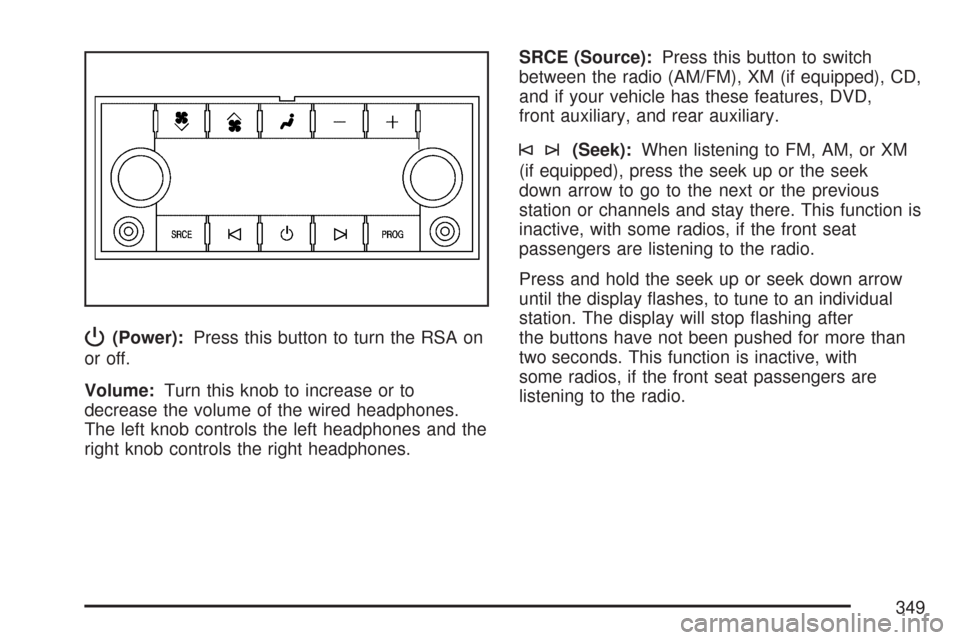
P(Power):Press this button to turn the RSA on
or off.
Volume:Turn this knob to increase or to
decrease the volume of the wired headphones.
The left knob controls the left headphones and the
right knob controls the right headphones.SRCE (Source):Press this button to switch
between the radio (AM/FM), XM (if equipped), CD,
and if your vehicle has these features, DVD,
front auxiliary, and rear auxiliary.
©¨(Seek):When listening to FM, AM, or XM
(if equipped), press the seek up or the seek
down arrow to go to the next or the previous
station or channels and stay there. This function is
inactive, with some radios, if the front seat
passengers are listening to the radio.
Press and hold the seek up or seek down arrow
until the display ashes, to tune to an individual
station. The display will stop ashing after
the buttons have not been pushed for more than
two seconds. This function is inactive, with
some radios, if the front seat passengers are
listening to the radio.
349
Page 463 of 634

How to Reset the Engine Oil Life
System
The Engine Oil Life System calculates when to
change your engine oil and lter based on vehicle
use. Anytime your oil is changed, reset the
system so it can calculate when the next oil
change is required. If a situation occurs where you
change your oil prior to a CHANGE ENGINE
OIL SOON message coming on, reset the system.
Always reset the engine oil life to 100% after
every oil change. It will not reset itself. To reset
the Engine Oil Life System, do the following:
1. Display the OIL LIFE REMAINING on the DIC.
If your vehicle does not have DIC buttons, the
vehicle must be in PARK (P) to access this
display. SeeDIC Operation and Displays (With
DIC Buttons) on page 261orDIC Operation
and Displays (Without DIC Buttons) on
page 267.
2. Press and hold the SET/RESET button on
the DIC, or the trip odometer reset stem if your
vehicle does not have DIC buttons, for more
than ve seconds. The oil life will change
to 100%.If the CHANGE ENGINE OIL SOON message
comes back on when you start your vehicle, the
Engine Oil Life System has not reset. Repeat
the procedure.
What to Do with Used Oil
Used engine oil contains certain elements that
may be unhealthy for your skin and could
even cause cancer. Do not let used oil stay on
your skin for very long. Clean your skin and nails
with soap and water, or a good hand cleaner.
Wash or properly dispose of clothing or rags
containing used engine oil. See the manufacturer’s
warnings about the use and disposal of oil
products.
Used oil can be a threat to the environment. If you
change your own oil, be sure to drain all the oil from
the lter before disposal. Never dispose of oil by
putting it in the trash, pouring it on the ground, into
sewers, or into streams or bodies of water. Instead,
recycle it by taking it to a place that collects used
oil. If you have a problem properly disposing of
used oil, ask your dealer, a service station, or a
local recycling center for help.
463
Page 517 of 634
For additional information and details about the
DIC operation and displays seeDIC Operation and
Displays (With DIC Buttons) on page 261orDIC
Operation and Displays (Without DIC Buttons)
on page 267andDIC Warnings and Messages on
page 270.
You may notice, during cooler weather conditions,
that the tire pressure monitor light, located on
the instrument panel cluster, and the CHECK TIRE
PRESSURE message will appear when the
vehicle is rst started and then turn off as you
start to drive the vehicle. This could be an early
indicator that the tire pressures are getting low and
need to be inated to the proper pressure.
Each tire, including the spare (if provided), should
be checked monthly when cold and inated to
the ination pressure recommended by the vehicle
manufacturer on the vehicle placard or tire
ination pressure label. (If your vehicle has tires of
a different size than the size indicated on the
vehicle placard or tire ination pressure label, you
should determine the proper tire ination
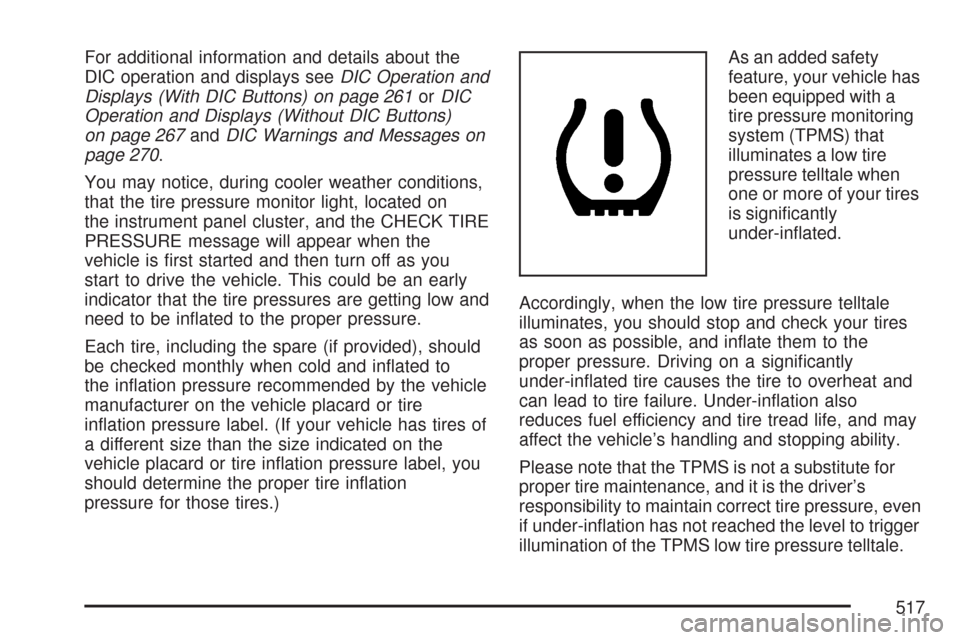
pressure for those tires.)As an added safety
feature, your vehicle has
been equipped with a
tire pressure monitoring
system (TPMS) that
illuminates a low tire
pressure telltale when
one or more of your tires
is signicantly
under-inated.
Accordingly, when the low tire pressure telltale
illuminates, you should stop and check your tires
as soon as possible, and inate them to the
proper pressure. Driving on a signicantly
under-inated tire causes the tire to overheat and
can lead to tire failure. Under-ination also
reduces fuel efficiency and tire tread life, and may
affect the vehicle’s handling and stopping ability.
Please note that the TPMS is not a substitute for
proper tire maintenance, and it is the driver’s
responsibility to maintain correct tire pressure, even
if under-ination has not reached the level to trigger
illumination of the TPMS low tire pressure telltale.
517
Page 519 of 634

Resetting the TPMS Identication Codes
Each TPMS sensor has a unique identication
code. Any time you rotate your vehicle’s tires or
replace one or more of the TPMS sensors,
the identication codes will need to be matched to
the new tire/wheel position. The sensors are
matched to the tire/wheel positions in the following
order: driver’s side front tire, passengers side
front tire, passengers side rear tire, and driver’s
side rear tire using a TPMS diagnostic tool.
See your GM dealer for service.
The TPMS sensors may also be matched to each
tire/wheel position by increasing or decreasing
the tire’s air pressure. If increasing the tire’s
air pressure, do not exceed the maximum ination
pressure indicated on the tire’s sidewall.
You will have two minutes to match the rst
tire/wheel position, and ve minutes overall to
match all four tire/wheel positions. If it takes longer
than two minutes, to match the rst tire and
wheel, or more than ve minutes to match all four
tire and wheel positions the matching process
stops and you will need to start over.The TPMS sensor matching process is outlined
below:
1. Set the parking brake.
2. Turn the ignition switch to RUN with the
engine off.
3. Using the DIC, press the vehicle information
button until the RELEARN TIRE POSITIONS
message displays. If your vehicle does not
have the DIC buttons, press the trip odometer
reset stem located on the instrument panel
cluster until the RELEARN TIRE POSITIONS
message displays.
4. If your vehicle has the DIC buttons, press the
set/reset button. The horn will sound twice to
indicate the TPMS receiver is ready, and
the TIRE LEARNING ACTIVE message will
display. If your vehicle does not have the DIC
buttons, press and hold the trip odometer
reset stem until the horn chirps twice and the
TIRE LEARNING ACTIVE message is
displayed.
519
Page 553 of 634
Appearance Care
Cleaning the Inside of Your Vehicle
Your vehicle’s interior will continue to look its
best if it is cleaned often. Although not always
visible, dust and dirt can accumulate on your
upholstery. Dirt can damage carpet, fabric, leather,
and plastic surfaces. Regular vacuuming is
recommended to remove particles from your
upholstery. It is important to keep your upholstery
from becoming and remaining heavily soiled.
Soils should be removed as quickly as possible.
Your vehicle’s interior may experience extremes of
heat that could cause stains to set rapidly.
Lighter colored interiors may require more frequent
cleaning. Use care because newspapers and
garments that transfer color to your home
furnishings may also transfer color to your
vehicle’s interior.When cleaning your vehicle’s interior, only use
cleaners specically designed for the surfaces
being cleaned. Permanent damage may result
from using cleaners on surfaces for which
they were not intended. Use glass cleaner only on
glass. Remove any accidental over-spray from
other surfaces immediately. To prevent over-spray,
apply cleaner directly to the cleaning cloth.
Notice:If you use abrasive cleaners when
cleaning glass surfaces on your vehicle, you
could scratch the glass and/or cause damage
to the rear window defogger. When cleaning
the glass on your vehicle, use only a soft cloth
and glass cleaner.
Many cleaners contain solvents that may become
concentrated in your vehicle’s breathing space.
Before using cleaners, read and adhere to
all safety instructions on the label. While cleaning
your vehicle’s interior, maintain adequate
ventilation by opening your vehicle’s doors and
windows.
Dust may be removed from small buttons and
knobs using a small brush with soft bristles.
553