2007 BMW M5 SEDAN navigation system
[x] Cancel search: navigation systemPage 151 of 256
Navigation
Entertainment
Driving tips
149Reference
At a glance
Controls
Communications
Mobility
Professional LOGIC7 HiFi System*
You can select a spatial sound effect that
improves the spatial acoustics in all frequency
ranges.
1.Select "Surround Settings" and press the
controller.
2.Select "Concert hall" or "Theater".
3.Press the controller.
LOGIC7 spatial sound is switched on.
To cancel the spatial sound effect:
Select "Off" and press the controller.
LOGIC7 and the LOGIC7 logo are registered
trade marks of Lexicon, Inc., a company of the
Harman International Group.
Equalizer*
You can set individual sound frequency ranges.
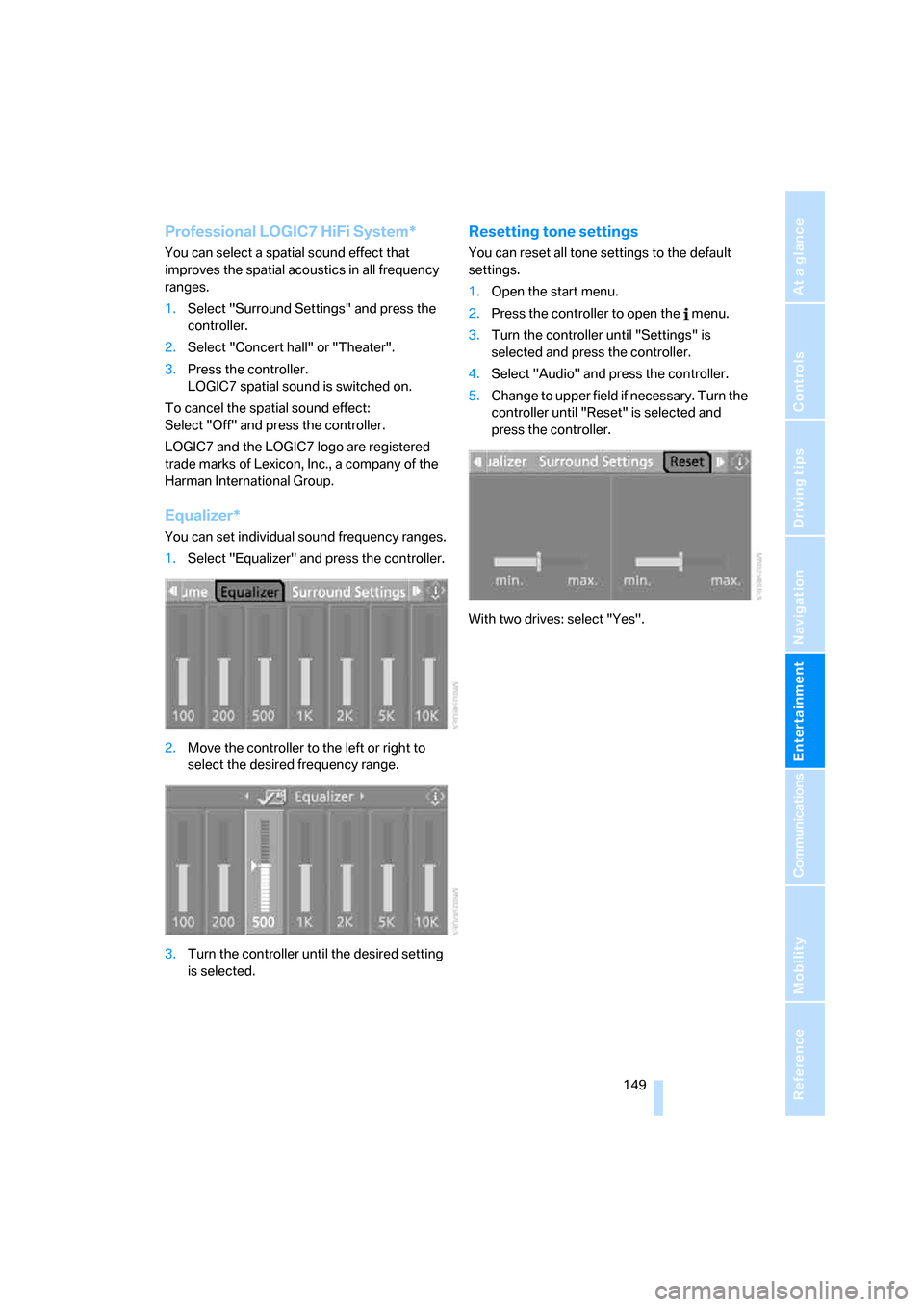
1.Select "Equalizer" and press the controller.
2.Move the controller to the left or right to
select the desired frequency range.
3.Turn the controller until the desired setting
is selected.
Resetting tone settings
You can reset all tone settings to the default
settings.
1.Open the start menu.
2.Press the controller to open the menu.
3.Turn the controller until "Settings" is
selected and press the controller.
4.Select "Audio" and press the controller.
5.Change to upper field if necessary. Turn the
controller until "Reset" is selected and
press the controller.
With two drives: select "Yes".
ba8_m5us.book Seite 149 Montag, 5. Februar 2007 12:03 12
Page 153 of 256

Navigation
Entertainment
Driving tips
151Reference
At a glance
Controls
Communications
Mobility
You can choose from the following selection
criteria:
>"All stations":
Stations that can currently be received in
the "FM" waveband.
>"Autostore":
The stations with the strongest received
signals in the "AM" waveband.
>"Presets":
Stations you have previously stored, refer to
page152.
>"Manual":
Set stations that are received in addition to
those displayed.
1.Change into the second field from the top.
2.Turn the controller until the desired selec-
tion criterion is selected and press the con-
troller.
Buttons next to CD player
Press the button for the corresponding
direction.
The system changes to the next displayed sta-
tion.
You can also change stations with buttons on
the steering wheel, refer to page11.
Sampling stations, scan
The system automatically plays a brief sample
from each of the stations on the current wave-
band.
1.Select "FM" or "AM" and press the control-
ler.
"Set" is selected.
2.Press the controller.
Other menu items are displayed.3.Select "Scan" and press the controller.
The stations are sampled.
To end sampling:
1.Press the controller.
2.Select "Scan" and press the controller.
This cancels sampling of the stations, and the
radio remains on the current station.
Buttons next to CD player
To sample the stations, press and hold the but-
ton for the corresponding direction.
To stop scanning, press the button again.
Selecting frequency manually
With "Manual" you can select stations that are
received in addition to those displayed.
1.Select "FM" or "AM" and press the control-
ler.
2.Change into the second field from the top.
3.Select "Manual" and press the controller.
4.Turn the controller to set a certain fre-
quency.
ba8_m5us.book Seite 151 Montag, 5. Februar 2007 12:03 12
Page 155 of 256
Navigation
Entertainment
Driving tips
153Reference
At a glance
Controls
Communications
Mobility
7.Press the controller.
The station is stored.
The stations of the last selection criterion are
displayed once again after a short time.
From radio readiness, the stations are stored
for the remote control currently in use.
With programmable memory/direct
selection buttons
You can also store a station on the programma-
ble memory/direct selection buttons, also refer
to page21.
1.Select a station.
2. ... Press and hold desired but-
ton.
Changing a memory position
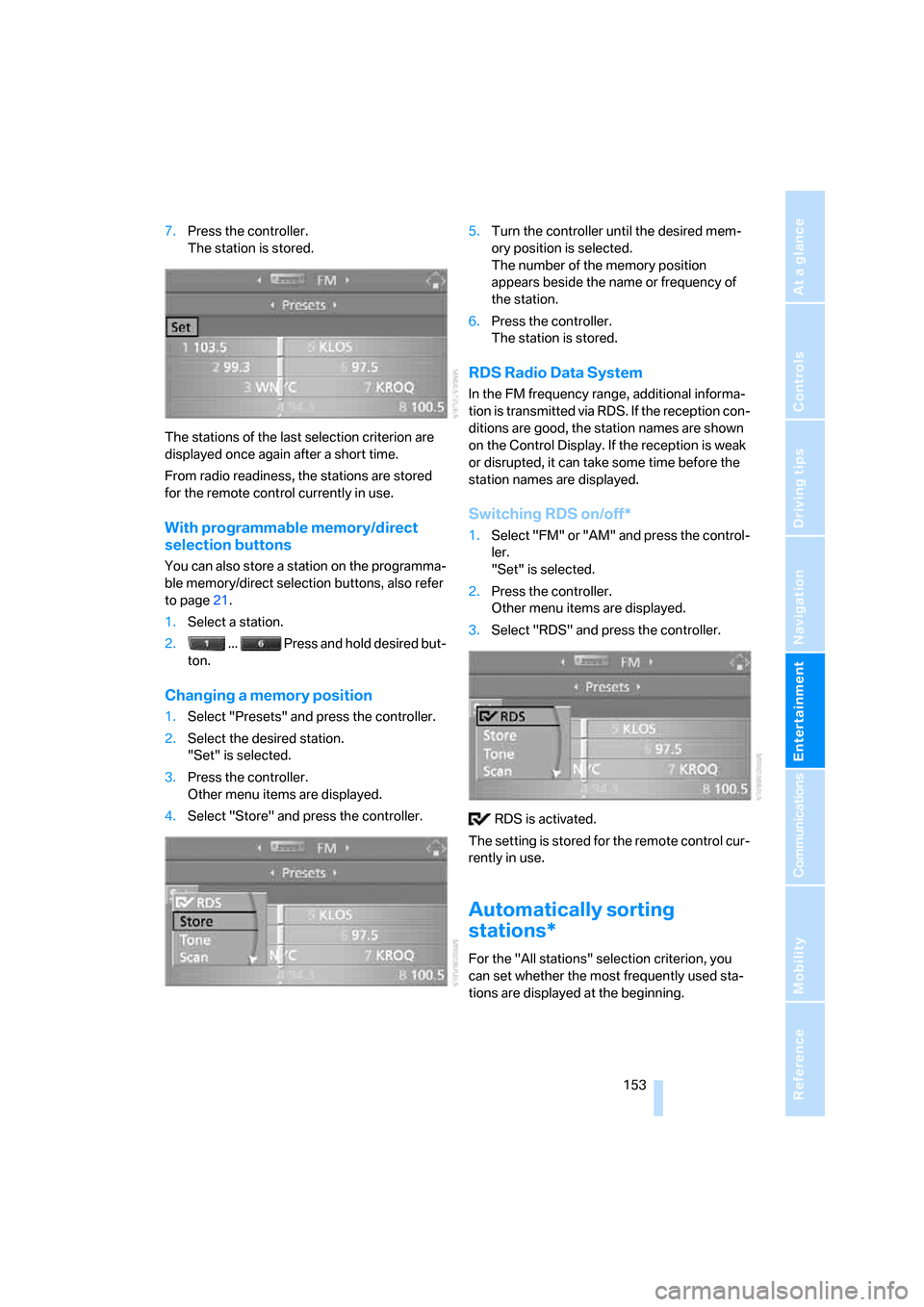
1.Select "Presets" and press the controller.
2.Select the desired station.
"Set" is selected.
3.Press the controller.
Other menu items are displayed.
4.Select "Store" and press the controller.5.Turn the controller until the desired mem-
ory position is selected.
The number of the memory position
appears beside the name or frequency of
the station.
6.Press the controller.
The station is stored.
RDS Radio Data System
In the FM frequency range, additional informa-
tion is transmitted via RDS. If the reception con-
ditions are good, the station names are shown
on the Control Display. If the reception is weak
or disrupted, it can take some time before the
station names are displayed.
Switching RDS on/off*
1.Select "FM" or "AM" and press the control-
ler.
"Set" is selected.
2.Press the controller.
Other menu items are displayed.
3.Select "RDS" and press the controller.
RDS is activated.
The setting is stored for the remote control cur-
rently in use.
Automatically sorting
stations*
For the "All stations" selection criterion, you
can set whether the most frequently used sta-
tions are displayed at the beginning.
ba8_m5us.book Seite 153 Montag, 5. Februar 2007 12:03 12
Page 163 of 256
Navigation
Entertainment
Driving tips
161Reference
At a glance
Controls
Communications
Mobility
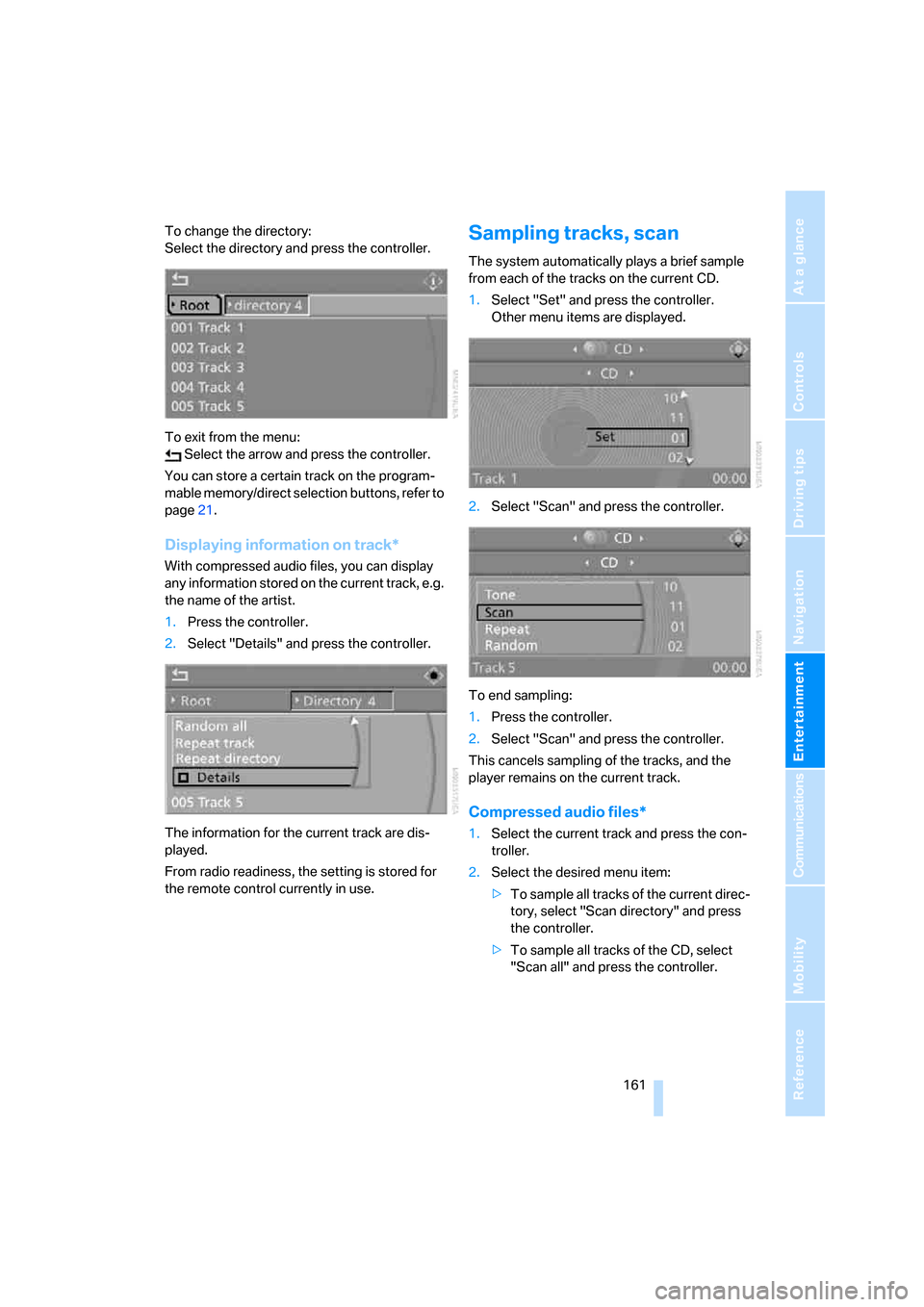
To change the directory:
Select the directory and press the controller.
To exit from the menu:
Select the arrow and press the controller.
You can store a certain track on the program-
mable memory/direct selection buttons, refer to
page21.
Displaying information on track*
With compressed audio files, you can display
any information stored on the current track, e.g.
the name of the artist.
1.Press the controller.
2.Select "Details" and press the controller.
The information for the current track are dis-
played.
From radio readiness, the setting is stored for
the remote control currently in use.
Sampling tracks, scan
The system automatically plays a brief sample
from each of the tracks on the current CD.
1.Select "Set" and press the controller.
Other menu items are displayed.
2.Select "Scan" and press the controller.
To end sampling:
1.Press the controller.
2.Select "Scan" and press the controller.
This cancels sampling of the tracks, and the
player remains on the current track.
Compressed audio files*
1.Select the current track and press the con-
troller.
2.Select the desired menu item:
>To sample all tracks of the current direc-
tory, select "Scan directory" and press
the controller.
>To sample all tracks of the CD, select
"Scan all" and press the controller.
ba8_m5us.book Seite 161 Montag, 5. Februar 2007 12:03 12
Page 167 of 256
Navigation
Entertainment
Driving tips
165Reference
At a glance
Controls
Communications
Mobility
AUX-In connection
You can connect an external audio device, e.g.
an MP3 player, and play the sound via the vehi-
cle loudspeakers. The sound can be adjusted
via iDrive.
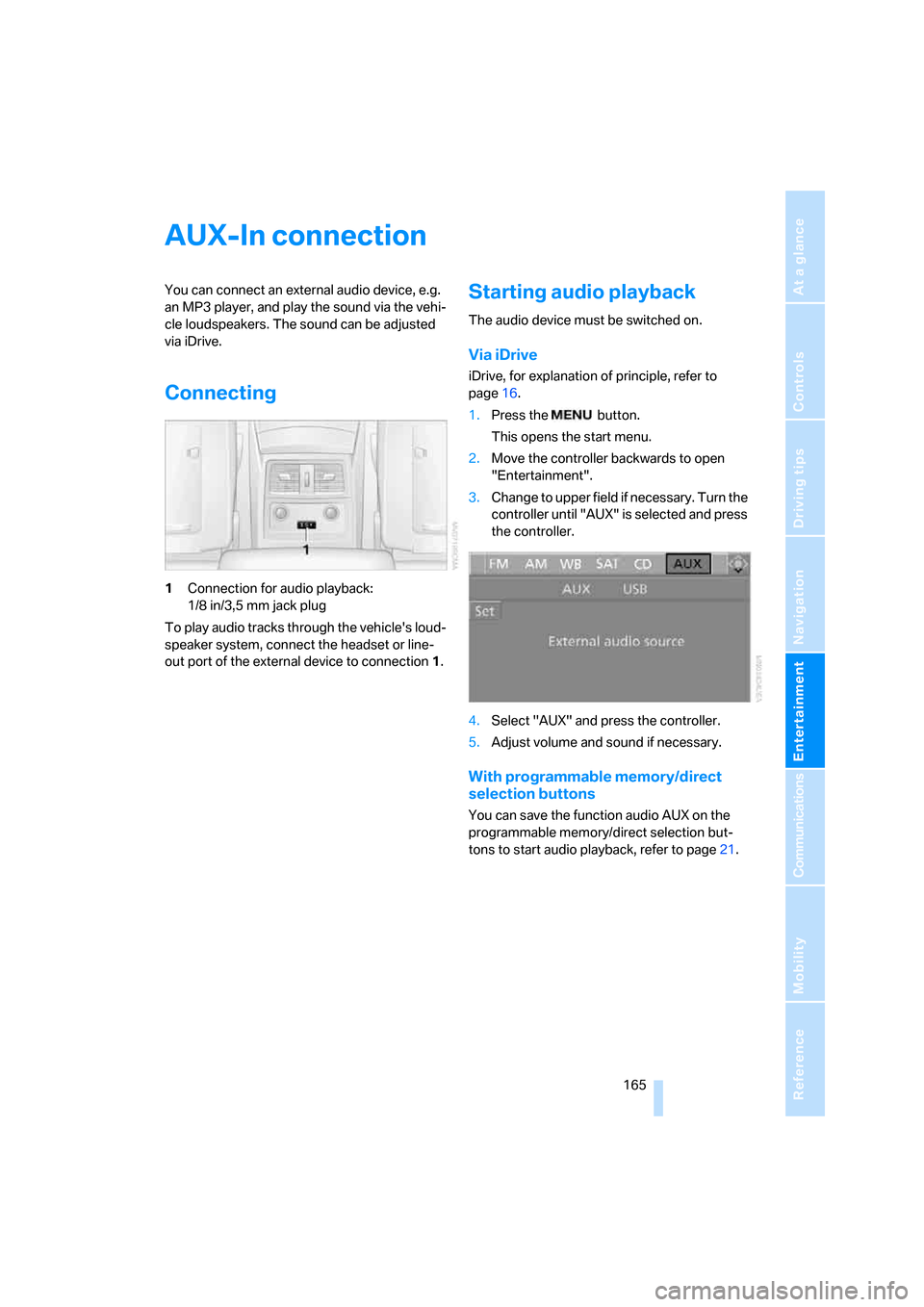
Connecting
1Connection for audio playback:
1/8 in/3,5 mm jack plug
To play audio tracks through the vehicle's loud-
speaker system, connect the headset or line-
out port of the external device to connection 1.
Starting audio playback
The audio device must be switched on.
Via iDrive
iDrive, for explanation of principle, refer to
page16.
1.Press the button.
This opens the start menu.
2.Move the controller backwards to open
"Entertainment".
3.Change to upper field if necessary. Turn the
controller until "AUX" is selected and press
the controller.
4.Select "AUX" and press the controller.
5.Adjust volume and sound if necessary.
With programmable memory/direct
selection buttons
You can save the function audio AUX on the
programmable memory/direct selection but-
tons to start audio playback, refer to page21.
ba8_m5us.book Seite 165 Montag, 5. Februar 2007 12:03 12
Page 175 of 256

173
Entertainment
Reference
At a glance
Controls
Driving tips Communications
Navigation
Mobility
Placing phone calls with BMW Assist
system*: BMW Assist calls
You can use the BMW Assist system via the
hands-free unit for BMW Assist calls.
When the status information "BMW Assist" or
"BMW Service" is displayed in "Communica-
tion", only BMW Assist calls are possible.
It may not be possible to establish a telephone
connection using the mobile phone while a con-
nection is being established to BMW Assist or
while a call to BMW Assist is already in
progress. If this happens, you must log off the
mobile phone from the vehicle if you wish to
place a call with the mobile phone.
Commissioning
Pairing mobile phone in vehicle
The following prerequisites must be met:
>Suitable mobile phone: the mobile phone is
supported by the full mobile phone prepara-
tion package. Information on this subject is
also provided on the Internet at:
www.bmw.com
>The mobile phone is ready to operate.
>The Bluetooth link on the vehicle, refer to
page177, and on the mobile phone is
active.
>Depending on the mobile phone, preset-
tings on the mobile phone are necessary:
e.g. via the following menu items:
>Bluetooth activated
>Connection not with confirmation
>Reconnect
>Depending on the mobile phone model, the
setting energy saving mode can, for exam-
ple, result in vehicle failing to detect the
paired mobile phone.
>For pairing, specify any desired number as
the Bluetooth passkey, e.g. 1. This Blue-
tooth passkey is no longer required follow-
ing successful pairing.
>The ignition is switched on.Only log on the mobile phone with the
vehicle stopped, otherwise the passen-
gers and other road users can be endangered
due to a lack of attentiveness on the part of the
driver.<
Switching on ignition
1.Insert the remote control as far as possible
into the ignition lock.
2.Switch on the ignition by pressing the Start/
Stop button without depressing the brake
or clutch pedal.
Preparation via iDrive
iDrive, for explanation of principle, refer to
page16.
3.Press the button to open the start
menu.
4.Press the controller to open the menu.
5.Select "Settings" and press the controller.
ba8_m5us.book Seite 173 Montag, 5. Februar 2007 12:03 12
Page 183 of 256
181
Entertainment
Reference
At a glance
Controls
Driving tips Communications
Navigation
Mobility
5.Change the phone number.
6.Select "Dial number" and press the control-
ler.
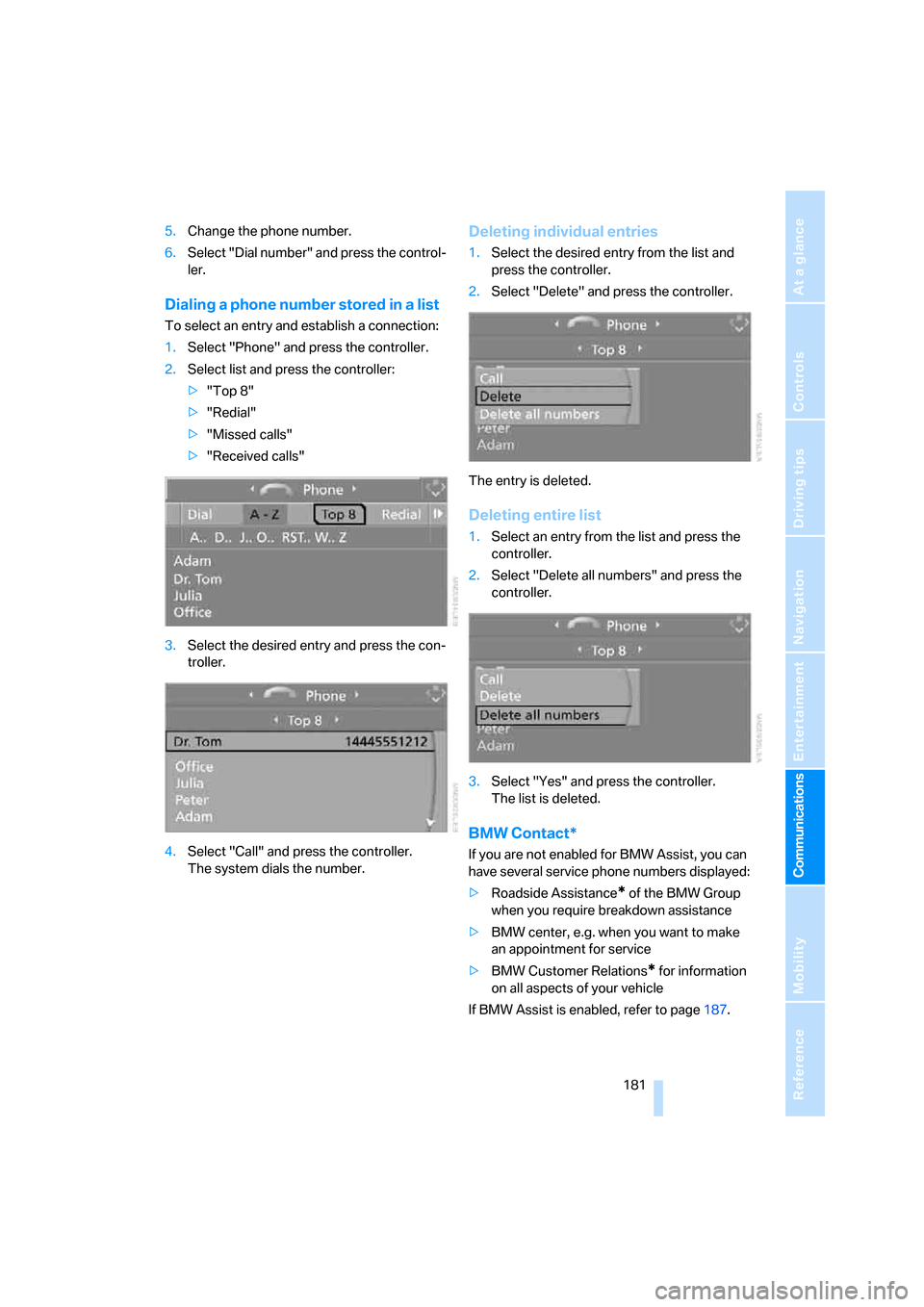
Dialing a phone number stored in a list
To select an entry and establish a connection:
1.Select "Phone" and press the controller.
2.Select list and press the controller:
>"Top 8"
>"Redial"
>"Missed calls"
>"Received calls"
3.Select the desired entry and press the con-
troller.
4.Select "Call" and press the controller.
The system dials the number.
Deleting individual entries
1.Select the desired entry from the list and
press the controller.
2.Select "Delete" and press the controller.
The entry is deleted.
Deleting entire list
1.Select an entry from the list and press the
controller.
2.Select "Delete all numbers" and press the
controller.
3.Select "Yes" and press the controller.
The list is deleted.
BMW Contact*
If you are not enabled for BMW Assist, you can
have several service phone numbers displayed:
>Roadside Assistance
* of the BMW Group
when you require breakdown assistance
>BMW center, e.g. when you want to make
an appointment for service
>BMW Customer Relations
* for information
on all aspects of your vehicle
If BMW Assist is enabled, refer to page187.
ba8_m5us.book Seite 181 Montag, 5. Februar 2007 12:03 12
Page 185 of 256
183
Entertainment
Reference
At a glance
Controls
Driving tips Communications
Navigation
Mobility
Changing between mobile
phone and hands-free system
From mobile phone to hands-free
system
You can continue calls begun outside the Blue-
tooth range of the vehicle via the hands-free
system when the motor is running or the igni-
tion is switched on. Depending on your mobile
phone, the system automatically changes over
to the hands-free mode.
For mobile phones that do not automatically
change over to the hands-free mode:
>Depending on the mobile phone model
used, the conversation can be continued via
the hands-free system if necessary. Act
according to what is shown on the mobile
phone display, refer to the operating
instructions of your mobile phone.
>Press the button above the storage
compartment. Changing over may take sev-
eral seconds.
From hands-free system to mobile
phone
When you telephone via the hands-free system,
you can also continue the call via the mobile
phone if necessary, depending on the mobile
phone model. Act according to what is shown
on the mobile phone display, refer to the oper-
ating instructions of your mobile phone.
As an alternative, you can deactivate the Blue-
tooth link.
Depending on your mobile phone model, poor
reception of the wireless communications net-
work can result in the system changing from the
hands-free system to the mobile phone.
Operation by voice*
The concept
You can operate your mobile phone without
having to remove your hands from the steering
wheel. When making your entries, you will be
supported by announcements or questions in
many cases.
The same prerequisites as for operation via
iDrive apply, refer to page178.
Voice commands
Activating system
1.Briefly press the button on the steering
wheel.
An acoustic signal indicates that you can
say commands.
2.Say the command.
Ending/canceling operation by voice
Press the button on the steering wheel
or
In dialogs where text is spoken, not a command,
e.g. a name, canceling is only possible using the
button on the steering wheel.
Having possible commands read aloud
The system understands default commands
that must be spoken word for word.
You can have the possible commands spoken
by the system at any point:
Using alternative commands
There are often a number of commands to run a
function, e.g.:
The system recognizes digits from zero to nine.
You can say each digit individually or group
them into a sequence to accelerate the input.
{Cancel}.
{Help}.
{Dial name} or {Name}.
ba8_m5us.book Seite 183 Montag, 5. Februar 2007 12:03 12