2007 BMW 760LI SEDAN display
[x] Cancel search: displayPage 18 of 253
iDrive
16
iDrive
iDrive combines the functions of a multitude of
switches. This allows these functions to be
operated from a central position. The following
introduction illustrates how easy iDrive is to use. The control of individual functions is
described in connection with the relevant
equipment.
Controls
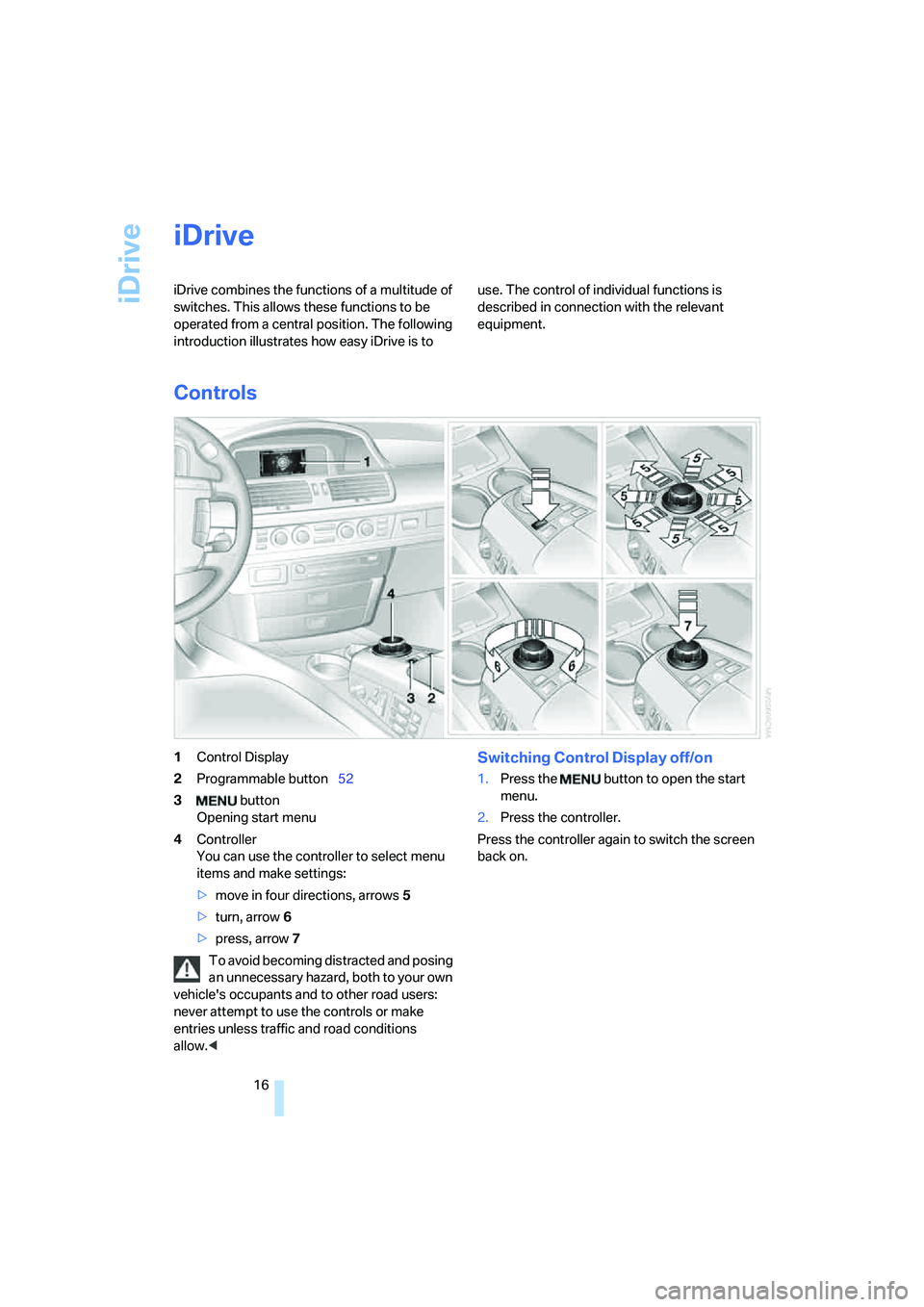
1Control Display
2Programmable button52
3 button
Opening start menu
4Controller
You can use the controller to select menu
items and make settings:
>move in four directions, arrows5
>turn, arrow6
>press, arrow7
To avoid becoming distracted and posing
an unnecessary hazard, both to your own
vehicle's occupants and to other road users:
never attempt to use the controls or make
entries unless traffic and road conditions
allow.
menu.
2.Press the controller.
Press the controller again to switch the screen
back on.
Page 19 of 253
At a glance
17Reference
Controls
Driving tips
Communications
Navigation
Entertainment
Mobility
Menus on Control Display
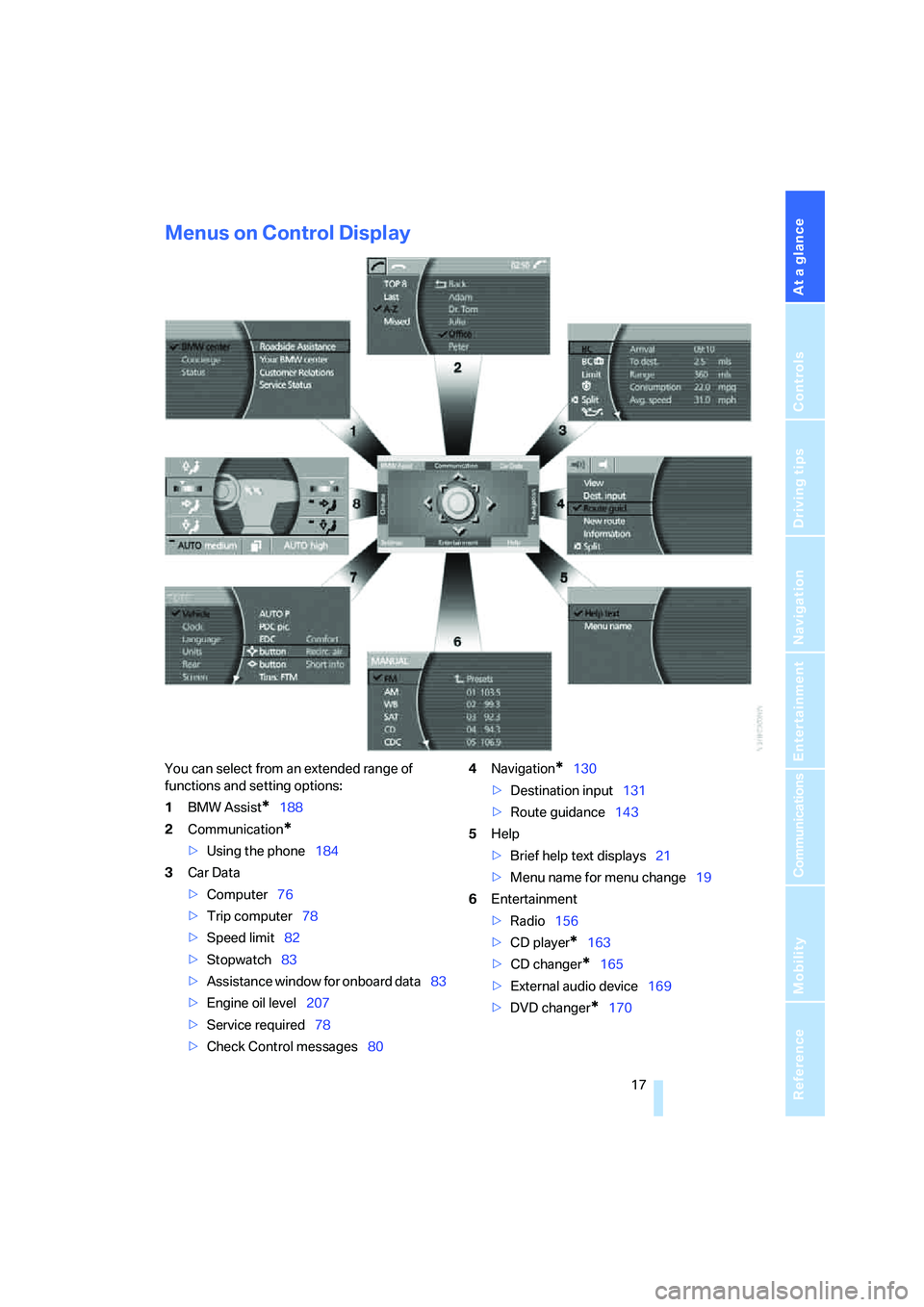
You can select from an extended range of
functions and setting options:
1BMW Assist
*188
2Communication
*
>Using the phone184
3Car Data
>Computer76
>Trip computer78
>Speed limit82
>Stopwatch83
>Assistance window
for onboard data83
>Engine oil level207
>Service required78
>Check Control messages804Navigation
*130
>Destination input131
>Route guidance143
5Help
>Brief help text displays21
>Menu name for menu change19
6Entertainment
>Radio156
>CD player
*163
>CD changer
*165
>External audio device169
>DVD changer
*170
Page 20 of 253
iDrive
18 DVDs can only be played on the rear
seat screen, refer to Rear seat
screen
* on page21.<
7Settings
>Parking brake58
>PDC Park Distance Control86
>EDC Electronic Damping Control89
>Programmable buttons52
>FTM Flat Tire Monitor
*90
>TPM Tire Pressure Monitor
*91
>Time and date84
>Language84
>Units of measure and display format84
>Brightness85
>Rear seat screen
*21
>Logging on mobile phone in
vehicle182
8Climate
>Intensity of AUTO program104
>Air volume106
>Heated seats
*49
>Parked car ventilation109
>Extra, e.g. rear air conditioner108
Basic operation
Once the radio ready position is reached, the
following message appears on the Control Dis-
play:
To clear the message:
Press the controller.
This displays the start menu.The message automatically disappears after
approx. 25 seconds.
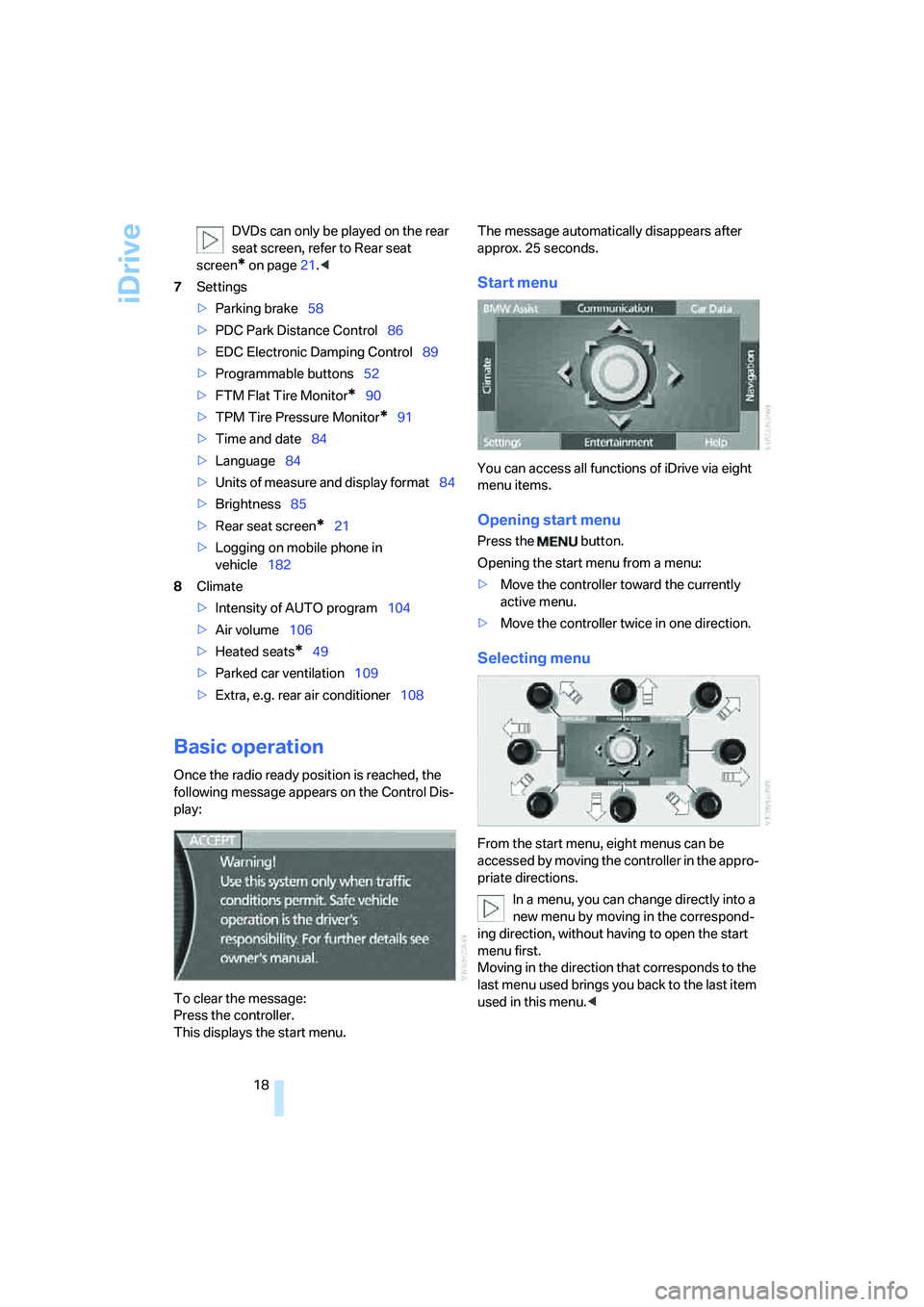
Start menu
You can access all functions of iDrive via eight
menu items.
Opening start menu
Press the button.
Opening the start menu from a menu:
>Move the controller toward the currently
active menu.
>Move the controller twice in one direction.
Selecting menu
From the start menu, eight menus can be
accessed by moving the controller in the appro-
priate directions.
In a menu, you can change directly into a
new menu by moving in the correspond-
ing direction, without having to open the start
menu first.
Moving in the direction that corresponds to the
last menu used brings you back to the last item
used in this menu.<
Page 21 of 253
At a glance
19Reference
Controls
Driving tips
Communications
Navigation
Entertainment
Mobility
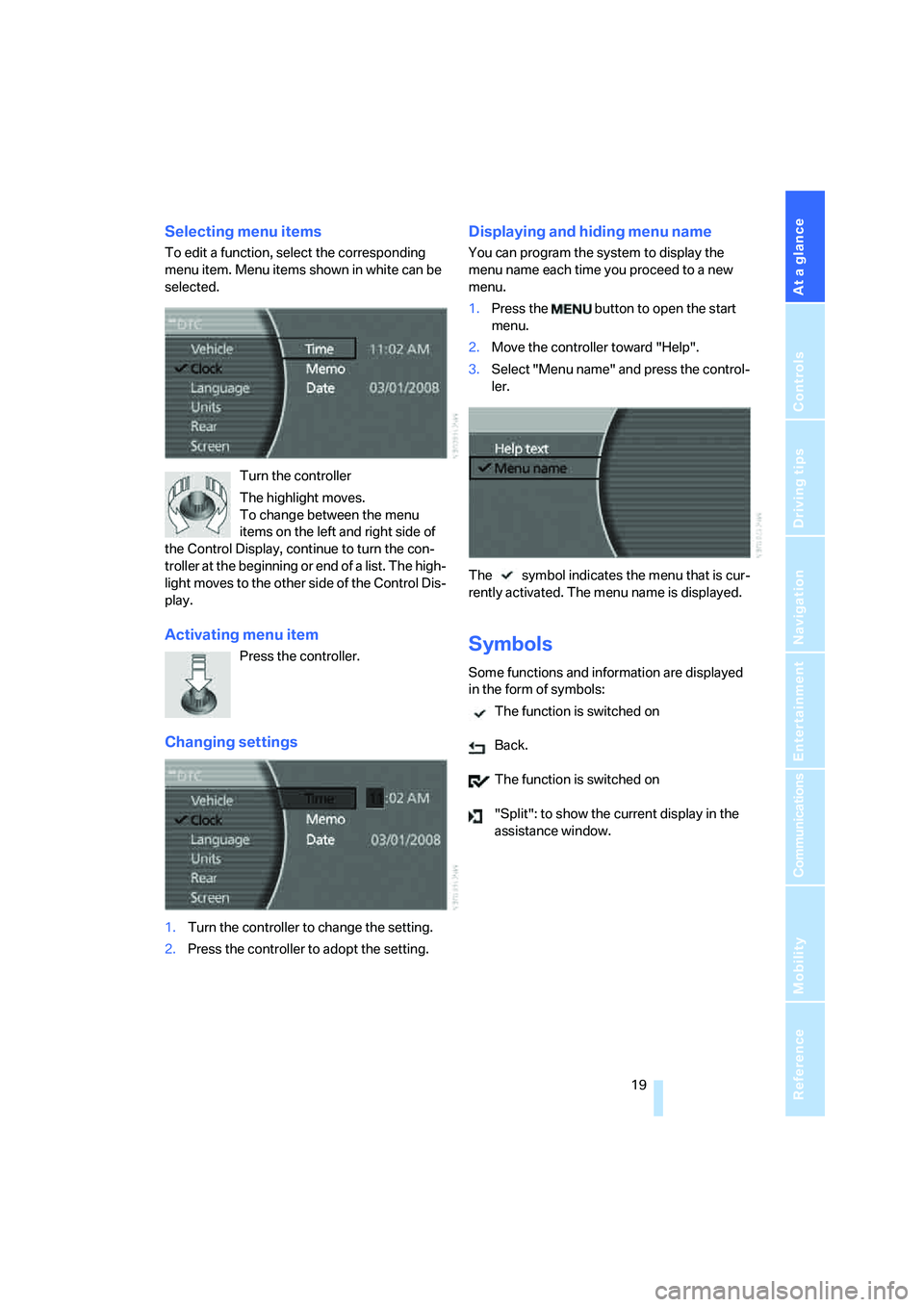
Selecting menu items
To edit a function, select the corresponding
menu item. Menu items shown in white can be
selected.
Turn the controller
The highlight moves.
To change between the menu
items on the left and right side of
the Control Display, continue to turn the con-
troller at the beginning or end of a list. The high-
light moves to the other side of the Control Dis-
play.
Activating menu item
Press the controller.
Changing settings
1.Turn the controller to change the setting.
2.Press the controller to adopt the setting.
Displaying and hiding menu name
You can program the system to display the
menu name each time you proceed to a new
menu.
1.Press the button to open the start
menu.
2.Move the controller toward "Help".
3.Select "Menu name" and press the control-
ler.
The symbol indicates the menu that is cur-
rently activated. The menu name is displayed.
Symbols
Some functions and information are displayed
in the form of symbols:
The function is switched on
Back.
The function is switched on
"Split": to show the current display in the
assistance window.
Page 22 of 253
iDrive
20
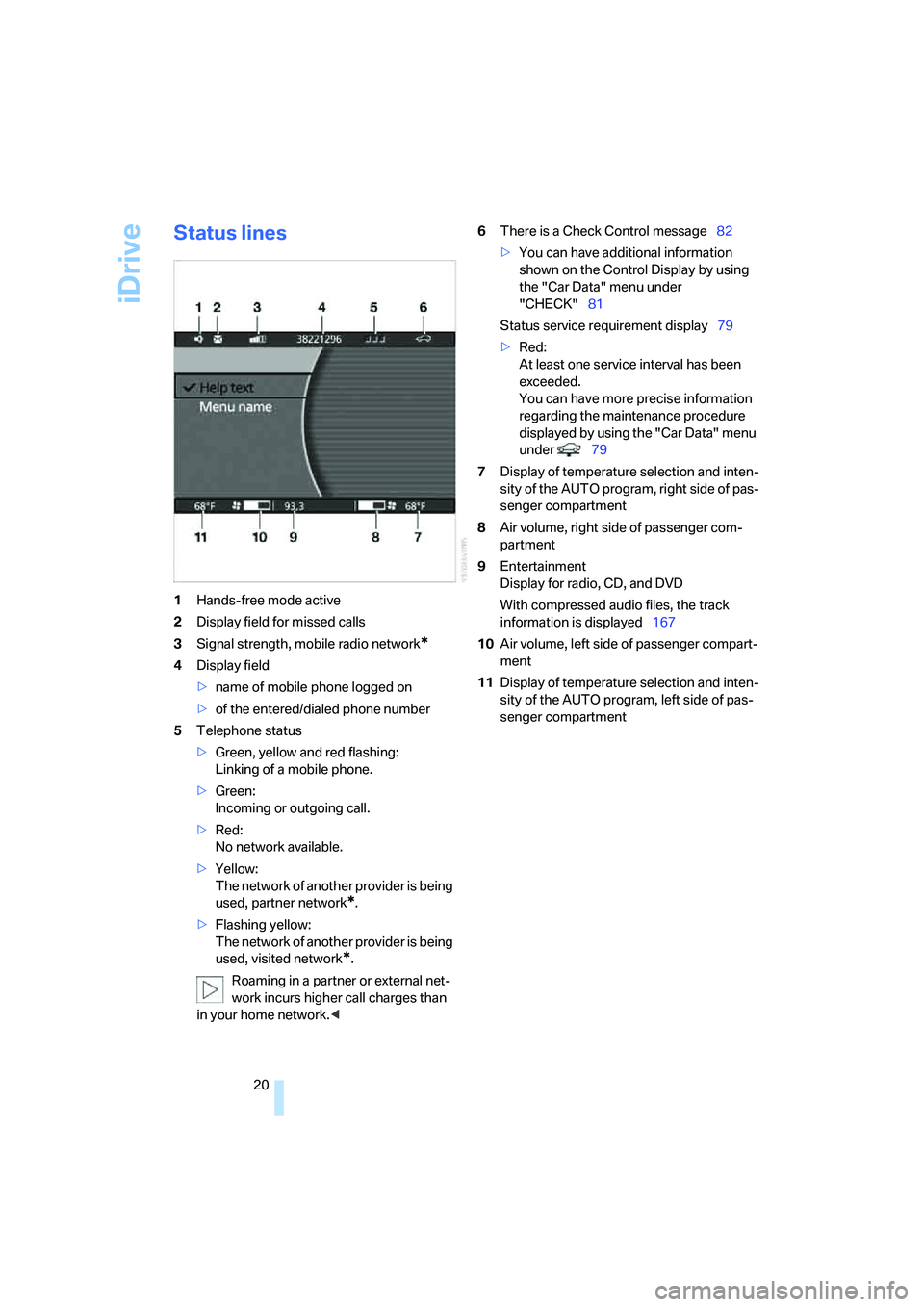
Status lines
1Hands-free mode active
2Display field for missed calls
3Signal strength, mobile radio network
*
4Display field
>name of mobile phone logged on
>of the entered/dialed phone number
5Telephone status
>Green, yellow and red flashing:
Linking of a mobile phone.
>Green:
Incoming or outgoing call.
>Red:
No network available.
>Yellow:
The network of another provider is being
used, partner network
*.
>Flashing yellow:
The network of another provider is being
used, visited network
*.
Roaming in a partner or external net-
work incurs higher call charges than
in your home network.<6There is a Check Control message82
>You can have additional information
shown on the Control Display by using
the "Car Data" menu under
"CHECK"81
Status service requirement display79
>Red:
At least one service interval has been
exceeded.
You can have more precise information
regarding the maintenance procedure
displayed by using the "Car Data" menu
under 79
7Display of temperature selection and inten-
sity of the AUTO program, right side of pas-
senger compartment
8Air volume, right side of passenger com-
partment
9Entertainment
Display for radio, CD, and DVD
With compressed audio files, the track
information is displayed167
10Air volume, left side of passenger compart-
ment
11Display of temperature selection and inten-
sity of the AUTO program, left side of pas-
senger compartment
Page 23 of 253
At a glance
21Reference
Controls
Driving tips
Communications
Navigation
Entertainment
Mobility
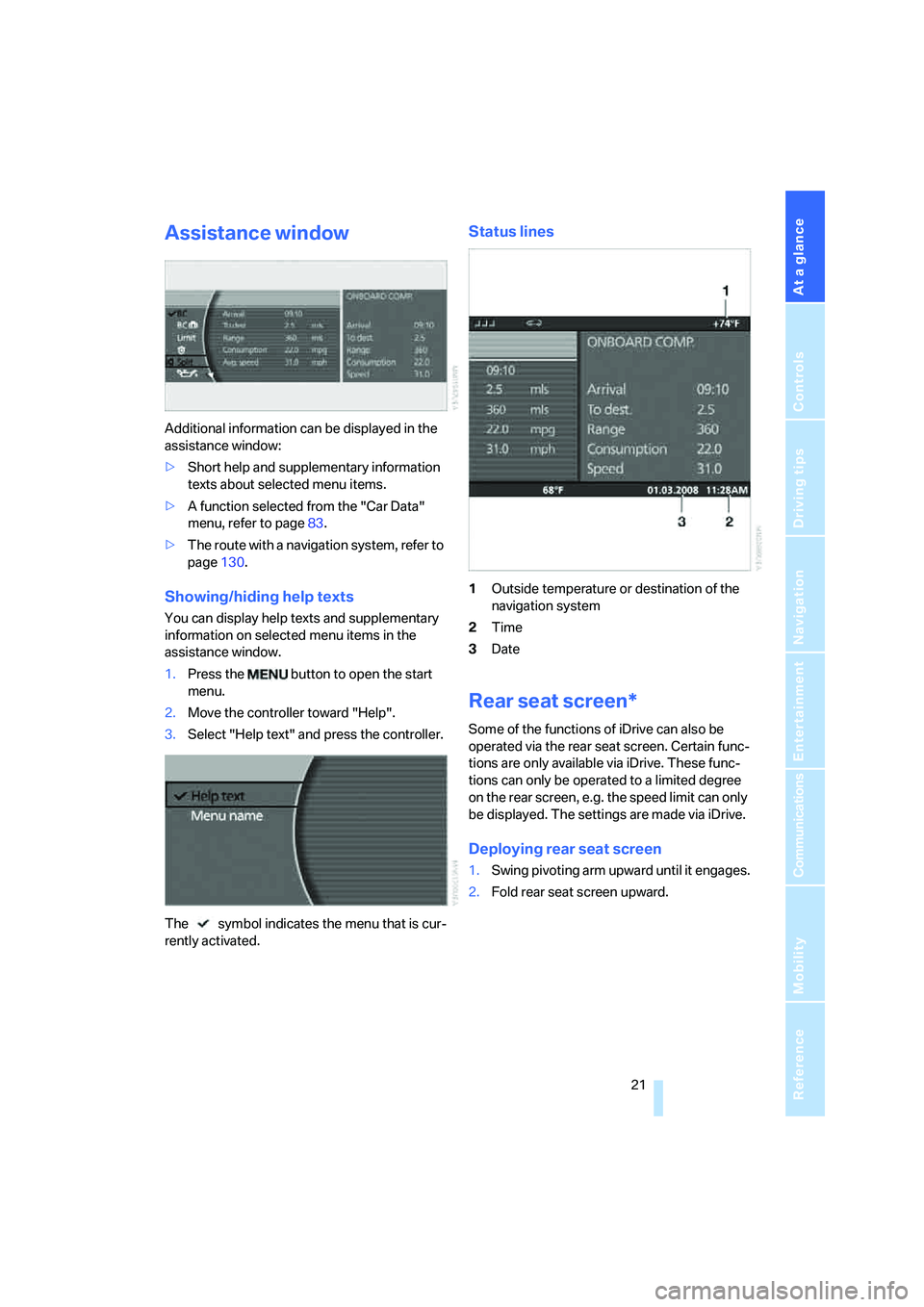
Assistance window
Additional information can be displayed in the
assistance window:
>Short help and supplementary information
texts about selected menu items.
>A function selected from the "Car Data"
menu, refer to page83.
>The route with a navigation system, refer to
page130.
Showing/hiding help texts
You can display help texts and supplementary
information on selected menu items in the
assistance window.
1.Press the button to open the start
menu.
2.Move the controller toward "Help".
3.Select "Help text" and press the controller.
The symbol indicates the menu that is cur-
rently activated.
Status lines
1Outside temperature or destination of the
navigation system
2Time
3Date
Rear seat screen*
Some of the functions of iDrive can also be
operated via the rear seat screen. Certain func-
tions are only available via iDrive. These func-
tions can only be operated to a limited degree
on the rear screen, e.g. the speed limit can only
be displayed. The settings are made via iDrive.
Deploying rear seat screen
1.Swing pivoting arm upward until it engages.
2.Fold rear seat screen upward.
Page 24 of 253
iDrive
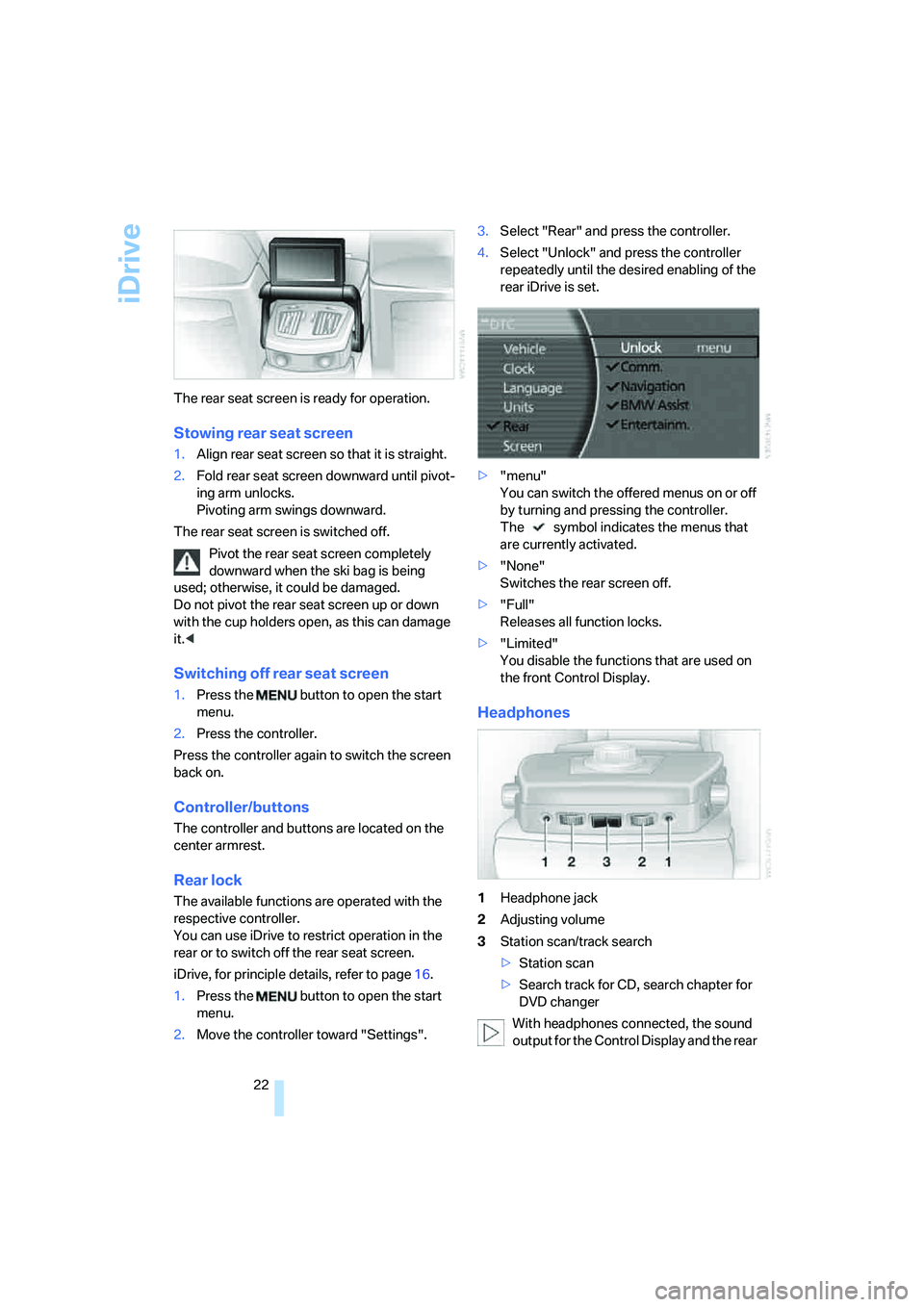
22 The rear seat screen is ready for operation.
Stowing rear seat screen
1.Align rear seat screen so that it is straight.
2.Fold rear seat screen downward until pivot-
ing arm unlocks.
Pivoting arm swings downward.
The rear seat screen is switched off.
Pivot the rear seat screen completely
downward when the ski bag is being
used; otherwise, it could be damaged.
Do not pivot the rear seat screen up or down
with the cup holders open, as this can damage
it.<
Switching off rear seat screen
1.Press the button to open the start
menu.
2.Press the controller.
Press the controller again to switch the screen
back on.
Controller/buttons
The controller and buttons are located on the
center armrest.
Rear lock
The available functions are operated with the
respective controller.
You can use iDrive to restrict operation in the
rear or to switch off the rear seat screen.
iDrive, for principle details, refer to page16.
1.Press the button to open the start
menu.
2.Move the controller toward "Settings".3.Select "Rear" and press the controller.
4.Select "Unlock" and press the controller
repeatedly until the desired enabling of the
rear iDrive is set.
>"menu"
You can switch the offered menus on or off
by turning and pressing the controller.
The symbol indicates the menus that
are currently activated.
>"None"
Switches the rear screen off.
>"Full"
Releases all function locks.
>"Limited"
You disable the functions that are used on
the front Control Display.
Headphones
1Headphone jack
2Adjusting volume
3Station scan/track search
>Station scan
>Search track for CD, search chapter for
DVD changer
With headphones connected, the sound
output for the Control Display and the rear
Page 26 of 253
Voice command system
24
Voice command system
The concept
The voice command system allows you to con-
trol operation of various vehicle systems with-
out ever removing your hands from the steering
wheel. The system operates on the basis of
voice commands that you will learn easily after
using them a few times. In many cases, the
voice command system assists you with
announcements or questions while you are
making your entries.
The voice command system transforms your
oral commands and dialog answers into control
signals for the selected systems.
Please take the time to acquaint yourself
with how a particular system operates
before proceeding to control it using the voice
command system.<
Note
Use iDrive to set the language that will be used
so that the voice command system will be able
to identify the commands to be spoken. Setting
the language of iDrive, refer to page84.
Symbols used
{...} Verbal instructions to use with the voice
command system.
{{...}} Identifies the answers generated by the
voice command system.
Systems available for use with voice
command
>{Navigation}, refer to page130
>{Radio}, refer to page156
>{Telephone}, refer to page184
>{CD}, refer to page163
>{CD changer}, refer to page165
>{Notepad}, refer to page26
>{DVD}, refer to page170The Info Display, refer to page25, will display
either the equipment that you are now operat-
ing or any current error messages.
Voice commands
Voice command system activation
Briefly press the button on the steering
wheel.
An acoustic signal and the display "SVS active"
on the Info Display, refer to page25, indicate
that the system is ready for operation. The sys-
tem automatically starts in the main menu.
From here, you can call up all the equipment
that can be operated.
Canceling voice command
Briefly press the button on the steering
wheel
or
In dialogs in which any text can be spoken, e.g.
names, notes, canceling is only possible using
the button.
The system automatically switches over
to its telephone mode if you receive a call
during voice input. "SVS active" appears on the
Info Display, refer to page25.<
Voice commands
The voice command system operates on the
basis of specific, predefined commands; these
commands should be spoken precisely as indi-
cated. You can have the possible commands
read aloud at any point. To do so, say the com-
mand {Options}.
In addition to the commands described, there
are often other commands that run the same
function. Instead of {Options}, you can, for
example, also say {What now}. In addition,
*
These sections contain information on
using the voice command system.
{Cancel}.