Page 18 of 194
General system operation 16Function buttons
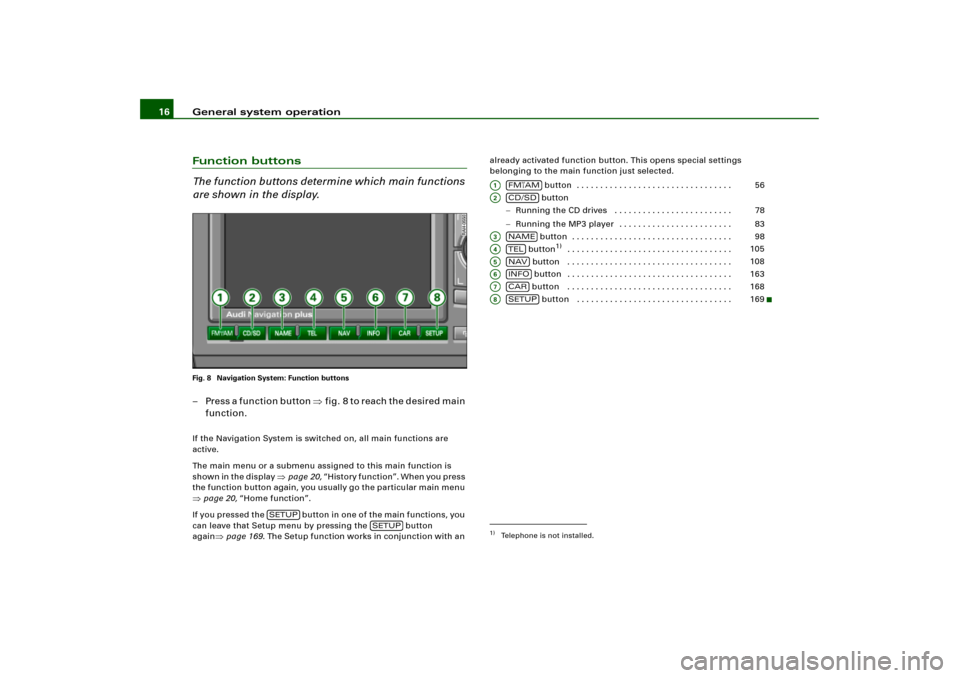
The function buttons determine which main functions
are shown in the display.Fig. 8 Navigation System: Function buttons– P r e s s a f u n c t i o n b u t t o n �f i g .8 t o r e a c h t h e d e s i r e d m a i n
function.If the Navigation System is switched on, all main functions are
active.
The main menu or a submenu assigned to this main function is
s h o w n i n t h e d i s p l a y
�page 20, “History function”. When you press
the function button again, you usually go the particular main menu
�page 20, “Home function”.
If you pressed the button in one of the main functions, you
can leave that Setup menu by pressing the button
again
�page 169. The Setup function works in conjunction with an already activated function button. This opens special settings
belonging to the main function just selected.
button . . . . . . . . . . . . . . . . . . . . . . . . . . . . . . . . .
button
�Running the CD drives . . . . . . . . . . . . . . . . . . . . . . . . .�Running the MP3 player . . . . . . . . . . . . . . . . . . . . . . . .
button . . . . . . . . . . . . . . . . . . . . . . . . . . . . . . . . . .
button
1)
. . . . . . . . . . . . . . . . . . . . . . . . . . . . . . . . . . .
button . . . . . . . . . . . . . . . . . . . . . . . . . . . . . . . . . . .
button . . . . . . . . . . . . . . . . . . . . . . . . . . . . . . . . . . .
button . . . . . . . . . . . . . . . . . . . . . . . . . . . . . . . . . . .
button . . . . . . . . . . . . . . . . . . . . . . . . . . . . . . . . .
SETUP
SETUP
1)Telephone is not installed.A1
FM
�AM
56
A2
CD/SD
78
83
A3
NAME
98
A4
TEL
105
A5
NAV
108
A6
INFO
163
A7
CAR
168
A8
SETUP
169
Page 19 of 194
General system operation17
General operation
RADIO, CD
NAME, TEL
NAV, INFO
CAR, SETUP
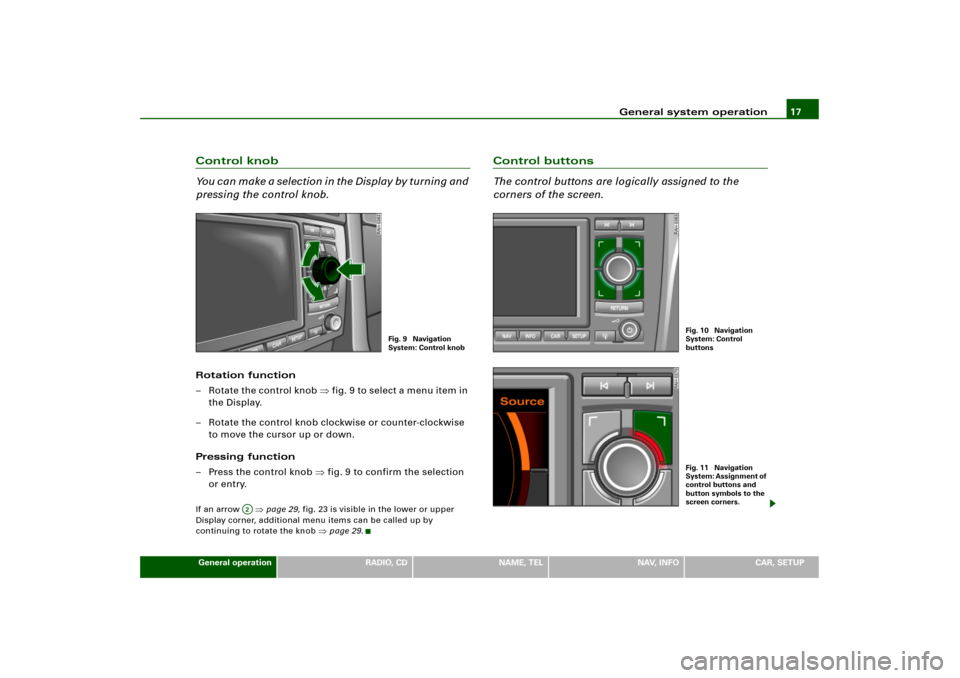
Control knob
Yo u c a n m a k e a s e l e c t i o n i n t h e D i s p l a y b y t u r n i n g a n d
pressing the control knob.Rotation function
– Rotate the control knob �fig.9 to select a menu item in
the Display.
– Rotate the control knob clockwise or counter-clockwise
to move the cursor up or down.
Pressing function
– Press the control knob �fig.9 to confirm the selection
or entry.If an arrow
�page 29, fig.23 is visible in the lower or upper
Display corner, additional menu items can be called up by
continuing to rotate the knob
�page 29.
Control buttons
The control buttons are logically assigned to the
corners of the screen.
Fig. 9 Navigation
System: Control knob
A�
��-8 ;
%���-�����
)2��
�� $������
/,�������-8 ;; %���-�����
)2��
�� ����-��
�� ��
.������ /,����� ���
/,���� �2�/��� �� ��
�.�
� .���
��8
Page 21 of 194
General system operation19
General operation
RADIO, CD
NAME, TEL
NAV, INFO
CAR, SETUP If you would like to scroll in an active radio station list using the
Forward/Reverse button, it is not necessary to show the station list
in the Navigation System display.
If the radio memory list
�page 61 is shown in the Navigation
System display, you can select a a station from the memory list by
pressing the Forward/Reverse button.
Main CD function is active
Pressing the button calls up the next CD track. If the button is
held down, fast forward is activated.
You can jump back to the previous track by pressing the button
within the first 10 seconds of play time for a track. After 10
s e c o n d s i t j um p s t o t h e s t a r t o f t h e t ra ck. I f t h e b ut to n is he l d d o w n ,
reverse is activated.
If you would like to scroll in an active CD track list using the
Forward/Reverse button or activate forward/reverse it is not neces-
sary to show the CD operating menu in the Navigation System
display.
Main MP3 function is active
Pressing the button c alls up the n e xt in the MP3 p layer. If the
button is held down, fast forward is activated.
You can jump back to the previous track by pressing the button
within the first 10 seconds of play time for a track. After 10
s e c o n d s i t j um p s t o t h e s t a r t o f t h e t ra ck. I f t h e b ut to n is he l d d o w n ,
reverse is activated.
If you would like to scroll in an active MP3 track list using the
Forward/Reverse button or activate forward/reverse it is not neces-
sary to show the MP3 operating menu in the Navigation System
display.
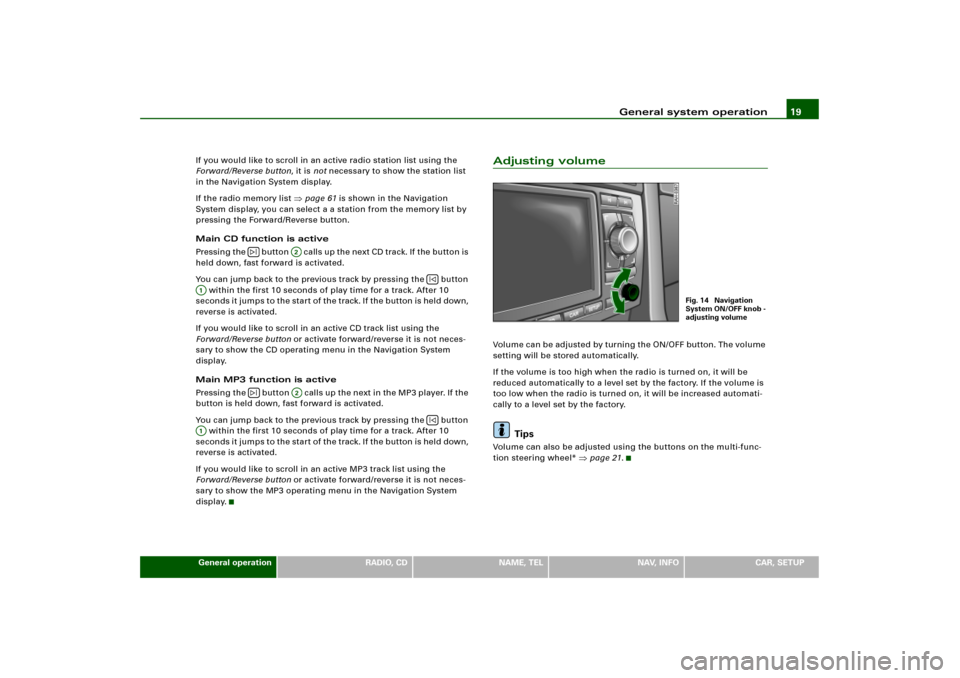
Adjusting volumeVolume can be adjusted by turning the ON/OFF button. The volume
setting will be stored automatically.
If the volume is too high when the radio is turned on, it will be
reduced automatically to a level set by the factory. If the volume is
too low when the radio is turned on, it will be increased automati-
cally to a level set by the factory.
Tips
Volume can also be adjusted using the buttons on the multi-func-
tion steering wheel*
�page 21.
�|
A2
|�
A1
�|
A2
|�
A1
Fig. 14 Navigation
System ON/OFF knob -
adjusting volume
Page 23 of 194
General system operation21
General operation
RADIO, CD
NAME, TEL
NAV, INFO
CAR, SETUP
Multi-function steering wheelApplies to vehicles: with multi-function steering wheelGeneral
The multi-function steering wheel enables quick and
easy operation of selected systems on the Navigation
System.To minimize driver distraction when operating the Navigation
System and its components, buttons for controlling basic audio
functions are placed on the multi-function steering wheel. However,
this applies only if your vehicle equipment was installed at the
factory.
Depending on the multi-function steering wheel in your vehicle, you
can use audio functions.
You use the buttons to operate the function that is active at the time.
For example, if you are listening to the radio, you can select the
last/next station from the station list using the or button on
the multi-function steering wheel with audio controls*.
The volume can be adjusted in each active function.
Of course, you can continue to use the audio functions from the
Navigation System.
Tips
If systems have not been installed in the vehicle, the button on the
multi-function steering wheel* assigned to that system is
inoperative.
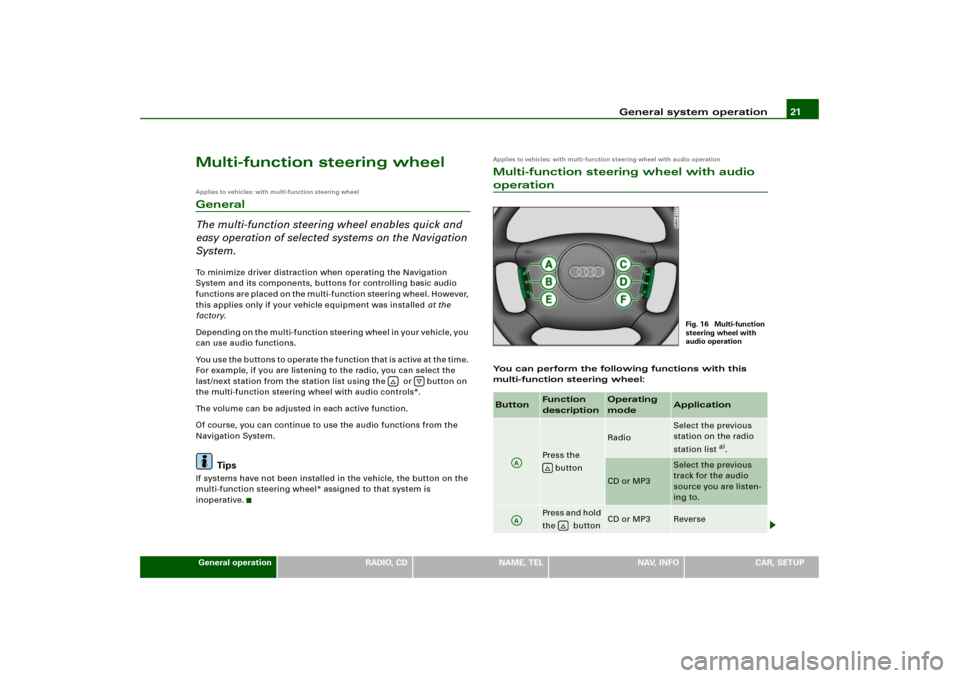
Applies to vehicles: with multi-function steering wheel with audio operationMulti-function steering wheel with audio operationYou can perform the following functions with this
multi-function steering wheel:
�
�
Button
Function
description
Operating
mode
Application
Press the
button
Radio
Select the previous
station on the radio
station list
a).
CD or MP3
Select the previous
track for the audio
source you are listen-
ing to.
Pres s and h old
the button
CD or MP3
Reverse
Fig. 16 Multi-function
steering wheel with
audio operation
AA
�
AA
�
Page 25 of 194
General system operation23
General operation
RADIO, CD
NAME, TEL
NAV, INFO
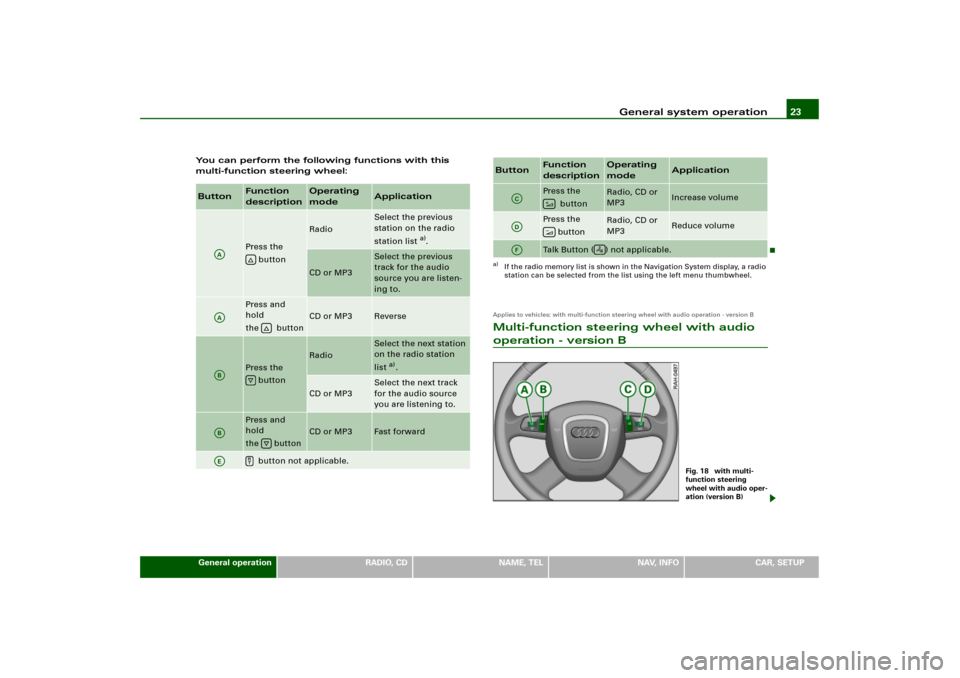
CAR, SETUP You can perform the following functions with this
multi-function steering wheel:
Applies to vehicles: with multi-function steering wheel with audio operation - version BMulti-function steering wheel with audio operation - version B
Button
Function
description
Operating
mode
Application
Press the
button
Radio
Select the previous
station on the radio
station list
a).
CD or MP3
Select the previous
track for the audio
source you are listen-
ing to.
Press and
hold
the button
CD or MP3
Reverse
Press the
button
Radio
Select the next station
on the radio station
list
a).
CD or MP3
Select the next track
for the audio source
you are listening to.
Press and
hold
the button
CD or MP3
Fast forward
button not applicable.
AA
�
AA
�
AB
�
AB
�
AE
�
Pres s th e
button
Radio, CD or
MP3
Increase volume
Pres s th e
button
Radio, CD or
MP3
Reduce volume
Talk Button ( ) not applicable.
a)If the radio memory list is shown in the Navigation System display, a radio
station can be selected from the list using the left menu thumbwheel.Button
Function
description
Operating
mode
Application
AC
�
AD
�
AF
�
Fig. 18 with multi-
function steering
wheel with audio oper-
ation (version B)
Page 27 of 194
General system operation25
General operation
RADIO, CD
NAME, TEL
NAV, INFO
CAR, SETUP
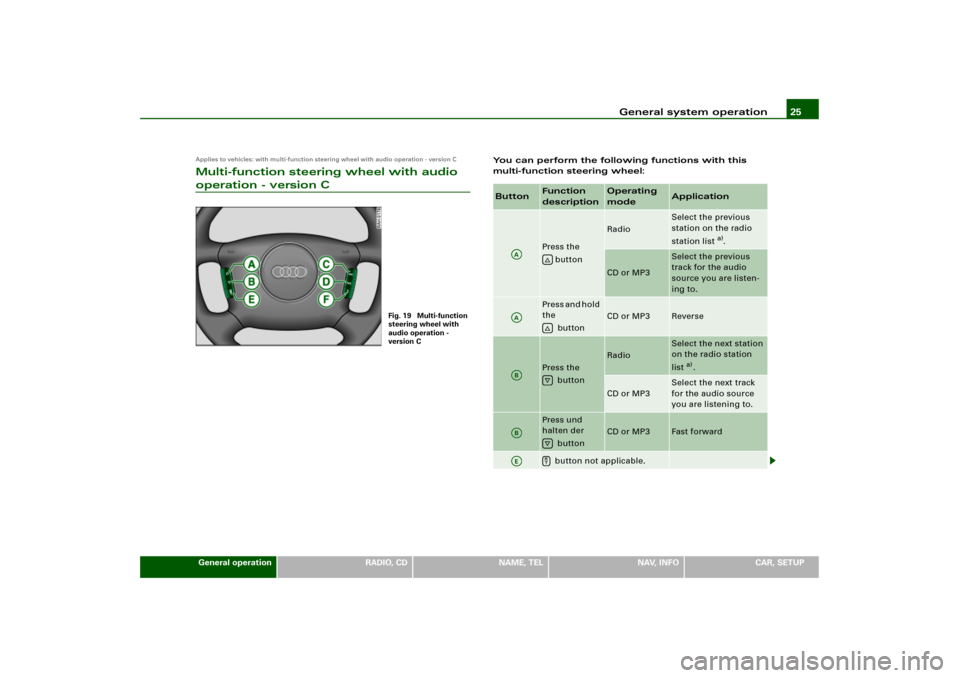
Applies to vehicles: with multi-function steering wheel with audio operation - version CMulti-function steering wheel with audio operation - version C
You can perform the following functions with this
multi-function steering wheel:
Fig. 19 Multi-function
steering wheel with
audio operation -
version C
Button
Function
description
Operating
mode
Application
Press the
button
Radio
Select the previous
station on the radio
station list
a).
CD or MP3
Select the previous
track for the audio
source you are listen-
ing to.
Press and hold
the
button
CD or MP3
Reverse
Press the
button
Radio
Select the next station
on the radio station
list
a).
CD or MP3
Select the next track
for the audio source
you are listening to.
Press und
halten der
button
CD or MP3
Fast forward
button not applicable.
AA
�
AA
�
AB
�
AB
�
AE
�
Page 29 of 194
Display27
General operation
RADIO, CD
NAME, TEL
NAV, INFO
CAR, SETUP
DisplayOrientationMain menu
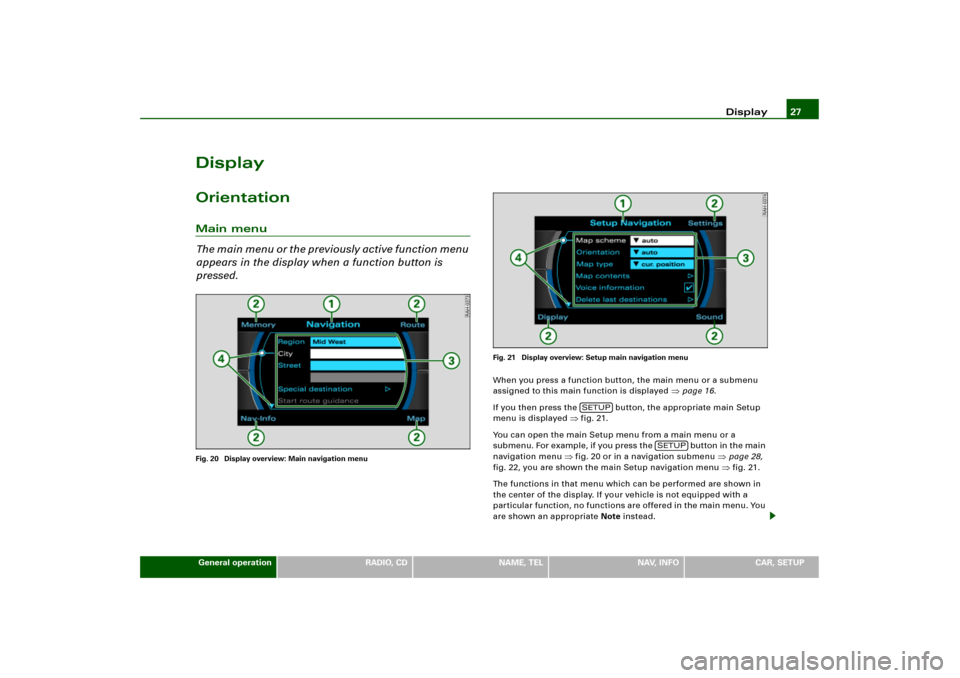
Th e m a i n m e n u o r t h e p r e v i o u s l y a c t i v e f u n c t i o n m e n u
appears in the display when a function button is
pressed.Fig. 20 Display overview: Main navigation menuFig. 21 Display overview: Setup main navigation menu
When you press a function button, the main menu or a submenu
assigned to this main function is displayed
�page 16.
If you then press the button, the appropriate main Setup
menu is displayed
�fig.21.
You can open the main Setup menu from a main menu or a
sub men u. For e x amp le , if you press the button in the main
navigation menu
�fig.20 or in a navigation submenu
�page 28,
fig.22, you are shown the main Setup navigation menu �fig.21.
The functions in that menu which can be performed are shown in
the center of the display. If your vehicle is not equipped with a
particular function, no functions are offered in the main menu. You
are shown an appropriate Note instead.
SETUP
SETUP
Page 31 of 194
Display29
General operation
RADIO, CD
NAME, TEL
NAV, INFO
CAR, SETUP
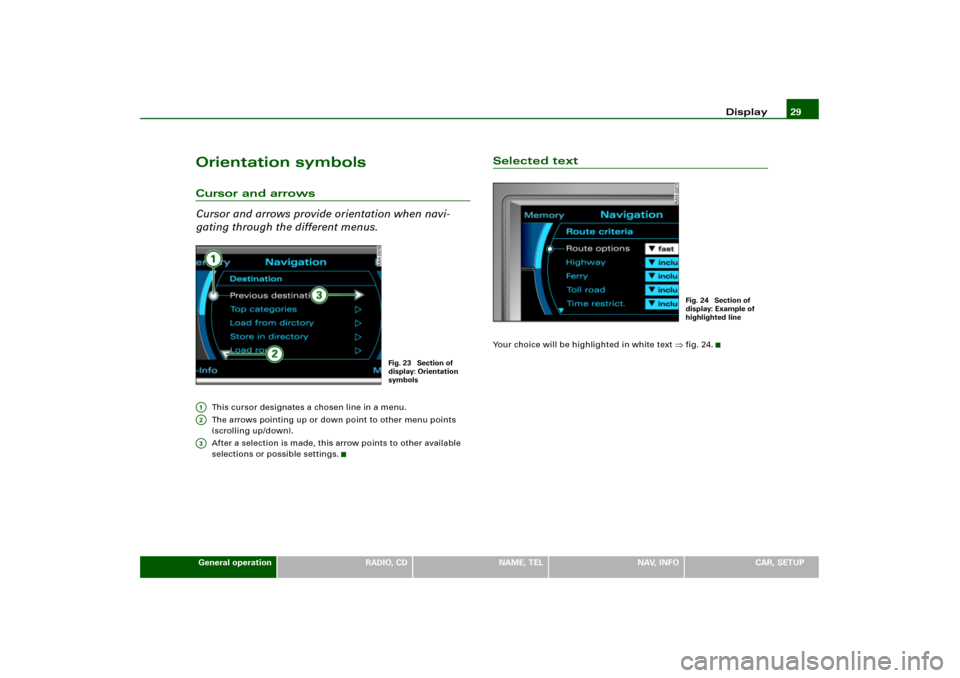
Orientation symbolsCursor and arrows
Cursor and arrows provide orientation when navi-
gating through the different menus.
This cursor designates a chosen line in a menu.
The arrows pointing up or down point to other menu points
(scrolling up/down).
After a selection is made, this arrow points to other available
selections or possible settings.
Selected textYour choice will be highlighted in white text
�fig.24.
Fig. 23 Section of
display: Orientation
symbols
A1A2A3
Fig. 24 Section of
display: Example of
highlighted line