2006 Seat Cordoba PROG
[x] Cancel search: PROGPage 25 of 70
Radio 22
Tuning programmes with RDS (LEARN
function)
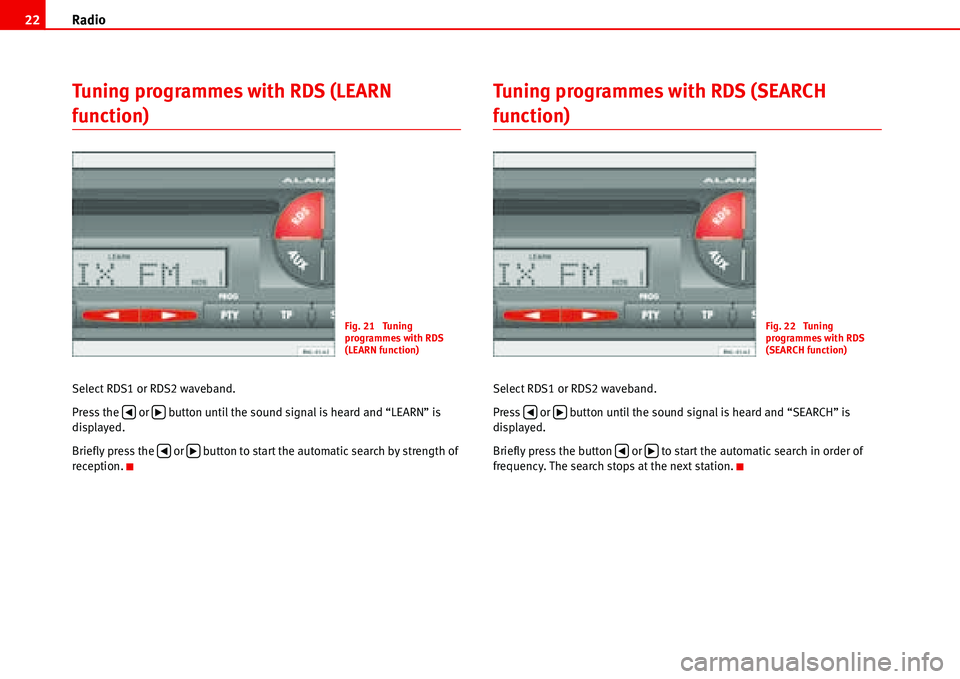
Select RDS1 or RDS2 waveband.
Press the or button until the sound signal is heard and “LEARN” is
displayed.
Briefly press the or button to start the automatic search by strength of
reception.
Tuning programmes with RDS (SEARCH
function)
Select RDS1 or RDS2 waveband.
Press or button until the sound signal is heard and “SEARCH” is
displayed.
Briefly press the button or to start the automatic search in order of
frequency. The search stops at the next station.
Fig. 21 Tuning
programmes with RDS
(LEARN function)
‚b
‚b
Fig. 22 Tuning
programmes with RDS
(SEARCH function)
‚b
‚b
Page 26 of 70
Radio23
Tuning AM stations using the automatic
search
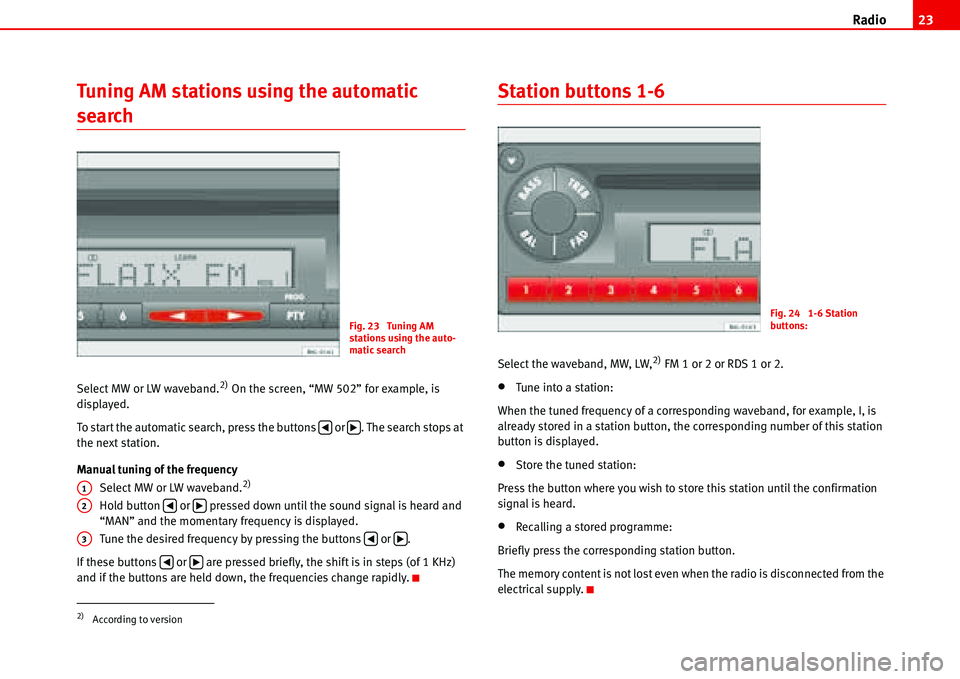
Select MW or LW waveband.2) On the screen, “MW 502” for example, is
displayed.
To start the automatic search, press the buttons or . The search stops at
the next station.
Manual tuning of the frequency
Select MW or LW waveband.
2)
Hold button or pressed down until the sound signal is heard and
“MAN” and the momentary frequency is displayed.
Tune the desired frequency by pressing the buttons or .
If these buttons or are pressed briefly, the shift is in steps (of 1 KHz)
and if the buttons are held down, the frequencies change rapidly.
Station buttons 1-6
Select the waveband, MW, LW,2) FM 1 or 2 or RDS 1 or 2.
•Tune into a station:
When the tuned frequency of a corresponding waveband, for example, I, is
already stored in a station button, the corresponding number of this station
button is displayed.
•Store the tuned station:
Press the button where you wish to store this station until the confirmation
signal is heard.
•Recalling a stored programme:
Briefly press the corresponding station button.
The memory content is not lost even when the radio is disconnected from the
electrical supply.
2)According to version
Fig. 23 Tuning AM
stations using the auto-
matic search
‚b
A1
A2‚b
A3‚b
‚b
Fig. 24 1-6 Station
buttons:
Page 27 of 70
Radio 24
Switching to traffic messages
When TP (Traffic Program) is displayed, the radio is available to receive
messages relating to traffic conditions in any operating mode.
Activating TP
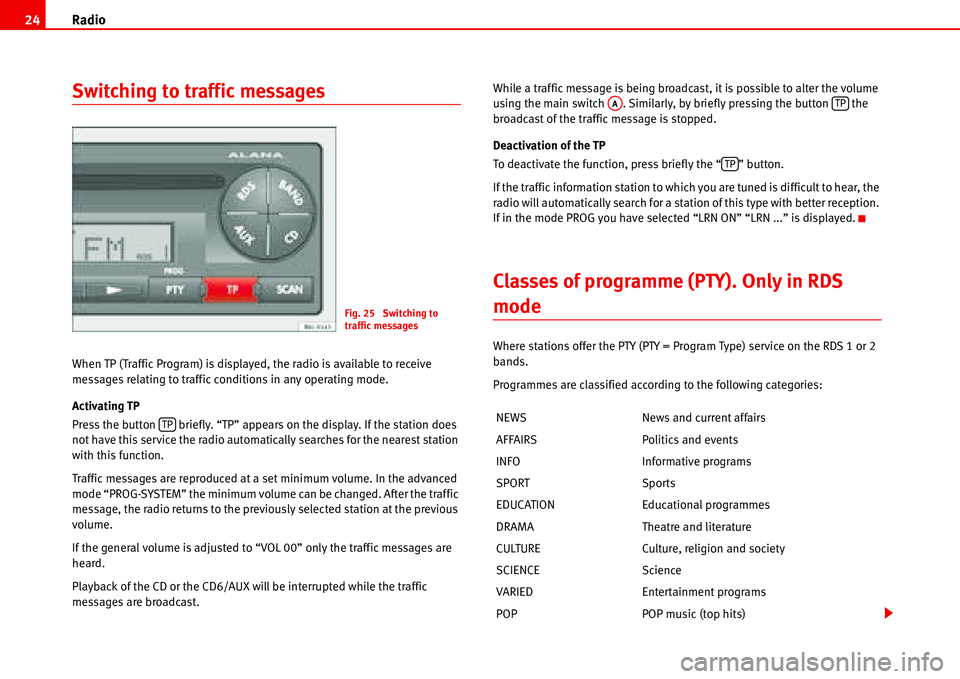
Press the button briefly. “TP” appears on the display. If the station does
not have this service the radio automatically searches for the nearest station
with this function.
Traffic messages are reproduced at a set minimum volume. In the advanced
mode “PROG-SYSTEM” the minimum volume can be changed. After the traffic
message, the radio returns to the previously selected station at the previous
volume.
If the general volume is adjusted to “VOL 00” only the traffic messages are
heard.
Playback of the CD or the CD6/AUX will be interrupted while the traffic
messages are broadcast.While a traffic message is being broadcast, it is possible to alter the volume
using the main switch . Similarly, by briefly pressing the button the
broadcast of the traffic message is stopped.
Deactivation of the TP
To deactivate the function, press briefly the “ ” button.
If the traffic information station to which you are tuned is difficult to hear, the
radio will automatically search for a station of this type with better reception.
If in the mode PROG you have selected “LRN ON” “LRN ...” is displayed.
Classes of programme (PTY). Only in RDS
mode
Where stations offer the PTY (PTY = Program Type) service on the RDS 1 or 2
bands.
Programmes are classified according to the following categories:
Fig. 25 Switching to
traffic messages
TPNEWS News and current affairs
AFFAIRS Politics and events
INFO Informative programs
SPORT Sports
EDUCATION Educational programmes
DRAMA Theatre and literature
CULTURE Culture, religion and society
SCIENCE Science
VARIED Entertainment programs
POP POP music (top hits)
AATP
TP
Page 28 of 70
Radio25
PTY programme keys
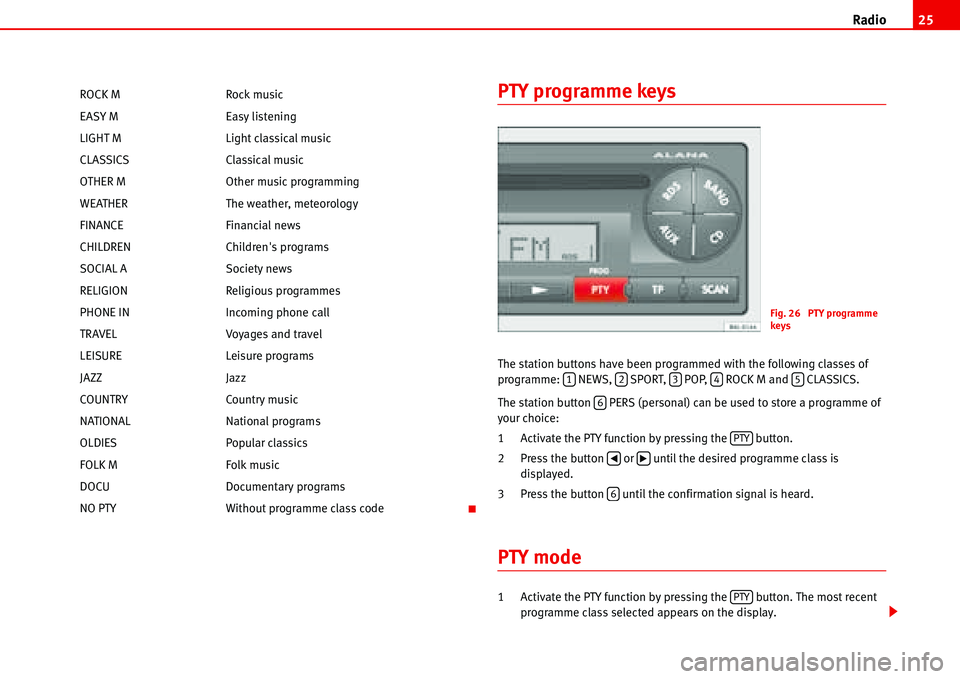
The station buttons have been programmed with the following classes of
programme: NEWS, SPORT, POP, ROCK M and CLASSICS.
The station button PERS (personal) can be used to store a programme of
your choice:
1 Activate the PTY function by pressing the button.
2 Press the button or until the desired programme class is
displayed.
3 Press the button until the confirmation signal is heard.
PTY mode
1 Activate the PTY function by pressing the button. The most recent
programme class selected appears on the display. ROCK M Rock music
EASY M Easy listening
LIGHT M Light classical music
CLASSICS Classical music
OTHER M Other music programming
WEATHER The weather, meteorology
FINANCE Financial news
CHILDREN Children's programs
SOCIAL A Society news
RELIGION Religious programmes
PHONE IN Incoming phone call
TRAVEL Voyages and travel
LEISURE Leisure programs
JAZZ Jazz
COUNTRY Country music
NATIONAL National programs
OLDIES Popular classics
FOLK M Folk music
DOCU Documentary programs
NO PTY Without programme class code
Fig. 26 PTY programme
keys
12345
6
PTY
‚b
6
PTY
Page 29 of 70
Radio 26
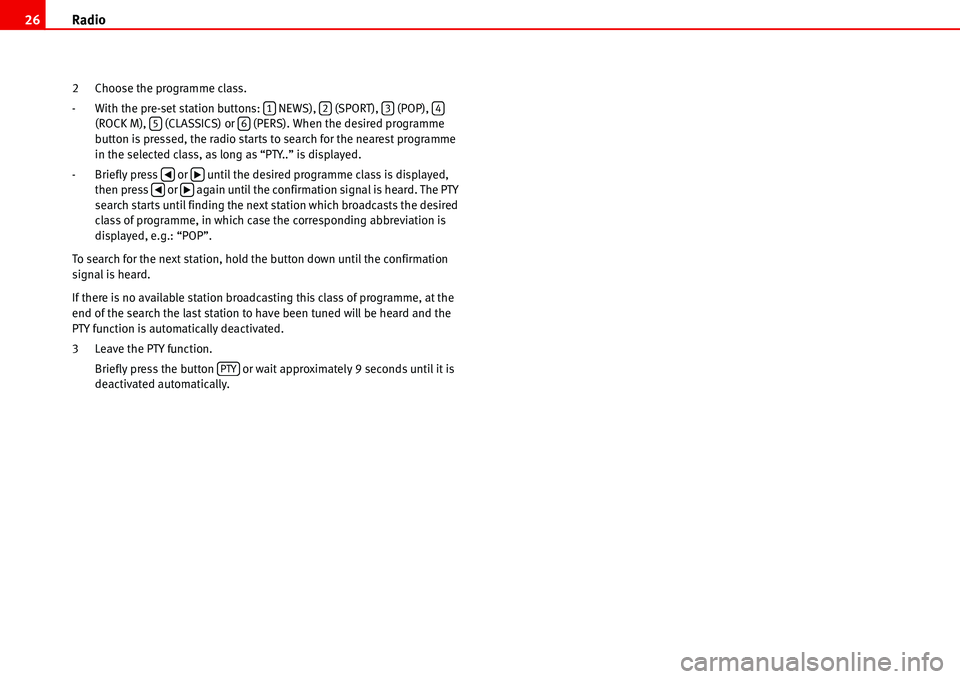
2 Choose the programme class.
- With the pre-set station buttons: NEWS), (SPORT), (POP),
(ROCK M), (CLASSICS) or (PERS). When the desired programme
button is pressed, the radio starts to search for the nearest programme
in the selected class, as long as “PTY..” is displayed.
- Briefly press or until the desired programme class is displayed,
then press or again until the confirmation signal is heard. The PTY
search starts until finding the next station which broadcasts the desired
class of programme, in which case the corresponding abbreviation is
displayed, e.g.: “POP”.
To search for the next station, hold the button down until the confirmation
signal is heard.
If there is no available station broadcasting this class of programme, at the
end of the search the last station to have been tuned will be heard and the
PTY function is automatically deactivated.
3 Leave the PTY function.
Briefly press the button or wait approximately 9 seconds until it is
deactivated automatically.
123456
‚b‚b
PTY
Page 43 of 70
Apple* iPod ® connection 40
The first five playlists stored on your iPod ® can be chosen directly by using
the function keys to on the sound system. The existing playlists will be
assigned by numerical / alphabetical order to the keys to . If, for
example, the function key of the sound system is pressed, the songs on
the second playlist will be played. If an empty or non-existant playlist is
selected, the next playlist will be selected.
To make use of the playlists in the vehicle as easy as possible, we recommend
editing a maximum of five playlists in the iPod
®. If you want to play songs
from a playlist that cannot be selected directly by the function keys to ,
we recommend renaming the list using the “iTunes” computer programme so
that it is among the first six on the iPod
® hard disk.
Remember that some versions of iTunes contain predetermined playlists (on-
the-go, my favourites). These folders also count in the total of six that the
vehicle sound system can play. Ensure that they are ordered and arranged
conveniently.
Pressing the key will enable all the songs on the iPod to be played.
Consult the iPod
® manufacturer's instruction manual to learn how to select
and store songs and create playlists.
Play all recorded songs
If the function key of the sound system is pressed, all the songs on the
iPod
® will be played.
Selecting songs manually on the iPod
®
The iPod® also allows songs to be selected directly Select the song on the
iPod® and attach it to the connector. The sound system will play the selected
song.
When the song finishes, all the remaining songs in the same group on the
iPod
® will be played (by artist, genre, album, playlist...)
WARNING
It is vital that attention is not diverted from the traffic. Use the iPod ® only
when the situation allows. Any distraction may lead to an accident, with
the risk of injury.
•Never lose visual contact with the road in order to adjust or use the
iPod® and the sound system.
•Use the iPod® only when the state of the road, the weather and traffic
conditions permit.
•When adjusting the volume, ensure that external noise such as ambu-
lance or police sirens can still be heard.
Note
•The multi-function steering wheel can also be used to select songs6)
•If many songs are skipped, there may be a delay during playback. THe
duration will depend on, among other things, the type of iPod® used.
•Depending on the sound system, when changing a playlist, a song from
the previous list may be played. This is a system function and not an error.
•The information stored on the iPod® such as artist, title, album, music
type is not processed by the iPod® adaptor. Songs cannot be selected
according to these search criteria, and no indication is given on the sound
system panel.
•The “repetition” is automatically activated when turning the iPod® on in
the adaptor. When playback reaches the end of a playlist, it will start again at
the beginning.
•If the iPod® has the “random” function activated when attached to the
adaptor, it will also be selected in the sound system and can be disactivated
by pressing the key or (depending on the sound system) twice.
The numbers of the titles on the sound system screen are counted accord-
ingly.
15152
15
6
CD 6
6)Optional equipment
MIXtrnd
Page 57 of 70
PROG-System 54
PROG-System
PROG settings
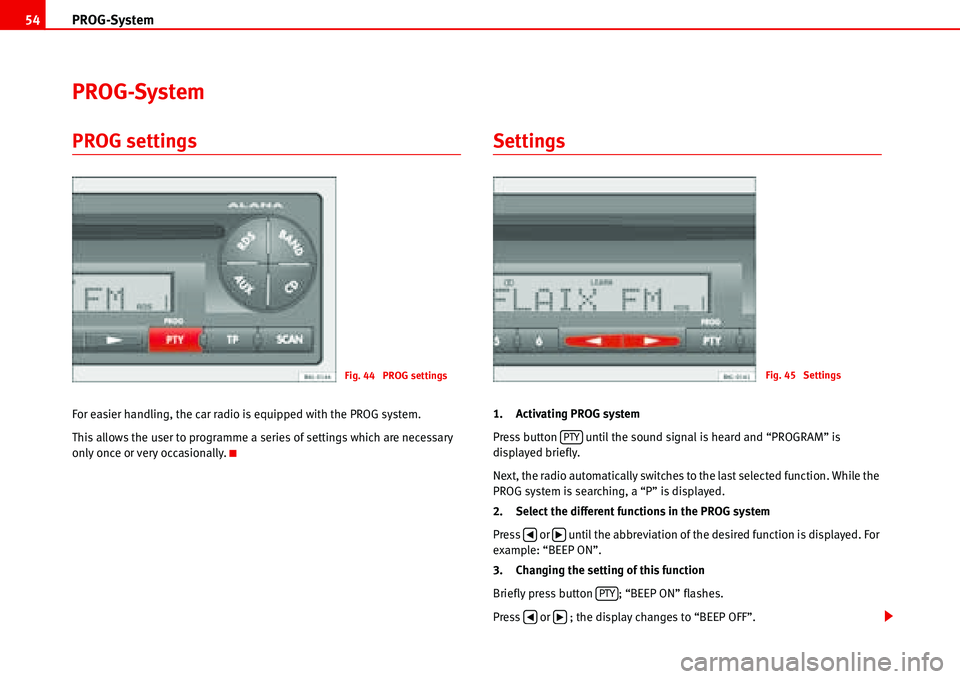
For easier handling, the car radio is equipped with the PROG system.
This allows the user to programme a series of settings which are necessary
only once or very occasionally.
Settings
1. Activating PROG system
Press button until the sound signal is heard and “PROGRAM” is
displayed briefly.
Next, the radio automatically switches to the last selected function. While the
PROG system is searching, a “P” is displayed.
2. Select the different functions in the PROG system
Press or until the abbreviation of the desired function is displayed. For
example: “BEEP ON”.
3. Changing the setting of this function
Briefly press button ; “BEEP ON” flashes.
Press or ; the display changes to “BEEP OFF”.
Fig. 44 PROG settingsFig. 45 Settings
PTY
‚b
PTY
‚b
Page 58 of 70
PROG-System55
4. Activating the new setting
Press the button briefly. “BEEP OFF” on the display stops flashing.
At this point we can reselect and set another function by repeating points 2
to 5, or:
5. Ending settings
Press the button / until the confirmation signal is heard.
Possible functions and settings of the PROG-
System
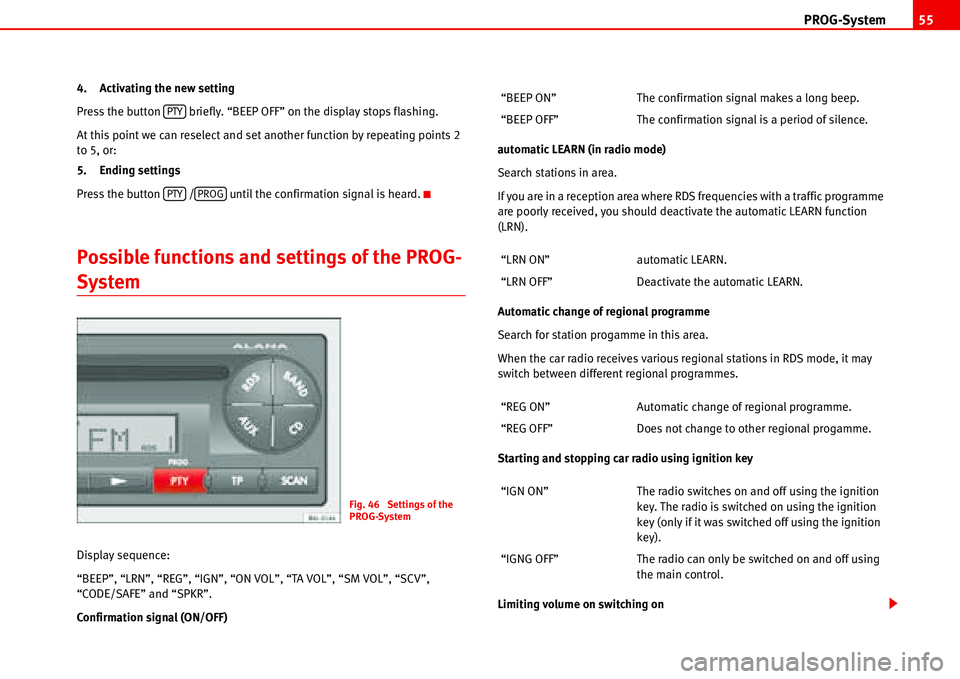
Display sequence:
“BEEP”, “LRN”, “REG”, “IGN”, “ON VOL”, “TA VOL”, “SM VOL”, “SCV”,
“CODE/SAFE” and “SPKR”.
Confirmation signal (ON/OFF)automatic LEARN (in radio mode)
Search stations in area.
If you are in a reception area where RDS frequencies with a traffic programme
are poorly received, you should deactivate the automatic LEARN function
(LRN).
Automatic change of regional programme
Search for station progamme in this area.
When the car radio receives various regional stations in RDS mode, it may
switch between different regional programmes.
Starting and stopping car radio using ignition key
Limiting volume on switching on
PTY
PTYPROG
Fig. 46 Settings of the
PROG-System
“BEEP ON” The confirmation signal makes a long beep.
“BEEP OFF” The confirmation signal is a period of silence.
“LRN ON” automatic LEARN.
“LRN OFF” Deactivate the automatic LEARN.
“REG ON” Automatic change of regional programme.
“REG OFF” Does not change to other regional progamme.
“IGN ON” The radio switches on and off using the ignition
key. The radio is switched on using the ignition
key (only if it was switched off using the ignition
key).
“IGNG OFF” The radio can only be switched on and off using
the main control.