2006 GMC SIERRA phone
[x] Cancel search: phonePage 293 of 600

Listening to a DVD
If your vehicle has the Rear Seat Entertainment (RSE)
system and a DVD is playing, the DVD symbol will
appear on the radio display indicating that the DVD is
available and can be listened to through your vehicle’s
speakers.
To listen to the DVD, press the CD AUX button until RSE
appears on the radio display. The current radio source
will stop and the DVD sound will come through the
speakers.
To stop listening to the DVD, press the CD AUX button,
if a CD is loaded, or press the BAND button to select
a different source.
When the RSE system is turned off, the DVD symbol will
go off of the radio display and RSE OFF will appear on
the radio display. The radio will return to the last radio
source that you were listening to.
SeeRear Seat Entertainment System on page 3-115for
more information.
Rear Seat Entertainment System
Your vehicle may have a DVD Rear Seat
Entertainment (RSE) system. The RSE system
includes a DVD player, a video display screen,
two sets of wireless headphones, and a remote
control.
Parental Control
This button is located behind the video screen. Press
this button while a DVD or CD is playing to freeze the
video and mute the audio. The video screen will display
Parental Control ON and the power indicator light on the
DVD player will ash. It will also disable all other button
operations from the remote control and the DVD player,
with the exception of the eject button. Press this button
again to restore operation of the DVD player.
This button may also be used to turn the DVD player
power on and automatically resume play if the ignition
is in RUN, ACCESSORY, or if RAP is active.
Before You Drive
The RSE system is for rear seat passengers only. The
driver cannot safely view the video screen while driving
and should not try to do so.
3-115
Page 294 of 600

Headphones
The RSE system includes two sets of wireless
headphones.
Each set of headphones has an ON/OFF control. An
indicator light will illuminate on the headphones when
they are on. If the light does not illuminate, the batteries
may need to be replaced. See “Battery Replacement”
following for more information.
Each set of headphones has a volume knob. To adjust
the volume, adjust this knob.
The transmitters are located below the video display
screen. The headphones will shut off automatically if they
lose the signal from the system after about four minutes
to save battery power. The signal may be lost if the
system is turned off or if the headphones are out of
range of the transmitters.
When using the wired headphones, if the front seat
passengers play a CD in the Radio with Six-Disc CD
(if equipped) or use XM™ Satellite Radio Service
(if equipped), you will hear the audio for these sources,
instead of the DVD or CD that is currently playing through
the RSE.
Notice:Do not store the headphones in heat or
direct sunlight. This could damage the headphones
and repairs will not be covered by your warranty.
Keep the headphones stored in a cool, dry place.Both sets of rear seat headphones may include foam
ear pads that can be replaced.
Foam ear pads on these headphones may become worn
or damaged. The headphone foam ear pads can become
damaged if they are not handled or stored properly. If the
foam ear pads do become damaged or worn out, the
pads can be replaced separately from the headphone
set. It is not necessary to replace the complete
headphone set.
The headphone replacement foam ear pads can be
ordered in pairs. See your dealer for more information.
Battery Replacement
To change the batteries, do the following:
1. Loosen the screw on the battery compartment door
located on the left side of the headphone earpiece.
2. Replace the two AAA batteries in the compartment.
Make sure that they are installed correctly, using the
diagram on the inside of the battery compartment.
3. Tighten the screw to close the compartment door.
If the headphones are to be stored for a long period
of time, remove the batteries and keep them in a cool,
dry place.
3-116
Page 296 of 600

Audio Output
Audio from the DVD player or auxiliary inputs may be
heard through the following possible sources:
Wireless Headphones
Vehicle Speakers
Vehicle wired headphone jacks on the Rear Seat
Audio system (if equipped)
The RSE system will always transmit the audio signal
by infrared to the wireless headphones, if there is audio
available. See “Headphones” previously for more
information.
The RSE system is capable of outputting audio to the
vehicle speakers by using the radio. The RSE system
may be selected as an audio source on the radio if the
RSE system power is on. Once the RSE system is
selected as an audio source on the radio, adjust the
speaker volume on the radio, if necessary. If the RSE
system power is not on, the RSE system will not be
an available source on the radio. Refer to the radio
information for the radio that your vehicle has for more
information.
The RSE system is capable of outputting audio to the
wired headphone jacks on the rear seat audio system
(if equipped). The RSE system may be selected as an
audio source on the rear seat audio system if the RSE
system power is on. Refer toRear Seat Audio (RSA)
on page 3-127for more information.
Video Screen
The video screen is located in the overhead console. To
use the video screen, push forward on the release latch
and the screen will fold down. Adjust the screen’s position
as desired. When the video screen is not in use, push it
up into its latched position.
The DVD player and display will continue to operate
when the screen is in the up or the down position. The
video screen contains the transmitters for the wireless
headphones and the remote control. If the screen is in
the closed position, the signals will not be available for
the operation of the headphones or the remote control.
Notice:Avoid directly touching the video screen,
as damage may occur. See “Cleaning the Video
Screen” later in this section for more information.
DVD Player
The DVD player is located in the overhead console. The
DVD player can be controlled by the buttons on the DVD
player and/or by the buttons on the remote control.
See “Remote Control” later in this section for more
information.
The DVD player power may be turned on when the
ignition is in RUN, ACCESSORY, or when Retained
Accessory Power (RAP) is active.
3-118
Page 297 of 600

The RSE system DVD player is only compatible with
DVDs of the appropriate region code for the country that
the vehicle was sold in. The DVD region code is printed
on the jacket of most DVDs.
Standard audio CDs, CD-R, CD-RW, Video CD and
Photo CD/CD-R media are fully supported by this DVD
player. DVD-R and DVD-RW media is supported if
formatted as DVD-Video. DVD+R and DVD+RW media
may or may not be supported by the DVD player. The
DVD player does not support DVD-RAM, DVD-ROM, and
DVD Audio media. An error message will appear on the
display if this type of media is inserted into the DVD
player.
When using the wired headphones, not included, if
the front seat passengers play a CD in the Radio with
Six-Disc CD (if equipped) or use XM™ Satellite Radio
Service (if equipped), you will hear the audio for these
sources, instead of the DVD or CD that is currently
playing through the RSE.
If an error message appears on the video screen,
see “DVD Messages” later in this section.
DVD Player Buttons
O(Power):Press this button to turn the RSE system on
and off. The power indicator light will illuminate when the
power is on.
X(Eject):Press this button to eject a DVD or CD.
SRCE (Source):Press this button to switch between
the DVD player and an auxiliary source.
c(Stop):Press this button to stop playing, rewinding,
or fast forwarding a DVD or CD. Press this button twice to
return to the beginning of the DVD.
s(Play/Pause):Press this button to start play of
a DVD or CD. Press this button while a DVD or CD is
playing to pause it. Press this button again to continue
the play of the DVD or CD.
3-119
Page 304 of 600

Problem Recommended Action
Sometimes the wireless
headphone audio cuts out
or buzzes.Check for obstructions,
low batteries, reception
range, and interference
from cellular telephone
towers or by using your
cellular telephone in the
vehicle.
Check that the
headphones are facing
the front of the vehicle.
I lost the remote and/or
the headphones.See your dealer for
assistance.
The DVD is playing,
but there is no picture
or sound.Check that the DVD player
is in DVD mode.
The audio/video skips or
jumps.The DVD or CD could
be dirty, scratched, or
damaged.
The audio from the radio
for the Radio with Six-Disc
CD and XM™ has taken
over the audio from the
DVD or CD when using
the wired headphones.The RSE is working
correctly.
Use the wireless
headphones or have the
front seat passengers
listen to another audio
source.DVD Messages
The following errors may be displayed on the video
screen:
Disc Format Error:This message will be displayed if a
disc is inserted upside down, if the disc is not readable,
or if the format is not compatible with the DVD player.
Load/Eject Error:This message will be displayed if the
disc is not properly loaded or ejected.
Disc Play Error:This message will be displayed if the
DVD player cannot play the disc. Scratched or damaged
discs will cause this error.
Region Code Error:This message will be displayed if
the region code of the DVD is not compatible with the
region code of the DVD player.
No Disc:This message will be displayed if any of the
buttons on the DVD faceplate or remote control are
pressed and no disc is present in the DVD player.
3-126
Page 305 of 600
DVD Distortion
There may be an experience with audio distortion in
the wireless headphones when operating cellular
phones, scanners, CB radios, Global Positioning
Systems (GPS)*, two-way radios, mobile fax, or
walkie talkies.
It may be necessary to turn off the DVD player when
operating one of these devices in or near the vehicle.
* Excludes the OnStar
®System.
Cleaning the Video Screen
Pour some isopropyl or rubbing alcohol on a clean cloth
and gently wipe the video screen. Do not spray directly
onto the screen and do not press too hard or too long on
the video screen.
Rear Seat Audio (RSA)
This feature allows rear seat passengers to listen to any
of the sources: radio, cassette tapes, CDs, or DVDs.
However, the rear seat passengers can only control the
sources that the front seat passengers are not listening
to. For example, rear seat passengers may listen to
and control cassette tapes, CDs, or DVDs through the
headphones while the driver listens to the radio through
the front speakers. The rear seat passengers have
control of the volume for each set of headphones.
The front seat audio controls always have priority over
the RSA controls. If the front seat passengers switch the
source for the main radio to a remote source, the RSA will
not be able to control the source. You can operate the
rear seat audio when the main radio is off.
3-127
Page 306 of 600
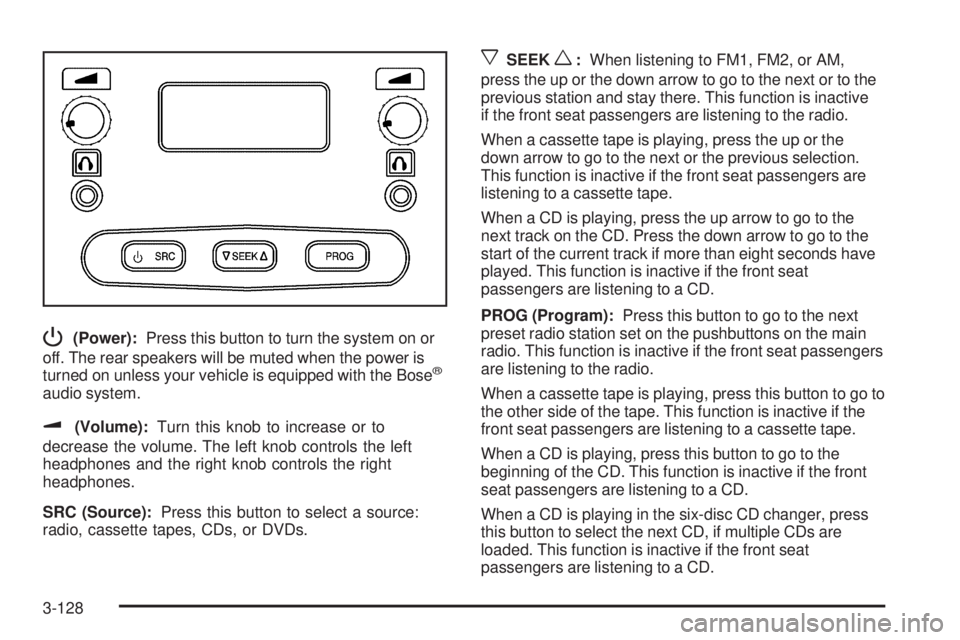
P(Power):Press this button to turn the system on or
off. The rear speakers will be muted when the power is
turned on unless your vehicle is equipped with the Bose
®
audio system.
u(Volume):Turn this knob to increase or to
decrease the volume. The left knob controls the left
headphones and the right knob controls the right
headphones.
SRC (Source):Press this button to select a source:
radio, cassette tapes, CDs, or DVDs.
xSEEKw:When listening to FM1, FM2, or AM,
press the up or the down arrow to go to the next or to the
previous station and stay there. This function is inactive
if the front seat passengers are listening to the radio.
When a cassette tape is playing, press the up or the
down arrow to go to the next or the previous selection.
This function is inactive if the front seat passengers are
listening to a cassette tape.
When a CD is playing, press the up arrow to go to the
next track on the CD. Press the down arrow to go to the
start of the current track if more than eight seconds have
played. This function is inactive if the front seat
passengers are listening to a CD.
PROG (Program):Press this button to go to the next
preset radio station set on the pushbuttons on the main
radio. This function is inactive if the front seat passengers
are listening to the radio.
When a cassette tape is playing, press this button to go to
the other side of the tape. This function is inactive if the
front seat passengers are listening to a cassette tape.
When a CD is playing, press this button to go to the
beginning of the CD. This function is inactive if the front
seat passengers are listening to a CD.
When a CD is playing in the six-disc CD changer, press
this button to select the next CD, if multiple CDs are
loaded. This function is inactive if the front seat
passengers are listening to a CD.
3-128
Page 308 of 600

PROG (Program):Press this button to play a station
you have programmed on the radio preset pushbuttons.
The radio will only seek preset stations with a strong
signal that are in the selected band.
When a cassette tape is playing, press this button to
play the other side of the tape.
When a CD is playing in the CD changer, press this
button to go to the next available CD, if multiple CDs
are loaded.
QSOURCER:Press this button to switch between
FM1, FM2, AM, or XM1 or XM2 (if equipped), or a
cassette tape or CD. The cassette or CD must be
loaded to play. Available loaded sources are shown
on the display as a tape or a CD symbol.
QSEEKR:Press the up or the down arrow to go to
the next or to the previous radio station and stay there.
The radio will only seek stations with a strong signal that
are in the selected band.
When a cassette tape or CD is playing, press the up or
the down arrow to fast forward or reverse.
QVOLR(Volume):Press the up or the down arrow
to increase or to decrease the volume.
Radio Reception
You may experience frequency interference and static
during normal radio reception if items such as cellphone
chargers, vehicle convenience accessories, and external
electronic devices are plugged into the accessory power
outlet. If there is interference or static, unplug the item
from the accessory power outlet.
AM
The range for most AM stations is greater than for FM,
especially at night. The longer range can cause station
frequencies to interfere with each other. For better radio
reception, most AM radio stations will boost the power
levels during the day, and then reduce these levels during
the night. Static can also occur when things like storms
and power lines interfere with radio reception. When this
happens, try reducing the treble on your radio.
FM Stereo
FM stereo will give the best sound, but FM signals will
reach only about 10 to 40 miles (16 to 65 km). Tall
buildings or hills can interfere with FM signals, causing
the sound to fade in and out.
3-130